If you’ve ever wanted to play your favorite mobile games on a bigger screen, or run Android apps on your computer, you might have come across BlueStacks. It’s one of the most popular Android emulators out there, allowing users to bring the mobile experience to their desktop or laptop. But with so many emulators available, you might be wondering: Is BlueStacks safe to use? In this guide, we’ll dive into how BlueStacks works, its popularity among gamers, and most importantly, how safe it is to use on your devices.
Understanding BlueStacks
What is BlueStacks?
BlueStacks is a popular software that allows you to run Android apps on your computer or Mac. It acts as an emulator, meaning it mimics an Android device’s environment on a different platform. This makes it easier for users to play mobile games, use apps, or test Android software on a larger screen, with the power of a desktop.
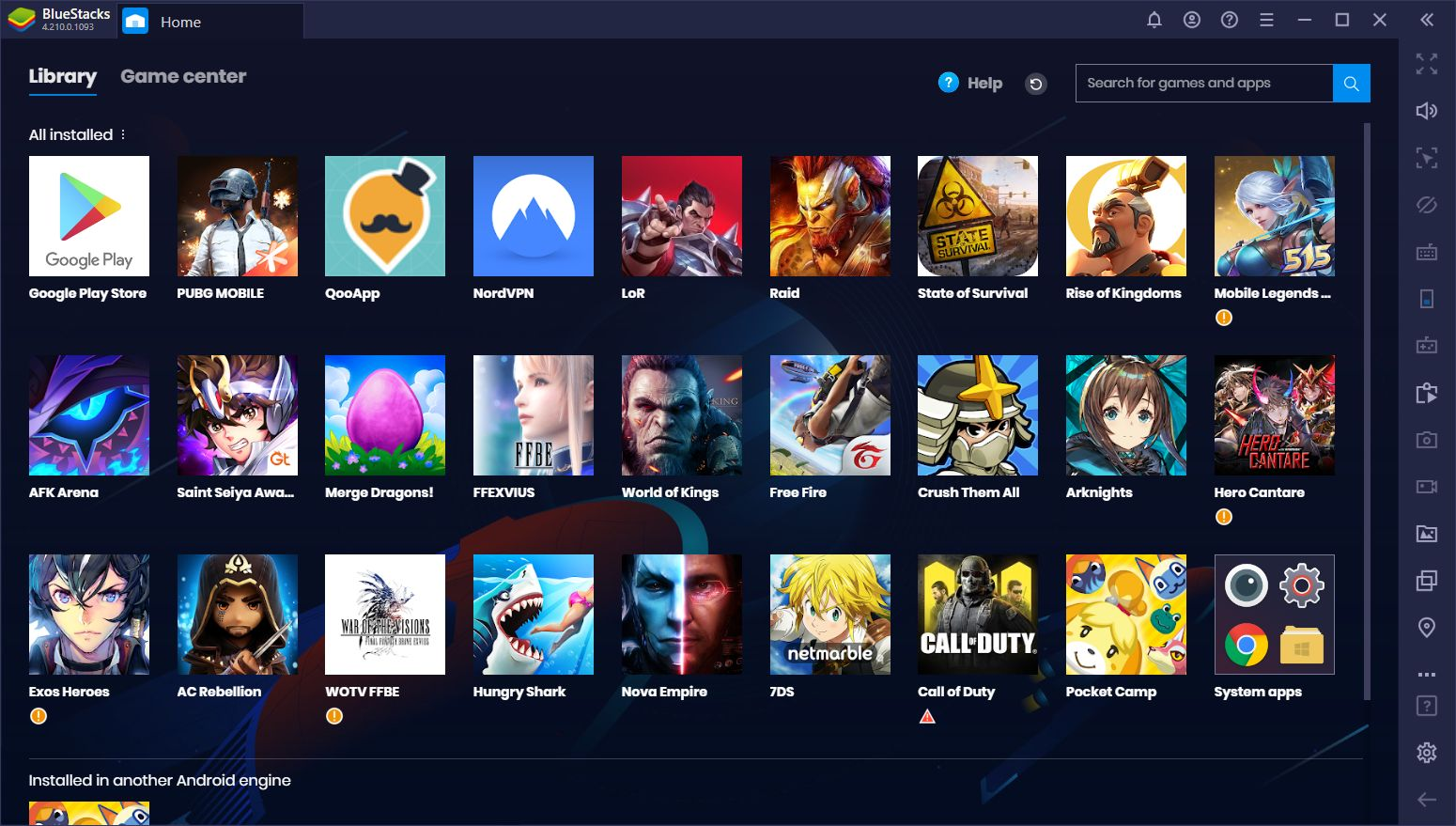
BlueStacks is known for being user-friendly, making it a go-to tool for those who prefer using their computer for mobile gaming. It also supports many Android apps, including popular games like Clash of Clans, PUBG Mobile, and Candy Crush, which are played by millions worldwide.
How Does BlueStacks Work?
BlueStacks works by creating a virtual Android system on your computer. Once installed, the software allows you to download and run apps just like you would on an Android phone. It creates a sandboxed environment where the apps can run safely without affecting your computer’s system files.
For gaming, BlueStacks offers enhanced performance by allowing users to play mobile games on a PC or Mac, with better graphics and smoother controls. This makes it a popular choice for gamers who want to enjoy their favorite mobile games with the added power of a computer’s hardware.
Popularity and Usage Among Gamers
BlueStacks has gained immense popularity, especially among gamers. According to recent reports, over 500 million users have downloaded BlueStacks, making it one of the most used Android emulators worldwide. Gamers flock to BlueStacks for its ability to run mobile games seamlessly on PC, which can be a huge advantage in competitive gaming.
One example is PUBG Mobile, which has a huge player base. Many players prefer using BlueStacks for the game because it provides better graphics and smoother gameplay compared to mobile devices. This has made BlueStacks a go-to tool for mobile gamers who want a more immersive gaming experience.
Safety and Security Concerns
Is BlueStacks Safe? Key Considerations
When it comes to using any software, especially one that lets you run apps from another system, safety is a top concern. So, is BlueStacks safe? The answer is generally yes, but it comes with a few important considerations. BlueStacks itself is a legitimate and well-known program. It’s used by millions of people around the world to run Android apps on their computers. However, like any software, it's essential to make sure you're downloading it from a trusted source. Always go to the official BlueStacks website to avoid downloading a fake version that could pose a security risk.
It’s also important to be cautious about the apps you install on BlueStacks. While BlueStacks itself doesn’t carry any inherent security risks, third-party apps can sometimes be risky, especially if they are downloaded from unofficial sources. Stick to well-known apps from the Google Play Store to minimize any potential threats.
Malware and Virus Risks
One of the biggest concerns when using any emulator is the possibility of malware or viruses. Since BlueStacks allows you to run Android apps, some might wonder, “Can BlueStacks give my computer a virus?” The answer is not simple. If you download BlueStacks from the official site and install apps only from reputable sources like Google Play, your chances of encountering malware are very low.
However, if you decide to sideload apps (installing apps outside of Google Play), there is a higher chance of running into malicious software. Just like on your mobile phone, downloading apps from unknown sources can introduce harmful files or malware that might compromise your device’s security. For example, an app that claims to offer “free” coins for a game might actually be a malware-infected file in disguise.
Data Privacy: What You Need to Know
Another concern for BlueStacks users is data privacy. BlueStacks collects some data to improve its services and provide a better user experience. This includes data about how you use the software and the apps you install. While BlueStacks has a privacy policy in place, it’s always wise to check it to understand exactly what data is collected.
One important thing to note is that some Android apps might ask for unnecessary permissions, like access to your camera or contacts, which can pose privacy risks. When using BlueStacks, make sure you review the permissions that apps request. For example, a simple game shouldn’t need access to your phone’s camera, and you can deny such requests to keep your data safe.
Device Compatibility and Performance
Safety on Different Platforms (Windows vs. Mac)
When asking “Is BlueStacks safe?”, it's important to consider the platform you're using it on. BlueStacks works on both Windows and Mac, but there are slight differences in performance and safety between the two.
On Windows, BlueStacks is optimized to run smoothly, with the ability to adjust settings for different system specifications. Most Windows users report good performance, especially on systems with powerful processors and sufficient RAM. Windows security features, like Windows Defender, also add an extra layer of protection when using BlueStacks.
For Mac users, BlueStacks can also be safe, but it has a reputation for being a bit more resource-intensive compared to its Windows counterpart. Mac computers tend to have fewer issues with malware or viruses, but BlueStacks may use more of your system's resources, especially on older models. So, while it’s generally safe to use, make sure your Mac has enough power to handle it.
Performance Issues: Does BlueStacks Slow Down Your Device?
Another key question when using BlueStacks is “Does BlueStacks slow down your device?” The performance of BlueStacks largely depends on your system’s specifications. If your computer has limited resources (like low RAM or an older processor), BlueStacks may cause slowdowns or lag, especially when running resource-heavy apps or games.
For example, running PUBG Mobile or Call of Duty: Mobile on BlueStacks might cause performance issues on older PCs or Macs. However, BlueStacks offers several settings to help optimize performance, such as adjusting the amount of RAM allocated to the emulator or lowering the graphics quality.
If you’re experiencing slowdowns, consider closing other programs that use up system resources. Additionally, ensuring your device meets the recommended system requirements will help keep BlueStacks running smoothly.
Privacy and Data Collection
Does BlueStacks Share or Sell My Info?
When asking “Is BlueStacks safe?”, one of the most important concerns is privacy. Does BlueStacks share or sell your personal information? The short answer is no, BlueStacks does not sell your personal data to third parties. However, like most apps and online services, BlueStacks does collect some information to improve its services and provide better user experiences. This includes data such as app usage statistics, device information, and user preferences.
BlueStacks is transparent about the data it collects, and you can review the company’s privacy policy on their official website. It is always recommended to check the privacy policy of any service you use to understand what data is collected and how it is used. While BlueStacks does not sell your data, it may share information with trusted partners for purposes like improving functionality or advertising.
How Long Does BlueStacks Store User Data?
Another common question is, “How long does BlueStacks store user data?” BlueStacks retains user data for as long as necessary to provide its services. However, they do not keep personal data longer than needed. Once your account is deleted or you stop using BlueStacks, most of your personal data is removed from their systems. BlueStacks follows industry standards for data protection, ensuring your information is kept secure during this process.
For example, if you decide to stop using BlueStacks or uninstall the software, the data related to your account may still be stored for a period to comply with legal or business requirements, such as financial records or user account verification. However, once this period is over, your information is deleted or anonymized.
Legal Considerations
Is Using BlueStacks Legal?
If you’re wondering, “Is BlueStacks safe?”, you might also be concerned about the legality of using the software. The good news is that using BlueStacks is legal in most countries. The software itself is a legitimate tool that allows you to run Android apps on your computer. It functions as an emulator, which mimics the Android operating system, and it does not violate any laws by doing so.
However, the legality of using BlueStacks can depend on how you use it. For example, BlueStacks is perfectly legal for playing games and using apps that are freely available on the Google Play Store. But using it to run pirated or illegal apps could violate copyright laws. As with any software, it’s important to use BlueStacks responsibly and avoid using it to access or distribute content that you do not have the right to.
Compliance with Software Laws
BlueStacks, like any software, must comply with relevant laws and regulations. The company behind BlueStacks ensures that their software adheres to these standards. For example, BlueStacks doesn’t support apps that infringe on intellectual property rights. It also doesn’t allow users to install pirated software or apps from unofficial sources that may be harmful or illegal.
For instance, emulators like BlueStacks are commonly used to run games such as PUBG Mobile or Clash of Clans, which are free-to-play apps available through official app stores. These types of activities are legal as long as you follow the guidelines set by BlueStacks and use the emulator responsibly. However, if you were to attempt to download cracked versions of paid apps or games, that would breach software laws, potentially causing legal issues.
Protective Measures and Best Practices
How to Stay Safe While Using BlueStacks
If you're wondering “Is BlueStacks safe?”, there are several simple steps you can take to protect yourself and your device while using it. Following these best practices will help ensure a smooth and secure experience.
Use Antivirus and Anti-Malware Tools
One of the most important steps to protect your device while using BlueStacks is to have antivirus and anti-malware tools installed. While BlueStacks itself is safe, you may encounter threats from third-party apps or malicious websites. Antivirus software can detect and block potential threats before they can cause any harm. Regularly running scans will keep your computer protected from any hidden malware.
For example, tools like Windows Defender or Norton Antivirus are great options that provide real-time protection. These tools scan apps for viruses or suspicious files, ensuring that BlueStacks and your system remain safe.
Secure Your Google Account
Since BlueStacks allows you to access apps from the Google Play Store, securing your Google account is essential. A strong, unique password combined with two-factor authentication (2FA) will help protect your account from unauthorized access. This is particularly important since BlueStacks uses your Google account to sync apps and data.
For instance, if you’re playing PUBG Mobile or Clash of Clans, your progress is tied to your Google account. If someone gains access to it, they could hijack your game data or use your personal information maliciously. Enabling 2FA adds an extra layer of security, making it much harder for hackers to break into your account.
Avoid Risky APK Sources
While BlueStacks allows you to install apps from Google Play, some users may try to sideload APK files from third-party sources. This can be dangerous. APKs from unofficial websites may contain malware or other harmful software. Always download apps from trusted sources, like the Google Play Store, to avoid putting your device at risk.
For example, downloading an APK file for a popular game from an unknown site could end up infecting your system with a virus. Stick to official sources to stay safe.
Keep Your Software Updated
To ensure that BlueStacks runs smoothly and securely, it’s essential to keep both the emulator and your operating system updated. Software updates often include important security patches that fix known vulnerabilities. Ignoring updates can leave your system exposed to attacks.
BlueStacks has an automatic update feature, but it’s also a good idea to regularly check for updates to your operating system and any other software you use. Keeping everything up-to-date will help protect against security threats.
Take Care with App Permissions
Another safety tip when using BlueStacks is to review app permissions. Many apps ask for permissions that aren’t necessary for their functionality. For example, a game doesn’t need access to your contacts or camera. Always pay attention to what permissions an app is requesting and deny any that seem unnecessary.
For instance, if an app asks for access to your location but doesn’t need it for gameplay, it’s a red flag. Be mindful of these permissions to protect your privacy.
Safe App Downloads and Usage
Lastly, always download apps from trusted sources and use them safely. Stick to well-known apps and avoid downloading or installing anything from unreliable websites. Whether you’re looking for a new game or a productivity tool, the Google Play Store is your safest bet for downloading apps. Be sure to check app reviews and ratings to ensure that you’re choosing reputable apps.
To further enhance your account security while using BlueStacks, consider using an antidetect browser. These browsers are specifically designed to mask your digital footprint and prevent tracking by websites. By adding an extra layer of anonymity, they help safeguard your accounts from being flagged or hacked, especially when using BlueStacks for gaming or other activities that may require multiple accounts. With features like IP masking and cookie management, antidetect browsers can significantly reduce the risk of account suspensions or unauthorized access.
Why Choose DICloak Antidetect Browsers for Account Security?
⚡The DICloak Antidetect Browser has become a global favorite for its unparalleled ability to efficiently and securely manage multiple accounts. Designed for professionals in social media management, and more, DICloak offers powerful features like RPA automation, bulk operations, and a synchronizer. Additionally, it allows you to customize fingerprints and integrate proxies for each profile, ensuring top-level security and operational efficiency. It’s the ultimate tool for seamless, secure, and scalable operations.
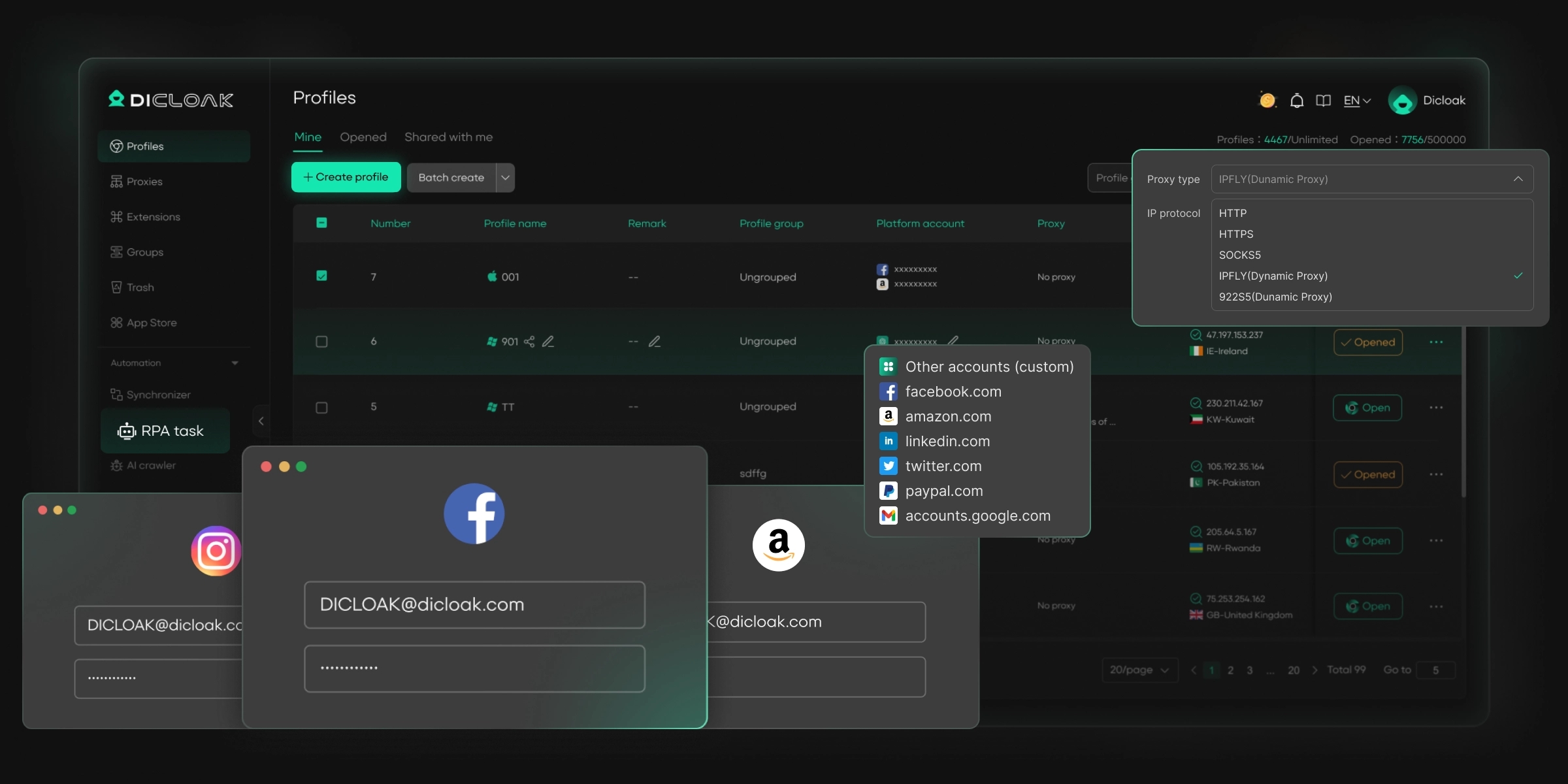
What Makes DICloak Stand Out?
✅ Manage 1,000+ Accounts on One Device: Stop wasting money on extra hardware! DICloak allows you to manage multiple accounts on a single device, cutting costs and boosting efficiency.
✅ Guaranteed Account Safety, No Ban Risks: Every account gets its own isolated browser profile with custom fingerprints and IPs, drastically reducing the risk of bans. Your accounts, your control!
✅ Flexible Proxy Configuration for Maximum Performance: Seamlessly integrate with all major proxy protocols (HTTP/HTTPS, SOCKS5) and manage your proxy pool with bulk operations. No more struggling with IP management—DICloak has you covered.
✅ Streamlined Team Collaboration for Better Results: Easily manage your team with advanced tools like profile sharing, permission settings, data isolation, and operation logs. Your team works smarter, not harder.
✅ Automate the Grind with RPA: DICloak's built-in RPA saves you hours of manual work. Automate repetitive tasks, streamline workflows, and focus on what really matters—growing your business.
✅ Powerful Bulk Tools to Scale Your Operations: Create, import, and launch multiple browser profiles in one click. DICloak makes scaling your business as easy as it gets.
✅ Compatible with All Major Operating Systems: Based on the Chrome core, DICloak supports simulating Windows, Mac, iOS, Android, and Linux operating systems. No matter what platform you need, DICloak has you covered.
🔗 Ready to Get Started?
Visit the DICloak website to explore more details and choose the plan that’s right for you. Start for free today and experience the power of secure, efficient, and scalable multi-account management!
How to Safely Uninstall BlueStacks
If you decide to stop using BlueStacks and want to uninstall it, it’s important to do so properly to avoid any leftover files or issues. Here’s a simple guide on how to safely uninstall BlueStacks from your device.
1.Close BlueStacks: Before uninstalling, make sure BlueStacks is completely closed. You can do this by right-clicking on the BlueStacks icon in your taskbar and selecting Exit.
2.Uninstall through Control Panel (Windows):
- Open the Control Panel and go to Programs and Features.
- Find BlueStacks in the list of installed programs.
- Click on it and select Uninstall.
- Follow the on-screen instructions to complete the uninstallation process.
3.Uninstall through Applications Folder (Mac):
- Open the Applications folder on your Mac.
- Find BlueStacks and drag the app to the Trash.
- Don’t forget to empty the Trash to fully remove the app.
4.Remove Leftover Files (Optional):
- Sometimes, uninstallation leaves behind extra files. You can manually delete these files to free up space.
- On Windows, check the AppData and Program Files folders for any BlueStacks-related files.
- On Mac, look for any leftover BlueStacks files in the Library folder.
5.Clear User Data: If you want to make sure all your BlueStacks data is removed, you can also clear your Google account data by going to your Google settings and removing BlueStacks from your list of connected devices.
By following these steps, you can ensure that BlueStacks is safely uninstalled without leaving any unnecessary files behind, which also helps maintain your computer’s performance and security.
Frequently Asked Questions (FAQs)
1.Is BlueStacks a Virus?
No, BlueStacks is not a virus. It is a legitimate Android emulator used to run Android apps on PCs and Macs. However, like any software, ensure you download it from the official website to avoid counterfeit versions that could pose risks.
2.Can BlueStacks Access My Google Account Safely?
Yes, BlueStacks can access your Google account safely, but it’s important to use a strong, unique password and enable two-factor authentication (2FA) for extra security. Always be cautious of what apps you install within BlueStacks.
3.Does BlueStacks Mine Cryptocurrency?
No, BlueStacks does not mine cryptocurrency. It is a software designed for running Android apps, and it does not engage in cryptocurrency mining or any similar activities.
4.Will BlueStacks Sell My Data?
No, BlueStacks does not sell your data. While it does collect some data for improving its services, it respects user privacy and does not share personal information with third parties for profit. Always review BlueStacks’ privacy policy for full details on data usage.
Conclusion
BlueStacks is safe when downloaded from the official website. It’s a reliable emulator for running Android apps on PCs and Macs, but following basic security practices is essential. Always use antivirus software, secure your Google account with two-factor authentication (2FA), and avoid downloading apps from untrusted sources. Regularly update both BlueStacks and your operating system to stay protected. By taking these steps, you can enjoy BlueStacks safely while keeping your data secure.
 Web Proxy Tools
 Free Tools
 Cookie Plugin
 UA Generator
 MAC Address Generator
 IP Generator
 IP Address List
 2FA Code Generator
 World Clock
 Anonymous Check
 WebRTC Leak Test
 UUID Generator
 Free Web Proxy Site
 Proxy Checker
 FB Ad Checker
 AI Web Scraping
 Free SMM Tools
 Twitter Shadowban Checker
 Instagram Name Checker
 UTM Generator
 Username Generator
 AI Hashtag Generator
 LinkedIn Headline Generator
 Social Media Image Resizer