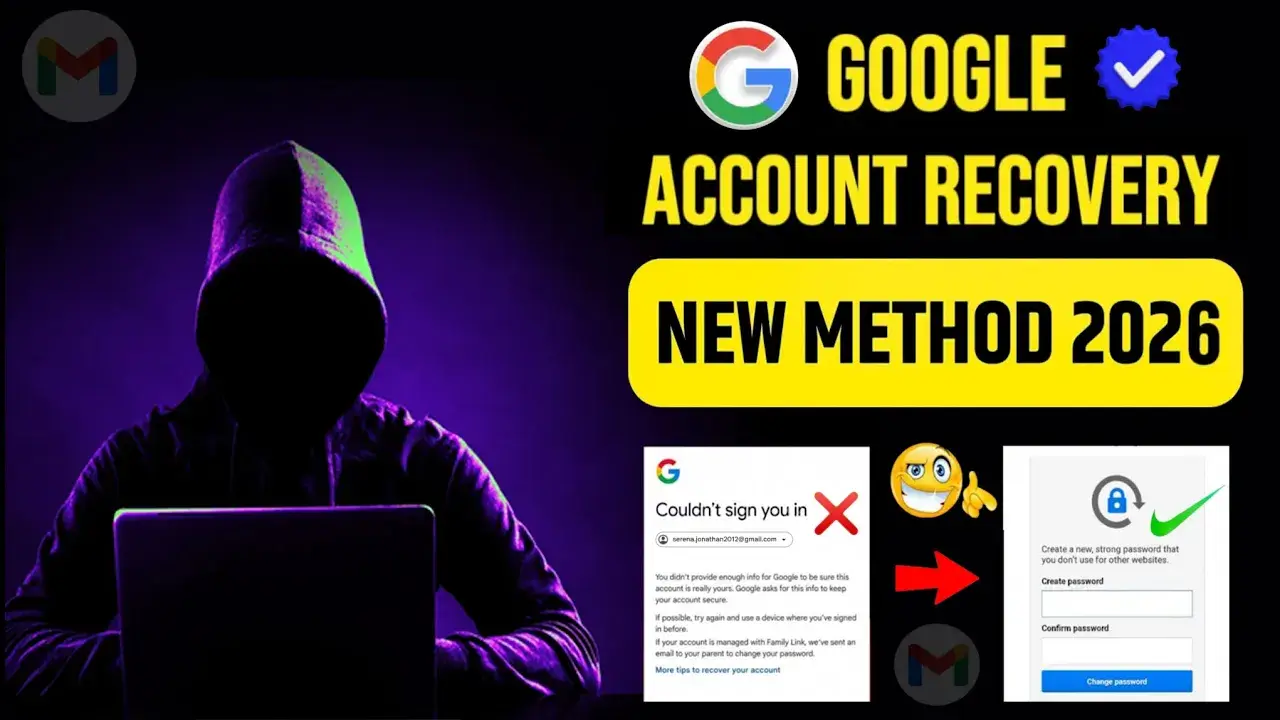
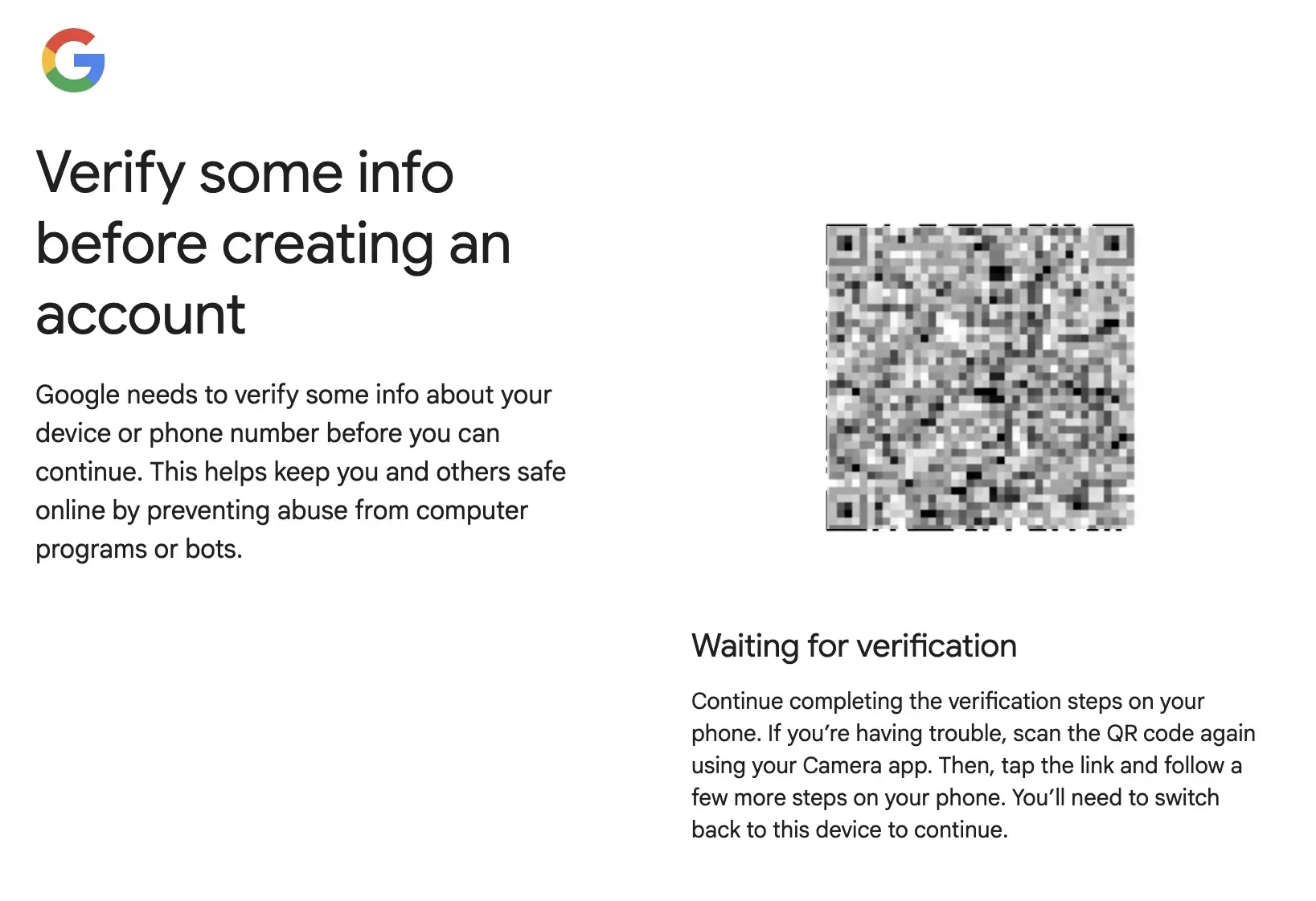
Creating a new account should be quick, but for many users, the process stops with one frustrating message: verify some info before creating an account. It can appear right at the last step and leave you wondering what went wrong. Sometimes Google asks for a phone number. Sometimes it sends you into a QR code check. In other cases, the system keeps looping without a clear answer.
The good news is that this problem is usually easier to understand than it looks. Once you know why the message appears, what information the platform wants, and how to respond the right way, the signup process becomes much less stressful. In this guide, you will learn what this warning really means, how to get through common verification steps, what to do when the process gets stuck, and how to avoid the same issue in the future.
What Does “Verify Some Info Before Creating an Account” Actually Mean?
When you see “verify some info before creating an account,” it usually means Google wants extra proof that you are a real person before it finishes the signup. This can happen when the system thinks the attempt needs more trust checks. Google says phone verification is sometimes required to confirm you’re a real person and help stop spam and abuse. In some cases, users may also be asked to use a mobile device or complete a QR-based verification step.
This check is part of account security. Google uses it to reduce fake sign-ups, spam, and automated abuse. That is why verify some info before creating an account Google often appears even when a real user is just trying to open a new account. For example, one person may finish signup quickly, while another may be stopped at the last step and asked to confirm identity on a phone. Google also says some sensitive actions require stronger identity checks as part of its layered security approach.
Many people search for “verify some info before creating an account without phone” because they hope to skip phone verification. But Google’s guidance makes clear that this is not always optional. Some users may complete signup without a phone number, while others may be required to verify with a mobile device. Common problems include a phone number being rejected, getting stuck in repeated verification prompts, or not having a trusted phone nearby. That is why this step can feel frustrating, even for legitimate users.
Why Is Verification Required Before Creating an Account?
As the last section showed, verify some info before creating an account is part of a risk check, not just a normal signup step. Google uses it when the system wants more proof that a real person is creating the account. This helps protect user data, reduce fake sign-ups, and limit abuse at scale. The Multilogin example article also points out that Google has made verification stricter through 2025 and into 2026, especially for account creation flows that look unusual or high-risk.
The Role of Verification in Account Security
Verification helps platforms in two main ways. First, it protects accounts from fraud, spam, and bulk automation. Second, it helps platforms enforce their rules before an account is fully opened. That is why verify some info before creating an account Google may appear even for a real user. The system is not only checking your name or phone number. It may also be checking whether the device, network, and signup behavior look trustworthy. Google’s extra checks are meant to stop fake account farms, automated abuse, and other large-scale misuse.
Common Scenarios Where Verification Is Necessary
The most common case is phone number verification. Sometimes Google asks for a number and moves on quickly. In other cases, users get stuck on a “verifying your phone number” screen that keeps loading and never reaches the code step. The example article explains that this can happen when the number has already been used for other accounts or when the signup environment looks risky.
Another common case is QR code or trusted-device verification. Some users reach the last step and suddenly see a QR code with instructions to scan it on a phone. In that situation, Google is often asking for proof from a device it already recognizes. If the user does not have a trusted phone nearby, the signup may stop there. This is one reason many people feel confused by verify some info before creating an account even when all their basic details are correct.
A third case is the “this number has been used too many times” block. This happens when Google limits how many accounts can be linked to one phone number. The example article also notes that sometimes a recycled number may already have signup history from a previous owner. That means the problem may not always come from the current user.
Other forms of verification can include email confirmation and, on some platforms, document-based identity checks. These are more common when an account has higher risk, business use, or wider public reach. Many users search for verify some info before creating an account without phone, but the real issue is that verification can take different forms depending on the platform, the device, and the risk level of the signup attempt.
Step-by-Step Guide to Verify Info Before Creating an Account
Now that we know why this check happens, the next step is practical: how do you get through verify some info before creating an account without making the process harder than it needs to be? In most cases, the best result comes from doing the simple things first. Google’s account setup flow asks for basic details like name, birthday, username, password, and sometimes a phone or another email. In some cases, Google also says you may need a mobile device to verify the account.
Preparing for Verification
Before you start, gather the items you may need. That usually means a working phone number, an email address you can open right away, and access to the device you are using for signup. If the platform asks for stronger proof, you may also need an ID or another document, especially on services with higher risk or business use. A simple example is YouTube’s advanced feature verification, where Google may ask for video or ID-based checks.
It also helps to make sure your verification method is actually available before you begin. For example, if you use email confirmation, keep that inbox open. If you may need SMS, keep your phone nearby and make sure it can receive texts. This sounds basic, but it saves time. Many users get stuck because they start signup on a laptop, then realize the phone they need is in another room, turned off, or not signed in. Google’s help pages also note that some QR-based flows work only when the phone is already signed in to the Google Account being used for the check.
Responding to Verification Prompts
If the platform sends an email confirmation, open the message, find the code, and enter it exactly as shown. Google says this is one standard way to finish account creation. A small mistake, like using an old message or typing the wrong code, can send you back to the same step. For example, a user may think the code never worked, when the real issue is that a second, newer code was already sent and replaced the first one.
If you get phone verification, enter a number that can receive texts or calls, then wait for the code and type it in once. Do not keep switching numbers unless the platform clearly tells you to. Google says phone verification is sometimes required before account creation or sign-in to confirm you are a real person and help stop spam and abuse. This is why verify some info before creating an account Google can appear even when your details are real.
If you see a QR code, follow the prompt on a phone that already has access to the needed Google account, then scan the code and complete the steps on that device. Google’s QR sign-in instructions say the phone or tablet should already be signed in on that device for the scan flow to work. This is one reason users searching for verify some info before creating an account without phone often get stuck: in some cases, the flow is built around mobile-device confirmation, not just a text code.
Troubleshooting Common Issues
If verification fails, stop and check the simple things first. Make sure your code is current, your number can receive SMS, your email inbox is working, and the phone you use for QR scanning is the correct one. Google’s support pages and community guidance also show two very common problems: a number that cannot be used for verification, and a number that has already been used too many times for account creation. That can happen because Google limits repeated use of the same number.
If you get stuck in an infinite verification loop, the safest move is to pause instead of retrying again and again. The Multilogin example article describes a common case where users stay on “verifying your phone number” without ever reaching the code field. Repeated attempts can make the process worse because the system may read fast retries as more suspicious behavior. A better approach is to wait, review your details, and try again later with the same real information instead of making many quick changes.
To avoid being blocked, keep the signup clean and consistent. Use your own number for your own account, avoid verifying large numbers of accounts with one phone, and follow the prompts in one steady session. Google’s help community guidance says not to use your phone number to verify other people’s accounts, and official help states that phone verification may be required to stop abuse. In plain terms, fewer rushed retries and more consistent details usually give you a better chance of finishing signup smoothly.
Effective Ways to Bypass "Verify Some Info Before Creating an Account"
Even after trying the normal steps, some users still get stuck on verify some info before creating an account. When that happens, the safest next move is not to force your way around a required security check. A better option is to try a different official Google signup path that may use a smoother flow on your device. Google’s own help pages show that people can create a Google Account through YouTube, and they can also add a Google Account through Android settings. These are not hacks. They are standard Google paths that may feel easier in some situations.
One option is to start from YouTube instead of Gmail. Google’s YouTube help page says users can open the YouTube app, tap the profile area, choose Add account, and then tap Create Account. Because this flow starts from a different Google product, some users report that it feels less restrictive during signup, even though the final result is still a normal Google Account. This is one reason people who see verify some info before creating an account Google often try YouTube as a second path.
Another option is to start from Android system settings instead of an app. Google’s Android help says you can open Settings, go to Accounts or Passwords & accounts, tap Add account, choose Google, and then follow the setup steps. This route can be useful when the browser or app flow keeps failing, because it uses the phone’s built-in Google account setup process.
If Google shows a QR-based check, the most reliable method is still to follow the official prompt on a device that already has access to the needed Google account. Google says QR sign-in works by scanning the code with a phone or tablet that is already signed in, then following the on-screen steps. For users searching verify some info before creating an account without phone, this is where the process often becomes harder, because some Google verification flows are built around mobile-device confirmation.
Best Practices to Avoid Future Verification Issues
Once you get past verify some info before creating an account, the next goal is simple: do not end up in the same problem again. The best way to do that is to make your account easier to trust and easier to recover. Google recommends adding recovery information and keeping it updated, because recovery details help you get back in if you are locked out later. It also notes that some sensitive actions may work better after a recovery phone is added and has been on the account for at least 7 days.
Setting Up Recovery Options
Start by adding a recovery email and, if possible, a recovery phone. Google says a recovery email should be one you use often and should be different from the email you use to sign in. It also allows you to add recovery contacts from your account settings. This matters in real life. For example, if you lose access to your main device or forget your password, a working recovery email can save a lot of time and stress.
Just as important, keep that information current. If you change your phone number or stop using an old email, update your recovery details right away. Google says changes to recovery info can take up to 7 days to fully take effect, so waiting until you are already locked out is risky. That is one reason many people run into trouble later, even after they solved verify some info before creating an account Google during signup.
Managing Multiple Accounts Securely
If you use more than one account, keep each one tied to a clear purpose. For example, use one for personal email, one for work, and one for testing if needed. Problems often start when people mix too many sign-ins, too many recovery methods, or too many account actions on the same setup. Google says it may require phone verification before account creation or sign-in to confirm you are a real person and stop spam, and community guidance also notes limits on how many accounts can be verified with one phone number.
It also helps to act in a steady, normal way. Google’s recovery guidance says familiar devices, familiar browsers, and familiar locations improve trust signals during account checks. In plain terms, avoid making many fast retries, avoid using one number to help many other accounts, and avoid sudden changes that make the activity look suspicious. This is especially important for people searching verify some info before creating an account without phone, because once a platform sees unusual patterns, it is more likely to ask for stronger checks later.
A simple example makes this clear. A user who creates one personal account, adds a backup email, keeps the recovery phone current, and signs in from the same phone and home network will usually have fewer problems later. A user who creates several accounts quickly, reuses the same number too often, and keeps changing devices is more likely to see extra checks. Good setup does not remove all verification, but it greatly lowers the chance of future friction.
After getting past verify some info before creating an account, many users still need a safer way to manage accounts over time. This matters even more when several accounts are used on one device. A browser built for multi-account work can make that setup cleaner by keeping each account in a separate profile instead of mixing everything in one normal browser.
Managing Multiple Accounts With Isolated Profiles
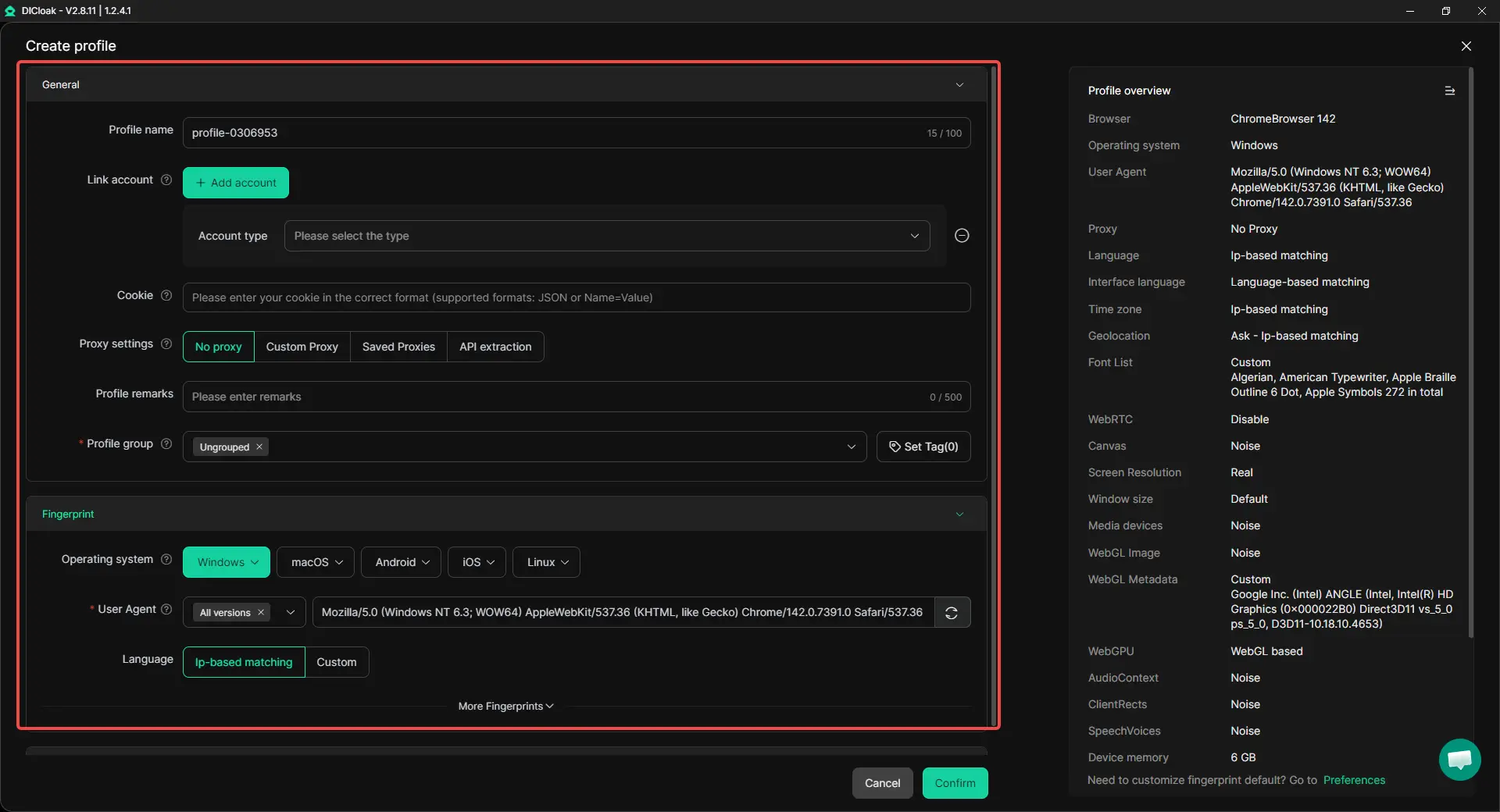
When many accounts share the same browser, cookies, device signals, and session data can overlap. That can create risk. With DICloak, each account can run in its own isolated browser profile with a unique fingerprint. This makes it easier to manage multiple social media accounts on one device while keeping each account more independent and consistent.
Using Custom Proxy Settings for Cleaner Account Separation
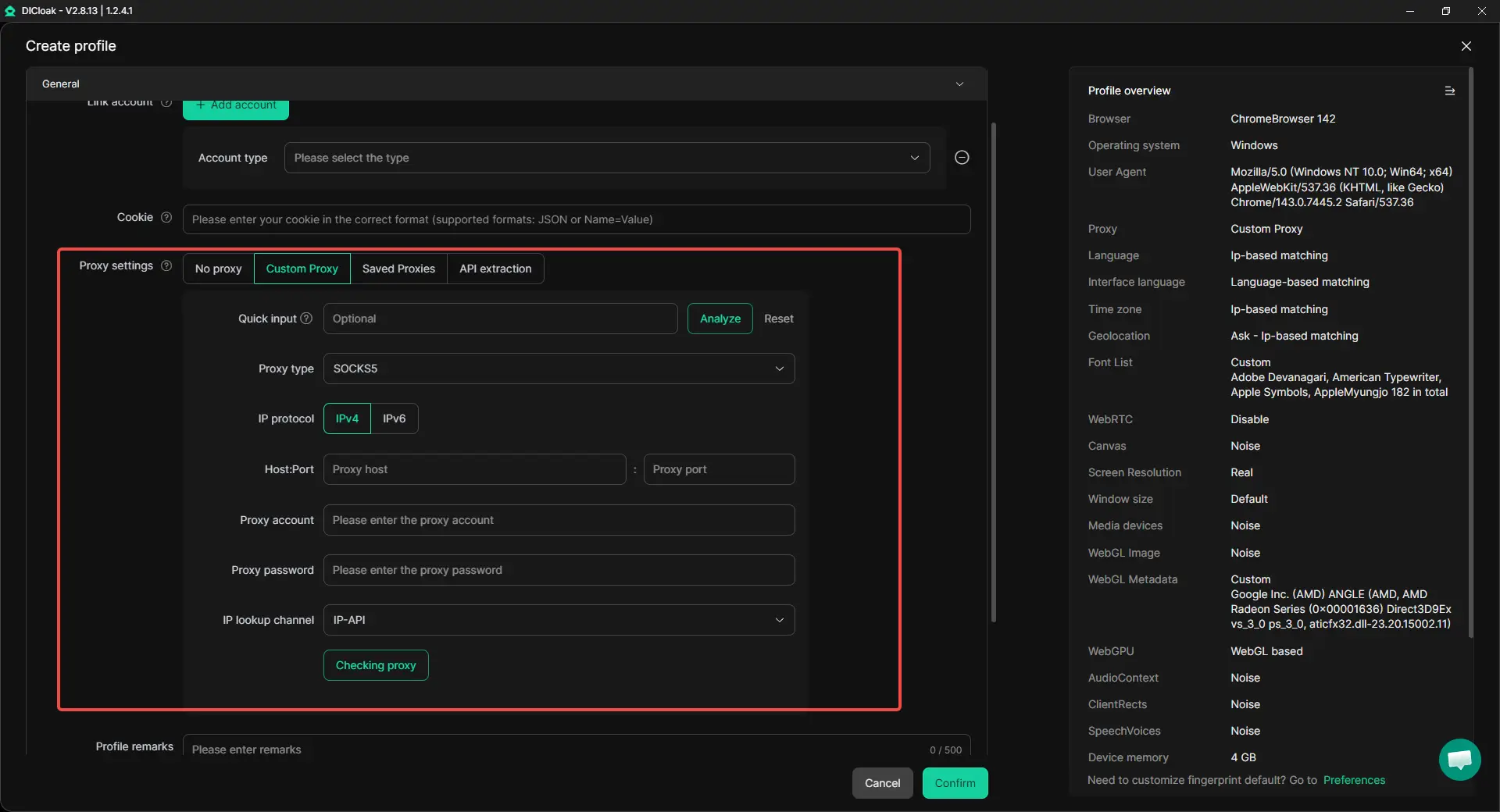
Verification problems often get worse when too many accounts share the same network environment. Profile-level proxy setup makes it possible to assign a different proxy to each account, which helps keep IP signals more organized. For teams handling social media, e-commerce, or affiliate accounts, this creates a more stable structure for long-term account work.
Making Repetitive Tasks Easier to Manage
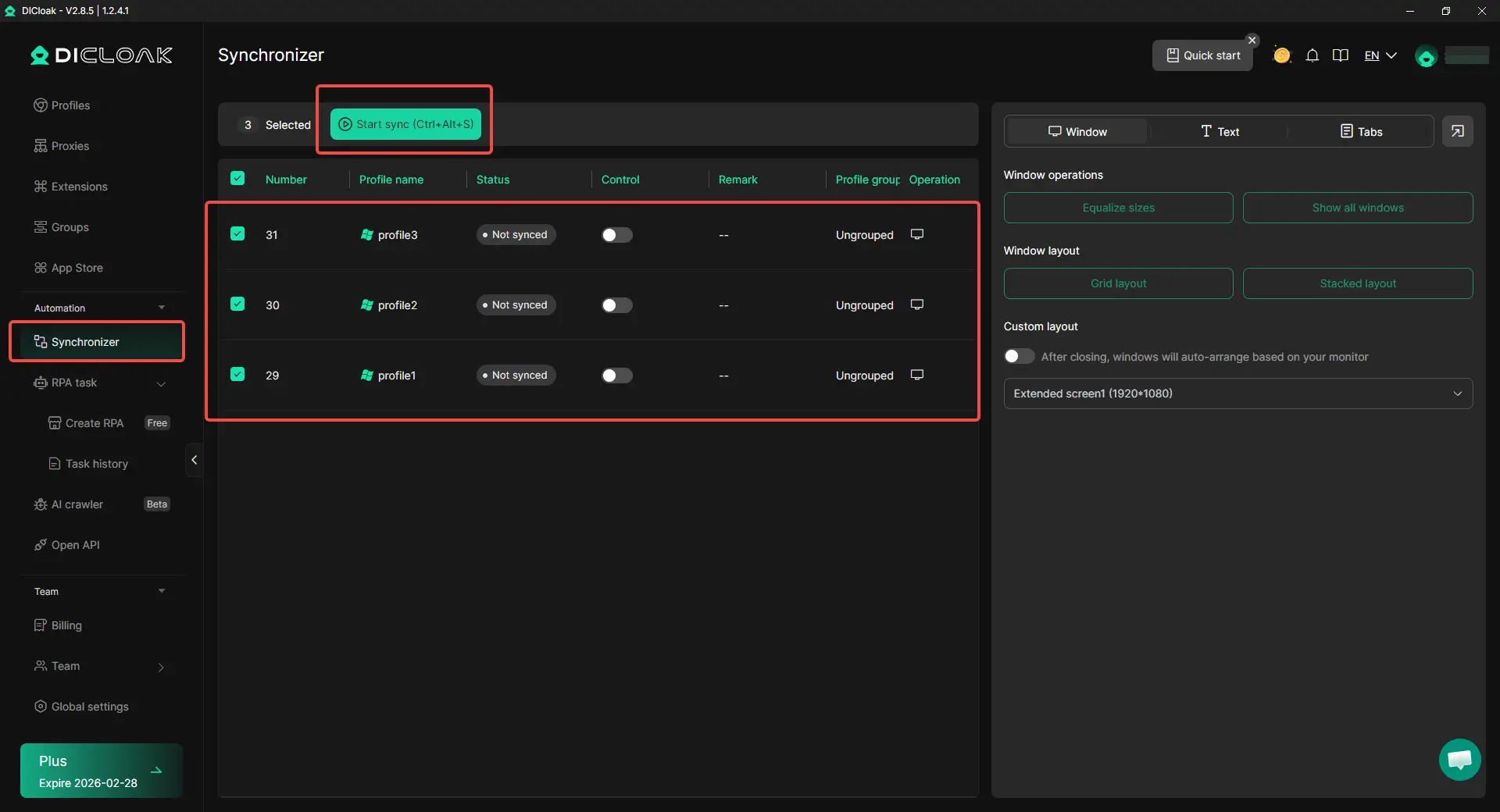
When many accounts need the same actions, doing everything by hand takes time and increases mistakes. DICloak also includes tools like Synchronizer, which are useful for repeating the same steps across multiple profiles in a more consistent way. This helps users save time and keep daily account operations more organized.
In simple terms, the strongest fit here is not just passing one signup step. It is building a safer workflow after signup through environment isolation, custom proxy configuration, and smoother multi-account management.
Conclusion
Seeing verify some info before creating an account can feel confusing, but in most cases, it is part of a normal security check. Platforms like Google use it to confirm that a real person is creating the account, not a bot, a spam tool, or a risky signup attempt. The message may lead to phone verification, email confirmation, QR code checks, or other identity steps. While this can slow the process, it is meant to protect user data and reduce abuse.
The best way to handle this problem is to prepare before signup, use real and consistent information, and follow each verification step carefully. If issues appear, such as phone verification loops, QR code blocks, or repeated prompts, it often helps to pause, review your details, and try a cleaner official signup path instead of making many fast retries. Over time, adding recovery options, keeping account details updated, and managing multiple accounts in separate environments can lower the chance of future checks. For users who need long-term multi-account work, a setup with isolated browser profiles and custom proxy settings can also make account management more stable and organized.
FAQs
Why does Google say “verify some info before creating an account”?
The message verify some info before creating an account usually appears when Google wants extra proof that a real person is trying to sign up. This can happen if the system sees unusual activity, a new device, a risky network, or repeated account creation attempts.
Can I fix “verify some info before creating an account” without starting over?
Yes, in many cases you can. If you see verify some info before creating an account, first check that your phone number, email, and personal details are correct. Then make sure you can access the phone or email needed for verification. Sometimes waiting a little before trying again also helps.
Is it possible to pass “verify some info before creating an account” without a phone number?
Sometimes yes, but not always. Some users can complete signup without adding a number, while others are asked to verify by SMS, call, or a mobile device. If verify some info before creating an account keeps appearing, the platform may require stronger identity checks in that situation.
Why am I stuck in a loop when trying to verify some info before creating an account?
This often happens when the platform cannot complete the verification step properly. A weak network, an overused phone number, repeated fast retries, or device-related trust issues can all cause a loop. If verify some info before creating an account keeps repeating, stop and review your details before trying again.
How can I avoid seeing “verify some info before creating an account” again in the future?
The best way is to keep your account setup clean and consistent. Add recovery options, use real information, avoid too many accounts on one setup, and do not make repeated rushed attempts. These steps can reduce the chance of seeing verify some info before creating an account again later.
 Web Proxy Tools
 Free Tools
 Cookie Plugin
 UA Generator
 MAC Address Generator
 IP Generator
 IP Address List
 2FA Code Generator
 World Clock
 Anonymous Check
 WebRTC Leak Test
 UUID Generator
 Free Web Proxy Site
 Proxy Checker
 FB Ad Checker
 AI Web Scraping
 Free SMM Tools
 Twitter Shadowban Checker
 Instagram Name Checker
 UTM Generator
 Username Generator
 AI Hashtag Generator
 LinkedIn Headline Generator
 Social Media Image Resizer