Instagram deactivates around 1 million accounts every day for reasons like inactivity, suspicious logins, or user requests, according to Meta’s transparency reports. For many, the real shock comes after stepping away, reactivating an account isn’t always smooth, and missing a key detail during the disable process can lock you out for good. That’s why people searching for how to temporarily disable instagram account are usually less worried about hiding their profile and more focused on not losing access, data, or connections.
If you only hide your posts but forget to secure recovery info or ignore device warnings, you might trigger extra checks when trying to come back. Instagram’s rules on temporary deactivation are stricter than most expect, sometimes, a short break leads to unexpected restrictions or a forced password reset. These problems hit hardest when the account is tied to work, ads, or group projects. You don’t want to risk a ban just because you missed one step.
This guide walks you through every step that matters, where the risks are, what Instagram actually checks, and how to get your account back safely. Here’s what you need to check so your break doesn’t turn into a permanent lockout.
What Happens When You Temporarily Disable Your Instagram Account?
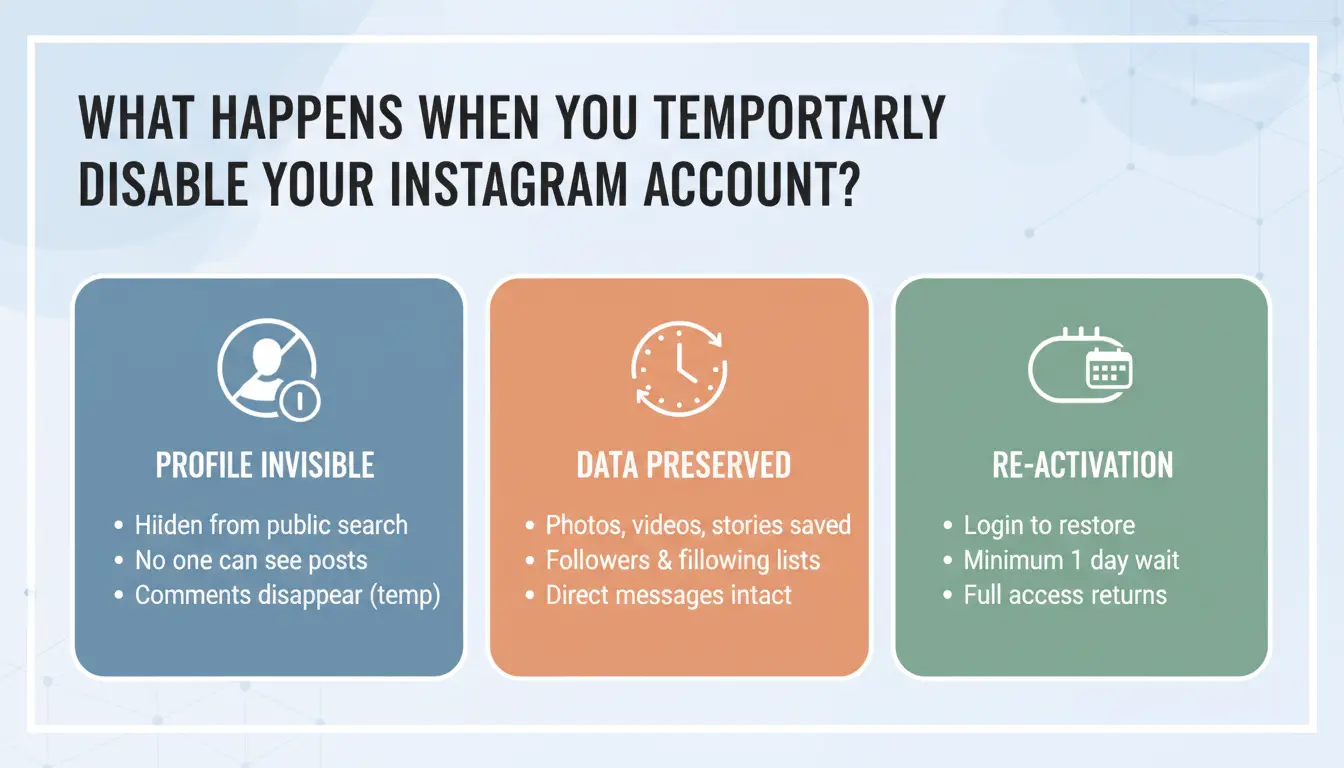
Temporarily disabling your Instagram account sounds simple, but what actually changes isn’t always obvious. If you’re searching for how to temporarily disable Instagram account, here’s what you need to know, what gets hidden, what stays, and the risks if you don’t follow Instagram’s rules closely.
How Your Profile and Content Are Hidden
When you deactivate, your profile, photos, comments, and likes all disappear from public view. Followers can’t see your page or posts. Your username won’t show up in search. Non-followers see nothing, your account looks deleted. However, Instagram doesn’t erase your content. Everything is stored, ready to come back when you reactivate.
What Happens to Your Messages and DMs
Messages you already sent stay in other people’s inboxes, but your name will show as “Instagrammer” instead of your username. You can’t receive new DMs while your account is disabled. No one can message you or tag you. Once you log in again, your conversations reappear with your username restored.
Data Retention and Account Safety
Instagram keeps your data while the account is disabled, but if you stay inactive for too long or forget your login, you might risk permanent loss. Some users get locked out by mistake, especially if they change devices or lose access to recovery info. Always double-check your email and phone are up to date before taking a break. For more on Instagram’s policies, see Instagram Help Center.
Why People Temporarily Disable Their Instagram Accounts (and When It’s the Right Move)
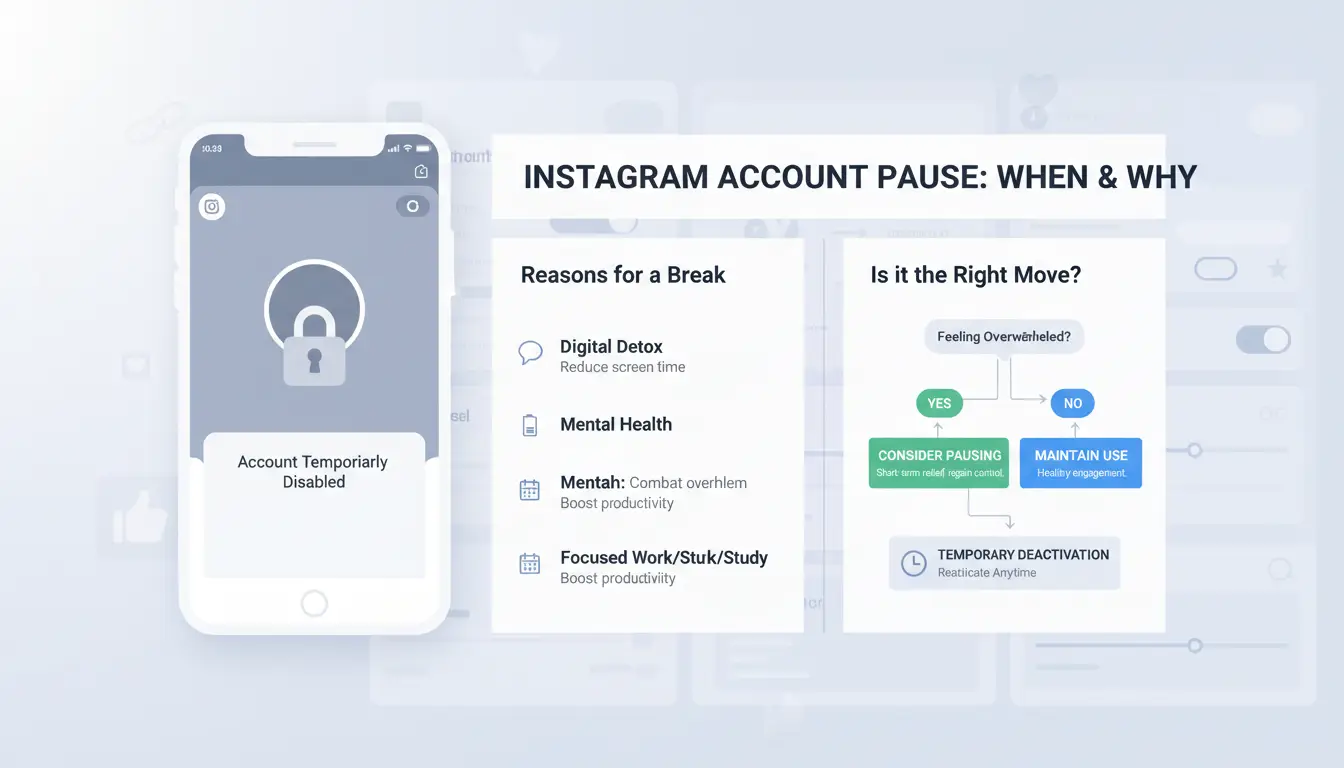
Some people search "how to temporarily disable Instagram account" because taking a break is better than deleting or risking losing connections. The reasons aren’t always obvious, sometimes it’s about safety, other times about handling more than one account. Here are the most common situations.
Taking a Social Media Break
Stepping away from Instagram for a few weeks can help reset your focus and cut down on stress. Many users want a digital detox but don’t want to lose photos, messages, or their username. Disabling the account keeps everything in place, so you can return whenever you’re ready. If you just log out, notifications keep coming and people can still interact with your public profile. Only disabling puts your presence on pause without deleting anything.
Privacy, Safety, and Security Concerns
Harassment, unwanted messages, or a privacy scare often push people to hide their account fast. Disabling your profile is a quick way to cut off all public access and new messages. If you think your account has been hacked or you see strange activity, taking it offline gives you time to change passwords and update recovery info, without risking more damage.
Managing Multiple Accounts or Business Needs
Agencies, creators, or business owners sometimes need to step back from one account but keep others running. Switching accounts works for daily use, but temporary disabling is safer if you want to freeze activity or avoid confusion during a handover. For team-managed accounts, disabling can prevent accidental posts or unauthorized changes while things are sorted out.
People use "how to temporarily disable Instagram account" when they want control, not a permanent goodbye.
What to Check Before Disabling Your Instagram Account: Risks and Preparation
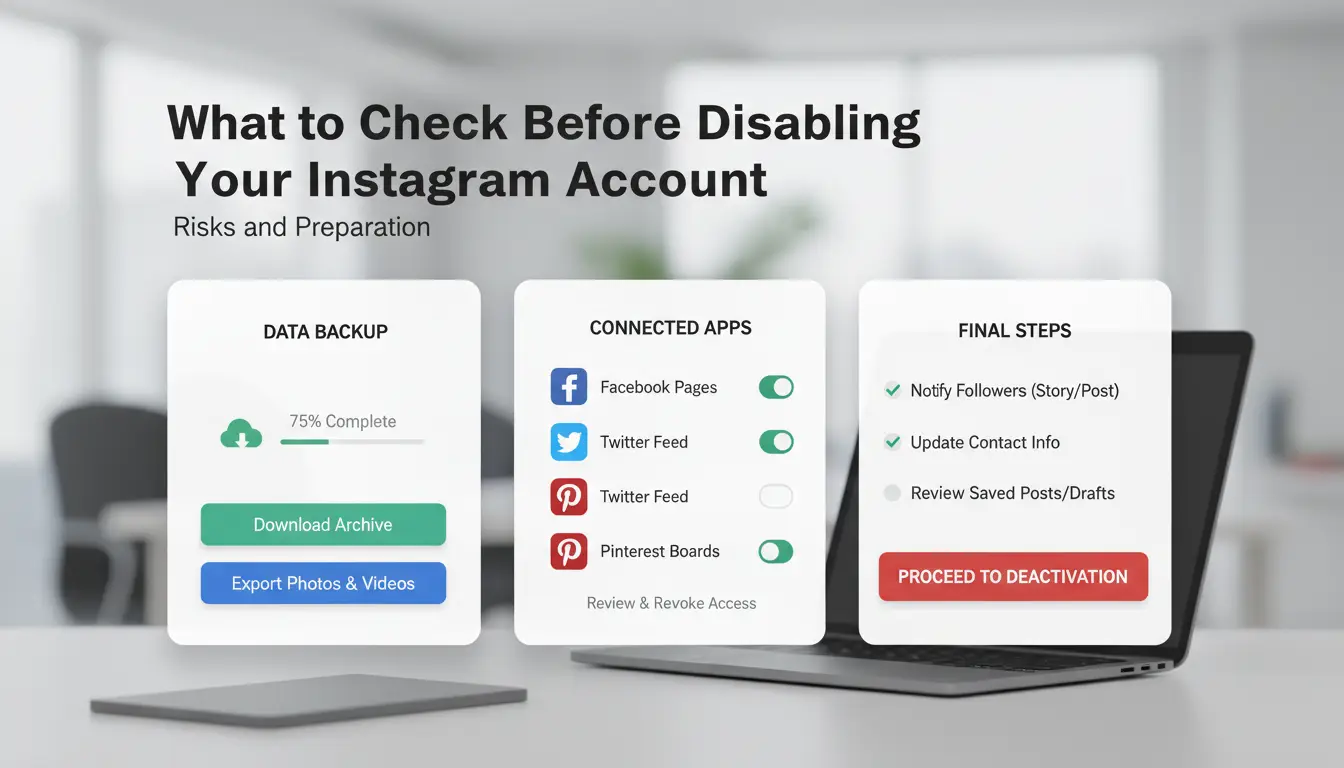
Disabling your Instagram account for a break seems simple, but missing key steps can turn a quick pause into a long lockout. Before you start the process for how to temporarily disable instagram account, you need to protect your data, keep access secure, and avoid hidden risks that could cost you photos or connections.
Backup Your Photos, Videos, and Data
Instagram doesn’t guarantee that your content stays safe during temporary deactivation. Download your data from Instagram’s Data Download tool before you disable your account. This covers photos, videos, stories, and message history. Backups matter, even for a short break, because sometimes accounts get flagged or restricted, and recovery can mean losing recent uploads. If you use Instagram for business or work projects, missing a backup could mean losing client material.
Review Linked Apps and Services
Third-party apps, like scheduling tools or business integrations, may stop working when your account goes inactive. Check your Instagram settings for connected apps and remove or update anything linked to your account. If you run ads or use Instagram login for other services, a deactivated account can break access or billing. For business profiles, downtime affects analytics and partner tools.
Double-Check Account Credentials and Email Access
Accounts often get locked when users forget passwords or lose email access. Make sure your login info and email are current. Update recovery options so you won’t get stuck when reactivating. The most common lockout happens when Instagram asks for a code sent to an old email, so keep credentials updated. Missing this step is the fastest way to lose access permanently.
How to Temporarily Disable Your Instagram Account: Step-by-Step Instructions (2024 Update)
Taking a break from Instagram doesn’t have to mean deleting everything. If you want to hide your profile, posts, and comments without losing your account, here’s how to temporarily disable Instagram account access, and avoid common mistakes that lock people out.
Disabling Your Account from a Web Browser
Log in at instagram.com from any browser. Go to your profile, click “Edit Profile,” then scroll down and select “Temporarily disable my account.” Choose a reason, enter your password, and confirm. Your profile and posts will be hidden until you log back in.
Watch for these mistakes: Don’t use a phone browser set to “mobile site”, the option sometimes won’t appear. Double-check recovery email and phone before disabling. If you skip this, you risk trouble getting back in.
Why You Can’t Disable from the Instagram App
You can’t disable your account from the official Instagram app, only from a web browser. The app will direct you to the website for this process. Some third-party apps claim to offer shortcuts, but using unofficial tools can get your account flagged or banned. Always stick to the official site for changes like this, as explained in Instagram’s help center.
How Long Does It Take for the Account to Be Hidden?
Disabling happens right away, your profile disappears within a minute or two for most users. Search for your username in a private window to confirm it’s hidden. If it still shows up after 10 minutes, clear your cache and check again. You can reactivate by simply logging back in.
Common Mistakes and Risks When Disabling (and Reactivating) Your Instagram Account
Accidentally Deleting Instead of Disabling
One fast click in the wrong place can turn a break into a disaster. The “Delete Account” and “Temporarily Disable Account” buttons sit close together on Instagram’s support page. If you select “Delete,” your profile, photos, and messages are gone for good after 30 days, and reactivation is impossible. To check, log in, if you see a warning about permanent deletion, act fast and follow Instagram’s recovery steps within the 30-day window. If you only meant to learn how to temporarily disable instagram account, always double-check the page title before you confirm.
Losing Access to Linked Services or Logins
Disabling your Instagram can break access to Facebook, Messenger, or any business tools that use your Instagram login. You won’t be able to use Instagram to log in to other apps while your account is disabled. If you run ads or manage a shop, these features will pause too. To get access back, reactivate Instagram by logging in on the app or web, then reconnect any services if needed. See Meta’s support for more on business accounts.
Reactivation Problems: Locked Out or Data Missing
Some users get stuck when trying to reactivate. If you wait too long or have changed your device, Instagram might ask for extra verification or send a code to your old email or phone. Missing posts or messages can also happen if Instagram flags your account during the break. Always update your recovery info and save important data before you disable. If you find missing content after reactivation, reach out to Instagram Help Center right away.
Risks of Managing Multiple Accounts on One Device
Running two or more Instagram accounts on the same phone or laptop is risky. Instagram can link accounts by device fingerprint, IP address, or cookies. If one account gets flagged, all connected accounts might get banned together. Switching accounts without clearing fingerprints or using separate proxies makes it even more likely.
How DICloak Protects Your Instagram Accounts
You can use tools like DICloak to set up a unique browser profile for each account. This means every Instagram login has its own fingerprint, cookies, and proxy, blocking Instagram from linking your accounts. If you need to know how to temporarily disable instagram account without risking bans, DICloak’s isolated profiles and proxy support help keep each account separate and safer.
Boosting Efficiency with Automation and Team Collaboration
RPA lets you automate likes, follows, or posting on Instagram, saving time and cutting mistakes. Profile sharing and permission control in DICloak let teams work on different accounts without sharing passwords. Operation logs track who did what, so you can fix problems fast.
How to Reactivate Your Instagram Account Safely After a Temporary Disable
Reactivating your account after using the “how to temporarily disable instagram account” option is not always as smooth as people hope. Instagram may check for unusual activity, missing recovery info, or changes in your device. Missing just one step can cause lockouts or missing data, especially if your account is linked to work or group projects.
When and How to Log Back In
You can usually log in again after at least a few hours, but waiting 24 hours is safer. On your first login, Instagram may ask for extra verification if your device or location has changed. Be ready to enter a code sent by email or SMS. If you used two-factor authentication, have your backup codes ready. Sometimes, you’ll see warnings about new logins or “suspicious activity”, don’t ignore these, as acting fast can prevent a permanent lock.
What to Do If You Can’t Reactivate
If your password isn’t working or you see a “disabled” message, use the “Forgot password?” link right away. Follow the reset steps, and check your recovery email and phone for any alerts. If you still can’t get in, try the Instagram Help Center for their account recovery form. For business or creator accounts, reaching out through your Facebook Business Suite can speed up support.
Checking for Missing Data or Account Issues
Once inside, check your posts, stories, messages, and followers. Sometimes, images or comments take extra time to reappear. If something’s missing after 24 hours, clear your app cache or use the web version. Still gone? Report the issue using Instagram’s in-app support. Always check your linked email and phone, missing recovery info is the fastest way to get locked out again.
Best Practices for Taking a Social Media Break Without Losing Your Instagram Account
Stepping away from Instagram can clear your head, but the wrong move can lock you out for good. Before searching “how to temporarily disable instagram account,” it’s smart to know safer ways to take a break, protect your privacy, and keep your account safe for when you return.
Alternatives to Disabling: Logging Out, Muting, and Privacy Settings
Disabling your account sounds simple, but it can trigger more checks when you come back. Instead, you can log out from all devices so you’re less tempted to scroll. Use Instagram’s “Mute” feature to quiet certain friends or topics without blocking them. Switching to a private account or adjusting who can message you also helps reduce stress without any risk of permanent loss. For a quick side-by-side:
| Option |
Keeps Data |
Easy to Undo |
Triggers Checks |
| Log Out |
Yes |
Yes |
No |
| Mute/Privacy Settings |
Yes |
Yes |
No |
| Disable Account |
Yes |
No |
Sometimes |
Table: Comparison of Instagram break methods (Instagram Help Center).
How to Maintain Account Security During a Break
Before any break, update your password and turn on two-factor authentication (2FA). Check your recovery email and phone, if they’re old, update them now. Watch for login alerts in email or the app. If you need to handle multiple accounts or devices, you can use DICloak to keep sessions separate and avoid accidental mix-ups.
Tips for a Healthy Digital Detox
Tell friends you’ll be offline, and set a clear return date. Remove the app from your home screen to cut mindless checking. For extra support, try Mindful Tech Coach for reminders and routines. Skipping a full disable lowers your risk of account issues and makes coming back smoother.
Frequently Asked Questions
Can I temporarily disable my Instagram account from the mobile app?
No, you cannot temporarily disable your Instagram account directly from the mobile app. Instagram requires you to use a web browser, either on your phone or computer, to access the “Edit Profile” page and find the disable option. The app only allows you to log out or delete your account, not temporarily disable it.
How often can I temporarily disable and reactivate my Instagram account?
Instagram only lets you disable your account once per week. If you try to disable it again too soon, you’ll see an error message. Repeatedly disabling and reactivating your account could raise security flags or cause login issues. For best results, only use the “how to temporarily disable Instagram account” feature when you really need a break.
Will my followers or messages be notified when I disable my account?
No, your followers will not be notified when you temporarily disable your Instagram account. Your profile, photos, and comments will simply disappear until you reactivate. Direct messages you’ve sent will stay in others’ inboxes, but you won’t get new messages while your account is disabled.
What should I do if I can’t reactivate my Instagram account after disabling it?
If you can’t reactivate after following the “how to temporarily disable Instagram account” steps, double-check your username and password. Try resetting your password if needed. If you still can’t log in, visit the Instagram Help Center and use the “Need more help?” link to contact support for assistance.
Is there a risk of losing my data or account permanently when disabling temporarily?
Temporarily disabling your Instagram account is different from deleting it. Your data is saved, and you won’t lose photos or followers. However, be careful not to choose the “Delete Account” option by mistake, as deletion is permanent. Always follow the correct “how to temporarily disable Instagram account” steps to prevent accidental loss.
Temporarily disabling your Instagram account is a straightforward process that allows you to take a break without losing your data or connections. By following the steps outlined, you can pause your activity and return whenever you're ready. Try DICloak For Free
 Web Proxy Tools
 Free Tools
 Cookie Plugin
 UA Generator
 MAC Address Generator
 IP Generator
 IP Address List
 2FA Code Generator
 World Clock
 Anonymous Check
 WebRTC Leak Test
 UUID Generator
 Free Web Proxy Site
 Proxy Checker
 FB Ad Checker
 AI Web Scraping
 Free SMM Tools
 Twitter Shadowban Checker
 Instagram Name Checker
 UTM Generator
 Username Generator
 AI Hashtag Generator
 LinkedIn Headline Generator
 Social Media Image Resizer