Sharing Magnific (formerly Freepik) AI with a team sounds simple until several people need access at the same time. A designer may need to generate images, a social media manager may need campaign assets, and a client may only want to review the work. Passing one account password between everyone can quickly make the workflow harder to manage than it needs to be.
The better approach is to give each person the level of access they actually need. In this guide, you’ll learn what Magnific’s team plans and account-sharing rules allow, which sharing method fits different team roles, and how an antidetect browser like DICloak can help teams manage authorized Magnific accounts and browser Profiles without making the password part of the daily workflow.
Can You Share a Magnific AI Account With Your Team?
Yes, you can share Magnific AI access with a team without passing around one account password. Magnific’s team options are built around separate seats and authorized member access, so each teammate can use their own login instead of relying on the account owner’s credentials.
This matters in real creative teams because not everyone uses Magnific in the same way. A designer may need to generate AI images or videos every day, while a marketing manager may focus on reviewing projects and keeping the work organized. Magnific Business supports shared AI credits, collaborative Projects and Spaces, and team member management, while Enterprise adds more control for larger organizations.
The key is to think of Magnific AI sharing as sharing access and a creative workflow, not sharing credentials. Giving every teammate the owner’s password may look simpler at first, but separate member access gives the team a clearer way to manage who can use the subscription as roles and projects change.
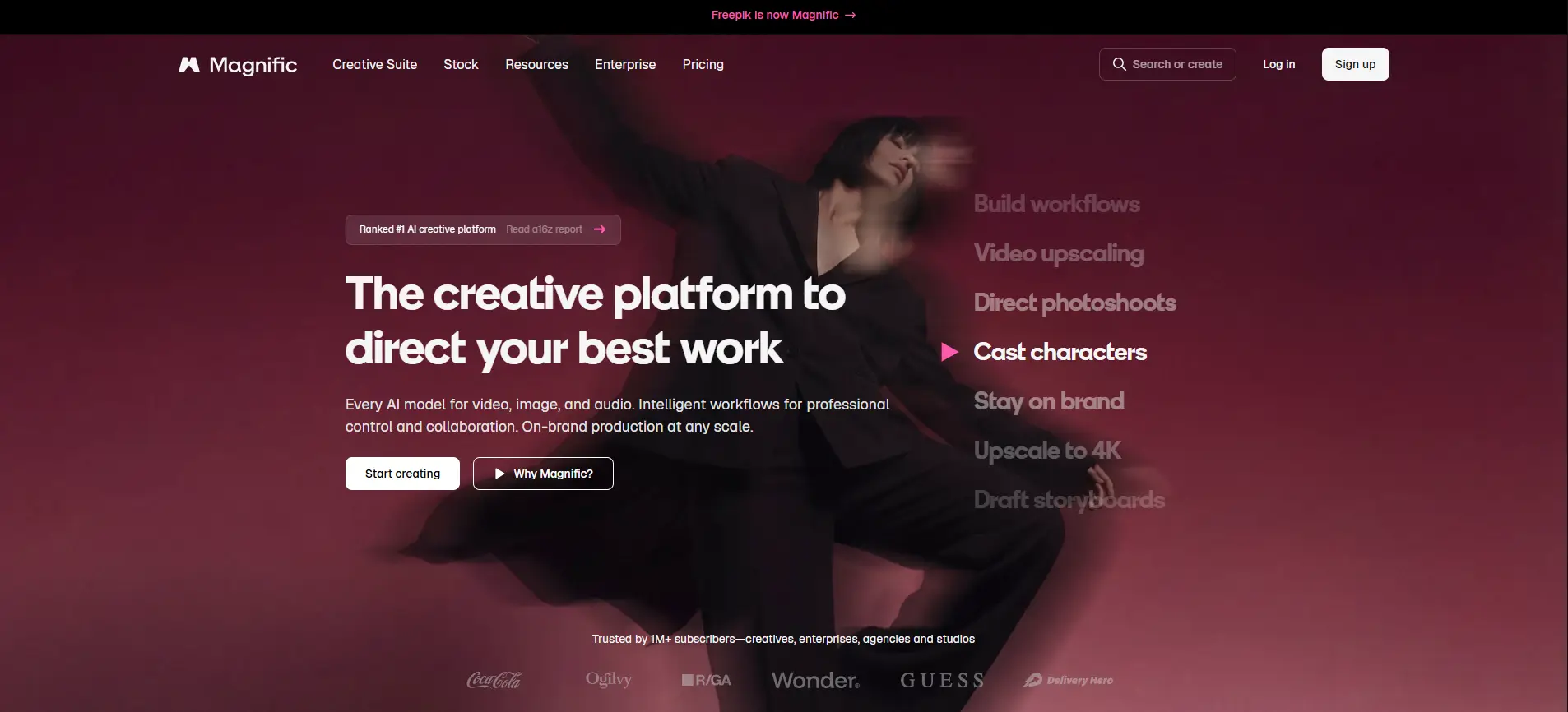
Magnific AI Pricing and Account-Sharing Rules in 2026
Magnific AI team access is priced differently from a normal individual subscription because each regular team user needs their own authorized access. For a team that creates AI content often, the main decision is not whether sharing is technically possible, but whether the people using the account need individual seats, shared credits, and team controls.
Individual Plans vs. Business Team Access
Magnific separates individual plans from its Business plan for teams. Individual plans are designed for one user, while Business gives creative teams shared credits, team collaboration features, and separate user access under one team setup.
With monthly billing, the Business plan costs €59 per seat per month and starts with 2 users, so the minimum cost is €118 per month. The two-user setup includes 90,000 AI credits per month for the whole team, along with a shared credit pool, Spaces, shared Projects, and 8 parallel generations per user.
| Plan type |
Best for |
Team-sharing setup |
| Individual plan |
One person creating AI content |
One personal account |
| Business |
Creative teams and agencies |
From €118/month for 2 users, with 90K shared credits/month |
| Enterprise |
Larger teams needing more control |
Custom credits, advanced permissions, reporting, and per-user limits |
The useful question is not simply how many people are involved in a project. A four-person marketing team may have two designers generating images and videos every day, while a manager and client mainly review the work. In that case, the number of people who need regular AI creation access matters more than the total number of people involved.
What Magnific's Account-Sharing Rules Allow
Passing one personal login around is not the same as adding authorized team members. The current terms require users to keep their passwords confidential and state that users should not let other people access the service through their account. Individual subscriptions are also described as personal and non-transferable.
For team access, Magnific provides a seat-based model instead. Each seat is assigned to a specific person, and that member signs in with the email authorized by the account owner. A seat is personal to that member and should not be shared with another guest or third party.
What Are the Best Ways to Share Magnific AI Without Sharing Passwords?
The best way to share Magnific AI depends on what each teammate actually needs to do. Regular AI users usually need their own team access, while reviewers may only need collaboration tools; teams managing several authorized Magnific accounts or workspaces may also need a cleaner way to keep browser sessions separate.
Use Magnific Business Seats for Regular AI Users
For teammates who use Magnific AI regularly, official Business seats should normally be the first option. Each team member gets authorized access instead of relying on the account owner's password, while the team can work with shared credits, Projects, and Spaces. Business supports 2–100 seats and lets the owner assign roles such as Owner, Admin, or Member.
This fits designers, content creators, and social media team members who generate images, video, or audio as part of their daily work. For example, if two designers create campaign assets every day, giving each one a seat is clearer than passing the same login between them.
The important point is that regular creation access should follow the person doing the work. A seat gives that user a defined place in the team and makes it easier to change membership later without handing out the main account credentials.
Use Projects or Spaces for Review and Collaboration
Not everyone involved in a Magnific project needs to generate AI content. A marketing lead, creative director, or client may spend more time reviewing ideas, adding feedback, and following the creative process than running generations themselves.
Magnific's current team setup includes shared Projects and Spaces, while Spaces supports real-time collaboration in the same canvas. Collaborators can work in the workflow at the same time, and Spaces also includes text nodes for notes or team comments.
This makes collaboration access worth checking before giving every person the same level of AI access. A person who reviews a campaign does not automatically need the same setup as the designer generating its assets. For teams working with clients or occasional reviewers, separating creation from review can keep the workflow simpler.
Use an Antidetect Browser for Shared Workflows
A different problem appears when an agency or marketing team manages several authorized Magnific accounts or client workspaces. Keeping Client A, Client B, and an internal account open in the same normal browser can mix cookies and saved sessions, and constant logging in and out makes it easier to open the wrong workspace.
In this case, an antidetect browser can keep each authorized Magnific account in a separate browser Profile. Each Profile keeps its own cookies and login session, so the team can organize different client workflows without mixing them together.
For teams that also need to control internal access, an antidetect browser like DICloak can combine separate browser Profiles, Profile sharing, and team permissions. A manager can keep one client workspace in one Profile and assign that Profile only to the teammate responsible for it, rather than giving everyone access to every saved session.
Why Use DICloak to Manage Magnific AI Access?
For teams managing several authorized Magnific accounts or client workspaces, a normal browser can quickly become inconvenient. With an antidetect browser like DICloak, teams can organize different Magnific accounts in separate browser Profiles and share the right Profile with the teammate who needs it.
- Keep each account in its own browser setup. This is where an antidetect browser differs from simply opening several tabs or browser windows. Each Profile can have its own browser fingerprint, cookies, local storage, and other browser data, so different Magnific accounts do not all run inside the same browser setup.
- Manage multiple Magnific accounts in one place. An agency may use Magnific for Client A, Client B, and its own creative work at the same time. Separate Profiles make it easier to keep these accounts organized and switch between them without repeatedly logging in and out or checking which account is currently open.
- Share a browser profile instead of sending the password. When another teammate needs to continue working with the same Magnific account, Profile sharing lets them use the assigned Profile without passing the password through chat, email, or a shared document. The existing login session stays with the Profile, making team handoffs simpler.
How to Share Magnific AI With Your Team Using DICloak
An authorized team can keep a signed-in Magnific session inside a dedicated browser Profile and share that Profile with selected members. With DICloak, teams can organize Magnific access without passing the original password around.
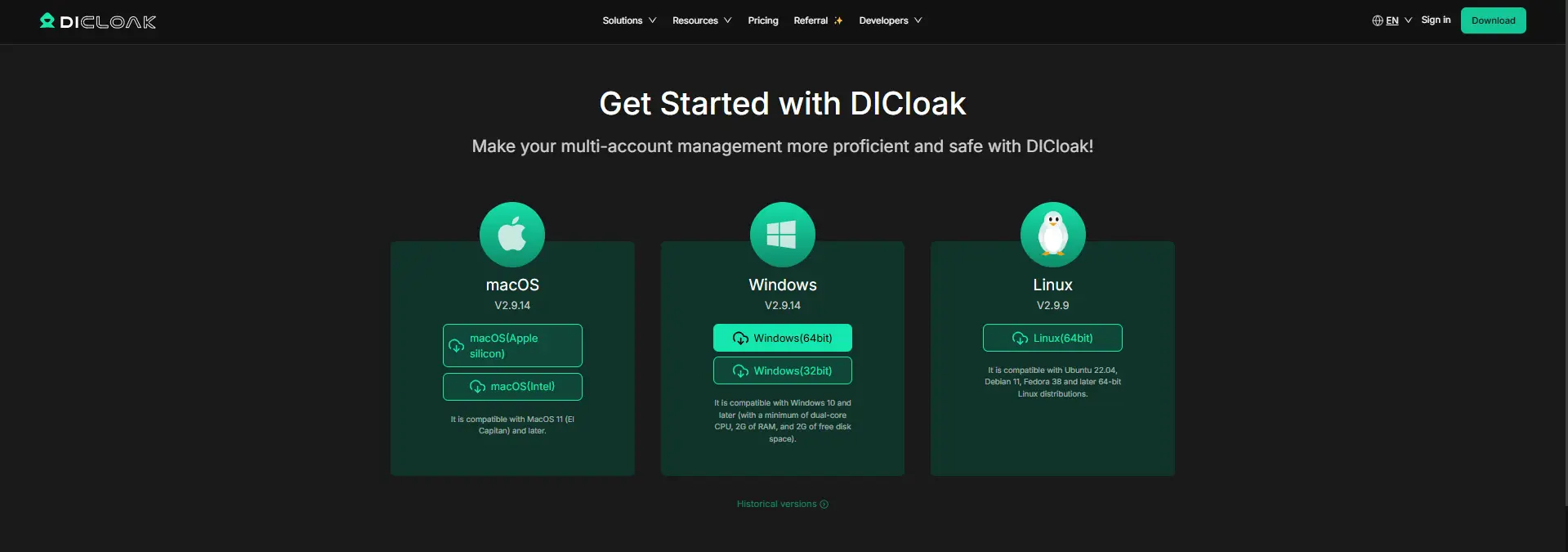
1. Install DICloak and Set Up Team Access
Install DICloak, create an account, and choose a team plan based on the number of members and browser Profiles you need.
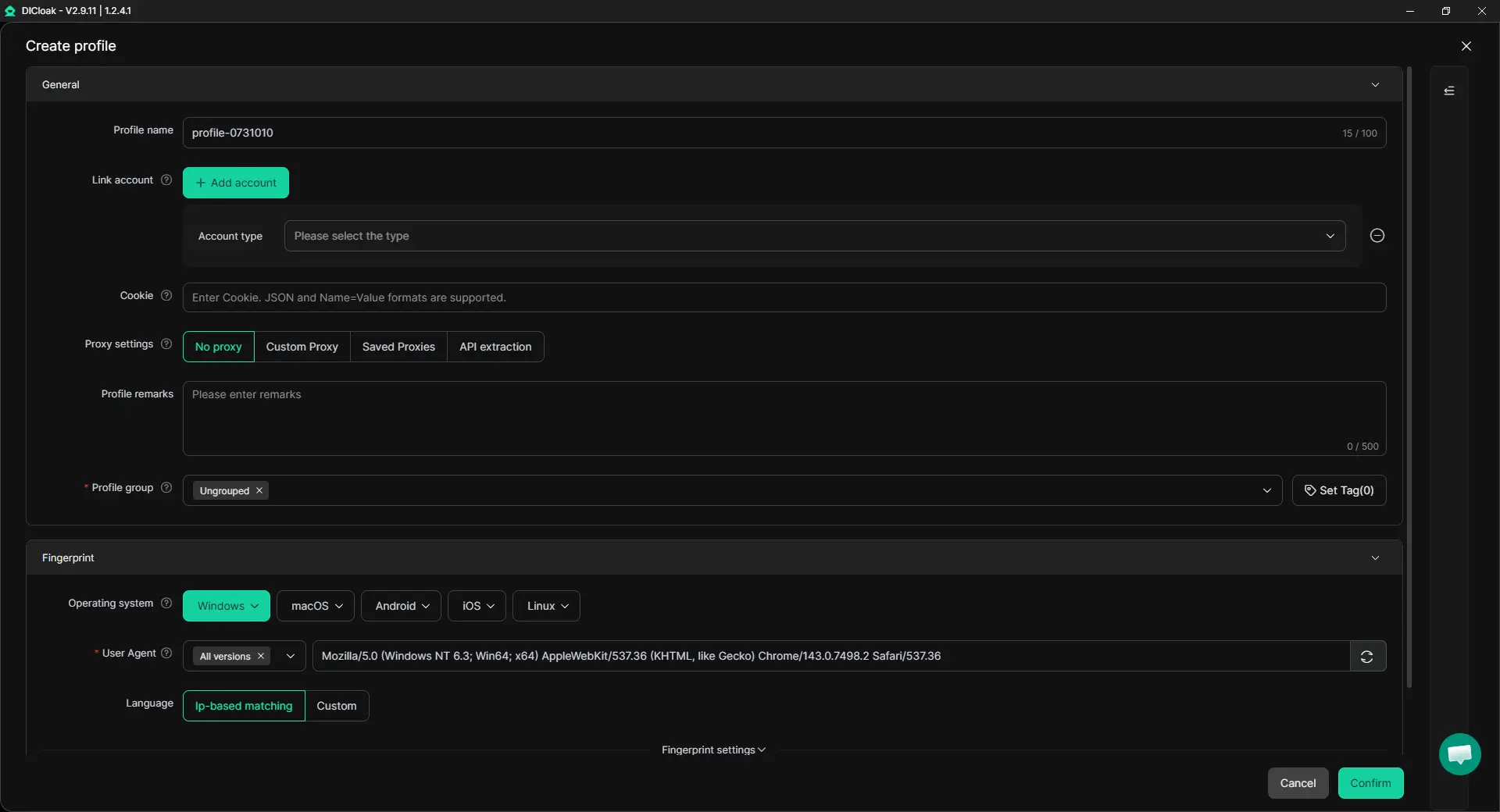
2. Create a Dedicated Magnific Browser Profile
Create a separate Profile for the Magnific account. The Profile keeps cookies, login sessions, and browser data separate from other accounts. You can also add your own proxy settings if the workflow needs a specific network setup. If several members need to use the same Profile at the same time, enable Multiple sessions based on your team needs.
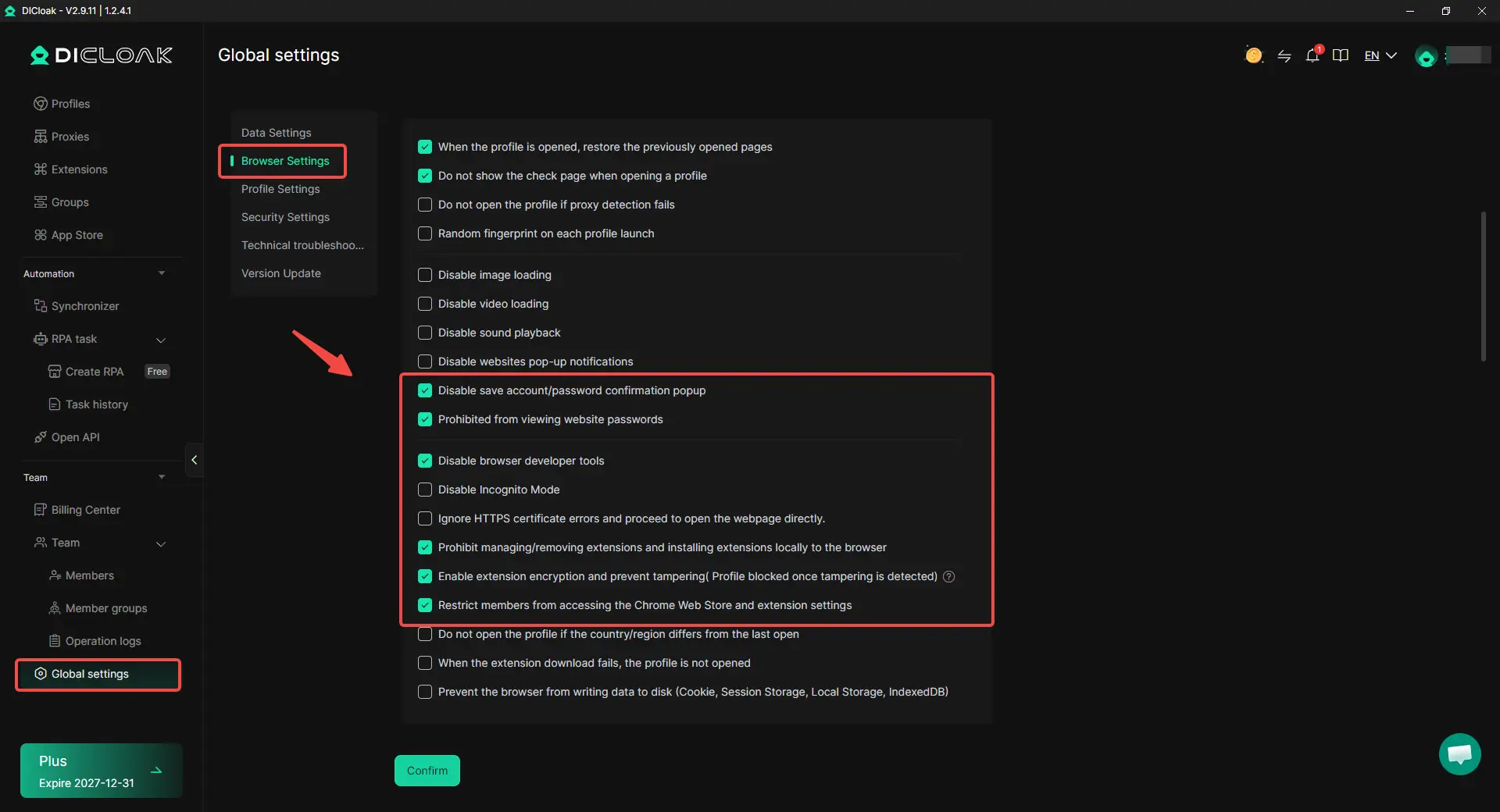
3. Protect the Password and Sensitive Account Areas
A shared Magnific session may include account areas that teammates do not need. With DICloak, the account owner can:
- Hide the password so members do not see or copy it.
- Restrict website access to approved Magnific pages.
- Hide sensitive elements such as billing, subscription, or account settings.
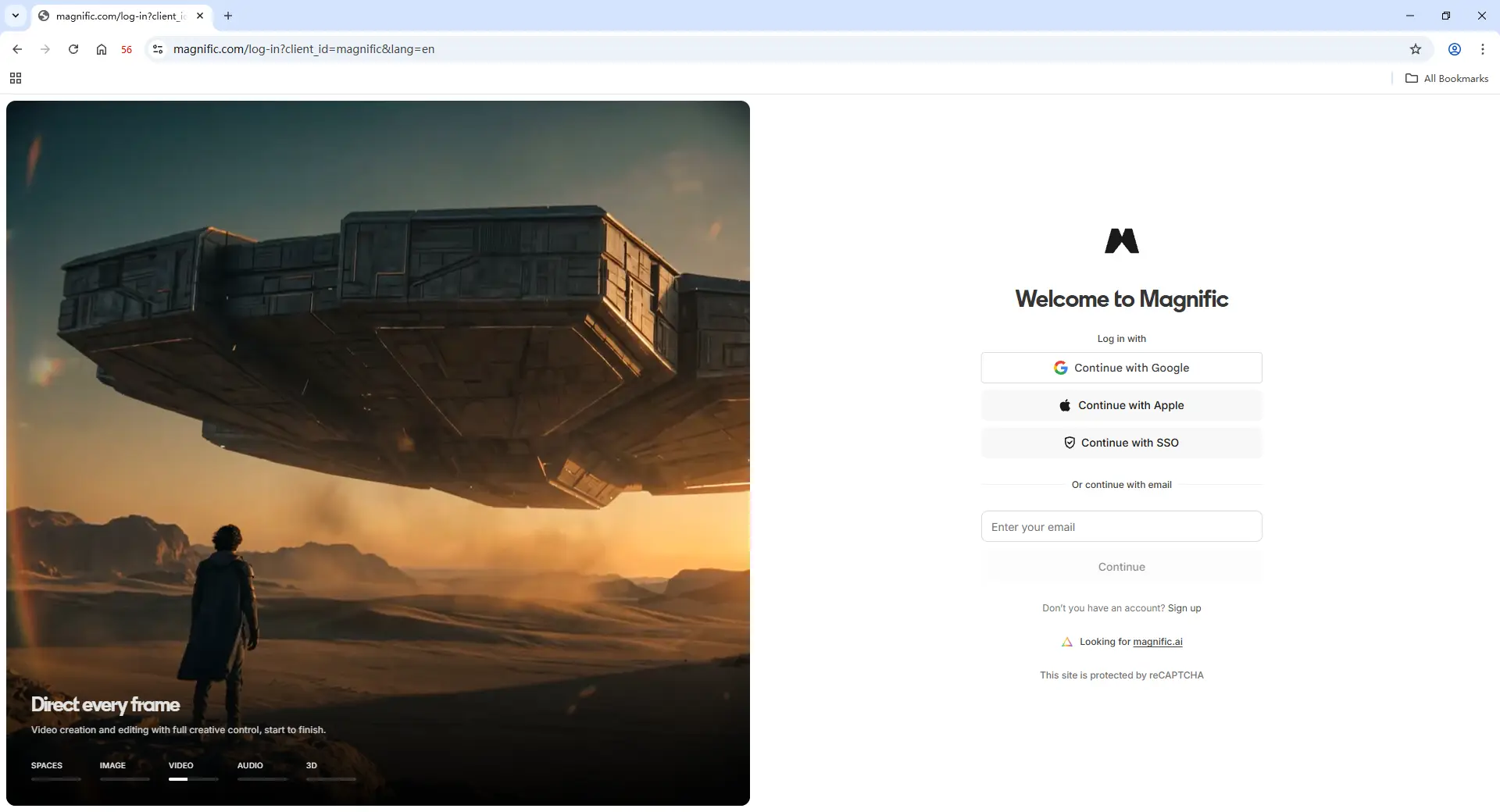
4. Sign In and Prepare the Magnific Session
Open the dedicated Profile, sign in to Magnific, and complete any required verification. Once the session is ready, approved members can use the Profile without receiving the original password directly.
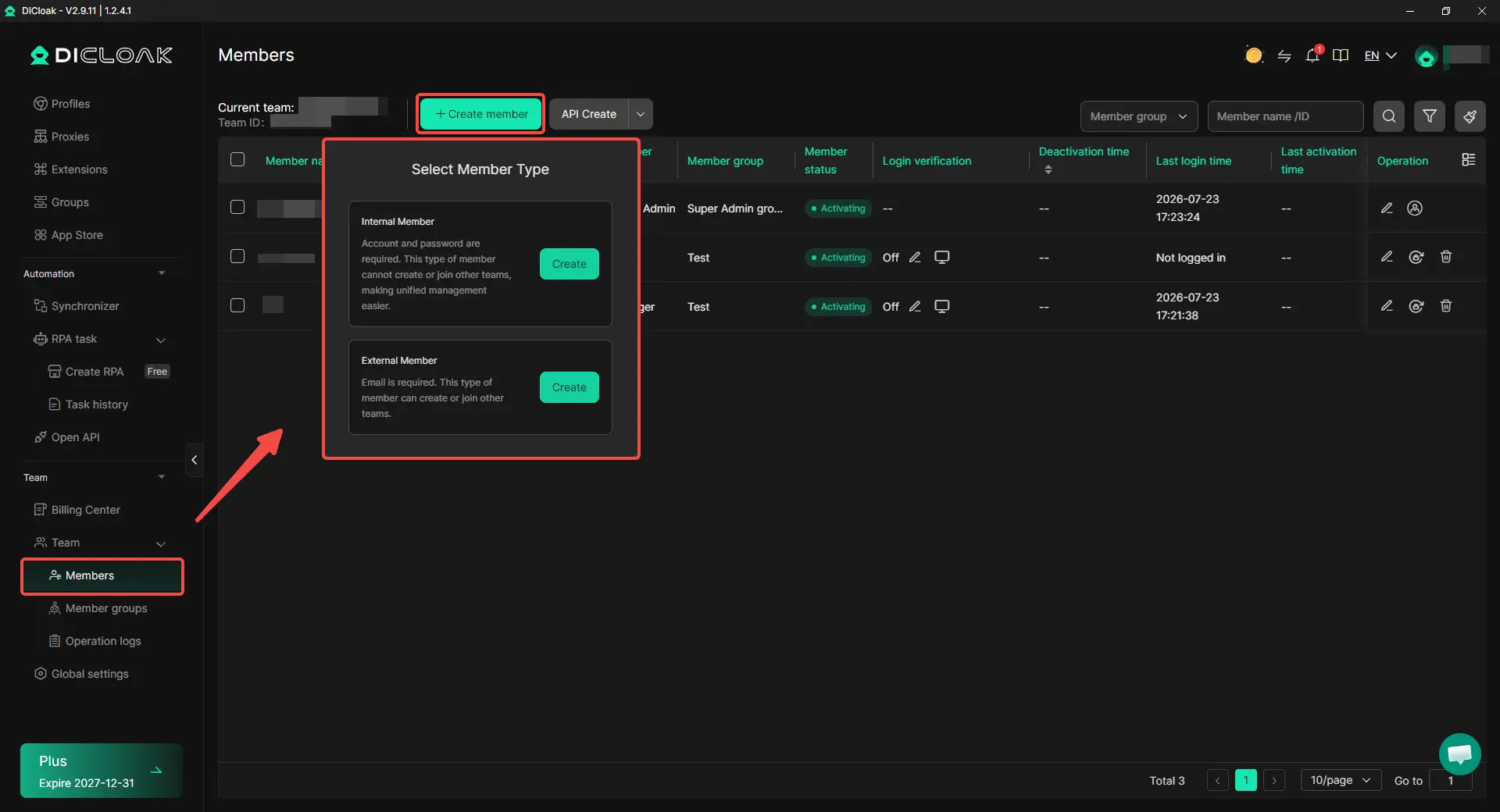
5. Share the Magnific Profile With Selected Members
Use Profile sharing and team permissions to assign the Profile only to teammates who need it. For example, an agency can give designers access to one client’s Magnific Profile while keeping other client Profiles separate.
6. Review and Remove Access When Needed
When a freelancer finishes a task, a member leaves, or a project ends, remove their access to the shared Profile. This keeps the team setup clear as projects and members change.
Frequently Asked Questions About Sharing a Magnific AI Account
Does Every Team Member Need a Magnific Business Seat?
Not always. A teammate who regularly generates AI images, videos, or audio should normally have their own authorized Business seat, while someone who mainly reviews creative work may only need access to a shared Project or Space. The better way to plan seats is to count the people who need ongoing AI creation access, not everyone who takes part in the project.
Can Clients or Reviewers Collaborate Without Using the Main Magnific Login?
Yes, teams can use shared spaces and Projects for creative collaboration instead of giving clients or reviewers the main account credentials. Spaces supports shared workflows and real-time collaboration, making it useful when a client needs to review ideas, leave comments, or follow creative work without becoming the person who manages the subscription.
Are Magnific AI Credits Shared Between Team Members?
Yes. The Business plan uses a shared credit pool for the team, so members draw from the same overall balance rather than receiving completely separate credit balances. This works well for teams with mixed workloads, but agencies should still watch usage when some members create credit-heavy video content much more often than others. Enterprise offers more advanced controls, including optional per-user credit limits.
Can Freelancers Use Magnific AI Without Receiving the Account Password?
Yes. If a freelancer is already authorized to work with the Magnific account or workspace, the team can keep the signed-in session inside a shared browser Profile instead of sending the password directly. With an antidetect browser like DICloak, the Profile can be shared with selected members while the saved login session, cookies, and browser data stay inside that Profile.
How Can Teams Manage Several Magnific AI Accounts Without Mixing Sessions?
Using separate browser Profiles is the clearest setup when an agency or marketing team manages several authorized Magnific accounts. With DICloak, each client account can stay in its own Profile with separate cookies, login sessions, and browser settings. Teams can then share the relevant Profile with the teammate working on that client instead of constantly logging in and out of different accounts in the same browser.
Conclusion
Sharing a Magnific AI account with a team in 2026 should not mean passing one login and password between several people. Regular creators are better served by official Business seats, while reviewers or clients may only need shared Projects or Spaces. For agencies managing several authorized Magnific accounts or workspaces, an antidetect browser like DICloak can keep each account in a separate browser Profile and let selected teammates work through the saved session without receiving the original password.
The clearest approach is to match access to the job: use Magnific’s own team features for subscription access, and use DICloak when the real problem is organizing multiple authorized accounts, browser sessions, and team workflows. The safest and most practical way to share Magnific AI is to share the right level of access, not the account credentials themselves.
 Web Proxy Tools
 Free Tools
 Cookie Plugin
 UA Generator
 MAC Address Generator
 IP Generator
 IP Address List
 2FA Code Generator
 World Clock
 Anonymous Check
 WebRTC Leak Test
 UUID Generator
 Free Web Proxy Site
 Proxy Checker
 FB Ad Checker
 AI Web Scraping
 Free SMM Tools
 Twitter Shadowban Checker
 Instagram Name Checker
 UTM Generator
 Username Generator
 AI Hashtag Generator
 LinkedIn Headline Generator
 Social Media Image Resizer