Running a webgl fingerprint test usually starts when you need to check if a site can track your device, even when you switch browsers or clear cookies. Maybe you just saw a new restriction on your ad account, or you noticed that a web service still recognizes you after changing your IP address. A plain wipe and relog don’t always cut it because webgl fingerprinting test sites can spot patterns in the way your browser draws graphics, linking sessions together in ways that aren’t obvious.
But a quick check on a webgl fingerprint checker isn’t always enough. Some tests show you a green “unique” badge, while others flag you as suspicious, and it’s not clear what actually changed. The bigger risk: misreading the results and assuming you’re now hidden, when the platform may still connect your old and new sessions using the same WebGL or hardware details.
If you’re managing multiple accounts, or need to keep your main and test environments separate, you can’t just rely on clearing your cache or switching proxies. The browser’s fingerprint, especially WebGL data, often leaks clues that link your sessions behind the scenes. Getting this wrong means restrictions or bans, sometimes without clear warning.
Here’s what you need to know before you run your next fingerprint detection check.
What Does a WebGL Fingerprint Test Actually Reveal?
A WebGL fingerprint test shows exactly what your browser and device reveal about your graphics hardware. This kind of test doesn’t just check your browser version or IP address, it digs into the low-level details your device sends out every time a website runs a WebGL script. If you care about privacy or use multiple accounts, the signals exposed here often matter more than your cookies or user agent.
Which Browser and Device Signals Are Tested?
- Graphics hardware and driver details: The test can read your GPU model, driver version, and sometimes even the vendor string used by your graphics card.
- WebGL rendering output and metadata: By drawing test images, the site collects pixel-level data, tiny differences in color or antialiasing patterns can point to unique device setups.
- Supported WebGL extensions and limits: Lists of which WebGL features and rendering limits are present often differ between devices and drivers, adding more unique markers.
How WebGL Fingerprint Tests Differ from Other Browser Fingerprinting
WebGL fingerprinting stands apart because it grabs details most users never think about, your GPU, driver quirks, and how your device draws pixels. canvas fingerprinting, by contrast, focuses on how your system renders simple shapes or text. Both can identify you, but WebGL digs deeper: it checks how your graphics stack handles complex 3D operations, which depends on hardware, drivers, and even OS patches. This means two machines with the same browser and OS might still show up as different if their graphics cards or drivers don’t match.
Here’s a real risk most people miss: even after you clear cookies, change your proxy, or swap browsers, your WebGL signature often stays the same unless you’re using hardware virtualization or a profile manager that actively changes these values. A site running a WebGL fingerprinting test can combine its results with other data, like your timezone or language settings, to build a unique profile. If you log into two accounts from the same PC, but change only your browser or IP, a matching WebGL output can quietly link those sessions behind the scenes.
This kind of fingerprinting doesn’t just identify your browser, it tags your physical device. That’s why operators focused on privacy or account separation need to pay attention to WebGL results, not just the usual browser signals. The next section covers why these fingerprints become a real risk for privacy and account operators, and what can happen if you ignore them.
Why WebGL Fingerprinting Poses Risks for Privacy and Account Operators
If you’re running a webgl fingerprint test to check your setup, the real risk isn’t just whether your device looks “unique”, it’s how platforms use that fingerprint to track, link, and restrict accounts. Even small mismatches or repeats can trigger bans or account linking behind the scenes. For operators managing multiple accounts, ignoring WebGL fingerprinting is like leaving a quiet trail that platforms can follow.
How WebGL Fingerprints Enable Tracking Across Sessions
- Platforms use WebGL fingerprints to pin a device’s hardware details, even if you clear cookies or swap proxies, the same fingerprint can show up and link sessions.
- Account systems often cross-check WebGL signals with other browser fingerprints, making it harder to hide without deliberate configuration.
- A single WebGL mismatch or repeat across accounts usually points to multi-account activity, platforms quietly flag or shadowban these setups.
Common Scenarios Where WebGL Fingerprinting Leads to Account Restrictions
Operators juggling multiple accounts often face silent bans, not because of login patterns, but because their WebGL fingerprint stays the same across each session. Imagine running two seller profiles, one main and one backup, on a platform that checks both WebGL and canvas fingerprints. Even if you use different proxies and clear your cache, the platform can connect both accounts by matching your hardware details. The result: you log in and within hours, your backup is restricted, or both accounts drop in trust score. The worst part? There’s rarely an obvious warning. You might see lower reach, delayed reviews, or even shadowbans where your posts stop getting shown, but nothing tells you the fingerprint was the link. That’s why operators who skip WebGL isolation often get flagged, even when every other step looks clean.
What Happens If You Ignore WebGL Fingerprint Consistency?
- Platforms link accounts by matching device fingerprints, even with different IPs.
- Trust scores drop if your WebGL fingerprint repeats across banned or restricted sessions.
- Silent restrictions: you may keep access, but your accounts lose visibility or reach without notice.
If you don’t actively manage your WebGL fingerprint, platforms can spot patterns in hours. A careless setup might look fine after a quick webgl fingerprint checker, but the real test is whether accounts stay unlinked and unrestricted over weeks. Skipping this step is one of the main reasons operators lose control of multi-account workflows.
The next step is learning how to run a webgl fingerprint test in 2026, so you can spot leaks before your accounts get flagged.
How to Run a WebGL Fingerprint Test Step-by-Step in 2026

Running a WebGL fingerprint test is about more than clicking one button and hoping for a “pass.” If you miss a step, you’ll get a false sense of security and risk linking your accounts anyway. Here’s how to check your WebGL fingerprint the right way.
Choosing a Reliable WebGL Fingerprint Testing Tool
- Search for a site with a clear privacy policy and a history of accurate reports. Avoid random “test your browser” pages with no feedback or support.
- Use trusted web tools like BrowserLeaks WebGL test or Pixelscan, which explain what each result means.
- If the tool pushes you to install anything, leave. All quality checkers run in-browser.
Preparing Your Browser Environment for Testing
- Clear your cache and cookies. Leftover data from past sessions can pollute your fingerprint and give inconsistent results.
- Disable all extensions, especially privacy, ad-block, or script-control tools. These often interfere with the test and may hide or change details.
- Make sure you’re using the same proxy or network setup you plan to use for real work. If your test doesn’t match your target environment, the results won’t help you.
Interpreting Your WebGL Fingerprint Test Results
- Check if your WebGL hash or metadata is labeled as “unique” or “rare.” If it is, your setup stands out.
- Compare the test output to a fresh, default browser. If your values are identical to a clean install on the same OS, you’re blending in. If not, you’re easy to track.
- Watch for warnings about mismatched drivers, fake hardware, or suspicious values, these usually mean your masking method is obvious and won’t hold up on real platforms.
If your test shows a unique or suspicious fingerprint, don’t assume you’re safe just because the site didn’t flag you in red. The next section covers where most people get this wrong and how mistakes here lead to easy detection.
What Most People Get Wrong About WebGL Fingerprint Masking
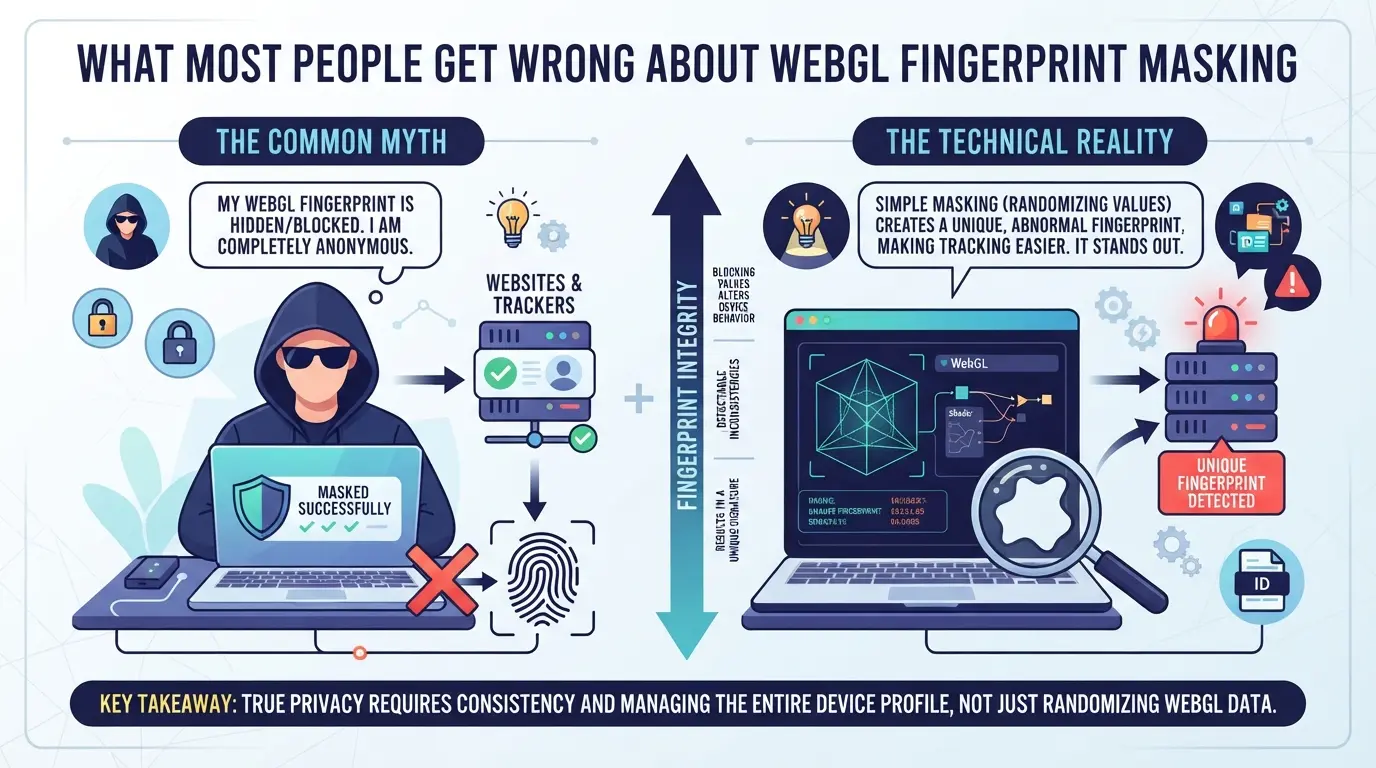
Most operators get caught out by thinking a quick tweak or browser extension will hide their WebGL fingerprint. The reality: platforms spot mismatches or randomness, and that’s often what triggers restrictions.
Why Changing Only WebGL Renderer Strings Is Not Enough
Switching the renderer string fools basic tests, but platforms check much more. If your renderer says “NVIDIA” but your WebGL image hashes match Intel, you’re flagged for inconsistent signals, sometimes in minutes. Changing only one value without matching the rest leaves obvious gaps.
Risks of Using Randomizers and Blocker Extensions
Randomizers and blockers often cause more problems than they solve.
- Platforms see shifting hardware values and treat them as abnormal, this gets accounts flagged or banned.
- Extensions themselves leave new fingerprints, making you stand out. Safer move: use stable, consistent hardware settings that match your proxy and user agent.
When Disabling WebGL Causes More Problems Than It Solves
Turning off WebGL breaks site features and marks your browser as suspicious. Platforms spot missing WebGL and treat it as a sign of masking, not privacy. You’re more likely to get challenged or blocked than blend in. If you need compatibility, keep WebGL enabled and focus on matching real device signals.
How Operators Can Set Up Safer Browser Profiles for WebGL Fingerprint Consistency
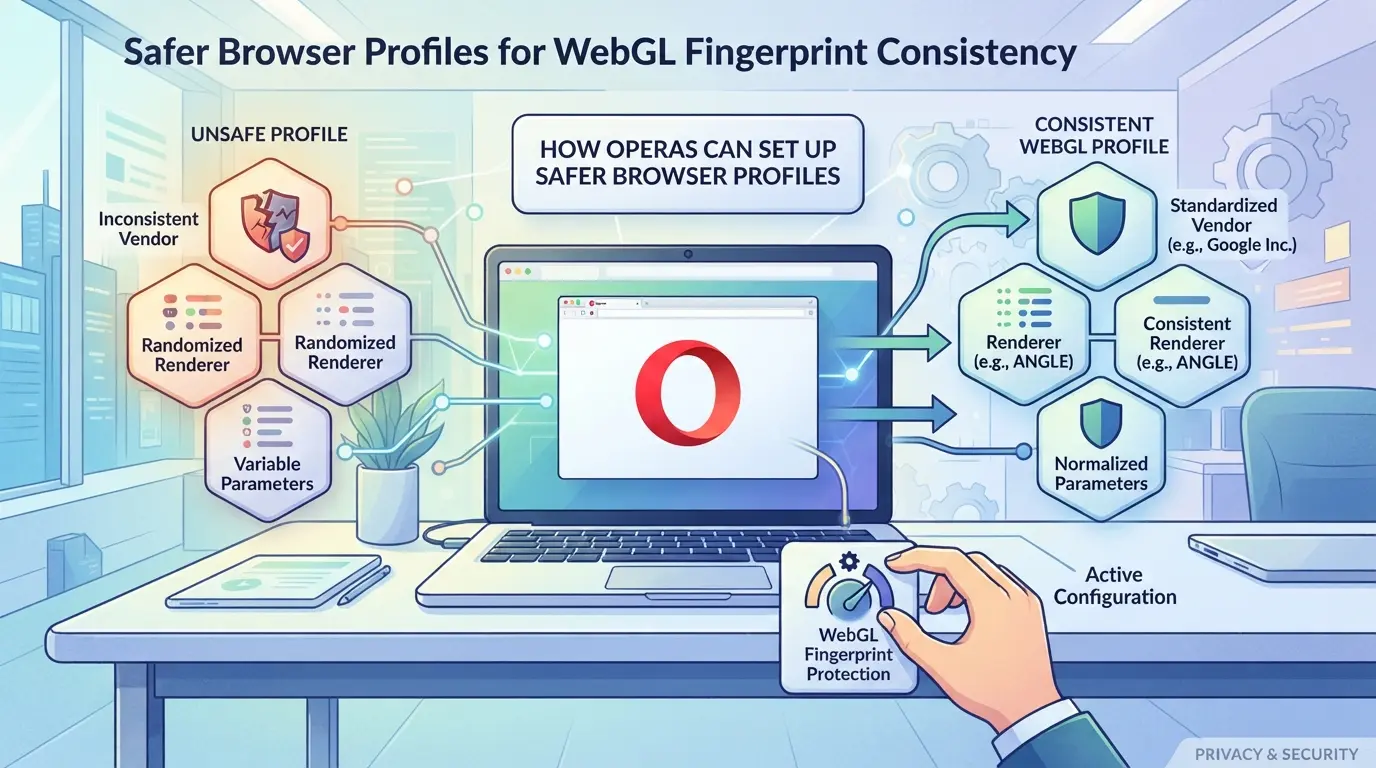
Getting profile separation right means fewer risks of account linkage. If you just run a webgl fingerprint test and see a “unique” result, that doesn’t mean your profiles are truly isolated. Real separation starts with how you build and configure each browser profile.
Separating Profiles for Different Platform Accounts
Operators aiming for safer multi-account workflows need to treat each browser profile as its own environment. Cross-profile overlap is what gets accounts linked, even if the User Agent is different.
- Create a separate browser profile for every platform account you want to keep apart. Using one profile for multiple accounts almost always leaks fingerprints.
- Name and group profiles so you can track which account belongs to which environment. If you lose track, you’ll miss when two accounts share a fingerprint.
- Set up a unique proxy per profile. Sharing proxies between profiles can cause IP overlaps, which often lead to flagged accounts.
- Clear cache and cookies before opening a new account session. If you skip this and reuse a profile, you risk exposing old session artifacts.
Configuring WebGL and Related Signals for Each Profile
WebGL fingerprint data goes beyond graphics, platforms use it to spot device-level patterns. Matching WebGL settings to your proxy/IP is critical, but only works if the full browser profile is consistent.
- Adjust WebGL parameters so they don’t repeat across profiles. Reused settings are the most common reason two accounts get linked after a webgl fingerprinting test.
- Set device signals (OS, screen resolution, fonts) to match the proxy’s region and expected device type. If your browser claims to be in Berlin but shows a US screen resolution, platforms notice.
- Review hardware settings like concurrency and memory. Out-of-place values trigger suspicion, especially when combined with mismatched WebGL metadata.
- Test the profile’s WebGL output against your proxy location. If the rendered image or metadata is off, change parameters until they match.
Checking Profile Consistency Before Account Operations
Running a fingerprint check before using a new profile is not just a box to tick, it’s a way to catch mistakes before they become bans.
- Use a webgl fingerprint checker on each profile before logging into any platform account. This step catches overlap and unique signals.
- Compare the checker’s output to your intended device and region. If results don’t match, redo the setup, don’t risk a mismatch.
- Look for repeated hashes or hardware IDs across profiles. If two profiles produce the same values, that’s a direct linkage risk.
- If inconsistencies show up, fix them before proceeding. Repeat the test until signals are clean and don’t overlap with any other profile.
Catching fingerprint mismatches early is what separates a safe workflow from one that gets flagged. The next step is learning how to configure these profiles and proxies in practice, without missing key browser signals.
How to Use DICloak to Configure Safer Browser Profiles and Proxy Settings for WebGL Fingerprint Management
If you’re running a webgl fingerprint test and want real isolation for each platform account, using separate browser profiles isn’t optional, it’s the only way to control which fingerprint signals get exposed in each session. Clearing cookies or switching proxies alone won’t prevent WebGL or hardware leaks from linking your accounts when the same browser profile is reused. For teams that handle multiple logins, keeping profile data, fingerprint settings, and network details separate is the only reliable way to avoid accidental overlap.
Creating Isolated Browser Profiles and Configuring Fingerprint Settings in DICloak
Operators can create a new browser profile in DICloak for each account or workflow. Inside the profile’s Fingerprint Settings, you can change how the browser reports its WebGL image and metadata, Canvas, ClientRects, AudioContext, and other device signals. This means every profile can have its own “hardware identity” and browser profile, instead of sharing fingerprints across accounts. The real benefit: profiles don’t bleed fingerprint data between sessions, so switching accounts is clean and predictable. The feature scope stops at browser-profile separation and signal configuration; it doesn’t guarantee that profiles are invisible to every detector or prevent platforms from running their own checks.

Assigning User-Owned Proxies to Each Profile for Network Separation
Each DICloak profile can be linked to a user-provided proxy. Operators enter their own proxy details, host, port, username, password, and test the connection before opening a session. This keeps the network layer separate, so an account’s browser fingerprint and exit IP don’t accidentally get reused. Matching the proxy’s region to the profile’s location settings can reduce mismatches that sometimes show up in advanced fingerprint tests, but it’s up to the operator to supply and manage these proxies. DICloak does not provide proxies or guarantee any outcome if the proxy is reused or misconfigured.

This setup makes it easier to keep account workflows clean, especially when teams rotate logins or hand off sessions. The next section explains when these profile and proxy controls matter most for operators.
When a Safer Browser Profile Workflow Matters Most for Teams and Operators
High-Risk Scenarios: Multi-Account Operations, Affiliate Campaigns, and E-Commerce
If you run multiple accounts on one platform, strict profile isolation and consistent fingerprints are non-negotiable, one mismatch or shared detail can link and restrict all your accounts.
Lower-Risk Scenarios: Personal Browsing and Occasional Account Use
A student using a webgl fingerprint test on a forum or shopping site usually doesn’t need advanced setup. Clearing cookies and switching browsers handles most privacy needs. Overcomplicating this, by running profile managers and configuring every fingerprint signal, just adds work and increases the chance of breaking a legitimate login. Unless you’re managing accounts with shared payment methods or high-value targets, simple privacy steps do the job.
How Teams Can Share Access Without Compromising Fingerprint Consistency
Teams should share only profile-specific credentials and avoid cross-profile logins. One accidental login from the wrong environment can tie unrelated accounts together within minutes.
Frequently Asked Questions About webgl fingerprint test
How accurate are WebGL fingerprint tests in 2026?
WebGL fingerprint tests are very accurate for spotting unique device and browser setups in 2026. They look at graphics card details, driver versions, and subtle differences in rendering. Accuracy drops if you use advanced masking, custom browser profiles, or privacy tools, but for most users, the webgl fingerprint test can reliably tell devices apart.
Can a proxy hide my WebGL fingerprint?
No, using a proxy does not hide your WebGL fingerprint. A proxy only changes your network address, not your browser’s hardware signals. To change your fingerprint, you need special browser setups or tools that let you control how your device appears during fingerprint checks.
Is it safe to use browser extensions for WebGL fingerprint masking?
Most browser extensions for masking WebGL fingerprints are easy to detect. They can even make you more unique by adding new, unusual signals. The safer method is using isolated browser profiles or dedicated tools that set the entire browser fingerprint, not just WebGL.
Should I disable WebGL to avoid fingerprinting?
Disabling WebGL can make some websites break or look strange. Also, turning off WebGL is itself a unique signal. Instead, it’s better to use a browser setup that always gives the same, normal WebGL signals, so you blend in with other users.
How can teams manage multiple accounts without WebGL fingerprint overlap?
Teams can avoid fingerprint overlap by using separate browser profiles for each account. Each profile should have its own custom fingerprint and proxy settings. This way, webgl fingerprint detection tools see each account as a different user, reducing the risk of linkages.
If you’re concerned about how your browser’s unique graphics capabilities might affect your online privacy, testing and understanding your fingerprint profile is a sensible first step. Consider leveraging privacy tools designed to minimize tracking and protect your digital identity. Try DICloak For Free
 Web Proxy Tools
 Free Tools
 Cookie Plugin
 UA Generator
 MAC Address Generator
 IP Generator
 IP Address List
 2FA Code Generator
 World Clock
 Anonymous Check
 WebRTC Leak Test
 UUID Generator
 Free Web Proxy Site
 Proxy Checker
 FB Ad Checker
 AI Web Scraping
 Free SMM Tools
 Twitter Shadowban Checker
 Instagram Name Checker
 UTM Generator
 Username Generator
 AI Hashtag Generator
 LinkedIn Headline Generator
 Social Media Image Resizer