Trying to Pass BrowserLeaks Fingerprint Checks feels like a moving target, what worked last quarter suddenly fails, and accounts that seemed safe yesterday trigger alerts today. You set up a fresh browser, clear cookies, and switch proxies, but one odd fingerprint value or a small mismatch still trips the BrowserLeaks test. The result? Your “clean” setup gets flagged, locked, or even blacklisted before you finish onboarding a new service.
The real problem isn’t just technical. BrowserLeaks doesn’t care how well you spoof your user-agent or change your IP, its scripts dig for device fingerprints, media capabilities, canvas quirks, and dozens of parameters that rarely match across real devices. Miss one, and your “unique” fingerprint can actually make you stand out more, not less.
Most guides tell you to swap browsers or use a profile manager, but that only scratches the surface. Passing tough browser fingerprint tests like BrowserLeaks demands you handle fingerprint consistency, randomness, and proxy leaks at the same time, and know which checks matter for your risk. Relying on the wrong tool or skipping a key parameter means you’re not just wasting time, you’re risking bans, failed registrations, or team lockouts. Getting it right saves hours of manual troubleshooting and keeps your accounts alive across platforms.
So, what should you actually check before you trust your setup? Here’s what serious operators test first.
What Does BrowserLeaks Actually Test, and Why Do Most Setups Fail?
Passing BrowserLeaks isn’t about hiding everything, it’s about matching what real browsers and networks look like in the wild. Most setups fail because they miss invisible links between fingerprint parts, or they patch one leak but trigger three others.
The Main Fingerprint Vectors: What Gets Checked
BrowserLeaks runs dozens of checks that go far beyond your public IP. The basics include:
- IP address and proxy detection: Exposes your real location if the proxy leaks.
- WebRTC and DNS leaks: Reveal your true IP or network even behind a proxy.
- Canvas, WebGL, and Audio fingerprinting: Capture tiny differences in rendering, exposing non-standard setups.
- Headers, fonts, plugins, device info: Compare your browser’s “story” to real-world device profiles.
A mismatch in any of these can single you out in seconds.
Why Most Users Still Get a 'Unique' or 'Suspicious' Result
Even with a proxy and a profile manager, most people trip up on the subtle details. The biggest problem is mismatch, your IP might say “London,” but your browser reports a time zone, language, or font set that’s never seen on British devices. Or your canvas fingerprint matches a rare Linux build, while your user agent claims you’re on Windows 11. These don’t just look odd, they stand out to automated checks.
What makes this harder in 2026 is that BrowserLeaks now combines parameters and checks for relationships that don’t exist in real browsers. For example, it’ll flag a device as “suspicious” if the GPU, audio fingerprint, and font list never appear together in known datasets. It’s not just about spoofing one value, you have to make your entire fingerprint believable as one real device.
Fingerprint noise, randomizing everything, backfires too. Real browsers have stable, coherent fingerprints. Over-randomizing makes your session look artificial and untrustworthy. If your setup fails, you usually see “unique” or “suspicious” warnings, which means you haven’t blended in with normal traffic.
This is why swapping tools or changing proxies isn’t enough. You need a setup where every fingerprint element works together, or you’ll keep failing even basic browser fingerprint tests.
Next, we’ll look at how detection methods have changed and which new pitfalls trip up most setups now.
Why Passing BrowserLeaks Is Harder in 2026: New Detection Methods and Common Pitfalls
BrowserLeaks has closed a lot of old loopholes. In 2026, beating these tests means staying ahead of their latest detection tricks, not just swapping your browser or setting up a proxy. The biggest difference now: tools that worked last year often miss new signals, and the smallest mismatch can ruin your whole setup.
Sites using BrowserLeaks now check more than just your user agent or canvas image. Today, fingerprinting includes TLS (JA3, JA4) signatures, HTTP/2 frame order, and device-level checks like battery state and media devices. Changing your browser string isn’t enough, JA3/JA4 hashes reveal what kind of client you really are, and HTTP/2 fingerprints spot when your request flow doesn’t match a real device. If one piece slips out of sync, like a TLS version that doesn’t fit the OS, or a battery readout that never changes, your “stealth” profile gets flagged in seconds.
Top 5 Mistakes That Trigger Detection (Even with Proxies)
Getting past the new checks means avoiding these traps:
- Mixing real and emulated fingerprints. Swapping in a real Windows user agent while running on a Mac? BrowserLeaks will catch the mismatch, hardware, OS, and browser must line up.
- Forgetting to sync timezone, language, or fonts. If your proxy is in Paris but your browser clock shows Shanghai, you’re out. Fonts and locales must match the IP region, or you stick out.
- Using outdated anti-detect tools. Tools built before 2026 often miss JA3/JA4, HTTP/2, or new device APIs. Passing old tests doesn’t cut it, look for solutions that update monthly.
- Neglecting WebRTC and DNS leaks. Even with a perfect fingerprint, a single DNS request or WebRTC leak can reveal your real location.
- Ignoring browser update cycles. Running a “latest” Chrome fingerprint but using an engine from 2024? That’s an obvious giveaway.
Most operators trip up on one of these. If you’re getting flagged, check for mismatched parameters or leaks before blaming the proxy. Next, you’ll need a full checklist to confirm your setup is even ready for BrowserLeaks.
What to Check Before You Try to Pass a BrowserLeaks Test
If you want to avoid instant failure or spending hours on why your browser got flagged, check the basics before you run any test. Most people miss a setup detail and get exposed before the page even loads. A quick pre-test check can save you from obvious leaks and wasted troubleshooting.
Essential Pre-Test Checklist for Fingerprint Consistency
Before you try to pass browser fingerprint tests like BrowserLeaks, run through this setup checklist. Missing even one step will often make you stand out more, not less.
- Proxy and IP setup verification: Make sure your proxy works, is stable, and matches the country you want. Test with a simple IP checker first. If your proxy leaks or drops mid-session, BrowserLeaks will spot it.
- Browser profile isolation: Use a separate browser profile for each test. Do not reuse old profiles, leftover cookies or cache can reveal you instantly.
- Fingerprint parameter alignment: Check that OS, browser version, language, timezone, and screen size match your target environment. Even a wrong timezone can fail you.
- WebRTC and DNS leak blocking: Disable WebRTC, and set DNS to a provider that fits your IP location. A WebRTC leak exposes your real IP even with a proxy.
- Plugin and extension audit: Remove any plugins or extensions you don’t need. One odd extension can break your fingerprint consistency.
How to Spot a Weak Link Before You Even Test
The fastest way to catch a weak spot is to look for things that don’t match or feel out of place. If your browser shows a timezone that doesn’t fit your IP, or you see unexpected plugins, stop and fix them.
Quick red flag checklist:
- IP and timezone mismatch (e.g., US IP with Moscow time)
- Unusual browser fonts or plugins showing up in settings
- Language header not matching your intended region
- Device memory or hardware info out of line with real devices
Most instant fails on BrowserLeaks come from these simple mismatches. Fix them now, and you’ll spend less time chasing “stealth” tools and more time actually passing. The next step is the full walkthrough, now that your basics are covered, you’re ready to dive into detailed methods that actually get past the latest BrowserLeaks checks.
Step-by-Step: How to Pass BrowserLeaks Fingerprint Checks in 2026
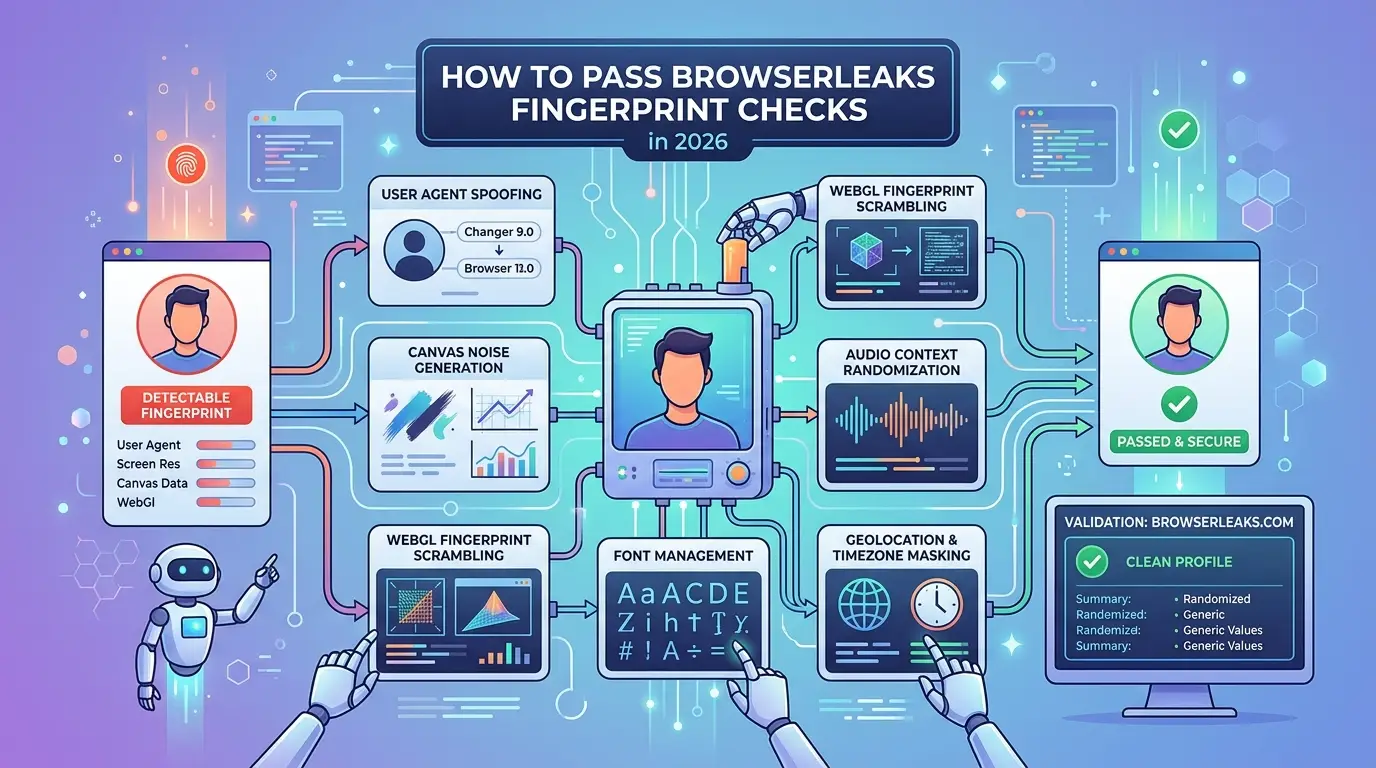
Passing BrowserLeaks fingerprint checks in 2026 means more than hiding your IP or picking a random browser profile. You need a workflow that handles isolation, proxy setup, and fingerprint tweaks, if you skip one, you usually fail. Here’s the exact process operators use to get consistent, low-risk results right now.
Step 1: Set Up a Clean, Isolated Browser Environment
Always start with a brand new browser profile, never reuse. Isolation blocks cross-profile leaks like shared cookies, local storage, or subtle session fingerprints. Use separate user data folders and, if possible, a tool that locks each profile to its own disk or sandbox. Even a single leftover file can flag your session as a clone.
Step 2: Integrate a High-Quality Proxy and Match Location Data
Plug in a residential or mobile proxy, not a datacenter one, cheap datacenter IPs are mass-flagged and rarely fool advanced checks. Align your proxy’s geolocation with browser timezone and language. If your IP says Germany but your browser shows a US timezone, you stand out immediately. Many failures trace to this mismatch, not the browser itself.
Step 3: Customize Fingerprint Parameters to Blend In
Default fingerprints are dead giveaways. Set a user agent, OS, screen size, and fonts that match real devices used in your target region. Avoid odd combos, like a Mac user agent with Windows fonts, that almost never appear on real machines. Disable rare plugins, and randomize Canvas/WebGL if your tool allows, but keep the values consistent each session.
Step 4: Test on BrowserLeaks and Analyze the Results
Run your setup through BrowserLeaks and focus on the “unique” and “suspicious” flags. One or two yellow warnings often pass in real-world use, but any “unique” red means you need to adjust. Check which parameter failed: if it’s your timezone, fix the mismatch; if it’s Canvas, lock in a stable spoof. Tweak, retest, and save configs that work.
A setup that passes alone might still fail at scale or with team use, handling those cases takes extra steps.
How to Avoid Detection When Managing Multiple Accounts or Team Workflows
Passing a fingerprint check once doesn’t mean your accounts are safe when you scale up. Running multiple accounts or coordinating a team makes fingerprint leaks much more likely, one small mistake, and every account linked to that setup gets flagged. Here’s what actually makes group operations high-risk, and what you should do to avoid blowing your cover.
Why Multi-Account and Team Operations Are High-Risk
The biggest danger with multi-account setups is fingerprint collisions. If two accounts share the same browser fingerprint, same canvas hash, fonts, or even timezone, sites can link them instantly. Teams introduce another layer of risk: when people share devices, profiles, or proxies, a single “contaminated” session can spread across everything. That’s why teams who copy browser profiles or rotate logins on one machine often trigger mass bans within hours.
Best Practices for Safe Multi-Account Management
You need to treat every account as a separate identity, not just a login. The safest teams set up isolated browser profiles for each account, never reusing the same environment, even by accident. Pair each profile with its own dedicated proxy, and keep a usage log so you can trace who accessed what and when. For teams, permissions matter: only let trusted members handle sensitive profiles, and lock down access so one mistake doesn’t snowball.
The most common failure isn’t a technical glitch, it’s someone reusing a “safe” profile because it’s faster. That shortcut turns a small leak into a full cluster ban.
Here’s a quick risk-control checklist for team account management:
- Assign one browser profile and one proxy per account.
- Never share profiles between accounts, even for testing.
- Use access controls, don’t give every team member full rights.
- Keep an audit log to track changes and new logins.
- If a profile is flagged, quarantine it, don’t reuse it elsewhere.
Cutting corners here guarantees detection. If you want to scale safely and consistently pass browser fingerprint tests, airtight isolation is non-negotiable.
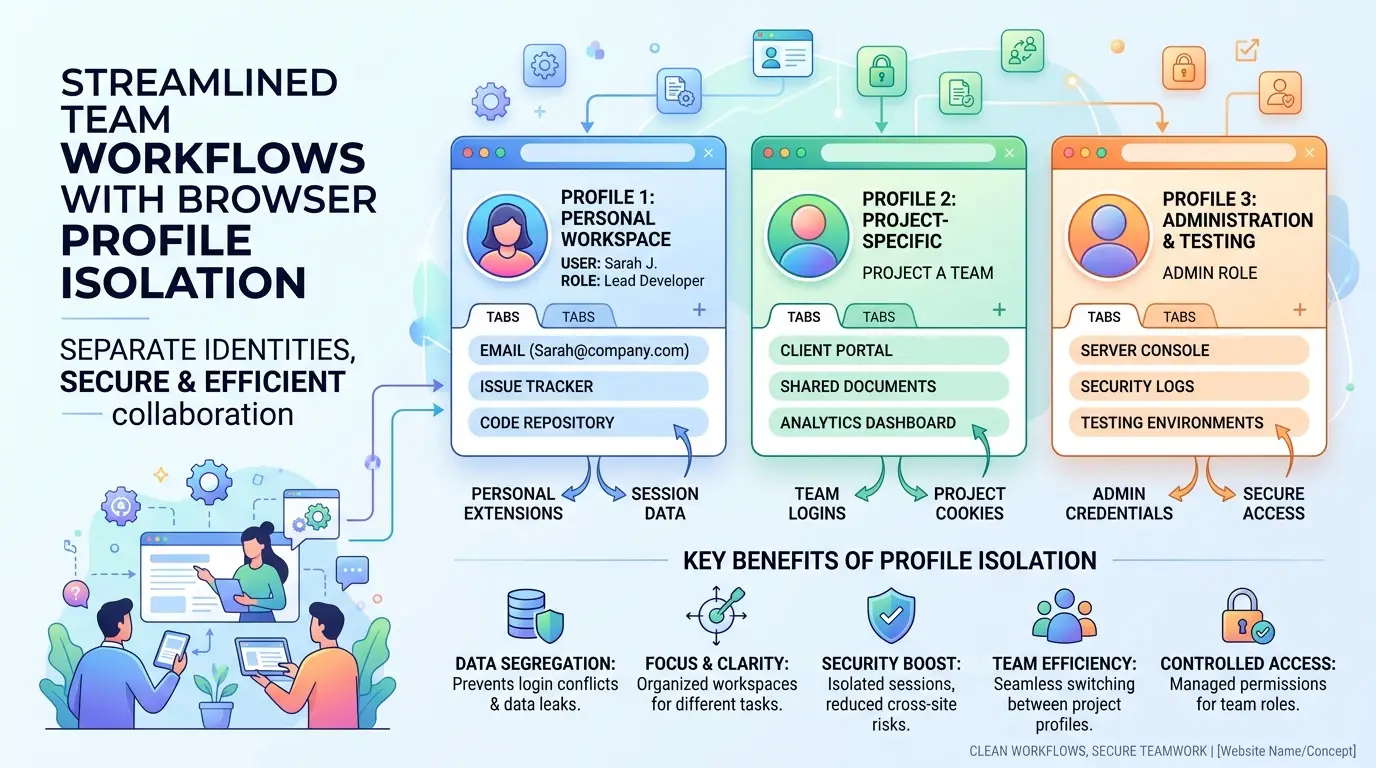
How DICloak Helps You Pass BrowserLeaks Checks and Manage Fingerprints at Scale
Trying to pass BrowserLeaks fingerprint checks with standard tools usually fails, shared browser setups leak signals, and manual tweaks don’t scale. DICloak was built to handle exactly these gaps for teams and high-volume operators.
DICloak’s Unique Browser Profiles and Fingerprint Customization
You can use DICloak to isolate every account’s browser, device fingerprint, and proxy, no overlap, no accidental leaks. Each profile lets you tweak User-Agent, canvas, WebGL, timezone, language, and more, so you stop failing on the “rare parameter mismatch” traps that BrowserLeaks catches. It’s not just about randomizing; it’s about controlling every detail for each account.
Built-In Proxy Integration and Team Collaboration Tools
Assign a unique proxy to each profile right inside DICloak, this keeps your IP, location, and network stack consistent across sessions. Team features let you manage permissions, track who did what with built-in operation logs, and use RPA automation for bulk actions, so no one accidentally reuses a profile or leaks a device ID.
Real-World Workflow: Passing BrowserLeaks with DICloak
Set up a new profile, assign its proxy, adjust fingerprints, and run a BrowserLeaks test, if you see “unique” or “consistent” on all rows, you’re good. Scaling to 50+ accounts? Just clone the setup, each with its own isolation.
Troubleshooting: What to Do If You Still Fail BrowserLeaks Checks
If you still fail BrowserLeaks fingerprint tests, even after using DICloak or following step-by-step guides, the problem is usually buried in a detail your tool missed or a setting you forgot to reset. Fixing these issues means going straight to the alert, not guessing based on general advice.
Diagnosing the Failure: Reading BrowserLeaks Results
Don’t just check if you passed, read the exact alert. BrowserLeaks points out which fingerprint parameter triggered the failure, whether it’s canvas, WebRTC IP, or unusual font signatures. Click into the test result, find the red or yellow warning, and note the field. That’s your starting point. If you see a proxy mismatch, trace which browser profile used the wrong proxy or had cookies leaking across sessions. For plugin or font issues, check if your browser profile loaded extras that real devices don’t have.
Step-by-Step Fixes for Common Issues
Most failures boil down to three things:
- Proxy and fingerprint mismatch: Re-link your proxy to the exact browser profile. If your browser shows a local IP while the proxy is active, you’ll fail every time.
- WebRTC or DNS leaks: Disable WebRTC in your browser, or set it to only use your proxy. Flush your DNS cache, if the system resolver leaks, sites can spot your real location.
- Odd plugin or font signatures: Start with a blank profile. Remove extra plugins, toolbars, or font packs that don’t match normal device setups. If you use DICloak, double-check the fingerprint template for unnecessary extras.
When to Rebuild Your Setup from Scratch
Sometimes, fixes don’t stick, especially if past profiles left hidden device IDs or if contaminated cookies keep leaking. If you see repeat failures across new tests, wipe your browser profile, clear all caches, and restart with a fresh template. Use a clean proxy, and avoid reusing old session data. Starting fresh is the only way to remove fingerprint “contamination” that keeps getting you flagged. Skipping this step means you’ll chase leaks for hours with no real progress.
Frequently Asked Questions About Pass BrowserLeaks Fingerprint Checks
Is it legal to try to pass BrowserLeaks fingerprint checks?
Passing BrowserLeaks fingerprint checks is legal if you use it for privacy testing or research on your own devices. Problems can arise if you use these methods to hide your identity for fraud or to break website rules. The test itself is just a tool; legality depends on what you do with the results.
Can I pass BrowserLeaks with just a proxy?
No, using only a proxy will not let you pass browser fingerprint tests on BrowserLeaks. Proxies hide your IP address but do not change other fingerprint data like your browser version, screen size, fonts, or plugins. To avoid BrowserLeaks detection, you must manage these fingerprint parameters too.
Why does BrowserLeaks still show my browser as unique even after using an antidetect tool?
BrowserLeaks might still mark your browser as unique if your fingerprint mix is rare, like an uncommon screen resolution with certain fonts. Sometimes, antidetect tools miss small details or are outdated. Even one unusual parameter can make you stand out in browser fingerprinting tests.
How often should I retest my setup on BrowserLeaks?
You should retest your setup every time you change your proxy, browser, or any fingerprint settings. Websites update their detection methods, and small changes can reveal your real identity. Regular tests help you catch leaks and make sure you still bypass BrowserLeaks fingerprinting.
Can I use the same BrowserLeaks-passing setup for multiple accounts?
No, reusing the same setup increases the risk of all your accounts being linked. If multiple accounts share the exact browser fingerprint, websites may suspect fraud or ban them. Each account should have its own unique fingerprint to avoid collision and detection.
Anyone seeking stronger privacy online can now take steps to shield their browser fingerprint from common tracking techniques. Consider testing your setup against these checks and adopt tools that proactively mask your unique device profile. Try DICloak For Free
 Web Proxy Tools
 Free Tools
 Cookie Plugin
 UA Generator
 MAC Address Generator
 IP Generator
 IP Address List
 2FA Code Generator
 World Clock
 Anonymous Check
 WebRTC Leak Test
 UUID Generator
 Free Web Proxy Site
 Proxy Checker
 FB Ad Checker
 AI Web Scraping
 Free SMM Tools
 Twitter Shadowban Checker
 Instagram Name Checker
 UTM Generator
 Username Generator
 AI Hashtag Generator
 LinkedIn Headline Generator
 Social Media Image Resizer