Many people still use X to share opinions, follow news, and stay connected. But in 2026, more users are starting to ask a simple question: who can really see my posts, photos, and activity? If your account is public, your content can be seen by strangers, indexed more widely, and shared beyond your control. That is why more people are choosing to make their accounts private. In this guide, you will learn how to make your Twitter account private, what changes after you turn on this setting, and what else you should check if you want stronger privacy in daily use.
Understanding the Reality of a Protected Profile in 2026
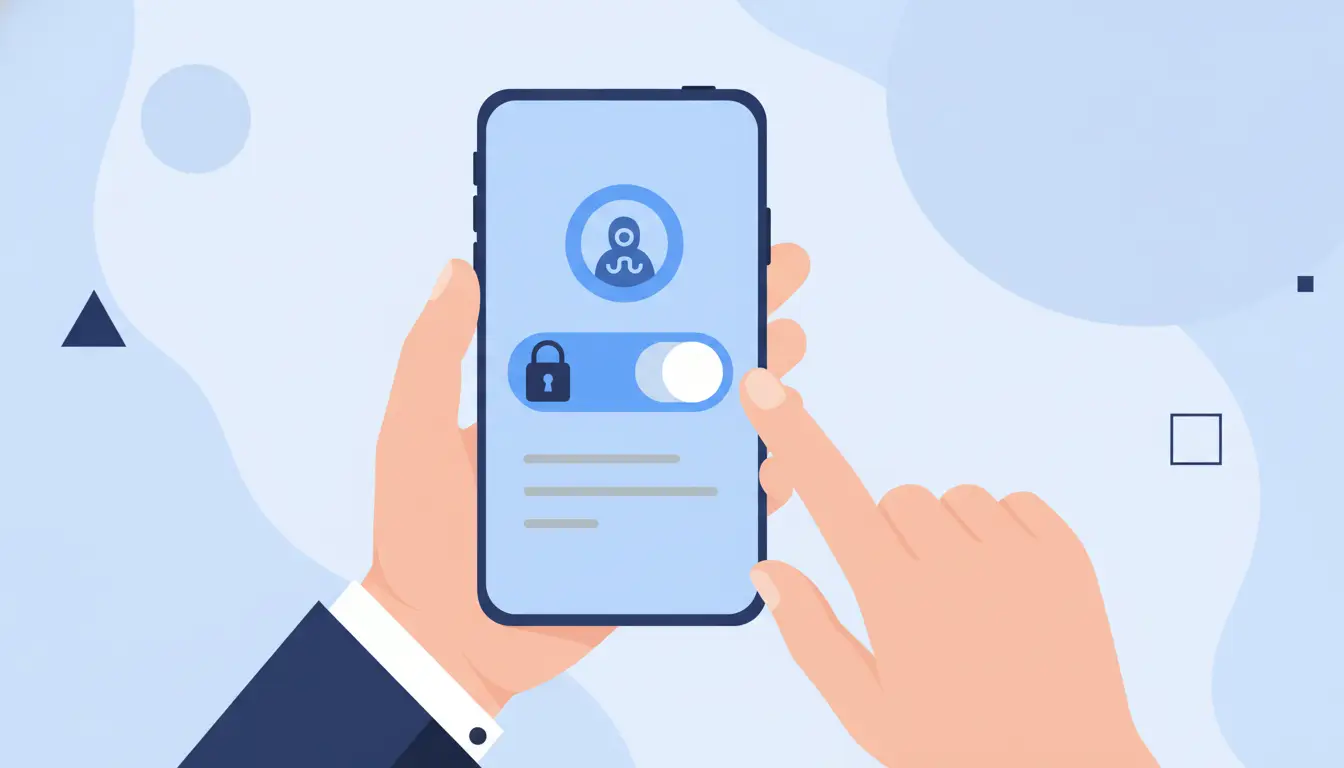
Maintaining a public profile on X (formerly Twitter) in 2026 means your data is subject to constant scraping, AI training, and unauthorized surveillance. To reclaim control over your digital footprint, you must transition to a "Protected" status. This moves your account from a public broadcast model to an exclusive, approval-based environment. By enabling this, you ensure that only users you have explicitly vetted can access your posts, media, and profile details, effectively shielding your information from the general public and automated data harvesters.
What actually changes when you switch to a private account?
| Feature |
Public Account |
Private (Protected) Account |
| Post Visibility |
Accessible to anyone on or off X |
Limited to your approved followers |
| Search Indexing |
Indexed by Google and X search |
Removed from search engines and public discovery |
| Interactions |
Anyone can Like, Reply, or Repost |
Only approved followers can Like or Reply |
| Content Sharing |
Repost button is fully functional |
Repost and share functions are disabled |
| Profile Access |
Timeline and media are fully visible |
"Protected" notification shown to non-followers |
How does content visibility change for non-followers?
When a user who does not follow you visits your profile, they will no longer see your timeline, media gallery, or replies. Instead, the platform displays a "protected" notification. This informs the visitor that your posts are private and restricts access unless they send a follow request that you manually approve.
What happens to the Repost and share functions?
Privacy protection is designed to kill the "virality" of your content to prevent it from leaking outside your trusted circle. Once your account is private, your followers lose the ability to use the native Repost (formerly Retweet) button on your posts. This is a technical safeguard to ensure your content is not distributed to audiences you haven't authorized.
Will my tweets still show up in Google search results?
Immediately upon switching, X sends a request to search engines to stop indexing your profile. This removes your posts from public timelines and global searches. However, as an advocate for digital hygiene, be aware that information already indexed by Google may remain in their cache for several days or weeks until their crawlers update the search results.
Critical considerations before toggling your privacy settings
What happens to my current list of followers?
Switching to private does not retroactively remove existing followers. Anyone who followed you while the account was public retains their access. As a best practice, you should conduct a "follower audit" immediately after going private, manually blocking or removing any accounts that do not meet your current security standards.
Are my old, public tweets automatically hidden?
Making your account private protects your profile moving forward, but it does not "scrub" the internet. Posts made while your account was public may have already been archived by third-party sites or server-side caches. If you need historical privacy, you must manually delete past posts, as the "Protected" toggle is not a retroactive content wiper.
Are there restrictions for business or brand accounts?
Professional profiles and verified brand accounts may face activation delays. X’s current policies for public figures often prioritize transparency, meaning certain privacy features—like hiding replies or going fully private—may be subject to moderation review or brand-safety restrictions to prevent the platform from being used for unaccountable messaging.
How to make your Twitter account private on the mobile app (iOS & Android)
Protecting your posts on a mobile device is the most direct way to secure your account on the go.
- Launch the X app and ensure you are logged in.
- Tap your profile picture in the top-left corner.
- Navigate to Settings and Support and select Settings and Privacy.
- Tap Privacy and Safety.
- Select Audience and tagging.
- Toggle Protect your posts to the "on" position.
- Select Confirm when the final prompt appears.
Navigating the 'Privacy and Safety' menu
In the 2026 interface, the Privacy and Safety menu serves as your security command center. From an advocacy perspective, this is where you should also manage "Discoverability," ensuring your phone number and email are not searchable, which complements your private account status.
Confirming the 'Protect your posts' activation
The platform requires a manual confirmation to prevent accidental shifts in visibility. Once confirmed, a padlock icon will appear next to your handle. As a strategist, I recommend auditing your "Follow Requests" weekly to ensure you aren't being targeted by social engineering attempts from "cloaked" accounts.
What is the process for protecting your posts on a desktop browser?
The web-based workflow provides the most granular view of your security settings.
- Navigate to X.com and log in to your dashboard.
- Click the More (three dots) icon in the left-hand sidebar.
- Select Settings and Support, then click Settings and Privacy.
- Choose Privacy and safety from the center column.
- Click on Audience, media and tagging.
- Check the box for Protect your posts.
- Click Save at the bottom of the screen.
Accessing settings through the 'More' sidebar
The desktop "More" menu is the gateway to advanced account management. This path is essential for users who want to review their privacy settings on a larger screen to ensure no secondary permissions—like data sharing with partners—are left enabled.
Managing audience, media, and tagging
Within this sub-menu, you should also review your photo tagging permissions. Even if your posts are protected, being tagged in public photos by others can create a digital breadcrumb trail back to your profile. Set your photo tagging to "Only people you follow" for maximum security.
Why can’t I find the privacy toggle in my settings?
Is your application running the latest 2026 update?
X frequently updates its UI to accommodate AI-driven content moderation and shifts in decentralized protocols. If the "Protect your posts" option is missing, your app version is likely obsolete. Always ensure you are on the current build to maintain access to the latest encryption and privacy toggles.
Are account-specific restrictions blocking your access?
If you are a verified business or an account currently under platform review for "quality filtering," the privacy toggle may be temporarily greyed out. Transparency requirements for high-reach accounts sometimes mandate a public status until a specific review period concludes.
More Privacy Starts with Better Account Control
Making your X account private is a good first step. But privacy is not only about who can view your posts. It also depends on how you log in, manage sessions, and protect account access on your device.
- Keep accounts separate: DICloak lets you open different X accounts in isolated browser profiles, so cookies, logins, and fingerprints do not mix. This is useful if you use one private personal account and one work account on the same computer.
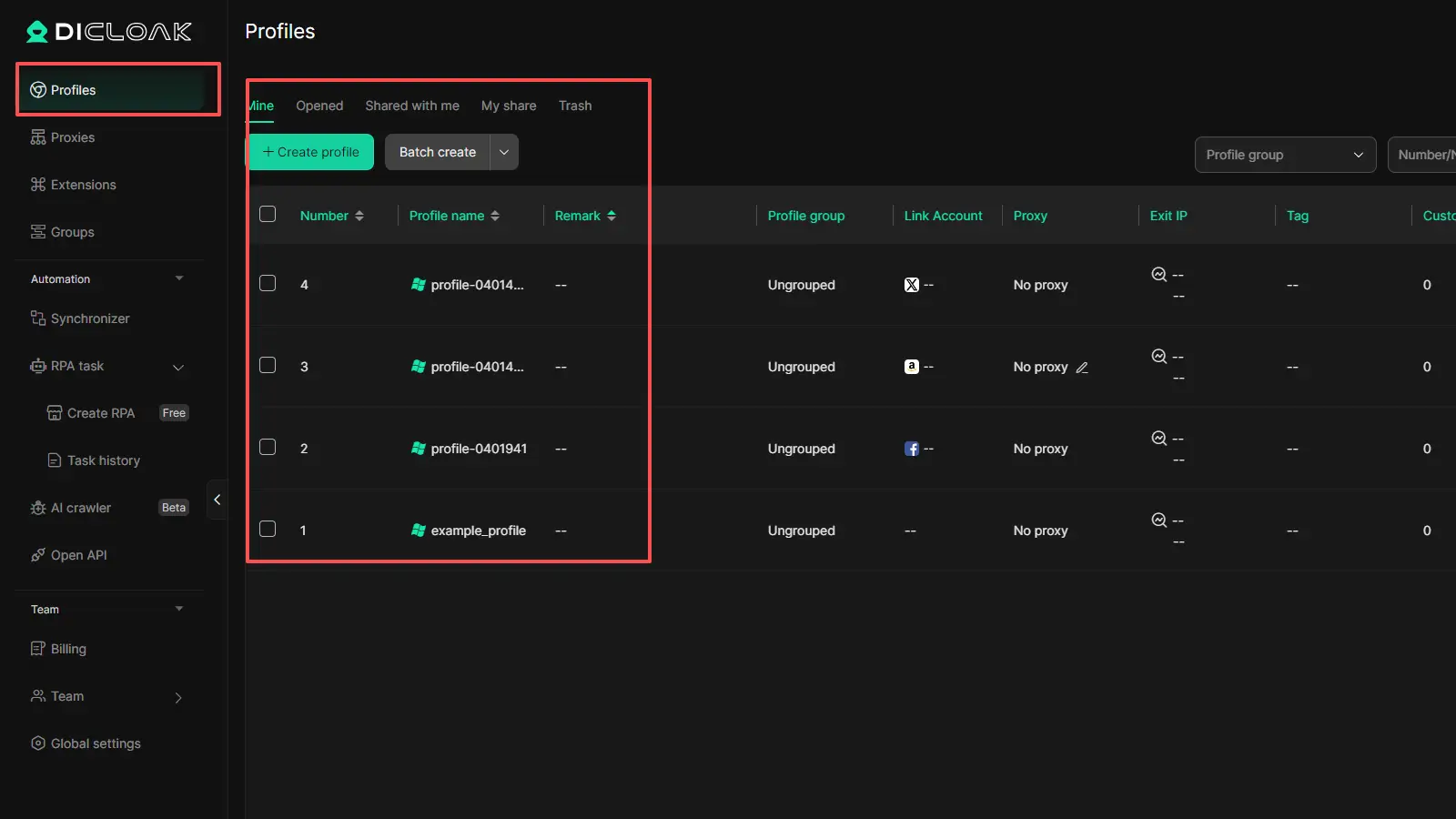
- Reduce account mistakes: When several accounts are open at the same time, it is easy to post or reply from the wrong one. DICloak helps keep each account in its own profile, which makes daily account handling cleaner and safer.
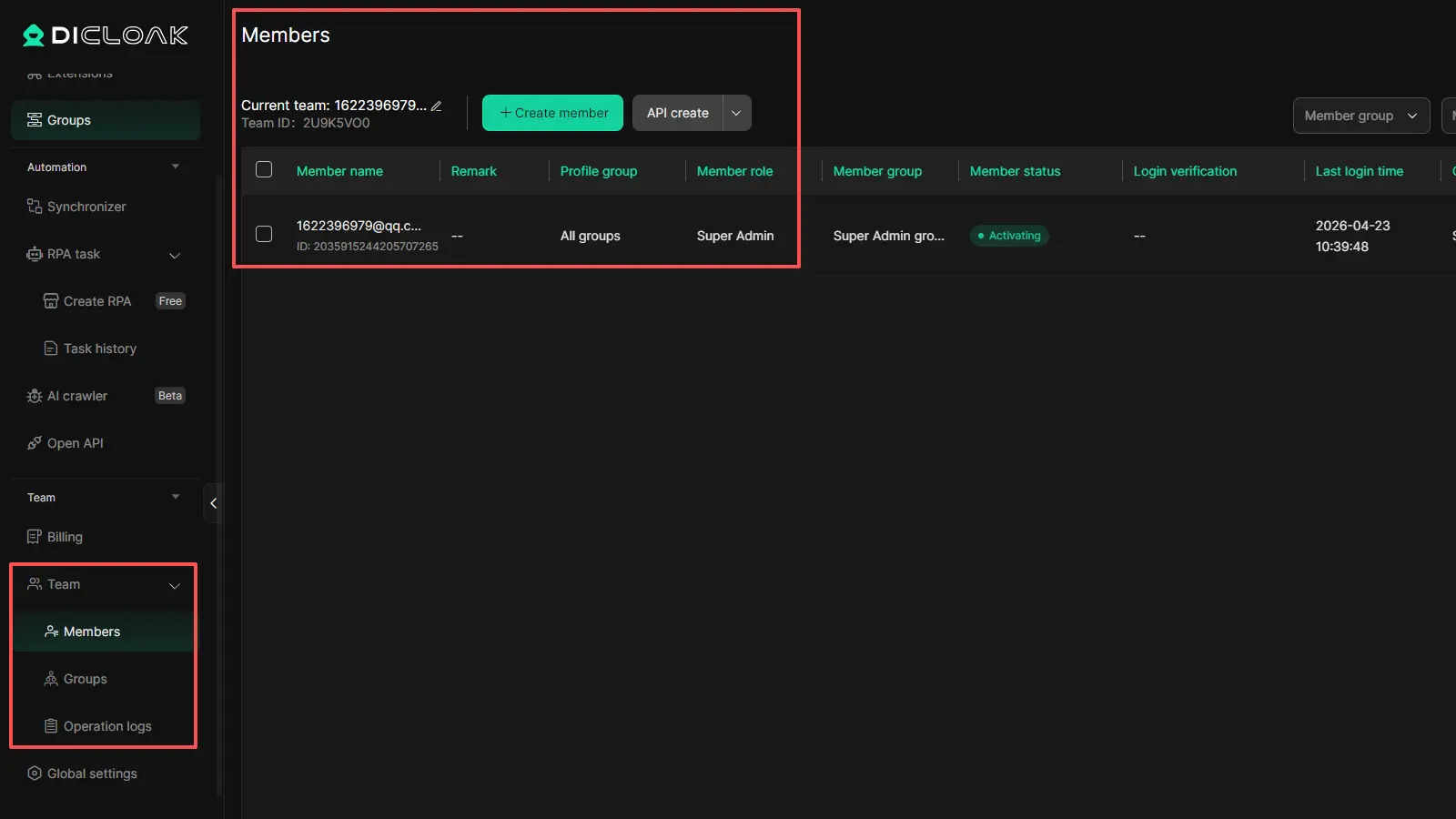
- Support safer team access: If an account is shared with team members, DICloak offers features like member permissions, website access restrictions, security protection mode, and a web element hider. These tools can help lower the risk of misuse or accidental exposure.
How does going private impact your engagement and recommendations?
Will the algorithm still recommend my content?
Going private effectively removes you from the "For You" discovery engine. Your posts will never be recommended to non-followers. However, from a technical perspective, the platform still harvests your data—your likes, the posts you dwell on, and your interactions—to train your own personalized feed and target you with advertisements.
Does privacy status interfere with Direct Messages (DMs)?
No. Account protection and DM functionality are independent. You can still send and receive DMs based on your specific "Direct Messages" settings. However, I recommend setting your DM permissions to "Only people you follow" to prevent spam bots from bypassing your protected wall.
Frequently Asked Questions about Twitter Privacy
Q1:Can I switch back to a public account later?
Yes. You can revert to public at any time. Be warned: once you go public, any posts you made while private will immediately become visible and searchable to the entire world.
Q2:Will people I don't follow see my replies to public tweets?
No. If you reply to a public post, only your approved followers can see that reply. The author of the public post will see that there is a reply, but they will not be able to read the content unless they follow you.
Q3:Why do some people still see my tweets after I went private?
These users were already following you before you flipped the switch. Privacy status is not a block. Additionally, beware of "leaky followers"—approved followers who may manually screenshot and repost your private content. Technical settings cannot prevent social betrayal.
Q4:How do I approve or deny new follow requests?
You will receive a notification for every new request. Navigate to your profile and click on "Follow Requests" to manually vet each user before granting access to your timeline.
Q5:Do private accounts get fewer bot interactions?
Significantly. Since your profile is removed from public search and scraping pools, you are much less likely to be targeted by automated spam bots and crypto-scammers.
Final Privacy Checklist
To ensure your transition to a private account is effective, complete this high-impact audit:
- Purge your Follower List: Remove any accounts you don't recognize.
- Audit Third-Party Apps: Go to "Security and account access" and revoke access for any apps you no longer use; these can sometimes bypass privacy settings to pull data.
- Address the Screenshot Risk: Remind your circle that your account is private and that sharing screenshots of your posts is a breach of trust.
- Set DM Filters: Ensure your DM settings are restricted to "People you follow" to close the last loop for unsolicited interactions.
- Enable 2FA: A private account is useless if it’s hacked. Ensure Two-Factor Authentication is active to protect your private data.
 Web Proxy Tools
 Free Tools
 Cookie Plugin
 UA Generator
 MAC Address Generator
 IP Generator
 IP Address List
 2FA Code Generator
 World Clock
 Anonymous Check
 WebRTC Leak Test
 UUID Generator
 Free Web Proxy Site
 Proxy Checker
 FB Ad Checker
 AI Web Scraping
 Free SMM Tools
 Twitter Shadowban Checker
 Instagram Name Checker
 UTM Generator
 Username Generator
 AI Hashtag Generator
 LinkedIn Headline Generator
 Social Media Image Resizer