Private mode does not hide your IP address, and Mozilla’s private browsing guidance is clear that websites can still see network-level data. That gap is why people still get blocked, geo-limited, or flagged even after they “browse privately.” If you are searching how to hide ip address, the real task is not one setting in one app. You need layered control: route traffic through a proxy, stop WebRTC leaks, check DNS paths, and separate sessions that should never share identity signals.
You will learn a practical setup you can run in daily browsing: how to configure proxies at browser and system level, how to validate exposure with a WebRTC leak test, and how to confirm your resolver path with a DNS leak test. You will also see why browser policy settings like WebRtcIPHandling in Chromium change real outcomes, and where profile isolation tools such as DICloak fit when you manage separate accounts. Start with leak testing, then lock each layer in order.
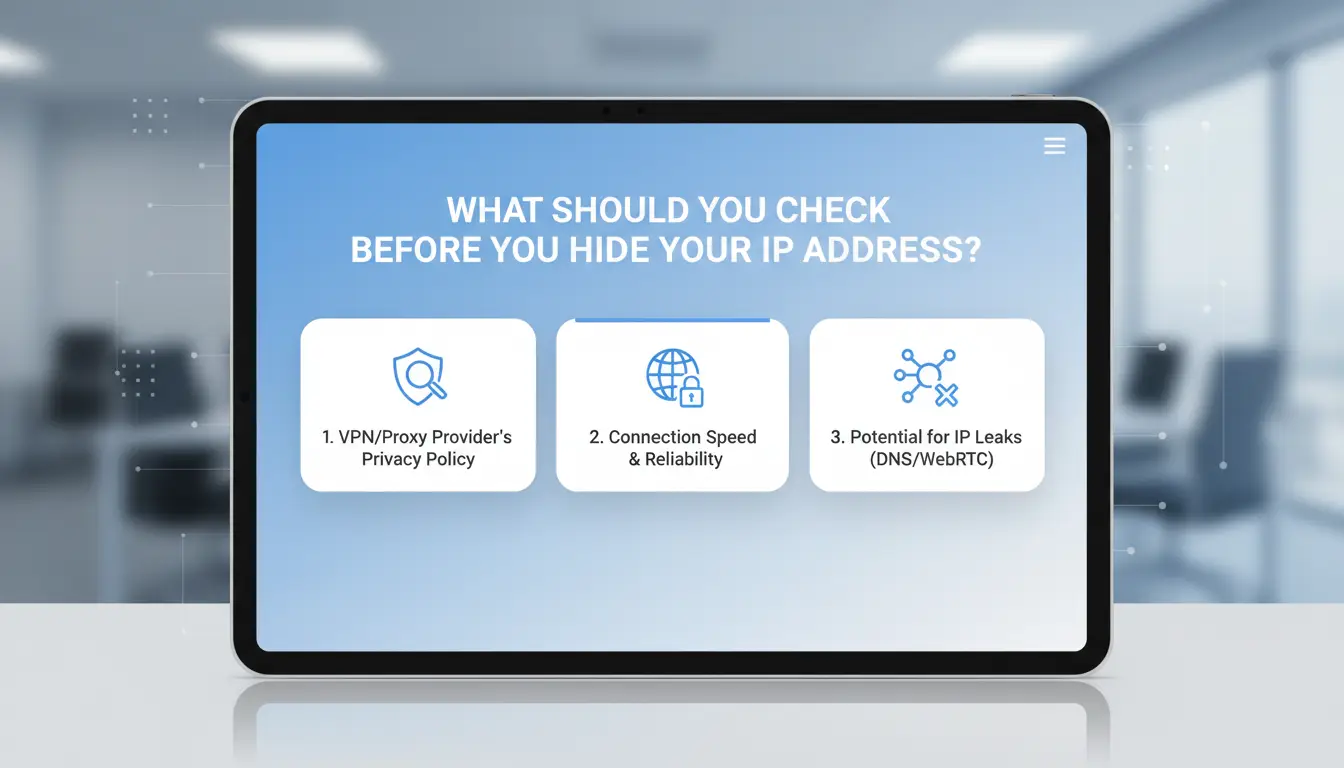
What Should You Check Before You Hide Your IP Address?
Identify what you are protecting against
Before you choose any tool for how to hide ip address, define the threat. For normal browsing, the common risks are site tracking, ad network profiling, and location hints from your network. On public Wi-Fi, your visible IP can also expose your city and provider through IP lookup records. If you run multiple accounts, the risk shifts. Account links often come from repeated browser signals, not only IP reuse.
Check your current public IP, DNS behavior, and browser exposure
Test your baseline before changing settings. Check your current public IP at WhatIsMyIPAddress. Then run a DNS leak test and a WebRTC leak test. If your DNS resolver still shows your ISP region after proxy setup, your DNS path is exposed. If WebRTC shows local or real network IPs, browser settings still leak identity. Chromium policy controls like WebRtcIPHandling can change this outcome.
Set a realistic privacy target for daily use
Match your method to your risk, not to hype. If your goal is one personal account, stable speed may matter more than deep isolation. For multi-account work, session separation and fixed proxy binding become the core target. You can use DICloak when you need isolated browser profiles for different accounts.
| Use case |
Identity target |
Speed/stability target |
Setup depth |
| Personal browsing |
Hide home IP |
High |
Basic proxy + leak checks |
| Multi-account ops |
Keep accounts separate |
Medium |
Per-profile proxy + isolation |
Which Methods Actually Hide Your IP Address (and Which Only Look Private)?
If you search how to hide ip address, focus on one test: what public IP a site sees. You can verify this with WhatIsMyIP before and after each change.
How proxies hide IP at request level
A forward proxy sits between your browser and the site. The site sees the proxy IP, not your home IP, when traffic goes through that proxy path. A forward proxy can hide IP for web requests, but only for apps or browser profiles that use it.
Datacenter and residential proxies both mask your public IP, but they behave differently:
| Proxy type |
IP origin |
Common result on websites |
Typical use |
| Datacenter proxy |
Cloud/server provider |
Faster, but blocks happen more often on strict platforms |
Automation, low-cost traffic |
| Residential proxy |
Home ISP ranges |
Looks closer to normal user traffic |
Account work, geo testing |
How network switching and ISP-assigned changes work
Restarting a modem or router can change your public IP if your ISP uses dynamic assignment. Some ISPs keep the same lease for hours or days, so this method is not reliable for repeat switching.
Mobile data often gives a different public IP than home broadband. Toggling airplane mode can trigger a new mobile IP in some networks. Check with WhatIsMyIP after each switch to confirm, not assume.
What does not hide your IP by itself
Incognito mode does not mask your public IP. It only avoids saving local history and cookies in that private window.
Deleting cookies can reduce tracking links across sessions, but your network path still exposes your public IP. If you want real masking while learning how to hide ip address, route traffic through a proxy and verify no leaks with a WebRTC leak test and DNS leak test.
How to Hide IP Address Step by Step on Desktop and Mobile
If you are searching for how to hide ip address, use this order: pick a good proxy, set it at the right layer, then test for leaks before daily use.
Choose a trustworthy proxy endpoint and protocol
Start with a proxy that gives host, port, username, and password. Test latency before you commit. If pages take over 3–5 seconds to open, switch location or endpoint.
| Protocol |
Good for |
Limits |
Setup note |
| HTTP/HTTPS proxy |
Web browsing in browsers |
Not ideal for non-web traffic |
Easy in browser proxy settings |
| SOCKS5 proxy |
Browser + app traffic support |
Some apps still ignore system proxy |
Better when you need wider protocol support |
Pick a location close to your target website region to reduce delay. Keep one identity per endpoint. Reusing one endpoint across unrelated accounts can link activity.
Configure system or browser proxy settings correctly
On desktop, choose one path and keep it consistent:
- OS-level proxy: routes traffic for apps that follow system settings.
- Browser-level proxy: routes only that browser profile.
On Windows, set proxy in Network settings. On macOS, set it in Network > Proxies. In Chrome or Edge, you can also launch profiles with separate proxy rules. For account isolation, you can use DICloak to keep separate browser profiles with different proxies and fingerprints.
On mobile:
- Android: set proxy per Wi-Fi network in network details.
- iOS: set proxy in Wi-Fi > Configure Proxy. Some apps use their own network stack and may bypass Wi-Fi proxy rules. Check app behavior after setup.
Disable WebRTC local IP exposure in Chromium-based browsers with the WebRtcIPHandling policy when policy control is available.
Verify that your public IP has changed after setup
Run this quick checklist after setup:
- Open an IP check page such as WhatIsMyIPAddress.
- Run a WebRTC leak test.
- Run a DNS leak test.
If your old IP still appears, traffic is bypassing your proxy path. Recheck proxy host/port, credentials, and whether the app ignores system proxy. Then retest in a fresh browser session.
That is the practical workflow for how to hide ip address with fewer setup mistakes.
Why Is Your Real IP Still Leaking After Setup?
If you are searching for how to hide ip address, the hard part is not setup. The hard part is proving nothing leaks before you log in. One wrong browser setting can expose your home IP even when a proxy is active. Treat leak testing as a pre-login check, not a one-time setup task.
Common leak paths: DNS leaks, WebRTC leaks, and bypass traffic
DNS leaks happen when your device still asks your ISP resolver for domain lookups. Sites can map that resolver location to your real region. WebRTC leaks happen inside browser real-time communication. A page can read local and public network details unless you lock policy settings like WebRtcIPHandling in Chromium. Bypass traffic happens when one app ignores system proxy rules. Messaging apps, updater services, or browser extensions can connect directly and expose your real IP path.
How to run a quick leak test checklist
Run this before any account session. Open a clean browser profile, connect your proxy, then test in this order:
- Visit DNS leak test
- Visit WebRTC leak test
- Compare detected IP and location with your proxy endpoint
- Repeat after browser restart
| Check point |
Expected |
Leak signal |
| Public IP |
Proxy IP |
Home/ISP IP appears |
| DNS resolvers |
Proxy region |
ISP resolver appears |
| WebRTC IP |
Proxy or masked local |
Real public/local IP appears |
Fixes that usually work without rebuilding everything
Set browser WebRTC policy, then remove extensions that override network routes. Check app-level proxy settings, since some apps skip system settings. Review split tunneling or app exclusion rules; one wrong exclusion can leak traffic. If you manage separate accounts, you can use DICloak to isolate browser profiles and keep identity signals separate. For how to hide ip address in daily use, keep the same test routine every session.
How to Hide Your IP Address More Safely on Public Wi-Fi and Shared Networks
Set up connection hygiene before logging into important accounts
Public Wi-Fi at cafés, hotels, and co-working spaces is noisy and easy to spoof. Turn off auto-join before you travel, then connect only to the network name confirmed by staff. Captive portals can be cloned, so do not sign in to email, banking, or ad accounts until the portal step is done. Use a trusted DNS resolver on your device, and keep HTTPS-only mode enabled in your browser. After connection, run a DNS leak test and a WebRTC leak test. This is the practical baseline for how to hide ip address with less exposure.
Keep session behavior consistent to avoid suspicious jumps
Fast city or country switching can trigger risk checks on account platforms. Keep one proxy location for each account during a work block, then change only between sessions. If you manage separate identities, you can use DICloak profiles so cookies, fingerprints, and proxies stay separated.
Build a fallback plan when a proxy endpoint fails
Set a simple rule: one retry, then stop. Pause logins when an endpoint fails; repeated retries can look like account takeover traffic. Keep one backup endpoint in the same region. Resume activity after the new endpoint passes leak tests and stable latency checks.
How Can Teams Hide IP Address Consistently Without Cross-Account Contamination?
Why multi-person workflows create IP and identity conflicts
Teams often fail at how to hide ip address for one simple reason: people share environments. If two members open different client accounts in one browser profile, cookies, local storage, and session history can mix. That creates cross-account signals even when the proxy IP is different.
Shared devices add another risk. A member can click the wrong saved login, post from the wrong account, or refresh a session that should stay isolated. Permission sprawl makes this worse when everyone has full edit access and no action trace.
How DICloak reduces risk with profile isolation and per-profile proxies
You can use DICloak to separate each account into its own browser profile, with its own fingerprint environment and proxy settings. One account should always map to one profile and one proxy route.
That mapping keeps traffic paths stable and lowers accidental identity overlap. After setup, verify each profile with a WebRTC leak test and a DNS leak test. For Chromium-based setups, check WebRtcIPHandling policy behavior so local IP exposure does not break your proxy design.
How to implement a team workflow using DICloak features
Create a profile per account, then assign team roles by task: operator, reviewer, admin. Give operators only the profiles they handle. Keep profile sharing controlled, not open to all members.
Turn on operation logs so you can trace who changed proxy settings, who logged in, and who exported data. For repeated tasks, use bulk actions or RPA flows to reduce manual clicks that trigger wrong-account actions.
If your team asks how to hide ip address at scale, this is the repeatable model: isolated profile, fixed proxy binding, strict permission scope, and audited actions.
What Mistakes Make IP Hiding Useless (or Even Riskier)?
If you are learning how to hide ip address, the biggest failures are behavior patterns, not tool choice. A proxy can mask one signal while your sessions still expose identity links.
Reusing one proxy endpoint across unrelated accounts
Using one endpoint for unrelated accounts creates easy correlation. Platforms can connect login times, traffic rhythm, and repeated fingerprint traits. One account should map to one browser profile and one dedicated proxy. Tools like DICloak let you bind an isolated browser fingerprint to each profile and keep proxy settings separate, so account A never shares the same environment as account B. For teams, you can use profile sharing with permissions, so staff only open the profiles they need. Operation logs help you trace who changed proxy settings or opened the wrong profile.
Changing IP too often or too dramatically
Fast geo jumps look less like normal travel and more like scripted activity. A morning login from Germany and an hour later from Brazil can trigger review. Keep region and ISP type stable per account. Test leaks after each change with a WebRTC leak test and a DNS leak test.
Ignoring account, browser, and device consistency
IP masking fails when language, timezone, and login history do not match the new route. Repeated cookie resets also erase normal session history and raise risk. Tools like DICloak let you keep persistent profiles, apply team permissions, and use bulk actions plus RPA for repeated tasks, reducing manual errors when scaling how to hide ip address safely.
When Is Hiding Your IP Not Enough for Privacy?
IP masking helps, but it changes only one signal. If you search for how to hide ip address, treat IP as one layer, not full privacy. Sites can still connect sessions through browser traits, login patterns, and reused cookies.
Fingerprinting combines user agent, WebGL output, timezone, language, screen size, fonts, and hardware hints. A proxy can hide network origin while these traits stay unchanged. See browser fingerprinting basics. If identity signals stay the same, a new IP can still look like the same person.
Add layered protection without overcomplicating your setup
Keep one account per browser profile. Block local IP exposure with WebRtcIPHandling. Validate setup using BrowserLeaks WebRTC test and DNSLeakTest. Use unique passwords and enable multi-factor authentication. You can use DICloak to isolate profiles and bind separate proxies when handling multiple accounts.
Create a maintenance routine you can actually sustain
Run leak checks each month and after browser updates. Review proxy endpoint location and trust status. If exposure appears, sign out active sessions, rotate passwords, replace the proxy, and rebuild the affected profile.
Frequently Asked Questions
How to hide IP address legally in my country?
Legality for how to hide ip address changes by country and by what you do online. Using a proxy or proxy is often allowed, but fraud, unauthorized scraping, or bypassing service bans can still be illegal. Check local cybercrime rules, your ISP contract, each platform’s Terms of Service, and your workplace acceptable-use policy before setup.
How to hide ip address on iPhone and Android without breaking app access?
To learn how to hide ip address on iPhone or Android, use a trusted proxy or proxy app with system-wide mode first. Then set app exceptions (split tunneling) for banking, maps, or local streaming apps that fail behind proxies. After setup, test login, push notifications, and in-app purchases on Wi-Fi and mobile data.
How to hide ip address if a website blocks my proxy?
If a site blocks your proxy, verify endpoint health first: DNS leaks, blacklisted IPs, and expired credentials cause instant blocks. Rotate IPs by session or request, but keep a stable identity per account flow. Match country and city to expected user location. Slow request rate, add normal delays, and avoid burst scraping patterns.
How to hide IP address and still keep connection speed stable?
For how to hide ip address without losing speed, choose proxy servers close to your real region to cut round-trip time. Test latency and packet loss before long sessions. Use modern protocols your provider supports, then compare results. Avoid crowded shared endpoints at peak hours; a cleaner pool usually keeps throughput steadier.
How to hide IP address for multiple accounts on one device?
For multiple accounts on one device, isolate each account in its own browser profile or container. Assign one proxy endpoint per profile, and never reuse cookies across profiles. Limit extension and clipboard permissions to reduce leaks. In team setups, keep access roles and audit logs so you can trace who used each account and IP.
Hiding your IP address is most effective when you combine the right tool, like a trusted proxy or proxy, with smart browsing habits and careful account privacy settings. The key is to treat IP masking as part of a broader security strategy so your identity, location, and online activity stay harder to track over time. Try DICloak For Free
 Web Proxy Tools
 Free Tools
 Cookie Plugin
 UA Generator
 MAC Address Generator
 IP Generator
 IP Address List
 2FA Code Generator
 World Clock
 Anonymous Check
 WebRTC Leak Test
 UUID Generator
 Free Web Proxy Site
 Proxy Checker
 FB Ad Checker
 AI Web Scraping
 Free SMM Tools
 Twitter Shadowban Checker
 Instagram Name Checker
 UTM Generator
 Username Generator
 AI Hashtag Generator
 LinkedIn Headline Generator
 Social Media Image Resizer