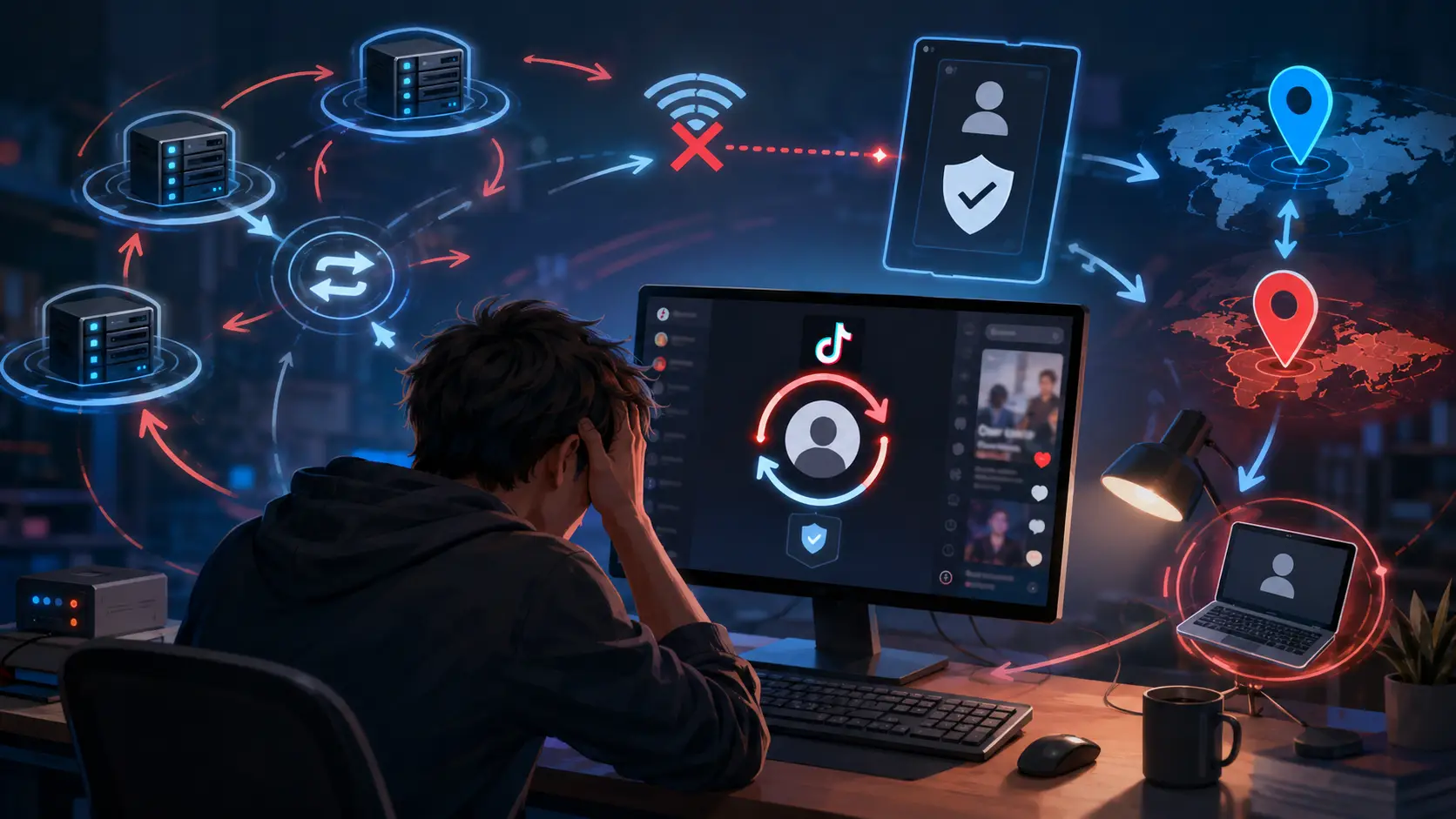
You change your proxy, open TikTok, and get asked to verify your account.
You enter the code. TikTok accepts it. Then you log in again and see another verification request.
This is often described as a TikTok verification loop after changing proxy.
The proxy itself is not always the problem. A verification loop can happen when several parts of your login setup change at the same time. Your IP address may change. Your location may appear different. TikTok may also see changes in your device, network, or normal login pattern.
TikTok's U.S. Privacy Policy, updated on July 15, 2026, says the platform collects technical information such as IP address, user agent, time zone, device model, operating system, network type, and device-related information. TikTok can also estimate location using network and device data.
This means fixing a verification loop is usually not about finding another proxy as fast as possible. In many cases, the better approach is to make the login setup stable again.
This guide explains why the problem happens, how to troubleshoot it step by step, and how different proxy types can affect TikTok login stability.
Why Does TikTok Keep Asking for Verification After Changing Proxy?
A new proxy changes one of the signals connected to your TikTok session: your network identity.
That change does not automatically mean TikTok will block the login. However, it can become more important when it appears together with a new location, new browser, new device, or other unusual login activity.
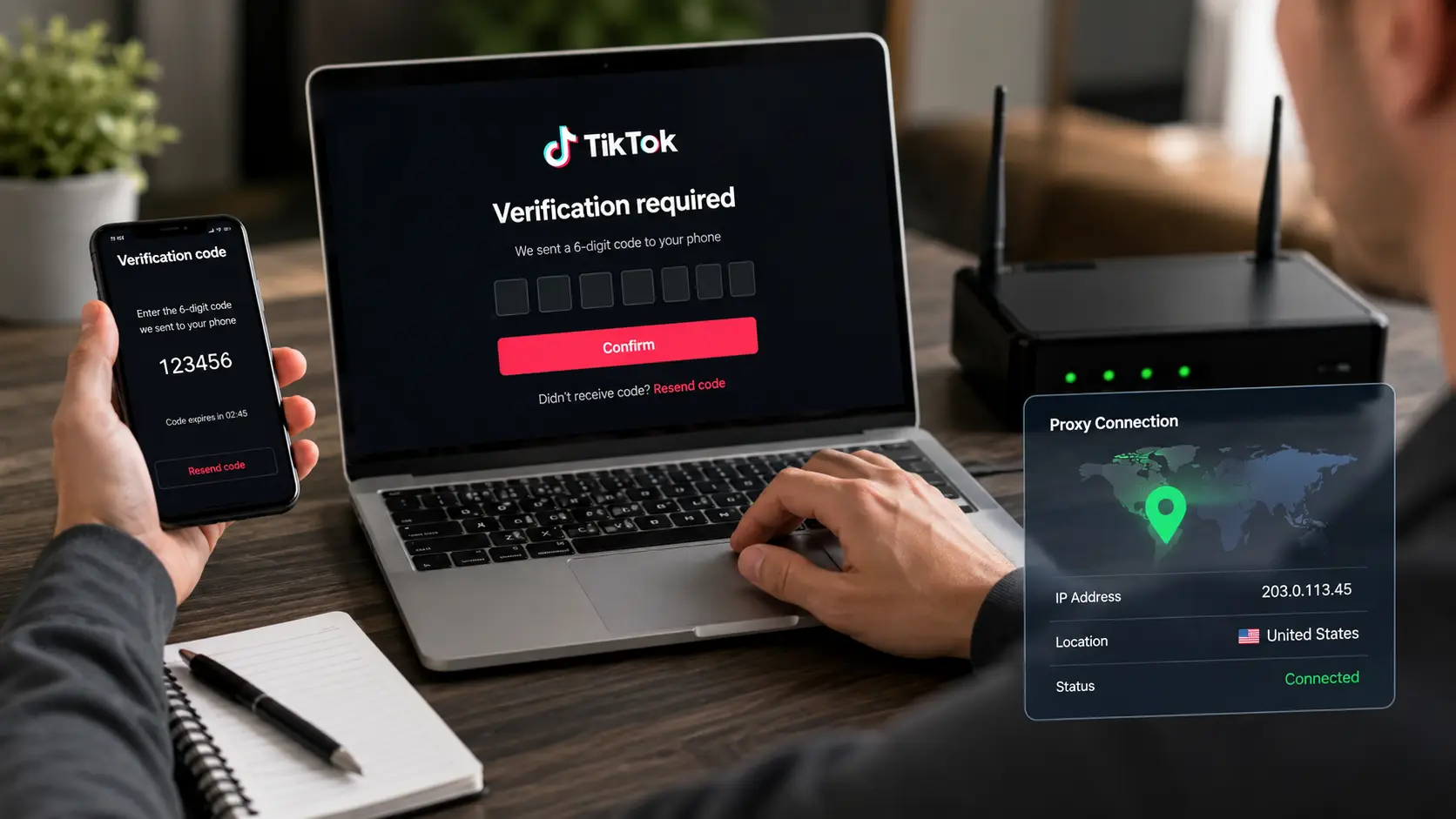
TikTok itself says that users may be asked for a password and a one-time verification code when logging in from an unrecognized device. TikTok's Security Checkup also lets users review trusted devices and unusual security activity.
So, when a verification loop starts right after a proxy change, the first question should be: what changed besides the IP?
How a New Proxy Changes Your TikTok Login Environment
A proxy sends your TikTok traffic through another server before it reaches TikTok.
As a result, TikTok sees the proxy's public IP address instead of the IP address from your normal connection.
Imagine that you normally log in from a home connection in Chicago. One day, you change to a proxy that exits from Dallas.
That alone may not be a serious change.
Now imagine that the new proxy exits from Germany. At the same time, you log in from a browser that has no previous TikTok cookies. Your time zone still shows Central Time in the United States.
The login now looks very different from your normal history.
TikTok officially states that it collects IP addresses, time zone settings, network type, operating system, device information, and approximate location. It also says that device IDs and other information may be used to identify activity across devices.
This is why changing a proxy should not be viewed as changing only one number.
It can change how your whole login session appears.
Why IP Location, Device Signals, and Login History Can Trigger Verification
TikTok does not publish the exact formula it uses to decide when to request extra verification.
However, its public documentation gives us useful clues.
TikTok says it collects IP and location information. It also collects device and network information. Its Security Checkup can flag unusual activity, and TikTok says an unrecognized device can require a one-time verification code.
This matters because security systems normally look at combinations of signals rather than one signal alone.
For example:
- Your account usually logs in from New York.
- Your new proxy shows an IP in Los Angeles.
- You also move from the TikTok app to a new desktop browser.
- That browser has no saved TikTok session.
- You enter the wrong password once.
- You then switch to a second proxy and try again.
Each change creates more uncertainty around the login.
The verification screen is therefore better understood as a request to confirm that the person logging in is really the account owner.
It is not proof that the account has been banned.
Common Causes of a TikTok Verification Loop After Proxy Changes
One of the most common mistakes is changing too many things while trying to solve the first verification request.
A user may start with one proxy. Verification appears. The user changes to another proxy. The second one is slow, so they change the proxy again.
Ten minutes later, the same account has appeared from three IP addresses.
Another common issue is a location mismatch.
For example, the browser may use English and a U.S. time zone while the proxy exits from a country on another continent. A location difference alone does not prove anything, but several conflicting signals can make the session look less familiar.
Connection quality also matters.
If a proxy disconnects while the code is being submitted, the verification request may fail. The user may then think TikTok rejected the code when the real problem was the connection.
A verification loop can also be unrelated to the proxy.
An expired code, an outdated app, a changed password, an unfamiliar device, a compromised account, or a temporary TikTok issue can produce similar symptoms.
That is why the next step should be controlled troubleshooting rather than another random proxy change.
How to Fix TikTok Verification Loop After Changing Proxy
The fastest way to troubleshoot a TikTok verification loop after changing proxy is to remove variables one by one.
Do not change the proxy, device, browser, password, and verification method at the same time. If you do, you will not know which change fixed the problem.
Start with the network and work back toward a login setup TikTok has seen before.
Stop Switching Proxies During TikTok Verification
The key is to keep the same IP from the moment TikTok starts verification until the process is complete.
This matters most when using a rotating residential proxy. Some rotating proxy services change IPs automatically between requests or after a short period. Bright Data, for example, notes that shared rotating pools may assign a different proxy IP during a session.
That is useful for tasks such as web data collection, but it can create problems during account verification. If TikTok starts the login from one IP and receives the verification request from another, the session becomes less consistent.
A better approach is to keep one connection active until verification is finished. If your proxy supports sticky sessions, set one long enough to cover the full login process. With a static IP, simply keep the same IP in place until the account is successfully verified.
Reconnect With the Previous or Most Consistent IP
If the problem started immediately after changing the proxy, test whether the previous connection still works.
This does not mean changing between five old proxies.
Use the connection that has the strongest history with the account.
For example, imagine an account was normally accessed through the same U.S. residential IP for three months. After changing to a new UK proxy, TikTok starts asking for verification.
In that case, returning to the previous U.S. connection is a useful diagnostic test.
If TikTok opens normally there, the new network setup is likely part of the problem.
If the same verification loop still appears on the old connection, the issue may no longer be limited to the proxy.
Also check the device list if you can still access the account.
TikTok lets users review trusted devices under Settings and privacy > Security & permissions > Manage devices. TikTok recommends removing devices you do not recognize.
The goal is to find the setup that looks most like the account's normal login history.
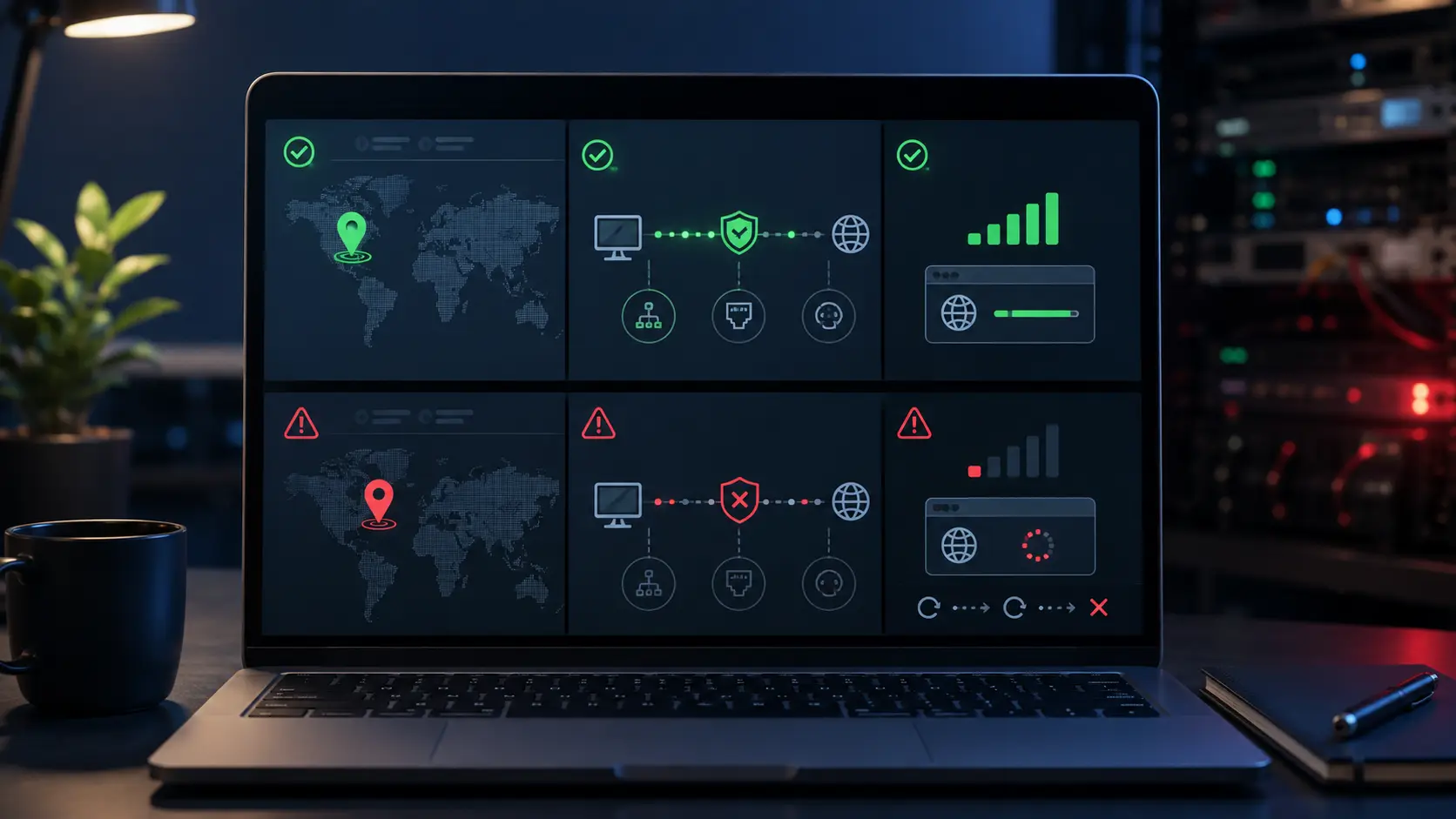
Check Proxy Location, Protocol, and Connection Stability
A working proxy is not necessarily a stable proxy.
Before trying TikTok again, check three things: location, protocol, and connection quality.
First, confirm the proxy exits from the location you expected.
A provider may advertise U.S. access, but your assigned IP could resolve to a different state or, in some cases, a different country than expected.
Location accuracy matters because TikTok says it can estimate approximate location from IP address, SIM region, and device system settings.
Second, check the proxy protocol.
Make sure your browser or proxy client is using the protocol and port supplied by the provider. An HTTP proxy entered as SOCKS5, for example, may fail to connect correctly.
Third, test stability.
Open a few normal websites through the connection. Check whether pages load without repeated timeouts or reconnects.
If the connection disappears every few minutes, do not use it for account verification.
A verification process needs a continuous session. A proxy that constantly reconnects can turn a simple login problem into a much harder one to diagnose.
Clear Failed Verification Attempts Before Trying Again
There is an important distinction here.
TikTok does not provide a button that lets users erase server-side verification history or failed security checks.
So do not treat "clear failed attempts" as a way to reset TikTok's security system.
Instead, stop sending repeated requests and clean up the parts of the session you can control.
Close TikTok fully. Check the connection again. Make sure you are using the latest version of the app. Restart the app or device if it is behaving incorrectly.
TikTok maintains a dedicated "First steps" section in its troubleshooting area and directs users through standard app and connection troubleshooting before reporting a larger problem.
If you are using the app and suspect a local app problem, clearing the app cache can also help remove temporary local data. However, clearing local cache does not erase TikTok's account security records.
Most importantly, do not keep requesting code after code while changing the network between attempts.
Fix the setup first. Then make one clean verification attempt.
Which Proxy Types Are More Likely to Cause TikTok Verification Issues?
There is no single "TikTok proxy" that guarantees a verification-free login.
The more useful question is whether the proxy gives you the location, reputation, and session stability you need.
Residential, datacenter, rotating, shared, and static proxies behave differently. Those differences can matter when the same TikTok account needs a consistent login connection.
Residential vs. Datacenter Proxies for TikTok
Residential proxies use IP addresses associated with consumer internet connections.
Datacenter proxies come from hosting or data-center infrastructure.
That difference affects how the IP appears on the internet.
Proxy providers such as Oxylabs and Bright Data describe datacenter proxies as generally faster and less expensive, while residential IPs come from consumer ISP networks.
This does not mean every residential IP is "good" and every datacenter IP is "bad."
Quality varies.
A clean, stable datacenter IP can sometimes be more useful than a poor residential proxy that disconnects every few minutes.
For TikTok login troubleshooting, consistency should come before labels.
Ask:
Does the IP stay the same during the session?
Does its location match what you selected?
Is the connection reliable?
Has the IP been heavily shared?
Can the proxy maintain a normal browser session without reconnecting?
Those questions are more practical than simply buying a proxy because it says "residential" on the product page.
Why Shared and Frequently Rotating Proxies Can Trigger More Verification
Shared proxies are used by more than one customer.
That means you do not control what every other user has done through the same IP.
It also means an IP's history may change without anything happening on your own account.
Rotation creates another issue: continuity.
Bright Data's proxy documentation notes that shared pools can assign random IPs and that rotating residential setups may change addresses between requests unless session controls are used.
For scraping, large IP pools can be useful.
For a single TikTok verification session, constant IP changes are usually unnecessary.
Imagine entering TikTok from one IP, requesting the code from another, and loading the account page from a third.
Even if all three IPs come from the same country, the login has become harder to keep consistent.
This is why shared rotating proxies should be configured carefully when session continuity matters.
A static residential proxy keeps the same IP over time.
These are also commonly called ISP proxies.
Bright Data describes ISP proxies as fixed IPs registered through internet service providers, while Oxylabs also notes that static residential proxies maintain the same address instead of rotating it automatically.
That makes them useful when the main goal is session consistency.
For example, a marketing team may need to access the same TikTok account during normal work sessions from one country.
A stable IP can make the network side easier to manage because the address does not change every few minutes.
But a static residential proxy is not a magic fix.
If the account suddenly moves from one device to another, changes browser data, changes location, and fails several login checks, keeping the IP static will not solve every problem.
Think of a static proxy as one stable part of the login setup, not as a guarantee
How to Prevent TikTok Verification Loops When Changing Proxies
Prevention mostly comes down to consistency.
A proxy change does not need to become a complete identity change.
If you must change the network connection, keep the other parts of the login setup as stable as possible.
That makes future problems easier to diagnose as well.
Keep the Same Proxy Location and IP for Important Login Sessions
Do not rotate the IP in the middle of login, verification, password changes, or other account security actions.
If you normally connect through a U.S. IP, changing from New York to another U.S. city is generally a smaller network change than suddenly appearing in a distant country.
Again, this does not mean TikTok uses a simple country rule.
TikTok collects IP-based and device-based location information, so location is only one part of the wider session.
The main goal is consistency.
For account access, use a proxy that can hold the same IP for the whole session.
If the proxy is rotating, use a suitable sticky session when available.
Match Proxy Location With a Consistent Browser Setup
A proxy is only one part of the login setup. TikTok can also receive technical details from the browser or device, such as the time zone, operating system, user agent, network type, and screen resolution.
Because of that, it is better to keep these signals reasonably consistent.
For example, imagine using a Canadian proxy while the browser shows a Tokyo time zone. At the same time, the system language changes between sessions and TikTok cookies are deleted before every login. None of these changes is unusual on its own, but together they make the login setup look very different from one session to the next.
A more practical approach is to keep the browser, device settings, and login data stable unless there is a real reason to change them. Avoid resetting cookies or adjusting fingerprint-related settings every time a verification request appears.
For troubleshooting, a consistent setup is much easier to understand than one that changes constantly.
Avoid Frequent Changes to IP, Browser Fingerprint, and Login Device
One common mistake is to treat every verification request as a reason to change the whole login setup. For example, someone may switch the IP after the first prompt, move to a different browser when verification appears again, then clear cookies or try another device. In a short time, the same TikTok account has been accessed through several different setups.
That can make troubleshooting harder. TikTok says it may use device IDs, user IDs, and other technical information to understand activity across devices, and unfamiliar devices can trigger extra verification.
When changing a proxy, it is usually better to keep the rest of the setup stable unless there is a clear reason to change it. This matters even more for teams. If several people manage TikTok accounts, each account should have a defined device, browser Profile, and network connection instead of letting every team member create a different setup.
Test a New Proxy Before Using It With Your Main TikTok Account
Never make your important account the first test of a new proxy.
Check the proxy before logging in.
Confirm that:
- The IP is in the location you bought.
- Websites load normally.
- The connection does not keep dropping.
- The IP does not rotate when you expect a static session.
- DNS and network requests work normally.
- The proxy protocol is configured correctly.
You can also use the proxy for normal browsing first.
This tells you whether the connection itself is stable.
Suppose a new proxy times out every 30 seconds.
That is already enough reason not to use it for TikTok verification.
You do not need to wait for TikTok to show an error before deciding that the connection is poor.
Does TikTok Ban Accounts for Using a Proxy?
Using a proxy and violating TikTok's rules are not the same thing.
TikTok's public security documentation focuses on unfamiliar devices, unusual activity, account integrity, and unauthorized or deceptive behavior. Its Community Guidelines also prohibit spam, fake engagement, deceptive account networks, enforcement circumvention, and other forms of platform manipulation.
So it is important to separate network configuration from account behavior.
A verification request after a proxy change is a security check. It is not, by itself, proof that TikTok has decided to ban the account.
Proxy Use vs. Suspicious Login Changes
A proxy only changes the route your internet traffic takes, but TikTok can also consider other details about the account, browser, and device. That is why saying “TikTok detected a proxy” is often too simple.
A more realistic situation is when several changes happen at once. For example, an account that normally logs in from one device in California suddenly appears from an IP in another country, uses a new browser with no saved cookies, requests several verification codes, and then switches IP again. In that case, the proxy is only one part of the picture. The bigger issue is that the overall login pattern has changed significantly in a short time.
Using a proxy also does not change TikTok’s rules. The platform still prohibits deceptive account behavior, fake engagement, bulk spam, and attempts to work around account restrictions. Network tools are best used for legitimate access needs while keeping account activity within TikTok’s policies.
Why a TikTok Verification Loop Is Not Always Caused by the Proxy
Timing can be misleading.
If a verification loop starts five minutes after you changed a proxy, it is reasonable to test the proxy first.
But correlation is not always the same as cause.
TikTok may also ask for verification because the device is unfamiliar. The account may have unusual security activity. The login method may have changed. The app may have a temporary problem. Someone else may have tried to access the account.
TikTok's Security Checkup is built around exactly these wider account security issues. It lets users review trusted devices, security activity, phone and email verification, and two-step verification.
A simple test helps separate the causes.
Return to the account's familiar device and normal connection.
If the verification loop disappears, inspect the new proxy setup.
If the loop stays, check the account's security settings and recovery options.
The key is to change one thing at a time.
A TikTok verification loop after changing proxy is much easier to fix when you stop chasing new IPs and start looking for the exact part of the login setup that changed.
How DICloak Helps Keep TikTok Proxy and Browser Settings Consistent
The fixes above point to the same idea: once TikTok asks for verification, changing more parts of the login setup usually makes troubleshooting harder.
For people who regularly access TikTok through a proxy, an antidetect browser can make those settings easier to keep organized. DICloak stores each account inside a separate browser Profile and lets you configure proxies and browser fingerprints for that Profile. Its social media workflow is built around isolated Profiles rather than repeatedly rebuilding the browser setup.
This does not remove TikTok's verification system. The practical benefit is that the IP, fingerprint, cookies, and other browser settings are easier to keep consistent between sessions.
Bind and Check a Stable Proxy for Each TikTok Profile
A good place to start is the proxy itself.
DICloak lets you save custom proxies and configure details such as proxy type, IP protocol, host, port, account, and password. You can also check the proxy connection before using it.
This matters when troubleshooting a TikTok verification loop after changing proxy.
Instead of copying a proxy into the browser every time you log in, you can save it first and then use it with the TikTok Profile that needs that connection. DICloak supports common proxy protocols such as HTTP, HTTPS, and SOCKS5.
For example, suppose one TikTok account normally uses a static U.S. residential proxy.
You can save that proxy, check whether it is connecting correctly, and assign it to the same Profile. Before opening TikTok again, you can verify the connection instead of discovering a failed or incorrect proxy halfway through verification.
That is more useful than switching through several new IPs and hoping one works.
The goal is simple: one TikTok Profile, one intended proxy setup, and as few unnecessary network changes as possible.

Keep Fingerprint, Location, and Browser Settings Consistent
The proxy is only one part of the login setup.
TikTok can also receive browser and device information. So if the IP stays stable but the time zone, language, geolocation, or other browser signals keep changing, the session can still look different from the one used before.
DICloak lets you configure these settings at the Profile level.
For example, the Fingerprint settings can match several values to the Profile's IP, including:
- Language
- Interface language
- Time zone
- Geolocation
The same Profile can also keep a defined operating system, user agent, screen resolution, WebRTC, Canvas, WebGL, and other fingerprint settings.
This is useful when a proxy has changed because you do not need to rebuild every browser setting manually.
Suppose a TikTok Profile uses a New York proxy. You can keep its time zone and geolocation aligned with that IP instead of accidentally opening it with settings left over from another Profile.
More importantly, do not randomize the fingerprint every time simply because TikTok requested verification.
For troubleshooting, stability is usually more useful than constant randomization. Once the Profile has a reasonable setup, keep it unchanged unless there is a clear reason to edit it.
Cookies and the existing login session also stay with the Profile, so you can return to the same TikTok session instead of starting with a clean browser each time.

Manage Separate TikTok Profiles Without Reconfiguring the Browser
This becomes much more useful when several TikTok accounts are involved.
DICloak's Profiles page shows each Profile separately together with information such as its group, last opened time, status, and configured proxy.
From the same page, you can also perform actions such as:
- Check IP
- Edit a Profile
- Set a Profile group
- Add remarks or tags
- Open or close selected Profiles
- Clear cache when troubleshooting requires it
This gives each TikTok account a defined place instead of relying on someone to remember its setup.
For example:
TikTok Brand A → Profile A → Proxy A → Fingerprint A
TikTok Brand B → Profile B → Proxy B → Fingerprint B
TikTok Brand C → Profile C → Proxy C → Fingerprint C
When switching from Brand A to Brand B, you open Profile B. You do not need to replace the proxy, clear Brand A's cookies, change the time zone, and rebuild the browser manually.
That separation also makes a verification problem easier to diagnose. If only Profile B starts having connection problems after its proxy changes, you can inspect Profile B without changing the setups used by A and C.

Keep Team Access From Changing the TikTok Setup
Consistency becomes harder when several people work with the same set of TikTok Profiles.
One person may use the correct proxy while another changes it. Someone else may edit the Profile or open the account from a different setup without the rest of the team knowing.
DICloak provides member permissions and Profile access controls so teams can decide who can view, open, create, or edit Profiles.
For a TikTok workflow, this means a team member can work with the Profile assigned to them without everyone having the same level of control over proxy and Profile settings.
This helps separate daily account work from configuration changes.
For example, a social media operator may only need permission to open a TikTok Profile. The person responsible for account setup can keep control over Profile editing and proxy configuration.
That reduces accidental changes while the account is being used.

Check Login IP and Device Changes When Something Goes Wrong
If TikTok starts asking for verification again, knowing what changed is more useful than immediately changing the proxy.
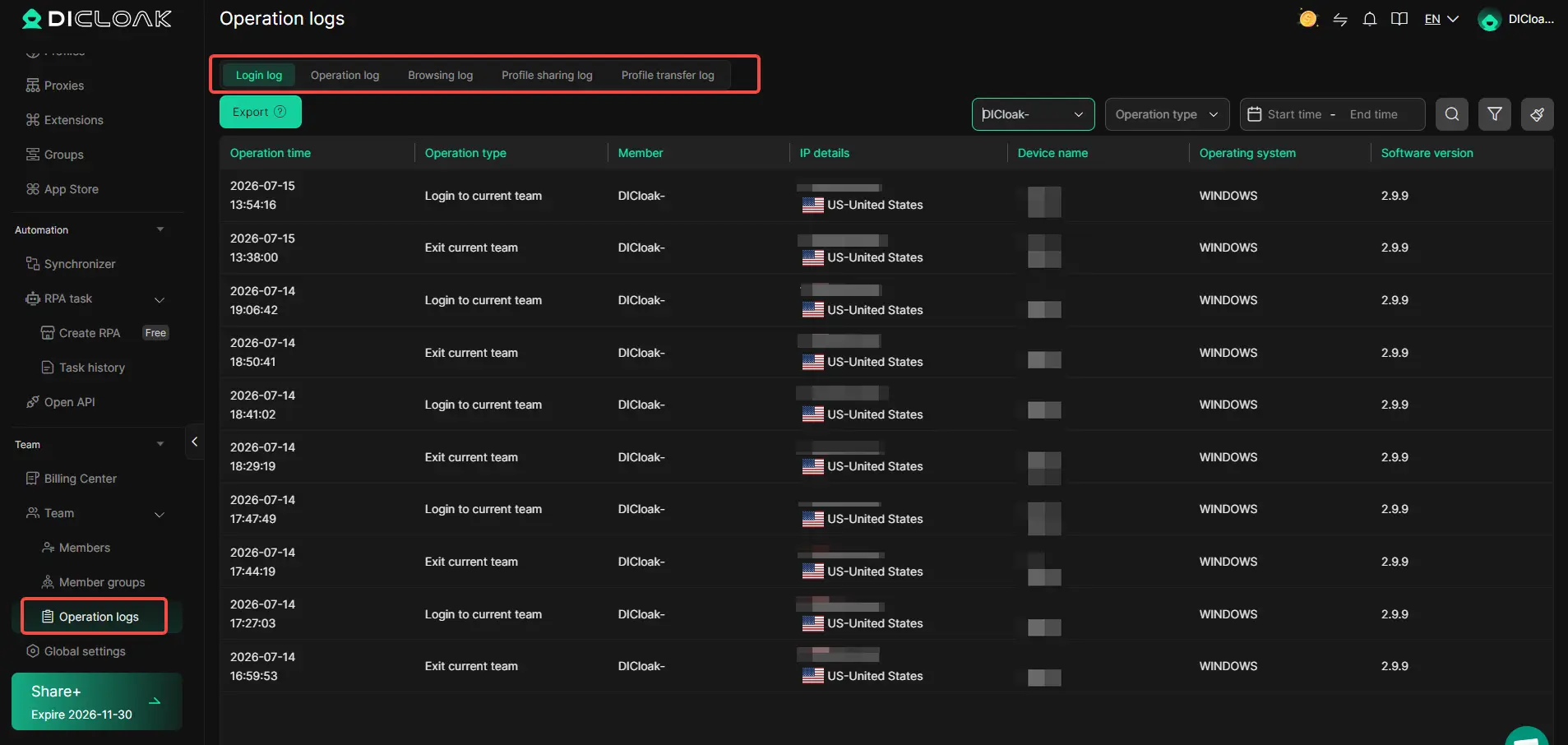
DICloak's operation logs can show information such as the member, IP details, device, operating system, and login time.
This gives teams another way to investigate a sudden change.
For example, suppose a TikTok Profile worked normally yesterday but starts requesting verification today. The team can check whether the account was accessed by another member, whether the login IP changed, or whether a different device was involved.
That does not tell you exactly why TikTok requested verification. TikTok does not expose that decision.
But it does give you a clearer record of your own setup.
Instead of guessing:
"Maybe the proxy changed."
you can check whether there was actually a different IP, device, member, or login session.
That is where DICloak fits naturally into this problem. It does not bypass TikTok verification. It helps keep the parts you control—Profile, proxy, fingerprint, cookies, team access, and login history—organized and easier to troubleshoot when a TikTok verification loop after changing proxy appears.
FAQs About TikTok Verification Loop After Changing Proxy
Q1: Why does a TikTok verification loop happen after changing proxy?
A TikTok verification loop after changing proxy can happen when the new IP, location, device signals, or login history look different from your usual setup. TikTok may ask for extra verification to confirm that the login is really from the account owner.
Q2: How do I fix a TikTok verification loop after changing proxy?
To fix a TikTok verification loop after changing proxy, stop switching IPs and use one stable connection. If possible, return to the previous proxy or a familiar network. Then complete verification from the same device or browser you normally use for TikTok.
Q3: Can a rotating proxy cause a TikTok verification loop?
Yes. A rotating proxy can contribute to a TikTok verification loop if the IP changes during login or verification. For account access, a stable or sticky IP is usually easier to manage because TikTok sees fewer network changes during the same session.
Q4: Will TikTok ban my account if I get a verification loop after changing proxy?
A TikTok verification loop after changing proxy does not automatically mean your account will be banned. Verification is usually a security check. However, repeated login changes, unusual account activity, or behavior that breaks TikTok's rules can lead to additional restrictions.
Q5: What should I do if the TikTok verification loop continues even after changing back to my old proxy?
If the TikTok verification loop after changing proxy continues on your old or normal connection, the proxy may not be the only cause. Check your trusted devices, email or phone access, password, and account security activity. If verification still fails, use TikTok's account recovery or support options.
 Web Proxy Tools
 Free Tools
 Cookie Plugin
 UA Generator
 MAC Address Generator
 IP Generator
 IP Address List
 2FA Code Generator
 World Clock
 Anonymous Check
 WebRTC Leak Test
 UUID Generator
 Free Web Proxy Site
 Proxy Checker
 FB Ad Checker
 AI Web Scraping
 Free SMM Tools
 Twitter Shadowban Checker
 Instagram Name Checker
 UTM Generator
 Username Generator
 AI Hashtag Generator
 LinkedIn Headline Generator
 Social Media Image Resizer