Trying to create bulk LinkedIn accounts without getting flagged or blocked is where most operators run into trouble. LinkedIn can spot patterns fast, logging dozens of new profiles from the same device or IP often leads to instant restrictions. The real headache starts when you need to manage several LinkedIn profiles for marketing, outreach, or client projects, but every shortcut seems to trigger new risks.
Opening a batch of accounts isn’t just about filling in forms and hitting submit. The usual tactics, reusing devices, running simple browser automation, or skipping proxy setup, almost always backfire. If you ignore fingerprinting or let cookies overlap, LinkedIn’s backend will connect the dots and lock down your workflow before you even reach the onboarding stage. That’s why bulk LinkedIn account creation isn’t just a numbers game; it’s a test of how well you can control environment details and avoid common traps.
Getting this right means thinking beyond registration. You need a step-by-step setup that covers not just how to create multiple LinkedIn accounts, but how to keep them alive and usable for real tasks. The guide below breaks down what to check at each phase, where most people slip up, and what’s working for operators in 2026.
Start with the basic setup steps, miss one, and the rest won’t matter.
What to Know Before You Try Creating Bulk LinkedIn Accounts in 2026
Anyone looking to create bulk LinkedIn accounts faces a much harder challenge in 2026 than two years ago. LinkedIn’s detection systems now react faster to patterns, and even minor mistakes can trigger bans before you finish registration. The biggest risk isn’t just losing a batch, it’s burning your reputation and tools in a single misstep.
Why LinkedIn Cracks Down on Bulk Accounts
LinkedIn’s anti-abuse teams target bulk account creation because it’s tied to spam, fraud, and platform manipulation. Their recent upgrades focus on tracing unusual signup flows and linking new accounts to known automation networks. Even small volume runs get flagged if the setup isn’t clean.
What Gets Accounts Flagged or Banned in 2026
Most account bans start with IP or device fingerprints that repeat across registrations. LinkedIn now tracks browser profiles, hardware details, and how fast users fill forms. If you reuse cookie sessions or cycle through proxies too quickly, the backend links your activity and marks the batch for review. For example, operators who run scripts from cloud servers, thinking it’s easy to scale, often see every account locked within hours because LinkedIn’s backend sees the same device and behavioral pattern. Even manual setups aren’t safe if you skip isolating browser profiles. The strongest insight: LinkedIn doesn’t just look for bots, it hunts for clusters, so any bulk pattern, even if human-driven, can trigger detection. If your batch gets flagged, you’ll see login errors, phone verifications, or outright bans. Sometimes, accounts survive the first day but get restricted after trying to add connections or update profiles. This delayed action means you can’t trust a clean registration unless you’ve checked for hidden triggers. The tradeoff is clear: speed and automation raise risk, but careful manual work takes much longer. If you cut corners, the platform’s pattern analysis will spot you, especially when you manage several LinkedIn profiles from the same computer or network.
Legal and Ethical Boundaries for Bulk LinkedIn Use
- LinkedIn’s terms forbid creating accounts for others or using automation to register profiles.
- Legal issues can arise if you use these accounts for outreach, scraping, or impersonation.
- If your activity crosses into fake identity or commercial abuse, you risk permanent bans and possible legal notice.
Bulk LinkedIn account creation isn’t just about knowing how to register, it’s about planning for what happens when detection catches up. Most failures begin with overlooked signals, rushed setups, or ignoring policy limits. The next section breaks down exactly why these mistakes lead to mass lockouts, so you can see where the real pitfalls start.
Why Most Bulk LinkedIn Account Creations Fail (and How to Avoid Common Mistakes)
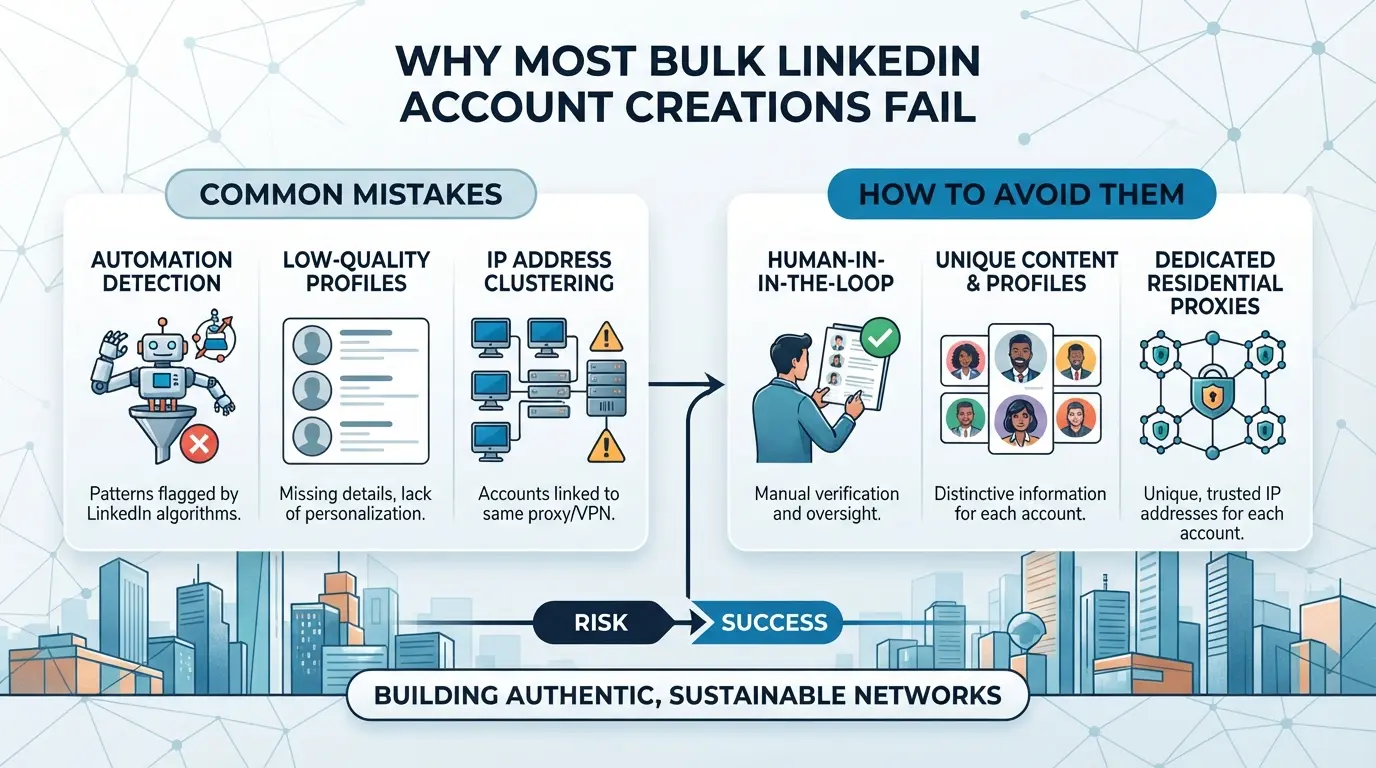
Most operators trying to create bulk LinkedIn accounts hit the same wall: LinkedIn spots patterns that connect your profiles, then shuts them down before you can use them. The biggest failures come from reused network details, device fingerprints, automation mistakes, and skipping the steps that make accounts look real.
Reusing IP Addresses or Low-Quality Proxies
LinkedIn’s backend checks for IP overlap across accounts. If you register or log in too many profiles from the same subnet, you’ll trigger instant review or mass bans. Cheap proxies often recycle IPs or use flagged ranges, which makes blocks happen faster than manual review. If two profiles show up from the same IP, even weeks apart, expect both to get restricted.
Using the Same Device or Browser for Every Account
Even if you rotate IPs, using the same browser or device for all your accounts leaves a trail LinkedIn can follow. Browser fingerprints, like fonts, canvas data, and device specs, stay shockingly stable. Operators often forget that logging into each new profile from the same laptop, or even the same virtual machine, will link them on the backend. For example, if you run 10 registrations through one Chrome instance, LinkedIn’s device graph will flag those profiles as suspiciously linked, sometimes even after months of separate use. The real risk is that a single compromise, like one account getting locked, can put your whole batch under review.
Automation Patterns and Suspicious Behavior
LinkedIn’s anti-bot systems don’t just watch for headless browsers. They flag registration flows and early activity that move too fast, repeat exact sequences, or skip human-like pauses. A script that fills every field in 0.5 seconds, opens no other tabs, and never hesitates at captchas will get flagged, even if it passes basic browser checks. One operator ran 50 account signups with identical script timing and lost the batch within 48 hours, not from IP issues, but from predictable, inhuman patterns.
Skipping Account Warm-Up and Profile Completion
Most bans don’t come at registration, they hit when blank or inactive profiles look fake. To avoid this:
- Fill out work history, education, and a profile photo before adding contacts.
- Stagger activity for each profile over several days, don’t rush to connect or post.
- Use unique, plausible details; copying templates across accounts is a red flag.
Missing these steps means LinkedIn’s risk models will spot your accounts as synthetic and sweep them up in the next purge.
Missteps at any layer, network, device, automation, or early usage, can wipe out your efforts. That’s why planning each phase matters more than speed. The next step is making sure your setup is solid before you even hit “register.”
How to Prepare for Bulk LinkedIn Account Creation: What You Need First
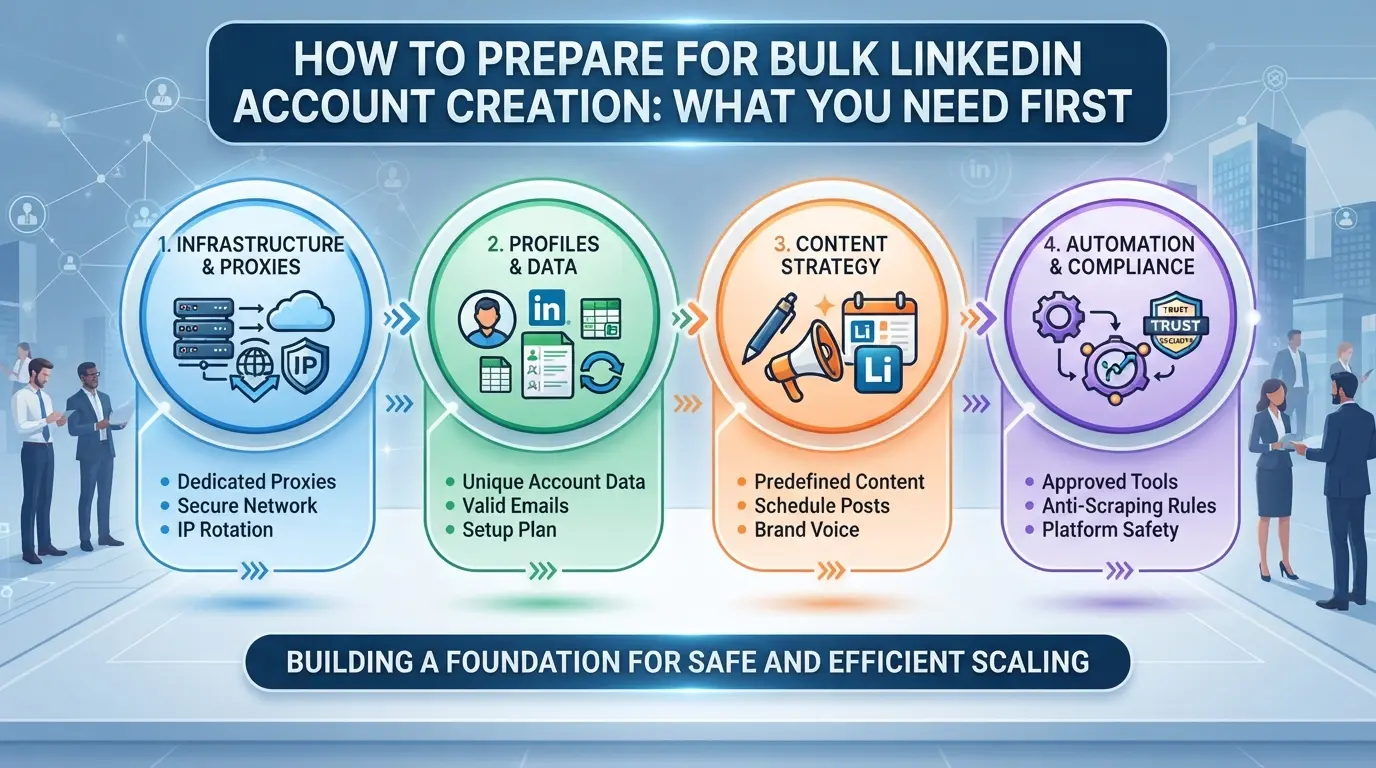
You can’t just open a spreadsheet and start creating bulk LinkedIn accounts. To avoid quick bans, you need every piece lined up, emails, proxies, browser setup, and a workflow plan, or you’ll get flagged before the first account survives onboarding.
Unique Email Addresses and Phone Numbers
Each LinkedIn account must have its own fresh email and, often, a unique phone number. Avoid free email domains and recycled SMS numbers, providers track these patterns and will block you fast.
Reliable Proxies for Each Account
- Assign a dedicated proxy (residential or mobile) to every LinkedIn profile.
- Rotate IPs only after a session is fully closed, mixing live sessions risks instant linkage.
- Track which proxy goes with which account. Reusing proxies across accounts is the fastest way to get all your profiles flagged together.
Browser Profile Isolation Tools
Running each LinkedIn account in a separate browser profile stops cookies, cache, and device fingerprints from leaking between accounts. Tools designed for browser profile isolation, like Multilogin or GoLogin, are standard practice for operators handling scale.
Account Creation Workflow Plan
Don’t wing it, skipping a workflow checklist is the top reason bulk account projects get burned at step one.
- Map out the exact order: register, verify, warm up, and document.
- Log every account’s credentials, proxy, and device fingerprint in a master sheet.
- Label accounts by creation date and use case; random notes won’t help you recover when LinkedIn locks a batch.
Missing any of these basics means you’ll be troubleshooting bans before you even try posting or connecting. Next up: see the step-by-step method operators use to get through LinkedIn’s defenses in 2026.
Step-by-Step: Safest Way to Create Bulk LinkedIn Accounts in 2026
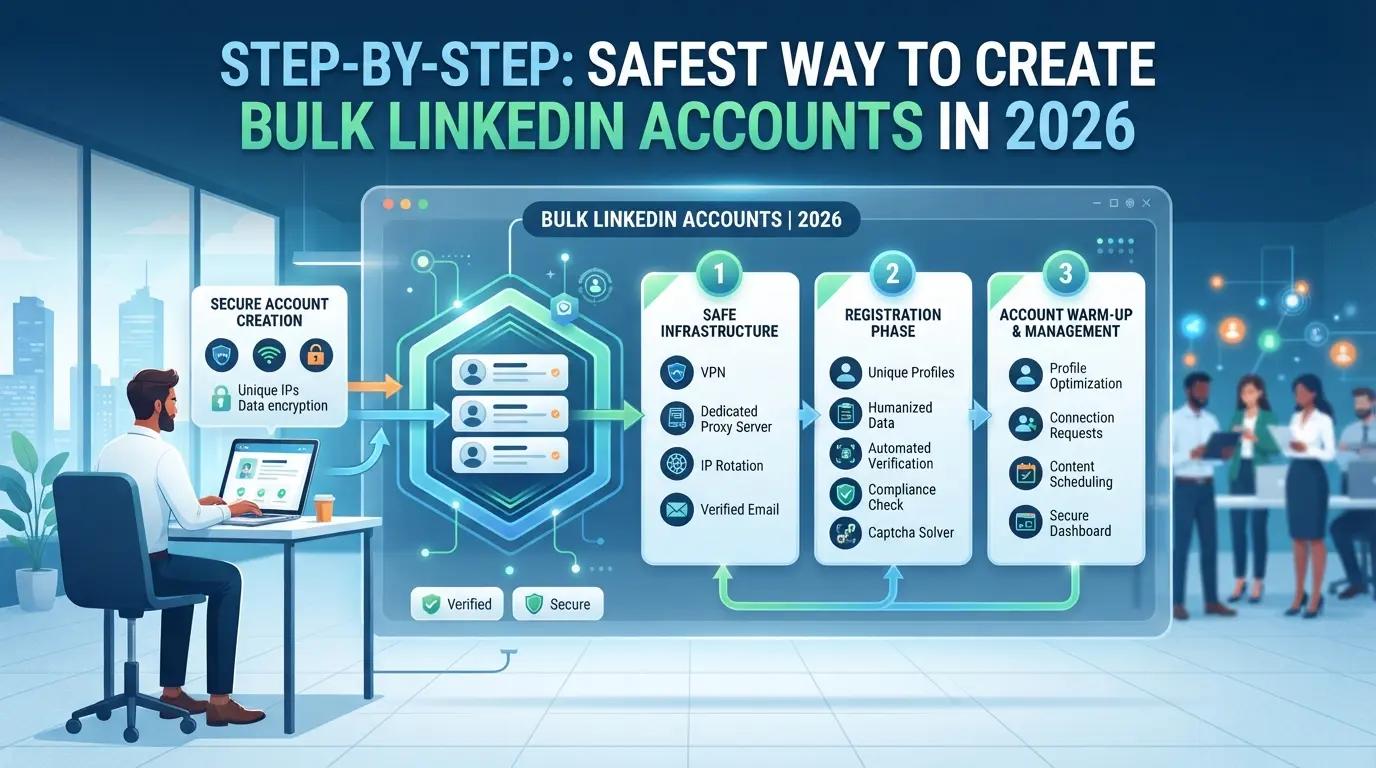
If your goal is to create multiple LinkedIn accounts that actually survive onboarding and pass real use checks, you need a strict, repeatable process. The biggest mistake is skipping any step, LinkedIn’s backend will flag overlapping fingerprints or recycled numbers fast. Here’s the safest workflow operators use in 2026.
Step 1: Set Up Unique Browser Profiles and Proxies
- Assign each account a separate browser profile, never reuse cookies or browser data across accounts.
- Connect each browser profile to a dedicated proxy. Use residential proxies only; datacenter proxies get flagged quickly.
- Test each setup before registering: visit LinkedIn’s help or login page and check if the IP, timezone, and browser fingerprint match your intended profile. If you see a mismatch, swap proxies or fix your browser fingerprint before moving forward.
Step 2: Register LinkedIn Accounts with Unique Credentials
- Use a fresh email and phone number for every registration. Don’t recycle, LinkedIn cross-checks these across the platform.
- Begin the sign-up process in your prepared profile. Enter details manually; avoid autofill or scripts at this stage.
- When prompted, enter the SMS or email code right away. If a code fails, wait 15 minutes before requesting a new one, too many attempts from the same environment will trigger a soft block.
Step 3: Complete Profiles and Add Initial Activity
- Fill out profile info: name, photo, job, and education. Leave no section blank, empty fields are a red flag in bulk creation.
- Add a few real interests and skills.
- Interact naturally: view a couple of profiles, follow one or two companies, and make a single connection request. Skip mass actions, if LinkedIn sees a spike, the account may get locked.
Step 4: Warm Up Accounts Gradually
- Log in daily from the same setup for 5-7 days. Change timing slightly each day to mimic human habits.
- Increase activity slowly: one new connection per day, one post or comment every other day.
- Watch for warning banners or unexpected logouts. If you get one, stop all actions for 48 hours, trying to push through usually leads to a ban.
Step 5: Document and Organize Accounts for Team Use
- Record each account’s login, assigned proxy, and browser profile in a secure tracker. Never store this in a shared sheet without access controls.
- If working as a team, assign accounts explicitly and note who handles which profile.
- Set reminders to rotate passwords and check activity logs weekly. Missing a change can expose the whole batch.
Once your batch is stable and documented, you’re ready to move to safer team management and scaling.
How to Manage Bulk LinkedIn Accounts More Safely with DICloak: Profile Isolation, Proxies, and Team Permissions
Bulk LinkedIn account creation isn’t just about getting accounts live; it’s about keeping every session, login, and team handoff separate long-term. After you’ve finished the initial setup, the next challenge is running these accounts without overlap, especially if several people manage them. This is where teams use DICloak to set up strict profile, network, and permission boundaries at the browser layer. The goal is simple: keep each LinkedIn session isolated, network traffic consistent, and team access under control as the operation grows.
Keep Each LinkedIn Account Separate with Profile Isolation and Fingerprint Configuration
Operators can create a new browser profile in DICloak for each LinkedIn account, making sure sessions, cookies, and storage never mix. Every profile’s fingerprint, like User Agent, time zone, and language, can be set differently, which lets a marketer prepare 20 profiles for 20 separate LinkedIn accounts. The profiles are stored and managed independently, but this control stops at the browser; it doesn’t change LinkedIn’s own checks or account review process. Setting up each account in its own isolated profile with tailored fingerprints is what keeps accidental overlap off the table. 
User-Provided Proxy Configuration for Assigned Profiles
For every LinkedIn profile, operators can add their own proxy in DICloak before launch. This means each profile’s network traffic comes from the specific connection you choose, like a residential or mobile proxy you’ve sourced yourself. The built-in proxy tester checks if your connection details are working, but it’s on you to pick, rotate, or reuse proxies according to your workflow. DICloak only stores and applies proxy settings per profile; it doesn’t supply or recommend proxies or guarantee the connection will suit LinkedIn’s policies. 
Control Team Access with Permissions and Profile Groups
Admins can decide which team members see or open which LinkedIn profiles by assigning role-based permissions and profile groups. For example, an agency manager might let each marketer access only the profiles for their clients, cutting down the chance of mix-ups or accidental cross-use. These permission controls only affect what’s visible and allowed inside DICloak, they don’t touch permissions inside LinkedIn itself. 
This structure means the groundwork for account safety and workflow scaling is in place before you start daily operations.
What to Do After Creating Bulk LinkedIn Accounts: Safety, Scaling, and Maintenance
Bulk LinkedIn account creation is only half the battle, keeping accounts alive and scaling without bans takes ongoing checks and smart habits.
Monitor for Unusual Activity and Early Restrictions
The biggest early warning: login prompts or requests for phone/email re-verification. If you see a spike in “suspicious activity” warnings or accounts suddenly log out, act fast, stop automation, switch devices, and review proxy quality.
Rotate Proxies and Update Fingerprints Periodically
- Change proxies every 2-4 weeks or after a device fingerprint mismatch.
- Check browser fingerprints match the account’s original history.
- Never reuse a “burned” IP or fingerprint for new registrations.
Document Account Actions and Access
Track every login, profile edit, and handoff, don’t rely on memory. Use a shared sheet or log to spot patterns if restrictions start stacking up across the batch.
Scale Up Gradually and Test New Workflows
Ramp up new activity in stages to avoid triggering LinkedIn’s bulk detection.
- Add no more than 10-15 accounts per day to new workflows.
- Test automation on a single account before scaling.
- Pause and review if any account gets flagged.
When Bulk LinkedIn Account Creation Is the Wrong Choice: Safer Alternatives and Red Flags
Some cases are a dead end, trying to create bulk LinkedIn accounts when the platform is on high alert usually ends with instant bans and wasted resources.
Red Flags: When Bulk Creation Is Likely to Fail
If your project depends on logging in from one IP range, reusing device fingerprints, or skipping warmup, bulk LinkedIn account creation will almost always fail. The fastest way to lose accounts is to run them all from one machine or network.
Alternatives: Organic Growth, Team Accounts, and Agency Models
Blindly scaling fake profiles is a quick way to trip LinkedIn’s fraud checks.
- If even one account gets flagged, the entire batch can get linked and restricted.
- Build smaller batches, focus on real organic activity, or use team-based accounts with careful separation, these methods are slower but much safer.
Risks of Buying Pre-Made Accounts
Pre-made LinkedIn accounts often come with hidden risks, stolen credentials, mismatched device histories, or even legal headaches if linked to fraud. Buying these is rarely worth it; most will get flagged before you finish onboarding, and any shortcut here usually leaves you exposed.
Frequently Asked Questions About create bulk LinkedIn accounts
Is it legal to create bulk LinkedIn accounts for marketing in 2026?
Creating bulk LinkedIn accounts for marketing often breaks LinkedIn’s Terms of Service. The platform bans fake or duplicate accounts. You could face legal risks, especially if accounts are used for spam or fraud. Always check your country’s laws before trying bulk LinkedIn account creation, as some places have strict rules about digital identity and online marketing.
How many LinkedIn accounts can I safely manage at once?
Most users safely manage one or two LinkedIn profiles. Running more accounts increases your risk of detection. LinkedIn tracks IP addresses, device fingerprints, and login patterns. Using proxies and separate browsers can help, but managing more than five accounts at once often triggers platform checks or blocks.
What happens if LinkedIn detects my bulk accounts?
If LinkedIn spots your bulk accounts, it may restrict, freeze, or permanently ban them. You might lose access to all profiles linked to your email, phone, or device. Sometimes LinkedIn offers an appeal process, but recovery is rare if you broke their rules or used automation.
Can I use automation tools to manage bulk LinkedIn accounts?
LinkedIn does not allow most automation tools. Using bots or scripts can get your accounts suspended or banned. If you must automate, use trusted platforms that mimic human behavior and avoid obvious spam actions. Manual actions and careful scheduling are the safest for managing multiple LinkedIn profiles.
How do I keep my LinkedIn accounts from being linked together?
Keep each account separate by using unique browser fingerprints, different email addresses, and proxies for each login. Do not share personal details or use the same phone number. Using virtual machines or isolated browser sessions helps prevent LinkedIn from connecting your accounts.
Consider which tools and strategies best align with your goals and resources before scaling your LinkedIn presence. Taking the time to set up a secure, efficient workflow now will help you avoid challenges down the road. Try DICloak For Free
 Web Proxy Tools
 Free Tools
 Cookie Plugin
 UA Generator
 MAC Address Generator
 IP Generator
 IP Address List
 2FA Code Generator
 World Clock
 Anonymous Check
 WebRTC Leak Test
 UUID Generator
 Free Web Proxy Site
 Proxy Checker
 FB Ad Checker
 AI Web Scraping
 Free SMM Tools
 Twitter Shadowban Checker
 Instagram Name Checker
 UTM Generator
 Username Generator
 AI Hashtag Generator
 LinkedIn Headline Generator
 Social Media Image Resizer