Managing more than one Instagram account is very common now. You may want one account for personal life and another for work, content, or a side project. The good news is that Instagram makes this possible on both mobile and desktop, but it still helps to know the right setup, privacy steps, and common mistakes before you start.
Why Would You Need a Second Instagram Account?
Many people now use more than one Instagram account. One may be for personal life, while another is for work, content, or a side project. This can make posting clearer, safer, and easier to manage.
Common scenarios for creating multiple accounts
One very common case is content separation. For example, a person may use one account to post family photos and another to post fitness videos. This helps keep the audience clear. Your aunt may enjoy baby pictures, but she may not care about daily gym reels. A second account gives you room to post with less pressure and with a more focused tone.
Another common case is side work. Imagine a makeup artist who works weekends. During the week, she uses her personal account like anyone else. On weekends, she wants before-and-after client photos, booking links, and story highlights for her service. Mixing all of that into one profile can look messy. A second account makes the purpose clear right away.
Some people also create a second Instagram account for testing. A creator may want to try a new niche, new style, or new language without changing the account that already has followers. This is common with meme pages, pet pages, study pages, and local business projects. It is a lower-risk way to experiment before making bigger changes.
There is also a need for privacy. Some users want one account that is public and discoverable, and one that is private and limited to close friends. That is often easier than trying to make one profile serve two very different groups at the same time.
Personal vs. professional account use cases
The line between personal and professional use is where many second accounts begin. A personal account is usually about relationships. It is where people share casual updates, vacations, daily moments, or private stories. A professional account has a different job. It needs to look clean, stay on-topic, and help people understand what you do fast.
Take a simple example. A real estate agent may use a personal account for family life, hobbies, and local events. But a second account can focus only on listings, market tips, neighborhood videos, and client trust. That makes the content easier for followers to understand. It also protects the agent from mixing work leads with private life.
The same pattern works for creators. A teacher who posts study tips may not want every student or parent seeing personal weekend content. A second account gives that teacher control. One account builds a professional image. The other stays personal.
Risks of managing multiple accounts poorly
The problem is not having multiple accounts. The real problem starts when they are managed carelessly. This is where people sometimes end up feeling restricted on Instagram, confused by login warnings, or locked out after unusual activity patterns.
There is also a platform risk. Instagram says accounts may be restricted and flagged for further review when it detects activity that goes against its Terms for accessing or collecting data. That notice is about scraping, but the bigger lesson is clear: when behavior looks unsafe or abnormal, restrictions can happen. So if someone runs several accounts in a sloppy way, ignores security, or uses untrusted tools, they increase the chance of trouble.
Steps to Create a Second Instagram Account on Mobile
Creating a second Instagram account on mobile is usually quick. Instagram’s Help Center says you can add and switch between multiple accounts, and its account creation page confirms you can create a new account on mobile without needing Facebook. In practice, that makes the process simple for most users on both iPhone and Android.
How to set up a second account on iPhone
If you use an iPhone, the steps are very simple:
- Open the Instagram app and go to your profile.
- Tap your profile name at the top right.
- Tap Add Instagram account.
- Tap Create new account.
- Enter a new username.
- Tap Next and follow the steps to finish signup.
After setup, check the basic details right away. Add a profile photo, write a short bio, and make sure the username matches the purpose of the account. If it is a business or creator page, choose a name people can understand fast. A vague name can make the account look unfinished or hard to trust.
How to set up a second account on Android
On Android, the flow is almost the same:
- Open Instagram and go to your profile.
- Tap your profile name near the top of the screen.
- Tap Add Instagram account.
- Choose Create new account.
- Pick your username.
- Tap Next and complete the signup steps.
Common mistakes to avoid during account setup
The biggest mistake is rushing through setup without a clear purpose. A second Instagram account works best when it has one job.
Another common mistake is choosing a weak username. If your second account is for a shop, portfolio, or creator brand, the username should be easy to read and easy to remember.
Many users also skip basic security steps. That is risky, especially when managing more than one account on one phone. Use a strong password for the new account and store it safely.
It is also a mistake to ignore profile setup after signup. A blank page with no photo, no bio, and no clear identity can look suspicious to visitors. If someone lands on that page, they may not know whether it is real, inactive, or unfinished. Even a basic setup makes a big difference.
Finally, do not mix account roles too early. Clear positioning from day one is often the smarter move.
How to Create a Second Instagram Account on Desktop
If you prefer a bigger screen, you can also create a second Instagram account on desktop. Instagram’s Help Center says you can create a new account on desktop, mobile, or tablet, so using a computer is a normal option, not a workaround.
Step-by-step guide for desktop account creation
If you want to create a second Instagram account on desktop, follow these simple steps:
- Go to Instagram on your desktop browser.
- Log in to your current Instagram account.
- Click your profile picture or profile name.
- Find the option to Add account.
- Choose Create new account.
- Enter a new username for the second account.
- Add your password and complete the signup steps.
- Finish the basic setup, like profile photo, bio, and account type.
Differences between mobile and desktop processes
The main difference is convenience. On mobile, switching accounts feels faster because everything is inside the app. On desktop, the process is still easy, but some users may find account switching a little less smooth than on the phone. Instagram supports both, but mobile is often better for daily posting, stories, and quick account checks.
Another difference is login setup. Users should pay closer attention to how each account is stored and accessed, especially when using more than one login on desktop.
Troubleshooting desktop-specific issues
If account creation does not work on desktop, first refresh the page and sign in again. Then check whether the browser is blocking pop-ups, cookies, or saved login actions. If the page loads badly, try another browser or an incognito window. These are simple fixes, but they often solve desktop-only problems.
Also, make sure you are not mixing old saved login details with the new account you want to create. This can confuse the process, especially when several accounts were used before on the same computer. If needed, remove old saved login info and start again with a clean login session.
How to Switch Between Multiple Instagram Accounts
Switching between Instagram accounts is easy once both accounts are added to the app.
Switching accounts on the Instagram app
Here are the simple steps:
- Open the Instagram app.
- Go to your profile.
- Tap your profile name at the top.
- Choose the account you want to use.
If your second account is not there yet, tap Add Instagram account first, then log in or create a new one. This is useful when one account is personal and the other is for work, content, or a small business.
Managing notifications for multiple accounts
If you use more than one Instagram account, notifications can get messy fast. A smart habit is to keep stronger alerts on for your main account and reduce alerts on the second one if it is less important. That way, your phone does not feel overloaded all day.
Avoiding accidental posts on the wrong account
This happens more often than people expect. Before posting, always check the profile photo and username at the top of the screen. That quick check can save you from posting a personal story on a business page or uploading work content to a private account.
It also helps to keep each account clearly organized. Use different profile photos, clear bios, and a strong purpose for each one.
How to Maintain Privacy with a Second Instagram Account
If your second Instagram account is for private use, a side project, or a low-profile identity, privacy should be part of the setup from the start.
Setting up privacy settings for your second account
First, make the account private if you do not want strangers to see your posts. Then check settings for tags, mentions, and messages. It is also smart to turn off contact syncing if you do not want Instagram to use your phone contacts to suggest people you may know.
How to prevent Instagram from linking your accounts
Try not to connect the two accounts more than necessary. Review your Accounts Center settings and login settings. If privacy matters, avoid using the same profile details, and do not upload contacts unless you need to.
Tips for creating an anonymous or secret account
- Use a username that does not show your full real name.
- Do not reuse the same profile photo as your main account.
- Keep your bio simple and avoid personal details.
- Do not connect the account to contacts unless needed.
- Avoid linking it too closely to your main Instagram account.
- Use a different content style if you want stronger separation.
- Do not pretend to be another real person or brand.
Common Issues When Creating or Managing Multiple Accounts
Using more than one Instagram account is normal, but problems can still happen. Most issues come from unusual login activity, weak security, saved login confusion, or account behavior that looks risky to Instagram.
Why Instagram might block or restrict your second account
Instagram may restrict an account if it detects suspicious activity or behavior that breaks its rules. It also says accounts can be restricted and flagged for further review if it detects activity that goes against its Terms for accessing or collecting data. In simple words, if the account looks unsafe or abnormal, Instagram may slow it down, ask for checks, or limit access.
How to resolve login issues with multiple accounts
If you cannot log in, start with the simple fixes. Reset the password, check whether the email or phone number still works, and remove old saved login details from the device if the wrong account keeps appearing. Instagram also has settings for removing profiles from a device and separate help pages for password recovery and login trouble.
What to do if Instagram flags your second account
If Instagram flags the account, follow the on-screen steps first. If the account is suspended or limited by mistake, Instagram says you can learn more about your account and submit an appeal after logging in. It is also smart to secure the account right away by changing the password, removing suspicious third-party app access, and turning on two-factor authentication.
Tools to Manage Multiple Instagram Accounts Effectively
If you manage more than one Instagram account, the right workflow can save a lot of time. Some users can do enough with Instagram’s own tools. Others need a scheduler or a team dashboard. Meta Business Suite supports scheduling for Instagram posts, Stories, and Reels, while tools like Buffer and Hootsuite also support Instagram planning, publishing, and analytics.
Best practices for using Instagram’s built-in features
Start with Instagram’s own account switch feature. Keep each account clearly named, with a different profile photo and a clear purpose. If one account is personal and one is for work, that alone can reduce mistakes. Also review login settings, because Instagram says its older “Logging in with accounts” experience is changing in early 2026.
How to use social media management tools
If you post often, a social media tool can make things easier. Meta Business Suite is a strong first option for business use because Meta says it lets users create and schedule Instagram content and view insights. Buffer supports scheduling for Instagram posts, Stories, carousels, and Reels, and Hootsuite also supports scheduling and analytics across accounts.
Tips for scheduling and tracking posts across accounts
- Give each account its own posting goal.
- Use a content calendar so posts do not overlap by accident.
- Track simple numbers like reach, clicks, saves, and replies.
- Schedule posts in advance for your less active accounts.
- Check performance often and adjust based on results.
Manage Multiple Instagram Account with DICloak
If you manage multiple Instagram accounts, the right workflow can save a lot of time.
Securely manage multiple accounts on one device
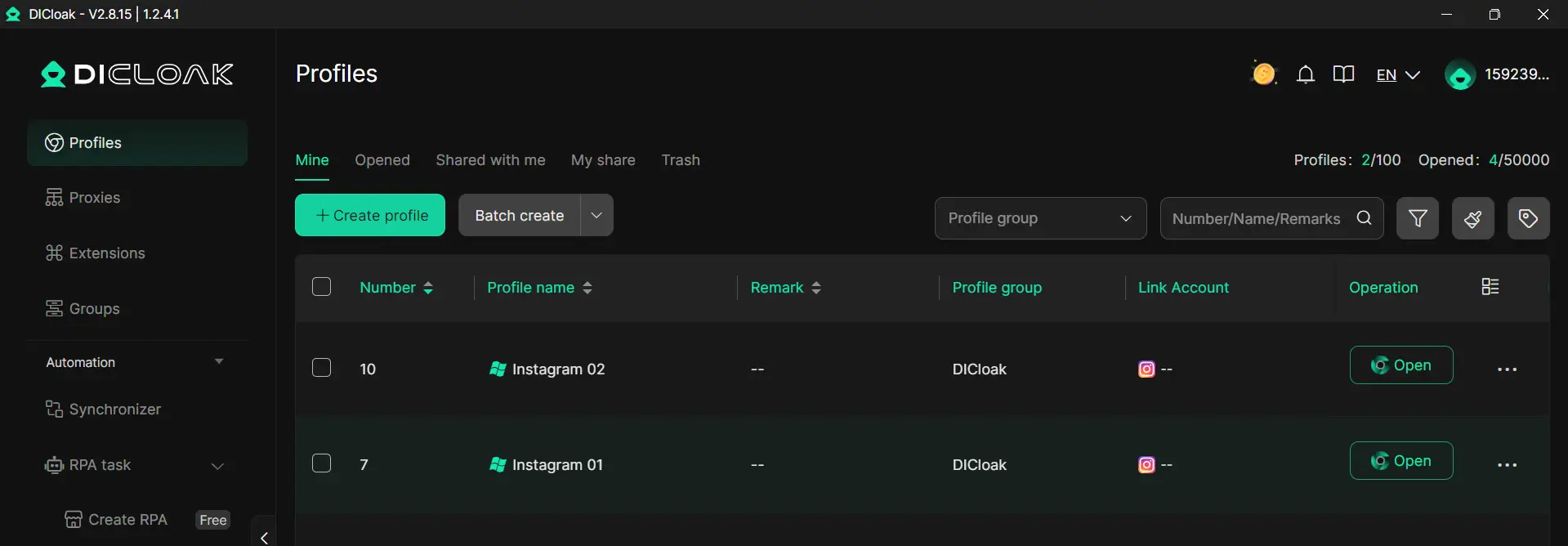
If you manage multiple Instagram accounts on one device, you need a cleaner way to keep each login separate. Instead of mixing cookies, sessions, and account activity in one browser profile, you can place each account in its own browser profile. This makes account switching easier and helps you reduce confusion when handling personal, client, or business accounts side by side.
Automate repetitive tasks like posting and following
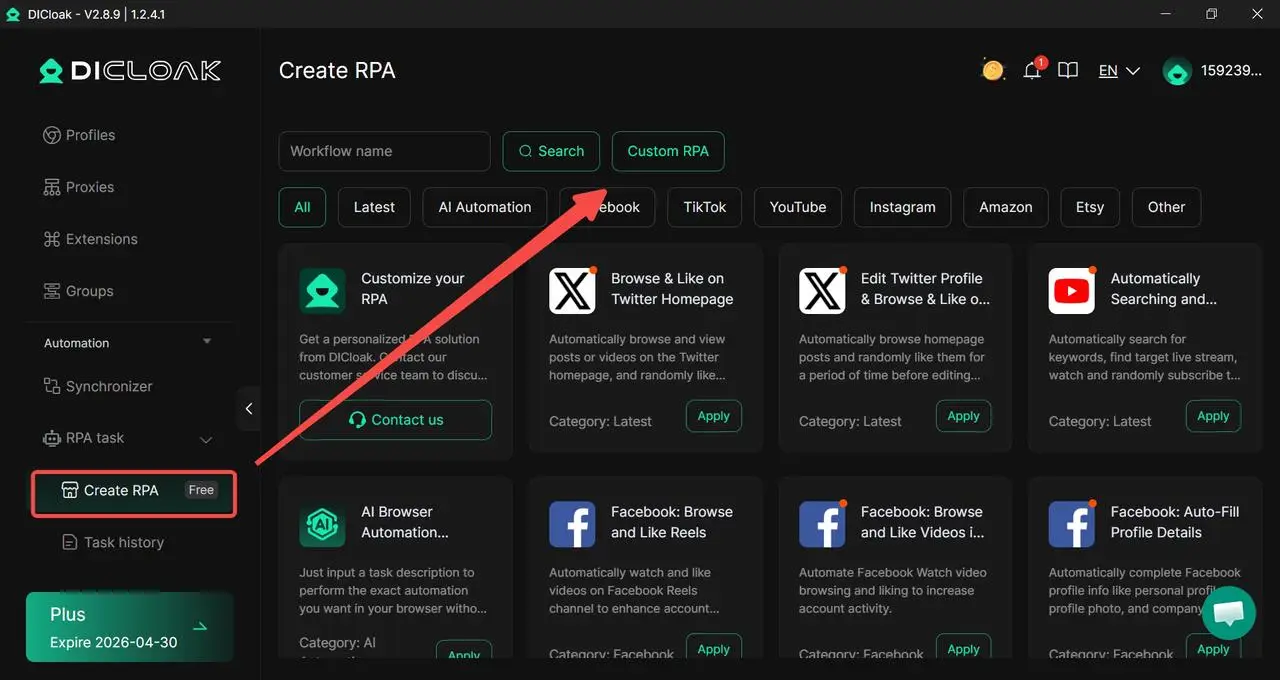
If you repeat the same actions across several accounts, manual work can become tiring very fast. You can use RPA features to handle routine steps more efficiently, especially when your workflow includes repeated posting, account setup, or other basic actions. This can help you save time and keep daily account management more organized.
Maintain privacy with unique account fingerprints
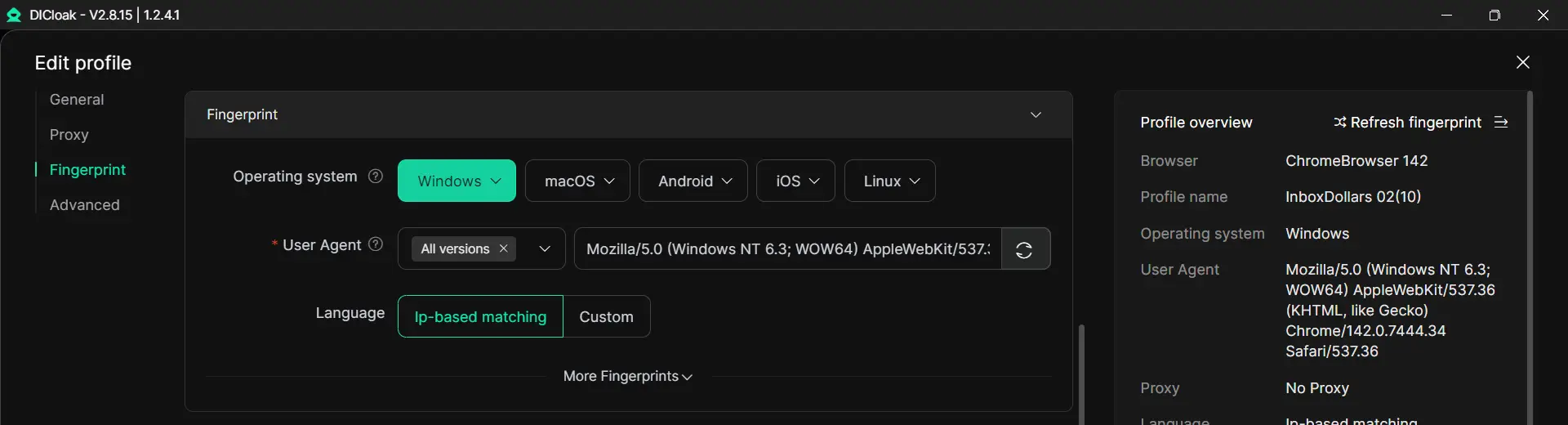
If you want stronger account separation, changing the username alone is not enough. You can give each account a more distinct browser profile by using separate profile spaces and different fingerprint settings. This helps you create clearer separation between accounts and keep your activity more private on the same device.
How to Delete a Second Instagram Account if Needed
If you no longer need your second Instagram account, you can remove it for good. Before you do that, it is smart to save your data first.
Steps to permanently delete an account
- Log in to the Instagram account you want to delete.
- Go to Accounts Center.
- Open Personal details.
- Choose Account ownership and control.
- Tap or click Deactivation or deletion.
- Select the account and choose Delete account.
- Follow the final confirmation steps.
How to back up data before deletion
Before deleting the account, download a copy of your information. Instagram says you can review and export your account information before deletion. This is useful if you want to save photos, messages, or account details.
What happens after you delete an account
After you request deletion, the account enters the deletion process. It may take up to 90 days to fully complete deletion from its systems, although the account and content are permanently deleted 30 days after the request begins. Some copies may remain temporarily in backup storage for safety and security reasons.
FAQs
Can I use the same email for multiple Instagram accounts?
Yes. Instagram says one email address can be associated with up to 5 Instagram accounts. That means you can use the same email for more than one account, but there is a limit.
How many Instagram accounts can I create in 2026?
Instagram’s Help Center says you can have up to 10 Instagram accounts logged in at once on the app. That does not automatically mean every user should create that many, but it does show that Instagram supports multi-account use.
Will my followers know I created a second account?
Not automatically. Instagram does not send a general notice telling your followers that you made a second account. But people may still find it through account suggestions, shared profile details, synced contacts, or if you connect accounts in Accounts Center.
Can I merge two Instagram accounts into one?
Instagram does not provide a normal feature for merging two regular Instagram accounts into one. In most cases, if you want one account only, you need to choose which account to keep and move forward with that one.
What should I do if I forget the login details for my second account?
Start with Instagram’s recovery options. You can tap Forgot password? and enter your username, email, or phone number. If you do not remember the username, Instagram also has help for logging in with your email or phone number instead.
Conclusion
Creating a second Instagram account is not hard, but managing it well matters more than most people think. If you set up each account with a clear purpose, strong privacy settings, and a simple workflow, it becomes much easier to switch, post, and stay organized. Whether you use a second account for personal privacy, business, or content growth, a clean setup can help you avoid problems later.
 Web Proxy Tools
 Free Tools
 Cookie Plugin
 UA Generator
 MAC Address Generator
 IP Generator
 IP Address List
 2FA Code Generator
 World Clock
 Anonymous Check
 WebRTC Leak Test
 UUID Generator
 Free Web Proxy Site
 Proxy Checker
 FB Ad Checker
 AI Web Scraping
 Free SMM Tools
 Twitter Shadowban Checker
 Instagram Name Checker
 UTM Generator
 Username Generator
 AI Hashtag Generator
 LinkedIn Headline Generator
 Social Media Image Resizer