Every time you connect to Wi-Fi in a coffee shop, airport, or hotel, your device announces a unique ID number to the network. This isn't your phone number or email, but a hardware identifier called a Media Access Control (MAC) address. What if that number was being used to build a detailed map of your life—tracking your movements, habits, and routines without your consent? While this address is essential for your devices to function correctly on a network, it also carries significant implications for your privacy and security. The good news is that your MAC address isn't set in stone. Knowing how to change MAC address is a powerful skill for anyone looking to increase their digital privacy and prevent unwanted tracking. This guide provides a comprehensive, step-by-step process for changing MAC address on all major operating systems, grounded in practical, real-world scenarios to help you take control of your digital footprint.
What is a MAC Address and Why Does It Matter?
Before attempting to change MAC address, it's crucial to understand what it is and the role it plays in network communication. As a fundamental component of your device's hardware, the MAC address is the key that allows data to find its way to you on a local network.
Defining the MAC Address
A MAC (Media Access Control) address is a unique identification number assigned to your device's network hardware, such as its Wi-Fi card or Ethernet port (often called a Network Interface Card or NIC). To simplify the concept, think of it as the digital equivalent of the number on your house or apartment—it gives the network a specific, physical endpoint to send information to.
This address is formatted as six pairs of characters, typically separated by colons or hyphens (e.g., 00:1A:2B:3C:4D:5E). Manufacturers embed this address directly into the hardware during production, making it a permanent identifier for that specific component.
Its Function in Networking
The primary purpose of a MAC address is to ensure that data packets sent across a local network reach the correct destination. For example, when you connect to your home Wi-Fi, your router identifies your device's unique MAC address and uses it to direct internet traffic specifically to your laptop or smartphone, and not to another device on the same network.
While essential for local connectivity, this unique identifier can also be a vector for tracking. Understanding this dual role is the first step toward managing your digital privacy effectively. Learning how to change MAC address is an important skill in this regard.

Uncovering the Risks: How Changing Your MAC Address Can Protect Your Anonymity
Although a MAC address is typically only visible within a local network, its exposure in certain environments creates significant privacy concerns. Because it’s a permanent, hardware-level identifier, it can be used to track your physical movements and build a profile of your behavior without your consent. If you're concerned about these privacy risks, one effective solution is to Change MAC Address to prevent unauthorized tracking. This section breaks down the specific threats.
Public Visibility
Whenever your device's Wi-Fi or Bluetooth is enabled, it broadcasts its MAC address to find and connect with nearby networks. This public broadcast is the root of the privacy problem; your device’s unique identifier is openly exposed and can be detected by anyone with simple, widely available scanning tools. This isn't a sophisticated hack—it's your device announcing its presence to the world.
Tracking and Profiling
This constant public visibility directly enables tracking and profiling. Organizations increasingly deploy sensors that passively log the MAC addresses of all nearby devices. For instance, shopping complexes and resorts use this technology to monitor how long visitors stay, which areas they frequent, and how often they return. This data, collected without your active consent, is used to analyze customer behavior and build detailed profiles of individuals' habits.
Pervasive Privacy Issues
The ease with which MAC addresses can be collected means third parties can quietly monitor your movements and activities. Every time your Wi-Fi is active in a public space—from a coffee shop to an airport—it's possible that your presence is being logged. Over time, this data can be aggregated to create a detailed history of where you go, painting a picture of your life that you never intended to share.
Potential for Misuse
While companies may claim to use this data to enhance services, there is always a potential for misuse. Information about your physical movements and habits could be applied in unexpected ways, shared without your approval, or sold to data brokers, violating your personal right to privacy.
These persistent threats prove that a static MAC address is a significant liability in the physical world. The logical next step, then, is to seize control of this identifier. Changing MAC address is a powerful step toward protecting your privacy and anonymity.
Top Reasons to Change Your MAC Address
In response to the privacy risks outlined above, changing MAC address—a practice known as "MAC spoofing"—can be a powerful countermeasure. By altering this identifier, you can disrupt tracking efforts and gain more control over your digital identity. Here are the primary benefits of doing so.
Enhancing Privacy
Periodically changing MAC address makes it significantly harder for trackers to build a continuous profile of your movements and preferences. Each new address breaks the chain of data associated with your device, preventing organizations from linking your activity across different locations and times.
Avoiding Tracking
In environments that actively monitor visitor behavior via MAC addresses, such as retail stores, public venues, or internet cafes, changing MAC address can prevent continuous tracking. This is an especially valuable tactic for individuals who do not want a log of their physical activities and movements to be collected and stored. As an expert, I'll note that this is most useful as a situational tactic; changing MAC address is something you would not do often unless you regularly connect to public networks where you wish to remain anonymous.
Bypassing Network Restrictions
Some networks use MAC filtering to control access, either by allowing only specific devices (a whitelist) or blocking others (a blacklist). If your device has been blocked, changing MAC address can help you circumvent these restrictions and regain connectivity.
Troubleshooting and Security
On rare occasions, two devices on the same network might have duplicate MAC addresses, causing connectivity conflicts. Changing one of the addresses can resolve this issue. From a security standpoint, a changing MAC address also makes it more difficult for eavesdroppers on a local network to consistently monitor a specific device's activity.
Understanding these benefits moves the conversation from the "why" to the "how." The following sections provide practical, step-by-step instructions for changing MAC address across different devices.
How to Change MAC Address: A Step-by-Step Guide for Every Device
The process for changing MAC addresses varies depending on your operating system. Some platforms offer straightforward, built-in tools, while others require more advanced steps. This section provides clear, actionable instructions for all major platforms to help you successfully modify your device's hardware address.
Changing the MAC Address to Windows 10
Windows 10 allows you to change MAC addresses directly through the Control Panel.
- Open the Control Panel. Press the Windows key, type "Control Panel," and select the application from the search results.
- Access Network Connections. In the Control Panel's search bar, type "Network Connections" and click on the View network connections link.
- Select Your Network Adapter. In the Network Connections window, find the active adapter you are using (it will not have a red 'X'). Double-click on it to open its status window, then click Properties.
- Configure the Adapter. In the Properties window, click the Configure button.
- Modify the MAC Address. Navigate to the Advanced tab. In the list of properties, find and select Network Address or Locally Administered Address.
- Enter the New Address. Select the "Value" option on the right and type in your new 12-character MAC address. Important: Enter the address without any colons or hyphens (e.g.,
A1B2C3D4E5F6). Click OK.
- Reboot and Verify. Restart your computer to apply the changes. After rebooting, open the Command Prompt (press the Windows key and type "CMD"). In the Command Prompt, type
IPCONFIG /ALL and press Enter. Find your network adapter in the list and confirm the "Physical Address" matches the new one you set.
Optional: Registry Editor Method
For advanced users, the MAC address can also be changed via the Windows Registry.
- Open the Registry Editor. Press the Windows key, type "Regedit," and open the application, granting it admin permissions.
- Navigate to the Correct Path. In the Registry Editor, navigate to
HKEY_LOCAL_MACHINE\SYSTEM\CurrentControlSet\Control\Class\{4d36e972-e325-11ce-bfc1-08002be10318}.
- Find Your Adapter. Click through the numbered subfolders (e.g., 0000, 0001) until you find the one whose
DriverDesc value matches your network adapter.
- Add the NetworkAddress Value. Right-click on the correct numbered folder, select New > String Value, and name it
NetworkAddress. Double-click this new value and enter your desired 12-character MAC address without separators.
- Reboot and Verify. Restart your computer and use the
IPCONFIG /ALL command to confirm the change.
How to Randomize Your MAC Address on Windows 11
Windows 11 shifts the focus from setting a specific MAC address to randomizing it for enhanced privacy, particularly on public networks.
- Open Settings. Press the Windows key and click on the Settings app.
- Navigate to the Network & Internet. Select this option from the left-hand menu.
- Select Your Connection. Click on Wi-Fi or Ethernet, depending on your current connection type.
- Access Hardware Properties. For Wi-Fi, click on your current network's properties. For Ethernet, select the adapter.
- Enable Randomization. Find the option for random hardware addresses. You have two choices:
- Turn it On to use a different random MAC address every time you connect to a new network.
- Set it to Change Daily to use a new random address for that network every 24 hours.
How to Change MAC Address on macOS
On macOS, the built-in Terminal application offers a quick and effective way to change your MAC address without needing third-party software.
- Check and Record Your Current MAC Address First, identify your current address. Hold down the
Option key on your keyboard and click the Wi-Fi icon in the top menu bar. Your MAC address will be listed next to "Address."
- Open Terminal Navigate to
Finder > Applications > Utilities and open the Terminal application.
- Change Your MAC Address You can either set a specific address or generate a random one.
- To Set a Specific Address: Type the following command, replacing the example address with your desired one, and press Enter:
- You will be prompted for your administrator password. If
en0 doesn't work, your Wi-Fi interface may be en1.
- To Generate a Random Address: Use this command to generate and apply a random MAC address:
- If
en0 does not work, try en1 or check the correct interface name from the Wi-Fi icon details.
- Verify the Change Re-check your MAC address by holding the
Option key and clicking the Wi-Fi icon again. The new address should be displayed.
How to Change MAC Address on Android
Changing the MAC address on an Android device is a complex process that requires advanced permissions.
Warning: This process requires rooting your device. Rooting gives you full administrative access but can void your warranty and introduce significant security risks. Proceed with extreme caution and only if you fully understand the consequences.
- Root Your Android Device. Research and follow a trusted guide specific to your device model to gain root access.
- Install a MAC Address Changer App. After rooting, go to the Google Play Store and install an app designed for this purpose. Popular options include BusyBox and Terminal Emulator, which work with specialized commands, or dedicated apps like ChameleMAC.
- Open the App and Grant Root Permissions. Launch the app and approve the request for superuser (root) access when prompted.
- Generate or Enter a New MAC Address. The app will provide an option to either generate a random address or let you enter a specific one.
- Apply the New Address. Use the app's interface to apply the change.
- Restart the Device. A reboot is often required for the new MAC address to take effect.
Managing Your MAC Address on iOS
Apple takes a different, automated approach to MAC address privacy. iOS does not allow users to manually change their MAC address. Instead, starting with iOS 14, a powerful privacy feature called Private Wi-Fi Address has been integrated directly into the operating system. This feature automatically uses a different, randomized MAC address for each Wi-Fi network your device joins, preventing network operators from tracking your activity across different locations.
- Open the Settings App.
- Tap on Wi-Fi.
- Find the network you are connected to and tap the blue "i" icon next to its name.
- Ensure the toggle for Private Wi-Fi Address is turned on.
For maximum privacy, our recommendation is to keep this feature enabled on all untrusted networks. While changing MAC address is a strong step for local network privacy, it's only one piece of the puzzle. For true online anonymity, you must address the more sophisticated tracking methods used on the internet.
Why still Face the Real Threat of Online Tracking although Changing the MAC Address
While managing your MAC address is excellent for enhancing privacy on local networks, its impact on your online anonymity is minimal. When you browse the internet, the websites you visit almost never see your device's MAC address. Routers and other network infrastructure are designed to hide this hardware-level detail from the wider internet.
The real threat to your online privacy comes from a far more sophisticated technique: browser fingerprinting.
Websites identify and track you by collecting a unique combination of your browser and device settings. This creates a "fingerprint" that is often unique enough to identify you out of millions of other users, even if you clear your cookies. Data points that contribute to your browser fingerprint include:
- WebRTC: Your Web Real-Time Communication settings can leak your true IP address.
- Fonts: The list of fonts installed on your system.
- Screen Resolution: The size and color depth of your screen.
- Platform and OS Details: Your operating system, browser version, and installed plugins.
Because this method doesn't rely on a single identifier like a MAC address, protecting yourself requires a more advanced solution designed specifically to combat fingerprinting.
Beyond Changing Your MAC Address: How DICloak Provides a Complete Anonymity Solution
The limitations of MAC spoofing for online privacy highlight the need for a more comprehensive tool. When your real threat is browser fingerprinting, a solution like DICloak becomes essential. It’s an antidetect browser designed not just to hide your digital identity, but to give you complete control over it.
Antidetect browsers are a new generation of privacy tools that allow you to manage multiple browser profiles, each with a clean and unique device fingerprint. Instead of just hiding your data, they create a new, authentic digital identity for each session, making you appear as a genuine, regular user to websites.
DICloak excels at this by managing your entire digital footprint. Its key benefits include:
✅ Manage 1,000+ Accounts on One Device: Stop wasting money on extra hardware! DICloak allows you to manage multiple accounts on a single device, cutting costs and boosting efficiency.
✅ Guaranteed Account Safety, No Ban Risks: Every account gets its own isolated browser profile with custom fingerprints and IPs, drastically reducing the risk of bans. Your accounts, your control!
✅ Flexible Proxy Configuration for Maximum Performance: Seamlessly integrate with all major proxy protocols (HTTP/HTTPS, SOCKS5) and manage your proxy pool with bulk operations. No more struggling with IP management—DICloak has you covered.
✅ Streamlined Team Collaboration for Better Results: Easily manage your team with advanced tools like profile sharing, permission settings, data isolation, and operation logs. Your team works smarter, not harder.
✅ Automate the Grind with RPA: DICloak's built-in RPA saves you hours of manual work. Automate repetitive tasks, streamline workflows, and focus on what really matters—growing your business.
✅ Powerful Bulk Tools to Scale Your Operations: Create, import, and launch multiple browser profiles in one click. DICloak makes scaling your business as easy as it gets.
✅ Compatible with All Major Operating Systems: Based on the Chrome core, DICloak supports simulating Windows, Mac, iOS, Android, and Linux operating systems. No matter what platform you need, DICloak has you covered.
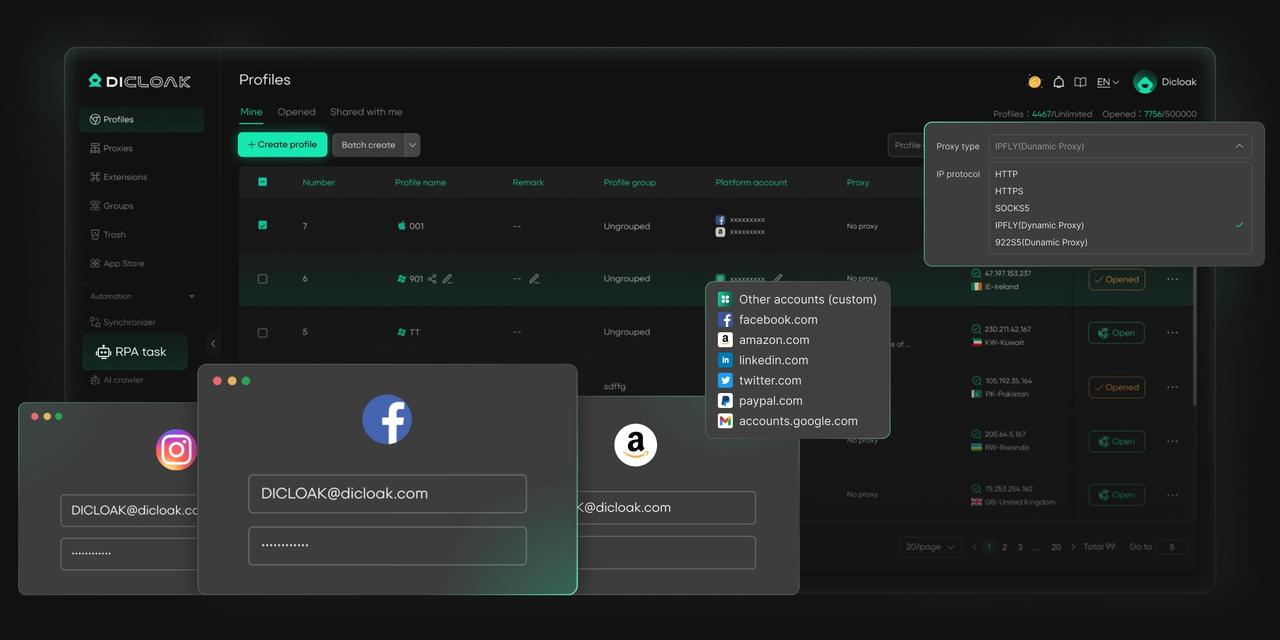
DICloak is the expert’s choice for comprehensive protection. For those seeking true online anonymity, DICloak offers a free plan, allowing you to experience a more private and secure way to browse the internet.
Frequently Asked Questions (FAQ) About How to Change Your MAC Address
Is it legal to change my MAC address?
Yes, in most cases, it is perfectly legal to change MAC address for privacy-enhancing or network troubleshooting purposes. The practice itself is a legitimate technical function. However, using it to conceal your identity while performing illegal activities is against the law.
Is the MAC address change permanent?
It depends on the method used. Most software-based changes, like those made via the Terminal in macOS or the Control Panel in Windows, are temporary and will reset when you reboot your device. However, more advanced methods, such as editing the Windows Registry, can make the change persist through reboots. Automated features like those in iOS and Windows 11 are also persistent as long as the feature is enabled.
Will changing my MAC address make me completely anonymous online?
No. Changing MAC address primarily enhances your privacy on local networks by preventing physical tracking. It does not make you anonymous on the internet, as websites use more sophisticated methods like browser fingerprinting to identify and track users. For true online anonymity, you need tools like antidetect browsers that can manage your entire digital fingerprint.
Do I need to change my MAC address on my home network?
Generally, no. Since you are the owner of your home network, there is little to no privacy benefit in changing MAC addresses. MAC spoofing is most effective on public or untrusted networks (like coffee shops, airports, or hotels) where third parties may be monitoring traffic.
What is the difference between a MAC address and an IP address?
Think of it like a letter. The MAC address is the specific name of the person the letter is for (e.g., John Doe), ensuring it gets to the right individual within a single household. The IP address is the home's street address (e.g., 123 Main Street), ensuring the postal service delivers the letter to the correct building in the world. A MAC address is for local identification, while an IP address is for global location.
 Web Proxy Tools
 Free Tools
 Cookie Plugin
 UA Generator
 MAC Address Generator
 IP Generator
 IP Address List
 2FA Code Generator
 World Clock
 Anonymous Check
 WebRTC Leak Test
 UUID Generator
 Free Web Proxy Site
 Proxy Checker
 FB Ad Checker
 AI Web Scraping
 Free SMM Tools
 Twitter Shadowban Checker
 Instagram Name Checker
 UTM Generator
 Username Generator
 AI Hashtag Generator
 LinkedIn Headline Generator
 Social Media Image Resizer