You’re not alone if you’ve wasted an hour refreshing, only to wonder if a grok outage is to blame or if something’s wrong on your end. When Grok goes down, whether it’s an API blip, a dashboard that won’t load, or a full-scale Grok status failure, teams lose time fast. The real problem isn’t just the downtime; it’s the uncertainty. “Is Grok down for everyone, or just for me?” is the question every operator dreads, especially when account sharing or automation is involved.
It’s easy to blame your own proxy setup or local network, but that guesswork can lead to risky workarounds. Some users try switching accounts or sharing access in ways that only make things worse, either triggering security reviews or exposing credentials.
The smarter move is to check the official Grok outage report first, then confirm status with independent monitors and team logs before changing anything. Skipping this step often leads to duplicated tickets, missed alerts, or even accidental lockouts during partial service interruptions. For teams that share Grok accounts, knowing what to check (and what not to touch) during an outage cuts down on both confusion and post-outage cleanup.
Start by confirming whether Grok is actually down or if the issue is on your side. Here’s how to do it with less guesswork.
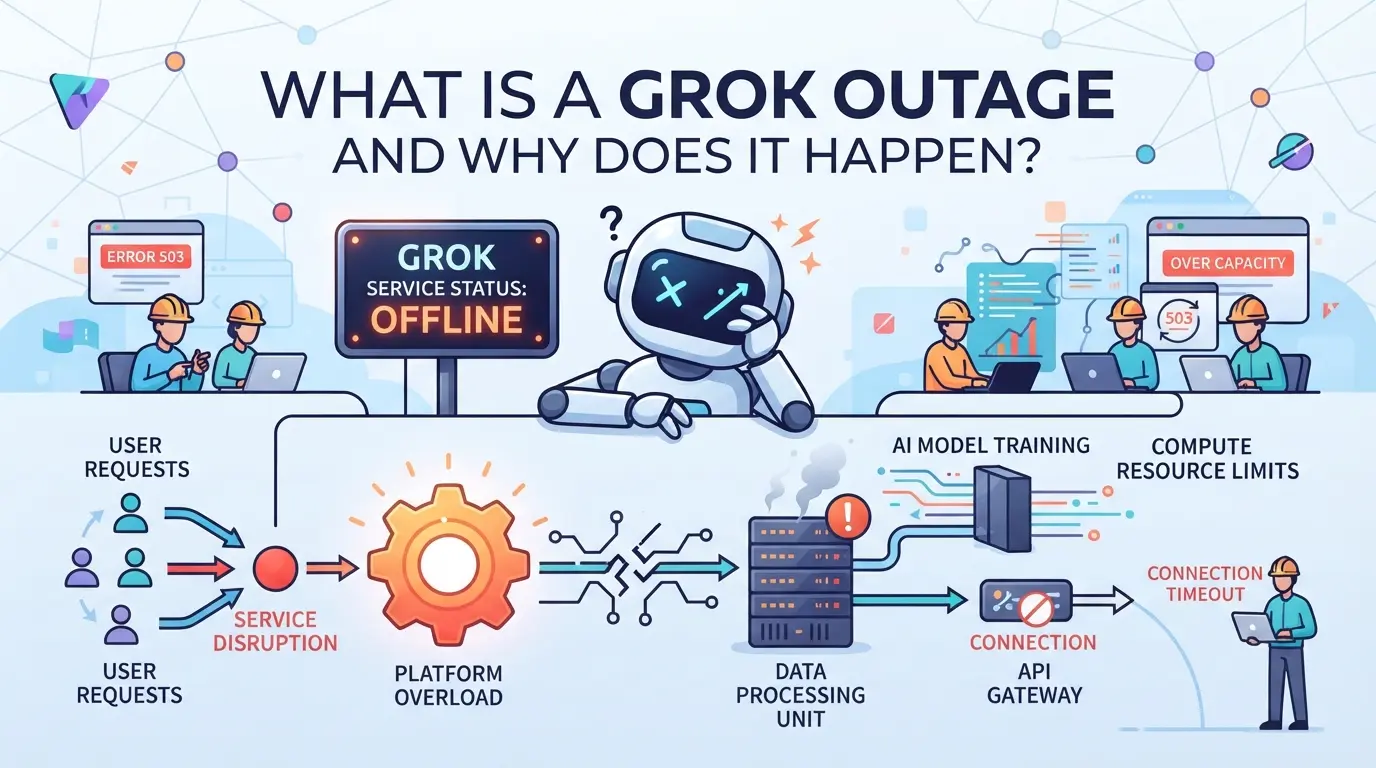
What Is a Grok Outage and Why Does It Happen?
A Grok outage means the platform stops working as expected, either nobody can log in, or key features fail for some users. This isn’t just a slow response or a minor bug; it’s a real service interruption that blocks normal use.
Definition: What Counts as a Grok Outage
Most people call it an outage when Grok won’t load, login fails for everyone, or main tools go offline. Partial outages can look like search not working, API errors, or certain dashboards failing while others stay up.
Common Causes: Technical, Network, and Platform Issues
Outages usually start with a technical failure, servers crash, a data center goes dark, or a critical API returns errors. Sometimes, it’s scheduled maintenance that overruns its window, leaving users stuck longer than expected. But the tricky part is that not every interruption is obvious. For example, a major cloud provider might push an update that breaks Grok’s backend for half the world, while the other half sees no impact. This split can confuse teams, especially if some users stay logged in while others get locked out. Partial failures are the hardest to diagnose, since symptoms change fast and internal status pages often lag behind what users report. If you only rely on official updates, you might miss edge cases, like accounts stuck in review or workflows delayed by background sync issues. Knowing these patterns helps you spot whether to wait, escalate, or start troubleshooting.
How Grok Outages Impact Users and Teams
- Access drops: logins fail or dashboards won’t load, leaving everyone stuck.
- Workflows stall: scheduled posts, data exports, or analytics pause mid-run.
- Account flags: repeated failed logins or API errors can trigger temporary restrictions or review.
Missing a real outage means you risk making things worse, either by flooding support with duplicate tickets or by pushing changes during a broken sync. Next, learn how to check Grok status and confirm reports before reacting.
How to Check Grok Status and Outage Reports in 2026
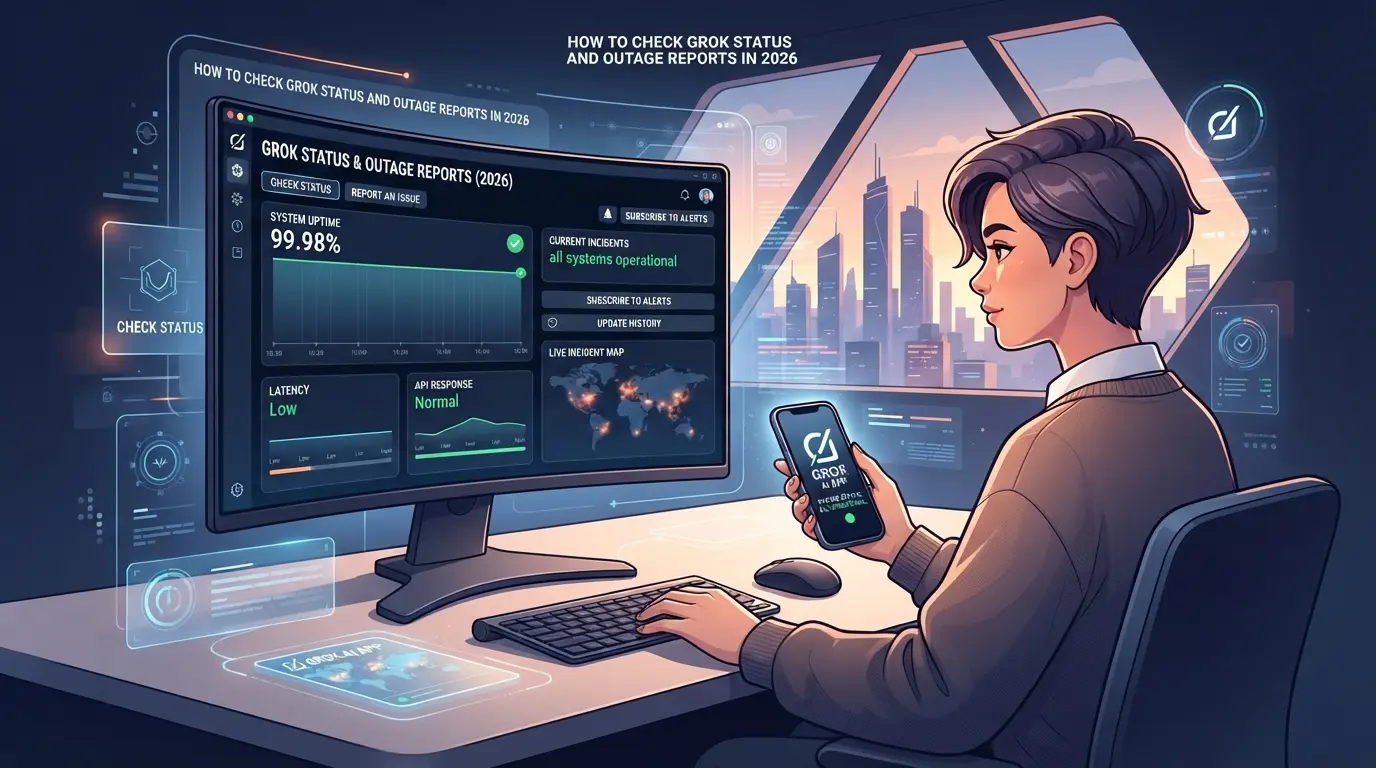
Don’t waste time guessing if Grok is down, use a step-by-step check to quickly sort out platform-wide issues from local problems. A clear process here means fewer false alarms, less back-and-forth with your team, and no missed official updates.
Official Grok Status Page: What to Look For
- Open the official Grok status page. Look for a green or red indicator, green usually means all systems are up, red signals an outage or degraded service.
- Click on any current incident banners. These detail which features are affected, when the problem started, and what’s being fixed.
- Review the incident history. If you see repeated short outages in the last hour, Grok may be unstable even if the main status returns to “Operational.”
- Refresh every 5-10 minutes. During major events, these pages can lag behind real-time issues, especially when updates are manual.
Third-Party Outage Trackers: Downdetector and Alternatives
- Check Downdetector or a similar tracker for Grok. A surge in reports within the past 10-15 minutes points to a platform-wide issue, not just your account.
- Scan the regional outage map. If reports cluster in your country or city, local network problems could be the real cause.
- Read user comments below the graph. Watch for patterns, if most complaints match your error, it’s likely not a false alarm.
- Be careful with spikes at odd hours (like midnight local time). These can be noise from bot traffic or scheduled maintenance, not real user outages.
How to Interpret Outage Reports and Avoid False Alarms
- Compare the official status and third-party reports. If the Grok status page is green but Downdetector shows a spike, wait 10 minutes, official pages often update slower than user reports.
- Check if only certain features are broken. For example, login issues with working dashboards usually mean a partial outage, not a full platform failure.
- Test with another device or network. If Grok loads on mobile but not your office Wi-Fi, the problem is probably local.
- Avoid reporting an outage based on one failed attempt. Many false alarms come from brief glitches or expired sessions rather than real downtime.
That covers how to confirm a Grok outage and what warning signs to trust. Once you know it’s not just on your end, move on to targeted troubleshooting, blind resets and mass logouts often cause more problems than they solve.
What to Do When Grok Is Down: Troubleshooting Steps
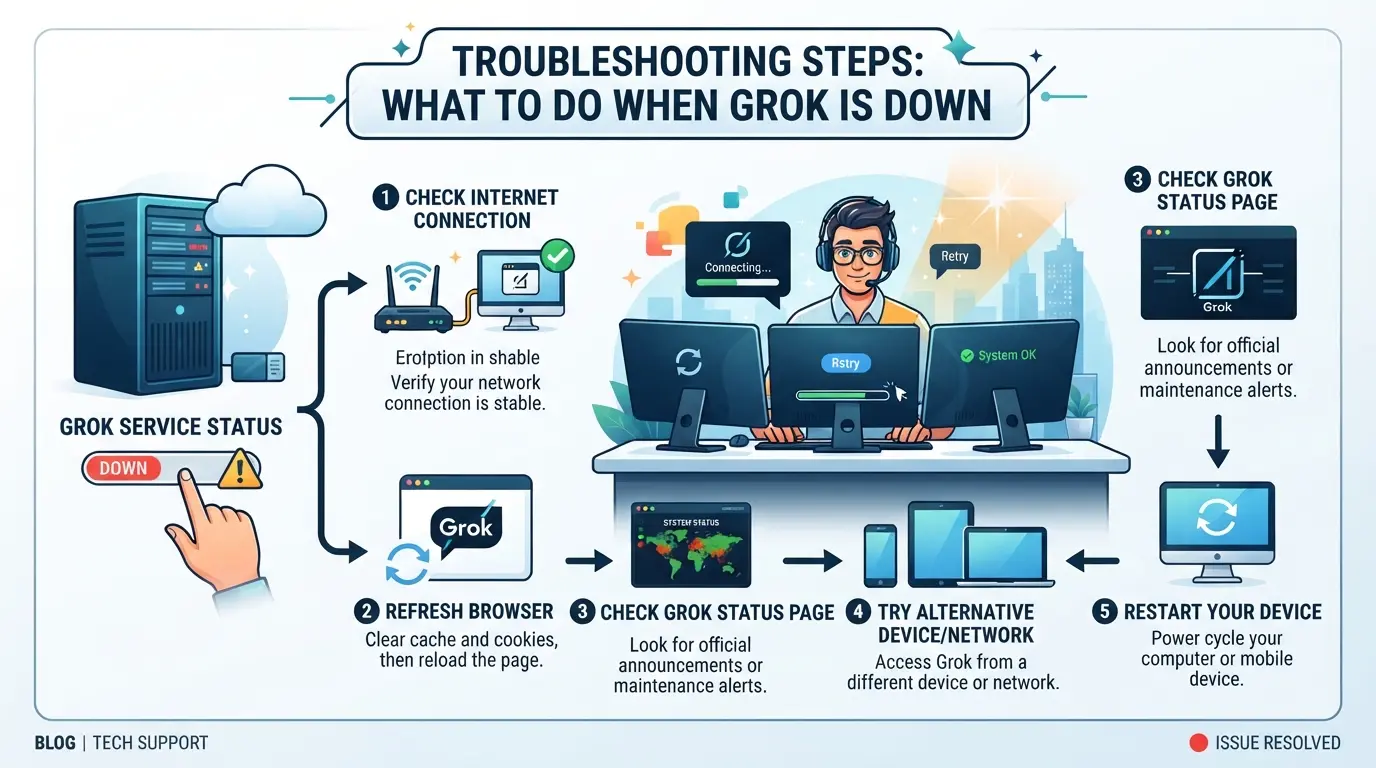
When Grok stops working, don't rush to share credentials or try workaround hacks, most mistakes happen when people skip basic checks. The fastest way to avoid wasted time and bigger problems is to follow a simple troubleshooting flow before changing anything on your account.
Immediate Checks: Local Network, Device, and Browser
Most error screens aren't actually caused by a full service outage. Brief network drops, stale browser data, or a misconfigured proxy cause more “Grok down” complaints than real downtime. Before reporting issues, run through these quick steps:
- Restart your device, temporary glitches often clear up after a reboot.
- Clear your browser cache and cookies, corrupted data can block logins or reloads.
- Double-check proxy settings, make sure you're using the right proxy, not an old or expired one.
- Try opening a different platform, if only Grok fails, the problem is likely not your network.
If another user on the same Wi-Fi can open Grok, the issue is local to your device or browser, don’t escalate yet.
Platform-Side Issues: Waiting, Reporting, and Updates
Once you’re sure the problem isn’t local, focus on the official Grok status and support channels. Skip guesswork and use this checklist:
- Report the outage to Grok support only if your checks show it’s not a device or local network issue.
- Monitor the official Grok status page and trusted third-party outage trackers for updates.
- Hold off on workaround attempts, like switching accounts or changing passwords, until Grok confirms the outage is resolved.
Common Mistakes That Make Outages Worse
Trying to “fix” things during a real outage often creates more headaches. The top errors people make are easy to avoid if you know where to look:
- Don’t keep hitting login or refresh, failed attempts can trigger lockouts or extra security checks.
- Avoid changing account info while the platform is unstable, Grok may not save changes, or you might get stuck in a broken state.
- Never switch to a random or unreliable proxy just to restore access, this can flag your account for review.
The biggest time-saver is to pause instead of pushing random buttons, most fixes that work during a Grok outage are simple, but the risks from hasty actions can last much longer.
As you move forward, keep in mind that sharing Grok accounts during an outage comes with its own set of risks, some you won't spot until after the platform is back.
Risks and Mistakes When Sharing Grok Accounts During Outages
Trying to keep your team moving during a Grok outage often leads to risky account sharing, especially when the platform’s own checks are more sensitive than usual. Here’s what most users miss when they scramble to share access.
Why Account Sharing Gets Risky During Outages
When Grok is unstable, the system flags anything outside your normal login pattern. If teammates sign in from different IP addresses or devices, the account’s fingerprint changes suddenly. This can trigger forced password resets or even temporary bans. The fastest way to lose access during an outage is to have multiple people log in from separate locations at once.
Mistakes That Lead to Account Restrictions or Loss
During outages, rushed sharing creates bigger problems than just downtime.
Warning: One careless move can get the account locked for everyone.
- Sending login details over chat or email means someone else could grab them, even after the outage ends.
- Logging in from several devices at the same time almost always looks suspicious to Grok’s security system.
If you see a warning about “unusual activity” or a login challenge, stop sharing access and let one person handle recovery. The safer move: pause, communicate, and wait for the platform’s status to stabilize before rotating who logs in. Fast reactions feel helpful, but they often create more work when the service comes back online.
How Teams Can Share Platform Accounts More Safely with DICloak
After reviewing where account sharing during a Grok outage goes wrong, like mismatched fingerprints or exposed credentials, the next step is to set up a safer workflow for teams that need to keep work moving. Not every reader manages shared platform accounts, but for those who do, using a tool like DICloak to coordinate browser profiles and session access can close several common gaps. This workflow focuses on controlling the browser profile, securing account credentials, and setting clear team permissions, without changing any settings inside Grok or the connected platform.
Unified IP and Fingerprint for Account Sharing
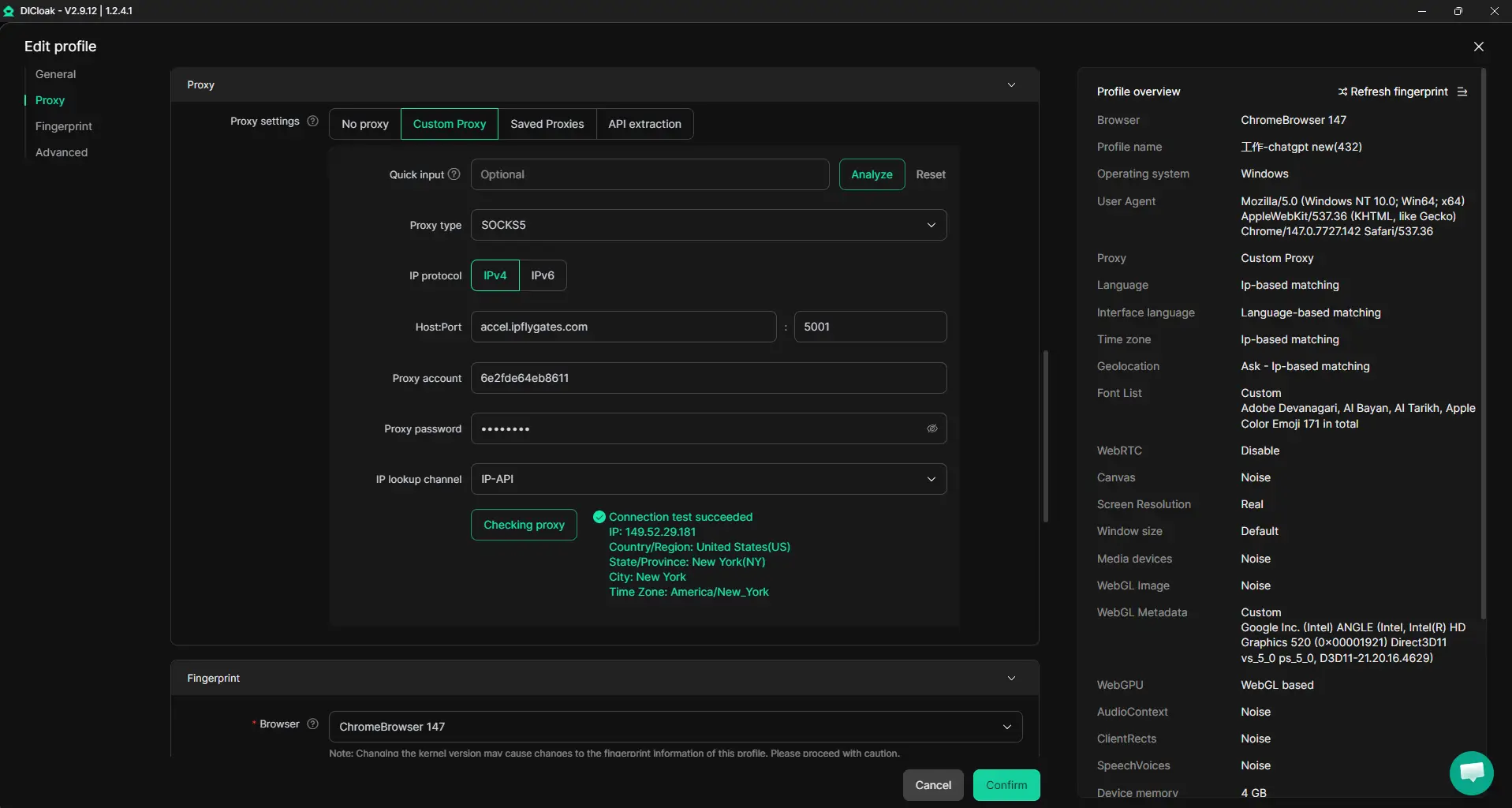
When several team members need to access the same platform account, the easiest way to avoid a patchwork of device fingerprints and random IP addresses is to use the same shared DICloak browser profile. The admin sets up the profile with a chosen fingerprint and a user-provided proxy; every authorized member who opens this profile will operate from that preset environment. This means less confusion about which IP or device signature the platform sees, and no need to copy proxy settings or rebuild fingerprints on every team machine. The scope is limited to browser profile and proxy consistency, platform-side recognition still depends on the service’s own checks, so this does not guarantee all sessions appear as a single user.
Account Security Controls for Shared Tool Accounts
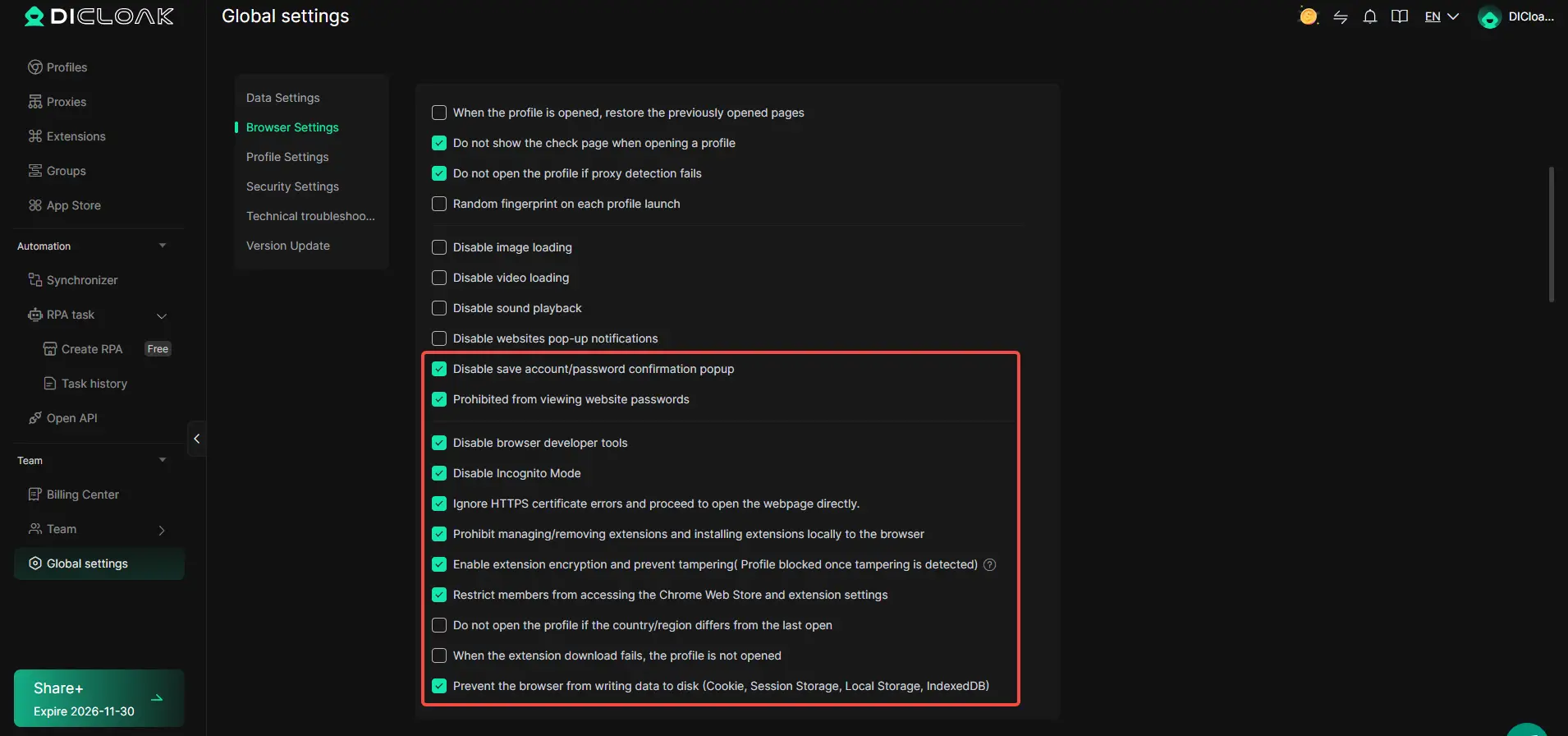
It’s easy to forget that sharing a browser profile can also expose saved passwords, cookies, and sensitive tabs unless you lock things down. Admins can use DICloak’s security settings to block members from copying website passwords, viewing or exporting cookies, or opening private account pages after logging in. Cookie encryption (on supported plans) adds another layer by making it harder for anyone but authorized users to read session data. Restricting extension changes and developer tools helps stop accidental leaks or intentional data grabs during periods when the main platform is unstable. The protection here is at the browser-profile level, these settings don’t cover what happens inside the Grok platform or any other SaaS tool.
Team Permissions for Assigned Browser Profiles
Unrestricted profile access often leads to accidental changes or overexposure of sensitive data. Admins can set up member groups in DICloak, then decide which teams get access to which browser profiles and which profile-list fields are even visible. Least-privilege setups, where regular members only see or open assigned profiles, make it much harder for someone to step outside their approved workflow or grab confidential details by mistake. These permissions only control what happens inside DICloak, not the connected platform’s own access rules.

Teams that keep these controls tight will find it easier to keep track of who touched what during an outage, and spend less time cleaning up after things come back online. The next section explains how to judge when to wait, switch, or escalate if service issues drag on.
When to Wait, Switch, or Escalate: Decision Guide for Grok Outages
If Grok is down, don’t rush to change tools or flood support, your safest move depends on timing, urgency, and what you’ve already checked.
When Waiting Is the Safest Option
For short outages or when your workflow isn’t blocked, waiting is usually your best bet. Making changes too soon, like swapping platforms or resetting accounts, often adds confusion and creates new problems to untangle later.
Switching Platforms: Risks and Benefits
- Confirm your data can be exported and imported without loss
- Check if your accounts and permissions match across both platforms
- Make sure switching won’t break your team’s main workflow
When to Escalate: Contacting Support or Team Leads
If the issue lasts longer than routine maintenance or blocks urgent work, escalate:
- Document exact error messages and downtime periods
- Assign one team member to handle support tickets
- Update your team chat or incident log with status and next steps
Common Questions About Grok Outages and Account Sharing
During a service disruption, users often ask about safe next steps and how to avoid making things worse for their team. Here are quick answers to the issues that come up most.
Can I get locked out if others log in during a Grok outage?
Yes. If multiple people try to access the same account during a Grok outage, the platform can trigger security checks, especially if login locations or device fingerprints change. That sometimes leads to forced password resets or temporary lockouts.
Is it safe to share login details over chat apps during downtime?
No. Sending credentials in plain text, even for a minute, means someone could copy or forward them outside your team. Credential leaks from rushed sharing are one of the main causes of post-outage account recovery requests.
What should I check before trying again after Grok is back?
- Confirm the official Grok status page shows “operational”
- Make sure no one else is logged in with shared credentials
- Change passwords if you shared them during the outage
Frequently Asked Questions About grok outage
How long do Grok outages usually last?
Most Grok outages last from a few minutes up to an hour. Short outages often happen during software updates or server issues. Larger outages, like those caused by cloud provider problems, can last several hours. The Grok team usually posts updates on their status page, so you can check for real-time recovery estimates there.
Can I use a proxy to access Grok during an outage?
Using a proxy might help if your own network is blocking access, but it won’t solve a platform-wide outage. If Grok’s servers are down or under maintenance, a proxy won’t connect you. For local network issues, a trusted proxy or proxy can help, but check Grok’s official status before troubleshooting.
Is it safe to share Grok accounts with team members during an outage?
Sharing accounts during an outage increases risk. You might expose your login details or personal data. If you must collaborate, use secure workflows and approved tools. Never send passwords by email or chat. Wait for the service to be stable before making changes or sharing sensitive access.
What should I avoid doing when Grok is down?
When Grok is down, avoid logging in repeatedly, as this can lock your account or cause errors. Don’t share credentials through insecure channels. Avoid making account or configuration changes, since these may not save correctly and can cause more problems once the service is back.
How can I tell if the outage is affecting everyone or just me?
Check Grok’s official status page for outage updates. You can also look at third-party sites like DownDetector for user reports. If others are reporting problems, it’s likely a platform-wide issue. If not, try restarting your device or network to rule out a local problem.
As users assess their options following the disruption, prioritizing reliable and secure alternatives becomes essential for maintaining workflow continuity. Evaluating tools that offer solid privacy and consistent uptime can help minimize future interruptions. Try DICloak For Free
 Web Proxy Tools
 Free Tools
 Cookie Plugin
 UA Generator
 MAC Address Generator
 IP Generator
 IP Address List
 2FA Code Generator
 World Clock
 Anonymous Check
 WebRTC Leak Test
 UUID Generator
 Free Web Proxy Site
 Proxy Checker
 FB Ad Checker
 AI Web Scraping
 Free SMM Tools
 Twitter Shadowban Checker
 Instagram Name Checker
 UTM Generator
 Username Generator
 AI Hashtag Generator
 LinkedIn Headline Generator
 Social Media Image Resizer