Losing access to your Gmail, Drive, and Photos in 2026 is a high-stakes scenario, often representing the loss of an entire digital identity and years of professional data. While the situation is urgent, panic is the enemy of recovery. Most Google accounts are fully recoverable if you follow specific security protocols and maintain a consistent environment. This guide outlines the expert-level steps required to navigate Google’s verification hierarchy and regain access.

Where is the official Google account restore page?
The first rule of recovery is to use only official, ground-truth entry points. Security specialists advise against clicking recovery links in emails or unofficial forums.
Common URL Typos to Avoid: Malicious sites often mimic these URLs. Be particularly wary of the following typos: * google.account/recovery * google/accounts/recovery * accounts.google.com/sighin/recovery * accounts.google.com/sign in/recovery (Note the space in the path, which is a common source of errors).
Chromebook Users: If you are locked out of a Chromebook, use the "More options" flow directly on the sign-in screen and select "Forgot password?" Alternatively, use the dedicated ground-truth URL for these devices: www.google.com/accounts/recovery chromebook.
How does the Google account recovery process work in 2026?
Google’s recovery system operates on a hierarchy of trust. To navigate this successfully, you must use the "Try another way" button whenever a specific verification method is unavailable. This allows you to cycle through the hierarchy.
Primary verification: Phone and Email
Google first attempts to verify you through real-time communication. This involves an SMS or voice call code sent to your registered recovery phone number. If that fails, clicking "Try another way" will prompt Google to send a verification code to your pre-configured backup recovery email.
Secondary verification: Identity and History
If you lack access to recovery devices, the system shifts to verifying your identity through account history: * Previous Passwords: You may be asked for any password you have used for the account in the past. Even an old password from a year ago provides a strong trust signal. * Date of Birth: A standard identity check against the data provided at account creation. * Account Creation Date: You may be asked for the month and year the account was opened. Approximate this as closely as possible if you are unsure.
The final resort: Manual Account Recovery Form
When automated steps fail, you will be directed to the manual account recovery form. This involves providing detailed information that Google's team will review to verify ownership. This manual review typically takes a few days.
Why is my Google account recovery not working?
Technical friction often prevents a successful recovery even when you have the correct information.
Device, network, and browser trust issues
Google’s security AI looks for familiarity. If you attempt recovery from a new laptop, a VPN, or a different physical location, the system may trigger a "cannot verify identity" error because the environment is untrusted. * The Expert Fix: Return to a familiar home or office network. Use a device you have previously used to sign into the account. Most importantly, use the same browser you normally use, as browser fingerprints are a primary trust signal for Google.
Outdated or incorrect recovery information
If you changed your phone number or your backup email has expired without being updated in your settings, the automated recovery path is effectively broken. In these cases, you must rely on the manual form and secondary identity questions.
Verification code delivery failures
If SMS codes are not arriving: * Carrier Blocks: Ensure your mobile carrier has not blocked "short-code" SMS (the 5 or 6 digit numbers used by Google). * Roaming: International roaming can delay or block delivery. * Alternative: If the SMS fails, look for the "Call me instead" option.
How to restore a deleted Google account before it’s too late
Restoring a deleted account is a race against the retention clock. Once data is purged from Google’s servers, it is gone forever.
Recovering an account you deleted yourself
If you recently deleted your account, visit the standard sign-in page. Enter your email and password; Google will detect the recent deletion and provide a prompt to restore the account.
Handling accounts deleted for terms of service violations
If Google disabled your account for a violation, the standard recovery flow will lead to a manual appeal form. These are reviewed on a case-by-case basis, and restoration is at Google's discretion.
Understanding the permanent deletion window
Google retains data for a limited period—a window of weeks, not months. If you do not act within this short timeframe, the account, along with all Gmail, Photos, and Drive data, will be permanently unrecoverable.
Restoring access to Google Workspace and Business Profiles
Professional accounts follow a different recovery logic than personal accounts.
Workspace Admin vs. User recovery
- Standard Users: You should not use the public recovery flow. Contact your organization’s Admin, who can reset your password directly via the Admin console.
- Admins: If you are the sole administrator and are locked out, you must prove domain ownership via DNS or hosting records. Google provides specific instructions for this at support.google.com/a/answer/33561.
Reclaiming a Google Business Profile
To reclaim a Business Profile, you must first restore the Google account that owns it. If the owner is unreachable, you must request an ownership transfer through Google Business Profile support. Note that suspended profiles require a specific appeal process, separate from standard account recovery.
How can I restore Google Photos and Contacts specifically?
If your account is active but data is missing, utilize Google's built-in restoration windows.
Finding lost photos in the Trash
Visit photos.google.com and check the Trash. Deleted items remain there for 60 days before permanent removal. If you have recently restored a deleted account, your photos should reappear within this period.
Rolling back contact changes
Go to contacts.google.com and access the "Undo changes" feature in the settings. This allows you to roll back your entire contact list to any state from the last 30 days, which is vital for recovering accidentally deleted or overwritten contacts.
Is there a way to manage multiple Google accounts without constant recovery risks?
For professionals handling multiple Google accounts, recovery problems often come from unstable login environments, not just forgotten passwords. When accounts are switched too often, mixed in one browser, or shared across team members without clear control, access issues are more likely. In this kind of workflow, DICloak can help by giving each account a more separate and consistent browser profile.
1. Isolated profiles reduce account mixing: DICloak lets each Google account run in its own browser profile, with separate browser data, fingerprint settings, and proxy setup. This helps reduce cookie mixing and account crossover during daily use.
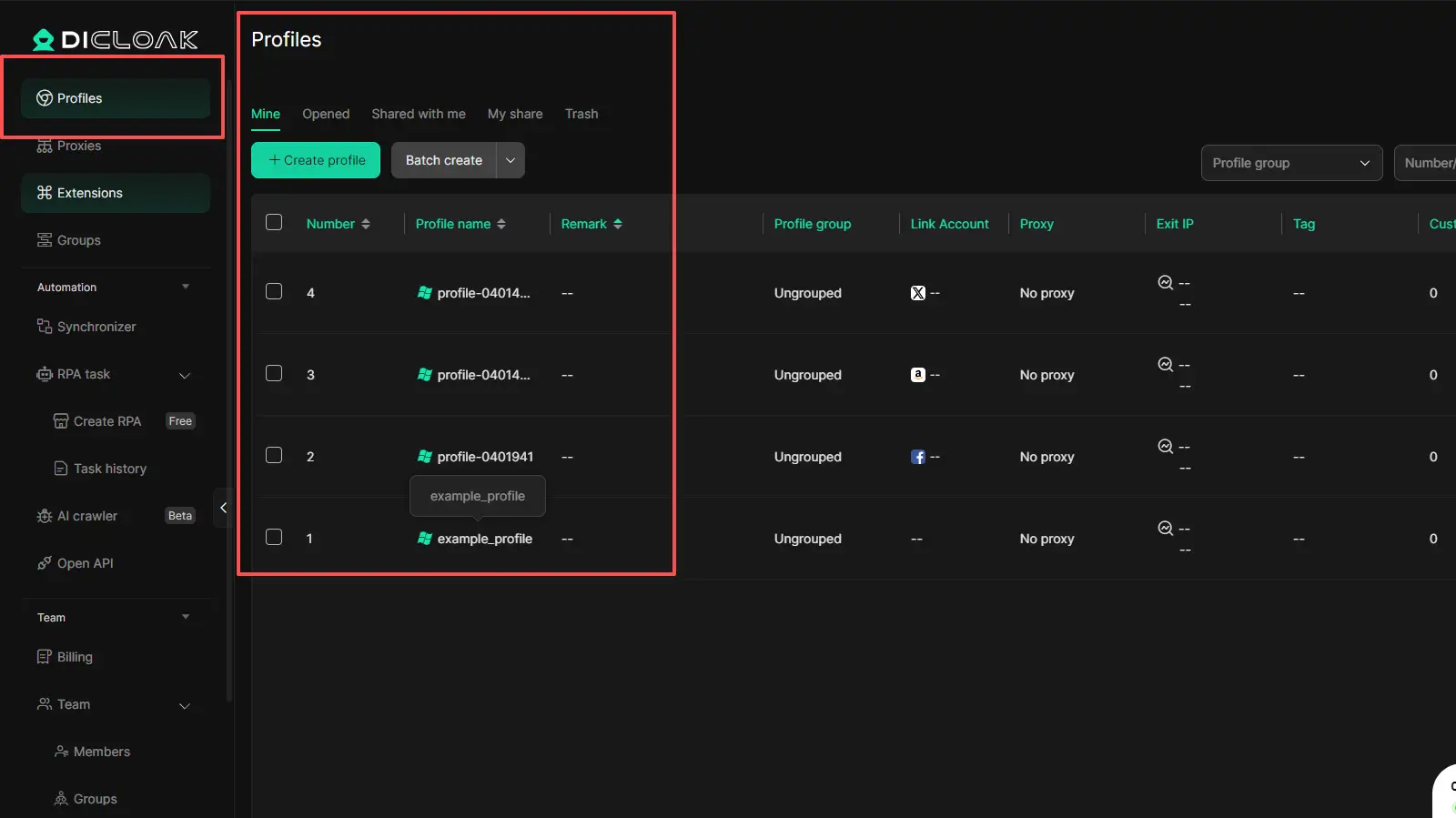
2. Stable sessions support more consistent access :DICloak supports saved session data, which helps teams keep account environments more stable over time instead of treating every login like a fresh start. That makes repeated account access more consistent.
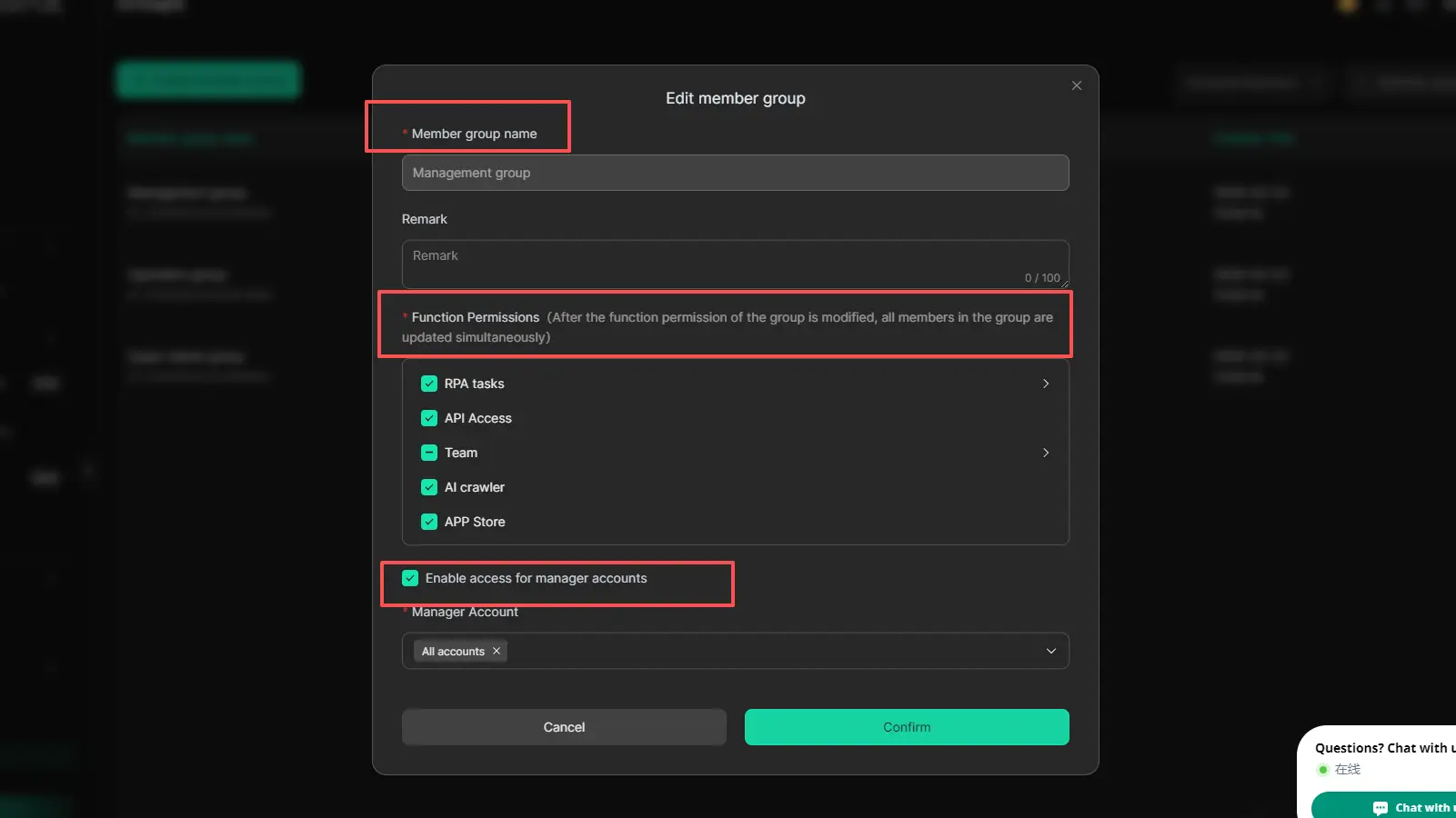
3. Team access is easier to manage It also supports profile sharing, member permissions, and operation logs, so teams can work together in a more controlled way instead of relying on loose password sharing.
Frequently Asked Questions About Google Account Restore
Q1:What is the fastest way to restore my Google account?
Using a pre-configured recovery phone or backup email to receive an instant verification code is the fastest method.
Q2:Can I restore my account if I don't have my phone?
Yes. Use the "Try another way" button to move to recovery email verification, answer identity questions (like account creation date), or access the manual recovery form.
Q3:How long do I have to restore a deleted Gmail address?
Usually a few weeks. Once the retention period ends, the data is purged and cannot be retrieved.
Q4:Why is Google not sending the verification code to my phone?
Common causes include carrier short-code blocks, international roaming, or an outdated number on the account. Try the "Call me instead" option.
Q5:Does Google have a support phone number for account recovery?
No. Google account recovery is a self-service, automated process. There is no direct phone number for manual assistance.
Key Takeaways for Maintaining Access
The most effective recovery strategy is proactive management. Ensure your recovery phone and email are current, and maintain an accurate date of birth on your profile.
Expert Tip on 2FA: Contrary to popular belief, Two-Factor Authentication (2FA) makes recovery easier. Google has significantly higher confidence in accounts with 2FA enabled, making the system more likely to grant restoration during the recovery process.
For those managing high-volume accounts, using a stable, isolated environment like DICloak is the best way to maintain a trusted device history and avoid the "recovery loop" entirely.
 Web Proxy Tools
 Free Tools
 Cookie Plugin
 UA Generator
 MAC Address Generator
 IP Generator
 IP Address List
 2FA Code Generator
 World Clock
 Anonymous Check
 WebRTC Leak Test
 UUID Generator
 Free Web Proxy Site
 Proxy Checker
 FB Ad Checker
 AI Web Scraping
 Free SMM Tools
 Twitter Shadowban Checker
 Instagram Name Checker
 UTM Generator
 Username Generator
 AI Hashtag Generator
 LinkedIn Headline Generator
 Social Media Image Resizer