You open a YouTube video, expect it to play, and instead see “Sign in to confirm you’re not a bot.” The message can feel strange, especially if YouTube worked normally on the same device only a few hours ago. Sometimes signing in fixes the problem right away, but in other cases the warning keeps coming back or only appears on one network. That difference matters because the problem may come from your public IP, browser session, network environment, or browsing behavior rather than from the YouTube account itself.
YouTube does not publish every signal used by its anti-abuse systems, so there is no single confirmed reason behind every bot check. A heavily shared IP address, proxy connection, damaged cookies, browser extensions, strict privacy settings, or repeated requests may all play a role. The best approach is not to change everything at once, but to test each part of the browsing environment in a clear order. That makes it easier to find the real cause and avoid making the problem harder to diagnose.
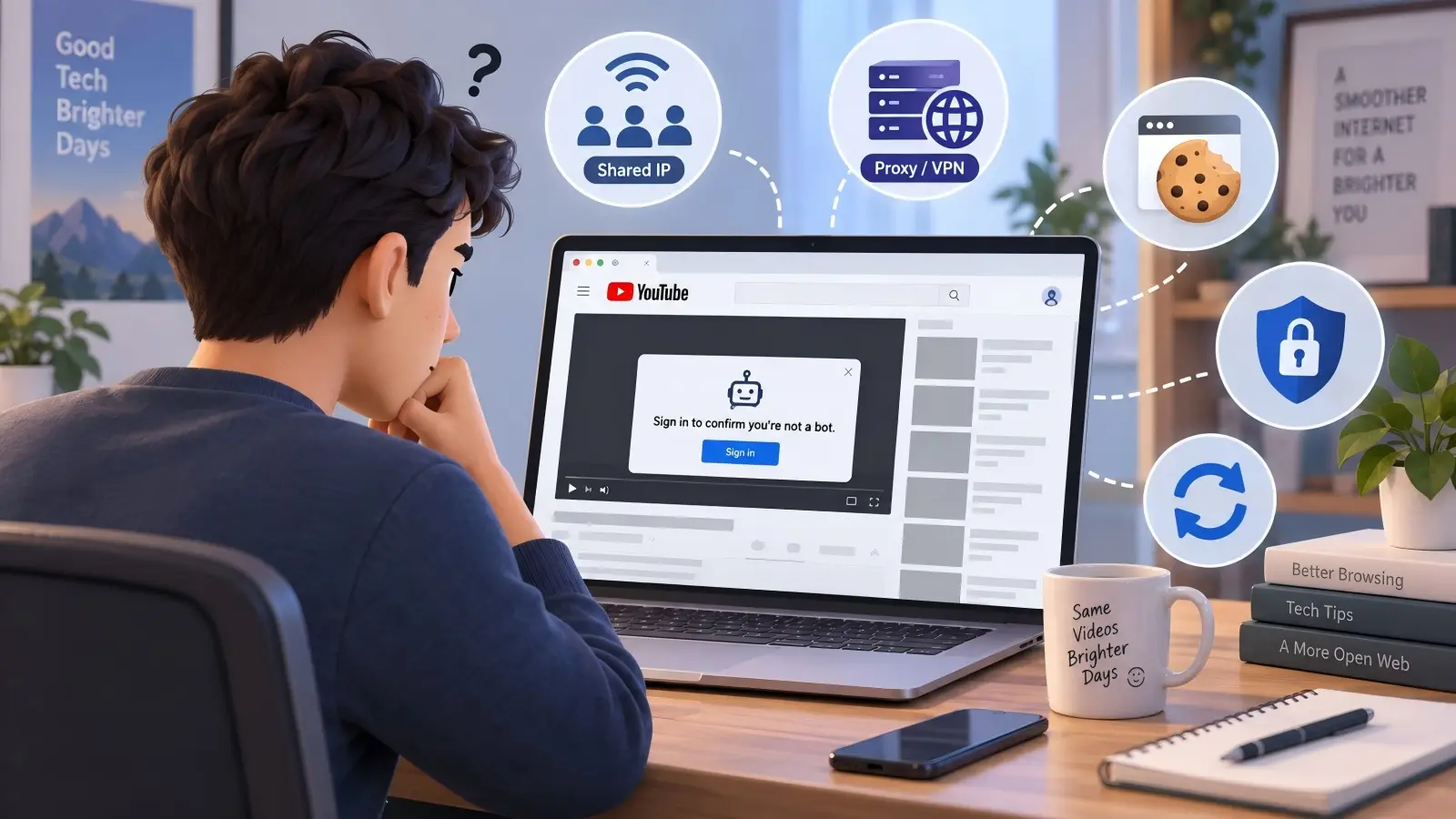
Main Causes for the YouTube “Sign in to Confirm You’re Not a Bot” Error
The same YouTube warning can appear for very different reasons. One person may be browsing through a heavily shared IP, while another may have an extension that changes requests in the background. A third user may simply have old browser cookies that no longer match the current session. Looking at the IP, browser, network, and request pattern separately is usually more useful than assuming the account itself has been flagged.
Proxy or IP-Routing Traffic Triggering Extra Checks
A proxy or other IP-routing service changes the public IP address that YouTube sees. This is not automatically a problem, but some proxy servers are shared by many users, which means one IP may generate far more traffic than a normal home connection. If hundreds of people are using the same address, their combined requests may make that IP look less predictable, even when your own activity is completely normal. That is why YouTube may work on your regular home connection but show a confirmation message when the same browser uses a different routed IP.
The useful question is not simply whether a proxy is active, but whether the problem follows that connection. For example, if the same YouTube account and browser work normally on home Wi-Fi but fail as soon as traffic is routed through another IP, the network path becomes a strong suspect. Testing a normal direct connection gives you a clean comparison. It is more useful than jumping through several different servers, because constant IP changes create more variables instead of giving you a clear answer.
Suspicious or Heavily Shared IP Address
You can share a public IP even if you never use a proxy. Offices, hotels, schools, public Wi-Fi networks, mobile carriers, and some internet providers may place many devices or customers behind the same public address. If another person or device creates a large amount of automated or unusual traffic, the whole IP may receive additional checks. Your browser may then see the same warning even though your own viewing behavior looks normal.
A simple network comparison can reveal this quickly. Suppose YouTube shows the bot message on every laptop connected to office Wi-Fi, but the same account works normally on a phone using mobile data. That pattern points more strongly to the shared office IP than to one browser or Google account. When an issue follows the network across several devices, changing browser settings should not be your first priority.
Browser Cookie and Privacy Restriction Issues
Cookies help YouTube and Google remember login state, site preferences, and active sessions. If these files become outdated, damaged, or blocked, YouTube may not receive the session information it normally expects from the browser. Strict privacy settings can create a similar problem when they block cookies, scripts, or site storage that the page depends on. This is why one browser may show the warning while another browser on the same computer works normally.
The safest first step is not to disable all privacy protection. Instead, clear YouTube and Google site data, reopen the browser, and test the site again with standard settings. If the issue disappears, the old browser session was probably involved. If the same warning still appears on several browsers and devices using one network, the problem is more likely to be related to the IP or connection than to cookies alone.
Unusual Network and Browsing Activity
YouTube may also react to the way requests are made, not just the IP address behind them. Rapid page refreshes, repeated video requests, background scripts, browser automation, scraping tools, or extensions that constantly reload content can create activity that looks very different from normal viewing. A user may not even notice this happening if the requests come from an extension or another application running in the background.
For example, opening three videos in separate tabs is normal browsing. A tool checking hundreds of YouTube URLs every few minutes creates a very different traffic pattern, even if no person is clicking those pages manually. If the warning appears soon after you start using a downloader, monitoring tool, automation extension, or scraper, stop that activity before changing unrelated account settings. Removing the unusual request pattern gives you a much cleaner test.
Quick First-Try Fixes for YouTube Sign In to Confirm You're Not a Bot
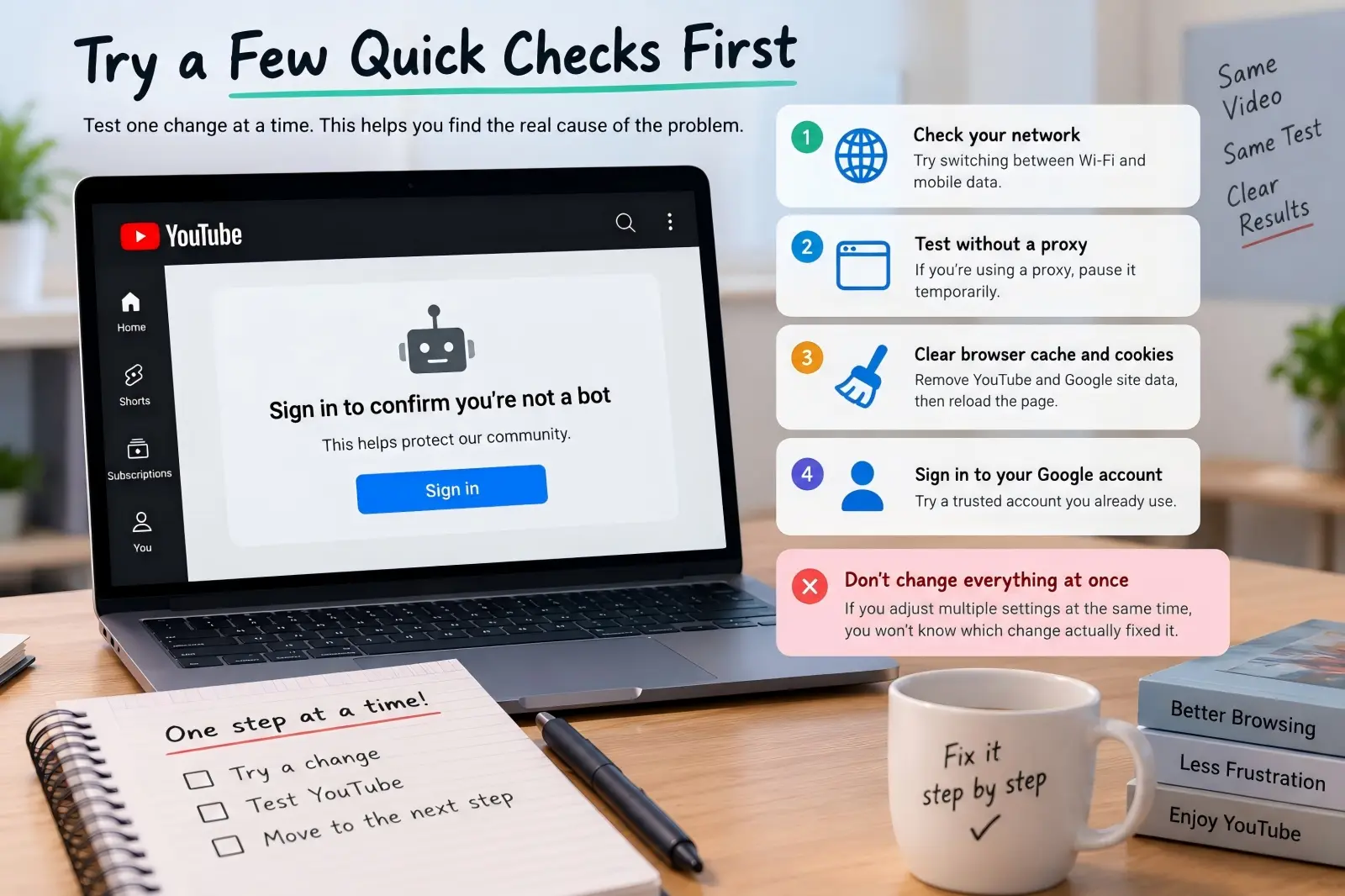
Before changing advanced browser or network settings, start with a few quick checks. These steps are useful because they do more than try to remove the warning; they also help show whether the problem comes from the network, browser, IP, or account session. Try one change at a time and test the same video again before moving on. If you change five settings together, YouTube may start working again, but you will have no idea which change actually mattered.
Test YouTube Without a Proxy Connection
If your browser or system is routing traffic through another IP, pause that connection and return to your normal internet connection for a few minutes. Close the affected YouTube tab, open a new one, and test two or three ordinary videos. If the warning disappears, the previous IP or network route was probably an important part of the issue. This does not prove that the IP was permanently blocked, but it gives you a clear direction for further troubleshooting.
Avoid switching through many different proxy servers during this test. Rapid changes make it difficult to tell whether one specific IP caused the problem or whether the browser session itself is unstable. A direct connection gives you a clean baseline. Once you know YouTube works there, you can compare other connections more carefully.
Switch from Wi-Fi to Mobile Data
Changing the network is one of the fastest ways to separate a device problem from an IP problem. Keep the same YouTube account and device, but turn off Wi-Fi and use 4G or 5G instead. If the video starts playing immediately, the original Wi-Fi connection or public IP becomes a much stronger suspect. The browser and account have not changed, so the network is the main difference.
The reverse test also works. If the warning appears on mobile data, connect to a trusted home or office network and try again. Mobile carriers can also place many users behind shared public addresses, so cellular data is not automatically better. The value of the test comes from comparing two different network environments while keeping everything else the same.
Restart Your Router
Restarting the router may help if your internet provider assigns dynamic public IP addresses. After the router reconnects, your network may receive a different address, which gives YouTube a new public IP to see. This can be useful when the previous IP was temporarily associated with unusual traffic. Test YouTube after reconnecting before changing any browser settings so that you know whether the network change made a difference.
A restart does not always produce a new IP. Some ISPs keep the same address for days or weeks, while others place many customers behind shared infrastructure. If the public IP stays the same, restarting the router repeatedly is unlikely to help. In that case, testing a different network is usually more useful.
Clear YouTube Cache and Cookies
Old browser data can cause strange login and playback problems even when the network itself is fine. Start by clearing site data for YouTube and Google rather than deleting every cookie saved in your browser. Then close the affected tabs, reopen YouTube, and sign in again if needed. This creates a cleaner session without disrupting unrelated websites.
Remember that clearing cookies only affects browser data. It does not change your public IP or the reputation of the network you are using. If YouTube shows the same warning in several browsers and on several devices connected to one network, clearing cookies is less likely to solve the whole problem. In that situation, move your attention back to the connection and IP.
Sign Into Your Google Account
If you are watching YouTube while signed out, try signing into a Google account you already use. The warning itself asks users to confirm that they are not a bot by signing in, so this is one of the most direct tests available. After signing in through the official Google or YouTube website, reload the video and check whether normal playback returns.
If signing in works, you have found a practical solution, but it does not always explain why the signed-out session was challenged in the first place. The network or browser profile may still be involved. If the warning returns every time you sign out, keep that pattern in mind while testing the rest of the setup.
9 Effective Ways to Resolve the “Sign in to Confirm You’re Not a Bot” YouTube Error
If the quick fixes do not work, the next step is to narrow down where the problem comes from. Start with the network and public IP because they affect every browser on the same connection. Then move to browser data, cookies, extensions, and software. Change only one thing at a time, test the same video again, and note what changes.
Before going through all nine fixes, this quick table can help you decide where to start:
| What you notice |
Best place to start |
| YouTube works on mobile data but not Wi-Fi |
Network or public IP |
| The error appears only in one browser |
Cache, cookies, or extensions |
| Every device on the same Wi-Fi shows the error |
Router, ISP, or shared IP |
| The warning started after installing an extension |
Browser extensions |
| The problem appeared after many rapid requests |
Stop activity and wait |
| YouTube works after signing in |
Google account session |
1. Test YouTube on Your Normal Internet Connection
If YouTube traffic is currently passing through a proxy, routed connection, or browser-level IP service, temporarily return to your regular internet connection. Keep everything else the same. Use the same browser, account, and video so that the network route is the only major change.
If YouTube starts playing normally again, the previous public IP or route was likely involved in the extra check. This does not mean that every proxy connection will cause the warning. It simply tells you that the problem follows that particular network setup. The useful result here is the comparison, not the act of changing IPs itself.
If a proxy is part of your normal workflow, avoid jumping through several servers during the test. A stable connection is much easier to compare with your normal ISP connection, while constant IP changes make it harder to identify what actually triggered the warning.
2. Change to a Completely Different Network
If a direct connection does not solve the problem, test another network. A phone hotspot is often the easiest option because it gives the same computer a different path to the internet without changing the browser, cookies, or Google account. Load the same YouTube video after switching and check whether the warning follows the device or stays with the original network.
For example, imagine Chrome, Firefox, and Edge all show the same bot message on your home Wi-Fi. You connect the same laptop to a phone hotspot, and all three browsers immediately work. Reinstalling the browsers would probably waste time in this case. The stronger clue is the original network or public IP.
3. Clear YouTube and Google Browser Data
If the warning stays inside one browser even after you change networks, the browser session deserves more attention. Clear cached files, cookies, and site data for YouTube and Google, then fully restart the browser. This removes old session information and lets the sites create a fresh local session.
Start with site-specific data instead of wiping every cookie in the browser. That way, you do not need to sign back into unrelated websites. If YouTube still shows the same warning immediately after a clean session is created, move on rather than clearing the same data again. One clean test is enough to tell you whether old browser data was likely involved.
4. Check Cookie and Site Data Permissions
A browser can load YouTube correctly while still blocking some of the storage or cookies used by the session. This is more common in browsers with strict privacy settings, customized profiles, or several privacy extensions working together. Check whether Google and YouTube can store normal site data and whether any site-specific rules are blocking them.
A useful comparison is to open YouTube in a standard browser profile and then in your customized privacy profile. If the standard profile works but the customized one does not, you now have a much smaller area to investigate. Compare cookie permissions, tracking protection, script controls, and other site restrictions instead of changing the entire network.
Quick clue: When only one browser profile has the problem, browser settings are usually worth checking before the router or ISP.
5. Sign Into an Existing Google Account
If you normally watch YouTube while signed out, sign into a Google account you already use and reload the affected video. The warning specifically asks users to sign in to confirm they are not a bot, so this is one of the most direct tests available.
A signed-in session gives YouTube more account context than anonymous viewing. In some cases, that is enough to complete the check and restore normal playback. If the same error still appears after you sign in, however, the problem is probably not just the account state. Continue looking at the network and browser profile.
Avoid creating several new Google accounts just to test the message. New accounts add another variable and usually tell you less than testing one established account under different network and browser conditions.
6. Restart the Router and See Whether the Public IP Changes
When several devices on the same home network show the warning, the router or public IP becomes more important. Restart the modem or router, wait until the connection is fully restored, and then test YouTube before reopening other network tools or background applications.
If your ISP uses dynamic IP assignment, the network may receive a different public IP after reconnecting. If YouTube starts working after that change, the previous IP may have been part of the issue. However, many providers keep the same IP for long periods, so a restart is not guaranteed to change anything.
You can think of the result in two simple ways: new IP + problem disappears points more strongly toward the old network address, while same IP + same problem means another network test may be more useful than repeatedly restarting the router.
7. Check Browser Extensions One by One
Extensions can affect far more than the visible page. Some modify cookies or scripts, others block requests, and some continue making background requests even when you are not actively using YouTube. That is why an extension problem can look like a YouTube or network problem at first.
Start with extensions most likely to affect YouTube behavior:
- ad and script blockers
- privacy or tracking extensions
- video downloaders
- proxy extensions
- automation tools
- page monitoring or auto-refresh tools
Disable the most relevant ones, restart the browser, and test YouTube again. If the warning disappears, turn the extensions back on one at a time until you find the one that changes the behavior. This approach is slower than disabling everything permanently, but it gives you a clear answer and lets you keep the extensions that are not causing trouble.
8. Update the Browser or Test a Clean Browser Profile
An outdated browser may have trouble with newer scripts, media features, security checks, or site behavior. Update your current browser first, restart it, and test YouTube again. If the warning remains, open the site in another current browser with a clean profile and no imported extensions.
This comparison can reveal more than a simple browser switch. If YouTube works in a fresh Firefox profile but continues to fail in your normal Chrome profile, the problem likely involves browser data, extensions, or custom settings rather than the network alone. A clean browser is therefore not just a workaround. It is a control test that helps isolate the cause.
9. Stop Repeated Requests and Give the Session Time to Reset
Sometimes the warning appears after a short burst of unusual activity rather than because of a permanent browser or account problem. Repeatedly refreshing videos, opening many tabs, running monitoring software, or sending automated requests can create a pattern that looks very different from normal viewing.
When this happens, doing more troubleshooting every few seconds can actually make the situation harder to understand. Stop the high-frequency activity, keep the browser and network stable, and try YouTube again later. YouTube does not publish a fixed waiting period for this warning, so there is no reliable rule such as “wait exactly 30 minutes.”
A good sign that waiting may help is when YouTube worked normally earlier, the warning appeared suddenly after heavy activity, and nothing important changed in the browser or Google account. In that situation, a stable session and some time may be more useful than another round of IP changes, cookie resets, and browser restarts.
How to Avoid the YouTube Sign In to Confirm You're Not a Bot Error in the Future
You cannot guarantee that YouTube will never show another verification check because its anti-abuse systems can change. The more practical goal is to keep the browser and network environment predictable. A stable IP, normal request rate, healthy cookies, and a browser without unnecessary extensions make problems easier to avoid and much easier to troubleshoot. When something does change, you can quickly compare it with a known working setup.
Avoid Frequent IP and Server Changes
Changing an IP occasionally is not automatically a problem, but repeatedly moving between different servers, regions, and public addresses creates an unstable session. It also makes troubleshooting much harder because you no longer know which IP was active when the warning first appeared. If you use a proxy as part of your normal browsing setup, keeping the connection stable is usually more useful than rotating through many addresses without a clear reason.
When a warning appears, compare the current connection with your normal ISP network first. That gives you one clear reference point. If YouTube works on the regular network but not on the routed connection, you know where to focus next. This is far more useful than changing through several more IPs and hoping one works.
Keep Browser Privacy Tools Reasonable
Privacy extensions are useful, but stacking several aggressive tools can cause unexpected conflicts. A script blocker, cookie cleaner, anti-tracking extension, and ad blocker may all change the same YouTube page in different ways. If one of those tools receives an update, the site may suddenly behave differently even though you did not change anything manually.
A clean browser profile is a useful comparison when this happens. If YouTube works there, re-enable your normal extensions one at a time and watch for the point where the issue returns. This keeps the troubleshooting process controlled and helps you preserve the privacy tools that actually matter instead of disabling everything at once.
Maintain a Stable IP and Browser Environment
For everyday YouTube use, consistency is often more useful than constantly changing the browser or network. A stable browser profile can keep cookies, session data, language, time zone, and other settings in a predictable state. A stable network does the same for the public IP. Together, these give YouTube a more consistent browsing session and give you a reliable baseline when something goes wrong.
This is even more important when several people manage different accounts. Mixing sessions, changing network settings, or repeatedly signing accounts in and out of one browser can make troubleshooting much more difficult. Keeping each browser profile organized makes it easier to see whether a new warning started after an IP change, cookie reset, extension update, or another specific event.
Avoid High-Frequency Automated Requests
Tools that open many YouTube pages, refresh content repeatedly, collect large amounts of data, or monitor videos at short intervals can create traffic very different from normal human viewing. The important factor is not the name of the tool but the request pattern it creates. Even a simple extension may generate more background activity than expected if it checks pages constantly.
If the “Sign in to confirm you’re not a bot” message appears soon after a high-volume task starts, stop the task before changing anything else. Return to normal browsing, keep the network stable, and test again later. This gives you a clearer answer about whether the request pattern was involved and avoids adding more variables to an already unstable session.
How DICloak Helps Keep YouTube Account Environments More Consistent
If you manage several YouTube accounts, fixing a bot-check message once is only part of the problem. It becomes much harder when accounts are constantly opened in different browser sessions, public IPs change without warning, or team members use different setups. DICloak is useful here because it lets you keep the browser profile and network settings for each account more organized. It does not guarantee that YouTube will never ask for verification, but it can reduce avoidable changes that make account activity harder to troubleshoot.
Keep Each YouTube Account in Its Own Browser Profile
DICloak lets users create separate browser Profiles instead of signing multiple YouTube accounts in and out of the same browser. Each Profile can keep its own browser data and fingerprint settings, including the operating system, user agent, language, time zone, geolocation, fonts, Canvas, WebGL, and other browser signals.
This matters because consistency is easier to maintain when one YouTube account keeps returning to the same Profile. For example, instead of opening an account in Chrome today, another browser tomorrow, and a different device the next day, a team member can reopen the prepared Profile and continue from the same environment. If a “Sign in to confirm you’re not a bot” message suddenly appears, there are fewer unexplained browser changes to investigate.

Assign and Check a Stable Proxy for Each Profile
DICloak also lets users configure a proxy directly for an individual Profile. You can enter the proxy host, port, account, and password, choose the IP protocol, and run a proxy check before using it. This makes it easier to keep different account environments separated instead of routing every account through one changing network setup.
For YouTube, the useful part is not constant IP rotation. It is having more control over which IP a Profile uses and being able to check that connection before opening the account. If one Profile starts showing extra verification while others work normally, you can compare its proxy and public IP first rather than changing settings across every account.

Block a Profile From Opening When the Network Setup Is Wrong
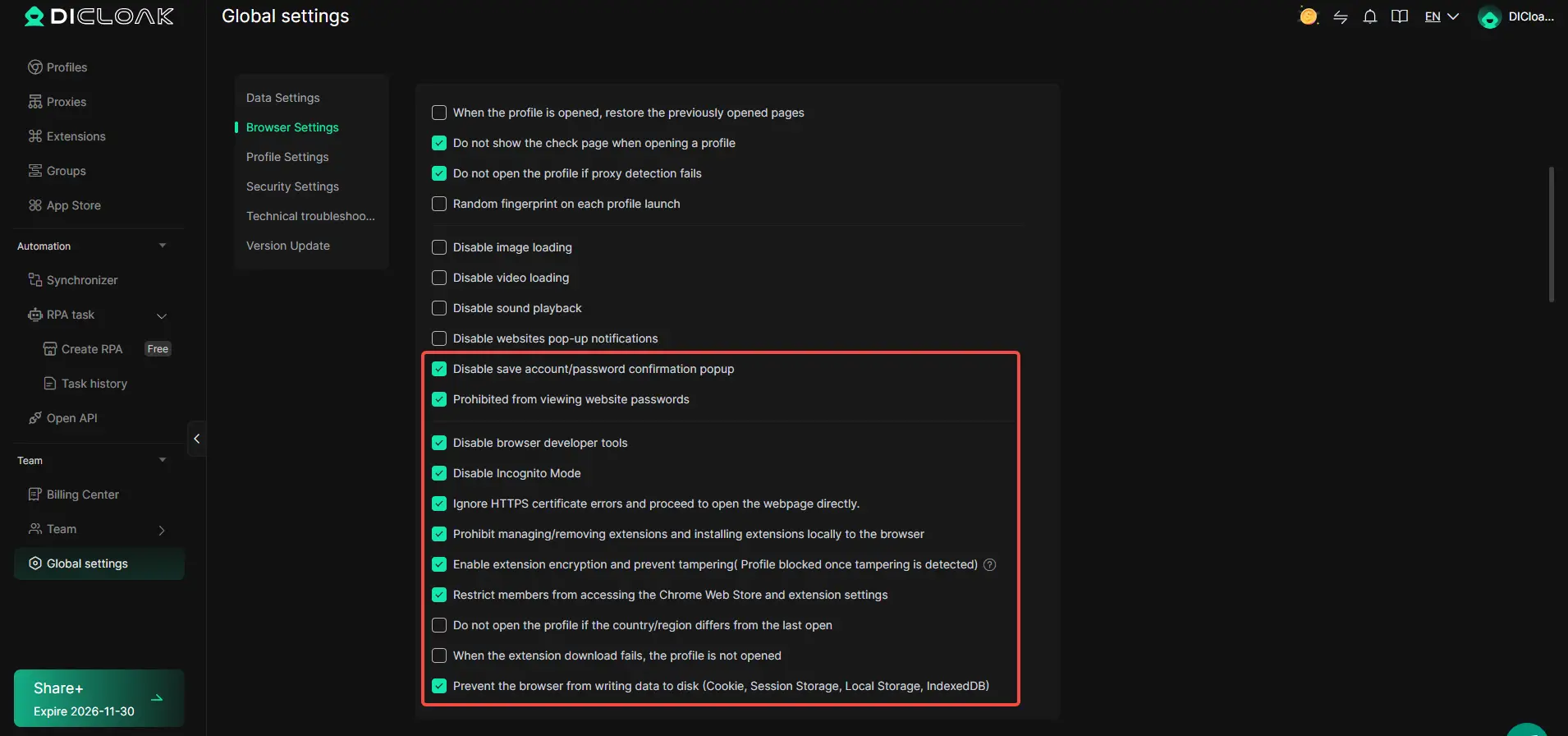
One of the more practical DICloak settings for this situation is the option to not open a Profile if proxy detection fails. Teams can also prevent a Profile from opening when the detected country or region is different from the last session. These checks can help catch an unexpected network change before the account is opened.
That is especially useful when several people work with the same set of Profiles. A failed proxy connection might otherwise cause a Profile to open through a different network without the user noticing. By stopping the session first, DICloak gives the team a chance to fix the connection before continuing, which makes the browsing environment more predictable and easier to troubleshoot later.
Frequently Asked Questions About the YouTube “Sign in to Confirm You’re Not a Bot” Error
1. Why does YouTube say “Sign in to confirm you’re not a bot”?
YouTube may show this message when it detects unusual traffic, a shared IP, strict browser settings, damaged cookies, or repeated requests. Its exact detection rules are not public.
2. Can a shared IP cause the YouTube bot check?
Yes. If many users share the same public IP and some generate unusual traffic, YouTube may apply extra checks to that address.
3. Does clearing cookies fix the “Sign in to confirm you’re not a bot” error?
Sometimes. Clearing YouTube and Google cookies can help if the problem comes from an old or damaged browser session, but it will not fix an IP-level issue.
4. Why does YouTube work on mobile data but not Wi-Fi?
This usually suggests that the issue may be linked to the Wi-Fi network or its public IP. Testing another network is one of the fastest ways to confirm it.
5. How can I avoid the YouTube “Sign in to confirm you’re not a bot” error?
Keep your browser and network environment stable, avoid frequent IP changes, maintain healthy browser sessions, and avoid tools that send large numbers of repeated requests.
Conclusion
The “Sign in to confirm you’re not a bot” YouTube error can come from several different parts of your browsing setup, including the public IP, shared network, browser session, cookies, extensions, or unusual request patterns. Because YouTube does not publish every signal used by its anti-abuse systems, the most effective approach is to troubleshoot the problem step by step instead of changing everything at once.
Start with the simplest checks, such as changing networks, clearing YouTube site data, signing into your Google account, and testing a clean browser session. If you manage multiple YouTube accounts, keeping each account in a stable browser profile with consistent network settings can also make future problems easier to trace. The goal is not to bypass YouTube’s checks, but to keep your browsing setup predictable, identify what changed, and restore normal access with the fewest unnecessary changes.
 Web Proxy Tools
 Free Tools
 Cookie Plugin
 UA Generator
 MAC Address Generator
 IP Generator
 IP Address List
 2FA Code Generator
 World Clock
 Anonymous Check
 WebRTC Leak Test
 UUID Generator
 Free Web Proxy Site
 Proxy Checker
 FB Ad Checker
 AI Web Scraping
 Free SMM Tools
 Twitter Shadowban Checker
 Instagram Name Checker
 UTM Generator
 Username Generator
 AI Hashtag Generator
 LinkedIn Headline Generator
 Social Media Image Resizer