Seeing the Ticketmaster browsing activity paused message when you're trying to buy concert tickets can be frustrating. You may be browsing events, checking ticket prices, or waiting for a popular presale when Ticketmaster suddenly stops your activity. Even if you haven't done anything wrong, its security system may mistake your actions for automated traffic.
The good news is that this warning does not always mean your account has been banned. In many cases, the restriction is temporary, and a few simple steps may help. This guide explains why Ticketmaster pauses browsing activity, how to fix common problems, and what to do if you still cannot access your tickets.
What Does “Browsing Activity Paused” on Ticketmaster Mean?
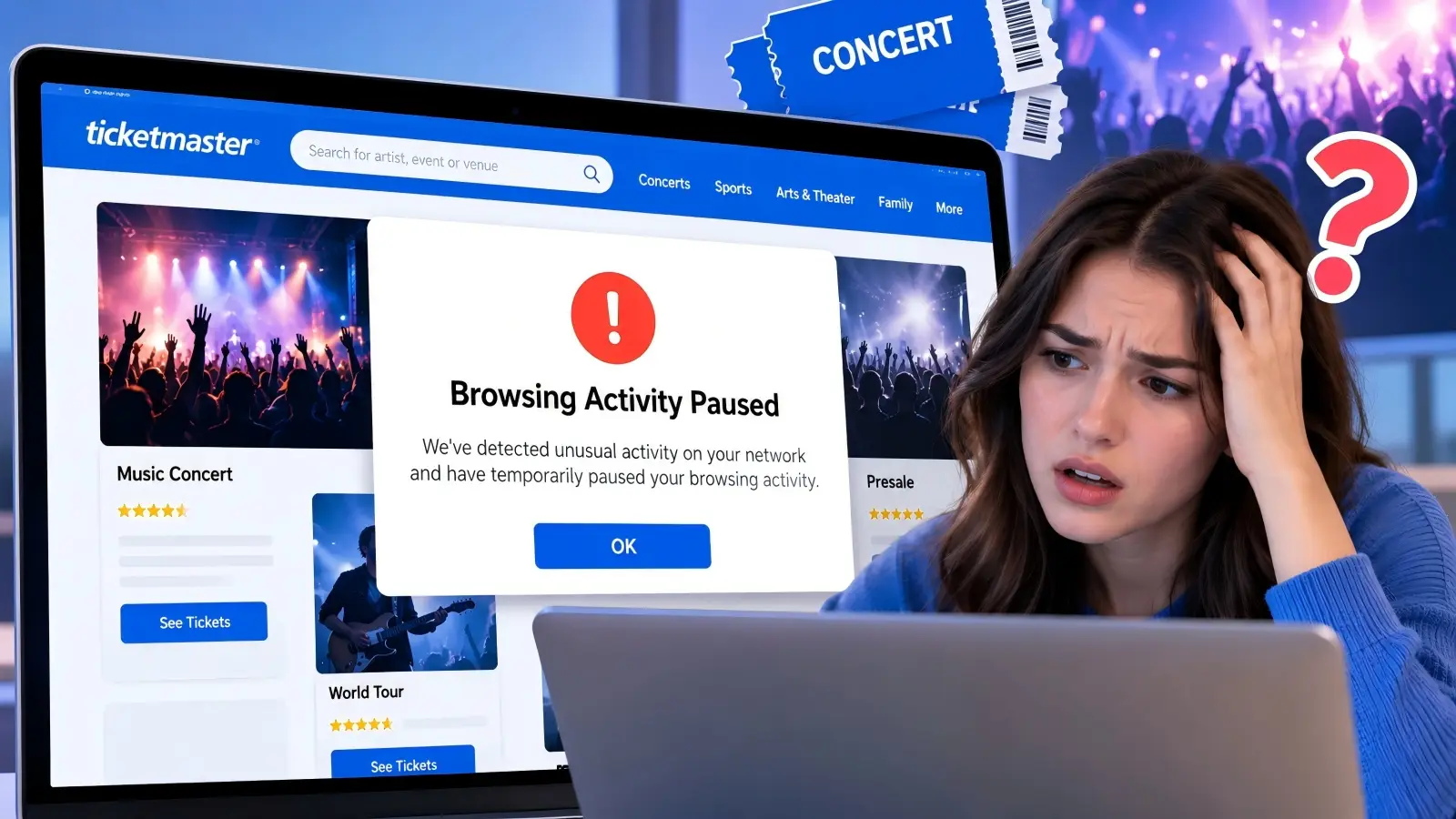
The Ticketmaster browsing activity paused message means Ticketmaster has temporarily limited your access after detecting unusual activity from your browser or network. This is part of its security system, which helps protect ticket sales from automated bots. However, regular fans can also see this warning, even when they are simply trying to buy tickets.
How Ticketmaster Detects Unusual Activity
Ticketmaster checks browsing behavior to spot activity that looks automated. For example, refreshing pages too quickly or clicking the same button many times can trigger a warning. The system may pause your session because these actions look similar to bot activity, even if you are a real customer.
Common Scenarios That Trigger the Error
The Ticketmaster browsing activity paused error often appears when users refresh ticket pages repeatedly, open several tabs, or use multiple devices. Shared Wi-Fi networks, browser extensions, and certain privacy tools can also cause problems. For example, someone checking seats in several browser tabs during a popular concert sale may receive the warning because their activity looks unusual.
Is This a Temporary or Permanent Issue?
According to Ticketmaster's official Help Center, this restriction is temporary in many cases. If you see the “Ticketmaster your browsing activity has been paused” warning, it does not automatically mean your account has been permanently banned. You may need to wait before trying again. If the message continues, Ticketmaster recommends checking your browser settings, network connection, and any active extensions.
Why Does Ticketmaster Think I’m a Bot?
You don't need to use a bot to get flagged by Ticketmaster. Its security system looks for patterns that may suggest automated activity, but some normal browsing habits can look suspicious too. Understanding these patterns can help explain why you see the Ticketmaster browsing activity paused warning, even when you're shopping for tickets yourself.
How Automated Behavior Is Detected
Ticketmaster uses automated security checks to monitor activity during ticket sales. Repeated page refreshes, rapid clicks, or unusual browsing patterns may trigger a warning. For example, imagine you're trying to buy Taylor Swift concert tickets. You keep refreshing the seating page because tickets are selling out quickly. Even though you're a real fan, these repeated actions may look like automated activity to Ticketmaster's security system. Ticketmaster also uses security checks in its virtual waiting room to manage heavy traffic. During popular events, thousands of people may try to access tickets at once. These checks help keep ticket sales fair, but genuine users can sometimes get caught in the process.
Other Factors That May Flag Your Activity
Your browsing speed isn't the only factor that matters. Ticketmaster warns that using multiple browser windows, automated tools, or certain browser extensions may cause errors. Network conditions can also play a role. For example, if several people in an office are buying tickets through the same Wi-Fi network, Ticketmaster may detect high activity from that shared connection.
Browser settings and connection tools may cause issues as well. Ticketmaster recommends enabling cookies and turning off VPNs, Apple Private Relay, and proxy services while purchasing tickets. These tools can affect how your connection appears to the website. If you search for “Ticketmaster your browsing activity has been pause” after seeing an error, remember that the warning does not prove you used a bot. It means Ticketmaster detected activity that needs further checking.
How to Fix the “Browsing Activity Paused” Error
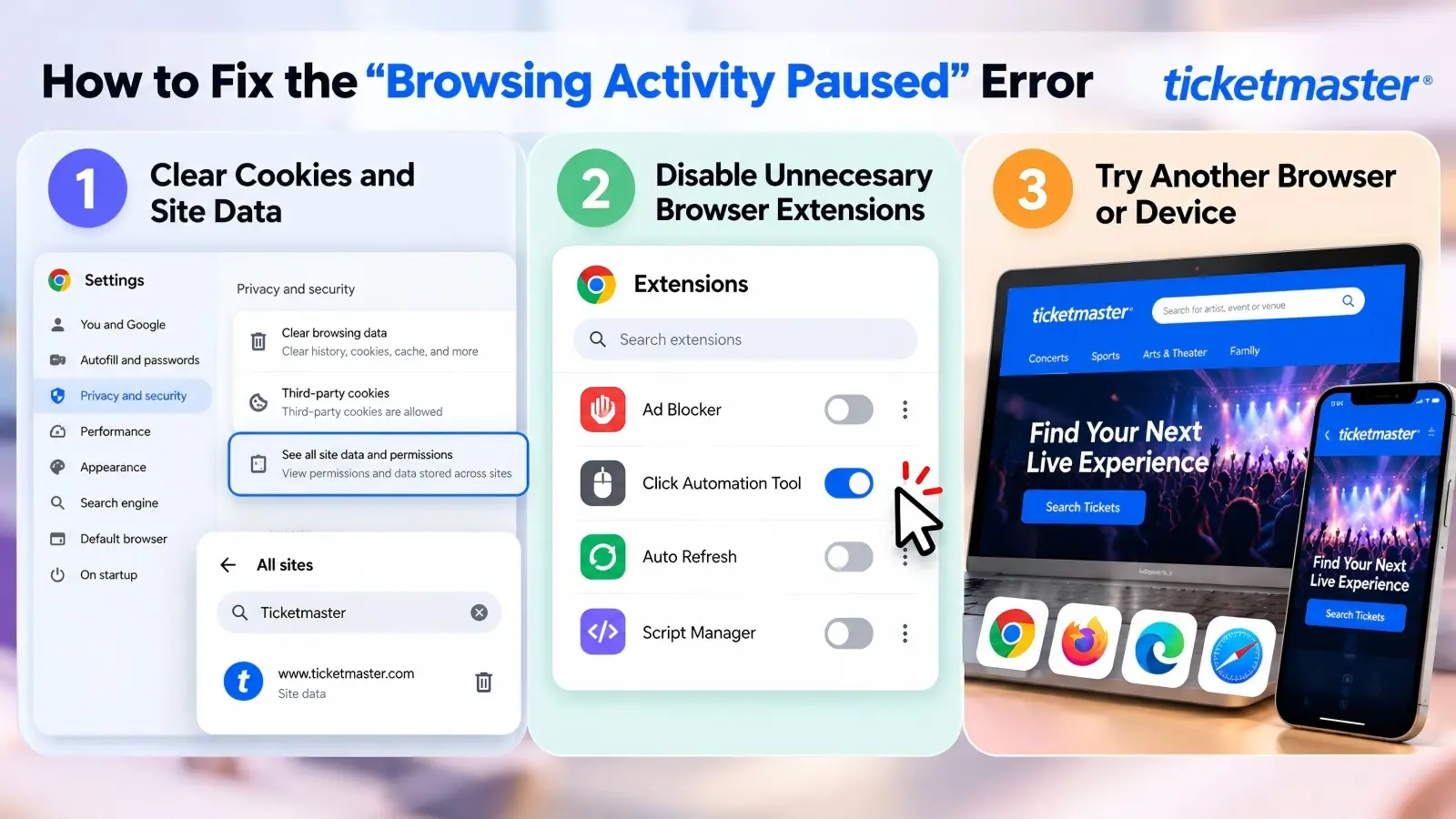
If you see the Ticketmaster browsing activity paused error, start by checking your browser settings. According to Ticketmaster's official Help Center, clearing cookies, disabling extensions, and changing devices may help resolve access issues. These simple steps can help you identify browser problems without making repeated attempts that could trigger another warning.
Clearing Cookies and Site Data for Ticketmaster
Old cookies or stored website data can sometimes cause login problems or prevent pages from loading correctly. If the Ticketmaster browsing activity paused error continues, clearing Ticketmaster's site data may help resolve browser-related issues. In Chrome, go to Settings → Privacy and security → Third-party cookies → See all site data and permissions. Search for Ticketmaster and delete its stored data. Then reopen Ticketmaster and sign in again. Keep in mind that clearing cookies may sign you out, and it will not remove a restriction placed on your account or network.
Disabling Browser Extensions That Might Interfere
Some browser extensions can affect how Ticketmaster works, especially tools that automate clicks, refresh pages, or change browser behavior. Open Chrome's Extensions → Manage Extensions page and temporarily turn off extensions you don't need. Restart your browser and try Ticketmaster again after any required waiting period. Ticketmaster also recommends avoiding automated tools and repeated clicks during ticket sales.
Switching to a Different Browser or Device
If the error continues, try an updated version of Chrome, Firefox, Edge, or Safari. For example, if Ticketmaster isn't working in Chrome on your laptop, you can try Safari on your phone instead. However, don't keep switching between devices during the same ticket sale, as Ticketmaster recommends using only one browser window and device at a time. If you searched for “Ticketmaster your browsing activity has been pause” and none of these steps work, wait before trying again and follow any instructions shown on the error page.
Can Changing Your Network or IP Address Help?
If browser fixes haven't worked, your internet connection could be part of the problem. The Ticketmaster browsing activity paused error can sometimes appear when too much activity comes from the same network. Switching to a personal connection, such as mobile data, may help restore access. However, changing your IP address does not guarantee that the warning will disappear.
Why Your IP Address Might Be Flagged
Ticketmaster may temporarily limit access when it detects unusually high traffic from one network. This often happens on shared connections where many users have the same public IP address. For example, several coworkers trying to buy concert tickets through office Wi-Fi may trigger a network warning, even if none of them uses a bot. Ticketmaster confirms that shared networks can sometimes look like automated traffic.
Steps to Switch to a Different Network
If you see the Ticketmaster browsing activity paused warning, try these steps:
- Disconnect your device from public or shared Wi-Fi.
- Turn on mobile data and use your personal cellular connection.
- Turn off VPNs, proxy services, or Apple Private Relay.
- Wait a few minutes, then reopen Ticketmaster and sign in.
These steps follow Ticketmaster's official troubleshooting advice. If you are already in a ticket queue, avoid switching networks unless necessary, since leaving the queue may cost you your place.
Risks of Using Public Wi-Fi for Ticketmaster
Public Wi-Fi at airports, hotels, and coffee shops can cause problems because many people share the same internet connection. Heavy traffic from other users may lead to temporary restrictions, even when your own activity is normal. Public networks can also be less secure, especially when you enter account or payment details. Ticketmaster recommends avoiding public Wi-Fi when buying tickets and using mobile data when possible.
What to Do If the Issue Persists
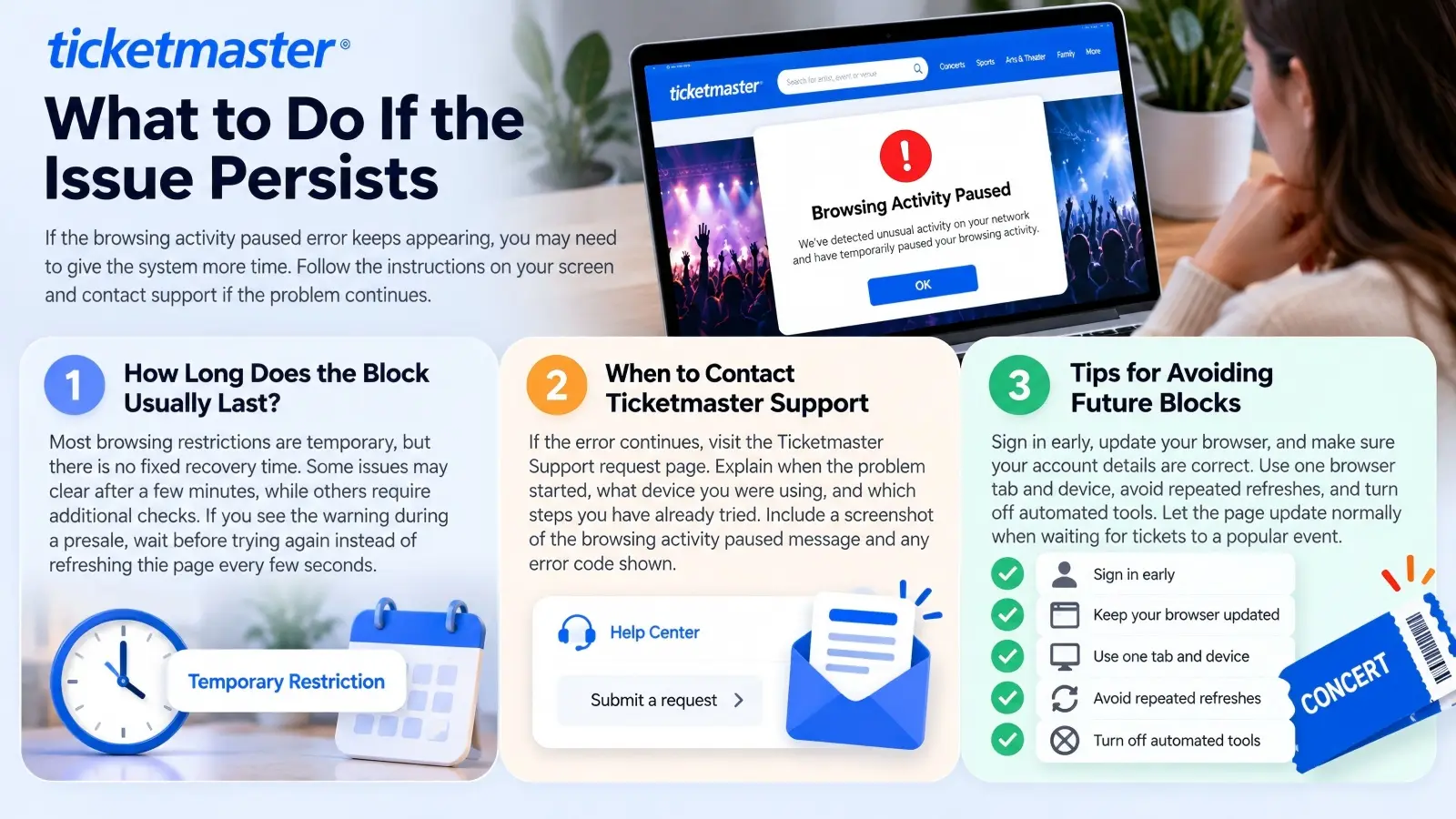
If the Ticketmaster browsing activity paused error keeps appearing after trying the fixes above, you may need to give the system more time. Ticketmaster may continue to restrict access until its security checks are complete. Rather than trying to sign in repeatedly, follow the instructions shown on your screen and consider contacting support if the problem continues.
How Long Does the Block Usually Last?
According to Ticketmaster's official Help Center, most browsing restrictions are temporary, but there is no fixed recovery time. Some network-related errors may clear after a few minutes, while others require additional checks. For example, if you receive the warning during a concert presale, wait before trying again instead of refreshing the page every few seconds.
When to Contact Ticketmaster Support
If the error continues after following Ticketmaster's troubleshooting steps, visit the Ticketmaster Support request page. Explain when the problem started, what device you were using, and which steps you have already tried. Include a screenshot of the Ticketmaster browsing activity paused message and any error code shown. These details can help the support team understand your issue without asking you to repeat basic checks.
Tips for Avoiding Future Blocks
A few simple habits can help reduce the chance of seeing this error again. Before your next ticket sale, sign in early, update your browser, and check that your account details are correct. Ticketmaster also recommends using one browser tab and device, avoiding repeated refreshes, and turning off automated tools. For example, when waiting for tickets to a popular concert, let the page update normally instead of constantly clicking the refresh button.
Does Ticketmaster Suspend Genuine Fans by Mistake?
Yes, Ticketmaster can sometimes restrict genuine fans by mistake. Its security system looks for unusual activity, but it cannot always tell the difference between a real customer and automated traffic. If you see the Ticketmaster browsing activity paused warning, it does not necessarily mean you have broken any rules. Ticketmaster acknowledges that legitimate users can experience these restrictions.
Why Legitimate Users Might Be Flagged
Even normal ticket-buying behavior can trigger security checks. For example, a fan using school Wi-Fi may share an IP address with dozens of other people. If several users access Ticketmaster at once, the network may appear suspicious. Ticketmaster confirms that shared connections can sometimes look like bot activity, even when users have done nothing wrong.
How to Prove You’re Not a Bot
If Ticketmaster asks you to verify your identity, follow the instructions on the official website. Some users may need to sign out and sign back in to complete a security check. This can include submitting a live selfie and a government-issued photo ID through Ticketmaster's verification partner, Persona. Once your identity is confirmed, you may regain normal account access.
What to Do If Your Account Is Suspended
First, check whether your message says your browsing activity is paused or your account access is restricted. These are not always the same issue. If Ticketmaster requests identity verification, complete the required steps instead of repeatedly creating new sessions. If verification fails or you still cannot access tickets you already purchased, contact Ticketmaster Fan Support for help. Some account restrictions require additional review and may not clear on their own.
Official Ticketmaster Guidance for Suspended Sessions
If your account is still restricted, the next step is to follow Ticketmaster's official guidance. The Ticketmaster Help Center explains that unusual activity can cause temporary limits, even for genuine fans. Knowing what the platform recommends can help you avoid unnecessary attempts while resolving the Ticketmaster browsing activity paused error.
Key Steps From Ticketmaster’s Help Center
Ticketmaster advises users to follow the instructions shown in their error message first. Depending on the warning, you may need to wait, sign in again, or complete a security check. For example, if you see “We Need to Confirm It's You,” Ticketmaster may ask for a selfie and photo ID after you sign back in. These steps are different from a basic browsing pause, so always check the exact message before taking action.
How to Access Official Support Channels
If the problem continues, visit the Ticketmaster Help Center and select the contact option to reach Fan Support. If you already have an order, you can also sign in to your Ticketmaster account and request help with your tickets. Use official Ticketmaster pages rather than phone numbers found on unknown websites. This is especially important if someone asks for payment to restore your account.
What to Expect During the Resolution Process
The next steps depend on why your session was paused. A Ticketmaster browsing activity paused message may clear after a short wait, while an identity check requires you to complete verification. For example, someone who receives a network warning may regain access after switching to mobile data and waiting a few minutes. Ticketmaster does not promise a fixed recovery time, so follow the instructions for your specific error and contact support if access remains restricted.
How DICloak Helps You Manage Browser Sessions More Easily
If you often manage different online accounts, keeping browser settings and session data organized can help prevent common access problems. DICloak Antidetect Browser provides separate Browser Profiles, cookie management, and extension controls to make this easier. While DICloak cannot remove the Ticketmaster browsing activity paused restriction, its features can help you manage browser profiles and check possible sources of session issues.
Keep Browser Sessions Separate with Browser Profiles
DICloak lets you create Browser Profiles with separate cookies, local storage, and browser settings. Each Profile keeps its own browsing data, so activity in one Profile does not mix with another. For example, if you use different accounts for work and personal tasks, you can keep their browser sessions organized without constantly signing in and out. For Ticketmaster, always follow its account rules and use one session at a time during ticket sales.

Clear Browser Cache When Session Problems Appear
Old cookies and cached data can sometimes cause login or page-loading problems. DICloak allows you to select Browser Profiles and use the Clear cache option under More Actions. This can help when troubleshooting stored browser data without clearing every browser profile. However, clearing data may sign you out, and it will not remove a server-side Ticketmaster restriction.

FAQs About Ticketmaster’s “Browsing Activity Paused” Error
Can I Still Buy Tickets If My Activity Is Paused?
Not until Ticketmaster restores your access. The Ticketmaster browsing activity paused warning may temporarily stop you from browsing events or buying tickets. Wait for the restriction to clear before trying again.
Does Using Incognito Mode Prevent This Issue?
No. Incognito mode limits what your browser saves, but it does not hide your IP address or prevent Ticketmaster from checking unusual activity. You can still receive the same warning while browsing privately.
Will Switching Devices Resolve the Problem?
Sometimes. If the issue comes from your browser settings or stored data, another device may work. However, if Ticketmaster has restricted your network or account, switching devices may not help.
How Does Ticketmaster Decide If I’m a Bot?
Ticketmaster uses security systems to detect unusual browsing patterns, such as repeated refreshes, rapid clicks, and automated requests. These checks help protect ticket sales, but they can sometimes flag genuine fans.
Is There a Way to Prevent This Error in the Future?
You cannot completely prevent the Ticketmaster browsing activity paused error. However, using one device and browser tab, avoiding repeated refreshes, and following Ticketmaster's ticket-buying guidelines can lower the risk of triggering security checks.
Conclusion
The Ticketmaster browsing activity paused error can be frustrating, especially when you're trying to buy tickets for a popular event. Fortunately, most restrictions are temporary and do not mean your account is permanently blocked. Clearing browser data, checking extensions, or switching to a personal network may help restore access.
To reduce future issues, avoid repeated refreshes, use one device during ticket sales, and follow Ticketmaster's official guidelines. Tools like DICloak can also help you organize browser sessions and manage settings, but they cannot remove Ticketmaster's security restrictions. If the problem continues, contact Ticketmaster Support for help.
 Web Proxy Tools
 Free Tools
 Cookie Plugin
 UA Generator
 MAC Address Generator
 IP Generator
 IP Address List
 2FA Code Generator
 World Clock
 Anonymous Check
 WebRTC Leak Test
 UUID Generator
 Free Web Proxy Site
 Proxy Checker
 FB Ad Checker
 AI Web Scraping
 Free SMM Tools
 Twitter Shadowban Checker
 Instagram Name Checker
 UTM Generator
 Username Generator
 AI Hashtag Generator
 LinkedIn Headline Generator
 Social Media Image Resizer