Why Does Google Keep Asking If I'm a Robot?
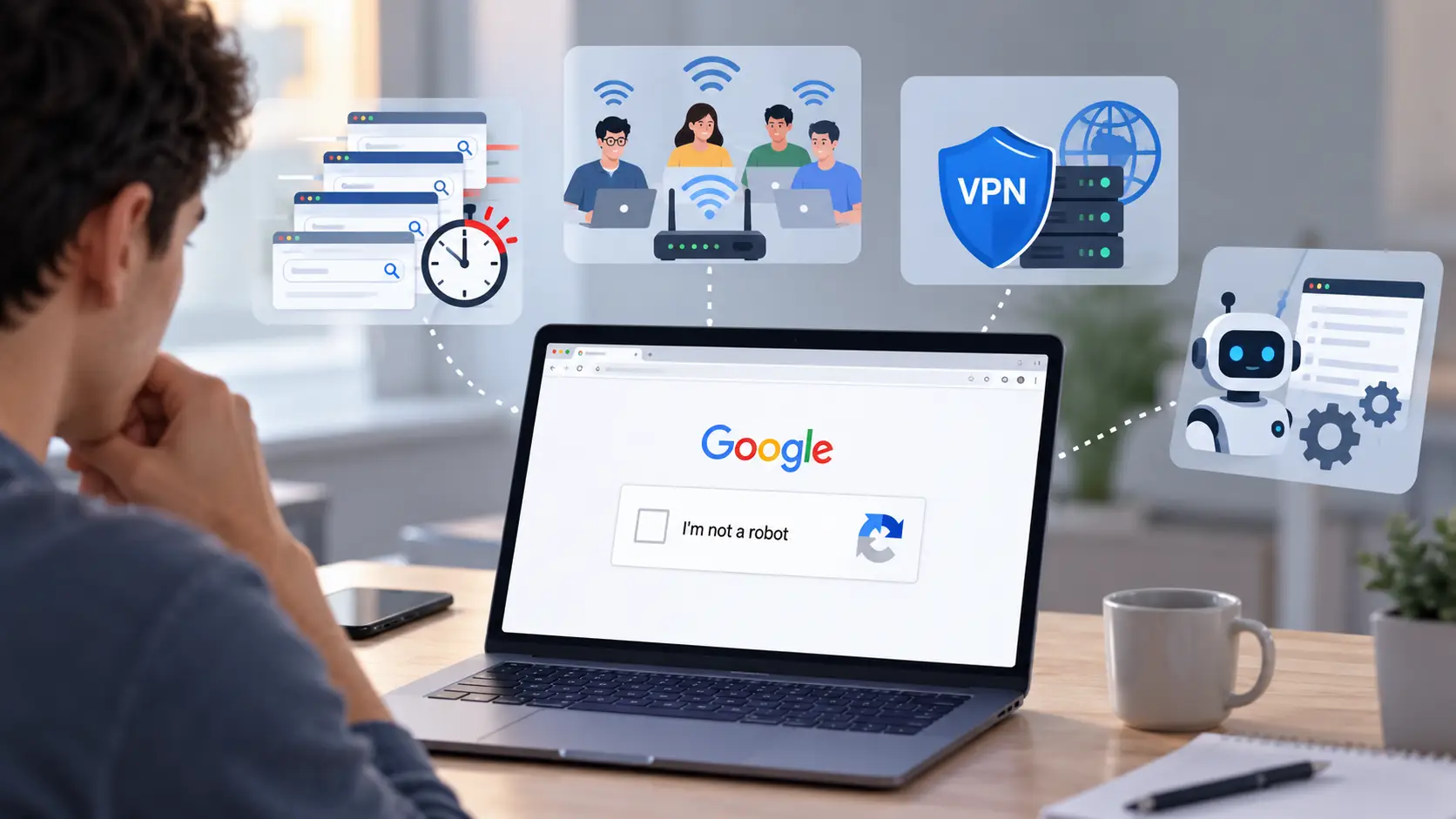
If you are wondering why does Google keep asking if I'm a robot, the answer usually comes down to unusual traffic. Google may detect unusual activity from your computer, IP address, or network even when you are searching manually. A high number of searches, a shared IP address, a VPN or proxy, or software that sends repeated requests can all make your traffic look automated.
This does not always mean there is something wrong with your Google account. In many cases, the CAPTCHA is connected to the traffic Google sees from your current connection. Understanding where that traffic comes from can help you find the real cause instead of solving the same CAPTCHA again and again.
Too many searches in a short period
One common reason for a Google CAPTCHA is a high number of searches in a short time. Google may treat rapid or repeated requests as unusual traffic, especially when many searches are sent one after another. Google does not publish a fixed number of searches that will always trigger a CAPTCHA, so there is no simple limit such as "100 searches per hour." The trigger can depend on the traffic and network involved.
For example, imagine you are doing keyword research and checking hundreds of search terms manually. You open Google, search for one phrase, check the results, and immediately search for another. After many repeated searches, Google may show an "I'm not a robot" check. This does not necessarily mean you are using a bot. It can simply mean the pattern of requests looks unusual to Google's systems.
Repeated refreshing can create a similar pattern. You may search for the same keyword several times, refresh the results, or open many Google Search pages within a short period. Each action adds another request. A normal research task can therefore start to look less like casual browsing when it is repeated at a high speed.
If CAPTCHA appears after a long period of keyword research but rarely appears during normal daily searches, search frequency is a useful place to start your troubleshooting.
Your IP address is shared with other users
Sometimes the problem is not your computer at all. Your public IP address may also be used by other people. This is common on office networks, schools, public Wi-Fi, and some internet services. Google sees the traffic coming from the same network or IP, but it may not be able to tell which person or device sent each request.
For example, suppose ten people in an office are searching Google at the same time. One person may be doing normal searches, while another is using a tool that sends many automated requests. Google can see a large amount of traffic coming from the same network. As a result, the person doing normal searches may also see a CAPTCHA.
The same situation can happen at home. A laptop may only be making a few Google searches, while another computer or application on the same connection is generating much more traffic. Looking only at the browser in front of you may not reveal the full picture.
This can explain why Google keeps asking if I'm a robot even when your own searches look normal. The unusual traffic may be coming from another person or device sharing your network. In other words, seeing the CAPTCHA does not always mean that your own activity caused it.
VPNs and proxies can trigger extra verification
A VPN or proxy can also be part of the problem. The key issue is often the network and IP address behind the connection, not simply the fact that you are using a VPN. If many people use the same VPN or proxy exit IP, Google may see traffic from that address that looks automated or unusual.
For example, you may connect to a VPN and search Google normally, but the same VPN server may also be used by many other users. If some of that traffic contains automated searches, Google may place extra checks on the shared IP. You could then see a reCAPTCHA even though your own searches were manual.
Proxy quality also matters. A heavily shared proxy IP may have already carried a large amount of traffic before you connect to it. Switching between several proxy locations in a short period can also make troubleshooting harder because your Google traffic is no longer coming from one consistent connection.
This does not mean that every VPN or proxy will cause a Google CAPTCHA. A user can browse through one without seeing any verification at all. The important point is that the IP address and traffic behind the connection matter. If CAPTCHA starts appearing soon after you connect to a particular VPN server or proxy, testing another trusted connection can help you see whether the network is involved.
Automated tools can generate bot-like traffic
Google can also show a CAPTCHA when software sends search requests automatically. This includes robots, computer programs, automated services, search scrapers, and tools that repeatedly query Google to check search rankings. Browser extensions or other software can also generate requests without making it obvious to the user.
Consider a simple rank-checking tool that checks the position of a website for hundreds of keywords. Instead of a person making one search at a time, the software may send many requests within a short period. From Google's point of view, that traffic can look very different from normal human searching.
The confusing part is that automated traffic may continue while you are browsing normally. For example, you could be reading a search result while an SEO tool is checking dozens of keywords in the background. You only see your own manual activity, but the network is handling both types of traffic.
The same issue can happen when a browser extension or another application makes repeated background requests. If you are sure you are searching manually but Google keeps showing a CAPTCHA, it is worth checking what other software is running on your computer or network. In some cases, another device or application may be the actual source of the unusual traffic.
What Can You Do When Google Keeps Showing CAPTCHA?
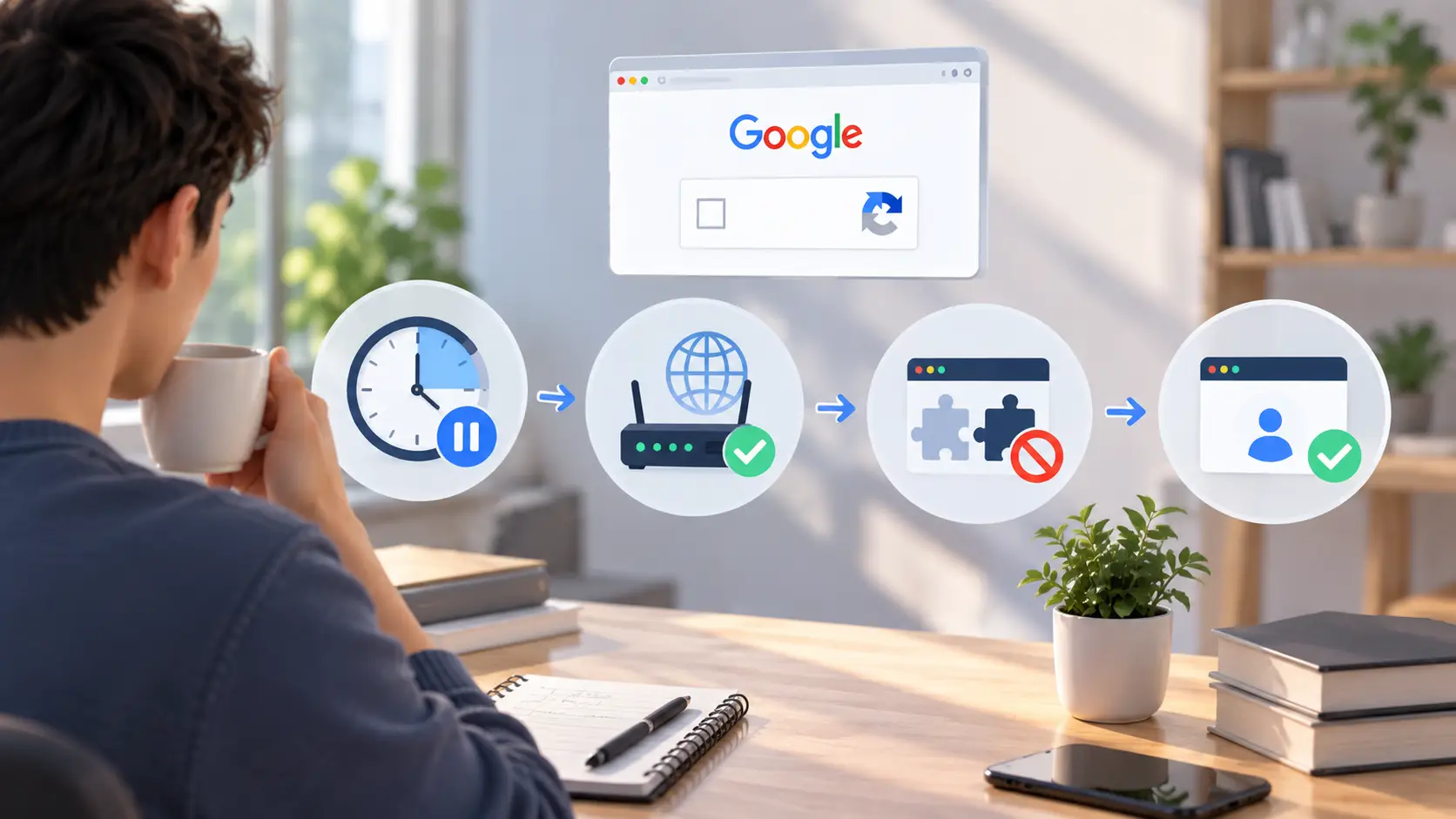
If you keep wondering why Google keeps asking if I'm a robot, start with the simplest checks first. You do not need to change everything at once. A better approach is to slow down your searches, check the network you are using, and then look for software that may be sending requests in the background.
The goal is to isolate the cause. Change one thing, test Google again, and see what happens. This is much more useful than changing your browser, IP address, extensions, and cookies at the same time.
Slow down rapid and repetitive searches
If you are doing many searches in a row, take a short break instead of continuing to refresh the CAPTCHA page. Rapid, repeated requests can look different from normal search activity. Google does not publish a simple search limit that guarantees when a CAPTCHA will appear, so there is no exact number of searches you need to stay under.
For example, imagine you are checking 50 keyword results for a new article. You search one phrase, open the results, return to Google, and immediately enter another phrase. If you repeat this pattern for a long time, Google may start showing an "I'm not a robot" check. In this case, slowing down your searches and taking normal breaks is a better first step than repeatedly solving the same CAPTCHA.
Also avoid repeatedly refreshing the page when the CAPTCHA appears. If the same verification keeps coming back, continuing to send more requests may not solve the underlying issue. Give the connection some time, then try a normal search again.
Pay attention to when the problem happens. If Google works normally in the morning but CAPTCHA starts appearing after an hour of heavy search activity, that pattern is useful information. It suggests that the amount or speed of the traffic may be more important than the browser itself.
Check your IP address and network
The next thing to check is your network. Google may be reacting to traffic from the wider network rather than your own computer. This matters if you use office Wi-Fi, school networks, public Wi-Fi, or another connection shared by many people. Activity from another computer or user on the same network can also lead to an unusual traffic warning.
For example, you may be working from home and see CAPTCHA on almost every Google search. Your own searches may be normal, but another device on the same connection could be sending automated requests. In that case, changing browser settings alone may not fix the problem.
A simple test is to compare your normal Wi-Fi connection with another trusted network, such as mobile data. Make a few normal Google searches on each connection. If Google works normally on the second network, the original IP or network becomes an important clue.
This test is especially useful on shared networks. If several people in the same office are getting the same Google CAPTCHA at the same time, the problem is less likely to be limited to one person's browser. The network administrator or ISP may need to investigate where the unusual traffic is coming from.
Disable unnecessary automation and extensions
If your searches are normal but Google CAPTCHA keeps appearing, check the software running in your browser. Automated services, programs, robots, and search tools can generate traffic without requiring you to make every request yourself. A browser extension may also make requests in the background, even when you are not actively searching.
Try disabling extensions that you do not need, especially those that interact with search pages, collect search data, refresh pages, or automate browser actions. Then test Google again. If the CAPTCHA stops appearing, enable the extensions one at a time to find the one causing the problem.
For instance, you might have a keyword tool open in one tab while using Google normally in another. The tool may be checking search results in the background. From your point of view, you are just browsing. From Google's point of view, the network may be receiving additional automated search requests.
Do not assume that every extension is a problem. A password manager or simple note-taking extension is very different from a tool that repeatedly interacts with search pages. Focus first on software that can create network requests or automated browser actions.
Keep your browser session consistent
A consistent browser session can also make troubleshooting easier. If you keep switching between different browsers, VPN settings, extensions, and network connections, it becomes hard to tell what is causing the Google CAPTCHA.
For example, start with a normal browser window and your regular network. Make a few ordinary searches without automation running in the background. If the CAPTCHA does not appear, add your usual tools back one at a time. This gives you a much clearer way to find the source.
Try to keep the test simple. Use the same browser, the same normal network, and the same basic settings while you test. If everything works, introduce one change. You might enable an extension first, then test again. Later, you could connect to your usual VPN and repeat the test.
You should also avoid making many changes at once. If you change the IP, browser, extensions, cookies, and search behavior together, you may fix the problem without knowing why it happened. A step-by-step check gives you a better answer and makes the same Google CAPTCHA issue easier to handle if it happens again.
What If Google CAPTCHA Still Keeps Appearing?
If you have already slowed down your searches and checked the basic network settings, but Google CAPTCHA still keeps appearing, the problem may need a closer look. At this point, focus on your browser, connection, and other software running on the device.
There is no need to repeat the same fixes over and over. Instead, use simple comparisons. Test one browser against another, one network against another, and normal browsing against browsing with your usual tools enabled. These comparisons can help narrow down where the problem starts.
Clear Google cookies and site data
Old or damaged site data can sometimes cause browser problems. Clearing Google cookies and site data gives the site a fresh start in your browser. In Chrome, you can remove cookies for a specific site instead of deleting all browsing data. This is useful because clearing all cookies can sign you out of many websites.
For example, suppose Google CAPTCHA keeps returning in Chrome, but Google Search works normally in another browser on the same computer. That points more toward a browser-level issue than a problem with the whole network. You can clear the stored site data for Google, reopen the page, and test a few normal searches again.
Before clearing everything, remember that cookies also keep you signed in and store site preferences. Removing them may require you to sign in again. This is why clearing only the relevant Google site data can be a more practical first test than deleting all browser data.
Keep in mind that clearing cookies is a troubleshooting step, not a guaranteed CAPTCHA fix. If the unusual traffic is coming from your IP address or another application, removing cookies will not solve that source of traffic.
Update your browser and check extensions
An outdated browser or a problematic extension can also make troubleshooting harder. Chrome normally checks for updates automatically, and keeping Chrome updated gives you the latest security fixes and browser improvements.
Next, look at your extensions. Disable extensions that interact with Google Search, collect search results, refresh pages, or automate browser actions. You do not have to remove everything at once. Turn off one likely extension, restart the browser, and test Google again.
For example, if the Google CAPTCHA problem started soon after you installed a new SEO extension, disable that extension first. If normal searches begin working again, you have a useful clue. If nothing changes, continue checking other extensions instead of assuming the first one caused the issue.
You can also compare the same Google search in another updated browser. If the issue appears across several browsers, the cause may be outside the browser itself. If it only happens in one browser, its extensions, cookies, or settings deserve a closer look.
Test another network or connection
If the browser looks normal, test a different network. This is one of the easiest ways to tell whether the repeated Google CAPTCHA may be connected to your current IP address or network.
For example, disconnect your laptop from office Wi-Fi and use a trusted mobile hotspot for a few normal searches. If CAPTCHA appears constantly on the office network but not on the mobile connection, the shared network deserves more attention. Another user, device, or service on that network could be generating unusual traffic.
This test can also help explain why Google keeps asking if I'm a robot on one connection but not another. If the same device and browser work normally after the network changes, the original network or shared IP becomes an important clue.
However, changing networks should be used as a troubleshooting test, not as a way to repeatedly rotate IP addresses whenever CAPTCHA appears. Frequent connection changes can make it harder to understand what is actually causing the problem.
Check for automated requests from other applications
The source of repeated CAPTCHA prompts may not be the browser you are looking at. Another application on your computer or another device on the network could be sending automated requests.
Think about what is running in the background. SEO rank checkers, scraping software, browser automation tools, scripts, and some extensions can send many requests without requiring you to type each Google search yourself.
For example, a marketer may close a keyword research tab but leave a rank-checking application running. Manual Google searches still look normal from their side, yet the same connection may also be sending automated requests in the background. Stopping that application and testing Google again can help separate normal browsing from automated traffic.
If the problem affects several devices, check the wider network as well. A desktop computer, server, or another connected device may be generating traffic even when the laptop you are using looks completely normal.
If you still find yourself asking why does Google keep asking if I'm a robot, do not focus only on passing the next CAPTCHA. Look for the source of the unusual traffic. Once you know whether the problem comes from your search behavior, IP address, network, browser, or another application, you can take a more targeted approach.
How Can DICloak Help Manage Multiple Google Accounts?
The steps above can help when Google CAPTCHA keeps appearing during normal searches. But managing several Google accounts creates another challenge. Cookies, login sessions, browser settings, and network connections can easily get mixed when every account is opened in the same browser.
DICloak Antidetect Browser gives each account its own browser Profile. This does not guarantee that Google CAPTCHA will disappear. Google can still ask for verification when it detects unusual traffic. The main benefit is a cleaner setup where users can keep different account environments separate and easier to manage.
Keep each Google account in a separate Profile
Instead of opening several Google accounts in different tabs of the same browser, users can create a dedicated DICloak Profile for each account. Each Profile works as a separate browser profile with its own settings and stored data.
For example, a marketing team may manage Google accounts for five different clients. Client A can use Profile A, while Client B uses Profile B. Team members do not need to keep signing out of one client account and signing into another in the same browser window.
This also makes daily work easier to organize. A user can name and group Profiles based on the client, project, or task. When it is time to work on one account, the user opens the matching Profile instead of trying to remember which account belongs to which browser session.

Keep cookies and login sessions isolated
Cookies are an important part of a Google login session. A regular browser stores cookies and other site data within the same browser profile. When several accounts are handled in that environment, users may need to switch accounts or repeatedly check which session is active.
DICloak stores cookies, cache, and web storage separately for each Profile. This means activity in one Profile does not use the cookies stored in another Profile.
Consider a small agency where one person manages several client accounts. Once the correct Google account is signed in to each Profile, the person can return to that Profile for later work. This reduces accidental session mixing and makes it easier to keep each client's work separate.
Keep network settings consistent within each Profile
Network changes can make account management more confusing. For example, an account may be opened from one network in the morning and a very different connection later that day. When several accounts are involved, it becomes harder for the team to track which connection is being used for each one.
DICloak lets users configure a proxy for an individual Profile. This makes it possible to keep a planned network setup tied to the same browser profile. If a proxy is required for a legitimate business workflow, a stable connection is generally easier to manage than constantly changing the proxy or location.
A proxy does not prevent Google CAPTCHA by itself. As explained earlier, a shared or heavily used proxy IP can actually lead to more verification. Users should choose reliable network services and avoid sending rapid or automated requests simply because each account has its own Profile.

Manage multiple Google accounts with DICloak
The real value of DICloak becomes clearer when several people need to work with many Google accounts. Instead of keeping account details in separate browsers or passing login information back and forth, a team can organize the accounts through dedicated Profiles.
For example, an agency could create 20 Profiles for 20 client accounts and place them into Profile Groups. The admin can then assign Profiles to team members based on their work. If another person needs to take over a client account, the existing Profile can be shared without rebuilding the browser profile from the beginning.
DICloak also provides team roles, Profile sharing, Profile Groups, Member Groups, and operation logs for larger workflows. These tools help teams control who can work with each Profile and keep account management organized as the number of accounts grows.
For teams asking why Google keeps asking if I’m a robot, this distinction matters. DICloak is not a CAPTCHA bypass tool. Its role is to keep multiple Google account environments separate and organized. Normal search behavior, reliable network settings, and avoiding unnecessary automated traffic are still important for reducing repeated Google CAPTCHA checks.

FAQs About Google Keeps Asking If I’m a Robot
Q1: Why does Google keep asking if I’m a robot even when I am not?
If Google keeps asking if I’m a robot, it usually means Google has detected traffic that looks unusual or automated. Rapid searches, a shared IP address, VPN or proxy traffic, and automated software can all contribute to repeated CAPTCHA checks. It does not automatically mean Google thinks you are actually a bot.
Q2: Why does Google keep asking if I’m a robot on every search?
If Google keeps asking if I’m a robot on every search, check whether your network is sending a high number of requests. This can happen on shared Wi-Fi, office networks, VPN servers, or proxy connections. Software or another device using the same network may also be generating automated requests.
Q3: How do I stop Google from asking if I’m a robot?
To reduce repeated Google “I’m not a robot” CAPTCHA checks, slow down repetitive searches and check your network first. You can also disable unnecessary automation or browser extensions, update your browser, and test another trusted network. The right fix depends on what is causing the unusual traffic.
Q4: Why does Google keep asking if I’m a robot when using a VPN or proxy?
A VPN or proxy may use an IP address shared by many users. If Google sees a large amount of unusual or automated traffic from that IP, it may require extra verification. This is why Google may keep asking if you’re a robot even when your own browsing activity is normal.
Q5: Can DICloak stop Google from asking if I’m a robot?
DICloak is not designed to bypass Google CAPTCHA. It helps users manage multiple Google accounts in separate browser Profiles, with isolated cookies, sessions, and network settings. If Google keeps asking if I’m a robot, users should still check their search behavior, IP address, network, and automated traffic to find the actual cause.
 Web Proxy Tools
 Free Tools
 Cookie Plugin
 UA Generator
 MAC Address Generator
 IP Generator
 IP Address List
 2FA Code Generator
 World Clock
 Anonymous Check
 WebRTC Leak Test
 UUID Generator
 Free Web Proxy Site
 Proxy Checker
 FB Ad Checker
 AI Web Scraping
 Free SMM Tools
 Twitter Shadowban Checker
 Instagram Name Checker
 UTM Generator
 Username Generator
 AI Hashtag Generator
 LinkedIn Headline Generator
 Social Media Image Resizer