When looking into setting up multiple Discord accounts, you've probably looked at their official policies. Indeed, Discord lets you handle up to 5 accounts.
Still, keeping track of even five or fewer profiles can be tough within the Discord application itself. For instance, easily sharing an account with someone else or making notes specific to a profile isn't straightforward.
In this guide, we'll examine various techniques for dealing with multiple Discord accounts (including one we promise is the most practical). Read on to select the approach that suits you best.
Running Multiple Discord Accounts Directly in Discord
Discord's rules don't outright forbid having multiple profiles. You simply need a unique email or phone number for each one.
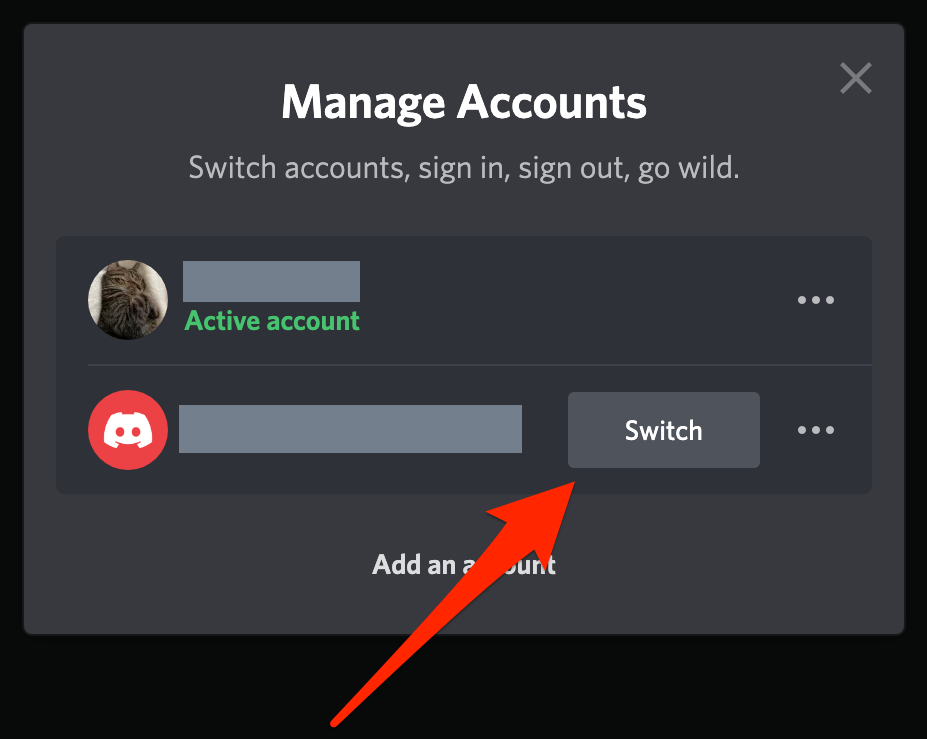
Discord even includes an Account Switcher feature. On desktop, it lets users swap between up to 5 accounts. As of now, on mobile, you still need to manually sign in and out.
To use Discord’s Account Switcher, tap your avatar in the lower-left corner of the app and select "Switch Accounts." This will immediately take you to your secondary profile.
Methods for Handling Multiple Discord Accounts(More Than 5)
1.Constantly Logging In and Out
This method for managing multiple Discord accounts is simple, but lacks ease of use.
You must type in your login details manually every time and keep all that information handy. Furthermore, you'll likely miss important messages and alerts from other accounts since you're only logged into one at any given moment.
You can also start separate Discord sessions in various browser windows. But picture having to locate the correct browser window among dozens that look identical. Annoying, right? Additionally, you'll have to sign in every time you start a new session.
2.Setting Up Separate Chrome Profiles for Each Discord Account
You can create several Google profiles and use each one to log into Discord. However, you need to remember which Google profile is linked to which Discord identity, its current status, and other specifics. This results in a substantial amount of manual effort when managing several Discord profiles.
3.Utilizing a Browser Alongside the Discord Desktop Client
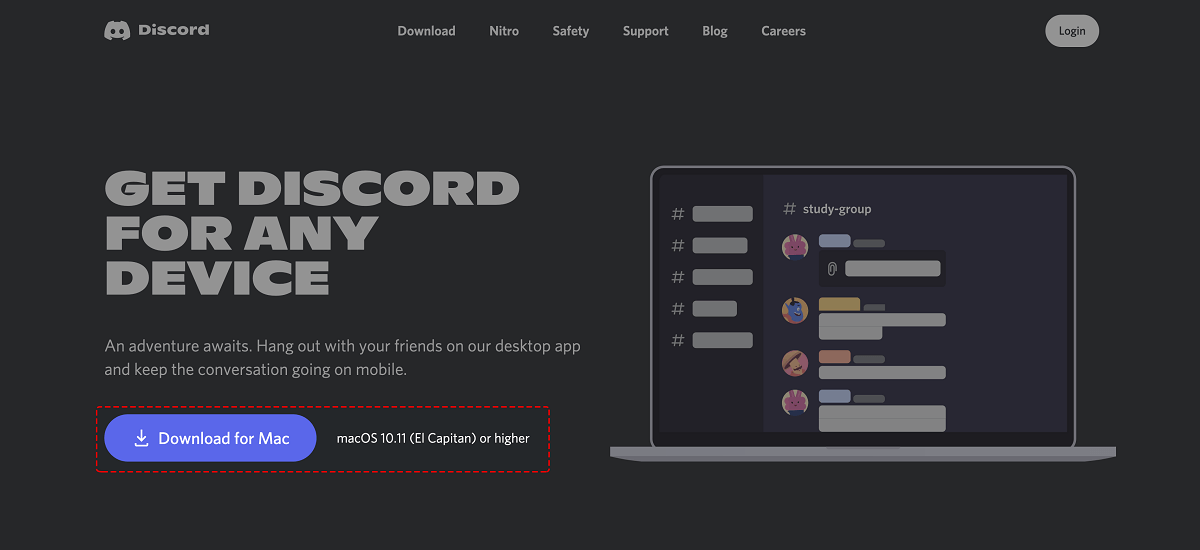
Download and install the Discord app from the official site. After that, log into your account. Then, navigate to the Discord website and choose "Open Discord in your browser." Pick a browser and sign into your other profiles.
By using these two Discord versions, you can comfortably manage up to 10 profiles.
4.Employing Discord Canary and PTB
Another option for handling multiple Discord accounts is installing Discord Canary (the Alpha build) or Discord PTB (Public Test Build or Beta) in addition to the standard Discord app.
Head to the official Discord site to download these applications onto your computer and access them with separate accounts. Keep in mind that the testing version is designed to find and fix flaws, so it might not be as dependable or user-friendly as the final release version.
By using the main app plus the testing versions, you can switch between 15 profiles.
5.Cloning Apps on Mobile Devices
Both Android and iOS devices support app duplication. As the name implies, such software lets you have an exact copy of the Discord application. You can install several cloning utilities to handle different accounts. Although different apps feature various user interfaces, their basic functionality is similar.
You launch the cloning app, choose the app you wish to duplicate (Discord), and then open the Discord instance within the cloning app where you can log into your other 5 Discord profiles.
The downsides? Many cloning applications run in the background, using extra system power and draining your battery quicker. They might also present security risks. So, think carefully before downloading such apps to prevent hacking.
Also note that many users experience various problems and even account suspensions after cloning apps that previously worked fine. We don't endorse this technique—proceed at your own risk.
6.Acquiring Multiple Physical Devices
With numerous devices, you can combine different strategies for managing multiple Discord accounts. For example, you could run different browsers and use various cloning apps simultaneously.
However, this approach doesn't improve workflow convenience and becomes less economical as you add more accounts. For instance, 6 phones at a minimum of $50 each equals $300. That's more than the least expensive annual plan for a multi-accounting browser, which is $294 for 100 accounts. Continue reading to discover this method for organizing your Discord accounts.
7.Using a Multi-Accounting Browser
Essentially, a multi-accounting browser operates just like a standard browser. The key difference is that handling multiple Discord accounts with such a browser is simple and effective—all your accounts are accessible within one tidy window. It's feasible to manage 50, 500, or even 5000 profiles without hassle through a clean SMM panel that allows direct logins.
To establish a fluid process with numerous accounts in a multi-accounting browser, you can:
- Assign a name to each profile
- Organize them into specific folders
- Apply labels and commentary
- Sort profiles based on different criteria
- Share profiles with remote colleagues. You and your team members stay logged in, eliminating the need to manage constant password entries, two-factor authentications, and login tokens.
Beyond convenience, utilizing a multi-accounting browser ensures your complete anonymity. These browsers generate a unique digital signature for every account.
A digital signature is an identifier composed of all relevant data about your location, operating system, installed extensions, time zone, and many other device-related details.
While Discord bans are uncommon, maintaining the privacy of your accounts is still crucial if downtime could hurt your professional activities or business. To understand how multi-accounting browsers function, let’s look at DICloak.
Why Choose DICloak Antidetect Browsers for Running Multiple Discord Accounts?
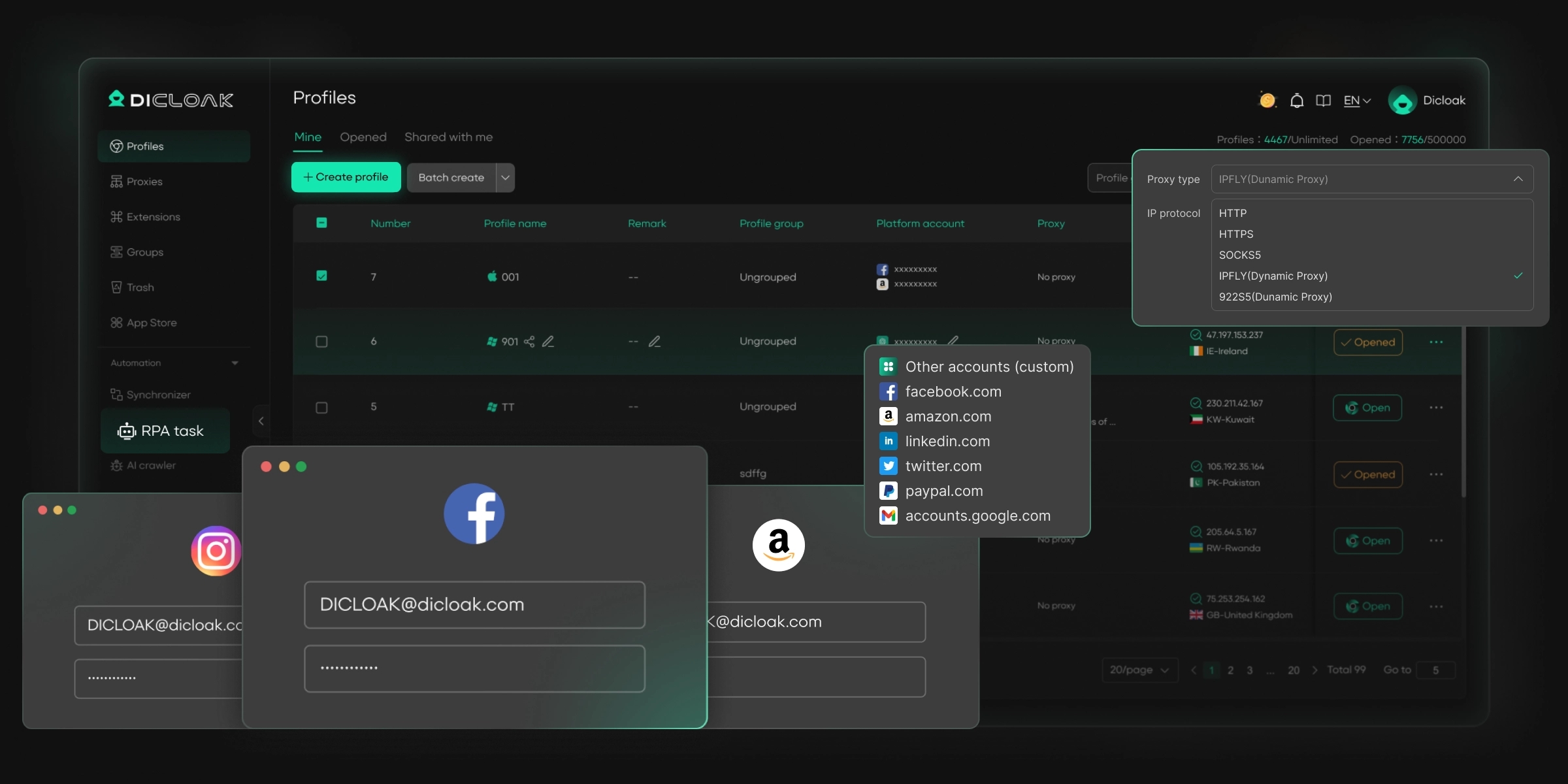
⚡The DICloak Antidetect Browser has become a global favorite for its unparalleled ability to efficiently and securely manage multiple accounts. Designed for professionals in social media management, and more, DICloak offers powerful features like RPA automation, bulk operations, and a synchronizer. Additionally, it allows you to customize fingerprints and integrate proxies for each profile, ensuring top-level security and operational efficiency. It’s the ultimate tool for seamless, secure, and scalable operations.
What Makes DICloak Stand Out?
✅ Manage 1,000+ Accounts on One Device: Stop wasting money on extra hardware! DICloak allows you to manage multiple accounts on a single device, cutting costs and boosting efficiency.
✅ Guaranteed Account Safety, No Ban Risks: Every account gets its own isolated browser profile with custom fingerprints and IPs, drastically reducing the risk of bans. Your accounts, your control!
✅ Flexible Proxy Configuration for Maximum Performance: Seamlessly integrate with all major proxy protocols (HTTP/HTTPS, SOCKS5) and manage your proxy pool with bulk operations. No more struggling with IP management—DICloak has you covered.
✅ Streamlined Team Collaboration for Better Results: Easily manage your team with advanced tools like profile sharing, permission settings, data isolation, and operation logs. Your team works smarter, not harder.
✅ Automate the Grind with RPA: DICloak's built-in RPA saves you hours of manual work. Automate repetitive tasks, streamline workflows, and focus on what really matters—growing your business.
✅ Powerful Bulk Tools to Scale Your Operations: Create, import, and launch multiple browser profiles in one click. DICloak makes scaling your business as easy as it gets.
✅ Compatible with All Major Operating Systems: Based on the Chrome core, DICloak supports simulating Windows, Mac, iOS, Android, and Linux operating systems. No matter what platform you need, DICloak has you covered.
🔗 Ready to Get Started?
Visit the DICloak website to explore more details and choose the plan that’s right for you. Start for free today and experience the power of secure, efficient, and scalable multi-account management!
How to Switch Accounts on Discord Mobile
The Discord mobile app does not have a native account switcher, so you cannot easily switch between accounts on mobile. However, there are ways to manage multiple Discord accounts:
1.Use Discord via a Mobile Web Browser
- Log in at discord.com/login through your mobile browser.
- This allows you to access an alternate account without logging out of the app.
- Running the web version alongside the app lets you manage two accounts simultaneously.
2.App Duplication
- Use tools like Parallel Space to create a mirrored copy of the Discord app.
- Each duplicated instance can log into a separate account.
- Simplifies switching accounts without logging out.
- ⚠️ Be cautious: third-party cloning tools may pose security risks or violate Discord’s terms of service.
3.Use DICloak
- DICloak is an antidetect browser designed for multi-account management.
- Each account runs in a distinct browser profile with unique digital fingerprints and proxy settings.
- This allows simultaneous operation of multiple Discord accounts without detection or risk of sanctions.
- Ideal for business, community moderation, or managing multiple online personas.
Conclusion
For up to five personal accounts, the standard Discord app should be sufficient.
If you only need simple account switching for up to ten accounts, alternative methods may work.
However, when managing multiple Discord accounts with organized, shared access is required, DICloak’s multi-accounting browser is worth considering. It provides a streamlined solution, serving as an excellent alternative to major SMM dashboards, and allows quick, secure access to all accounts without repeatedly entering passwords.
FAQs
1. What is the limit on Discord accounts I can have?
Discord allows you to maintain as many accounts as you want. You can create separate accounts for personal, professional, or gaming purposes, such as Steam-linked profiles.
2. Will others know if I’m using multiple Discord accounts?
No, Discord does not notify other users when you switch between accounts. Observers are unlikely to suspect extra profiles unless they notice repeated patterns across your accounts.
3. Can I create two Discord accounts using the same email address?
No, Discord enforces a strict one-account-per-email policy to prevent spam and maintain platform security.
4. Is it allowed to operate several Discord accounts?
Yes, Discord’s guidelines do not prohibit multiple accounts. However, misuse or violating Discord rules on any account can lead to suspension.
5. How can I manage multiple Discord accounts efficiently?
Using DICloak, you can streamline sign-ins, manage multiple accounts in a single interface, and maintain separate browsing environments with unique fingerprints and proxy settings—reducing the risk of detection or suspension.
 Web Proxy Tools
 Free Tools
 Cookie Plugin
 UA Generator
 MAC Address Generator
 IP Generator
 IP Address List
 2FA Code Generator
 World Clock
 Anonymous Check
 WebRTC Leak Test
 UUID Generator
 Free Web Proxy Site
 Proxy Checker
 FB Ad Checker
 AI Web Scraping
 Free SMM Tools
 Twitter Shadowban Checker
 Instagram Name Checker
 UTM Generator
 Username Generator
 AI Hashtag Generator
 LinkedIn Headline Generator
 Social Media Image Resizer