If you are running into the chatgpt message limit, you are not alone. ChatGPT usage caps are a normal part of how OpenAI manages access across different plans, models, and traffic conditions. These limits can affect how often you can use a model in a given time window, and they may change as OpenAI updates plan features or adjusts capacity.
For everyday users, the chatgpt message limit may only be a small inconvenience. For teams working in research, marketing, support, or content operations, it can interrupt longer workflows and slow down output. That is why it is useful to understand not only what the limit is, but also why it exists and what legitimate options are available when you need more capacity.

What are the limits of ChatGPT?
ChatGPT has limits on how much you can use it. These limits help keep the service working for lots of people at the same time. OpenAI says limits can change depending on your plan, the model you use, and how busy the system is.
Here is the easy version:
Free
Free-tier users can send up to 10 GPT-5.3 messages every 5 hours. After that, chats automatically switch to the mini model until the limit resets.
Plus / Go
Plus and Go users can send up to 160 GPT-5.3 messages every 3 hours. Once they hit the limit, chats also switch to the mini model until the reset.
Thinking usage
Plus and Business users can manually choose GPT-5.4 Thinking from the model picker, with a limit of 3,000 messages per week. After reaching that limit, GPT-5.4 Thinking can no longer be selected manually until the weekly quota resets.
Go users can enable Thinking from the tools menu by clicking the + icon in the chat box. After enabling it, they can send up to 10 Thinking messages every 5 hours.
Automatic switching from GPT-5.3 Instant to GPT-5.4 Thinking does not count toward the weekly Thinking limit. Even after the manual limit is reached, ChatGPT may still automatically switch to GPT-5.4 Thinking.
Business / Pro
Business and Pro plans offer unlimited access to GPT-5 models, but this is still subject to abuse guardrails and compliance with the Terms of Use.
A simple way to think about it is this: ChatGPT is like a busy library. If too many people try to use the most powerful tools at once, OpenAI sets limits so the system stays fast and fair for everyone.
Why does ChatGPT have message limits?
The main reason ChatGPT has message limits is resource management. Frontier models require significant compute, and OpenAI uses plan-based access rules and usage caps to help keep the service responsive for a large number of users. OpenAI’s Help Center explicitly notes that Plus plans may include message caps, especially during high demand, and that limits can vary based on system conditions.
Limits also differ by plan and model. On the Free tier, access to higher-capability models is restricted and falls back after the limit is reached. On paid plans, usage can be much higher, but it is still model-specific. For example, current Help Center guidance shows defined message windows for some consumer plans, while Business and Enterprise/Edu offer virtually unlimited messages for certain base models, still subject to policy and abuse guardrails.
In short, the chatgpt message limit is not just a pricing feature. It is part of how OpenAI balances performance, fairness, and system stability across free, paid, and enterprise usage.
How to Manage the ChatGPT Message Limit Legally and Efficiently
For many users, the chatgpt message limit is not just a minor inconvenience. It can interrupt research, content work, customer support tasks, and other daily workflows. The most practical way to handle this is not to look for shortcuts, but to build a more efficient usage strategy.
A better approach starts with planning. Users can reduce unnecessary prompts, group related questions into one request, and choose the right model for the task. Lighter tasks may not need the most advanced model, while more complex work can be saved for higher-capability sessions. Teams can also reduce waste by sharing prompt structures, reusing templates, and organizing tasks before opening a new conversation.
In other words, the best way to manage the chatgpt message limit is to improve workflow efficiency, reduce duplicate usage, and match the plan level to the actual volume of work.
How to Reduce Message Waste While Keeping Context
One common reason users hit the chatgpt message limit too quickly is that they restart context too often. Repeating the same background information across multiple chats increases message use and slows down the workflow.
A more efficient method is to keep related tasks in the same conversation when possible. Instead of opening a new thread for every small change, users can continue inside an existing chat and ask for revisions, summaries, or next steps in sequence. This helps maintain context and reduces the number of messages needed to get useful output.
It also helps to write stronger prompts from the beginning. A clear prompt that includes goals, constraints, format requirements, and expected output often saves multiple follow-up messages. For teams, storing standard prompt templates can further reduce repetitive usage and make results more consistent.
Why Workarounds Are Unreliable for the ChatGPT Message Limit
When users hit the chatgpt message limit, they sometimes look for quick workarounds. In practice, this is usually not the best solution. Unofficial methods are often unreliable, may stop working at any time, and can create account or compliance risks.
A better long-term strategy is to work within the available plan structure. That may mean switching to a lighter model for simpler tasks, waiting for the usage window to refresh, upgrading to a higher plan when the workload justifies it, or moving high-volume automated work to the API when appropriate.
The key point is simple: managing the chatgpt message limit effectively is more sustainable than trying to force around it.
Choosing the Right Workflow Setup for Your Usage Needs
Not every user needs the same setup. Someone writing occasional emails or summaries may only need a standard ChatGPT plan and better prompt habits. A research team, support team, or content operation may need more structure, clearer browser organization, and better collaboration tools.
This is where workflow design becomes important. The right setup can include plan selection, task batching, prompt reuse, browser profile organization, and shared team processes. The goal is not to avoid the chatgpt message limit, but to make better use of the messages available.
For teams that work across many online tools, DICloak can support this by helping organize browser profiles and making multi-step workflows easier to manage.
Operational Comparison: Standard Browsing vs. DICloak Infrastructure
| Feature |
Standard Browser Method |
DICloak Infrastructure |
| Account Isolation |
Shared cookies and local storage |
Kernel-level sandboxed profiles |
| Fingerprint Customization |
Static/Hard-coded hardware ID |
Custom high-entropy fingerprints |
| Scaling Capability |
Limited by hardware & manual effort |
1,000+ profiles on a single device |
| Risk of Ban |
High (Cross-session contamination) |
Low (Environment & IP separation) |
| Automation |
Manual input only |
RPA and Synchronizer support |
How DICloak Helps Teams Organize Browser Workflows Around the ChatGPT Message Limit
Reducing Repeated Work with Automation
For many teams, delays do not come only from the chatgpt message limit itself. A lot of time is lost on repeated browser setup, logging into the same tools, and repeating similar steps across projects.
DICloak helps reduce that friction with automation features, profile templates, and RPA tools. These functions help teams handle routine browser actions more efficiently and cut down on repeated manual work.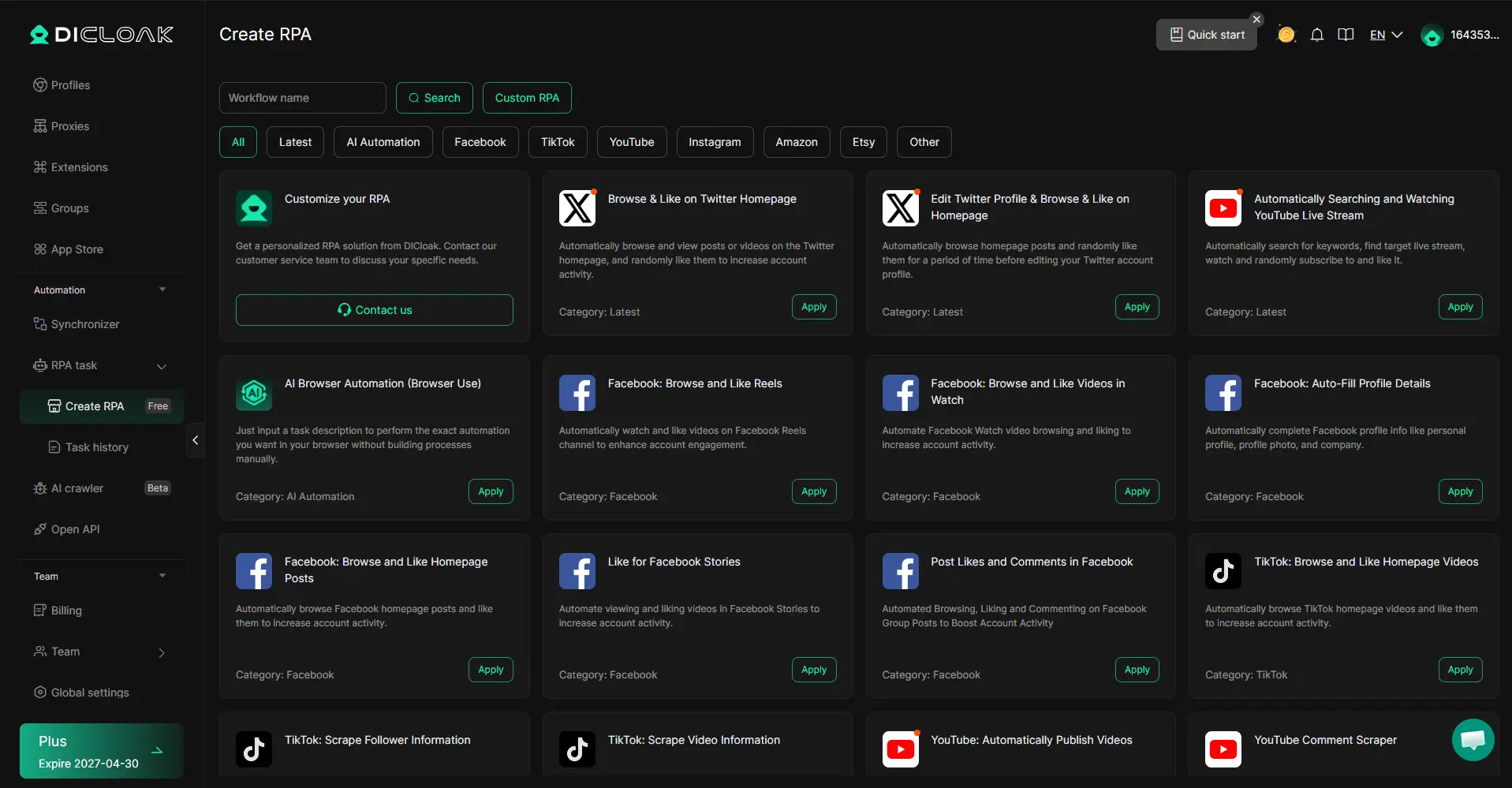
Keeping Tasks Organized with Separate Browser Profiles
When research tools, client platforms, internal systems, and ChatGPT sessions are all mixed in one browser, confusion grows quickly. Teams may waste time switching between tasks or repeating work.
DICloak helps organize workflows through separate browser profiles. Each profile keeps its own login state, cookies, and settings, making it easier to separate projects and manage multiple browser-based tasks more clearly.
Improving Coordination with Multi-Window Sync and Team Controls
Team efficiency also depends on coordination. Repeating the same actions across many browser windows or managing shared access without clear rules can slow teams down.
DICloak supports this with multi-window synchronization, profile sharing, and permission controls. These features help teams stay consistent, improve collaboration, and keep browser operations more organized.
In this context, DICloak is not a tool for avoiding the chatgpt message limit. It is a workflow management tool that helps teams use automation, RPA, and structured browser management to work more efficiently.
DICloak helps teams stay more organized by combining automation, separate browser profiles, multi-window sync, and permission controls in one workflow. This reduces repeated work, improves collaboration, and makes browser-based tasks easier to manage, especially when teams want to use their available ChatGPT messages more efficiently.
Conclusion
The chatgpt message limit is a normal part of how OpenAI manages access across different plans, models, and traffic conditions. For individual users, it may only be a small inconvenience. But for teams handling research, content, support, or other browser-based work, it can slow down workflows and reduce efficiency.
That is why the best solution is not to look for shortcuts, but to build a smarter workflow. Better prompt planning, clearer task organization, and cleaner browser management can all help teams make better use of the messages they already have. For teams that need a more organized way to manage browser-based tasks, DICloak is a practical option. With browser profile management, permission controls, and collaboration features, it can help teams stay more efficient, more structured, and better prepared for daily work.
Frequently Asked Questions About the ChatGPT Message Limit
How can I manage the ChatGPT message limit more efficiently?
You can reduce message waste by combining related questions into one prompt, keeping tasks in the same conversation when possible, and choosing the right model for the job.
Does the ChatGPT message limit reset automatically?
Yes, usage windows generally refresh automatically based on the plan and model, though the exact limits may vary.
Is there a better way for teams to work around workflow interruptions?
Yes. In many cases, the answer is not a workaround, but better workflow structure. Clear task planning, reusable prompts, and organized browser profiles can make a big difference.
 Web Proxy Tools
 Free Tools
 Cookie Plugin
 UA Generator
 MAC Address Generator
 IP Generator
 IP Address List
 2FA Code Generator
 World Clock
 Anonymous Check
 WebRTC Leak Test
 UUID Generator
 Free Web Proxy Site
 Proxy Checker
 FB Ad Checker
 AI Web Scraping
 Free SMM Tools
 Twitter Shadowban Checker
 Instagram Name Checker
 UTM Generator
 Username Generator
 AI Hashtag Generator
 LinkedIn Headline Generator
 Social Media Image Resizer