Telegram is fast, flexible, and widely used around the world. But in many situations, it does not always work as expected. Messages may stay stuck on “connecting,” media may not load, or the app may fail to open on certain networks. This is when many users start searching for a free proxy for Telegram.
A free proxy can change how Telegram connects to its servers and often restores access within minutes. However, many guides only explain the setup steps and skip the bigger picture. Users are left wondering which proxy type to choose, why a proxy suddenly stops working, or whether it is actually safe to use.
This step-by-step guide answers those questions in a clear and practical way. You will learn how a free proxy for Telegram works, when it makes sense to use one, and how to set it up correctly on different devices. The guide also explains common problems, security considerations, and when a simple proxy is no longer enough.
Whether you need quick access on a restricted network or want to manage Telegram more reliably, this article will help you make informed choices and avoid common mistakes.
Understanding Free Proxy for Telegram and How It Works
What is a Free Proxy?
A proxy is an intermediate server between your device and Telegram. Instead of connecting to Telegram directly, your app sends traffic to the proxy first. The proxy then forwards it to Telegram’s servers.
A free proxy for Telegram means this server is publicly available and does not require payment. These proxies are often shared by many users at the same time. Because of that, they can become overloaded, slow, or stop working without notice.
Think of it like traffic on a road. If the main road to Telegram is blocked or crowded, a proxy offers a side road. Sometimes it is clear. Sometimes it is also busy. That uncertainty is common with free proxies.
How Do Free Proxies Work with Telegram?
Telegram supports proxy connections directly inside the app. This means no extra software is needed. You simply add the proxy details in Telegram’s settings.
Telegram mainly supports SOCKS5 and MTProto proxies. SOCKS5 sends Telegram traffic through another server. MTProto is a protocol designed specifically for Telegram connections.
Here is a common real-world case. A user on office Wi-Fi finds that Telegram connects and disconnects often. They add a free SOCKS5 proxy for Telegram. It works for a short time, then becomes slow. This happens because free proxies are usually crowded and not stable.
Also, keep expectations clear. A proxy changes the route of your connection. It can help Telegram reach its servers when the normal path is blocked or unstable. It does not magically fix every problem, and it may not be reliable when it’s free.
Importance of Using Proxies for Telegram Access
A free proxy for Telegram is not a universal fix. It is a tool for specific connection problems, not a solution for every Telegram issue.
Most users rely on proxies in these situations:
- When the connection to Telegram servers is unstable
- During temporary network restrictions at work, school, or public Wi-Fi
- When message delivery speed matters for work or coordination
- When users want to separate different Telegram usage scenarios
For example, a freelancer uses Telegram for client communication. At a coworking space, Telegram keeps loading messages very slowly. Switching on a free proxy for Telegram restores stable message delivery for the rest of the day.
It’s important to set realistic expectations. A proxy only changes how your connection reaches Telegram. It does not guarantee speed, privacy, or long-term stability—especially when the proxy is free. Used correctly, it helps bypass problematic network paths and improves connection predictability when you truly need it.

Use Cases and Benefits of Using a Free Proxy for Telegram
A free proxy for Telegram is not something most users keep enabled all the time. It is usually turned on when Telegram becomes slow, unstable, or hard to connect. The main purpose is simple: change the network route so Telegram can reach its servers more reliably. Here are some common use cases:
- Bypassing network or regional restrictions: In some regions or networks, Telegram routes may be blocked or unstable. A free proxy for Telegram can route traffic through another location and restore access.
- Handling temporary access issues while traveling: Travelers may see messages stuck on “sending” in hotels or airports. Enabling a free MTProto proxy often allows messages to load again.
- Improving unstable connections: Poor routing between an internet provider and Telegram servers can cause delays. A free SOCKS5 proxy for Telegram may improve stability by using a less crowded route.
- Managing multiple Telegram accounts on shared networks: Freelancers or community managers often separate work and personal chats. Assigning a free proxy to one account can reduce connection conflicts on public Wi-Fi.
However, it is important to understand the limits. A free proxy for Telegram only affects the connection path. It does not provide anonymity, hide device or account details, prevent account restrictions, or fix issues unrelated to network quality. Used correctly, it is a practical tool for short-term access and stability problems—not a complete solution.
Types of Free Proxy for Telegram You Can Use
After understanding the use cases and limits, the next step is choosing the right free proxy for Telegram. Not all proxy types work the same way. Some can be set directly inside Telegram, while others work outside the app. Each type also solves different problems.
MTProto Proxies
MTProto is Telegram’s own proxy protocol. It is built mainly to bypass blocks and restrictions.
A free MTProto proxy for Telegram is best used when Telegram is blocked or partially restricted. Setup is simple. Many MTProto proxies work through a single tap link inside Telegram.
MTProto works well when:
- Telegram is blocked or filtered
- You need quick access with minimal setup
- Proxy use is limited to Telegram only
- Access is needed for a short or temporary period
For example, a user in a restricted network cannot open Telegram at all. After enabling a free MTProto proxy, the app connects instantly. This makes MTProto a popular recovery option. The downside is stability. Free MTProto proxies often stop working once too many users join.
SOCKS5 Proxies
SOCKS5 is the most flexible and widely used option supported directly inside Telegram on all platforms.
A free SOCKS5 proxy for Telegram is often chosen for stability and repeated daily use. It can also be used by other apps, not just Telegram.
SOCKS5 works best when:
- Managing multiple Telegram accounts
- Performing routine actions over time
- Long-term, stable Telegram access is needed
- One proxy is used for Telegram and other tools
For example, a community manager runs several Telegram accounts on shared Wi-Fi. Using a free SOCKS5 proxy for Telegram helps reduce connection drops and keeps accounts responsive. Free SOCKS5 proxies are still shared, so speed and uptime may vary.
HTTP Proxies
HTTP and HTTPS proxies are not configured directly inside Telegram. They work at the system, browser, or environment level.
A free HTTP proxy for Telegram is mostly used with Telegram Web, testing setups, or isolated environments. It is not recommended for full Telegram app usage.
HTTP proxies may be used when:
- Working with Telegram Web
- Running short-term tests
- SOCKS5 or MTProto are not available
In practice, HTTP proxies are less stable for Telegram messaging and not suitable for serious or long-term use.
Free vs Paid Proxies: What You Need to Know
Free and paid proxies serve very different goals.
A free proxy for Telegram:
- Is public and shared
- Easy to access and test
- Often unstable or short-lived
- Best for temporary access or recovery
Paid proxies:
- Offer better speed and stability
- Are more reliable for multi-account work
- Fit long-term or high-volume usage
For example, a traveler may rely on a free proxy for Telegram during a short stay. A team that uses Telegram daily for coordination usually needs a paid option.
In short, the right proxy type depends on where Telegram is blocked, how long you need access, and how many accounts you manage. In the next section, we’ll look at how to set up a free proxy for telegram step by step.
How to Set Up a Free Proxy for Telegram Step by Step
After choosing the right type, the next step is setting up a free proxy for Telegram correctly. Telegram has built-in proxy settings on mobile and desktop. You only need to enter the correct connection details and enable the proxy.
What Information You Need Before Setup
Before adding a free proxy for Telegram, prepare the following details:
- Server address (IP or domain name)
- Port number
- Username and password (only if required, common with SOCKS5)
- Secret key (MTProto only)
These details are usually provided by the proxy source. In many cases, they may be labeled as server, host, port, or login credentials.
Step-by-Step Guide for Android Devices
- Open Telegram
- Go to Settings
- Tap Data and Storage
- Open Proxy
- Turn Use Proxy ON
- Tap Add Proxy
- Choose SOCKS5 or MTProto
- Enter server address and port
- Add username and password if required
- Save and enable the proxy
Telegram will try to connect immediately. If the data is correct, chats should load within seconds.
Step-by-Step Guide for iOS Devices
- Open Telegram
- Go to Settings
- Tap Data and Storage
- Open Proxy
- Tap Add Proxy
- Select SOCKS5 or MTProto
- Enter server, port, and login details if needed
- Enable Use Proxy
If you use a tap-to-connect MTProto link, Telegram may fill the fields automatically. This is common with a free proxy for Telegram shared in public channels.
Step-by-Step Guide for Desktop Users
- Open Telegram Desktop
- Go to Settings
- Open Advanced (or Network, depending on version)
- Find Connection Type or Proxy Settings
- Add a new proxy
- Select proxy type and enter server details
- Save and activate
On desktop, Telegram usually shows connection status right away, making it easy to see if the proxy works.
Using a Free Proxy with Telegram Web
Telegram has two web versions, and proxy behavior differs between them:
- Telegram Web A (web.telegram.org/a): This is the newer version with full features. It is faster but more sensitive to proxy quality and IP stability.
- Telegram Web K (web.telegram.org/k): This is a lighter version. It makes fewer network requests and works more reliably on weak networks or when using a free proxy for Telegram.
If you rely on proxies or unstable connections, Web K is often the safer choice.
Testing Your Proxy Connection
After setup, always test your free proxy for Telegram:
- Check if Telegram shows Connected in proxy settings
- Send a message to Saved Messages
- Load a photo or sticker
- Turn the proxy OFF and ON to compare behavior
Free proxies often become slow or stop working. Keeping one or two backup proxies saved can save time when a connection fails.
Troubleshooting Common Issues When Using a Free Proxy for Telegram
Even after you finish setting up a free proxy for Telegram, issues can still appear. This is normal. Free proxies are public and shared, so problems often come from the proxy itself, not from your Telegram settings.
Connection Failures: Causes and Solutions
One of the most common problems is connection failure. Telegram may stay on “Connecting” or fail to load chats at all. This usually happens when the proxy server is no longer working or is overloaded.
For example, a free proxy for Telegram may work in the morning but stop responding later in the day. Many users are sharing the same server, and it simply cannot handle the load anymore.
In this situation, first check that the server address and port are entered correctly. If everything looks right, turn the proxy off and on again. If Telegram still cannot connect, switching to another free proxy for Telegram is often the fastest solution. Trying a different proxy type, such as switching from MTProto to SOCKS5, can also help.
Slow Speeds: How to Improve Performance
Slow speed is another very common issue with a free proxy for Telegram. Messages may arrive late, media may not load, or calls may fail.
This usually happens because the proxy is crowded or far from your location. Public Wi-Fi can make the problem worse.
For example, a traveler uses a free proxy for Telegram at an airport. Text messages send slowly, and images never finish loading. After switching to another proxy closer to their region, text messages become usable again.
To improve performance, try changing to a different free proxy, avoid downloading large files, and focus on basic messaging. If you use Telegram in a browser, Telegram Web K often works better than Web A on weak connections.
Authentication Errors: What to Do
Authentication errors mostly appear when using SOCKS5 proxies. Telegram may reject the connection because the login details are incorrect.
This often happens due to small mistakes. For example, copying and pasting a username or password can add extra space. In other cases, users leave the login fields empty even though the proxy requires them.
If this happens, re-enter the credentials carefully and remove any extra spaces. If you are unsure whether authentication is required, testing a free proxy for Telegram that does not need a username or password can save time.
Problems with free proxies are common and expected. They do not mean you set something up wrong. Keeping one or two backup proxies and knowing how to switch quickly is the easiest way to stay connected.
Security and Privacy Considerations of a Free Proxy for Telegram
After dealing with connection issues, many users start thinking about safety. A free proxy for Telegram can help you connect, but security and privacy depend on more than just changing your IP address.
Risks of Using Free Proxies
Free proxies are usually public and shared. You often do not know who runs them or how long they will stay online. This creates several risks.
For example, a free proxy for Telegram may log basic connection data, stop working without notice, or be used by too many people at the same time. Switching between many unknown proxies in a short period can also make account behavior look unstable.
Even though Telegram encrypts message content, a proxy still sits in the middle of your connection. This is why free proxies should be treated as temporary tools, not long-term security solutions.
Best Practices for Safe Proxy Usage
If you use a free proxy for Telegram, use it carefully.
Turn the proxy on only when you really need it, such as during network blocks or unstable Wi-Fi. When Telegram works normally, turn it off. This reduces unnecessary exposure.
Avoid sending sensitive information while connected through a random free proxy. For private conversations, use Telegram features designed for stronger privacy, such as Secret Chats.
If you ever consider upgrading from free proxies to paid ones, pay attention to basic factors. For example, check whether the proxy supports IPv4, whether the IP stays stable, and whether one account uses only one proxy for risky actions. Matching the proxy country with the account’s usual region also helps keep usage patterns consistent.
Why Proxies Alone Are Not Enough
Many users believe that changing IP automatically makes Telegram use safe. In practice, that is not true.
A free proxy for Telegram only changes the network route. Everything else stays the same. Your device, browser profile, and usage behavior do not change at all.
This becomes important when Telegram is used for work, multiple accounts, or regular operations. Even with different IPs, accounts can still look connected if they share the same device environment.
What Is a Browser Fingerprint and Why Proxies Don’t Hide It
A browser fingerprint is a collection of technical details about your environment. It includes things like operating system, browser version, language, time zone, and screen size. A proxy changes your IP address. It does not change these device details.
For example, two Telegram Web accounts use different free proxies for Telegram. Both still run on the same browser, same system, and same settings. From a technical view, they still look like they come from one device.
This is why proxies alone do not provide full isolation.
Combining Proxies with DICloak for Better Protection
When Telegram is used seriously, combining tools becomes important. This is where DICloak Antidetect Browser fits naturally.
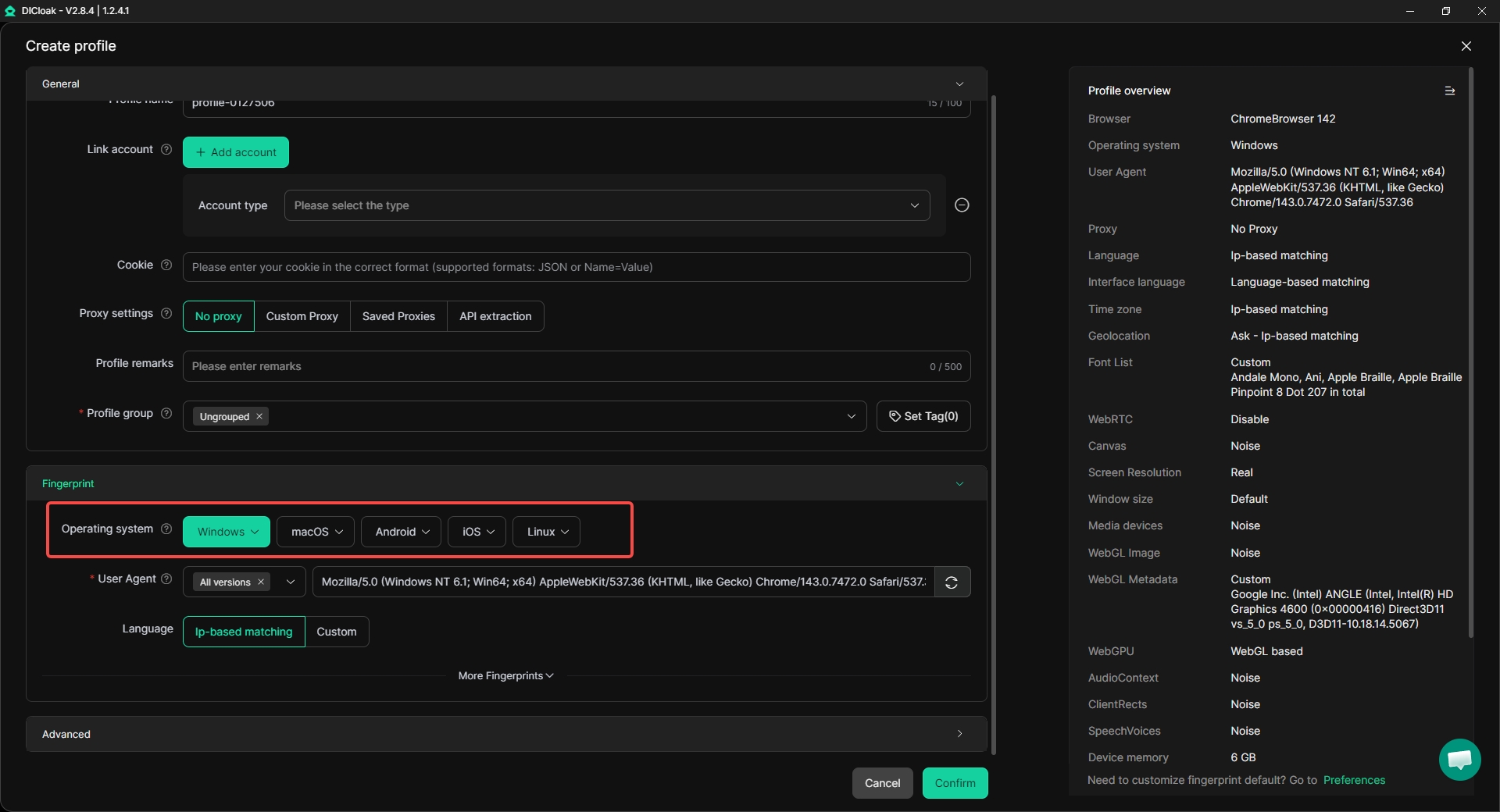
DICloak creates separate browser profiles. Each profile has its own fingerprint environment. When you assign a proxy to each profile, accounts are separated by both network route and device identity.
For example, a team manages Telegram Web accounts for different projects. They use DICloak to open each account in a separate profile and attach a different proxy to each one. If a free proxy for Telegram fails, they replace it in that profile without affecting others.
This approach turns Telegram usage into a structured and controlled process instead of relying on IP changes alone.
From Free Proxy for Telegram to Advanced Account Management with DICloak
When Telegram is used only occasionally, a free proxy for Telegram is often enough to fix basic connection problems. It helps messages load and restores access to restricted or unstable networks.But once Telegram becomes part of daily work or multi-account operations, many users find that proxies alone are not sufficient.
At that stage, users often look for a more structured environment. This is where combining proxies with an antidetect browser like DICloak becomes useful.
One Isolated Environment Instead of Multiple Tools
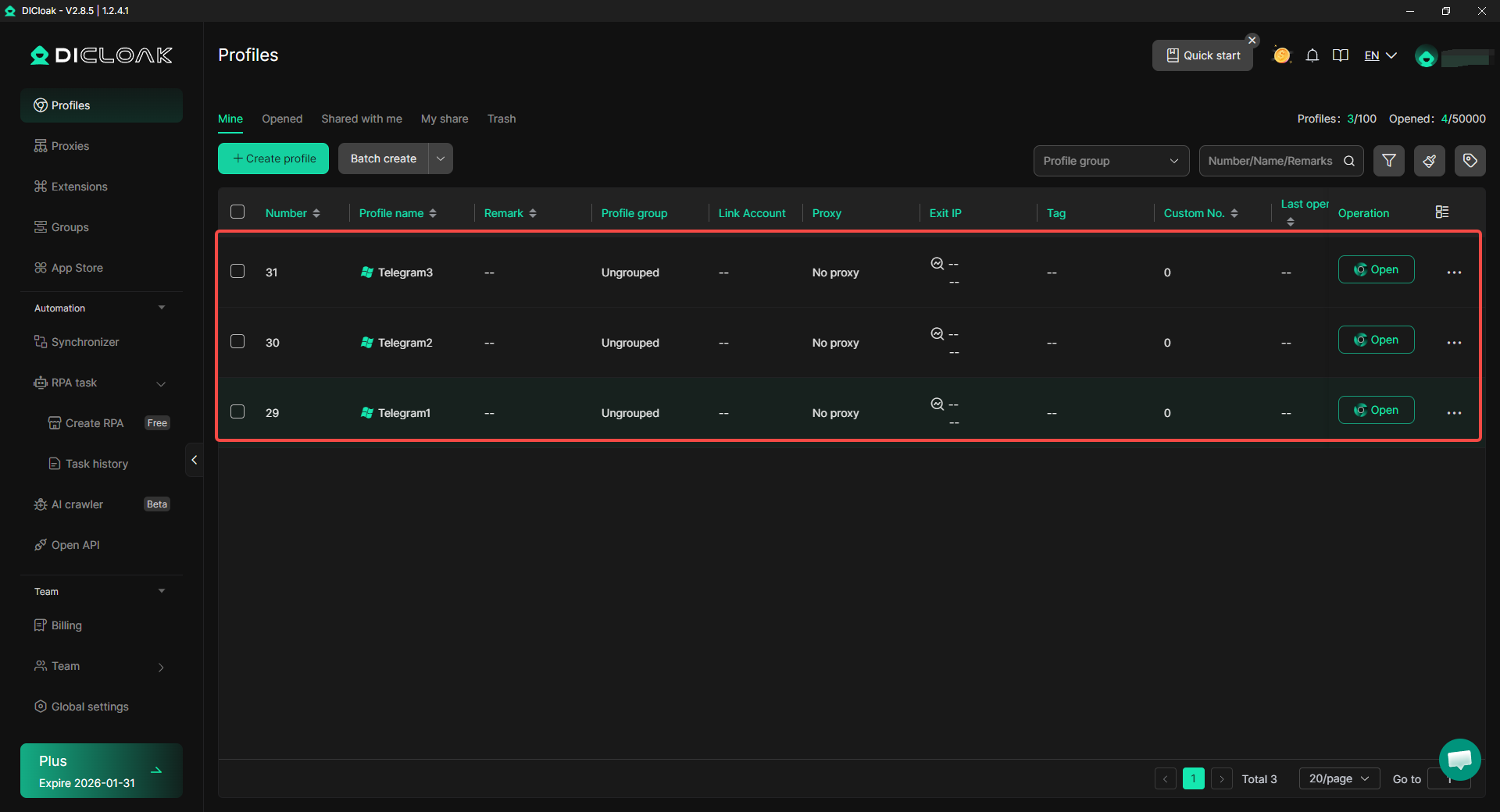
Instead of switching between a normal browser, proxy extensions, and separate local profiles, users can work inside one controlled system. Each Telegram Web account runs in its own isolated browser profile, with its own settings and data.
This reduces setup errors and prevents accounts from sharing the same environment by accident. It is especially helpful for teams managing Telegram channels, support accounts, or affiliate communities from a single device.
Proxy Configuration Matched with Browser Fingerprints
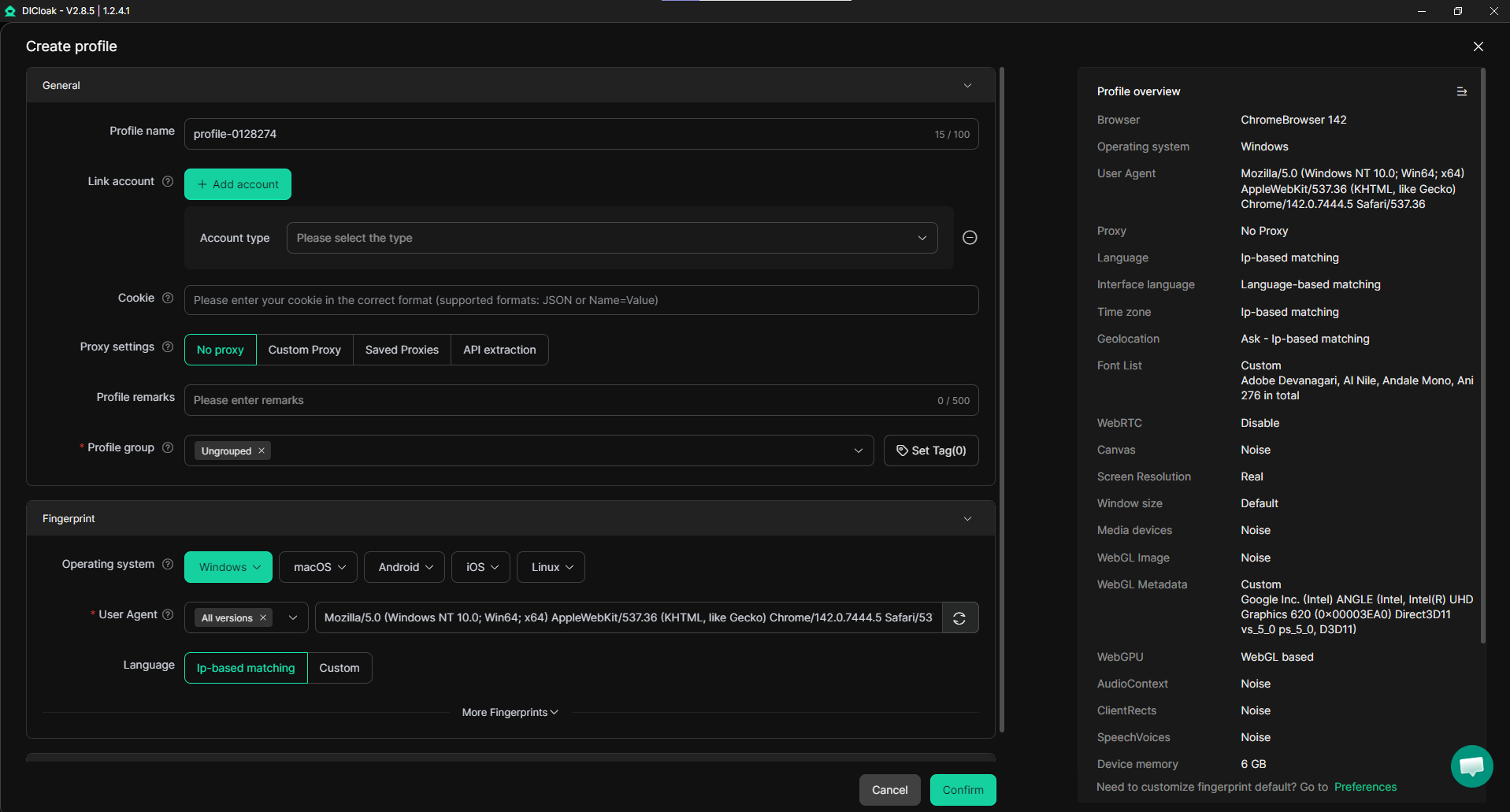
With basic setups, a free proxy for Telegram only changes the IP. The browser profile stays the same. Over time, this can cause mismatches between IP location and device signals.
By assigning a proxy directly to each isolated profile, users keep fingerprints stable and consistent. If a free proxy becomes slow or stops working, it can be replaced in one profile without affecting other Telegram accounts.
This makes network changes easier to manage and reduces cross-account interference.
Support for Different Device Environments
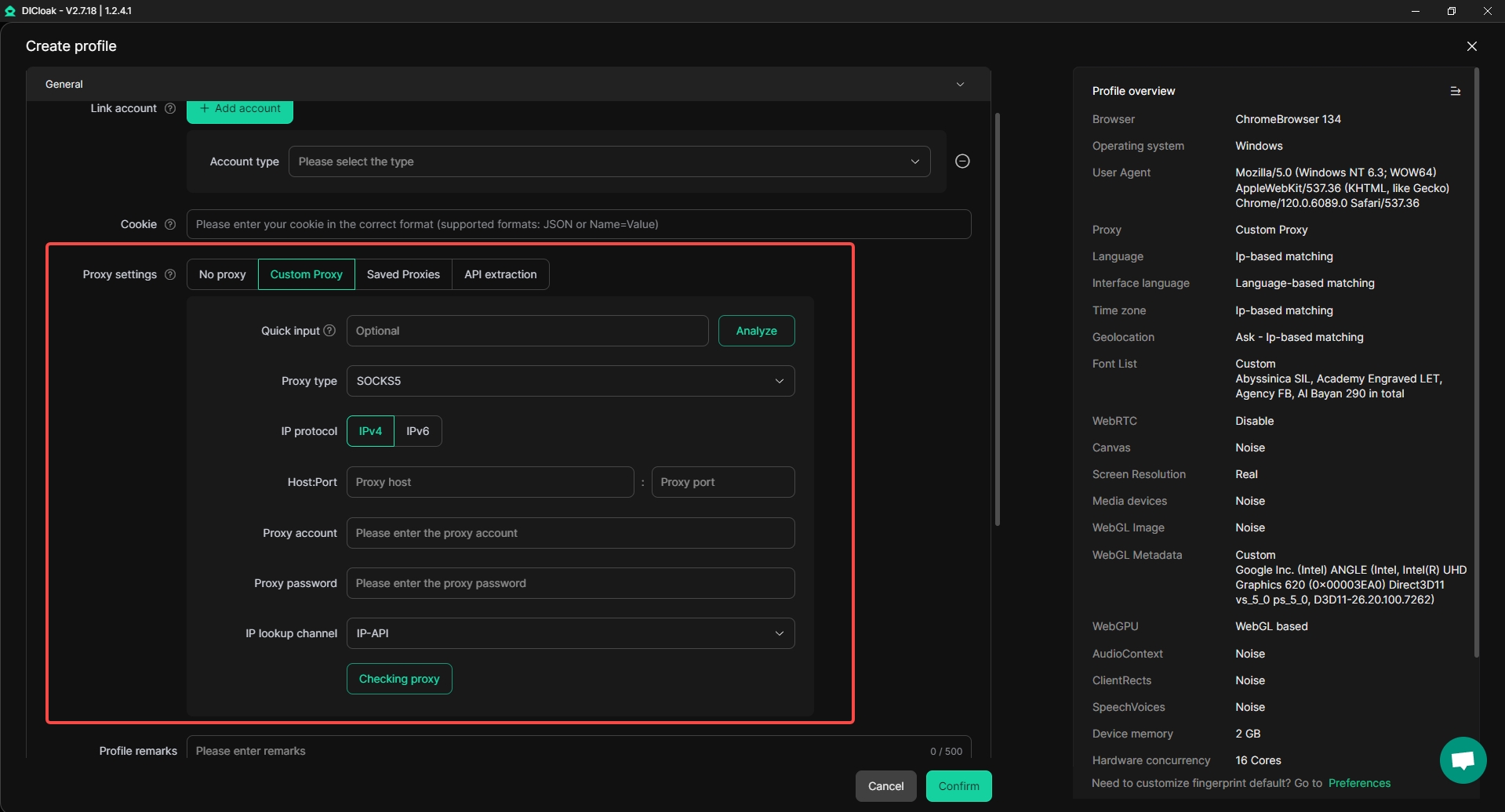
With DICloak, users can choose how each Telegram account appears by selecting different device environments. Telegram sessions can be run in environments that simulate Windows, Mac, iOS, Android, or Linux, depending on what works best for each task.
This helps when Telegram behaves differently across devices or when desktop sessions feel unstable. By combining device environment control with per-profile proxy settings, users can keep Telegram accounts stable and separated—without using multiple physical devices.
Scalable and Organized Daily Work
Managing many Telegram accounts manually is time-consuming. Repeating the same setup steps, logging in and out, and fixing broken connections slows teams down.
Structured profiles, bulk profile creation, and synchronized actions help keep daily work predictable. This matters for users handling multiple Telegram groups, outreach accounts, or operational chats on a regular basis.
Automation and Team Collaboration
When Telegram work involves more than one person, access control becomes important. Instead of sharing passwords or browser sessions, teams can work through shared profiles with clear permission settings and activity logs.
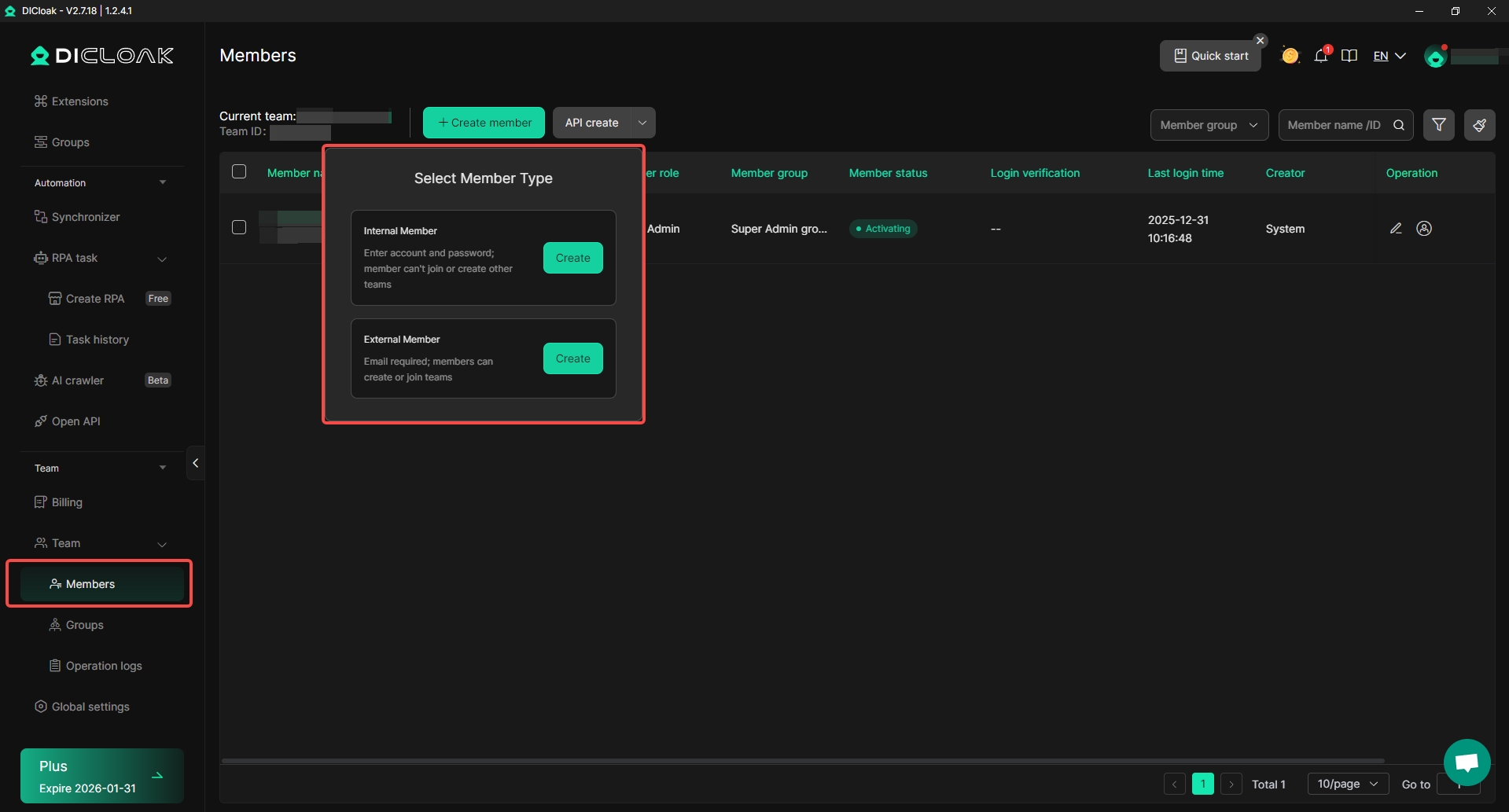
Automation tools like a synchronizer also help reduce repetitive actions, such as opening accounts, checking sessions, or handling routine web tasks linked to Telegram Web. This allows teams to focus more on coordination and content rather than manual clicks.
In practice, a free proxy for Telegram is a good starting point. But for long-term, multi-account, or business-level Telegram usage, combining proxies with a structured antidetect environment helps users work more securely, consistently, and at scale.
Conclusion
A free proxy for Telegram is a practical tool for fixing common connection issues. It helps when Telegram loads slowly, fails to connect, or becomes unstable on certain networks. For short-term needs like travel, public Wi-Fi, or temporary restrictions, a free proxy is often enough to restore access.
This guide explained how free proxies work, how to set them up, and what types are available. It also highlighted their limits. A free proxy for Telegram only changes the network route. It does not hide device information or user behavior, and it may stop working at any time.
For users who rely on Telegram daily or manage multiple accounts, a more structured setup is usually needed. Combining proxies with isolated browser profiles helps keep accounts stable and separated. In this way, a free proxy for Telegram works best as a starting point, while advanced tools support long-term and professional use.
Frequently Asked Questions (FAQs)
Is it safe to use a free proxy for Telegram?
Using a free proxy for Telegram can be safe for basic access issues, such as temporary blocks or unstable Wi-Fi. However, free proxies are usually public and shared. You often do not know who runs them or how long they stay online. For sensitive conversations or long-term use, extra caution is needed.
Why does my free proxy for Telegram stop working after some time?
This happens very often with free proxies. Many users share the same server, so it can become overloaded or blocked quickly. A free proxy for Telegram may work for minutes or hours, then suddenly fail. Keeping backup proxies or switching proxy types can help.
Which is better for Telegram: MTProto or SOCKS5?
Both can work as a free proxy for Telegram, but they serve different needs. MTProto is designed specifically for Telegram and works well for bypassing restrictions. SOCKS5 is more flexible and often more stable for daily use or multiple accounts. The best choice depends on your network and usage.
Can a free proxy for Telegram protect my account from bans?
No. A free proxy for Telegram only changes your network route. It does not hide your device information, browser fingerprint, or user behavior. If Telegram limits or flags accounts due to activity patterns, a proxy alone will not prevent that.
When should I move beyond a free proxy for Telegram?
A free proxy for Telegram is a good short-term solution. If you use Telegram for work, manage multiple accounts, or rely on Telegram every day, you may need a more structured setup. In these cases, combining proxies with isolated browser profiles provides better stability and control.
 Web Proxy Tools
 Free Tools
 Cookie Plugin
 UA Generator
 MAC Address Generator
 IP Generator
 IP Address List
 2FA Code Generator
 World Clock
 Anonymous Check
 WebRTC Leak Test
 UUID Generator
 Free Web Proxy Site
 Proxy Checker
 FB Ad Checker
 AI Web Scraping
 Free SMM Tools
 Twitter Shadowban Checker
 Instagram Name Checker
 UTM Generator
 Username Generator
 AI Hashtag Generator
 LinkedIn Headline Generator
 Social Media Image Resizer