If you searched how to pass Google Gemini restrictions, you are probably dealing with a very normal problem: Gemini suddenly feels limited when your work gets heavier. Google says Gemini Apps has usage limits on prompts, conversations, and some features within a given time period, and those limits can change based on capacity. Google also explains that usage is not counted evenly. Longer and more complex prompts, bigger file uploads, more uploaded files, and longer conversations can use up your available capacity faster.
That is why two people can use Gemini in very different ways and hit the limit at very different times. A short question may use very little capacity, while a long task with files, revisions, and follow-up prompts can use much more. Google also says that when you hit the limit for higher-capacity models like Thinking or Pro, you may still be able to continue the same chat with Fast until your limit refreshes.
So this guide is not about breaking Google’s rules. It is about understanding what is blocking you, using Gemini more efficiently, and reducing the chances of running into limits too early. We will look at the most common types of Gemini restrictions, how to tell which one you are hitting, and what practical steps can help you keep working more smoothly.
What Are Google Gemini Restrictions?
If you are trying to understand how to pass Google Gemini restrictions, the first step is simple: know what the limits actually are. Google does not treat every Gemini user the same way. Your access depends on your plan, the feature you use, and how heavy your requests are. Google also says limits can change over time and may vary based on demand and system capacity.
Free Tier Limits
For lighter access tiers, Google says Pro model access varies and daily limits may change frequently. For advanced features, the clearest published limits are:
- Deep Research: 5 reports per month
- Image generation & editing with Nano Banana 2: up to 20 images per day
- Redo images with Nano Banana Pro: 3 images per day
- Audio Overviews: up to 20 per day
- Slide generation: up to 20 presentations per day
For prompt counts, Google’s chart does not publish one single fixed daily prompt number for the lightest access tier. Instead, it says access varies and limits can change frequently. That is why free users often feel the cap arrive quickly during heavy sessions.
Gemini Pro Plan Limits
For the middle paid tier in Google’s official matrix, Google lists these limits:
- Pro model: up to 100 prompts per day
- Thinking model: up to 300 prompts per day
- Deep Research: 20 reports per day
- Image generation & editing with Nano Banana 2: up to 100 images per day
- Redo images with Nano Banana Pro: up to 200 images per day
- Music generation, 30-second tracks: up to 50 tracks per day
- Music generation, full tracks: up to 20 tracks per day
- Video generation: up to 3 videos per day using Veo 3.1 Fast (preview)
- Scheduled actions: up to 10 active actions at a time
This is a much more workable level for regular professional use, but it is still not unlimited.
Gemini Ultra Plan Limits
For the highest tier, Google publishes the largest caps:
- Pro model: up to 500 prompts per day
- Thinking model: up to 1,500 prompts per day
- Deep Research: 120 reports per day
- Deep Think 3.1: up to 10 prompts per day with a 192k token context window
- Image generation & editing with Nano Banana 2: up to 100 images per day
- Redo images with Nano Banana Pro: up to 1,000 images per day
- Music generation, 30-second tracks: up to 100 tracks per day
- Music generation, full tracks: up to 50 tracks per day
- Video generation: up to 5 videos per day using Veo 3.1 (preview)
This is the closest thing Google offers to high-volume Gemini use, but even here, some advanced features still have hard caps.
Why Prompt Complexity, File Uploads, and Long Chats Use More Quota
Google explicitly says the number of prompts you can use before hitting the limit depends on:
- how long and complex your prompts are,
- the size and number of uploaded files,
- and the length of your conversations.
Google also says you can upload up to 10 files in one prompt, with most files capped at 100 MB each, while each video can be up to 2 GB. For standard access, total video length can be up to 5 minutes and total audio length up to 10 minutes. Pro and Ultra increase total upload length to 1 hour of video and 3 hours of audio. This is why one long research task can use much more quota than several short text questions.
What Gemini Does After You Reach a Limit
Google says that if you hit the limit for Thinking or Pro, you may still be able to continue the same conversation with Fast in the same chat until your higher-capacity model limit resets. Google also says capacity replenishes regularly, so limits are not always permanent for the day. That is important when people search how to pass Google Gemini restrictions: often the issue is not a full block, but a temporary cap on a higher model or specific feature.
Why Google Gemini Usage Limits Matter in 2026
After you understand what the limits are, the next question is why they matter so much in real use. This is where many people start searching how to pass Google Gemini restrictions. The problem is not only that Gemini has limits. The bigger issue is that those limits can affect work in the middle of a task. Google says Gemini Apps may cap prompts, conversations, and some features within a set period, and the number you get can change based on system capacity and how heavy your usage is.
What kinds of Gemini limits do users hit most often?
The most common limits are prompt caps, model caps, and feature caps. Google’s official limits page shows that users can hit separate limits for prompts, Deep Research, image generation, video generation, and other advanced tools depending on their plan. For example, Google lists higher prompt and feature limits for paid plans, while free access is more limited and can change more often.
In simple terms, a user may think Gemini is “blocked,” but the real issue is often narrower. One person may hit a daily prompt limit. Another may still have chat access but lose access to a premium model or a feature like Deep Research or image generation for a while. That is why these limits matter. They do not always stop all work, but they can interrupt the exact part of Gemini you needed most.
Why Gemini can suddenly feel slower or more restricted
Gemini can feel different from one session to the next because usage is not counted evenly. Google says the number of prompts you can use before hitting the limit depends on how long and complex your prompts are, the size and number of files you upload, and the length of your conversations. So a short text question may use very little quota, while one heavy research task can use much more.
Google also says that after you reach the limit for some higher-capacity models, you may still be able to continue the same chat with a faster model until the higher limit refreshes. That means Gemini may not fully stop, but it can suddenly feel less powerful, less detailed, or more limited than it did earlier in the day. For users searching how to pass Google Gemini restrictions, this is an important point: sometimes the tool is still working, but not at the same level.
Who is most affected by Gemini usage limits?
The people most affected are usually heavy users. That includes writers working on long drafts, researchers uploading files, marketers running many prompt variations, and professionals who stay in one long chat for hours. Google’s own explanation of usage counting makes it clear that long prompts, file-heavy tasks, and long conversations use quota faster than short requests.
How to Tell Which Gemini Restriction You Are Hitting
After you understand why Gemini limits matter, the next step is figuring out which limit you actually hit. This is important because not every problem means the same thing. Some limits are about daily usage. Some are tied to one feature. Others come from your account, age, or country settings. If you are searching how to pass Google Gemini restrictions, this part helps you identify the real issue first, so you do not guess blindly.
When You Have Hit a Daily Prompt Limit
A daily prompt limit usually shows up when Gemini suddenly stops giving you access to a higher model, even though the app still works. Google says that if you reach your limit for Thinking or Pro, you can often continue the same chat with Fast until the higher-capacity limit resets. That means the tool is not fully down. It just moved you to a lower-capacity option for a while.
When a Specific Feature Stops Working
Sometimes the problem is not your whole account. It is one feature. Google separates limits by tool, so you can run out of Deep Research, image generation, video generation, or another premium feature even when normal chat still works. In that case, the issue is feature-specific, not a full Gemini shutdown.
When the Problem Comes From Your Account or Location
If Gemini says it is not available in your country, or your account is not eligible for a Google AI plan, the issue may be tied to region, account type, or eligibility, not daily usage. Google’s help pages say some AI plans and features are only available in certain countries, and some features also have age requirements. Google also has support threads showing that account-country mismatches can block access even when users think they should be eligible.
A real-world example is a user who can sign in, but Gemini shows “not supported in your country” or says the account is not eligible for Pro or Ultra. In that case, waiting for a daily reset will not solve the problem. The better step is to check account country, plan availability, and whether you are using a supported personal, work, or school account type.
When You Need to Upgrade Instead of Waiting
Sometimes the answer is simply that your current plan is too small for your workload. Google says Thinking and Pro limits increase with Google AI subscription plans, and its plan management pages explain that upgrading can give you higher limits and priority access to some Gemini features. If you keep hitting the same cap during normal work, that is usually a sign that waiting is not the best fix.
Best Ways to Use Gemini More Efficiently for Daily Work
Once you know which limit you are hitting, the next step is using Gemini in a smarter way. This is the practical side of how to pass Google Gemini restrictions without wasting prompts or running into the same cap too early. Google says usage is affected by prompt length, prompt complexity, file size, number of files, and conversation length. That means better habits can make a real difference in daily work.
Organize chats to avoid wasting usage
One simple habit is to keep chats focused. Google says long conversations can use more quota, especially when prompts become more complex over time. So instead of using one giant chat for many unrelated tasks, it is often better to split work into separate threads. A writing task, a research task, and a file summary task should not always live in the same conversation. That keeps context cleaner and can reduce wasted back-and-forth.
When to use lighter tasks first and advanced tasks later
Not every task needs the heaviest model or the most advanced feature. Google explains that higher-capability models like Pro or Thinking can hit limits, and when that happens, you may still be able to continue with Fast until the limit refreshes. This makes task order important. Lighter jobs such as short rewrites, quick outlines, or simple Q&A are often better earlier in the flow, while deeper research, long analysis, or file-heavy work should be saved for when you are ready to focus on them.
How to plan long work sessions around Gemini limits
If Gemini is part of your daily work, plan around the limits instead of reacting to them after the fact. Google says limits refresh regularly, and it also makes clear that feature caps and prompt caps are separate. So it helps to group similar tasks together and leave space for the heavy ones. If you know you will need Deep Research, file analysis, or long prompt chains later, do not spend the earlier part of the day on avoidable trial-and-error prompts.
What to Do If Google Blocks or Restricts Your Gemini Access
Even if you use Gemini carefully, problems can still happen. A limit can look like a block. A feature can disappear. Or your account can show that it is not eligible for a plan or feature. If you are searching how to pass Google Gemini restrictions, the best next step is not to guess. First, figure out whether the issue is a usage cap, an account warning, or an eligibility problem.
Check whether the issue is a usage cap or account warning
Start with the message you see. If Gemini still opens, but a stronger model or feature is unavailable, that often points to a usage cap. Google says Gemini Apps has prompt and feature limits, and higher-access plans only expand those limits rather than remove them.
A different case is when your account shows that it is not eligible for a Google AI plan or feature. Google support pages and help threads show that this can happen because of country availability, age rules, or account type. For example, some Google AI plans are only available in certain countries, and some features require a personal account rather than a work or school setup.
How to recover access through Google support steps
If the problem looks plan-related, Google says you can manage your Google AI plan directly from Gemini Apps. On Android, Google’s official steps are:
open the Gemini app, tap your profile picture,
open Settings,
tap the available upgrade option.
If the issue looks like account eligibility, check the basics first: whether your country is supported, whether your account meets the age requirement, and whether you are using the right account type.
How to Avoid Repeated Access Problems in the Future
The safest long-term fix is to match your usage to your plan and your account setup. If you often hit limits during normal work, the issue may be your workload, not a technical bug. Google’s limits page makes clear that paid plans give expanded access, but usage caps still exist.
It also helps to keep your account details stable. Use a supported country, the right account type, and a plan that actually fits the way you use Gemini. If your work depends on premium features, check your eligibility before you start relying on them. That will save you from repeated interruptions later. For most people, that is the most practical answer to how to pass Google Gemini restrictions: understand the real cause, use the official recovery path, and reduce the chance of hitting the same problem again
How DICloak Helps Organize Multiple Gemini Workflows
When Gemini becomes part of daily work, the real problem is often not just usage limits. It is workflow confusion. One account may be used for personal writing, another for client work, and another for testing prompts or project research. If all of that happens in one normal browser, sessions can mix together very easily. Tabs pile up, chat history gets messy, and it becomes harder to keep each workflow clear. That is where DICloak can be useful. Instead of treating everything as one browser session, it gives you a cleaner way to separate Gemini work by account, task, or project.
Managing multiple accounts more cleanly with isolated profiles
DICloak is useful here because it is built around isolated browser profiles. That means each Gemini workflow can sit inside its own separate browser profile, instead of sharing the same cookies, cache, and login state with everything else. In practice, this makes it easier to keep one Gemini account for one purpose and another account for a different purpose without mixing them together. For users who manage several workstreams, that can reduce confusion and make daily access feel much more structured.
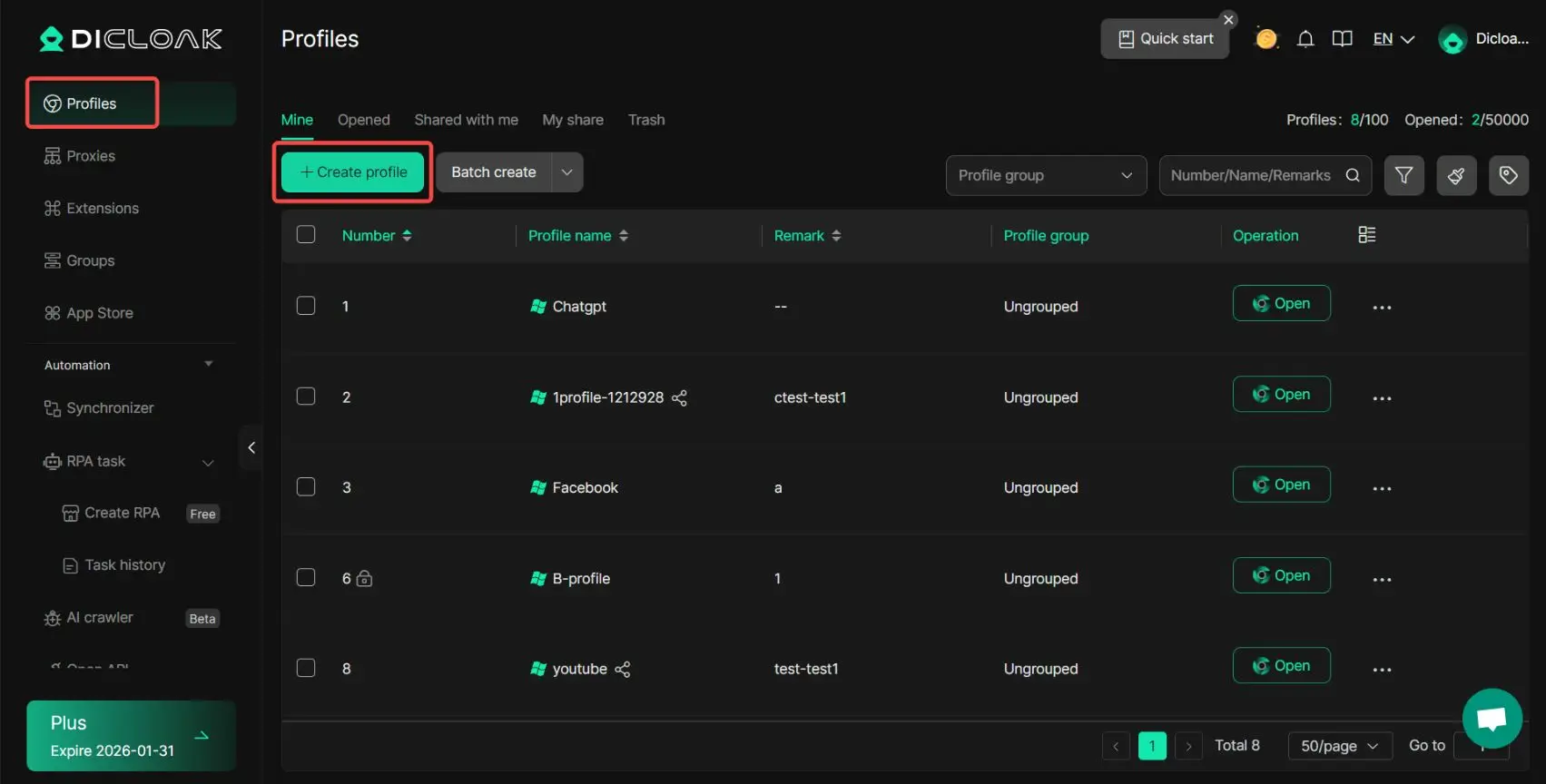
Keeping Gemini sessions organized for team or project use
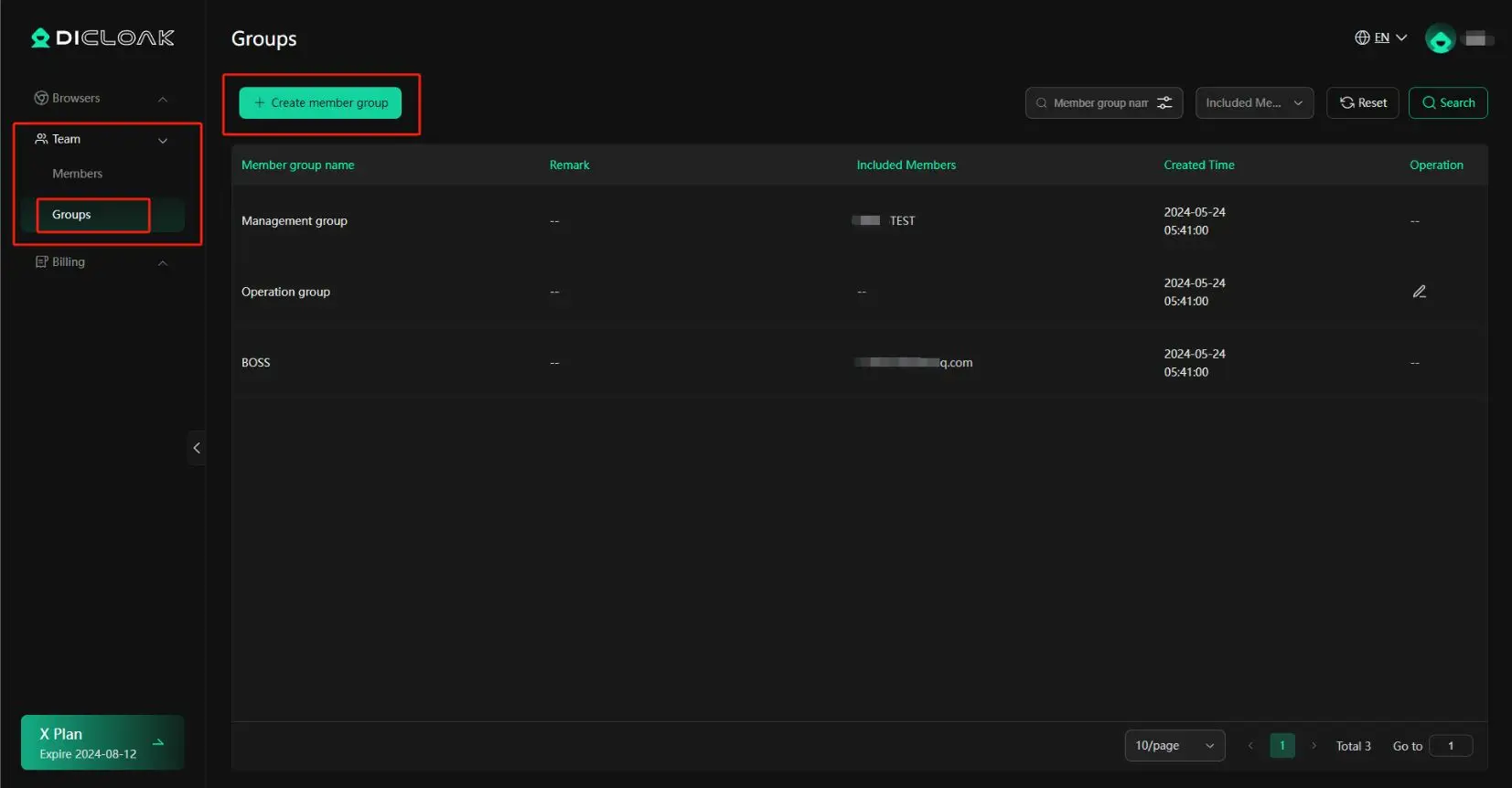
DICloak can also help when Gemini use is tied to a team or to several ongoing projects. Features like profile sharing, permission settings, data isolation, and operation logs make it easier to manage who can access which browser profile and how those environments are used. That is helpful when different team members need separate Gemini workspaces for research, writing, planning, or client tasks. Instead of opening everything in one shared browser, teams can keep project sessions more organized and easier to track over time.
FAQ About How to Pass Google Gemini Restrictions
Q1:What does how to pass Google Gemini restrictions usually mean?
In most cases, how to pass Google Gemini restrictions means understanding why Gemini is limiting your access and using it more efficiently. It usually involves checking plan limits, feature caps, prompt size, and account eligibility.
Q2:Why do people search how to pass Google Gemini restrictions so often?
Many users search how to pass Google Gemini restrictions because Gemini can feel limited during long chats, file-heavy tasks, or advanced feature use. The issue is often not a full block, but a usage cap or plan limit.
Q3:Can how to pass Google Gemini restrictions be solved by upgrading your plan?
Sometimes, yes. If your work regularly hits prompt caps or feature limits, upgrading to a higher Gemini plan can help. But it is still important to manage prompts, files, and long chats carefully.
Q4:Is how to pass Google Gemini restrictions really about using Gemini more efficiently?
Yes. For many users, how to pass Google Gemini restrictions is less about finding a workaround and more about using Gemini in a smarter way. Shorter prompts, cleaner chats, and better planning can help a lot.
Q5:What is the safest answer to how to pass Google Gemini restrictions?
The safest answer to how to pass Google Gemini restrictions is to stay within Google’s rules, understand the type of limit you are hitting, and choose the right plan or workflow for your needs.
Conclusion
In the end, the best answer to how to pass Google Gemini restrictions is not to fight the system, but to understand it better. Gemini limits are tied to your plan, your prompt size, your files, and the way you work. Once you know which limit you are hitting, you can use Gemini more efficiently, choose the right plan, and keep your workflow more organized. That is the safest and most practical way to get better results from Gemini in 2026.
 Web Proxy Tools
 Free Tools
 Cookie Plugin
 UA Generator
 MAC Address Generator
 IP Generator
 IP Address List
 2FA Code Generator
 World Clock
 Anonymous Check
 WebRTC Leak Test
 UUID Generator
 Free Web Proxy Site
 Proxy Checker
 FB Ad Checker
 AI Web Scraping
 Free SMM Tools
 Twitter Shadowban Checker
 Instagram Name Checker
 UTM Generator
 Username Generator
 AI Hashtag Generator
 LinkedIn Headline Generator
 Social Media Image Resizer