Trying to hide your identity from Google is harder than just clearing your browser history or switching to private mode. Even if you turn off your location and delete cookies, Google’s tracking tools can connect your searches, browsing, and logins using browser fingerprints, IP addresses, and cross-device data. The result: your real identity often leaks through tiny technical details you didn’t even know you shared.
That means using “incognito mode” or a simple proxy is rarely enough to avoid Google identification. One mismatched browser setting, an overlooked saved login, or a reused device profile can tie your new session back to your real name or main account. Many users find themselves frustrated, thinking they’ve blocked Google, only to see personalized results or suspicious access warnings pop up anyway.
The practical side is this: to really prevent Google from tracking you, you need more than basic privacy tips. You need to break the links between your device, browser profile, and network identity. This guide covers the methods that actually work in 2026, browser profile isolation, fingerprint changes, proxy configuration, and cookie management. Each step solves a specific leak point, but skipping even one means you risk getting re-identified without realizing it.
Let’s start by breaking down what Google actually tracks under the hood.
Why Google Tracks Your Identity and What It Collects
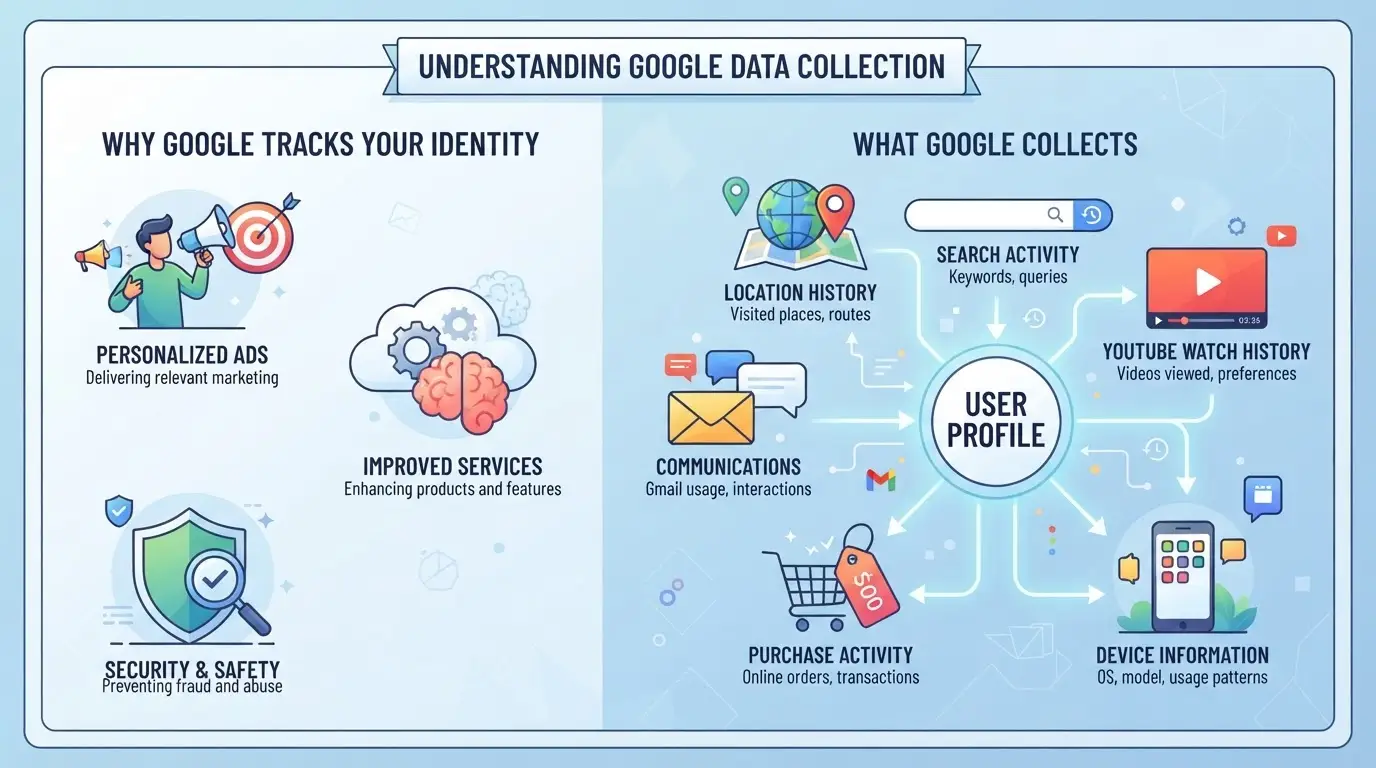
To hide your identity from Google, you first need to know how the company actually tracks people and what information it builds into user profiles. Google’s methods go far beyond just your account login, they use device signals, browser fingerprints, and network activity to tie actions back to a single person or group, even if you think you’re browsing anonymously.
Account-based Identification vs. Device-based Tracking
Google links your activity to your account any time you’re logged in, searches, emails, YouTube views, Maps requests, and more. Even when you browse logged out, Google tags your device with unique cookies and stores those locally. If you later sign in, any past activity from that device is merged into your main profile.
Browser Fingerprinting and Cross-site Tracking
The real challenge comes from browser fingerprinting. Google collects dozens of signals: your screen resolution, installed fonts, browser version, language settings, and even how you move your mouse. This fingerprint is unique enough that, in practice, clearing cookies or using incognito mode won’t fully break the link. If you use the same device setup to access Google services, they can spot the pattern and re-identify you. For example, if you run multiple accounts in Chrome but never change your browser profile or fingerprint, Google’s backend logs will treat each new login as the same person. Even small details, like a rare plugin or uncommon timezone, can make your setup stand out and tie sessions together. If you skip isolating your browser profile or neglect proxy configuration, Google’s cross-site trackers will combine activity from search, ads, and partner sites into one behavioral profile. That’s why users often see tailored suggestions or security prompts, even after trying to wipe their history.
Location, Search, and Activity Data
Google uses location and activity signals to build your profile, whether you’re logged in or not. Three main sources:
- IP address and Wi-Fi: Your network location gives away city and sometimes exact street.
- GPS and device sensors: Mobile devices share precise latitude and longitude.
- Search and activity logs: Every query, ad click, and YouTube view is stored, tied to your device or account.
If you don’t block these data types or change them, Google can reconstruct your identity from scratch, even after you think you’ve hidden your tracks.
The next step is understanding which actions actually expose your identity to Google, and which privacy myths don’t solve the real problem.
What Actually Exposes Your Identity to Google (and Common Myths)
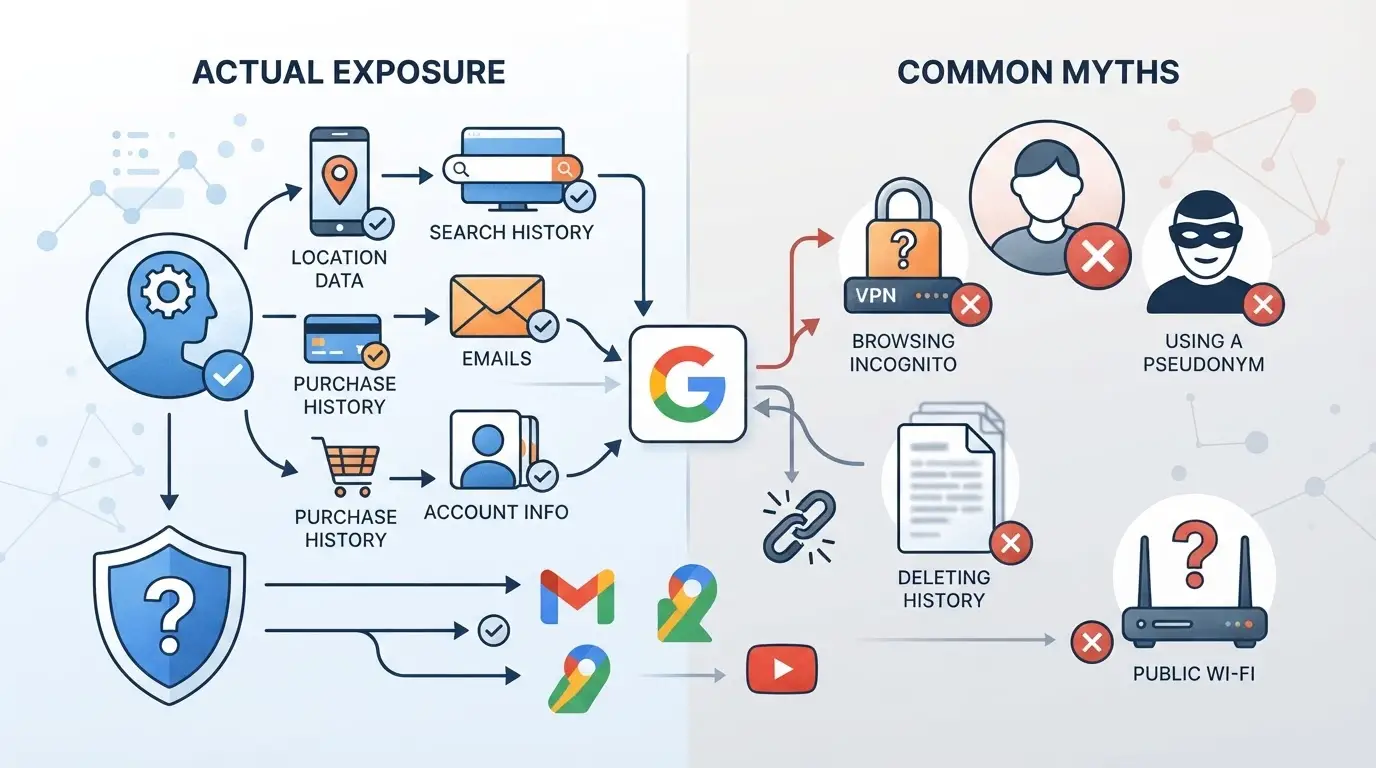
To actually stop Google from tying your activity to your real-world identity, you have to break the links that connect your device, network, and browser history. Most users are surprised to find out that hiding your identity from Google isn’t just about clearing cookies or using private browsing. The real risks come from the way Google tracks IP addresses, device fingerprints, and browser profiles, even when you think you’re invisible.
IP Address, Device IDs, and Real-world Linkage
Google cross-references your IP address and device ID every time you sign in, search, or load a page. Changing your IP alone isn’t enough, if you reuse the same phone, laptop, or Wi-Fi, Google can still link your new activity back to past sessions. Even logging in from a friend’s house doesn’t break this chain if your device fingerprint stays the same.
The Limits of Incognito and Private Browsing
Many people believe Incognito mode or private browsing keeps them anonymous. In reality, these modes only delete local history and cookies after you close the window, they don’t prevent Google from tracking your session in real time. Every search or login sends your device fingerprint and network info straight to Google’s servers, whether you’re in regular or Incognito mode. If you log in to any Google service inside Incognito, your activity is instantly tied to your account, and the session gets flagged as coming from your device. This is why users who switch to Incognito and expect to avoid personalized results often see tailored ads or recommendations anyway. The only real benefit is local privacy, someone else using your computer won’t see your history. But Google’s tracking is server-side, not just browser-side. If you skip isolation steps, expect Google to recognize you regardless of browsing mode.
Misconceptions about Clearing Cookies and Cache
Clearing cookies and cache can help, but it’s barely a speed bump for Google’s identification systems. Here’s what actually happens:
- Clearing cookies resets saved logins, but device fingerprints and IP links persist.
- Cache removal stops local auto-fill, yet Google can still see your previous device and browser version.
- Fingerprinting goes far beyond cookies, screen size, language settings, installed fonts, and even battery status are all tracked and combined to re-identify you.
If you only clear cookies and expect to stay anonymous, you’ll miss dozens of hidden tracking vectors that Google uses behind the scenes.
Blocking Google’s tracking isn’t about surface-level privacy tricks; it’s about breaking every tie between your device, network, and browser session. The next step is building a workflow that covers each leak, browser profile isolation, fingerprint changes, and proxy use, so you can actually prevent Google from connecting the dots.
How to Hide Your Identity from Google: Step-by-Step Workflow for 2026
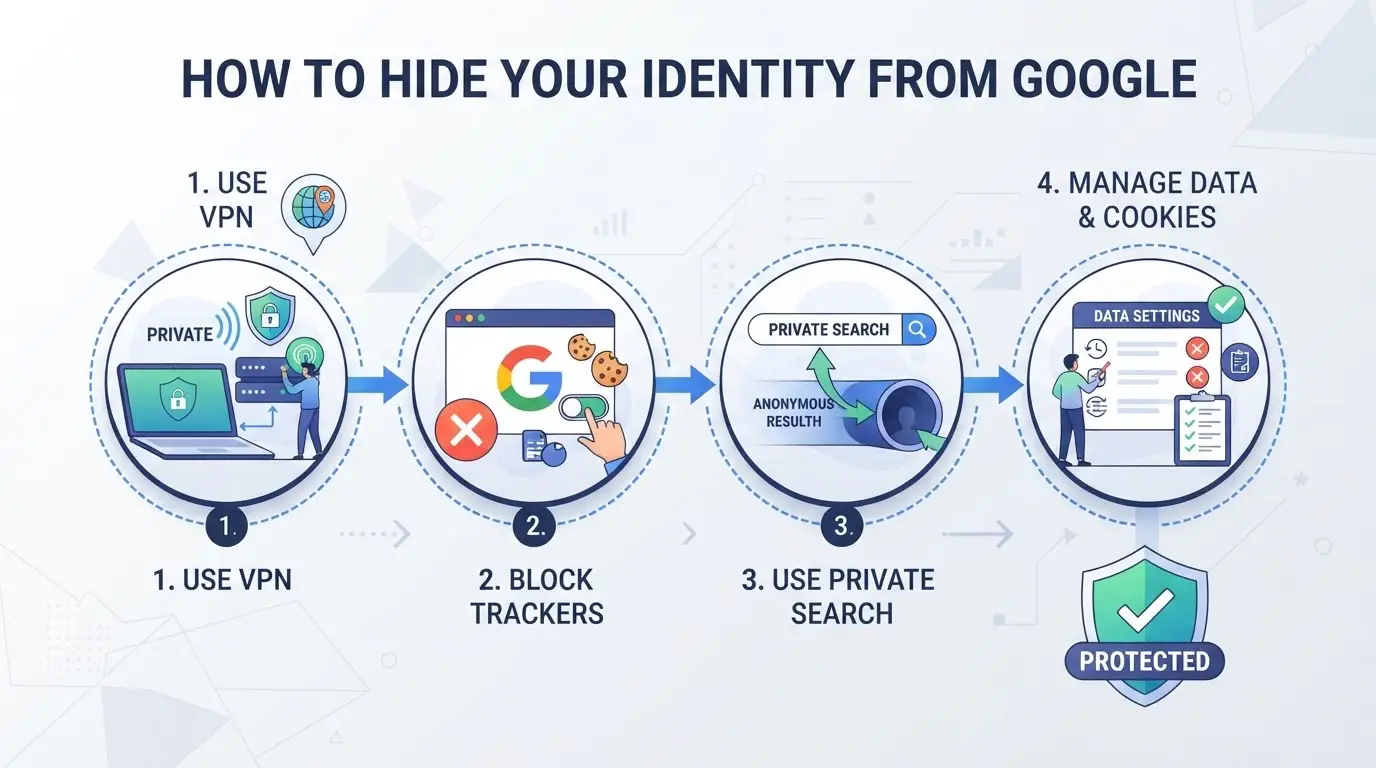
Google’s tracking in 2026 goes far beyond cookies or IP addresses. The real leaks come from browser profiles, device fingerprints, and network exits that stick across sessions. If you want to actually prevent Google from linking your activity, you need to change how your accounts, profiles, and network signals connect. Below is the step-by-step workflow that covers what matters, skip any part, and you risk getting identified anyway.
Step 1: Separate Google Accounts and Browsing Profiles
- Create distinct Google accounts for each activity, work, personal, and anything you want anonymous.
- If you reuse one account across multiple roles, Google will cross-link actions and devices.
- Assign each account to a unique browser profile. Never log into two accounts in the same profile.
- Even if you clear cookies, your device fingerprint can still tie sessions together.
- Never let profiles overlap in saved passwords or autofill entries.
- Shared autofill data is a silent leak, Google will spot the connection.
- Use guest mode for one-off anonymous searches.
- This avoids accidental data carryover.
Step 2: Control Browser Fingerprints and Device Signals
- Randomize your browser fingerprint for each profile. Change user agent, screen size, language, and time zone.
- If you skip this, Google’s device matching will connect your profiles even without cookies.
- Use tools that mask font lists and canvas data. These are common fingerprinting vectors.
- Check extension lists, remove or separate extensions that are unique to you.
- A rare extension ID can uniquely identify your session.
- Reset browser cache and local storage before starting a new identity session.
- Old cache data can quietly bridge your activities.
Step 3: Use Proxy or Network Segmentation (Without VPNs)
- Assign a dedicated proxy to each browser profile. Do not share IPs across profiles.
- Google tracks IP clusters, shared exits lead to cross-account identification.
- Rotate residential proxies for sensitive sessions. Datacenter proxies are flagged more often.
- Avoid using VPNs for this purpose. VPN endpoints are shared by thousands, making your traffic stand out.
- Check for WebRTC leaks, disable WebRTC or use a proxy that blocks it.
- A WebRTC leak can reveal your real IP even behind a proxy.
Step 4: Limit Google’s Access to Location and Activity Data
- Turn off location sharing in both browser and device settings, don’t just rely on app permissions.
- Disable “Web & App Activity” and “Location History” for each Google account.
- If you forget, your activity may be logged and tied together later.
- Review saved places and device history frequently.
- Old location traces can connect your identities across devices.
- Block microphone and camera access in browser permissions.
- These sensors are sometimes used to triangulate device identity.
If you follow each step, you’ll break the main links Google uses to track you. But the real test is consistency. The next section covers what can still go wrong, even with this workflow, so you can spot leaks before Google does.
Risks and Mistakes That Still Reveal Your Identity to Google
Even if you follow every privacy step, a single overlooked detail can tie your browser session back to your real name or main account. Here’s where users slip up, and what to check so you don’t get flagged.
Mixing Identities on the Same Device or Browser
Running multiple Google accounts on the same device without strict profile isolation is a common trap. Even if you clear cookies, Google can spot cross-profile leaks using device fingerprints. The main mistake is forgetting that browser profiles aren’t truly separate unless you use a dedicated setup with unique hardware IDs, fresh browser profiles, and isolated proxy settings.
Reusing Phone Numbers, Emails, or Recovery Info
Google links accounts by matching recovery details. If you reuse a phone number or email, even on a new account, it’s flagged and cross-referenced.
- Always create unique recovery emails for each identity
- Use new phone numbers not tied to any other Google account
- Double-check that backup options aren’t reused across profiles
Accidentally Syncing Data or Logging In
Chrome sync and auto-login can instantly connect your accounts, even if you’re in a new profile. If you see old bookmarks or saved passwords appear, your session is already linked.
- Disable Chrome sync before logging in
- Never import bookmarks or passwords from another profile
- Clear any autofill data before starting a new session
Staying alert to these hidden risks helps you avoid unwanted identification, next, learn how to manage multiple Google identities using browser profiles and proxies.
How to Manage Multiple Google Identities More Safely with Browser Profiles and Proxies
If you’re trying to keep different Google accounts from being linked, especially for social media, marketing, or team workflows, the basic privacy tricks won’t cut it. The real answer is to isolate each Google identity using a separate browser profile and a dedicated network connection, so Google can’t tie your accounts together through device fingerprints or shared IPs. This setup is what actually lets you hide your identity from Google when running multiple accounts.
Creating Isolated Browser Profiles with Custom Fingerprints
Setting up a unique browser profile for each Google identity blocks most cross-account leaks. Each profile acts like its own device: login sessions, cookies, and browsing history never mix. Customizing the fingerprint, like user agent, screen size, and hardware details, means Google can’t spot overlaps across your accounts. For example, a team can run dozens of Google logins on one workstation, each profile locked to its own campaign, without risking a shared device trail. The step that moves the needle is truly separating profiles and fingerprints, otherwise, Google’s detection will catch up eventually. 
Configuring Proxies for Each Profile to Separate Network Identity
Assigning a different proxy to each browser profile stops Google from linking accounts based on network data. Operators choose and test their proxy setup per profile, making sure the IP matches the country or region needed for that account. If you skip this, Google can catch you through repeated IP addresses, even if your browser profiles look unique. The safest workflow is to confirm that the proxy connection works before logging in, otherwise, you risk dropping both accounts into the same detection pool. 
This workflow sets up the foundation for marketers who need to keep Google identities and campaign data completely separate.
How Social Media Marketers Use DICloak to Keep Google Identities and Campaigns Separate
For teams running multiple Google-linked campaigns, keeping each identity truly separate goes beyond changing cookies. If you run ads for clients or manage different social profiles, browser and network overlap can expose hidden links between accounts, even when you try to hide your identity from Google. Here’s how advanced users set up DICloak to maintain separation at scale.
Profile Isolation and Fingerprint Configuration in Social Media Workflows
Operators start by creating a new browser profile in DICloak for each campaign or client. Each profile stores its own session and lets the user adjust the fingerprint, like operating system, time zone, and browser version, so Google sees a distinct environment for every login. This keeps personal and client sessions from crossing signals inside one device. The scope is limited to browser-profile access; it does not change your Google account.
Proxy Configuration for Campaign and Account Segmentation
Next, users set a separate proxy for each browser profile. Before launching a campaign session, operators enter their own proxy details and check the connection right inside the profile settings. This way, each campaign runs from a different network path, making it much harder for Google to link identities by IP or region. DICloak only stores and applies these user-supplied proxy settings.
Comparing Browser Privacy Tools: Built-in Profiles, Extensions, and Antidetect Solutions
If your goal is to hide your identity from Google, the real difference comes down to how well each tool stops Google from linking your browser, device, and IP address together. Standard browser profiles and extensions only block surface-level tracking, serious privacy leaks usually need dedicated tools.
Built-in Browser Profiles vs. Antidetect Browsers
| Feature |
Built-in Profiles (Chrome, Edge, Firefox) |
Antidetect Browsers |
| Isolates cookies and sessions |
Yes |
Yes |
| Changes browser fingerprint |
No |
Yes |
| Built-in proxy support |
Manual/weak |
Advanced per-profile |
| Hides device-level identity |
No |
Yes |
| Multi-account scaling |
Limited |
High |
For most people, built-in profiles keep accounts separate but do not prevent Google from tracking your device or linking your fingerprints, antidetect browsers are designed for a deeper layer of privacy.
Privacy Extensions and Their Limitations
Extensions like uBlock Origin, Ghostery, or Privacy Badger can block trackers and scripts, but they can't spoof your browser fingerprint or fully isolate your device identity. Google can still recognize your session across profiles if your core fingerprint doesn’t change.
Antidetect Browsers for Multi-Account and Team Use
Antidetect browsers create unique browser profiles and make it much harder for Google to connect sessions, even across multiple accounts or team members. You only need this level of protection if you run several Google-linked identities, especially at scale.
Frequently Asked Questions About hide your identity from Google
Can Google still track me if I use incognito mode?
Incognito mode does not hide your activity from Google. It only stops your device from saving your browsing history and cookies. Google can still see your searches, website visits, and sign-ins because their servers track your activity and IP address. Incognito is mainly for privacy from others using your device, not from Google itself.
Is it legal to use proxies or antidetect browsers to hide your identity from Google?
Using proxies or antidetect browsers is legal in most countries, but it depends on how you use them and your local laws. These tools can help you avoid Google identification, but breaking Google’s terms of service or using them for illegal activity can cause problems. Always check your country’s rules and Google’s policies first.
Can I hide my identity from Google without using a VPN?
Yes, you can reduce tracking without a VPN. You can use browser profile isolation, proxies, or fingerprint management tools. These methods help prevent Google from linking your searches and activity across sessions. Disabling cookies and using privacy-focused browsers also make it harder for Google to connect your actions to one profile.
How does Google link my different accounts or sessions?
Google uses several methods to connect your accounts or sessions. These include tracking your device fingerprint, IP address, cookies, and even recovery phone numbers or emails. Even if you use different accounts, Google can often match your activities using these clues to build a more complete user profile.
What is the safest way to manage multiple Google accounts for work and personal use?
Always use separate browser profiles for each account. Make sure each account uses unique contact information and passwords. Turn off data synchronization and avoid logging into both accounts in the same session. This keeps your work and personal information from mixing and helps you stay anonymous on Google.
Deciding on the right privacy tools is the next step toward protecting your online presence from unwanted tracking. Consider adopting a solid solution that shields your personal information while maintaining ease of use. Try DICloak For Free
 Web Proxy Tools
 Free Tools
 Cookie Plugin
 UA Generator
 MAC Address Generator
 IP Generator
 IP Address List
 2FA Code Generator
 World Clock
 Anonymous Check
 WebRTC Leak Test
 UUID Generator
 Free Web Proxy Site
 Proxy Checker
 FB Ad Checker
 AI Web Scraping
 Free SMM Tools
 Twitter Shadowban Checker
 Instagram Name Checker
 UTM Generator
 Username Generator
 AI Hashtag Generator
 LinkedIn Headline Generator
 Social Media Image Resizer