When Google asks you to confirm your identity or gives you a message about the inability to log in, panic begins literally from the first second. Someone forgets their backup address, someone loses access to the phone, and someone faces a freeze due to suspicious activity. In such a situation, restoring a Google account turns into a quest, where standard support templates do not always provide a quick response.
The most common miscalculation is an attempt to endlessly change passwords or fill out the same recovery form, hoping for a different result. In fact, the Google system takes into account past logins, device history, geolocation matches, and even mail activity. If at least one parameter does not match, access may not be returned for weeks.
In real work with gmail recovery, it is important not just to follow the official instructions, but to understand what data really affects approval, what to do if you lose backup channels, and how to properly prepare proof of ownership. Especially if the account is used for work, business, or storing important documents, delay can cost much more than it seems at first glance.
Next, step by step, what to do if the standard path does not work.
Why a Google Account Can Be Banned or Lost: The Main Reasons
Loss of access to a Google account most often happens due to automatic blocks, login errors, or violation of the rules. Do not think that the system reacts only to obvious hacks, even a simple device change or a forgotten password can lead to problems. Here are the most common scenarios.
Suspicious activity and automatic blocks
Logging in from a new device or from another country almost always arouses suspicion in the system. If Google has detected a sudden change in geolocation, mass attempts to log in in a short time, or a change of IP, the account can be blocked instantly. Even if you have changed your phone yourself, there is a chance of temporary blocking, the system does not distinguish you from an intruder by one sign.
Login errors and forgotten passwords
The most trivial reason is an incorrect password. Many people try several times, hoping to guess, but after 4-5 attempts, the system may temporarily restrict access. Another common problem is a forgotten login, especially if several addresses or phone numbers are linked to the account. The memory is lost, the search for old emails or attempts to restore access through backup channels begins. If the number or mail for recovery is no longer available, the process becomes much more complicated. For example, if you have not updated the linked data for a long time, Google may request additional evidence, screenshots of old emails, the last successful login, or even photos of documents. The most common miscalculation is an attempt to restore an account without access to backup mail or phone, which almost always leads to a long wait or rejection.
Account deletion and violation of Google policy
- Violation of platform rules: posting prohibited content, suspicious mass mailing, or attempts to circumvent restrictions will result in blocking without prior warning.
- Self-deletion of the account: if you deleted the account by mistake, you can only restore it for a limited time, usually 20-30 days, after which the data is erased without the possibility of return.
- Using the account for spam or automated actions: mass launch of mailings, linking to suspicious services, or attempts at automated actions often lead to instant blocking.
Understanding these reasons helps to prepare in advance for gmail recovery and avoid standard mistakes that drag out the process for weeks. Next, what should be prepared before trying to regain access.
What You Need to Prepare Before Restoring Your Google Account: Checklist 2026
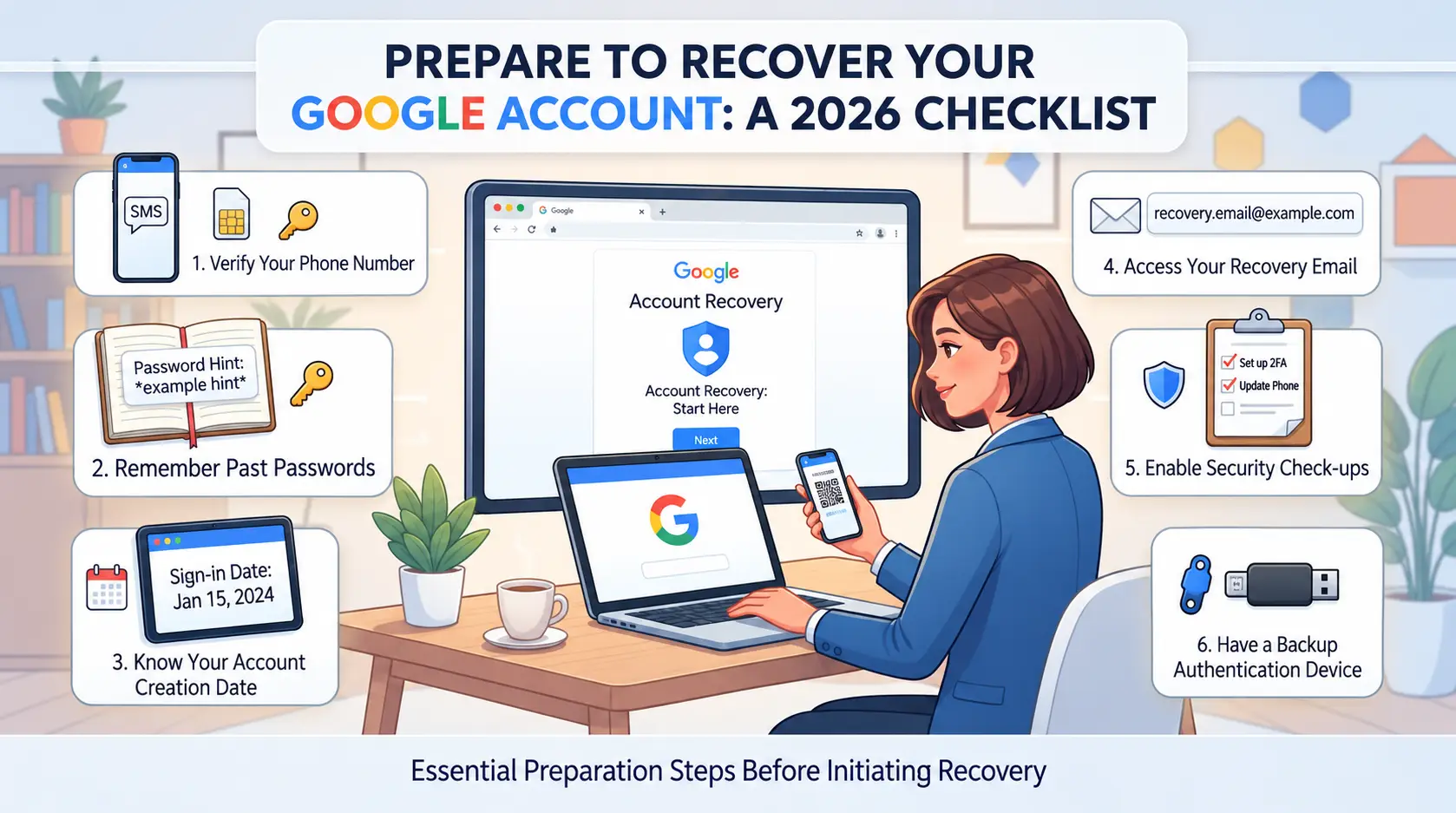
Before starting the recovery, it is important to collect everything that really affects the result in advance. If at least one key access channel is not ready, Google almost always delays the verification or immediately refuses. Here's what you should check in advance.
Access to backup mail and phone number
The fastest way is to get your account back, confirm the backup email or phone number that is already linked to the profile. To do this, you should check in advance:
- both contacts are up-to-date and accessible;
- You haven't lost access to your backup box or SIM card.
- if you don't remember which contacts are linked, go to the "Account Management" section through your browser and look at the list.
Use your familiar device and network
Google often approves restoration if the sign-in is from a device and network that were already in the authorization history. To do this:
- Use the same phone, tablet, or computer as before.
- Connect to home or work Wi-Fi, not a random network.
- Do not change proxies or enable new geolocations at the time of restoration.
Old passwords and answers to security questions
The system often asks for old passwords or security answers to verify your identity. It's easier to remember them if:
- there is access to old devices where autofill was saved;
- you wrote down passwords in a manager or notepad;
- The control questions were standard (for example, place of birth or favorite animal).
Identity verification documents (if required)
Google may request documents if standard methods don't work or if the account is linked to business data. Prepare in advance:
- scans of your passport or driver's license;
- documents confirming your name and email;
- Photo with a document in the background of a device with a recovery form.
The most common failure is an attempt to recover through someone else's device or network. In this case, Google almost always rejects the application.
Let's move on to the step-by-step instructions for recovery, how to regain access and what to do if the system asks for additional confirmations.
Step-by-step instructions for restoring a Google account: how to regain access in 2026
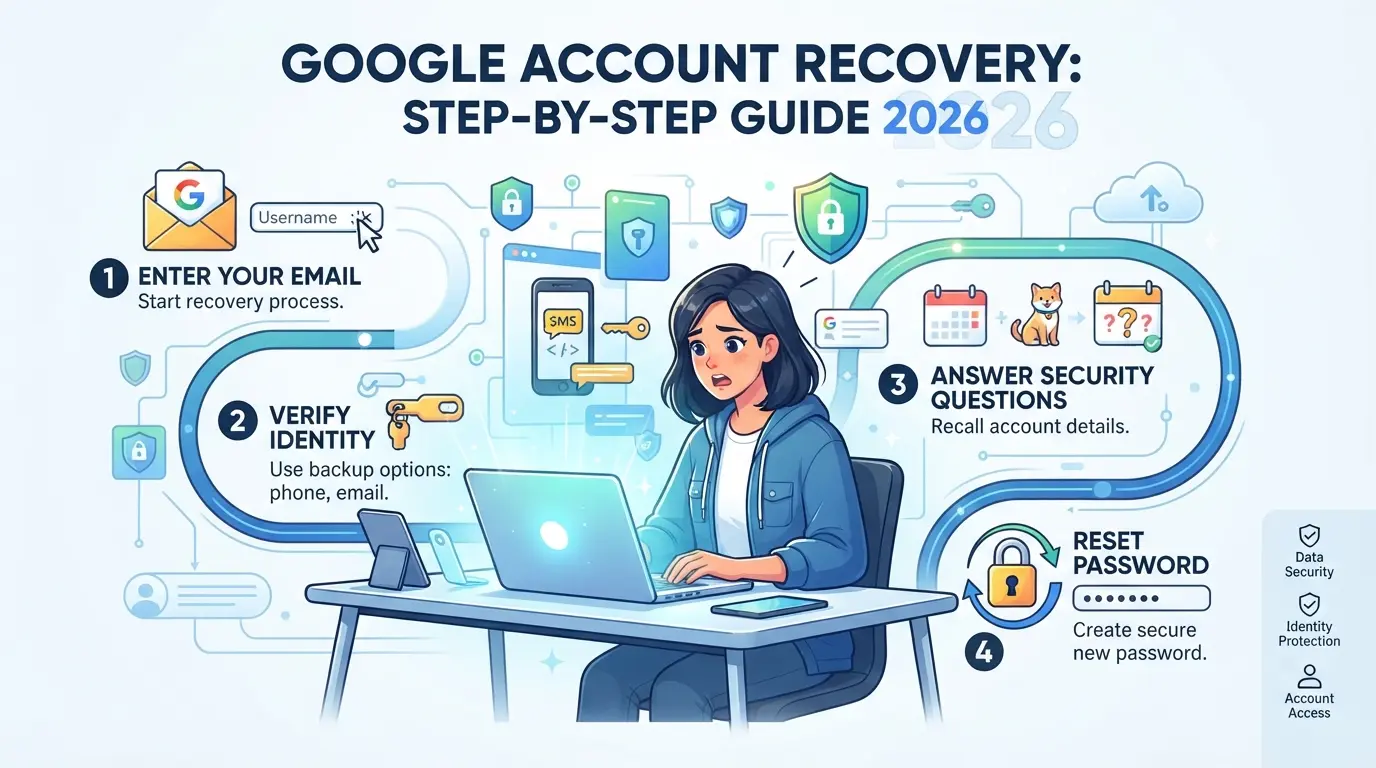
If access to your Google account is lost, you should not just go through the options, the chance of recovery depends on the accuracy of actions and the coincidence of data with the login history. Here's what really works in 2026 to regain control.
Recovery via Google Account Recovery page
- Go to the official recovery page , it is this path that is taken into account by the system as the main one.
- Enter the e-mail or phone number linked to the account. Do not rush to send, if you made a mistake in one letter, the system will not give a hint, but will simply give a refusal.
- Follow the questions in the form: answer as accurately as possible, do not make up dates of creation or passwords at random. Not matching the answers with the real account history reduces the likelihood of success.
Recovery via backup mail and phone
- If you have a backup email linked to your account, check this mailbox, the confirmation code usually comes within a minute.
- If a phone number is indicated, expect an SMS with a code. Sometimes messages are delayed up to 10 minutes; do not request again earlier, otherwise the previous codes may "burn out".
- Enter the received code without spaces, immediately after receiving it. An error when entering more than twice in a row often leads to a temporary block of retry.
Restore without access to backup data
- At the "no access to email/phone" stage, select "I don't have access", the system will offer additional options (for example, old passwords, date of account creation).
- Provide only the information you are sure of. Invented answers reduce the likelihood of recovery.
- If you have access to a previously used device (laptop, phone), try logging in from there, Google takes into account "trusted" devices.
- If you receive a refusal, wait a day, frequent attempts in a row reduce the chances of success.
Recover a deleted Google Account
- If the account was deleted no more than 20 days ago, go to a special recovery page.
- Enter your old login information, even if your account is no longer active.
- Follow the prompts if the system says that the account cannot be restored, has expired, or the data does not match.
- If you try after 20 days, the system will not offer recovery, the chances of a return in this case are minimal.
Next, it is worth analyzing what errors and shortcomings most often prevent you from regaining access.
Common mistakes and problems when recovering a Google account: how to avoid them
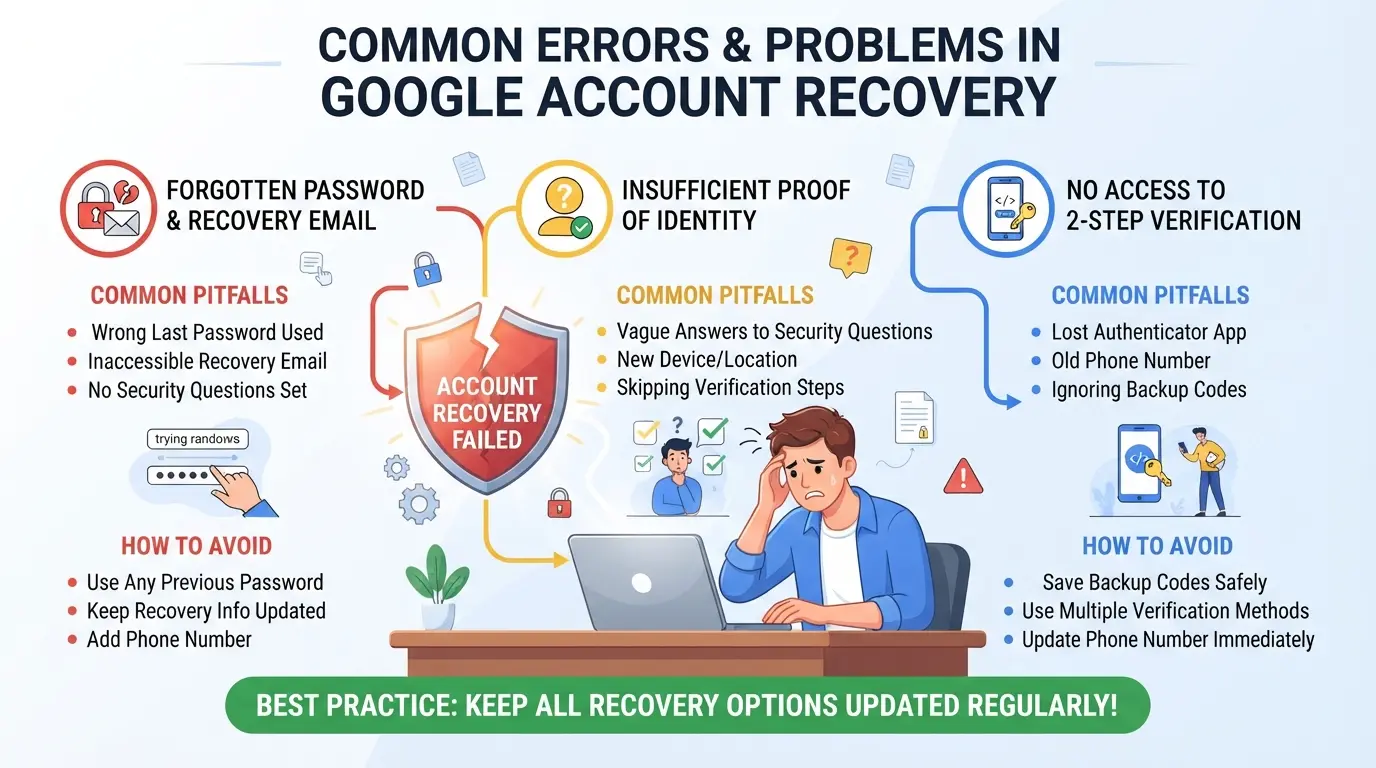
Most problems when recovering a Google Account boil down to incorrect data, the wrong device, or missing evidence. A simple pass can lead to weeks of waiting or loss of access entirely.
Entering incorrect data and outdated passwords
Google checks the exact match between the password and recovery data. If you enter an outdated password or an incorrect creation date, the system almost always rejects the request. It is better to check all possible options in the browser or mail history in advance and not experiment at random.
Logging in from an unfamiliar device or IP address
Recovery from a new device or unknown IP often causes additional checks and blocks.
- If you're signing in from a device that Google doesn't recognize, your account may be subject to lengthy verification.
- It's safer to run the recovery on the same phone or computer where you used to sign in regularly.
Google Request More Evidence
When the standard verification fails, Google usually asks for documents or photos confirming ownership. Do not wait for this moment, prepare scans of your passport and the device itself with an open account in advance to reduce the processing time.
I don't receive a confirmation code on my phone or email
If the code does not arrive, most often the reason is that the linked number is unavailable or the mail is blocked. In such a situation, you can try to add an alternative email in the security settings or ask for recovery through the support form.
How to Manage Multiple Google Accounts Securely: Modern Approaches for SMM and Teams
Working with several Google accounts in one team requires clear rules, otherwise blocking and loss of access are inevitable. Without isolating devices and taking into account login history, even an experienced SMM specialist risks running into mass restrictions.
Risks of mass login and account blocking
Google recognizes similar devices, IPs, and browsers to filter out suspicious activity. One of the most common mistakes is logging into 10+ accounts in a row from the same computer or sharing sessions between colleagues. As a result, the system can mark all accounts as linked and block several at once.
Best practices for teams and SMM specialists
A proven way to reduce risk is to clearly separate work devices and access control. For example, if one account is assigned to a specific employee, all actions have a clear log: you can see who, when, and from which device logged in. If participants confuse devices or pass passwords to each other, even restoring a Google account becomes more difficult in case of suspicion, the system will assume that the account is owned by different people.
Use of separate browser profiles and proxies
To avoid blocking and confusing sessions:
- For each account, a separate browser profile
- For each profile, individual proxy (so that the IPs do not overlap)
- Never log in to two accounts in a row in the same window, even for the sake of quick verification
This approach significantly reduces the risk of mass blocking and facilitates further access recovery if something goes wrong.
How to Set Up Profile and Proxy Isolation to Securely Use Google Accounts in DICloak
When it comes to restoring a Google account or working with multiple profiles for SMM, the standard strategy of using one browser and one network almost always leads to mass blocks. For teams and operators who need to manage dozens of accounts, whether it's restoring gmail after losing access or launching a new advertising campaign, separating workspaces becomes a must. DICloak helps organize the isolation of profiles and network connections so that each account works independently of the others.
Create separate browser profiles and set up unique fingerprints
The most common mistake is running several Google accounts in the same browser profile with the same system settings. This leads to the fact that the Google system can link profiles and block them in a batch. Operators in DICloak create a separate browser profile for each account: you can configure fingerprint, operating system, User Agent, interface language, geolocation, time zone, screen, and fonts. This approach allows each account to work in a completely separate environment, which reduces the risk of matching technical data between profiles. If you don't set up fingerprints individually, Google often sees suspicious similarities and reacts with restrictions even without violating the rules. It is important to remember: DICloak works only at the level of browser profiles and sessions, Google accounts are managed on the user's side.

Setting up individual proxies for each profile
The second common problem is the same IP address for all accounts. Google easily calculates mass activity from a single exit and blocks such profiles. In DICloak, the operator can assign an individual proxy (HTTP/HTTPS/SOCKS5) for each profile, manually enter the data, test the connection, check the IP and the real location. This helps to separate network outputs and reduce the likelihood that several accounts will be linked by IP. The operator is responsible for the selection and quality of proxies, DICloak does not sell or provide proxies by default, but only stores and applies your settings. Checking the connection allows you to make sure that the proxy really works, and the outgoing IP meets the requirements of the workload.

This approach gives the team more control over the working environments, but does not eliminate the risk of losing access, if the standard methods of restoring gmail did not work, it is worth considering alternative options, which will be analyzed further.
What to do if you can't recover your Google Account: alternative solutions and tips
Contact Google Support
If the standard Google Account recovery didn't work, don't waste time trying again, submit a separate support request. Specify the last access, the devices used, and describe the situation in as much detail as possible.
Creating a new account and transferring data
When it was not possible to restore access, it is easier to get a new Google account and try to transfer data. You can save contacts and documents by exporting from related services, if they are available. It is important to immediately check what data is still available and not wait for automatic restoration, the system rarely returns old access without additional evidence.
Tips to prevent similar situations in the future
- Regularly update backup emails and phones
- Store passwords in the manager, not in the browser
- Write down recovery codes separately from the main device
This will reduce the risk of re-blocking and will be able to react faster if access is lost.
Google Account Security Tips: How to Reduce the Risk of Losing Access
Two-factor authentication and backup codes
The most common salvation from losing access is pre-enabled two-factor authentication. Backup codes should be printed and removed from the cloud: a paper copy at home or with a trusted person works more securely than a phone.
Regular password updates and access control
- Change the password at least once every six months, avoid repetitions.
- Check logins through "Security" in Google settings.
- Remove unnecessary trusted devices and applications.
Checking devices and account activity
Periodically go to the "Your devices" section. If you notice unfamiliar activity, immediately change the password and log out on all devices.
- Check the list of devices, get out of the redundant.
- Disable suspicious apps.
- Set up notifications for new logins.
Frequently Asked Questions about Google Account Recovery
Can I recover my Google Account without access to my backup email and phone?
Yes, you can recover your Google Account even without access to your backup email and phone. Google offers alternative methods, such as answering security questions or verifying your identity through previously used devices. However, the chance of successful recovery is lower. For more information, see the section on unusual situations.
How long does it take to recover my Google account?
The process usually takes from a few minutes to a few days. If you can quickly verify your identity, the recovery is faster. In complex cases where additional verification of data or documents is required, Google can drag out the process for up to several days. Follow the instructions on the recovery page.
What should I do if I don't receive a confirmation code on my phone or email?
Make sure that your phone number and email address are correct. Sometimes emails end up in spam or blocked by your carrier. If you don't receive a code, try other ways to regain access to your Google account, such as backup email or device verification. If all else fails, contact Google Support.
How do I recover a deleted Google account?
A deleted Google Account can be restored within 20-30 days after deletion. Go to the gmail recovery page and follow the instructions. If the period has expired, the account cannot be restored. It is important to start the process as early as possible to increase the chance of successful recovery.
Is it safe to use proxies for Google accounts?
Using a proxy is safe if you have set it up correctly and chosen a reliable service. A high-quality proxy protects your data and helps you avoid blocking. For more information on choosing and configuring a proxy, see the section on proxies and profiles.
If you can't regain access to your profile using standard methods, you should consider using additional tools to protect and recover data. Reliable services will help protect personal information and create an additional layer of security for your accounts. Try DICloak for free
 Web Proxy Tools
 Free Tools
 Cookie Plugin
 UA Generator
 MAC Address Generator
 IP Generator
 IP Address List
 2FA Code Generator
 World Clock
 Anonymous Check
 WebRTC Leak Test
 UUID Generator
 Free Web Proxy Site
 Proxy Checker
 FB Ad Checker
 AI Web Scraping
 Free SMM Tools
 Twitter Shadowban Checker
 Instagram Name Checker
 UTM Generator
 Username Generator
 AI Hashtag Generator
 LinkedIn Headline Generator
 Social Media Image Resizer