Finding the right information on X can feel overwhelming. New posts appear every second, and important insights often get buried fast. Many users rely on basic search, but this usually leads to too many results and not enough answers. That is where X advanced search makes a real difference.
With the right search techniques, X becomes more than a social platform. It becomes a powerful source of trends, opinions, and real user feedback. This guide will show you how to use X advanced search step by step, from basic access to advanced techniques. By the end, you will know how to find exactly what you need, even when others struggle or when X advanced search not working seems to get in the way.
Understanding X Advanced Search
X advanced search helps you narrow results step by step, so you can focus on what really matters. Before using advanced techniques, it is important to understand what this tool is and how to access it correctly.
What is X Advanced Search?
X advanced search is a built-in tool that helps you find posts on X with much more control than normal search. Instead of guessing and scrolling, you can narrow results by exact words, accounts, dates, and engagement (like minimum likes or replies).
It enhances the search experience because it turns a broad search into a focused one. Think of it like switching from reading every headline to opening only the article you need. For example, if you want to find posts about a “product launch” from one brand during January 2026, advanced search lets you set the account and date range first. You then see only posts that match those limits.
To see how this works in real life, imagine you are checking customer feedback for a product. You want posts from a company account that mention the word “refund” and include a link. With X advanced search, you can filter by the account name, add the keyword “refund,” and choose to show only posts with links. This saves time and reduces the risk of missing important information.
How to Access X Advanced Search
Step-by-step instructions for desktop
- Log in to X on your computer.
- Enter any keyword in the search bar and press Enter.
- On the results page, look for Search filters on the right side.
- Click Advanced search to open the full search form.
- Add words, accounts, or dates, then click Search.
This method works best on desktop. Most users report fewer issues here when X advanced search not working happens on mobile.
Step-by-step instructions for mobile
On the X mobile app, the advanced search form is not fully available. The best option is to use a mobile browser.
- Open Safari or Chrome on your phone.
- Log in to X in the browser.
- Open the Advanced Search page.
- If the layout looks limited, request the desktop version of the site.
- Set your filters and run the search.
If X advanced search not working on mobile, switching to the desktop site usually fixes the issue. This small change helps you access the full search features without losing accuracy.

Mastering Search Operators and Filters
After learning how to open X advanced search, the real power comes from knowing how to control it. Search operators and filters help you tell X exactly what you want to see. When used together, they turn a large set of posts into clear and useful results. This step is essential for research, customer feedback, and trend tracking.
Overview of Search Operators
Search operators guide how X reads your keywords. They work inside X advanced search and help reduce noise. One common idea comes from Boolean logic.
When you use AND, all words must appear in the post. On X, this often happens by default. For instance, searching for delivery delay returns posts that mention both words together. This helps when you want posts about one clear issue.
With OR, posts can include either word. Searching for refund OR return is useful when users describe the same problem in different ways. You see more complete results without missing key discussions.
To exclude results, NOT is used with a minus sign. If you search for launch -crypto, posts related to crypto are removed. This is helpful when a keyword has more than one meaning.
X also supports direct commands that refine searches even more. Using from:username shows posts sent by one account. Using quotation marks like "payment failed" finds an exact phrase. These tools are widely used by support teams and analysts because they give consistent results inside x advanced search.
Utilizing Filters Effectively
Operators shape meaning. Filters shape context. This is where X advanced search becomes precise.
Word-based filters
The Words section lets you control how keywords appear. You can require all words, match an exact phrase, allow any word, or exclude certain terms. For example, you might search for posts that include “latest update” but exclude politics. This keeps results focused and relevant. You can also target specific hashtags and choose a language, which is useful when the same term appears across different regions.
Account filters
Account filters help you understand conversations around a specific user. You can view posts sent from an account, replies to that account, or posts mentioning it. This is valuable when monitoring brand mentions or checking how users respond to a public announcement.
Filter controls
Filters let you decide what type of posts you want to see. You can include or remove replies, and you can choose to see all posts or only posts with links. For example, if you are researching official updates, showing only posts with links often leads to more reliable sources.
Engagement filters
High engagement often signals important content. The Engagement section lets you set minimum numbers for replies, likes, or reposts. This helps you skip low-impact posts and focus on discussions that people care about. It also reduces workload when searching popular topics.
Date filters
Date filters are useful when timing matters. You can limit results to a specific day, month, or year. This is helpful for incident reviews, campaign analysis, or trend tracking. Instead of reading years of posts, you only see what happened in your chosen timeframe.
If X advanced search is not working as expected, filters are often the cause. A narrow date range or high engagement limit can hide results. Removing one filter at a time usually restores visibility.
When combined, these tools make x advanced search a reliable way to find accurate information. Instead of guessing or scrolling endlessly, you can reach the right posts faster and with more confidence.
Practical Use Cases for X Advanced Search
After mastering operators and filters, the next step is real use. This is where x advanced search becomes a daily work tool, not just a search feature. Many teams use it to track trends, improve service, study competitors, and plan content. These use cases are practical and easy to repeat.
Finding Specific Tweets and Topics
Finding one specific post on X feels impossible. Feeds update fast, and posts sink quickly. X advanced search helps you narrow results until only the right posts remain.
For example, imagine you remember a post about a delivery issue, but not the account name. You still remember the phrase “order delayed.” With advanced search, you can look for that exact phrase, set the date to last week, and remove replies. In most cases, the post appears in seconds.
This also works well for topic tracking. If you want to follow an industry trend, you can search for related hashtags and limit results to recent dates. This helps you stay current instead of reading outdated opinions.
Monitoring Brand Mentions and Competitor Activities
Brand monitoring is one of the most common uses of x advanced search. It helps you see what people say about your brand, even when they do not tag your account.
For example, a support team can search for posts that mention the brand name along with words like “help,” “support,” or “experience.” This shows real feedback from users. Positive posts highlight strengths. Negative posts reveal issues that need quick action.
The same approach works for competitors. You can search posts from competitor accounts and also posts mentioning them. Over time, patterns appear. You may notice repeated complaints or feature requests. If your product already solves those problems, you can highlight this in your marketing.
Conducting Market Research and Sentiment Analysis
Market research starts with listening. X advanced search allows you to listen with structure.
For instance, before launching a new feature, you can search for posts discussing similar tools. By focusing on posts with many replies, you see strong opinions. This helps you understand what users like, what frustrates them, and what they expect next.
Date and language filters add more insight. You can compare sentiment before and after a launch, or between regions. If results look empty and X advanced search not working seems to be the issue, the cause is often a narrow date range or high engagement limit. Expanding one filter usually fixes it.
Generating Content Ideas
Strong content ideas come from real conversations. x advanced search helps you find them without guessing.
A simple method is to search for a topic and focus on posts with high engagement. Posts with many replies often include questions, debates, or confusion. These signals are perfect for blog posts, guides, or videos.
You can also look for repeated questions across many posts. If users keep asking the same thing, that topic deserves clear content. Over time, this approach reduces trial and error and helps you create content that people actually want to read.
Additional Ways Teams Use X Advanced Search
Many brands use X advanced search to track industry trends. By following popular hashtags and recent posts, they stay aligned with what their audience cares about right now.
Others use it to find potential brand ambassadors. Posts with high likes, replies, and reposts often come from users with strong influence. When those users already talk about your brand or industry, they become natural partners.
Campaign tracking is another common use. By searching campaign hashtags and setting engagement thresholds, marketers can see what performs well and what does not. This helps teams invest more in content formats that work and avoid wasting budget.
When used daily, x advanced search becomes more than a search tool. It becomes a way to understand people, markets, and opportunities with clarity. Even when X advanced search not working at first, small adjustments often unlock powerful insights.
Strategies for Effective Use of X Advanced Search
After seeing how x advanced search works in real situations, the next step is using it well every time. Small choices in keywords and filters can change your results a lot. With the right habits, you can search faster, avoid confusion, and get clearer insights from X.
Tips and Best Practices
Be specific with keywords
Clear searches start with clear words. Short and vague terms often bring too many results. More specific phrases work better. For example, instead of searching for delay, you can search for order delayed or shipping delay. This helps x advanced search show posts that match your real goal, not just related noise.
Use hashtags with purpose
Hashtags help group conversations, but too many can hurt your search. Choose one or two strong hashtags that your audience actually uses. For instance, when tracking an industry topic, searching for a main hashtag and limiting results to recent dates often shows active discussions. This is useful for trend tracking and campaign planning.
Save searches for future reference
Many teams repeat the same searches every week. Saving a search helps you return to it without starting over. For example, a support team may save a search that tracks brand mentions with words like help or support. This makes daily checks faster and more consistent.
Common Mistakes to Avoid
Using too many filters at once
One common mistake is adding many filters too quickly. This can hide useful posts. If results look empty and X advanced search not working seems to be the problem, remove one filter at a time. Results often return right away.
Relying on broad keywords
Broad keywords can bring unrelated posts. This makes review slow and tiring. Narrowing keywords early saves time and reduces mistakes.
Ignoring time and context
Old posts can distort your understanding. Always check the date range when searching for feedback or trends. A problem from last year may no longer matter today.
Expecting perfect results on the first try
Advanced search works best with small adjustments. Many professionals test different word choices before finding the best setup. This is normal. Each search improves your next one.
When used with care, x advanced search becomes a reliable habit, not a trial-and-error task. Even when X advanced search not working at first, simple fixes and clear strategies usually lead to better results and stronger decisions.
Making X Advanced Search More Effective with DICloak
As you use X advanced search more often, one challenge becomes clear. Managing searches across multiple accounts can get messy. Logging in and out takes time. Accounts can mix signals. This can affect accuracy, especially when tracking trends, brand mentions, or competitors at scale.
In these cases, an antidetect browser like DICloak is often used to support advanced search workflows. Instead of running all searches in one browser session, each X account can work inside its own isolated profile. This setup brings several clear benefits when using X advanced search:
- Isolated browsing profiles: Each X account runs in a separate browser profile. Cookies, fingerprints, and login sessions stay independent. This keeps search behavior clean and avoids cross-account interference when running repeated advanced searches.
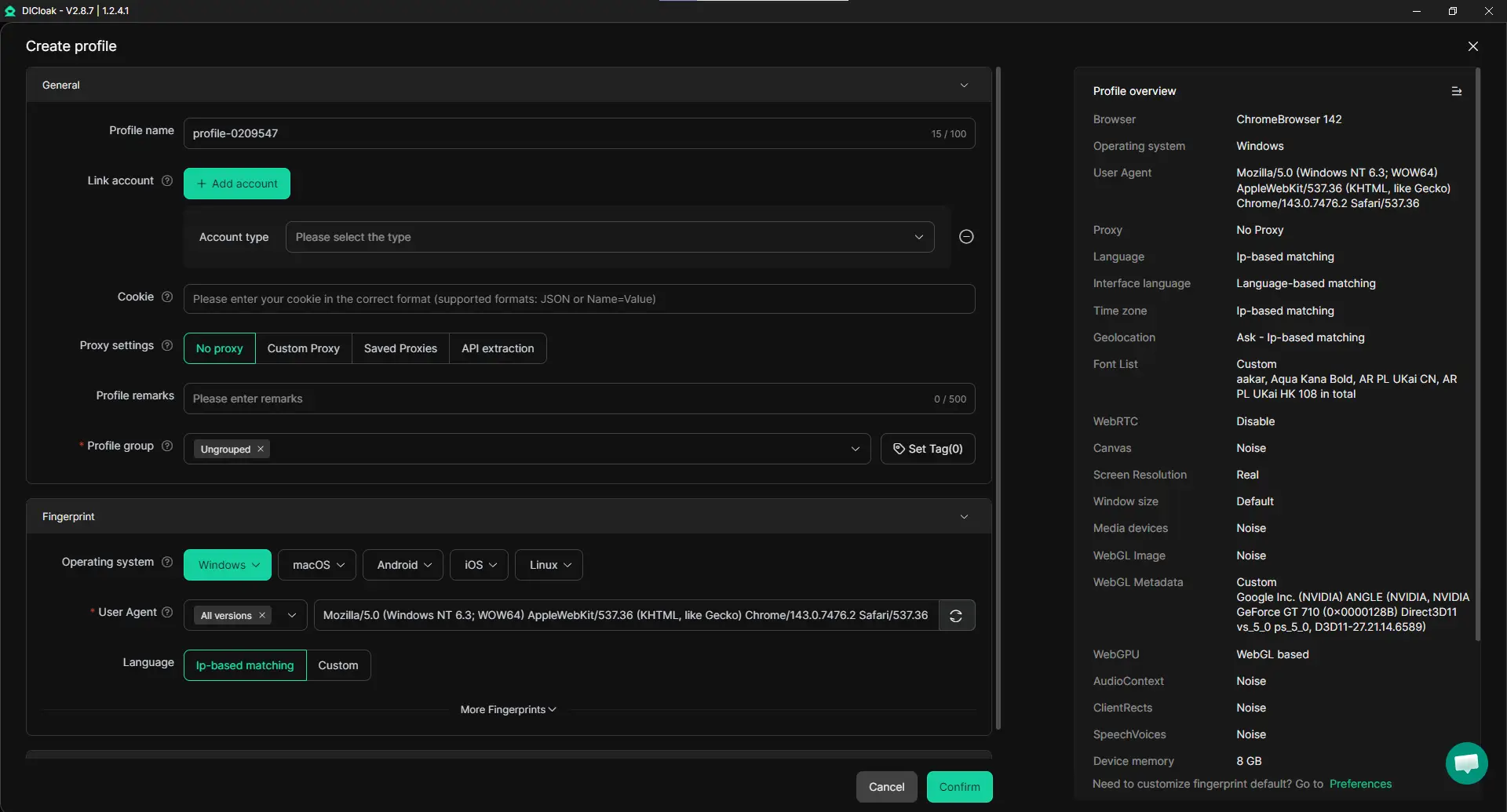
- Custom proxy configuration: User-defined proxy settings (HTTP, HTTPS, or SOCKS5) allow each profile to match a specific region. This is useful when using X advanced search to monitor local trends, regional campaigns, or country-specific sentiment. Search results reflect the correct location instead of a mixed network context.
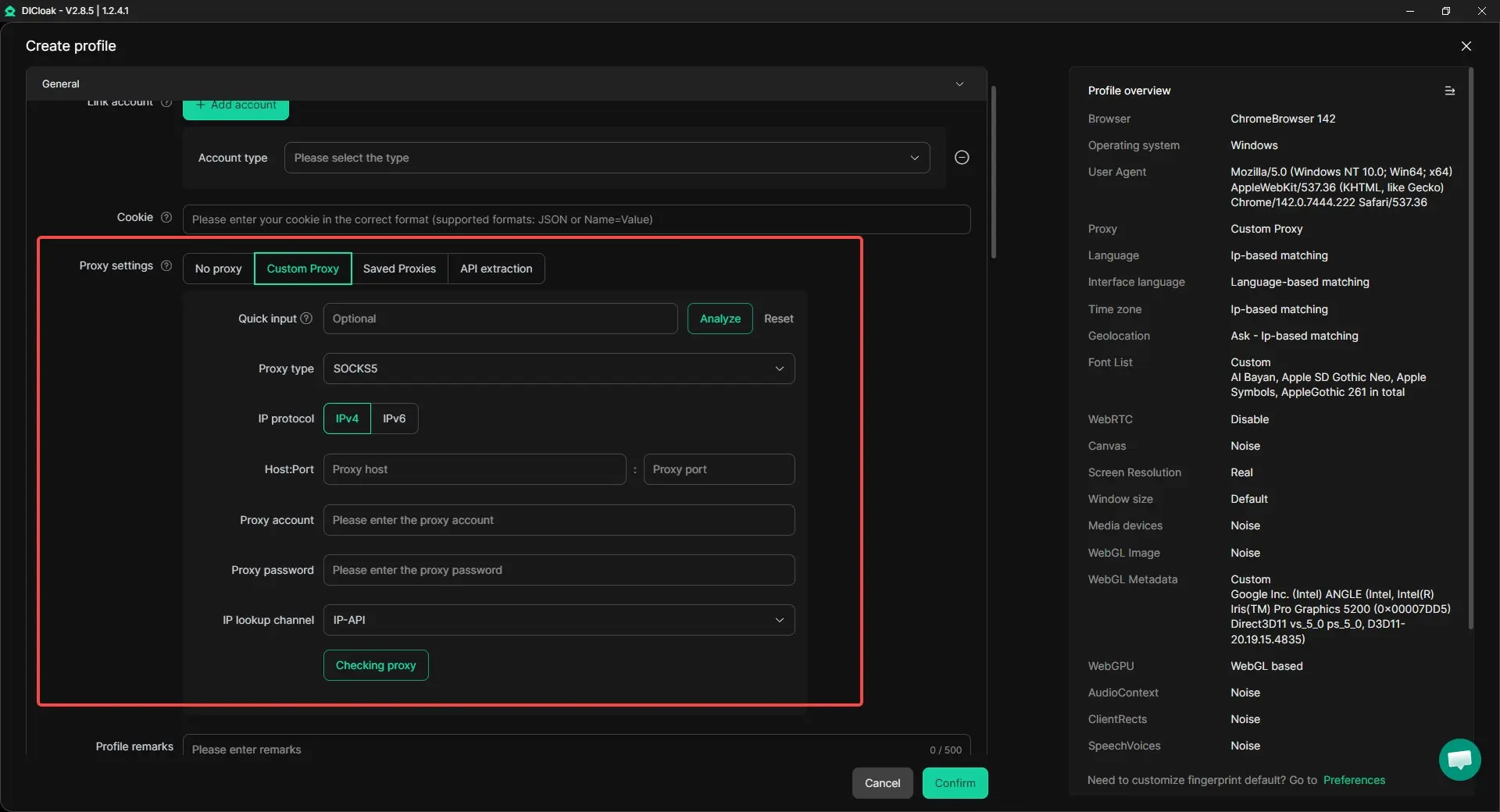
- Synchronizer for multi-account research: Multiple browser windows can open at the same time and perform the same actions together. Teams can run identical advanced search queries across several X accounts, compare results side by side, and spot differences faster. This works well for competitor monitoring and campaign hashtag tracking.
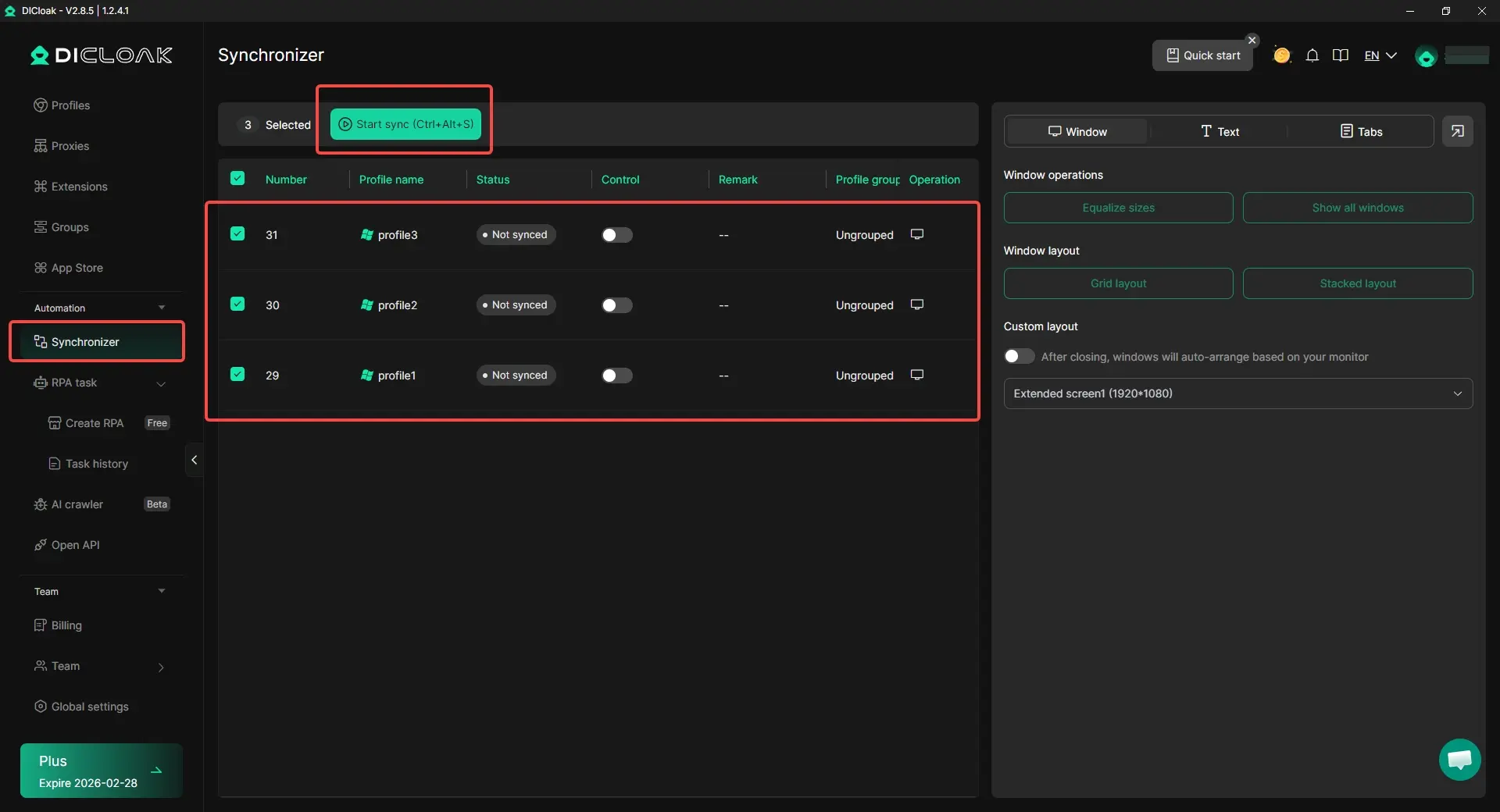
When X advanced search not working as expected, the issue is often tied to account state, session conflicts, or network inconsistency. Using isolated profiles with controlled proxy settings reduces these risks and keeps searches stable.
In practice, this setup allows users to:
- Run advanced searches across many X accounts without repeated logins
- Track trends and brand mentions by region with consistent results
- Compare search insights across accounts in real time
- Scale research and monitoring workflows with less manual effort
Combined with the techniques covered in this guide, an isolated browser setup helps turn X advanced search into a reliable system for research, monitoring, and decision-making—especially for users managing multiple accounts or complex search tasks.
Conclusion
X advanced search helps users find accurate information on X without wasting time scrolling through endless posts. By using filters such as keywords, accounts, dates, and engagement, it becomes easier to locate specific posts, track trends, and understand real conversations. Learning how to access and control these tools turns basic searching into focused research.
When used correctly, X advanced search supports brand monitoring, market research, competitor analysis, and content planning. Simple strategies like choosing clear keywords and adjusting filters improve results. Even when X advanced search not working occurs, small changes often fix the issue. Overall, X advanced search is a reliable way to gain clear insights and make better decisions on X.
FAQs About X Advanced Search
What is X advanced search and how is it different from normal search?
X advanced search is a built-in tool that helps you find posts on X with more control. Unlike normal search, it lets you filter results by exact words, accounts, dates, engagement, and more. This makes it easier to find specific posts instead of scrolling through hundreds of results.
Why is X advanced search not working on my device?
When X advanced search not working happens, the most common reason is the platform or setup. The advanced search form works best on desktop browsers. On mobile phones, the X app does not fully support it. Using a mobile browser and switching to the desktop view usually fixes the problem. Narrow filters can also hide results, so try removing one filter at a time.
Can I use X advanced search without logging in?
No. You must be logged into an X account to access X advanced search. The advanced search page and its filters are only available to logged-in users. If you are logged out, the page may not load or show limited options.
How accurate are the results from X advanced search?
Results from X advanced search are generally accurate when filters are used correctly. Exact phrases, account filters, and date ranges improve precision. However, some posts may not appear due to privacy settings, account restrictions, or visibility rules. Adjusting filters usually improves result quality.
Is X advanced search useful for professional research and marketing?
Yes. X advanced search is widely used for brand monitoring, competitor analysis, market research, and content planning. It helps teams track trends, analyze engagement, and understand user sentiment. When combined with good search practices, it becomes a reliable research tool instead of a basic search feature.
 Web Proxy Tools
 Free Tools
 Cookie Plugin
 UA Generator
 MAC Address Generator
 IP Generator
 IP Address List
 2FA Code Generator
 World Clock
 Anonymous Check
 WebRTC Leak Test
 UUID Generator
 Free Web Proxy Site
 Proxy Checker
 FB Ad Checker
 AI Web Scraping
 Free SMM Tools
 Twitter Shadowban Checker
 Instagram Name Checker
 UTM Generator
 Username Generator
 AI Hashtag Generator
 LinkedIn Headline Generator
 Social Media Image Resizer