Twitter is more than a place to read short posts. For many people, it is a daily tool for news, work, and communication. The way Twitter feels often depends on the browser you use. A slow or unstable browser can break the experience. The right browser can make Twitter faster, clearer, and easier to use.
Importance of Choosing the Right Browser for Twitter
Choosing the right browser for Twitter can change how smooth and stable your daily use feels. Twitter is a fast-moving platform with images, videos, and live updates. Not every browser handles this well. A good browser helps tweets load faster, videos play smoothly, and pages respond without delay.
For example, many users notice slow scrolling or frozen pages when their browser uses too much memory or runs heavy extensions. When they switch to a more suitable browser for Twitter, timelines load faster and actions like liking or replying feel instant. This small change can save time and reduce stress, especially if you use Twitter for work or long sessions.
Security also matters. Modern browsers update often and work better with Twitter’s web features. Using an updated browser for Twitter lowers the risk of login errors, display bugs, or sudden crashes.
How to Choose the Best Browser for Twitter
Now that we know why the right browser matters, the next step is knowing how to choose a browser for Twitter. Not all browsers fit the same needs. Some focus on speed. Others focus on privacy or comfort. The points below explain what really matters when picking the best browser for Twitter.
Performance and Speed
Performance is the first thing most people notice. Twitter loads images, videos, and live updates all the time. A slow browser can cause lag, broken images, or delayed replies. A strong browser for Twitter should scroll smoothly and load tweets fast, even during long sessions.
For example, if you follow many accounts or open long threads, a high-performance browser keeps everything responsive. You can scroll, like, and reply without waiting. This is especially important for users who stay on Twitter for hours each day.
Privacy Protection
Privacy is another key factor when choosing a browser for Twitter. Twitter collects data to personalize content and ads. Some browsers offer better privacy controls, such as blocking trackers or limiting background scripts.
If you care about privacy, a browser for Twitter with built-in protection can reduce unwanted tracking. This can also improve loading speed, since fewer background tasks are running while you browse your timeline.
Functionality and Features
Functionality means how well the browser supports the tools you use on Twitter. This includes tabs, extensions, and media support. A good browser for Twitter should handle video playback, notifications, and multi-tab use without issues.
For example, creators and marketers often open several Twitter tabs at once. They may watch videos, read replies, and write posts at the same time. A functional browser makes this easy and keeps everything stable.
User Experience
User experience is about how the browser feels in daily use. This includes layout, tab management, and ease of use. A clean interface helps you focus on tweets instead of buttons and menus.
A comfortable browser for Twitter feels natural after a few minutes. You know where things are. Pages respond quickly. Over time, this makes Twitter more enjoyable and less tiring to use.
By understanding these criteria, it becomes much easier to choose the right browser for Twitter. In the next section, we will look at specific browsers and how they perform in real Twitter use cases.
Top Browsers for Twitter
Using the criteria above, we can now look at browsers that perform well in real Twitter use. Each option below fits a different habit. There is no single perfect choice. The best browser for Twitter depends on how you browse, post, or manage accounts.
Arc Browser
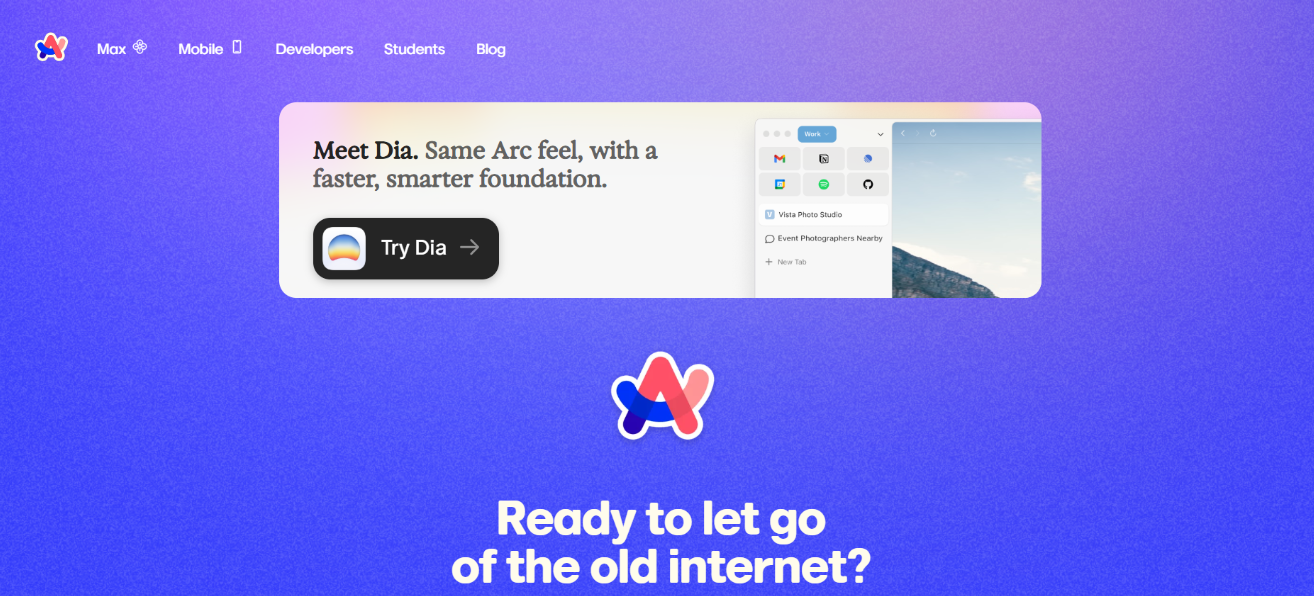
Arc focuses on clarity and focus. It replaces crowded tabs with a vertical layout. This makes long Twitter sessions easier to manage.
For Twitter users, Arc is helpful when you track many things at once. You can keep your main feed in one space. Analytics or drafts can stay in another. Arc also lets users adjust how pages look. Some people simplify Twitter’s layout to reduce noise and stay focused on threads.
As a browser for Twitter, Arc feels fast and light during research or content planning. It works best for creators, writers, and heavy readers who value a clean workspace.
Carbon Browser
Carbon Browser is built for users who care about privacy and low exposure. It allows people to view public Twitter content with fewer background trackers running.
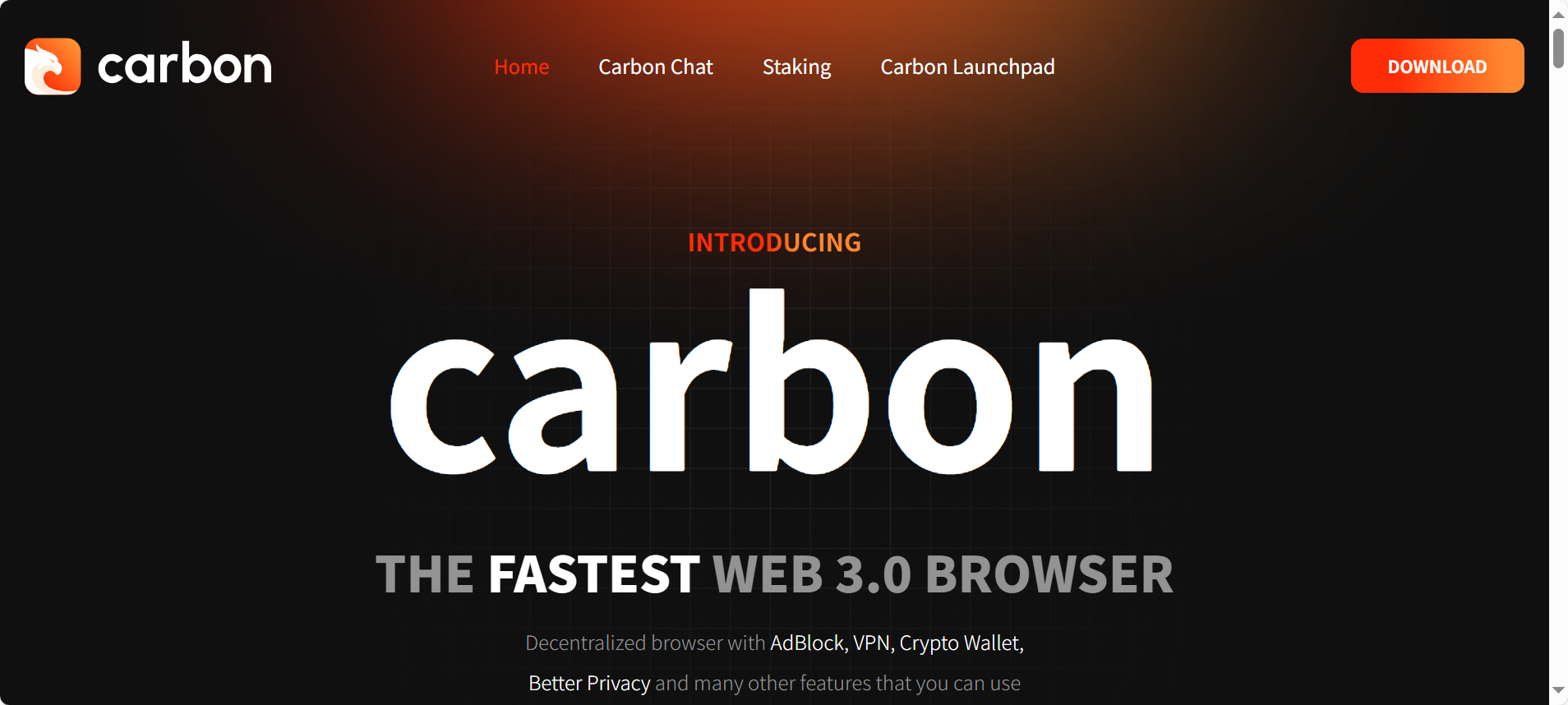
When browsing Twitter, Carbon feels simple and direct. Tweets load quickly because fewer scripts are active. This makes it useful for users who mainly read timelines, trends, or public profiles.
Carbon is a good browser for Twitter if you prefer quiet browsing and minimal data sharing. It is less suited for advanced posting or managing many accounts.
Comodo IceDragon
Comodo IceDragon is based on a well-known browser engine but adds extra security layers. It focuses on protecting users from unsafe links and harmful content.
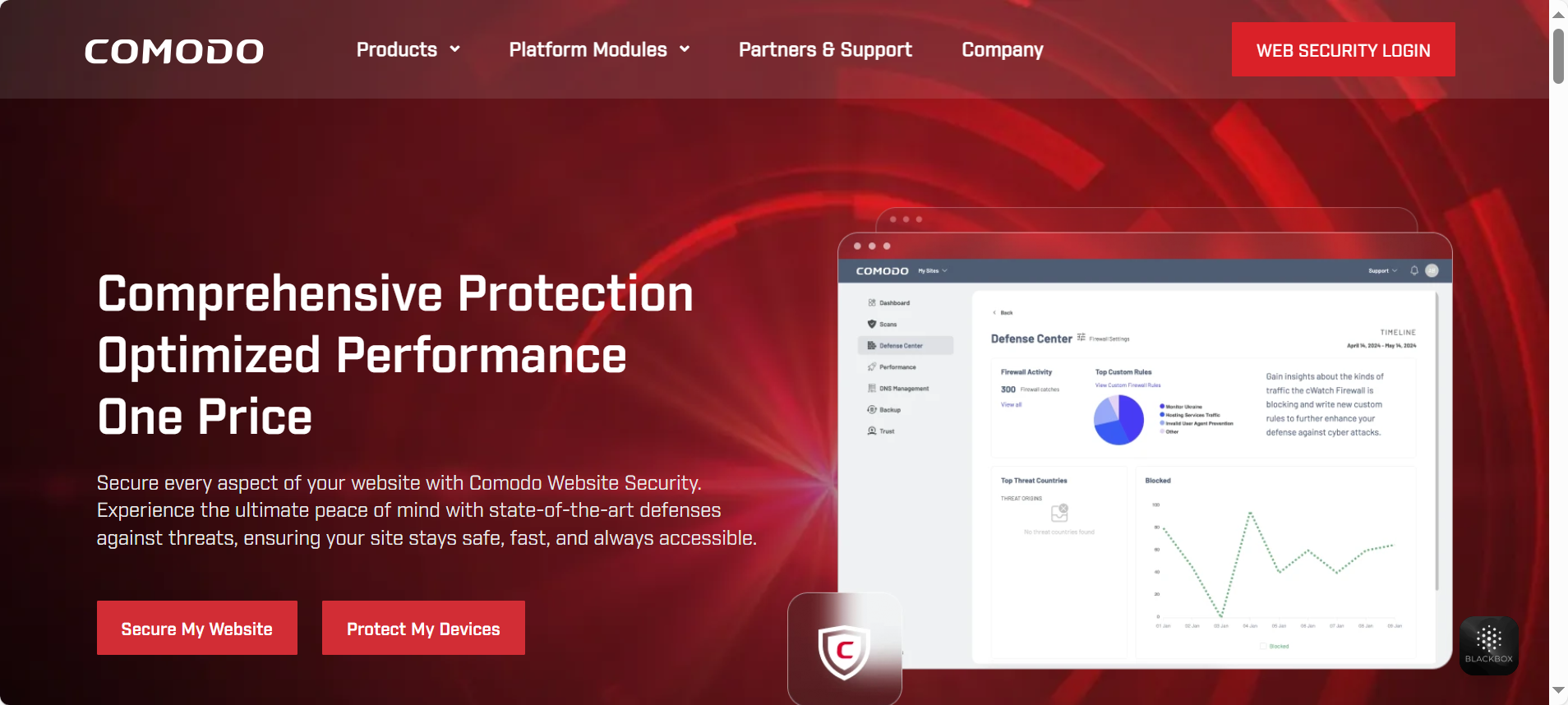
On Twitter, this matters when you open links from replies or direct messages. IceDragon checks content before loading it. This adds peace of mind for users who interact with many unknown accounts.
As a browser for Twitter, IceDragon works well for reading and replying. It may feel heavier during video-heavy timelines, but it suits users who value safety over speed.
Firefox
Firefox offers strong balance and flexibility. Users can adjust settings, add tools, and control privacy in detail.
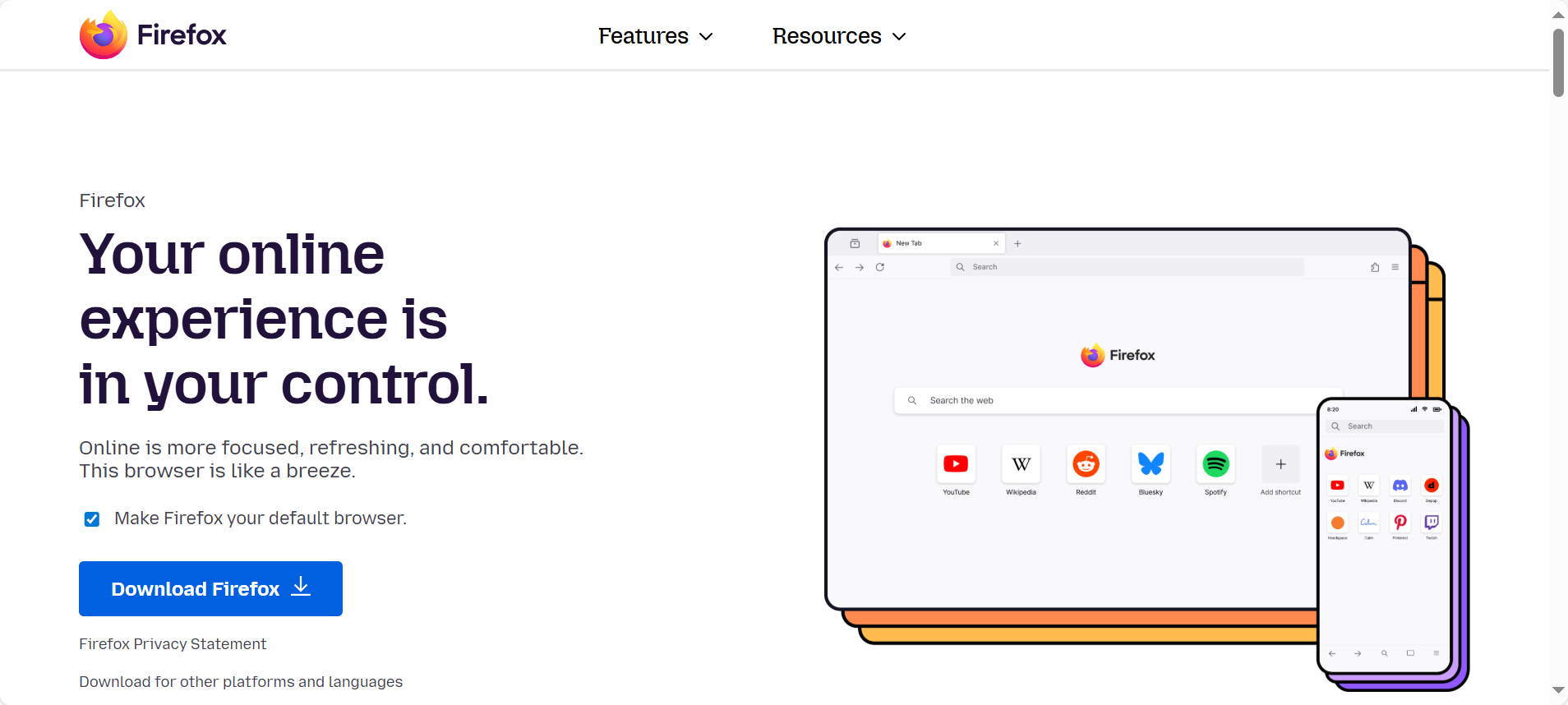
For Twitter, Firefox supports containers. This lets users separate personal and work accounts in different tabs. It also handles long threads and multiple columns well.
As a browser for Twitter, Firefox suits users who want control without complexity. It works well for daily use, learning, and light account management.
Each of these browsers serves a clear purpose. In the next section, we will compare them side by side to help you choose the browser for Twitter that fits your real needs.
DICloak: The Ultimate Browser for Large-Scale Twitter Account Management
DICloak is built for users who manage Twitter at scale. It is not a normal browser. It is a professional antidetect browser for Twitter designed to run many accounts safely on one device. Each account works in its own isolated browser profile, with its own fingerprint and network setup. This greatly reduces account linking and bans risks.
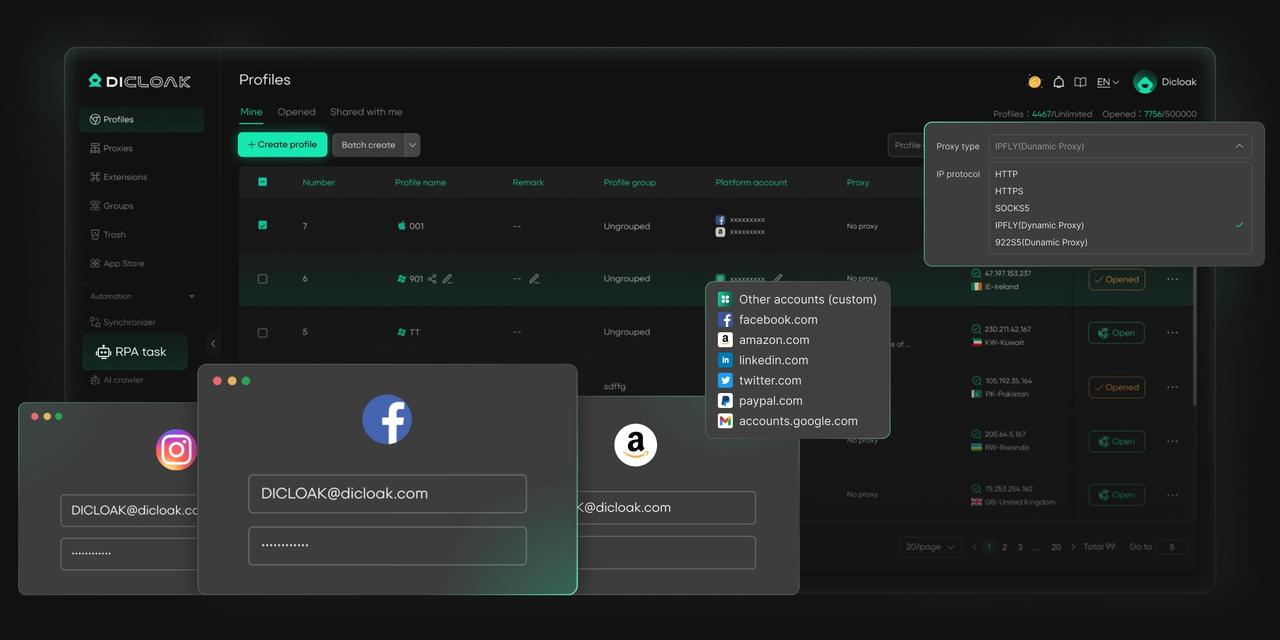
For teams working across Twitter, Instagram, and LinkedIn, DICloak keeps workflows clean and consistent. You can log in, post, reply, and monitor accounts without switching devices or mixing sessions. This makes daily work faster and more stable.
What Makes DICloak Stand Out?
✅ Manage 1,000+ Accounts on One Device: Stop wasting money on extra hardware! DICloak allows you to manage multiple accounts on a single device, cutting costs and boosting efficiency.
✅ Guaranteed Account Safety, No Ban Risks: Every account gets its own isolated browser profile with custom fingerprints and IPs, drastically reducing the risk of bans. Your accounts, your control!
✅ Flexible Proxy Configuration for Maximum Performance: Seamlessly integrate with all major proxy protocols (HTTP/HTTPS, SOCKS5) and manage your proxy pool with bulk operations. No more struggling with IP management—DICloak has you covered.
✅ Streamlined Team Collaboration for Better Results: Easily manage your team with advanced tools like profile sharing, permission settings, data isolation, and operation logs. Your team works smarter, not harder.
✅ Automate the Grind with RPA: DICloak's built-in RPA saves you hours of manual work. Automate repetitive tasks, streamline workflows, and focus on what really matters—growing your business.
✅ Powerful Bulk Tools to Scale Your Operations: Create, import, and launch multiple browser profiles in one click. DICloak makes scaling your business as easy as it gets.
✅ Compatible with All Major Operating Systems: Based on the Chrome core, DICloak supports simulating Windows, Mac, iOS, Android, and Linux operating systems. No matter what platform you need, DICloak has you covered.
🔗 Ready to Get Started?
Visit the DICloak website to explore more details and choose the plan that’s right for you. Start for free today and experience the power of secure, efficient, and scalable multi-account management!
Analysis and Recommendation
After reviewing these tools, it becomes clear that there is no single browser that fits everyone. The right browser for Twitter depends on how you use the platform. Some users scroll casually. Others manage content or run campaigns at scale. This section compares the options and offers clear, practical recommendations.
Comparative Chart
| Browser |
Best Use Case |
Key Strengths |
Minor Limitations |
| Arc Browser |
Creators & heavy readers |
Clean layout, strong focus, smooth sessions |
Limited built-in privacy controls |
| Carbon Browser |
Private browsing |
Low tracking, fast loading |
Not designed for active posting |
| Comodo IceDragon |
Security-first users |
Safer link handling |
Higher resource use on video |
| Firefox |
Daily general use |
Flexible, account containers |
Needs manual setup for best results |
| DICloak |
Large-scale Twitter management |
Account isolation, automation, team tools |
Initial setup takes a short learning period |
This comparison shows that each browser for Twitter serves a different purpose. Casual users and professional teams clearly have very different requirements.
Tailored Recommendations
If you mainly read tweets, follow trends, or enjoy long threads, Arc or Firefox works well. They keep Twitter clean and comfortable during long sessions.
If privacy is your top concern and you prefer quiet browsing, Carbon Browser is a solid option. It keeps Twitter simple and low-profile.
If you often interact with unknown users or open many external links, Comodo IceDragon offers extra peace of mind.
For agencies, brands, and influencers managing multiple accounts, DICloak stands out as the most powerful browser for Twitter. Its isolated profiles, flexible proxy setup, automation, and team features support long-term account safety and growth. The only real trade-off is that its advanced tools may be more than a casual user needs—but for serious operations, that depth is exactly its strength.
Choosing the right browser for Twitter means matching the tool to your workflow. When the match is right, Twitter becomes safer, smoother, and far more productive.
Common Technical Issues and Solutions
Even with the right choice, users may still face small technical issues. These problems often come from settings, extensions, or browser limits. Knowing how to fix them helps you get the most from your browser for Twitter.
Compatibility Problems with Twitter
Some users see slow loading, broken images, or videos that do not play. Others notice login errors or pages that freeze. These issues often happen when the browser is outdated, overloaded with extensions, or running low on memory.
For example, a user may open many tabs while scrolling Twitter. Over time, the browser struggles to keep up. Tweets load late. Replies fail to post. This does not mean Twitter is broken. It usually means the browser for Twitter needs adjustment.
Troubleshooting Tips for a Smooth Experience
Start by updating your browser. New versions fix bugs and improve support for Twitter features. Next, disable unused extensions. Heavy add-ons can slow timelines and block scripts.
Clearing cache also helps. Old data can cause display errors or login loops. If problems continue, try opening Twitter in a clean profile or private window. This shows whether the issue comes from settings or the browser itself.
For users managing many accounts, using a dedicated browser for Twitter with isolated profiles can prevent conflicts and keep sessions stable.
Small fixes often make a big difference. With the right setup, Twitter runs faster, smoother, and with fewer interruptions.
FAQs About Browsers for Twitter
After fixing common issues, many users still have simple questions. These FAQs help clarify what really matters when choosing a browser for Twitter.
What Makes a Browser Good for Twitter?
A good browser for Twitter loads tweets fast and stays stable. It handles images, videos, and long threads without freezing. It also updates often and works well with modern web features. For example, a browser that manages memory well will keep scrolling smoothly, even during long sessions.
Can I Use Any Browser for Twitter?
Most modern browsers can open Twitter. But not all give the same experience. Older or poorly optimized browsers may cause slow loading or login problems. Using a reliable browser for Twitter helps avoid errors and keeps features working as expected.
How Do Extensions Affect My Twitter Experience?
Extensions can improve or hurt performance. Useful tools can help with writing or reading tweets. Too many extensions can slow the feed or block content. If Twitter feels slow, disabling unused add-ons often fixes the problem. Choosing a clean setup makes your browser for Twitter run better.
Conclusion
Choosing the right browser for Twitter helps avoid common issues and improves daily use. Browsers like Arc and Firefox work well for casual browsing, reading threads, and following trends because they are clean and stable. Carbon suits users who prefer simple and private viewing, while Comodo IceDragon adds extra safety when opening links. For heavy use, such as managing many accounts or running campaigns, a professional browser for Twitter like DICloak offers stronger isolation and better control. The best choice depends on your habits, but when the browser fits your needs, Twitter becomes faster, safer, and easier to use.
 Web Proxy Tools
 Free Tools
 Cookie Plugin
 UA Generator
 MAC Address Generator
 IP Generator
 IP Address List
 2FA Code Generator
 World Clock
 Anonymous Check
 WebRTC Leak Test
 UUID Generator
 Free Web Proxy Site
 Proxy Checker
 FB Ad Checker
 AI Web Scraping
 Free SMM Tools
 Twitter Shadowban Checker
 Instagram Name Checker
 UTM Generator
 Username Generator
 AI Hashtag Generator
 LinkedIn Headline Generator
 Social Media Image Resizer