Sharing your Lovart AI account can open up exciting opportunities for collaboration, whether you're working with a team or external contributors. Managing access securely is key to protecting your creative work while boosting productivity. This guide will walk you through the steps of safely sharing your Lovart AI account in 2026, with a focus on using DICloak Antidetect Browser for enhanced security. Learn how to streamline your workflow, safeguard your assets, and ensure seamless access for multiple users. Ready to optimize your Lovart AI experience? Let’s get started!
Lovart AI is a multimodal “Design Agent” that helps you create and edit branded visuals and short motion content through conversational prompts. It offers a range of features designed to simplify the design process for businesses, marketers, and creative professionals. Here’s a breakdown of its key features:
- Price List Design: Geared towards service businesses, this tool helps you create clear and well-designed price lists. It emphasizes value communication to improve conversion rates for service-based businesses.
- Restaurant Menu Design: Lovart AI allows you to design editable restaurant menus aligned with your brand’s colors, fonts, and logo. This feature ensures your menu not only looks professional but also aligns with your business identity. For example, you can use the Italian-language Restaurant Menu Design template to reach a broader audience.
- Product Catalog Design: This tool helps businesses create sales-oriented multi-page layouts, perfect for catalogs. It supports both web and print formats and provides conversational refinement, making it easier to adjust layouts to your needs.
- Property Brochure Design: Ideal for real estate listings, this feature supports multi-page brochures that are essential for showcasing properties effectively. It's designed to create high-quality, detailed property brochures that help boost real estate marketing efforts.
- Free AI Mockup Generator: Lovart AI’s Free AI Mockup Generator supports common file formats like PNG, JPG, SVG, and PSD. It can create realistic product mockups, allowing for natural-language adjustments to suit different project needs.
- Branding Tools: For consistent character designs, the IP Avatar/Mascot creator lets you create mascots or avatars with transparency support. This tool is perfect for companies looking to establish strong visual identities.
- Motion Features: Lovart AI offers tools such as the AI Video Generator and AI Lip Sync Generator. These tools allow you to create animated videos with facial animation syncing to speech. You can export your content in MP4 format, bringing a dynamic element to your brand’s visual content.
- Talk-Tab-Tune Workflow: Lovart AI’s workflow is described as Talk-Tab-Tune—first, describe your needs, then choose the options, and refine the design on the canvas. This easy-to-use, conversational approach makes it accessible even for users with no design background.
In this article, we will also explain how to share Lovart AI account securely. Whether you’re collaborating with a team, external partners, or clients, it’s essential to understand how to share access to your Lovart AI account safely. We’ll guide you on how to manage a Lovart AI shared account effectively, ensuring that your work remains secure while enabling seamless collaboration.
Comparing Lovart AI to Traditional Design Methods
When you compare Lovart AI to traditional design methods, the difference is clear. Both have value. But they work in very different ways. Understanding this helps you know why people choose AI tools or human designers. It also helps you decide how to share Lovart AI accounts with others when needed.
Speed and Efficiency
Traditional design takes time. A human designer usually starts with sketches. Then they refine the design by hand. This process can take hours or days, even for simple work like a logo or flyer. Traditional methods are slower because every detail is made manually.
Lovart AI is much faster. It can create multiple design options in minutes based on your prompt. If you need a quick brand logo or social media post, Lovart can generate it in a flash. This is great when you have a tight deadline or need many visuals in a short time.
Cost and Budget
Paying a human designer often costs more at first. Professional designers charge hourly or per project. For small businesses or solo creators, this can add up quickly.
In contrast, Lovart AI usually costs less over time. Once you subscribe, you can use its features as much as you need without paying per design. This makes it cost‑effective for many teams. It also means a Lovart AI shared account can save money by letting multiple people work from the same plan instead of hiring separate designers.
Creativity and Custom Style
Traditional designers bring original ideas and personal expression. A skilled designer can read a brand’s story and create visuals that feel deep and meaningful. Human designers can explore emotions and cultural details that AI sometimes can’t capture fully.
AI tools like Lovart generate designs based on learned patterns from large data. This can produce good and professional results fast, but it may lack the emotional depth a human brings. Lovart still lets you refine designs after creation, but the initial creative spark is linked to the prompts you give.
Learning Curve
Traditional design tools, such as Adobe Illustrator or Photoshop, require training. You need hours of practice to use them well. This can be hard for beginners.
Lovart AI is much easier for most users. You type simple instructions like “make a blue, clean logo for a café.” The tool then creates several options. You pick one and ask it to change small details. This simplicity helps people with little design skill make good visuals.
Real‑World Example
Imagine a small online store owner needs a set of graphics for a holiday sale. Using traditional methods, they might hire a designer and wait several days for drafts. They will also pay per revision. With Lovart AI, they can generate multiple banner ideas in minutes, then tweak colors or text right away. This speed and flexibility make AI a strong choice for everyday business design.
By understanding these differences, you can see why many teams now prefer tools like Lovart AI for everyday tasks, while still relying on human designers for brand strategy or deep creative work. Later in this article, we’ll explain how to share Lovart AI account safely and help your team work together without losing control of your brand assets.
Why Do People Share Lovart AI Account?
After comparing Lovart AI to traditional design methods, it makes sense why many people want to share Lovart AI account access. The tool is fast and powerful. It helps teams and groups work together better. But the way people use shared access depends on their goals and their workflow needs.
Team Collaboration and Division of Work
Many teams work on the same project at the same time. For example, a small marketing team may need several people to edit and update a designing project. A Lovart AI shared account lets multiple team members access the same creative workspace. This helps them divide work, give feedback, and keep designs consistent across all materials. Tools that allow shared creative spaces help teams finish work faster and with less confusion.
Saving Cost for Small Groups
Hiring a professional designer for each task can be expensive for small businesses. When one person pays for a design tool subscription and others use that same plan, the group saves money. This is one reason some teams choose to share Lovart AI account access. Rather than paying for several individual subscriptions, the team uses one account to generate logos, banners, product pages, and more.
Handling Large Workloads
Sometimes a company has many design tasks at once. For example, an online store might need designs for a new product launch, social media campaigns, and newsletter graphics all in the same week. Giving selected team members access to a Lovart AI shared account helps them work on different tasks at once without delay.
Better Creative Input from Multiple People
Design is not just technical—it’s creative. Multiple team members may have ideas that improve a project. When they can all log into the same Lovart AI workspace, they can review outputs, suggest changes, and refine designs together. This kind of teamwork can produce better results than one person working alone.
Special Projects With External Contributors
In some cases, teams work with people outside the company. For example, a business might hire a freelance copywriter or brand consultant for a campaign. Instead of sending files back and forth, teams sometimes share Lovart AI account access with trusted contributors, so they can work directly on the project in the design platform.
However, sharing access also brings risks, like privacy concerns and violating terms of service if done improperly. We will cover safe and proper ways to share access later in this article so your team can stay secure and compliant with Lovart AI’s rules.
When you’re working with a Lovart AI shared account, ensuring that your accounts remain secure and efficient is key. One way to add extra layers of protection while enhancing team collaboration is by using the DICloak Antidetect Browser.
DICloak is designed for professionals who manage multiple accounts across various platforms, and it’s the perfect tool for anyone sharing a Lovart AI account securely. Here's how DICloak helps make the process easier and safer:
Step-by-Step Guide to Securely Share Your Lovart AI Account with DICloak
1. Download and Install DICloak
Start by visiting the DICloak website. Register for an account and download the application to your computer.

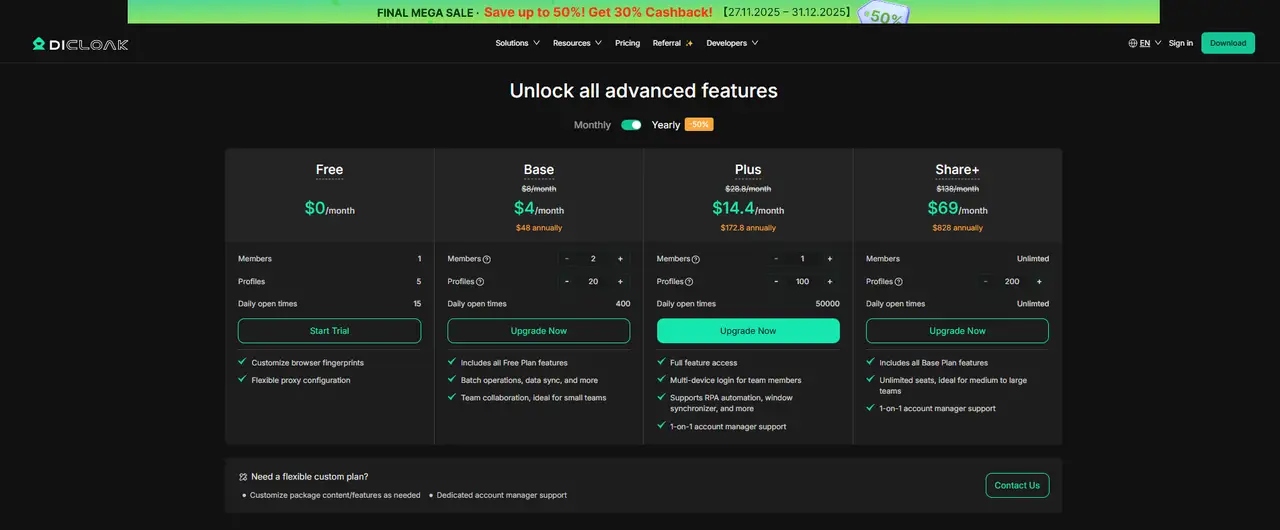
2. Choose the Right Plan
DICloak offers plans based on team size. For small teams, the Base Plan is a great starting point. For larger teams that need unlimited access for multiple users, the Share+ Plan is ideal. Choose the one that fits your team's needs.
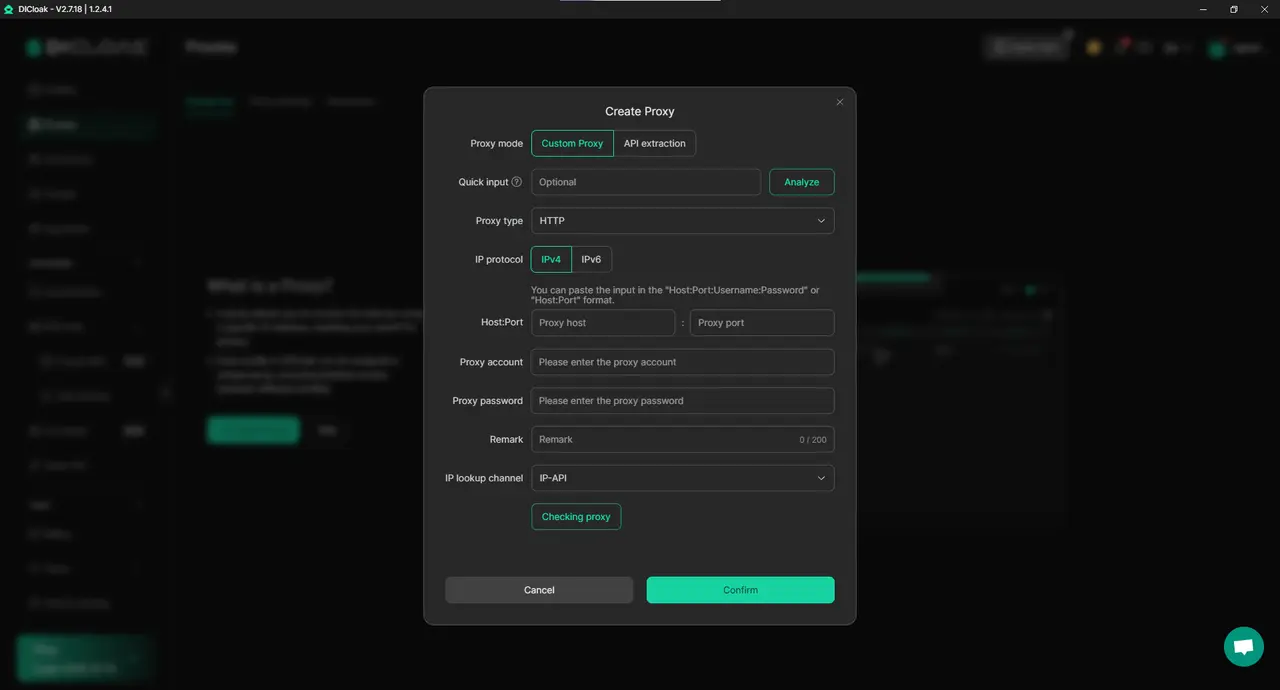
3. Set Up a Static Residential Proxy (Recommended)
Although not mandatory, using a static residential proxy is highly recommended for secure account sharing. This ensures a stable IP address for your Lovart AI shared account, preventing issues like forced logouts that can happen when logging in from different locations. DICloak partners with trusted proxy providers to give you the best options.
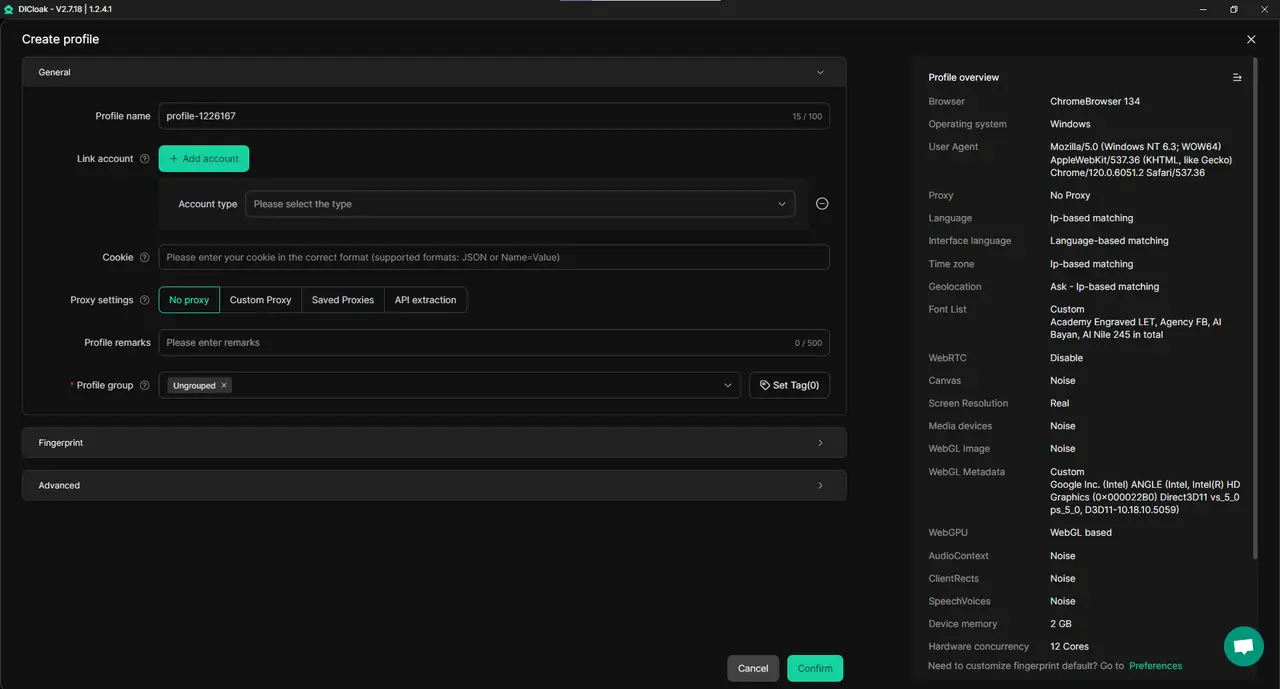
4. Create a New Browser Profile
Inside the DICloak app, create a new browser profile. This profile will be dedicated to your shared Lovart AI account. This adds another layer of isolation and security to your work, ensuring everything remains secure within a contained environment.
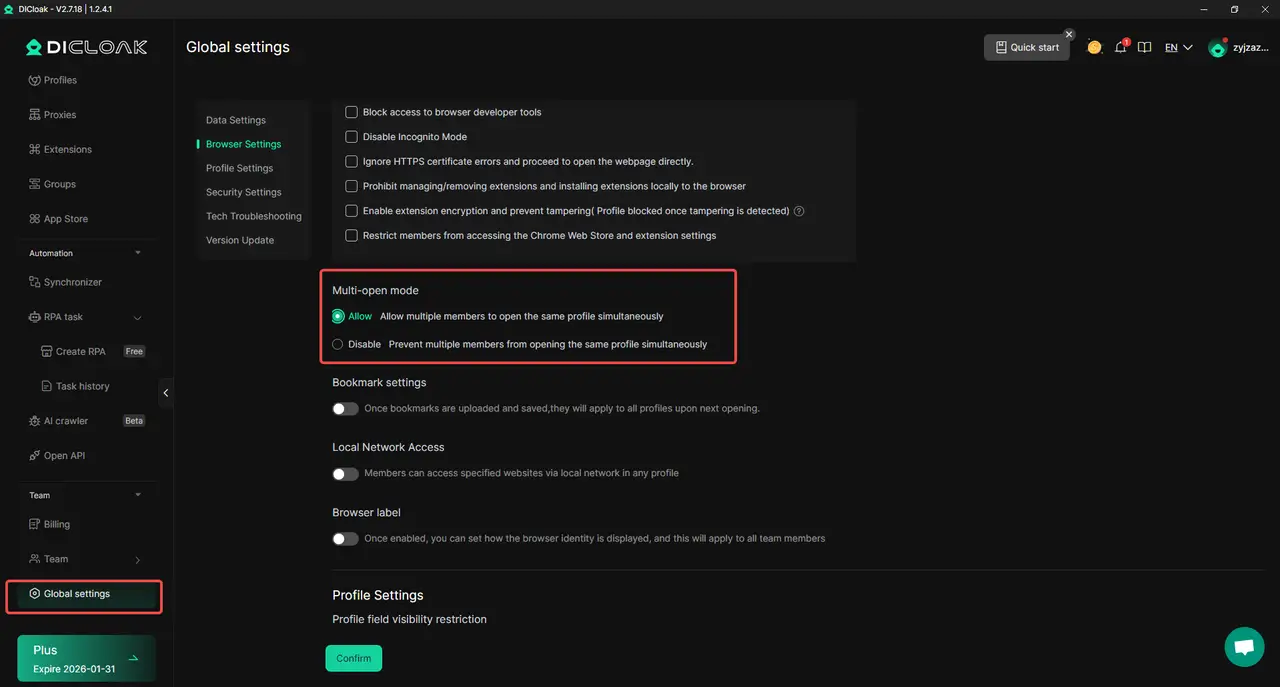
5. Enable Multi-Open Mode
Go to Global Settings and enable Multi-Open Mode. This feature allows multiple people to access the same Lovart AI account simultaneously, perfect for team collaboration.
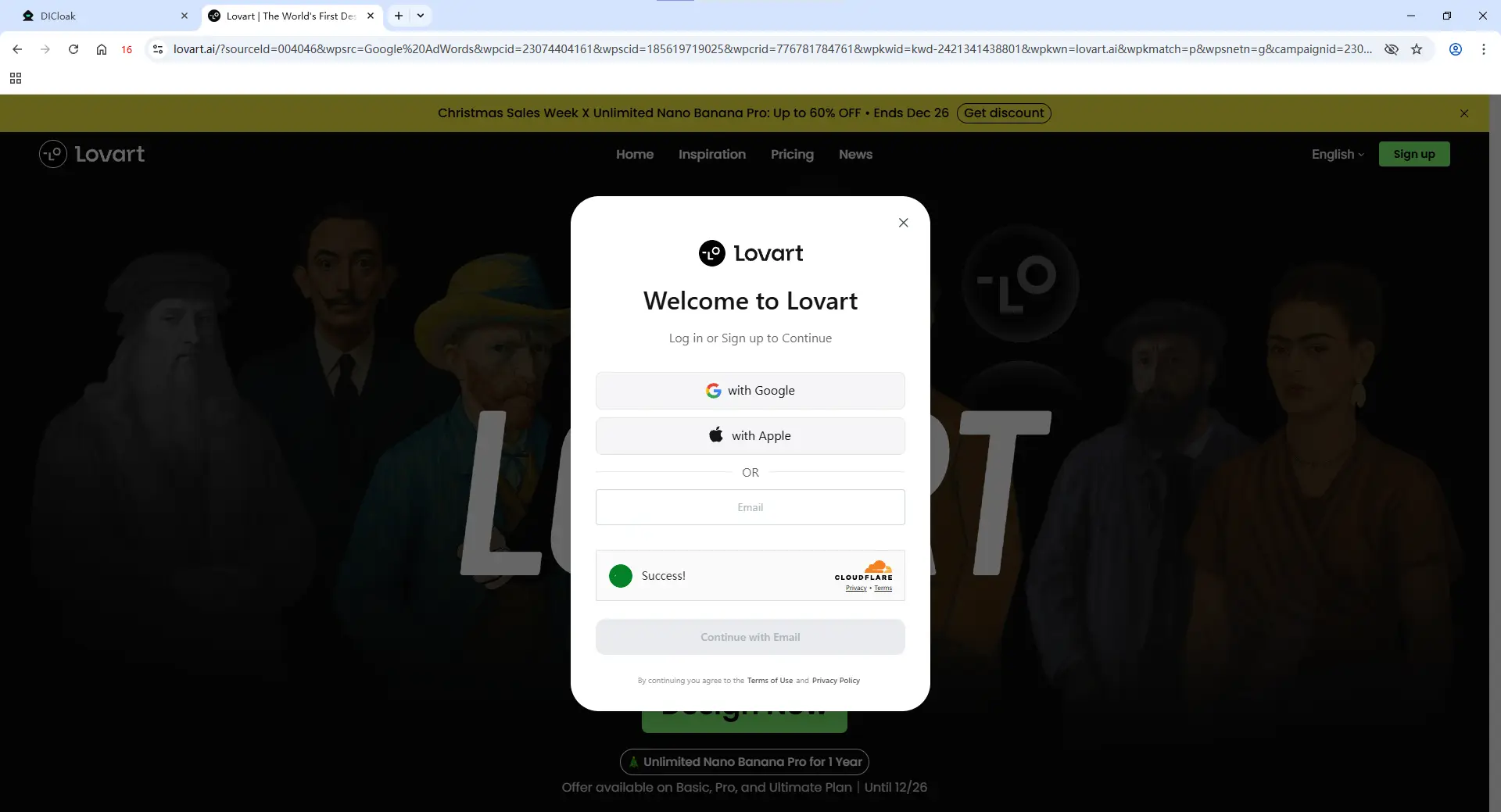
6. Log in to Lovart AI
Launch the new browser profile you’ve created. This opens a fresh browser window where you can log in to your Lovart AI account. It will now be securely linked to the profile you set up.
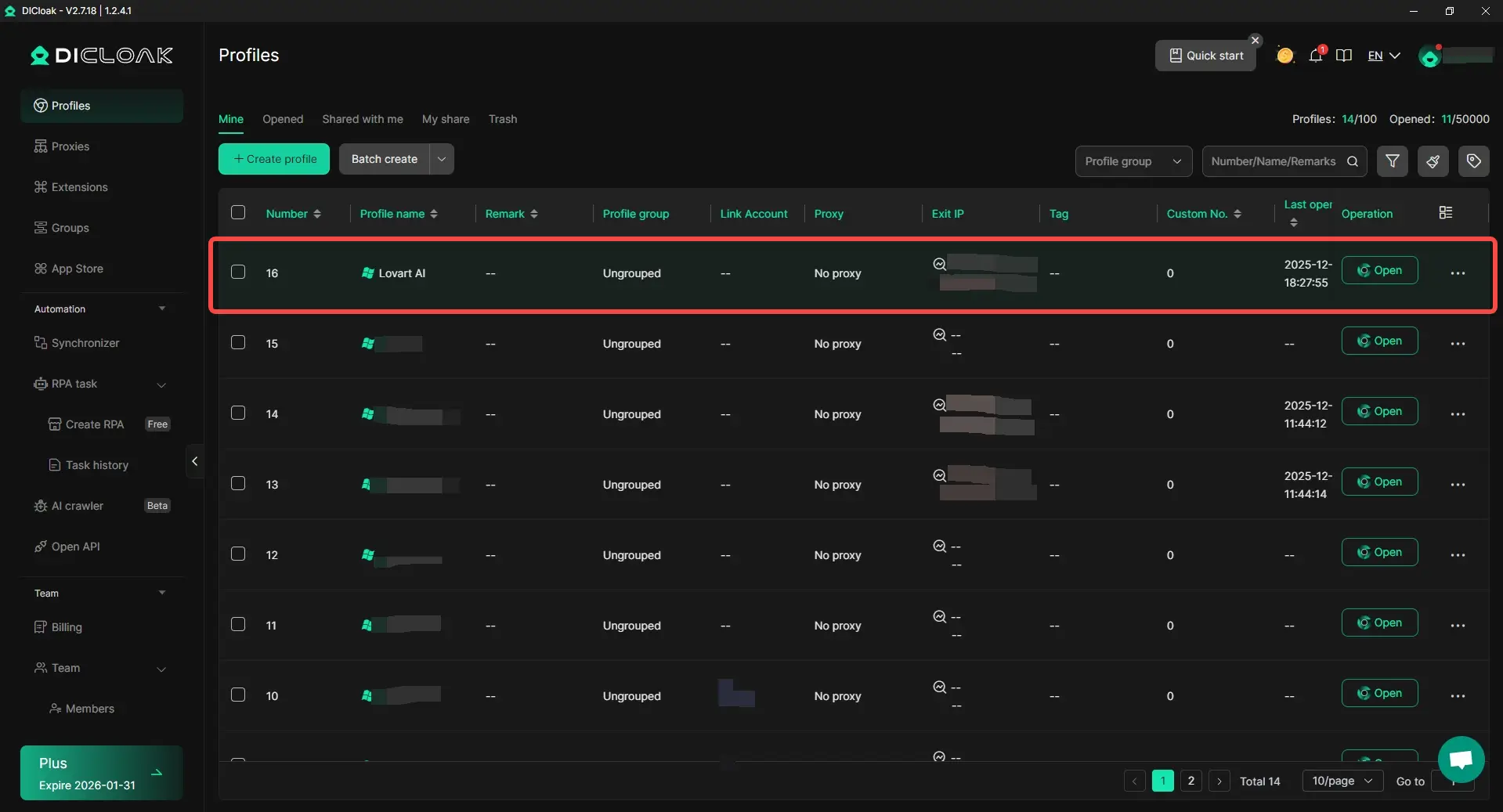
7. Share the Profile with Your Team
Once you're logged in, go back to the DICloak main screen and use the Team feature to invite others to your team. This feature lets you share your Lovart AI account securely without exposing passwords.

8. Access the Shared Account
After your team member accepts the invite, they’ll be able to access the shared Lovart AI account from their own DICloak application. They can launch the profile and continue where you left off, without any disruption.
Advanced Security Features to Protect Your Shared Lovart AI Account
In addition to enabling easy sharing, DICloak includes powerful security features that help protect your Lovart AI shared account from misuse and ensure your work remains private:
- Hide the Password: DICloak’s built-in password manager lets users log in with just one click, without ever seeing the actual password, ensuring sensitive data is never exposed.
- Prevent Cookie & Session Theft: DICloak blocks access to browser developer tools and stops users from installing their own extensions, preventing common methods of data theft and protecting your session cookies.
- Block Malicious Software: DICloak automatically detects and blocks packet capture software like Wireshark or Fiddler, which can be used to spy on network traffic. This keeps your Lovart AI session safe from prying eyes.
- Restrict Website Access: With DICloak, you can whitelist specific URLs, such as lovart.ai, to prevent users from navigating to any other sites within the shared browser profile, keeping the focus on the tasks at hand.
- Hide Sensitive Information: DICloak also includes a Web Element Hider feature that can hide sensitive details like billing information, subscription status, or account settings, ensuring that these are not visible to others accessing your shared Lovart AI account.
By using DICloak Antidetect Browser alongside your Lovart AI shared account, you can maintain high security, ease of use, and collaborative efficiency. Whether you're managing a team or working with external partners, DICloak ensures your Lovart AI account is safe and easily accessible, making it the perfect tool for scaling your operations securely.
Conclusion
This guide explains how to securely share your Lovart AI account in 2026, focusing on efficient and safe methods for collaboration. It compares Lovart AI with traditional design methods, highlighting the benefits of sharing accounts for team projects, cost-saving, and creative input. The guide also covers how to share Lovart AI account using DICloak Antidetect Browser, offering a step-by-step process to protect your account and ensure seamless access for multiple users. Learn how to maintain security and control over your shared design assets while enhancing teamwork and productivity.
FAQ
How can I securely share my Lovart AI account with my team?
To securely share your Lovart AI account, use a trusted tool like the DICloak Antidetect Browser. It helps create isolated profiles, ensuring that each team member has their own secure access. You can also customize fingerprints, integrate proxies, and manage permissions, which prevents unauthorized access to sensitive account information.
Can I share my Lovart AI account with external collaborators?
Yes, you can share your Lovart AI account with external collaborators. Using DICloak to set up secure browser profiles for each user ensures that even external contributors can access the account without risking data breaches or security issues. Simply invite collaborators through DICloak’s team features to grant them safe access.
What are the benefits of using a shared Lovart AI account for my business?
Sharing a Lovart AI account among your team can significantly improve efficiency. With DICloak, you can safely manage multiple team members' access, ensuring collaboration while maintaining high security. This also saves money as a single subscription can be used by the entire team, reducing overall costs.
How does DICloak help when sharing my Lovart AI account across multiple devices?
DICloak helps by allowing you to create isolated, secure profiles for each device or team member. This ensures that no matter how many devices are used to access your Lovart AI account, each profile remains safe, minimizing risks like forced logouts or IP conflicts.
What security features does DICloak provide when sharing a Lovart AI account?
When you share your Lovart AI account, DICloak offers several advanced security features, including password hiding, cookie and session theft prevention, and proxy integration. It ensures that your account stays secure by preventing unauthorized access and protecting sensitive information.
 Web Proxy Tools
 Free Tools
 Cookie Plugin
 UA Generator
 MAC Address Generator
 IP Generator
 IP Address List
 2FA Code Generator
 World Clock
 Anonymous Check
 WebRTC Leak Test
 UUID Generator
 Free Web Proxy Site
 Proxy Checker
 FB Ad Checker
 AI Web Scraping
 Free SMM Tools
 Twitter Shadowban Checker
 Instagram Name Checker
 UTM Generator
 Username Generator
 AI Hashtag Generator
 LinkedIn Headline Generator
 Social Media Image Resizer