YouTube does not have a single button that resets its recommendation algorithm. What you can change is the activity and feedback YouTube uses to personalize your account.
If one temporary topic has affected your feed, remove the related videos or searches. If most recommendations no longer match your interests, delete a broader date range or all your YouTube history. The goal is to use the smallest reset that solves the problem, then rebuild clearer viewing signals.
This guide follows three steps:
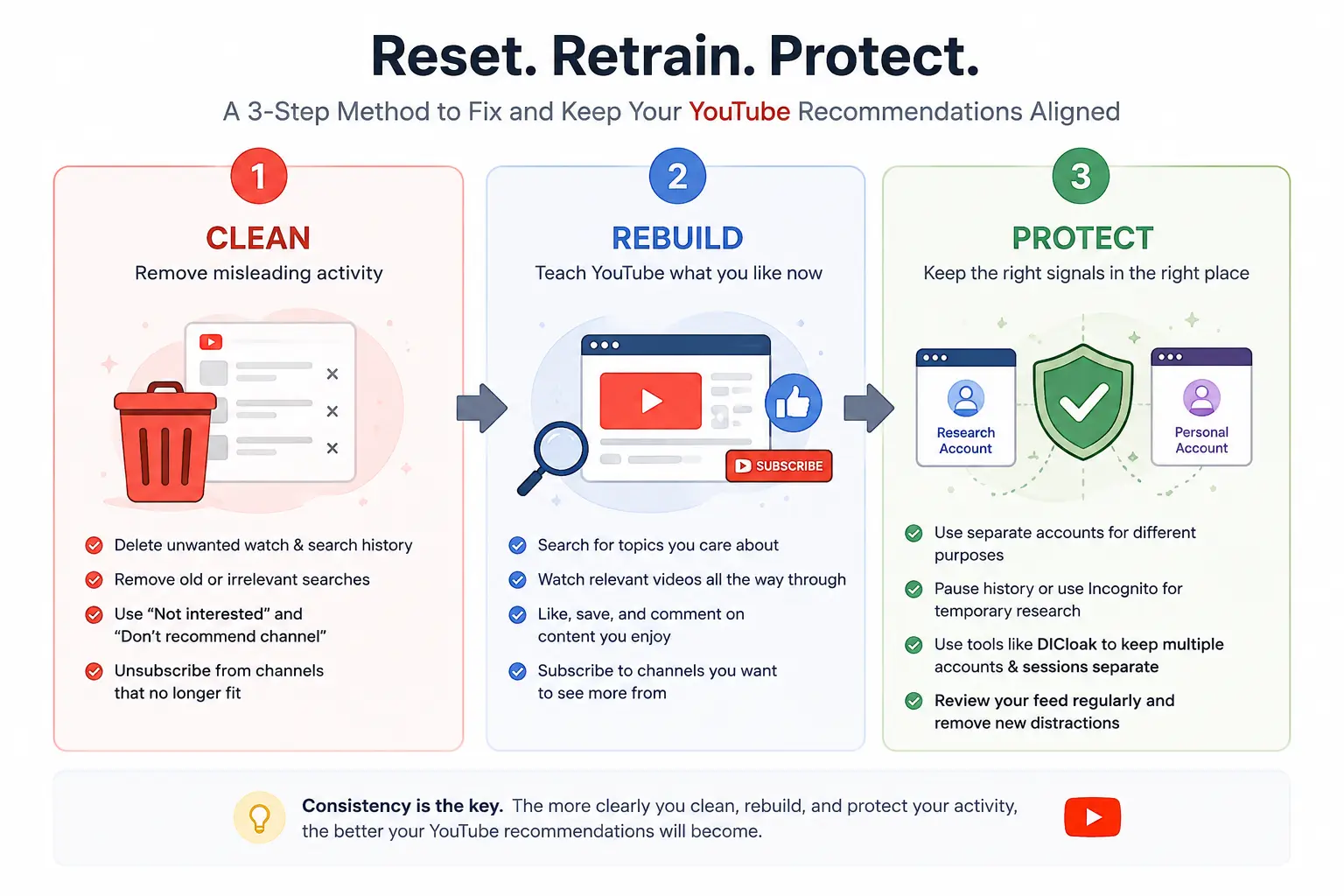
- Clean: Remove activity that no longer reflects your interests.
- Rebuild: Show YouTube what you want to watch now.
- Protect: Keep temporary, family, and work viewing separate.
| Your problem |
Best first action |
| One unwanted topic |
Remove related videos and searches |
| One unwanted channel |
Use Don’t recommend channel |
| Most of the Home feed feels wrong |
Delete a date range or all history |
| Temporary research |
Pause history or use Incognito |
| Family or work activity keeps mixing |
Separate accounts and sessions |
Before You Reset: Identify What Is Actually Wrong
Before deleting anything, check how much of your feed is affected and where the problem appears. A few unwanted videos do not require the same response as an account shaped by years of outdated interests or shared viewing.
What Does Resetting the YouTube Algorithm Actually Mean?
Resetting the YouTube algorithm means changing the signals YouTube uses to personalize your account. These signals include watch and search history, subscriptions, likes and dislikes, Not interested, and Don’t recommend channel.
Deleting watch history removes one type of signal, but it does not unsubscribe you from channels, remove all likes, clear every recommendation preference, or stop future activity from being saved. Pausing history only prevents new activity from being added; it does not delete existing records.
That is why clearing history is only one part of a reset. You may also need to correct unwanted recommendations and rebuild your feed around your current interests.
Is the Problem on Home, Up Next, Shorts, or Search?
“YouTube recommendations” can refer to several areas:
| Area |
What to check |
| Home |
Whether your broader interests feel outdated |
| Up Next |
Whether suggestions follow the current video |
| Shorts |
Whether unwanted topics mainly appear in short-form content |
| Search |
Whether old searches still appear as suggestions |
These areas may not change together. Removing videos from your history may improve Home, while Up Next continues showing similar content because the current video still belongs to that topic. Shorts should also be checked separately.
Identifying the affected area helps you choose the right fix and avoid deleting more data than necessary.
Should You Use a Selective or Full Reset?
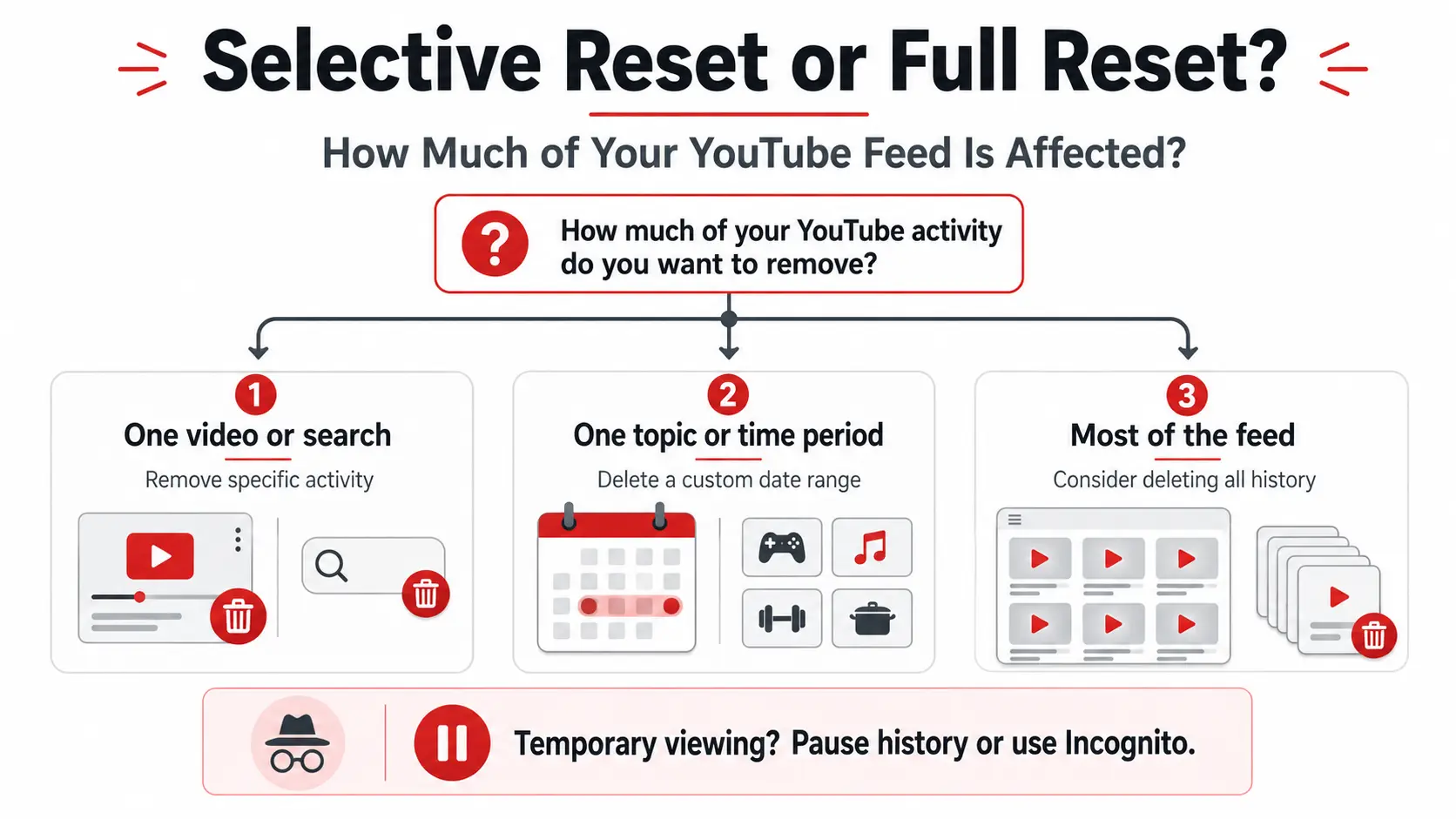
Use a selective reset when the problem came from one video, search, channel, or short period of unusual activity. Delete the related entries, use Not interested, or choose Don’t recommend channel.
A full reset is more suitable when most of the feed reflects outdated interests, several people have used the same account, or individual entries would be difficult to identify.
For example, after watching coffee-machine reviews for two days, deleting all your YouTube history would also remove useful signals about topics you still enjoy. Removing the related videos, searches, or dates is the better first step.
Consider deleting a broader date range or all history only when:
- Your interests have changed significantly.
- The feed contains many unrelated topics.
- The account has been shared for a long time.
- A selective cleanup has not helped.
The practical rule is simple: remove individual signals for a limited problem, and delete broader history only when the problem is broad.
How to Reset YouTube Recommendations Step by Step
The right reset depends on how much of your activity caused the problem. Start by removing specific videos or searches. Delete a date range only when the unwanted activity covers a longer period, and use All time only when most of your feed no longer reflects your interests.
Remove Specific Videos and Searches
If one topic has affected your recommendations, remove the related activity instead of clearing your entire history.
In the YouTube mobile app, tap your profile picture, open Settings, and select Manage all history. From there, you can delete an individual video or search. You can also use the search and calendar tools to find activity related to a specific topic or date. YouTube states that deleted watch activity will no longer be used as the basis for future recommendations.
This selective approach works well after short-term activity such as:
- Watching product reviews before a purchase
- Researching a news story
- Looking up a health question
- Studying competitors for a content project
For example, suppose two days of camera research have filled your Home page with lens reviews and photography tutorials. Removing those videos and searches is a better first step than deleting years of music, gaming, or educational activity that still represents your interests.
After deleting the obvious entries, search your history for related terms. One temporary interest may have produced several searches and watched videos, so removing only the last video may not be enough.
Best for: One topic, search, video, or short period of unusual viewing Does not change: Subscriptions, likes, dislikes, or all recommendation feedback
Delete a Date Range or All YouTube History
Use a custom date range when you know when the unwanted activity occurred. Use All time only when the broader feed has become difficult to repair selectively.
From Manage all history, select DELETE, then choose the range that matches the problem:
- Today: For unwanted activity from the current day
- Custom range: For a trip, research project, shopping period, or another known time window
- All time: When most of the account reflects outdated or mixed interests
Review the period carefully before confirming. YouTube notes that using DELETE to remove watch history also deletes search history from the same selected time frame. A custom range can therefore remove a concentrated period of unwanted activity, but it may delete more than the videos alone.
A full-history deletion makes more sense when:
- Your interests have changed significantly.
- Several people have used the same account.
- The feed contains many unrelated topics.
- You cannot identify when the problem started.
- A selective cleanup has not improved the feed.
Deleting all history does not unsubscribe you from channels or automatically remove every like, dislike, or recommendation preference. It may also leave the Home page with fewer personalized suggestions until the account builds enough useful viewing history again. YouTube explains that Home recommendations may be removed when an account has no significant relevant history and watch history is turned off.
Best for: Broad, long-term recommendation problems Does not change: Subscriptions and every other account signal
Use Not Interested and Don’t Recommend Channel Correctly
History cleanup removes past activity. Recommendation feedback helps correct videos that are appearing now.
Open the three-dot menu beside a recommended video and choose the option that matches the problem:
| Option |
When to use it |
| Not interested |
The video or topic is not relevant to you |
| Don’t recommend channel |
You do not want content from that channel recommended |
| Dislike |
You want to give negative feedback about that video |
| Report |
The content may violate YouTube policies |
YouTube uses Not interested, Don’t recommend channel, and dislikes as signals about what it should avoid recommending in the future.
Use Not interested when the problem is the suggested video or subject. Use Don’t recommend channel when the source itself is the problem. However, choosing Don’t recommend channel does not remove the entire topic. Similar videos from other channels may still appear.
Do not use Report simply because a video is irrelevant, repetitive, or annoying. Reporting is intended for content that may violate YouTube policies, not for ordinary recommendation cleanup.
YouTube also lets users clear previously submitted Not interested and Don’t recommend channel feedback through Google activity controls. Clearing that feedback removes the preference signal; it does not restore the feed to an exact earlier version.
Pause History or Use Incognito for Temporary Viewing
Deleting history removes past activity. Pausing history or using Incognito prevents temporary activity from being added to your signed-in account history.
In Manage all history, open the Controls tab. You can turn off:
- Include the YouTube videos that you watch
- Include your searches on YouTube
When watch history is paused, newly watched videos are not added to the history or used as the basis for future recommendations. Pausing search history similarly prevents new YouTube searches from being saved. Neither setting removes activity that is already stored.
These controls are useful when:
- Researching a temporary subject
- Letting someone else use your device
- Checking content outside your normal interests
- Conducting a short competitor review
The YouTube mobile app also provides Incognito mode. During an Incognito session, your account’s watch and search history do not influence or record the session. This makes it useful for one-off viewing, but it does not repair recommendations already connected to your regular account.
On desktop, you can use signed-out viewing or a private browser window. Browser Incognito mainly limits information stored on the device and starts a separate local session. Do not sign back into the same YouTube account if the goal is to keep that activity outside its account history.
Where to Find These Settings on Each Device
The history controls are connected to the account, but the path varies slightly by device.
| Device |
Where to start |
| Android or iPhone |
Profile picture → Settings → Manage all history |
| PC or Mac |
Google My Activity → YouTube History → Manage history |
| Smart TV or game console |
YouTube Settings → Pause watch history or Clear watch history |
The mobile and desktop history pages let users search, filter, pause, or delete activity. On a smart TV or game console, YouTube provides separate options to pause or clear watch history from the Settings menu.
Menu wording may vary slightly by device and app version. Screenshots and interface paths should be checked again before publication and labeled with the verification date.
After completing the cleanup, do not judge the result only by whether the Home page changes immediately. Removing old activity is the first stage. The next step is to rebuild your recommendations around the topics and channels you actually want to keep.
How to Retrain the YouTube Algorithm After a Reset
Deleting old activity gives YouTube less outdated information, but it does not automatically create the recommendations you want. After a reset, you need to build clearer signals around your current interests.
Rebuild Your Feed from Search and Subscriptions
Do not rely on the Home page immediately after clearing your history. Start by actively searching for topics you genuinely want to follow.
Choose a few trusted channels and videos that clearly match your current interests. You can also review your subscriptions and remove channels that no longer represent what you want to watch. There is no need to unsubscribe from everything—focus only on channels that are clearly outdated or irrelevant.
A practical rebuilding process is:
- Search for two or three topics you want to see regularly.
- Watch videos from credible or familiar channels.
- Subscribe to channels that match your long-term interests.
- Use Not interested when unrelated recommendations appear.
- Return to Search or Subscriptions instead of clicking random Home suggestions.
For example, after removing several days of camera research, a user who normally watches fitness, music, and technology content should return to those subjects through Search and Subscriptions. This gives YouTube more useful information than waiting for an empty or inaccurate Home page to recover on its own.
Reinforce the Interests You Want to Keep
Your recommendations become more useful when your viewing behavior consistently matches the interests you want YouTube to learn.
Watch content you genuinely find useful or entertaining. Keep subscriptions that reflect your current preferences, and provide feedback when irrelevant topics return. You do not need to like, comment on, or fully watch every video. The goal is simply to avoid sending mixed signals.
Be careful with curiosity clicks. Opening an unwanted video to understand why it was recommended still creates another interaction with that topic. One accidental click is unlikely to define your entire feed, but repeatedly watching similar content can make the interest appear more relevant than it really is.
You should also avoid trying to “train” the algorithm through artificial routines. YouTube does not publish a required number of videos, likes, searches, or minutes needed to rebuild recommendations. Focus on normal viewing behavior that accurately reflects your interests.
How Long Does It Take for Recommendations to Change?
YouTube does not provide a fixed reset or retraining time. Recommendations may begin changing after new activity, but the result depends on several factors:
- How much history you deleted
- How long the account has been active
- How quickly you create new viewing signals
- Whether other people still use the account
- Whether you are checking Home, Up Next, or Shorts
Instead of waiting for a specific number of hours or days, look for practical signs of improvement:
- Unwanted topics appear less often.
- Your preferred topics begin returning.
- Home becomes more relevant.
- The remaining problem is limited to one area, such as Shorts or Up Next.
A selective reset may produce a smaller change because most of the account history remains intact. A full reset may take longer to rebuild because YouTube has less recent information to work with.
Avoid claims that the algorithm will reset after five videos, within 24 hours, or in a fixed number of days. The better approach is to monitor the feed, continue viewing content that reflects your real interests, and correct unrelated recommendations when they appear.
Why Are Your YouTube Recommendations Still Not Changing?
If your YouTube recommendations still look the same after a reset, the cleanup may not have failed. You may be checking a different recommendation area, leaving other account signals active, or clearing local browser data instead of your YouTube account history.
You Reset One Recommendation Area but Checked Another
Home, Up Next, Shorts, and search suggestions may not respond to the same action in the same way.
YouTube explains that Up Next recommendations are based heavily on the video currently being watched. Home recommendations use broader information such as watch history and account interests. This means your Home feed may improve after deleting several history entries, while Up Next continues showing related videos because the current video still belongs to that topic.
Check each area separately:
| What you notice |
Possible explanation |
| Home improves, but Up Next does not |
The current video is still shaping the viewing path |
| Long-form recommendations improve, but Shorts do not |
Your recent Shorts activity may still reflect the unwanted topic |
| Old search suggestions remain |
Related searches may still be stored |
| One channel disappears, but the topic remains |
Other channels still cover the same subject |
Do not judge the entire reset from one video page. Return to Home, Shorts, and Search separately to see which part still needs attention.
Old Signals or Shared Activity Are Still Active
Deleting watch history does not remove every signal connected to your account. Subscriptions, likes, dislikes, recommendation feedback, and other Google Account activity may continue to influence recommendations and search results.
The problem may also return when several people use the same signed-in account. For example:
- A child continues watching videos on the family TV.
- A partner uses the account for different interests.
- A coworker researches content through a shared work login.
- You continue opening unwanted videos out of curiosity.
In each case, the same account keeps receiving mixed viewing and search activity. Removing old history will only provide temporary improvement if unrelated signals continue to be added.
Review whether the account still has outdated subscriptions or interactions, but do not delete everything automatically. Remove only the activity that clearly no longer represents the account’s intended use.
You Cleared Local Data, Not YouTube Account History
Clearing browser cache, cookies, or app data is not the same as clearing YouTube watch and search history.
Cache and cookies store local information that helps websites load and remember settings. Removing them may sign you out, clear site preferences, or fix loading and formatting problems. YouTube account history, however, is managed separately through YouTube History or Manage all history.
This means the following actions do not normally reset recommendations for a signed-in account:
- Clearing browser cache
- Deleting cookies
- Reinstalling the YouTube app
- Deleting local browser history
- Signing out and back into the same account
They may fix a technical problem, but the account’s stored YouTube activity can remain.
A blank Home page after a reset is also not always an error. YouTube says that when an account has no significant watch history and watch history is turned off, Home features that depend on that history may be removed.
In that case, use Search and Subscriptions to find content, or turn watch history back on if you want YouTube to rebuild personalized Home recommendations.
How to Keep YouTube Recommendations Focused Across Multiple Accounts
Keeping one personal YouTube account aligned with your interests is fairly simple. The challenge becomes greater when a creator, marketer, or agency manages several accounts for content research, different clients, or separate channel strategies.
Each account may need to watch different competitors, follow different topics, and maintain its own recommendation direction. Without a clear workflow, it is easy to research from the wrong account, mix personal viewing with client work, or influence one account with videos intended for another project.
Separate Personal Viewing From Content Research
Personal viewing and professional research often create very different recommendation signals.
A creator may watch gaming and entertainment personally while researching finance channels for a client. An affiliate marketer may study several product categories, while a social media team may review YouTube Shorts trends across unrelated industries.
If all of this activity happens through one personal Google account, the Home feed can quickly become filled with topics that are useful for work but irrelevant outside that project.
A better approach is to keep each activity connected to the account where it belongs. Personal entertainment should remain on a personal account, while competitor analysis and trend research should use a dedicated research account.
For one-off checks, Incognito, paused history, or signed-out viewing may be enough. When research becomes part of a regular workflow, a separate account provides a more consistent boundary and reduces the need to keep cleaning the personal feed.
Keep Each Account’s Viewing Purpose Consistent
Different YouTube accounts usually serve different goals.
For example:
- A personal account may focus on entertainment and everyday interests.
- A research account may follow competitors, trends, and industry channels.
- A client account may be used for channel management and content review.
- A brand account may monitor topics related to its own audience and market.
Keeping these purposes separate helps each account build a clearer recommendation environment. A research account can continue learning from industry content without affecting personal recommendations, while each client account remains focused on the topics relevant to that brand.
The same principle applies when several clients operate in different industries. Research for a fitness channel should not take place through the account used for a SaaS client. Watching beauty trends from an e-commerce client account may also make its Home feed less useful for future research.
Teams should use clear account names, groups, and assignments so members know which YouTube account they are working in before searching, watching, or reviewing content. This reduces accidental activity from the wrong account and makes each recommendation feed easier to evaluate.
How DICloak Keeps YouTube Account Workflows Organized
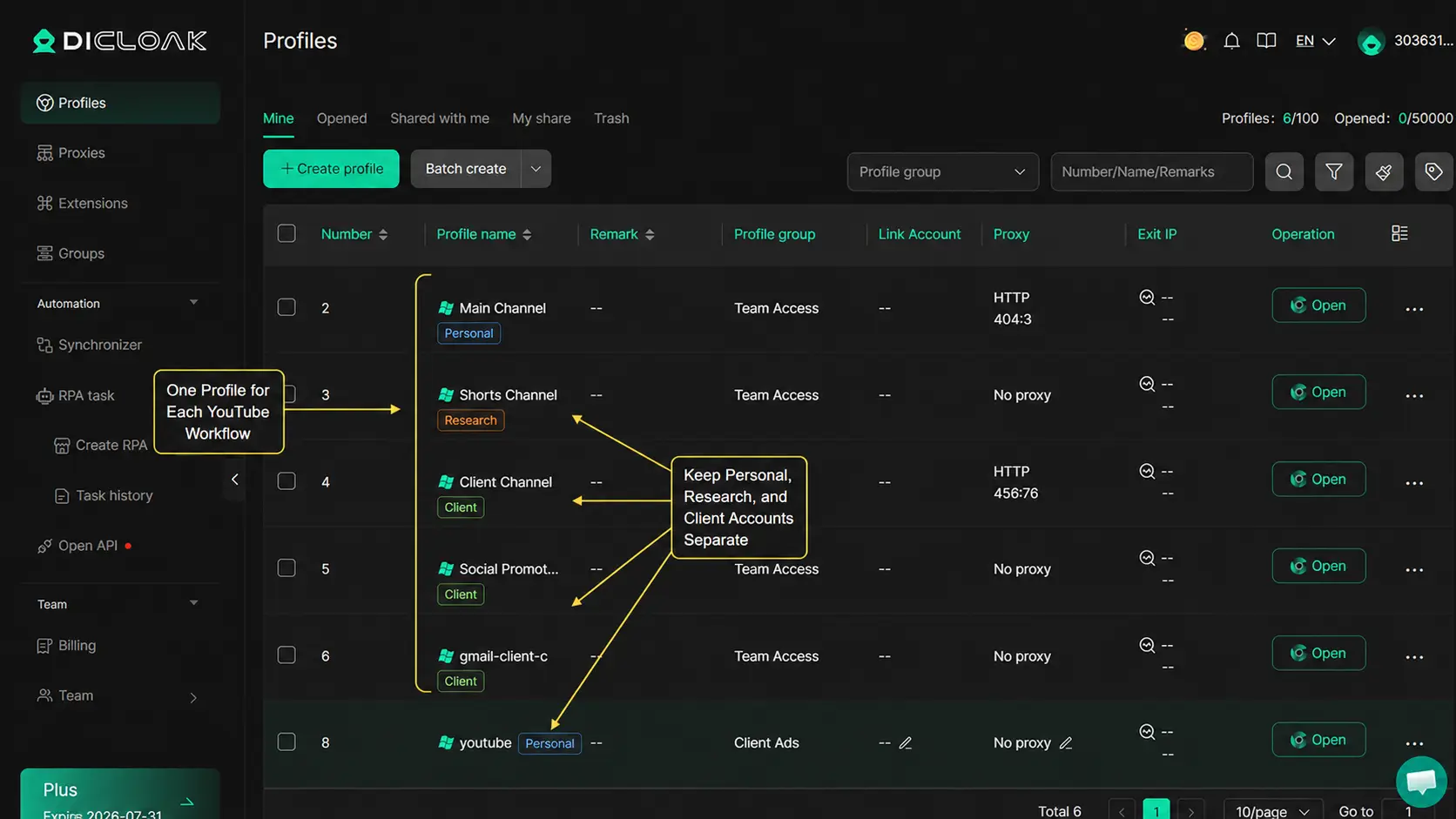
People use DICloak to create a separate browser Profile for each Google or YouTube account. Each Profile keeps its own cookies, login session, and browser data, making it easier to organize accounts by client, channel, or research purpose.
For example, a content team can create separate Profiles for:
- Personal YouTube viewing
- Competitor and trend research
- A fitness client
- A SaaS client
- An e-commerce brand
Each account remains logged in inside its assigned Profile, so users can switch between different YouTube workflows without repeatedly entering credentials or mixing browser sessions.
DICloak also supports Profile sharing and member permissions. Managers can assign selected Profiles to the team members responsible for each client instead of giving everyone access to every account. This keeps account responsibilities clearer and reduces the chance that someone searches or watches content through the wrong client session.
This setup is especially useful for creators, agencies, and multi-brand teams that need to keep personal viewing, content research, login sessions, and client work organized.
The separation should also exist at the Google account level. Each browser Profile should be paired with the Google or YouTube account it is intended to manage. When the same Google account is used across several Profiles, its YouTube activity still belongs to the same account history.
FAQs About Resetting YouTube Recommendations
Can You Reset the YouTube Algorithm Without Deleting Your History?
Yes. If only a few recommendations are irrelevant, remove specific videos or searches, use Not interested, or select Don’t recommend channel. You can also pause watch and search history before temporary viewing. A full history deletion is only necessary when most of the feed no longer reflects your interests.
How Do You Reset the YouTube Shorts Algorithm?
YouTube does not provide a separate reset button for Shorts. Remove Shorts-related videos and searches from your history, use Not interested on irrelevant content, and avoid repeatedly watching topics you do not want. Shorts may change differently from Home or Up Next, so review the Shorts Feed separately.
Does Resetting YouTube Recommendations Affect Your Subscriptions?
No. Deleting watch or search history does not automatically unsubscribe you from channels. However, old subscriptions may still indicate topics you previously followed. Review and remove only the channels that no longer match your interests instead of unsubscribing from everything.
How Long Does It Take for YouTube Recommendations to Change?
YouTube does not publish a fixed reset or retraining time. Changes depend on how much history you removed, your new viewing activity, and whether other people still use the account. Look for unwanted topics appearing less often and preferred topics gradually returning rather than expecting results within a set number of hours.
How Often Should You Reset the YouTube Algorithm?
There is no need to reset it on a schedule. Use a selective cleanup when one topic affects your feed, and consider a full reset only when most recommendations are no longer useful. For temporary research, use Incognito, paused history, or a separate account to prevent the problem instead.
Resetting the YouTube algorithm starts with identifying what is affecting your recommendations. Remove unwanted watch or search activity, correct irrelevant suggestions, and rebuild your feed with content that matches your current interests.
Managing multiple YouTube accounts for personal viewing, research, or client work? Use DICloak to keep each account’s cookies, login sessions, and browser profiles separate. Try DICloak for Free.
 Web Proxy Tools
 Free Tools
 Cookie Plugin
 UA Generator
 MAC Address Generator
 IP Generator
 IP Address List
 2FA Code Generator
 World Clock
 Anonymous Check
 WebRTC Leak Test
 UUID Generator
 Free Web Proxy Site
 Proxy Checker
 FB Ad Checker
 AI Web Scraping
 Free SMM Tools
 Twitter Shadowban Checker
 Instagram Name Checker
 UTM Generator
 Username Generator
 AI Hashtag Generator
 LinkedIn Headline Generator
 Social Media Image Resizer