Deleting a PayPal account is a permanent action, so it is important to understand how to delete a PayPal account before you start. Many people decide to close their account because they no longer use PayPal, want fewer online accounts, or prefer another payment service. Others choose deletion due to privacy concerns, security worries, or after closing a small business that no longer needs PayPal payments. For example, a freelancer who stops taking international clients may find PayPal no longer useful and want a clean break. When you delete your account, you must first log in, clear any balance, resolve open issues, and then confirm the closure in settings. Once completed, the account cannot be reopened, which is why learning how to delete a PayPal account the right way helps avoid problems and gives peace of mind.
Preparation Steps Before Deleting Your PayPal Account
Before you move forward, it is important to prepare your account properly. Since deleting an account is final, these steps help ensure the process goes smoothly and support how to delete a PayPal account the right way, without stress or mistakes.
Transferring Remaining Balances
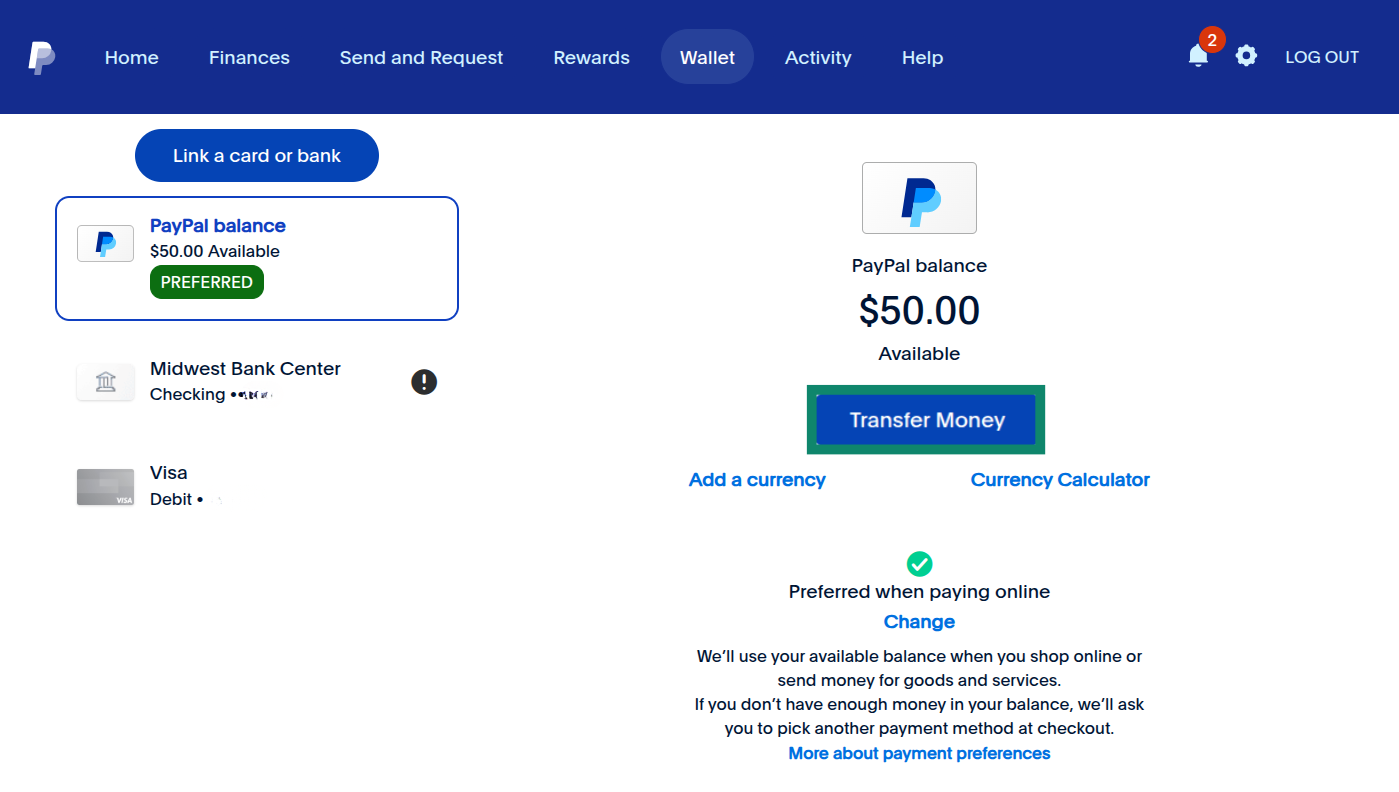
First, check if there is any money left in your PayPal balance. PayPal will not let you close an account with funds inside. For example, if you sold an item last month and forgot to withdraw the payment, that money will still be there. You should transfer the balance to your linked bank account or card. Many users miss this step and later realize they cannot access their money after closing the account. Taking a few minutes to move your funds keeps you safe and avoids regret.
Resolving Pending Transactions
Next, review your recent activity for pending payments, disputes, or refunds. If a payment is still processing or a buyer opened a dispute, PayPal will block account deletion. A common case is an online seller who has a refund still under review. In this situation, PayPal requires the issue to be fully resolved first. Clearing all pending actions is a key step in how to delete a PayPal account without delays.
Downloading Transaction History
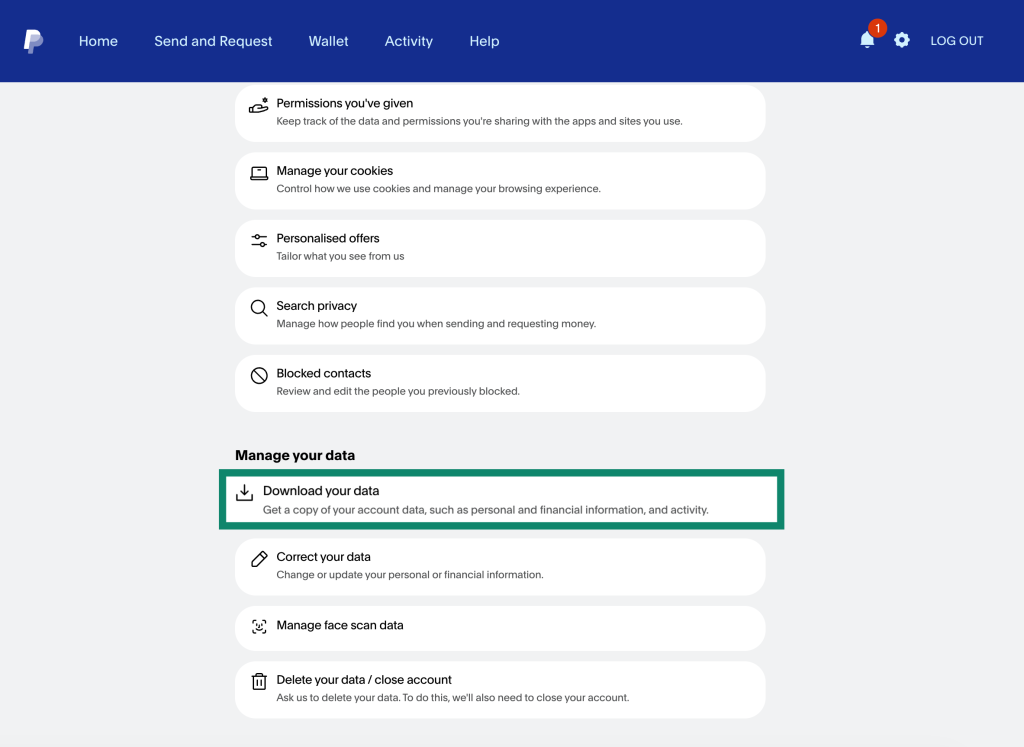
After that, download your transaction history. Once the account is deleted, you cannot access old records. This is important for taxes, expense tracking, or personal reference. For example, a freelancer may need past PayPal records to report income. Downloading statements gives peace of mind and keeps your financial records complete before moving on.
Canceling Subscriptions and Recurring Payments
Finally, cancel all subscriptions and automatic payments linked to PayPal. These may include streaming services, software tools, or online memberships. If you forget this step, payments may fail and cause service interruptions. For instance, a user once deleted PayPal without canceling a cloud storage subscription and lost access to files. Stopping recurring payments is a small step that plays a big role in learning how to delete a PayPal account the smart and clean way.
By completing these steps, you set yourself up for a smooth and successful account deletion with no loose ends left behind.
Step-by-Step Instructions for Deleting Your PayPal Account
Once you have finished all preparation steps, you are ready to take action. At this point, learning how to delete a PayPal account becomes very straightforward. PayPal allows account deletion on both desktop and mobile, but the steps are slightly different. Below is a clear and simple guide for each option.
How to Delete a PayPal Account via Desktop
Many users prefer using a computer because the layout is clearer and easier to follow. If you manage finances on a laptop or desktop, this method may feel more comfortable.
Navigating to Account Settings
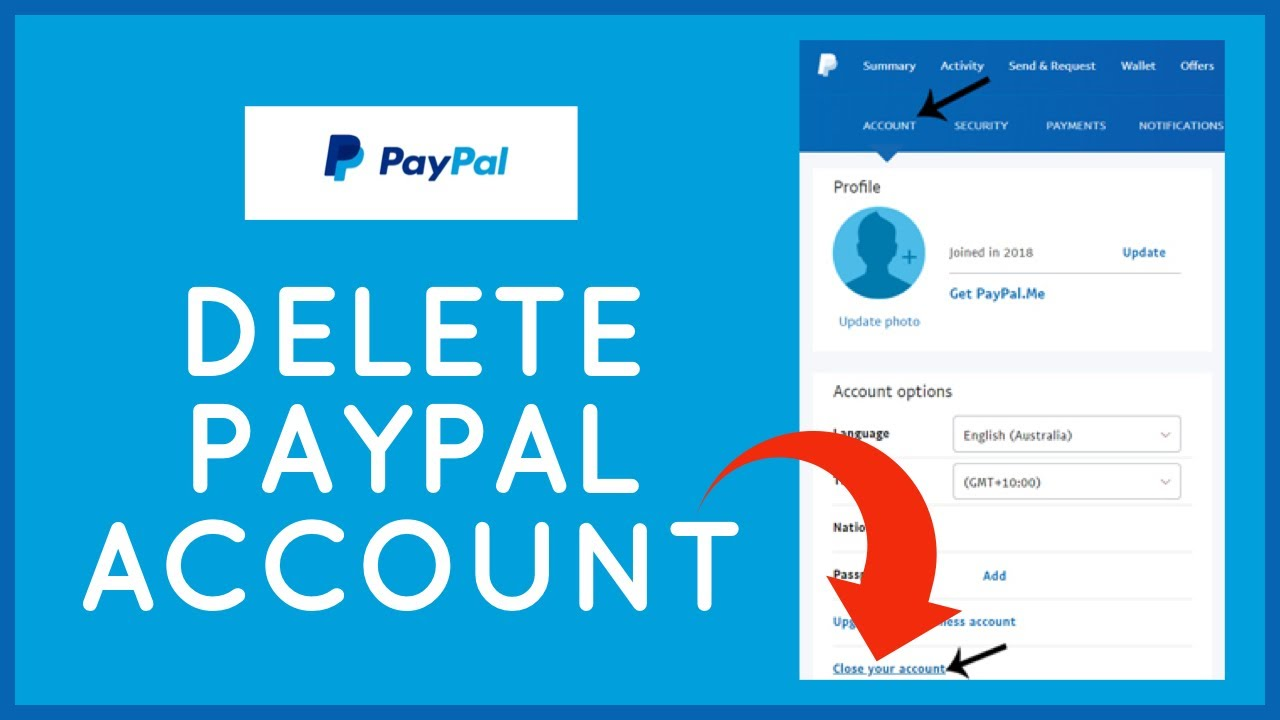
First, open your browser and log in to your PayPal account. Once logged in, look at the top right corner of the page. Click the gear icon to enter Account Settings. On this page, you will see several sections like profile, security, and preferences. Scroll until you find the option related to account status or closure. This is where the deletion process begins.
For example, a small business owner shared that they missed this option at first because they expected a big “Delete” button. Instead, PayPal places it inside settings, which is why careful navigation matters when learning how to delete a PayPal account.
Confirming Account Deletion
After selecting the close account option, PayPal will show warning messages. These remind you that deletion is permanent. You may be asked to confirm your identity again by entering your password. Once confirmed, submit the request. If there are no unresolved issues, PayPal will close your account right away. You will also receive a confirmation message on the screen.
How to Delete a PayPal Account via Mobile App
If you mainly use PayPal on your phone, the mobile app also supports account deletion. The steps are simple, but the menu looks different from the desktop version.
Accessing Account Settings on Mobile
Open the PayPal app and sign in. Tap your profile icon at the top of the screen. This will open the settings menu. From there, look for account or profile options. Scroll down until you see the option to close your account. Many users overlook this because it is near the bottom of the page.
A common example is a freelancer who uses PayPal only on mobile. They found the option after scrolling slowly and checking each section instead of rushing.
Final Confirmation Steps
After tapping close account, PayPal will guide you through final checks. You may need to confirm again that your balance is zero and no payments are pending. Enter your password if asked. Once confirmed, the app will process the request and close the account. You will be logged out automatically.
By following these steps carefully, you can complete how to delete a PayPal account with confidence, whether you are using a desktop or a mobile device.
Security Tips for PayPal Account Deletion
After you complete the steps on how to delete a PayPal account, security should still be your top focus. Account deletion is a sensitive action. Small mistakes can lead to data leaks or scams. The tips below help you stay safe before, during, and after you delete your account.
Make Sure You’re on the Real PayPal Site
Always double-check the website address before logging in. Type PayPal’s address directly into your browser. Do not click links from emails or messages. Some users received fake “account closure” emails that looked real but led to scam pages. One user entered their password on a fake site and lost access to their account. When learning how to delete a PayPal account, using the real site protects your login details.
Update Your App
If you are using the PayPal mobile app, make sure it is updated. Older versions may have security bugs or missing options. A user once could not finish account deletion because their app was outdated. After updating, the option appeared right away. Updates help keep your data safe and make the deletion process smoother.
Check Wi-Fi Security
Avoid public Wi-Fi when deleting your account. Public networks in cafes or airports are not secure. Hackers can watch traffic on these networks. If possible, use your home Wi-Fi or mobile data. One common mistake is deleting accounts while traveling, which increases risk. Secure internet access is an important part of how to delete a PayPal account safely.
Clear Saved Login Sessions and Devices
Before and after deletion, check for saved devices and active sessions. Log out of all devices if the option is available. This is helpful if you once logged in on a shared computer or old phone. Clearing sessions makes sure no one else can access your account during the final steps.
Enable Alerts on Linked Accounts
PayPal is often linked to a bank account or credit card. Turn on alerts for these accounts. Alerts can notify you of unusual activity after deletion. For example, one user noticed a failed charge alert, which helped them quickly fix a forgotten subscription. Alerts add an extra layer of protection during how to delete a PayPal account.
Be Alert for Phishing Attempts
After account deletion, scam messages may still appear. Some emails claim your account needs “final confirmation.” These messages are often fake. Do not click links or share codes. Real PayPal messages will not ask for passwords by email. Staying alert helps you avoid scams even after your account is closed.
By following these security tips, you protect your personal data and money while completing how to delete a PayPal account in a safe and confident way.
Consequences of Deleting a PayPal Account
After you follow all security steps and finish how to delete a PayPal account, it is important to understand what happens next. Deleting your account brings real and lasting changes. Knowing these results helps you feel confident about your decision and avoid surprises later.
Loss of Access to Account Features
Once your PayPal account is deleted, you lose access to all features right away. You cannot send or receive money. You cannot view old transactions. You also cannot use PayPal to pay for online shopping or subscriptions. For example, a user deleted their account and later tried to check a past payment for a warranty claim, but the record was no longer available. This is why saving records before deletion matters when learning how to delete a PayPal account.
Data Retention Policies
Even after deletion, PayPal may keep some of your data for legal and security reasons. This can include basic account details or transaction records required by law. However, this data is not active and cannot be used by you or others for payments. A small business owner once worried that deleting an account would erase all tax records instantly. In reality, PayPal keeps limited data while the user no longer has access. Understanding this helps set clear expectations on how to delete a PayPal account.
Reopening a Closed PayPal Account
A closed PayPal account cannot be reopened. This is a key point many users misunderstand. If you need PayPal again in the future, you must create a brand-new account with a new setup. For example, one freelancer closed their account during a career break. When they returned to work, they had to start over and reconnect banks and cards. This shows why you should be fully sure before completing how to delete a PayPal account.
Deleting a PayPal account can bring peace of mind, but it also comes with permanent changes. Knowing these consequences helps you make a clear and informed choice.
Common Issues and Troubleshooting
Even after following all the steps, some users face problems when trying how to delete a PayPal account. Knowing these common issues can help you handle them quickly and avoid frustration.
Challenges in Deleting Your PayPal Account
Pending Transactions
One frequent problem is pending transactions. PayPal will not let you close your account if a payment is still processing or a refund is under review. For example, a seller tried to delete their account but had a refund for a returned item pending. They had to wait until PayPal completed the refund before deletion could happen. Always check your activity carefully to avoid delays.
Account Restrictions
Sometimes, accounts have restrictions due to security or policy issues. If PayPal flags unusual activity or unresolved disputes, you cannot delete the account until the issues are cleared. A user once found their account frozen because of a chargeback dispute. They had to contact PayPal support and resolve the matter before proceeding. Checking your account status before deletion helps prevent surprises.
When to Contact PayPal Customer Support
If you cannot delete your account because of pending transactions, restrictions, or technical errors, it is best to contact PayPal customer support. Support can review your account, explain why deletion is blocked, and guide you through the necessary steps. For instance, a freelancer who faced a mysterious “cannot close account” message contacted support and learned an old subscription was still active. Resolving it allowed them to finally complete how to delete a PayPal account successfully.
Being aware of these common issues makes the deletion process smoother. Preparing for possible problems ensures you can finish deleting your account with confidence.
Alternatives to PayPal
After learning how to delete a PayPal account, many users look for other ways to send and receive money. Several payment platforms offer similar functions, each with unique features and advantages. Below is an overview of popular alternatives and a comparison of their features and benefits.
Overview of Other Payment Platforms
- Venmo – A mobile app mainly for personal use. Users can send money to friends and family quickly. It also shows social payment activity.
- Cash App – Allows fast transfers and extra features like investing in stocks or Bitcoin. Good for both personal and small business use.
- Stripe – Designed for businesses and online stores. Offers invoicing, subscriptions, and advanced payment tools.
- Zelle – Connects directly to bank accounts for instant transfers. Simple and secure for personal payments.
Comparing Features and Benefits
表格 还在加载中,请等待加载完成后再尝试复制
Using this format, users can easily compare options and decide which platform fits their needs after completing how to delete a PayPal account. For example, a freelancer may choose Stripe for client payments, while a student may prefer Venmo for sharing bills with friends. Understanding features and benefits helps ensure a smooth transition from PayPal.
When using these payment platforms, it’s important to protect your accounts. An antidetect browser can help by isolating your browsing environment, managing proxies, and reducing the risk of tracking or unauthorized access. Whether you use Venmo, Cash App, Stripe, or Zelle, combining these platforms with an antidetect browser adds an extra layer of security while sending money, managing subscriptions, or performing transactions.
⚡The DICloak Antidetect Browser has become a global favorite for its unparalleled ability to efficiently and securely manage multiple accounts. Designed for professionals in e-commerce, and more, DICloak offers powerful features like RPA automation, bulk operations, and a synchronizer. Additionally, it allows you to customize fingerprints and integrate proxies for each profile, ensuring top-level security and operational efficiency. It’s the ultimate tool for seamless, secure, and scalable operations.
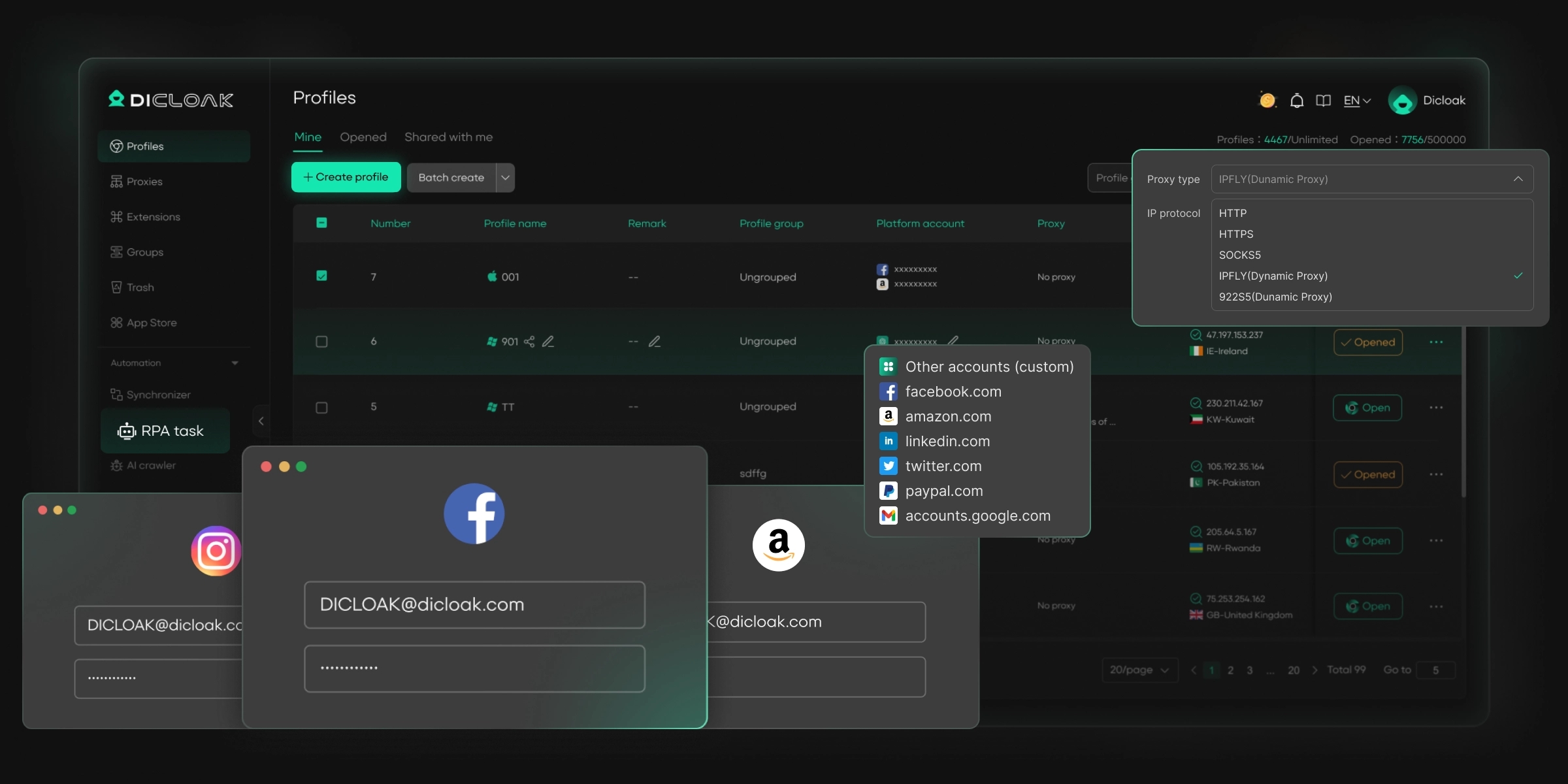
What Makes DICloak Stand Out?
✅ Manage 1,000+ Accounts on One Device: Stop wasting money on extra hardware! DICloak allows you to manage multiple accounts on a single device, cutting costs and boosting efficiency.
✅ Guaranteed Account Safety, No Ban Risks: Every account gets its own isolated browser profile with custom fingerprints and IPs, drastically reducing the risk of bans. Your accounts, your control!
✅ Flexible Proxy Configuration for Maximum Performance: Seamlessly integrate with all major proxy protocols (HTTP/HTTPS, SOCKS5) and manage your proxy pool with bulk operations. No more struggling with IP management—DICloak has you covered.
✅ Streamlined Team Collaboration for Better Results: Easily manage your team with advanced tools like profile sharing, permission settings, data isolation, and operation logs. Your team works smarter, not harder.
✅ Automate the Grind with RPA: DICloak's built-in RPA saves you hours of manual work. Automate repetitive tasks, streamline workflows, and focus on what really matters—growing your business.
✅ Powerful Bulk Tools to Scale Your Operations: Create, import, and launch multiple browser profiles in one click. DICloak makes scaling your business as easy as it gets.
✅ Compatible with All Major Operating Systems: Based on the Chrome core, DICloak supports simulating Windows, Mac, iOS, Android, and Linux operating systems. No matter what platform you need, DICloak has you covered.
🔗 Ready to Get Started?
Visit the DICloak website to explore more details and choose the plan that’s right for you. Start for free today and experience the power of secure, efficient, and scalable multi-account management!
FAQs
1.Can I delete my PayPal account without logging in?
No. You must log in to delete your account. PayPal needs to verify your identity to ensure security.
2.What happens to my data after deletion?
Some data, like basic account info or transaction records, may be kept for legal or security reasons. However, you will no longer have access.
3.Why can't I delete my account?
Your account may have pending transactions, unresolved disputes, or restrictions. These must be cleared before deletion.
4.Can I switch to an alternative payment method?
Yes. Platforms like Venmo, Cash App, Stripe, or Zelle can replace PayPal for personal or business use. Many users switch after learning how to delete a PayPal account to continue sending and receiving money safely.
Conclusion
Deleting a PayPal account requires careful steps. First, transfer any balance, resolve pending transactions, download your history, and cancel subscriptions. Then follow the desktop or mobile deletion process while staying secure by using the real site, updating the app, and checking Wi-Fi. Remember, deletion is permanent, so consider alternatives like Venmo, Cash App, Stripe, or Zelle for personal or business use. Preparing properly and understanding how to delete a PayPal account ensures a smooth process and keeps your money and data safe.
 Web Proxy Tools
 Free Tools
 Cookie Plugin
 UA Generator
 MAC Address Generator
 IP Generator
 IP Address List
 2FA Code Generator
 World Clock
 Anonymous Check
 WebRTC Leak Test
 UUID Generator
 Free Web Proxy Site
 Proxy Checker
 FB Ad Checker
 AI Web Scraping
 Free SMM Tools
 Twitter Shadowban Checker
 Instagram Name Checker
 UTM Generator
 Username Generator
 AI Hashtag Generator
 LinkedIn Headline Generator
 Social Media Image Resizer