When several people in one household want different Peacock shows, movies, sports, or live content, the key question is how many people can watch peacock at once. Peacock currently permits up to three active video streams on one account at the same time.
That does not mean the account is limited to three Profiles or three signed-in devices. Peacock simultaneous streams refers only to videos actively playing. A device that is signed in but idle does not use a stream.
This article explains how the limit works, whether Select, Premium, or Premium Plus changes it, and how Profiles organize household viewing. It also covers Peacock’s household-sharing rules, what to do when too many streams are active, and how authorized household members can share Peacock Web access with more control over the saved session and password.
How Many People Can Watch Peacock at Once?
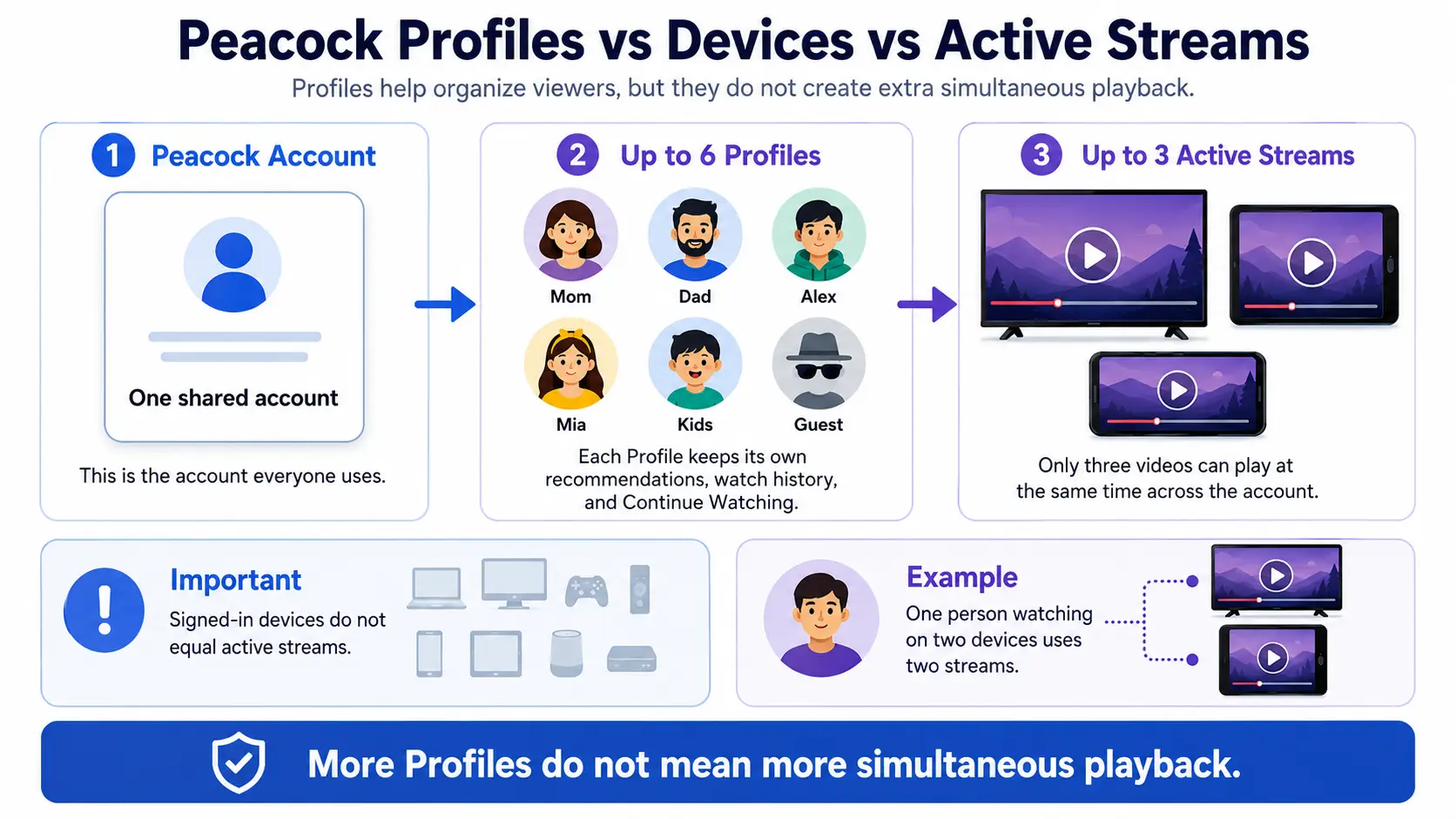
Peacock allows up to three active video streams across one account. The number of viewers may differ because one person can use two streams by playing videos on two devices at the same time.
Peacock’s Simultaneous-Stream Limit Explained
One active stream means Peacock content is playing on a supported device or in a browser. Each device playing a show, movie, sports event, channel, or other video normally uses one of the account’s three streams.
For example, one person could watch a movie on the living room TV, another could watch a series on a tablet, and a third could watch live sports on a phone. All three streams would then be occupied. If the first person also starts Peacock on a laptop, that viewer alone would use two streams.
So, how many devices can stream peacock at once? Up to three devices can normally play video at the same time. Peacock may still be installed and signed in on additional devices. Being logged in does not use the peacock streaming limit until playback starts.
Does Your Peacock Plan Change the Streaming Limit?
No. Peacock’s current guidance gives Select, Premium, and Premium Plus accounts the same account-wide limit of up to three concurrent streams. The allowance is tied to the Peacock account, not raised by choosing a higher subscription tier.
Premium Plus adds other benefits, including fewer ads with limited exceptions and eligible offline downloads. Those features can improve the viewing experience, but they do not add a fourth simultaneous stream. A full comparison of household-related plan features appears later in the article.
What Happens When Another Person Tries to Watch?
When three videos are already playing, the next viewer will see a message saying the account has reached its simultaneous-stream limit. Another video cannot begin until one existing playback session ends.
Someone should fully stop the video or exit Peacock on an active device. Pressing pause may not release the stream right away because the session can remain open. A browser crash, lost connection, or improperly closed app may also leave a stream active briefly.
Detailed fixes come later. First, it helps to understand how Peacock Profiles organize viewers without adding streams.
How Peacock Profiles Work for Multiple Viewers
Peacock Profiles help people in the same household keep their viewing activity organized. They do not add more simultaneous streams because every Profile uses the same account-wide allowance.
Six Profiles Do Not Mean Six Simultaneous Streams
Peacock currently supports up to six Profiles on one account. So, how many profiles can you have on peacock? The answer is six, including the main Account Holder Profile.
All six Profiles share the account’s existing streaming allowance. For example, six household members may each have their own Profile, but only the permitted number of active videos can play at one time. Adding a Profile creates a separate viewing space. It does not create another Peacock subscription or provide an extra stream allowance.
How to Create and Switch Peacock Profiles
Start from Peacock’s profile selection screen, often labeled “Who’s Watching?” Select the plus sign marked “New Profile,” choose an avatar, enter a Profile name, decide whether it should be a Kids Profile, and save your choices.
To switch viewers later, return to the profile menu and select the correct name or avatar. The exact route back to this menu may vary slightly across browsers, mobile apps, and smart TVs. Separate Profiles keep each person’s viewing history, recommendations, Continue Watching activity, name, and avatar organized instead of mixing everything into one feed.
How Kids Profiles and Profile PINs Work
A Kids Profile limits browsing to Peacock’s age-appropriate Kids section. The main Account Holder Profile cannot be changed into a Kids Profile. Peacock also provides profile-based maturity settings for more control over available content.
You can protect a Profile with a four-digit PIN. The PIN helps with parental control and keeps other viewers out of a protected Profile, but it is not a separate account password or subscription.
Can You Share a Peacock Account With Family or Friends?
People in the same household may use the same Peacock login, but can you share a peacock account under its rules? Access is separate from simultaneous streaming, and permitted sharing depends on Peacock’s household policy.
Peacock’s Current Household Sharing Policy
Unless a specific subscription tier says otherwise, Peacock does not permit sharing a subscription outside the account holder’s household. Peacock defines a household as the collection of devices associated with the account holder’s primary personal residence.
The account holder is responsible for all account use, including activity by other household members. Being able to enter the login details on another device does not automatically mean that use follows Peacock’s terms. Peacock does not publicly explain the technical methods or timing used to review household activity.
Risks of Sharing Your Peacock Password
Sending the password directly creates practical risks. The recipient could forward it, or the same password may already be reused on another website. Someone with full login access may change Profiles, maturity settings, or account details and may view billing or subscription information.
Removing access can also be harder once another person knows the password because deleting a Profile does not change the account login. The account holder remains responsible for activity performed through the account, even when another household member is using it.
How to Share Peacock More Safely Within Your Household
For safer peacock account sharing, create a separate Profile for each regular viewer and use a strong password that is not reused elsewhere. Limit access to trusted household members, and use Kids Profiles, maturity settings, and Profile PINs where appropriate.
Avoid posting login details in large group chats or sending them through unprotected messages. Review account settings when someone should no longer have access, and change the password if it may have been forwarded. Coordinate viewing when active streams are already occupied.
These steps improve access control, but they do not increase Peacock’s streaming allowance. Next, compare which viewing and sharing features Peacock’s plans provide.
Do Peacock Plans Offer Different Sharing Features?
Peacock plans mainly differ in content access, ads, and offline downloads for household viewing. Choosing a more expensive plan does not currently increase the account’s simultaneous-stream allowance.
Current Peacock Plans Compared
Peacock currently lists Select, Premium, and Premium Plus. Select is described as a tier being tested, so availability may vary. For households, the main differences are library size, ad experience, live access, and download support. Select focuses on television programming, while the two higher tiers add a broader library.
| Plan |
Relevant Content Access |
Ads |
Offline Downloads |
Simultaneous Streams |
| Select |
TV library; no sports, movies, or Originals |
Yes |
No |
Up to 3 per account |
| Premium |
TV, movies, live sports, events, and Originals |
Yes |
No |
Up to 3 per account |
| Premium Plus |
Premium library plus supported local NBC access |
Fewer, with exceptions |
Select titles |
Up to 3 per account |
Peacock publishes one account-wide concurrent-stream rule. It does not list a separate allowance for each subscription tier.
Does Premium Plus Increase the Streaming Limit?
No. Peacock’s current Help Center permits up to three concurrent streams per account and does not list a higher Premium Plus allowance. Premium Plus instead provides fewer ads, with limited exceptions, eligible offline downloads, and access to a supported local NBC channel. Paying for Premium Plus does not currently create a fourth stream, even though the plan adds viewing features not included with lower tiers.
Can Offline Downloads Help Multiple Viewers?
Eligible downloads are available only with Premium Plus and only for select titles. They work on compatible mobile phones and tablets. Peacock currently permits up to 25 downloaded items across all devices on one account, and some titles may have additional download limits.
Downloads are useful for travel or preparing content in advance, but they do not increase the simultaneous-stream allowance. Peacock’s current public guidance does not clearly say whether offline playback counts as an active stream, so downloads should not be treated as a solution to active-stream restrictions.
What to Do When Peacock Says Too Many Devices Are Streaming
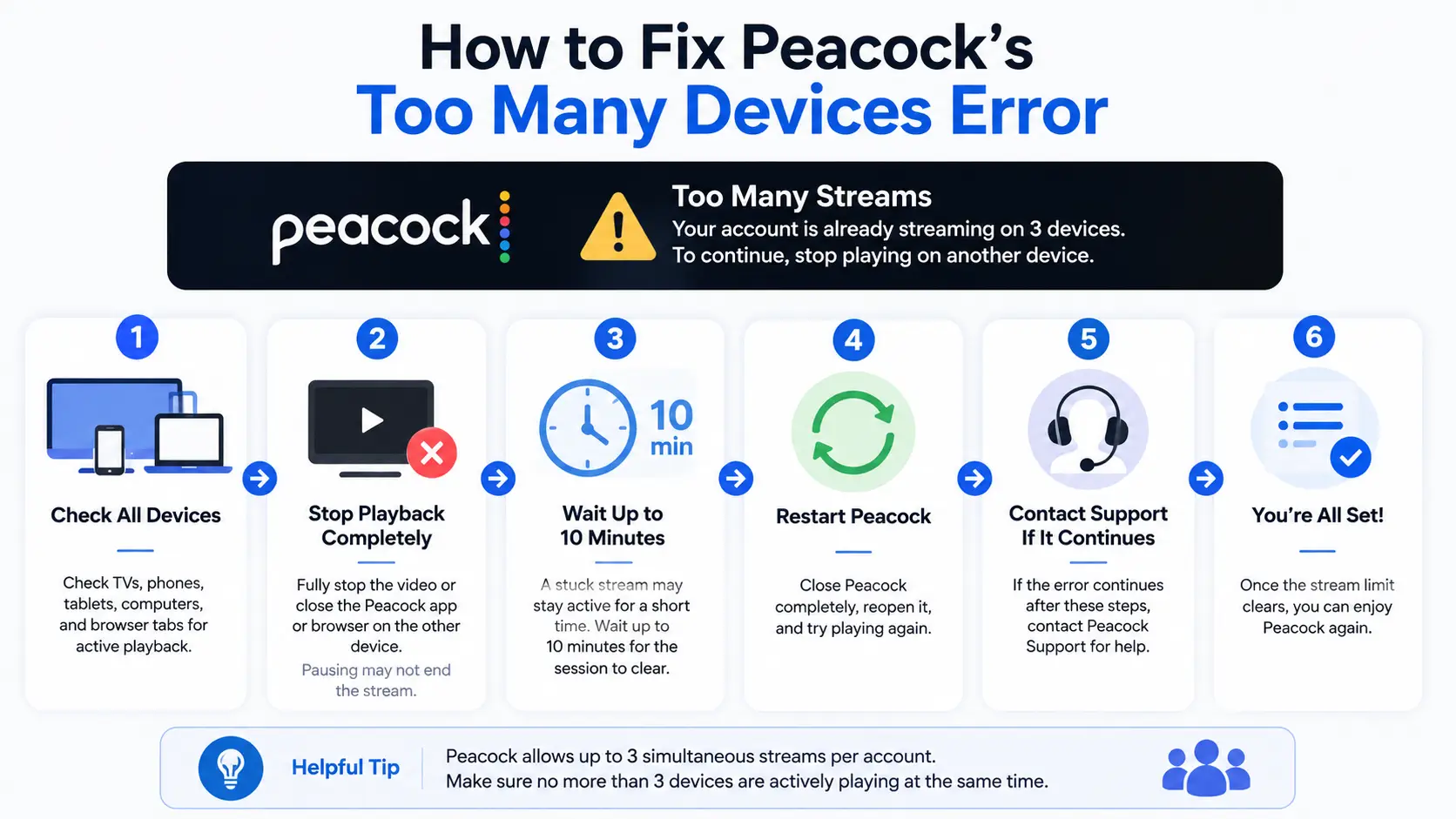
This message usually appears because three streams are active or an older playback session has not cleared. First, check every household device that may still be playing Peacock.
Stop Playback on Another Device
The first step is to find another device that is currently playing Peacock. Check smart TVs, streaming sticks or boxes, phones, tablets, computers, and any open browser tabs.
Fully stop the video or close the Peacock player on that device. Pausing may leave the playback session active, and a device can keep streaming even when nobody is watching the screen. After the other stream has ended completely, retry playback on the device you want to use.
Wait for a Stuck Stream to Clear
A stream may remain temporarily active after a browser crash, an app closes incorrectly, a device shuts down suddenly, or the internet drops during playback. Peacock recommends waiting up to ten minutes before trying again.
The system may need time to recognize that the earlier playback session has ended. After waiting, close Peacock completely, reopen it, and retry. Ten minutes may not resolve every case.
Fix App, Browser, Network, and Device Problems
Basic app, browser, network, or device problems may also stop playback. If you see a peacock too many devices message or keep reaching the peacock streaming limit, try these steps:
- Close Peacock completely and reopen it.
- Restart the device. Power it down or unplug it, wait about 20 seconds, and restart it.
- Check that the internet connection is stable.
- Close unused Peacock tabs, windows, or apps on other devices.
- Sign out and sign back in if the error continues.
- Clear the browser or app cache where supported.
- Update the Peacock app, browser, and device software.
- Reinstall the Peacock app if basic fixes fail.
- Contact Peacock Support if the problem continues.
How to Share Peacock Web Access More Securely With DICloak
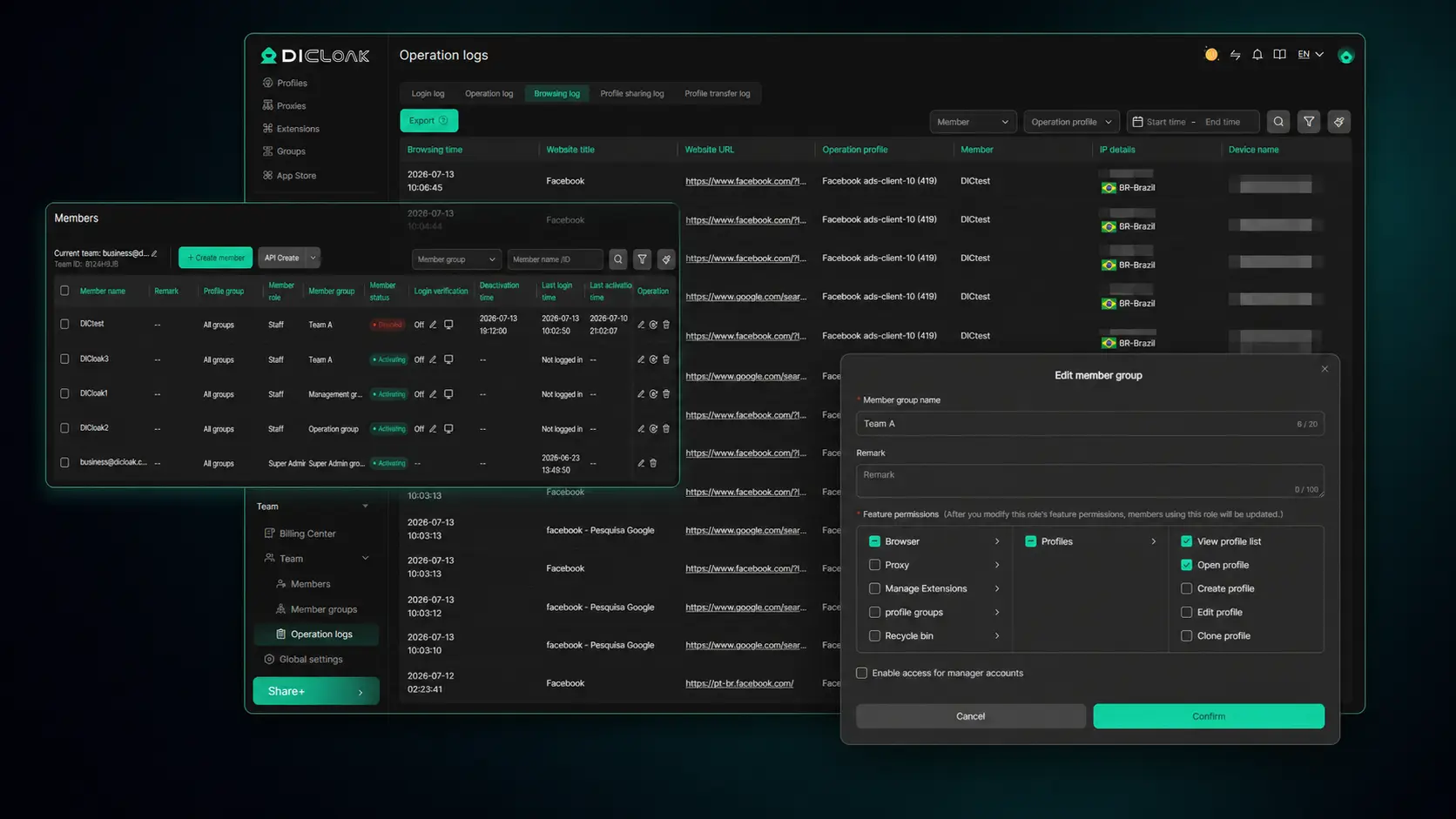
With this peacock account sharing workflow, you can keep the logged-in Peacock Web session in one shared browser profile, give approved household members access without sending them the password directly, control who can use the profile, and remove access whenever it is no longer needed.
Create One Shared Browser Profile for the Peacock Account
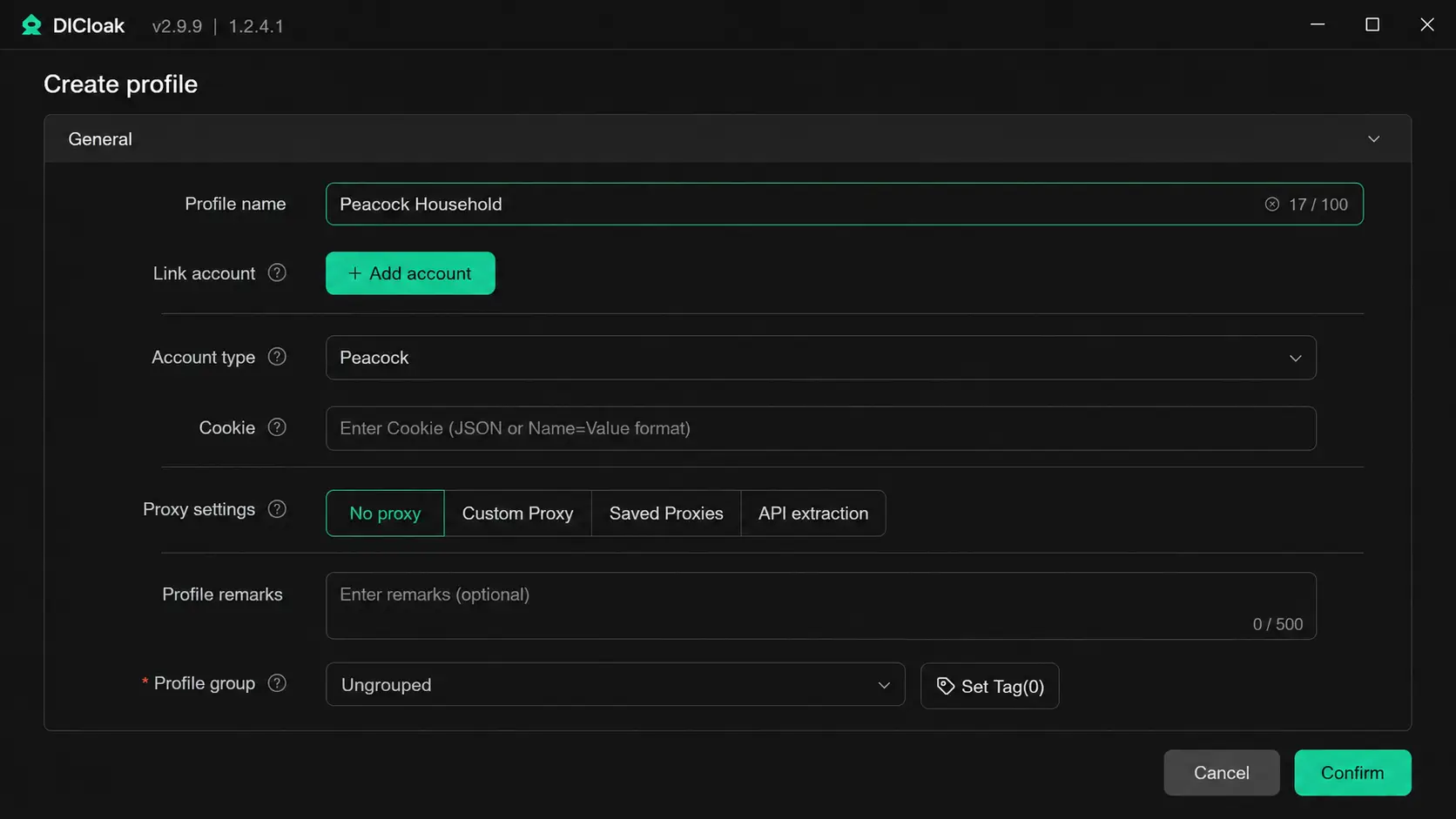
With DICloak, you can create one dedicated browser profile for one shared Peacock account. The account owner signs in first, then approved household members receive access to that profile.
The profile keeps Peacock cookies, browser storage, and the current logged-in session in one shared workspace. Authorized users open the same Peacock Web workspace instead of creating separate browser profiles for the account. This DICloak browser profile is not a viewer Profile inside Peacock. A Peacock Profile organizes viewing activity, while the shared browser profile stores the web session used to access the account.
Share the Logged-In Session Without Revealing the Password
The account owner completes the initial Peacock login inside the shared browser profile. With Synced Login Status, the saved login state remains available in that authorized workspace, so approved users can open the Peacock Web session without receiving the password directly.
Using Hide Password, you can let users access the shared profile without viewing the actual password or receiving it through messages or group chats. This reduces direct password sharing, but it does not remove every account-security risk. Peacock may still request a new login, account verification, or a session refresh, so the saved session should not be treated as permanent.
Control What Authorized Users Can Access
With Profile Sharing and Member Permissions, you can assign the shared Peacock browser profile only to approved users. You can keep your other browser profiles unavailable to them and remove a person’s access when sharing is no longer needed.
You can also use Website Whitelist to limit the shared profile to Peacock and other approved pages. With Web Element Hider, you can hide selected areas from the shared user’s view, such as billing details, subscription settings, or account controls. Hiding an element only changes what that user sees on the page. It does not delete the information, encrypt it, hide it from Peacock, or change what Peacock stores.
Peacock’s official stream limit still applies. This setup works only with Peacock Web and should be used only for authorized household access that follows Peacock’s terms.
FAQs about how many people can watch peacock
Can I Watch Peacock on a Smart TV and Phone at the Same Time?
Yes, you can watch Peacock on a smart TV and phone at the same time if the account-wide limit has not been reached. Video playing on the TV uses one stream, and video playing on the phone uses another. A device that is only signed in and not playing content does not normally use a stream.
Does Each Peacock Profile Get Its Own Streaming Limit?
No, each Peacock Profile does not receive a separate streaming limit. Every Profile uses the same account-wide allowance of up to three concurrent streams. Profiles are meant to separate viewing history, recommendations, Continue Watching activity, maturity settings, names, avatars, and other viewer preferences, not to create additional playback capacity for anyone.
Can Six People Watch Peacock at the Same Time?
No, six people cannot normally play six Peacock videos at the same time. Peacock permits up to three concurrent streams per account. Six household members may each have their own Profile, but they must coordinate playback so no more than three active streams are running across the account at once.
Can I Watch Peacock While Traveling?
Yes, you can watch Peacock while traveling within the United States and supported U.S. territories, subject to Peacock’s terms. Access can depend on your location, supported device, content rights, and internet connection. Some titles, live events, or local NBC channels may differ or be unavailable when you are away from home.
Do Live Sports and Events Use the Same Streaming Limit?
Yes, live sports and events use Peacock’s normal account-wide allowance of up to three concurrent streams. For selected events, Multiview may show several feeds inside one supported viewing experience. It does not create extra device streams or raise the account limit. Availability depends on the event and the device being used.
Coordinating viewing is only part of Peacock account sharing. You also need control over the saved web session, password, and authorized access.
With DICloak, you can keep one logged-in Peacock Web session in a shared browser profile, give approved household members access without sending the password directly, and remove access when needed. Try DICloak for Free.
 Web Proxy Tools
 Free Tools
 Cookie Plugin
 UA Generator
 MAC Address Generator
 IP Generator
 IP Address List
 2FA Code Generator
 World Clock
 Anonymous Check
 WebRTC Leak Test
 UUID Generator
 Free Web Proxy Site
 Proxy Checker
 FB Ad Checker
 AI Web Scraping
 Free SMM Tools
 Twitter Shadowban Checker
 Instagram Name Checker
 UTM Generator
 Username Generator
 AI Hashtag Generator
 LinkedIn Headline Generator
 Social Media Image Resizer