Setting up a browser Profile often means setting up its network connection as well. For many users, that used to mean buying a proxy on another platform, copying the connection details, and then returning to DICloak to finish the setup.
With the new PuraRoute Proxy integration, that process is now more direct. Users can access both Static IP and Dynamic IP options from Proxies > PuraRoute Proxy, then connect the proxy resource to the browser Profile that needs it.
Why Add a Proxy to a Browser Profile?
Each browser Profile represents a separate working environment. Adding a proxy also gives that Profile its own network connection, so you do not need to manually switch IP settings every time you move between accounts. This is especially useful for long-term multi-account management, such as social media accounts, ecommerce stores, or advertising accounts. You can keep one proxy linked to each Profile, making it easier to maintain the same setup when you reopen an account and to see which network connection belongs to which Profile.
Static IP or Dynamic IP: Which Should You Choose?
PuraRoute Proxy offers both Static IP and Dynamic IP options in DICloak. A Static IP is better for long-term account management, where a Profile needs to keep using the same IP resource. A Dynamic IP is more suitable for flexible or temporary tasks that may require different locations or session settings.
Static IP for Long-Term Account Management
A Static IP is a practical choice for account nurturing and long-term multi-account management. It works well when you want one browser Profile to keep using the same IP resource across repeated sessions, such as for social media accounts, ecommerce stores, advertising accounts, or other accounts you manage over time.
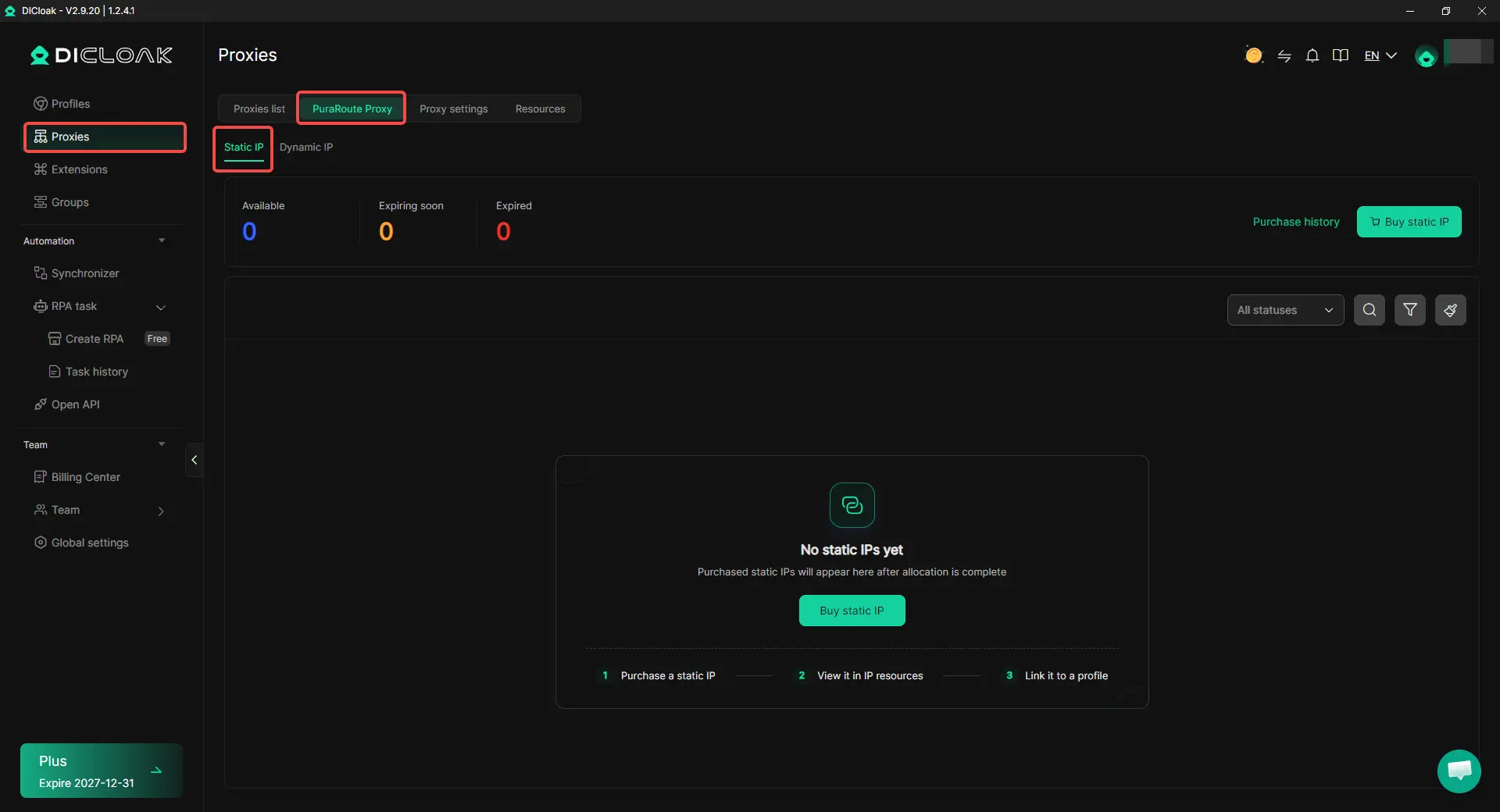
Go to Proxies > PuraRoute Proxy > Static IP to purchase one. Once the IP is allocated, you can find it in your IP resources and link it directly to the Profile that will use it. The page also shows whether each static IP is Available, Expiring soon, or Expired, making it easier to keep track of IP resources as your Profile list grows.
Dynamic IP for Flexible Tasks
A Dynamic IP is a better fit when you need more flexibility instead of keeping one fixed IP for a long-term account. It can be useful for location-based browsing, short-term tasks, research, or workflows where different Profiles need different proxy sessions.
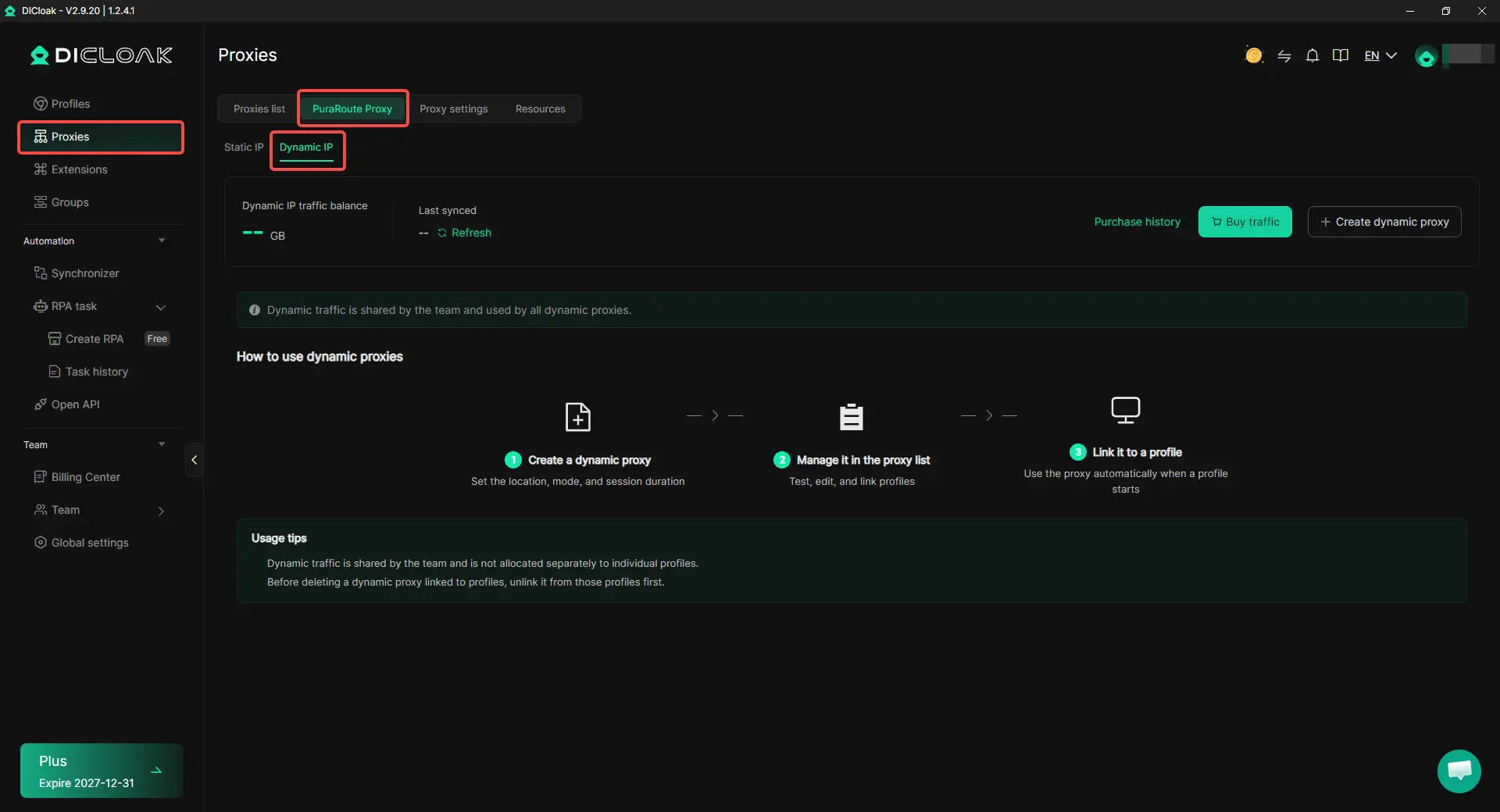
Go to Proxies > PuraRoute Proxy > Dynamic IP and select Create dynamic proxy. You can choose the location, mode, and session duration, then manage the created proxy in the proxy list and link it to the required Profile. Dynamic IP traffic is shared across the team and used by all dynamic proxies, so there is no need to assign a separate traffic balance to each Profile.
Get Started with PuraRoute Proxy in DICloak
Whether you need a Static IP for a consistent setup or a Dynamic IP for more flexible sessions, both options are now available under Proxies > PuraRoute Proxy. Explore PuraRoute Proxy in the latest version of DICloak.
 Web Proxy Tools
 Free Tools
 Cookie Plugin
 UA Generator
 MAC Address Generator
 IP Generator
 IP Address List
 2FA Code Generator
 World Clock
 Anonymous Check
 WebRTC Leak Test
 UUID Generator
 Free Web Proxy Site
 Proxy Checker
 FB Ad Checker
 AI Web Scraping
 Free SMM Tools
 Twitter Shadowban Checker
 Instagram Name Checker
 UTM Generator
 Username Generator
 AI Hashtag Generator
 LinkedIn Headline Generator
 Social Media Image Resizer