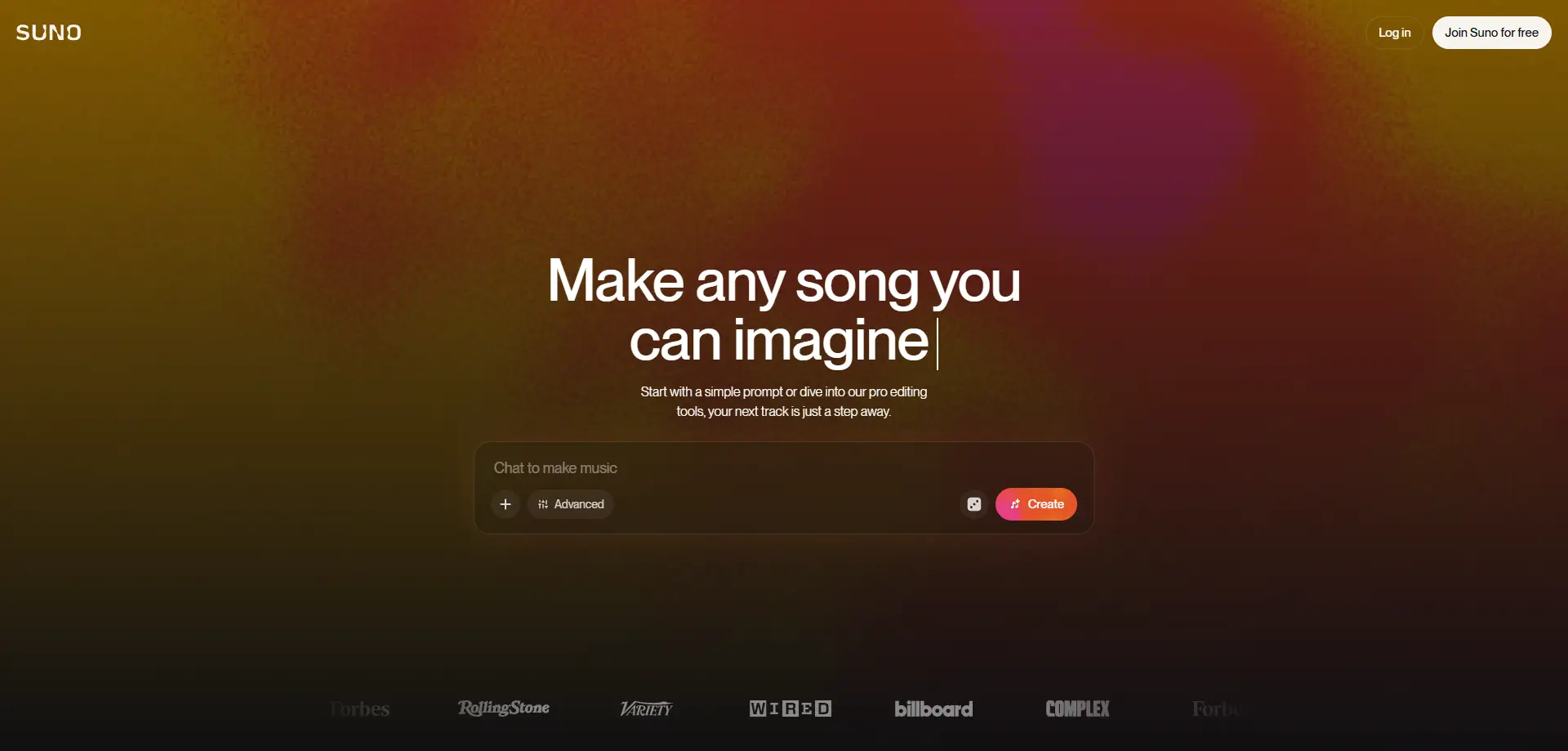
Nearly 100 million people created music with Suno within its first two years, showing how quickly AI music has moved from solo experiments into real creative workflows. Yet Suno’s public plans still focus on individual subscriptions rather than a dedicated multi-seat team workspace.
This creates a practical challenge for content teams, agencies, and creators who want to share one Suno account without losing control of passwords, credits, projects, or access. This guide explains when sharing makes sense, which method fits different team workflows, and how an authorized team can manage Suno access more clearly with DICloak Antidetect Browser.
Can You Share a Suno Account with Your Team? What You Should Know First
Suno does not currently work like a typical team collaboration platform with separate seats and role-based access. For many small teams, sharing one account can be a practical option, but the workflow depends on how you manage access, sessions, and creative projects.
Many teams share a Suno account because not every member needs a separate subscription. A marketing team, content studio, or small creative group may use one account to generate music, test ideas, and prepare audio assets for videos.
The main challenge is that account sharing is not just about giving teammates a login. Teams also need to think about who manages the account, how credits are used, how projects are organized, and what happens when someone no longer needs access.
Before sharing a Suno account, it helps to understand what type of collaboration your team actually needs:
- Create together: Multiple members need to generate and edit music from the same account.
- Review and approve: Some members only need to check tracks or provide feedback.
- Share final assets: The team only needs exported audio files instead of direct account access.
For small teams with the same workflow, sharing one Suno account may be enough. But as more people, projects, or clients are involved, the need for clearer access management becomes more important.
What Are the Risks of Sharing a Suno Account with Multiple People?
The biggest problem with sharing a Suno account is not the password itself. It is losing control over access, sessions, and ownership when multiple people start using the same account.
For a small team, sharing one account may look simple at first. But problems usually appear when people use different devices, work from different locations, or need access at the same time. A shared login can quickly become difficult to manage if there is no clear workflow.
Multiple Devices Can Make Account Management Harder
Remote teams often use the same account from several devices. One teammate may create music from a laptop, another may review tracks from a different device, and someone else may check projects while traveling.
The issue is not only the number of devices. It is keeping track of who is using the account and why. When multiple people work on the same account, it becomes harder to understand whether a change, generated track, or account action came from the right person.
For example, a three-person content team may use Suno for video production. One person writes prompts, another creates different music versions, and another prepares the final audio files. Without a clear process, the team may struggle to organize work and avoid overlapping changes.
Shared Passwords Create Ownership and Security Problems
A shared password removes the clear connection between a person and the actions they take inside the account. Over time, simple questions can become difficult to answer:
- Who changed the account settings?
- Who used the available credits?
- Who should still have access after leaving the project?
This becomes more important when a team grows or works with multiple clients. The account owner may need to update access, remove former members, or review how the account is being used.
The key issue is not that sharing a password always fails. It is that passwords alone do not provide the control teams need as collaboration becomes more complex.
Team Collaboration Needs More Than One Login
A shared account works better when the team also has a clear way to manage access and responsibilities. Different members may need different levels of involvement, and not everyone needs full control over the account.
Before sharing Suno with a team, consider:
- Who owns the account and manages billing?
- Who needs to create music?
- Who only needs to review or download files?
- How will access be removed when someone leaves?
For occasional collaboration, a simple shared workflow may be enough. But teams that create content regularly usually need a more organized approach to manage access, projects, and responsibilities.
What Are the Best Ways to Share Suno Access with a Team?
The best way to share Suno access depends on how your team works. Some teams only need to exchange finished files, while others need ongoing access to the same creative workspace.
There is no single best sharing method for every team. A small content team, a marketing agency, and a group of creators may all use Suno differently, so the right approach depends on how much access and control they actually need.
Share Suno Login Details for Simple Team Use
Sharing login details is the simplest option for very small teams, but it gives everyone the same level of access and makes account ownership harder to manage.
This method can work when a few trusted teammates occasionally use the same account for similar tasks. For example, two creators working on the same internal project may share one Suno login to generate ideas and review tracks.
The challenge appears when more people join. Since everyone uses the same credentials, it becomes harder to know who changed settings, used credits, or created a specific track. It can also make access management more difficult when someone leaves the team.
Use a Password Manager to Protect Account Credentials
Password managers can make shared accounts easier to handle because team members do not need to copy and store passwords manually. However, they do not solve every collaboration problem.
A password manager protects the login details, but the team still works inside the same account. There is usually no clear separation between users, projects, or responsibilities.
For teams that only need occasional access, this can be a practical option. But teams with multiple creators, different workflows, or frequent collaboration may need more control than a shared password can provide.
Share Exported Suno Files Instead of Account Access
Not every team needs direct access to a Suno account. Sometimes the simplest workflow is to create music in one place and share the final audio files with others.
For example, a marketing agency may use Suno to create background music for client videos. The creative team handles music generation, while the client only reviews approved tracks and provides feedback.
This approach keeps ownership clear and avoids unnecessary account sharing. It works well when teammates or clients only need the final assets, not the ability to create new content inside the account.
Use an Antidetect Browser Profile for Ongoing Team Work
Teams that need several people to work inside the same account usually need more than credential sharing. They need a way to organize access and keep each browser profile consistent.
An antidetect browser profile can help teams manage this type of workflow. With DICloak Antidetect Browser, teams can create separate browser profiles, share specific profiles with teammates, and manage access through team permissions.
For example, a content team can keep a dedicated Suno browser profile for music creation and share access with selected members instead of sending login details through chat or documents. This makes it easier to control who can access the account as team members and projects change.
The right sharing method depends on what your team needs from Suno. If you only exchange finished tracks, file sharing may be enough. If multiple people create inside the same account, a more structured access method may be a better fit.
How Can Teams Share Suno Accounts With DICloak Antidetect Browser Without Sharing Passwords?
When an authorized team needs to use one Suno account, the account owner can keep the signed-in session inside a dedicated browser Profile and share that Profile with selected members. This reduces direct password sharing and makes team access easier to control. With DICloak Antidetect Browser, teams can organize shared access through separate browser Profiles, Profile sharing, and team permissions.
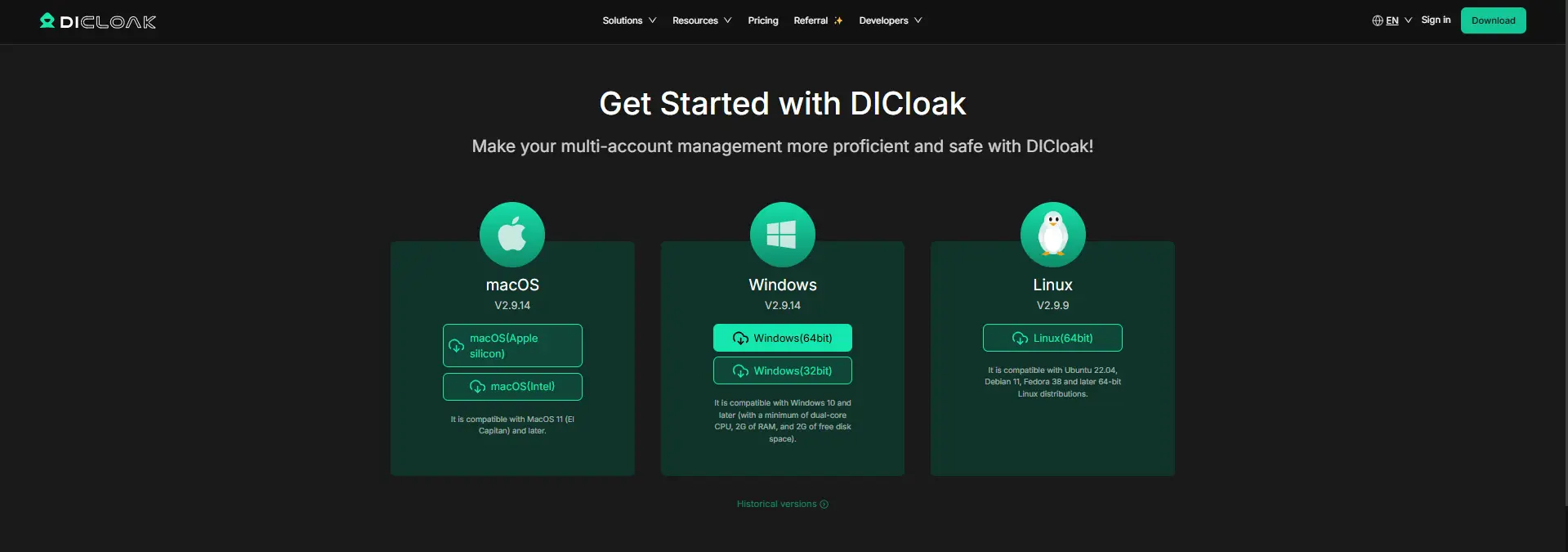
1. Install DICloak and Set Up Team Access
Download DICloak, create an account, and choose a team plan based on the number of members and browser Profiles your team needs.
2. Create a Dedicated Suno Browser Profile
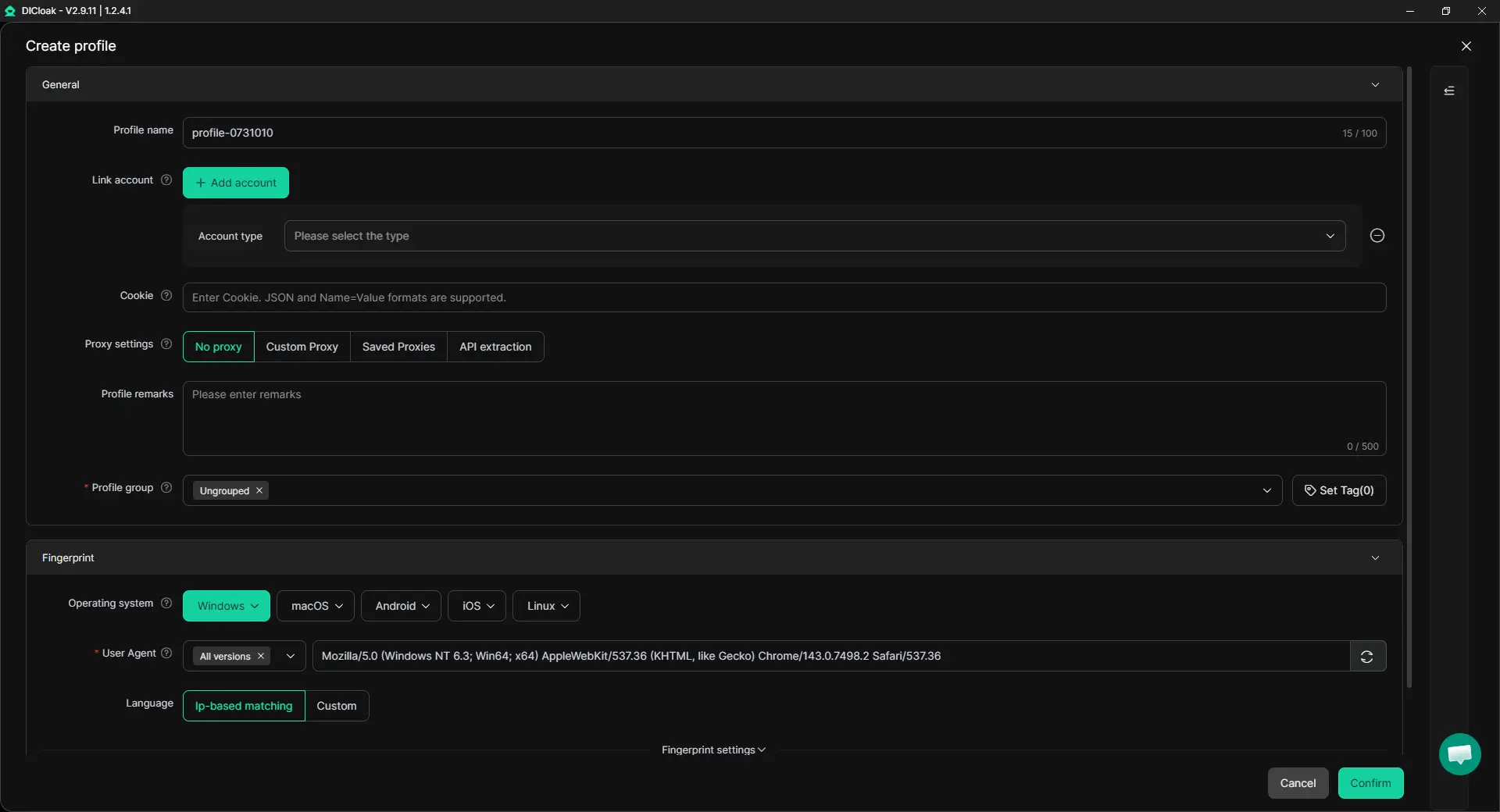
Create a separate browser Profile for the authorized Suno account. A dedicated Profile keeps cookies, login sessions, and browser data separate from other accounts and projects. Teams can also configure their own proxy settings for the Profile when their workflow requires a specific network setup. If multiple team members need to access the same Suno Profile at the same time, they can enable Multiple sessions based on their collaboration needs.
3. Protect the Password and Sensitive Account Areas
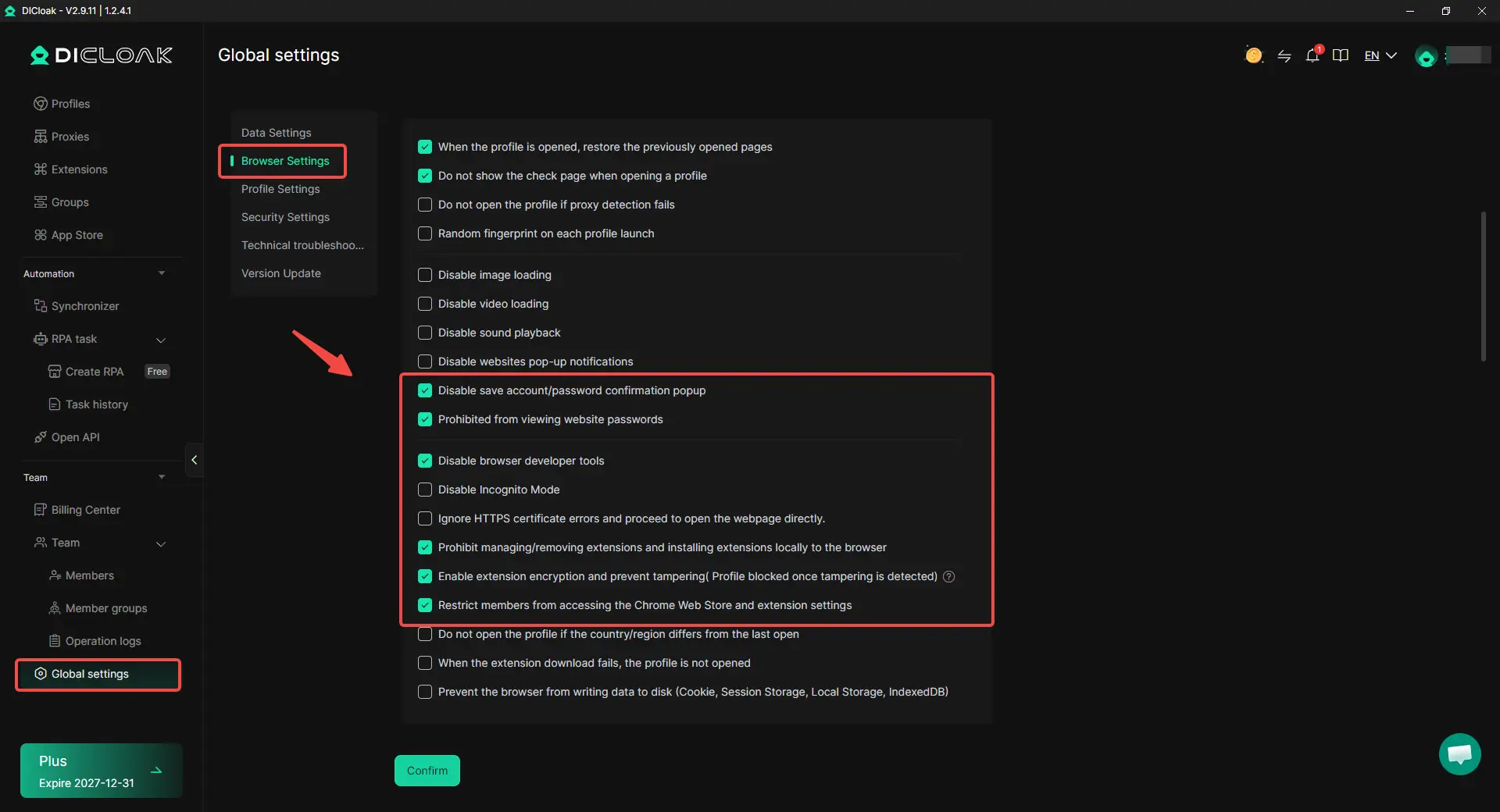
A saved Suno session may expose more access than a teammate needs. With DICloak, the account owner can limit what members can see and use:
- Hide the password: Let approved members log in without viewing or copying the raw password.
- Restrict website access: Limit the Profile to approved Suno pages.
- Hide sensitive elements: Conceal billing, subscription, or account settings that are not needed for the task.
4. Sign In and Prepare the Suno Session
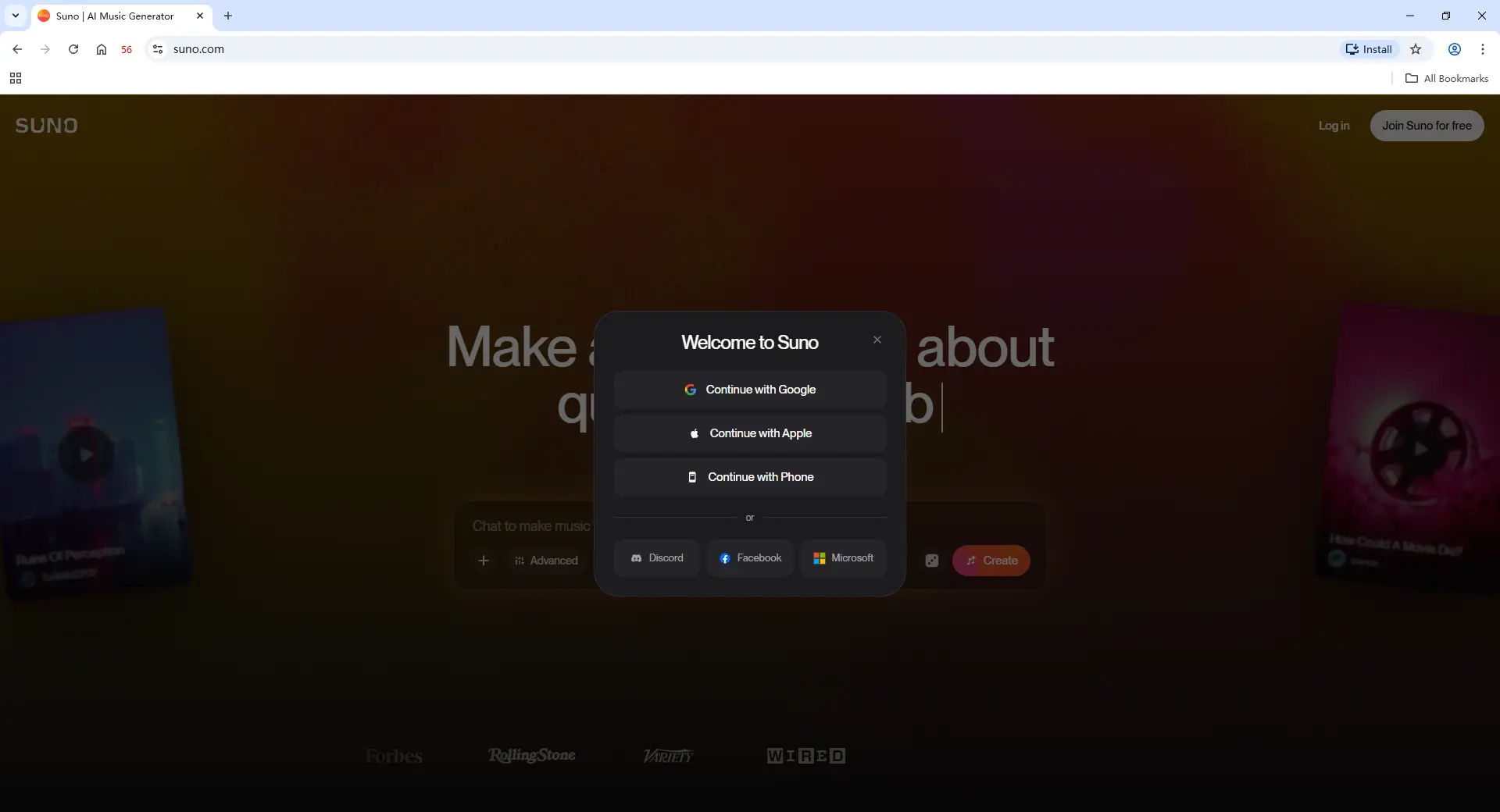
Open the dedicated Profile, sign in to Suno, and complete any required verification. Once the session is ready, approved members can access the Profile without receiving the original password directly.
5. Share the Suno Profile With Selected Members
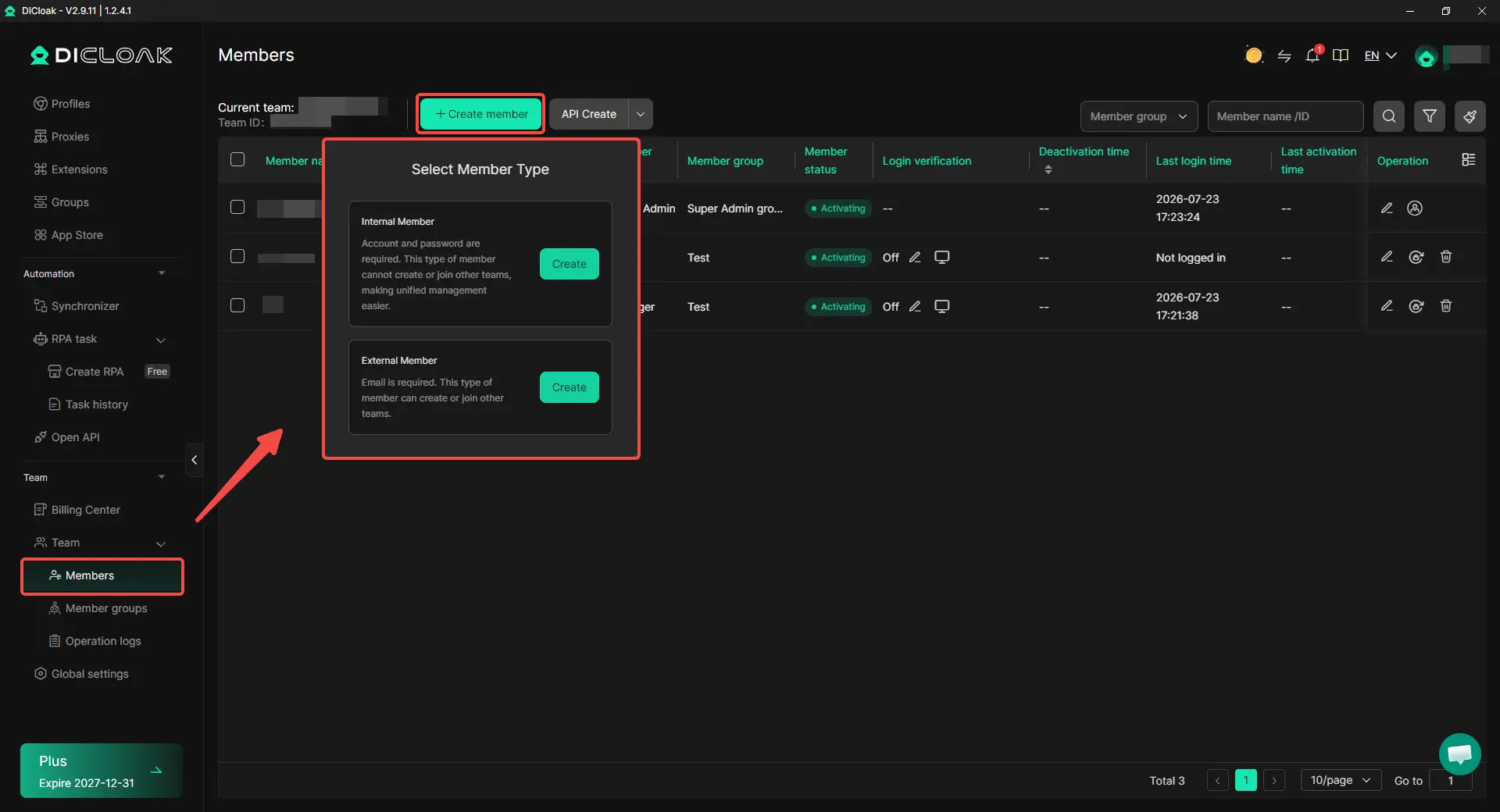
Use profile sharing and team permissions to assign the Suno Profile only to teammates who need access. For example, a marketing team can give music creators access to generate tracks while keeping account management settings limited to the owner. When a freelancer finishes a project, remove their access from the shared Profile.
6. Review and Remove Access After the Project
When a team member leaves, a freelancer finishes a task, or a project closes, remove access to the shared Profile. Regular access reviews help teams keep shared Suno accounts organized as projects and team members change.
What Should You Check Before Sharing a Suno Account?
Before sharing a Suno account, define who owns it, who needs direct access, and how the team will manage projects and usage. Most problems start when everyone can log in, but no one is responsible for the account.
Check these points first:
- Account ownership: One person should manage billing, recovery details, and major account changes.
- Access needs: Give direct access only to members who create music. Reviewers and clients may only need exported files.
- Usage rules: Decide who can use credits, create tracks, and work in the account at the same time.
- Project organization: Use clear names for tracks, folders, or client work so members do not overwrite or confuse assets.
- Sensitive areas: Limit access to passwords, billing details, subscription settings, and other controls that are not needed for the task.
- Access removal: Set a clear process for removing employees, freelancers, or clients when their work ends.
For teams using a shared browser Profile, profile sharing and team permissions with DICloak can help limit access to selected members. Operation logs can also make it easier to review team activity when several people use the same Suno account.
Frequently Asked Questions About Sharing a Suno Account With Your Team
Can multiple team members use the same Suno account?
A small team can organize access around one Suno account, but Suno’s public plans currently focus on Free, Pro, and Premier subscriptions rather than a native multi-seat workspace with separate user roles. The main challenge is controlling access, credits, projects, and account ownership instead of simply giving everyone the password.
Does every teammate need direct access to Suno?
No. Creators may need access to generate or edit music, but clients, managers, and reviewers can often work with shared song links or exported audio files. Suno lets users share private or link-only songs through a direct link, so teams should only provide account access when someone must work inside Suno.
Is a password manager enough for sharing Suno?
A password manager can reduce direct password exposure, but it does not separate users, projects, or responsibilities inside the account. Teams that need ongoing access may prefer a managed browser Profile using an antidetect browser like DICloak, where selected members can receive Profile access through team permissions instead of copying the login details.
Should a team share one Suno account or use separate accounts?
Sharing one account may suit a small team working on the same projects, while separate accounts are usually easier when members manage different clients, budgets, or creative ownership. This matters because songs created while subscribed to a paid Suno plan are tied to the subscribed user’s ownership and commercial-use rights, so teams should agree on ownership before production begins.
How can you remove a teammate’s access to a shared Suno account?
Remove access as soon as a project ends, a freelancer leaves, or a team member changes roles. With DICloak Antidetect Browser, the account owner can remove the member from the shared Suno Profile and review any remaining permissions, saved sessions, or other access points without giving the member the raw password.
Conclusion
You can share a Suno account with your team, but the best method depends on who needs to create music, who only needs finished files, and how much control the account owner needs. Small teams may manage with shared files or a password manager, while teams that need regular access to the same account need a clearer process for sessions, permissions, credits, and account ownership.
The key conclusion is simple: sharing a Suno account with your team works best when access is managed as a team workflow, not treated as simple password sharing. With DICloak Antidetect Browser, an authorized team can keep Suno inside a dedicated browser Profile, share that Profile with selected members, protect sensitive account areas, support Multiple sessions when needed, and remove access when a project ends.
 Web Proxy Tools
 Free Tools
 Cookie Plugin
 UA Generator
 MAC Address Generator
 IP Generator
 IP Address List
 2FA Code Generator
 World Clock
 Anonymous Check
 WebRTC Leak Test
 UUID Generator
 Free Web Proxy Site
 Proxy Checker
 FB Ad Checker
 AI Web Scraping
 Free SMM Tools
 Twitter Shadowban Checker
 Instagram Name Checker
 UTM Generator
 Username Generator
 AI Hashtag Generator
 LinkedIn Headline Generator
 Social Media Image Resizer