You’re staring at the Instagram sign-up screen, entering your info again, but nothing works. The app says your registration failed, or it just keeps loading without any result. You double-check your email, try a new phone number, even restart your device, still stuck. If you’ve searched “why cant i make an instagram account,” you’re not the only one running into this wall.
Sometimes, the reason is obvious: you’re reusing old details flagged by Instagram, or you’ve tried too many sign-ups too quickly. But often, it’s less clear. Hidden device fingerprints, cookies from previous accounts, or a flagged IP can block you before you ever get a username. Even using the same device for multiple accounts can trigger Instagram’s automated blocks. If you keep seeing “can’t create Instagram account” or “Instagram sign up not working,” it’s easy to blame your luck, but these blocks usually have a technical cause.
What trips up most people isn’t a typo or a slow internet connection, it’s Instagram detecting patterns that look risky, even if you’re not doing anything wrong. That means fixing the problem isn’t just about changing your password or using a new email. You need to get ahead of the system Instagram uses to spot abuse, which sometimes means changing how you use your device, your network, or even your signup process.
Here’s how to find out what’s really blocking your Instagram registration, and what actually works to get past it.
What Usually Stops You from Creating an Instagram Account in 2026?
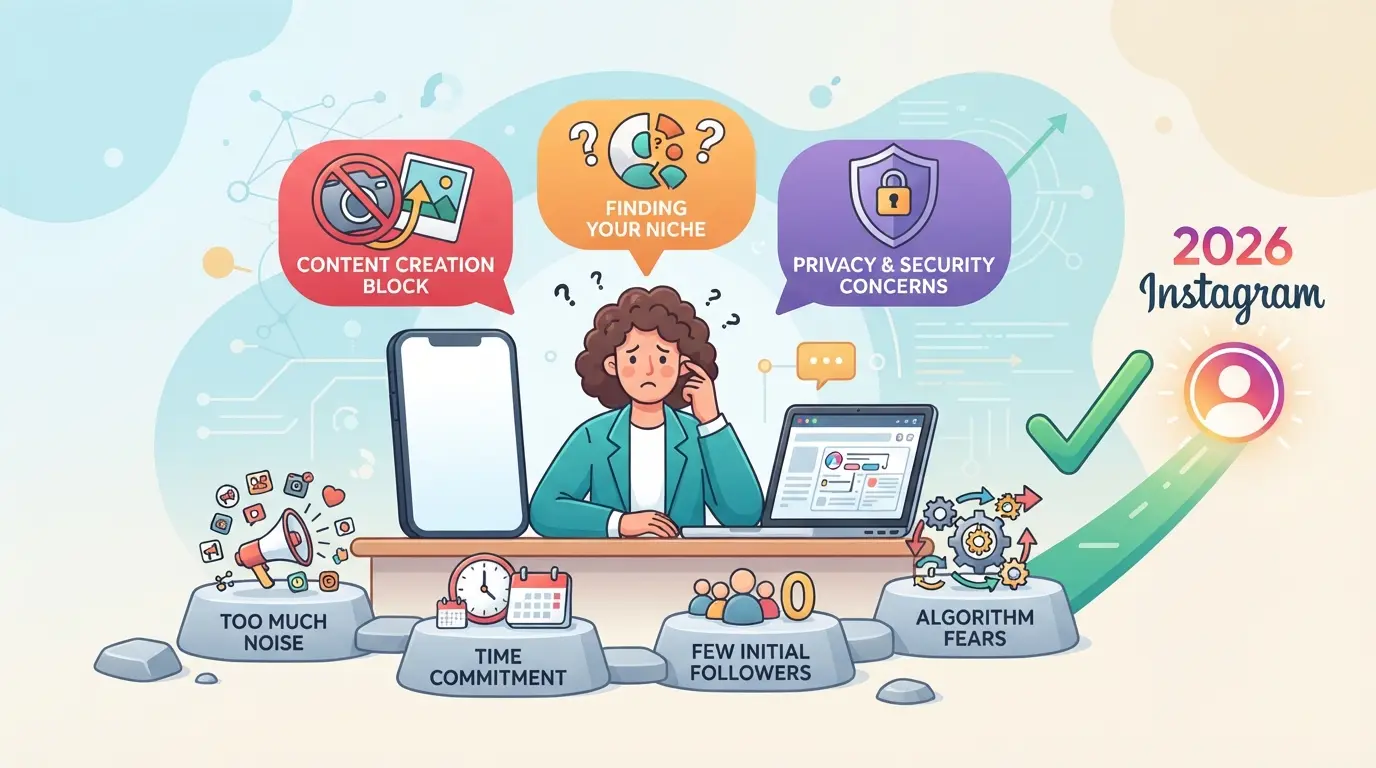
If you’re stuck at the signup screen or keep seeing “Instagram registration failed,” the problem usually comes down to how Instagram flags devices, contact info, or errors in your setup, not a random glitch. Here’s what actually blocks most new accounts.
Device or IP Address Has Been Flagged
Instagram tracks the device and network you use when signing up. If your phone, computer, or IP address matches patterns tied to spam or mass sign-up attempts, even from someone else in your building, you’ll get blocked fast. Borrowing a friend’s phone or public Wi-Fi often triggers the same ban.
Phone Number or Email Already Used or Blocked
Trying to reuse an old phone number or email, or even grabbing one from a free SMS site, almost always sets off an automated block. Instagram checks if your contact info has been used recently, tied to mass signups, or linked to banned accounts. If the system spots any of these, you’ll either see a generic error or get stuck at the verification code step. For example, if you try to sign up with a number from a recycled SIM card, the previous owner’s activity could get your new account blocked instantly. Even using a brand-new email can fail if you register from a device already flagged, so people who keep swapping numbers and emails but never change their device or network often get locked out over and over. The real catch: once your contact info or device is on Instagram’s risk list, even perfect info usually won’t work until you fix the underlying trigger.
App, Browser, or Network Errors
- Outdated Instagram app or browser version, update before signing up
- Network with firewall, proxy, or rate limits, try switching to mobile data or a trusted home Wi-Fi
- Failed requests or stuck cookies, clear your app/browser cache and restart the device
If you’re still blocked after checking these, the next thing to look at is how Instagram spots suspicious signup patterns behind the scenes. That’s usually where most “can’t create account” issues come from, especially if you’ve already tried the basics.
How Instagram Detects and Blocks Suspicious Sign-Ups
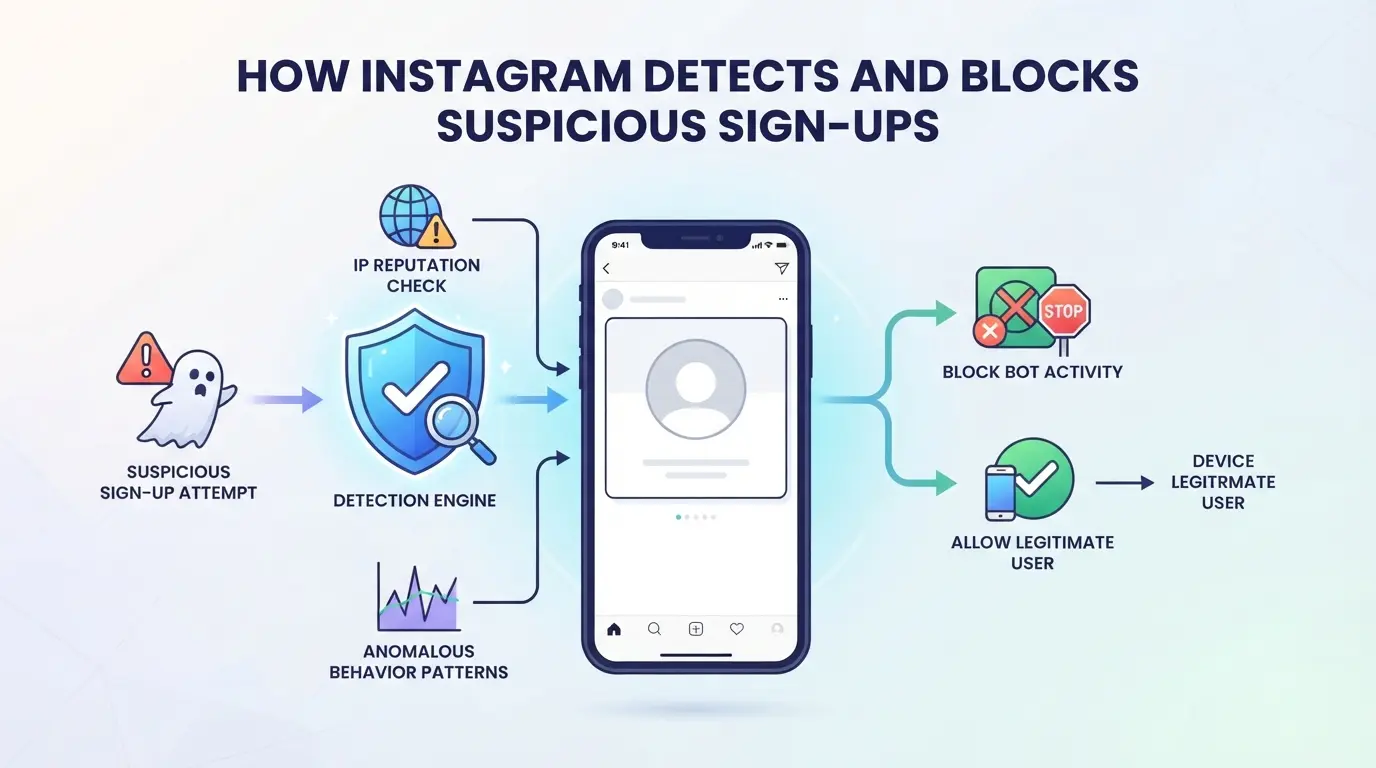
Instagram doesn’t just block new accounts at random, the system is tuned to spot risk signals. If you’re wondering why you can’t make an Instagram account, the real answer is often that your device, network, or sign-up behavior matches patterns Instagram has linked with bots, spammers, or mass registrations.
Fingerprinting and Device Tracking
Instagram builds a fingerprint from your browser, device, and even small hardware details. If you try to sign up after creating another account on the same device, or if your browser looks identical to a flagged profile, your attempt is more likely to be blocked.
The network you use matters just as much as your device. Instagram assigns a trust score to your IP address based on its history and current usage. If you’re signing up from a public Wi-Fi, a mobile hotspot, or any IP range known for frequent new accounts, Instagram can flag your attempt before you even fill out the form. For example, datacenter proxies and shared networks, often used by spammers, are on watchlists. Even if you reset your device or change your email, using a “bad” IP usually blocks registration. On the other hand, home broadband IPs with low sign-up activity are less likely to get flagged, but if your family or office creates several accounts in a day, that IP’s reputation can drop fast.
| IP Type |
Typical Trust Level |
Common Failure Reason |
| Home broadband |
High |
Too many accounts in 24 hours |
| Mobile (4G/5G) |
Medium-Low |
IP shared across many devices |
| Public Wi-Fi |
Low |
Frequent abuse, flagged for spam |
| Datacenter proxy |
Very Low |
Known bot or automation source |
Table: How Instagram assigns risk to different IP types
Behavioral Signals and Automation Detection
Instagram also checks your signup behavior, how fast you fill in fields, whether you copy-paste, and if your actions line up with human patterns.
- Typing too fast, clicking through screens instantly, or making identical signups in a row all raise flags.
- Failing a CAPTCHA or skipping phone/email verification signals automation or abuse.
- Using the back button or reloading after an error can make things worse, Instagram sometimes counts these as “retry spam.”
The next step is to check your setup for these triggers before rushing into another attempt.
What to Check Before Trying Again: Avoiding Common Mistakes
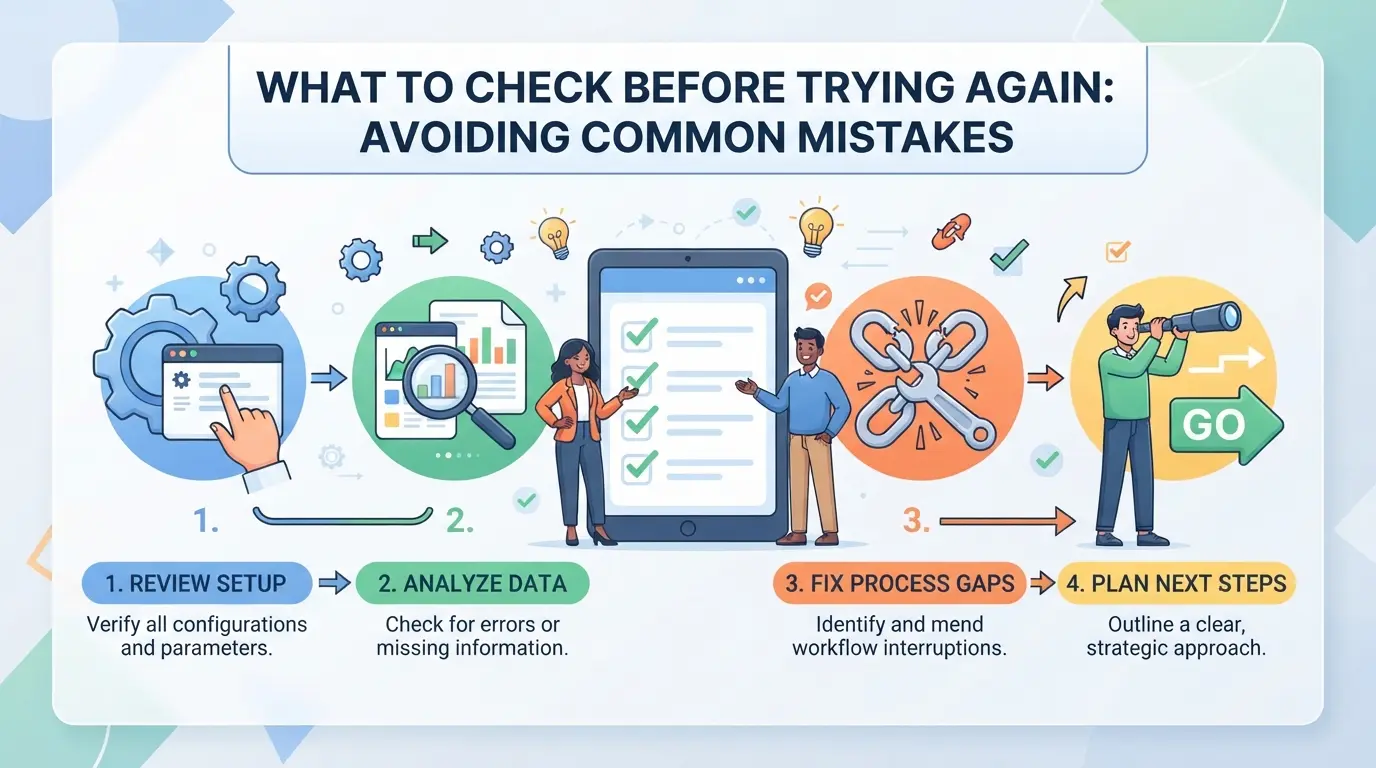
If you keep getting blocked when signing up, it’s not just bad luck, something in your setup is leaving a trace Instagram flags. Before you try again, you need to break the pattern that keeps getting you stopped.
Clear Device and Browser Data
Instagram’s system remembers you by more than just your email or phone number. Old cookies, browser cache, or autofill data can link your new attempt to a failed one. Wiping these from your device resets your digital “footprint” and gives you a cleaner slate for the next try. If you skip this, Instagram may block you again, even with new details.
Use Fresh, Unused Contact Information
- Choose a phone number or email never used for any Instagram account before.
- Avoid using numbers from public “free SMS” or short-term email sites, they’re often flagged.
- Double-check that your contact method can actually receive the confirmation code before you start.
Check Your Network and Proxy Settings
Instagram checks your IP address and network reputation. If your IP was used for spam, or you’re on a shared proxy with other failed sign-ups, you’ll often hit the same wall.
- Test your connection by running a quick search for “my IP reputation” on a new browser tab.
- Switch to a different Wi-Fi or mobile network if your current one shows a history of blocks.
- Avoid free or crowded proxies; choose a source that hasn’t been tied to Instagram abuse.
Missing just one of these steps can lead you right back to “Instagram registration failed.” The next section walks through the actual signup process, step by step, once your environment is ready.
Step-by-Step: How to Successfully Register a New Instagram Account in 2026
If you still can’t register an Instagram account after checking the basics, the problem is usually in how Instagram sees your device, network, or contact info, not in the signup form itself. Follow this updated process to avoid the most common blocks and finally get your new account live.
Prepare Your Device and Network
- Update your app or browser, an outdated version can trigger “Instagram sign up not working” errors.
- Restart your device to clear background data that might link you to past failed attempts.
- Use a Wi-Fi network you haven’t used for blocked sign-ups. Public networks sometimes carry a reputation for spam, so stick with home or mobile data if possible.
- If you’ve tried and failed before, clear app data (on Android) or reinstall the Instagram app to reset device fingerprints Instagram tracks.
Enter Unique, Valid Contact Details
- Pick an email address or phone number never used on Instagram, recycled contacts often cause instant blocks.
- Don’t use temporary email services or “burner” numbers; Instagram can detect these and reject your registration.
- Enter the code sent to your phone or email as soon as you get it. Waiting too long can make the code expire or trigger a security check.
- If the code doesn’t arrive, check your spam or SMS filter and try again. Three failed code attempts in a row usually locks you out for several hours.
Complete Verification and Set Up Profile
- Enter your real age and a display name that isn’t copy-pasted from another profile. Obvious fakes or repeated names often get auto-flagged.
- Upload a profile picture, Instagram expects new accounts to have a photo, and skipping this step can increase the risk of a silent block.
- Finish the signup and try to browse normally for five minutes. If you see a “suspicious activity” warning or your account is instantly disabled, wait 24 hours before trying again, rapid retries from the same device almost always fail.
Most people get stuck at the phone number or device fingerprint step, not the signup form itself. For teams or social media managers, extra steps are needed to avoid detection, this gets covered next.
Why Social Media Managers and Teams Face Extra Challenges with Instagram Sign-Ups
Managing multiple Instagram accounts isn’t just about remembering passwords, it’s about dodging platform triggers that treat you like a spammer. Teams often hit more walls because Instagram looks for patterns that rarely show up with solo users.
Repeated Patterns and Linked Accounts
Instagram flags accounts that seem connected by device, IP address, or behavior. Sharing one phone or computer for several sign-ups almost always raises suspicion. Even using the same Wi-Fi for bulk registrations can freeze your ability to create new profiles. The main effect: your new sign-ups either fail instantly or get banned within days.
Scaling Risks: Bulk Actions and Automation
Trying to create accounts in batches or with scripts gets noticed fast, Instagram’s systems track how many new profiles come from the same place in a short window.
Key risks and what to do instead:
- Creating five or more accounts from the same IP or device in a day can block all future registrations.
- Use separate devices, fresh browser profiles, and rotate proxies for each attempt. Rushing this step means you’ll lose access for the whole team, not just one account.
Most “why cant i make an instagram account” complaints from agencies trace back to these bulk action patterns. If you’re running into blocks, pause and split up your workflow before you get flagged permanently.
Anyone running several Instagram accounts on the same device has likely hit blocks or seen the “why can’t I make an Instagram account” error. That’s usually not bad luck, it comes from Instagram linking your accounts by device, browser, or network pattern. Social media teams often need a way to keep each account truly separate, avoid overlap, and handle repetitive logins or updates without tripping platform flags. Here’s how operators can use DICloak to structure safer account workflows.
Set Up Isolated Browser Profiles and Fingerprint Settings
Operators can create a new browser profile in DICloak for every Instagram account they manage. Each profile has its own storage, fingerprint settings, and browsing environment, so one account’s activity doesn’t blend with another. Keeping logins and cookies separate like this limits the chance that Instagram can connect your accounts by device signature or browser details. The scope is limited to profile-level control; this doesn’t alter Instagram’s own policies or checks. 
Configure Proxies for Each Profile
For accounts that need distinct network routes, operators can assign a specific proxy to each DICloak profile. This setup means each account session can run over its own IP address and region, as set by the user. Before starting work on an account, operators should test the proxy connection in DICloak to make sure it’s active and matches the intended country or city. DICloak only stores the proxy settings, proxy quality, rotation, and legality are up to the operator. 
Automate Routine Tasks with RPA
When managing many accounts, repeating setup, login, or navigation steps by hand gets slow and error-prone. Operators can configure an RPA task in DICloak to automate approved browser actions, such as loading a profile page or filling out a form, across selected profiles. Each run generates logs, so the team can check if the workflow finished as planned and spot issues fast. 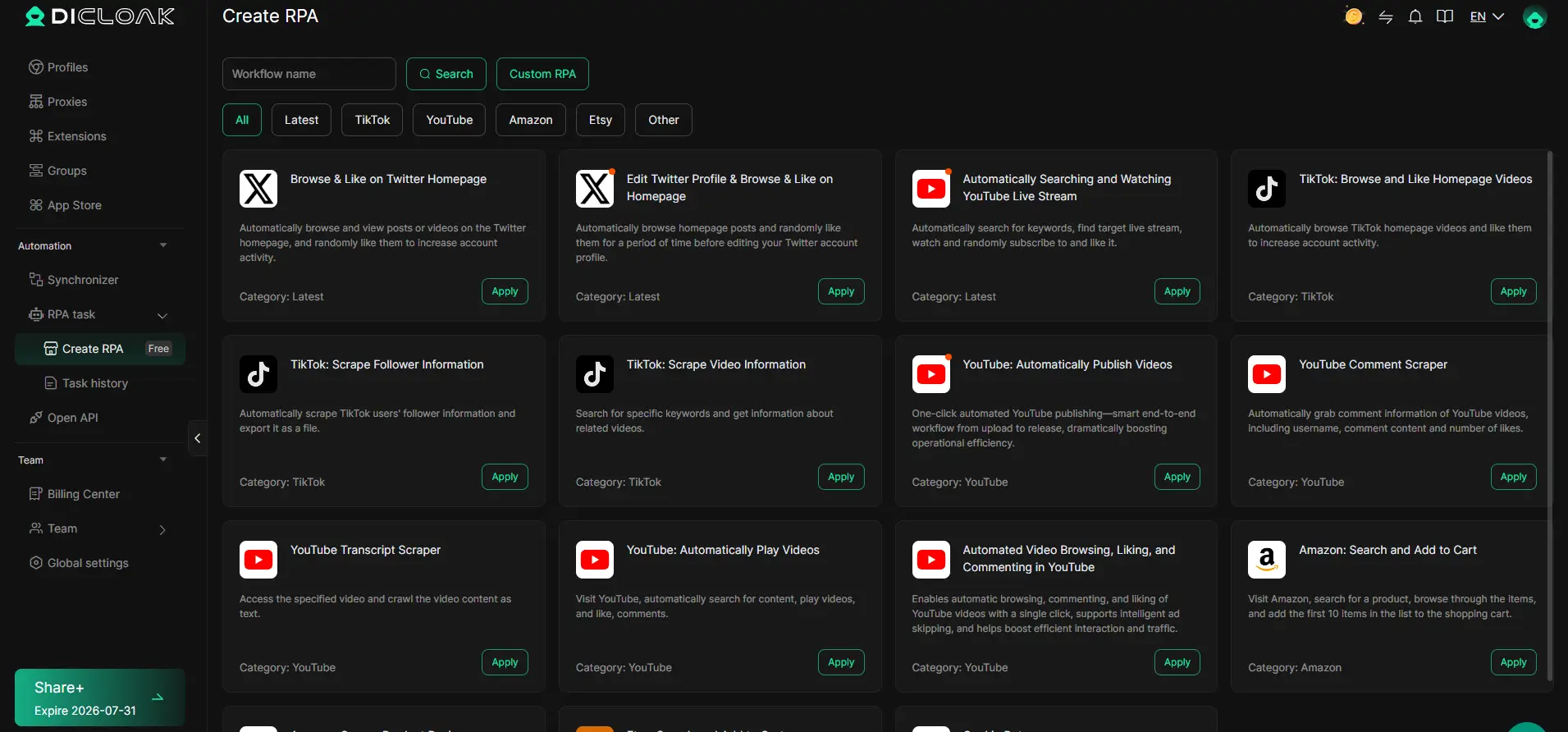
If you keep hitting hard blocks or see that new accounts aren’t sticking, the next section covers when to pause, reset, or change your approach.
When to Stop Trying: Signs You’re Permanently Blocked or Need a Different Approach
If you keep running into dead ends with “Instagram sign up not working” messages, sometimes the problem has nothing to do with your info, it’s the system itself blocking you for good.
Permanent Device or IP Bans
When every attempt fails instantly, no matter the email, phone, or browser, you’re likely facing a permanent device or IP ban. At this point, signing up from that device or connection will keep failing. The only reliable options: use a different device and a fresh internet connection, or wait weeks for the block to expire, which rarely happens.
Repeated Verification Failures
If your sign-up keeps looping through phone or email verification and never accepts your code, you’re stuck in an endless filter.
- You risk account suspension or having your info flagged across Meta’s systems.
- The safer move: stop retrying with the same details. Change your device, IP, and use new signup info before another attempt.
The real signal to stop: if you’ve tried every obvious fix and get the same block, pushing harder won’t work, try a different method or wait, or you’ll just keep hitting the same wall.
What to Do Next: Safer Alternatives and Best Practices for Instagram Account Creation
Build Trust Gradually with New Accounts
Start slow, post once, wait a day, then add a profile picture or bio. Sudden bursts of activity, like following 50 people or sending mass DMs, often trigger blocks. Treat every new account as if Instagram’s watching for bots from the start.
Keep Accounts Separate and Consistent
- Use a new browser profile and device for each account.
- Set up a unique email and phone for every sign-up.
- Never share logins or recovery info between accounts.
Review Instagram’s Latest Policies Regularly
Instagram changes its rules often, so yesterday’s method may get flagged now. Double-check the sign-up requirements before each attempt.
- Check official Instagram help pages monthly.
- Watch for new device or verification rules.
- Update your process if you notice changed error messages.
Frequently Asked Questions About why cant i make an instagram account
Why does Instagram say my email or phone number is already in use?
Instagram shows this error if your email or phone number is connected to another account, even a banned one. The platform blocks reused or blacklisted contact info. To fix this, try signing up with a new email address or phone number that has never been used for any Instagram account before.
Can I use a proxy to create an Instagram account if my IP is blocked?
A proxy can help you bypass an IP ban, but it’s not always safe. If you use a public or overused proxy, Instagram might detect suspicious activity and block you again. Only use trusted, private proxies if you must, and avoid those known for spam or bot traffic.
How many Instagram accounts can I create from one device?
Instagram usually allows you to manage up to five accounts per device. If you try to create more, you may get blocked. Too many sign-up attempts from the same phone or computer can also trigger security checks or temporary bans, causing Instagram sign up not working errors.
What should I do if Instagram keeps blocking my sign-up attempts?
If Instagram keeps blocking your registration, your device or IP might be flagged. Try switching to a new device, using a different Wi-Fi network, and entering new contact information. Avoid trying the same thing repeatedly, as this can trigger further restrictions on your ability to create an account.
Is it safe to use automation tools for Instagram account creation?
Using automation tools to create Instagram accounts is risky. Instagram’s systems detect and block most automated sign-ups. Relying on these tools can lead to instant bans or shadowbans. If you must use automation, only use approved methods and always follow Instagram’s official terms and policies.
If account creation repeatedly fails despite following guidelines and troubleshooting, it may be time to consider alternative ways to connect and share online. Exploring privacy-focused platforms can provide both a fresh start and improved security. Try DICloak For Free
 Web Proxy Tools
 Free Tools
 Cookie Plugin
 UA Generator
 MAC Address Generator
 IP Generator
 IP Address List
 2FA Code Generator
 World Clock
 Anonymous Check
 WebRTC Leak Test
 UUID Generator
 Free Web Proxy Site
 Proxy Checker
 FB Ad Checker
 AI Web Scraping
 Free SMM Tools
 Twitter Shadowban Checker
 Instagram Name Checker
 UTM Generator
 Username Generator
 AI Hashtag Generator
 LinkedIn Headline Generator
 Social Media Image Resizer