Trying to set up a us proxy for youtube usually comes down to one problem: you want YouTube to see you as in the US, but you don’t want to trip any red flags or lose your account. Whether you’re aiming for US-only videos, testing ad placements, or running multiple channels, the difference between “it just works” and “account flagged” often comes down to how you handle proxy, login, and browser details.
But running all YouTube activity through a USA proxy isn’t a magic fix. Proxy IPs alone don’t erase your history, device fingerprint, or previous login patterns, YouTube’s risk systems look for mismatches, sudden location jumps, and reused cookies. Even a perfect YouTube US proxy setup can trigger restrictions if you skip these basics.
Most guides skip over what actually causes bans: using the same browser profile across accounts, mixing real and proxy locations, or not rotating your setup. If you rely on free proxies or don’t separate your sessions, you’ll see requests for phone verification, age checks, or full account locks. What actually works is pairing your proxy with strong browser isolation, each account in its own clean profile, with cookies and local data kept separate.
Start with the right setup, before you even pick a proxy provider, focus on the workflow that keeps accounts stable. Here’s what to check before you run your first session.
What Should You Know Before Using a US Proxy for YouTube?
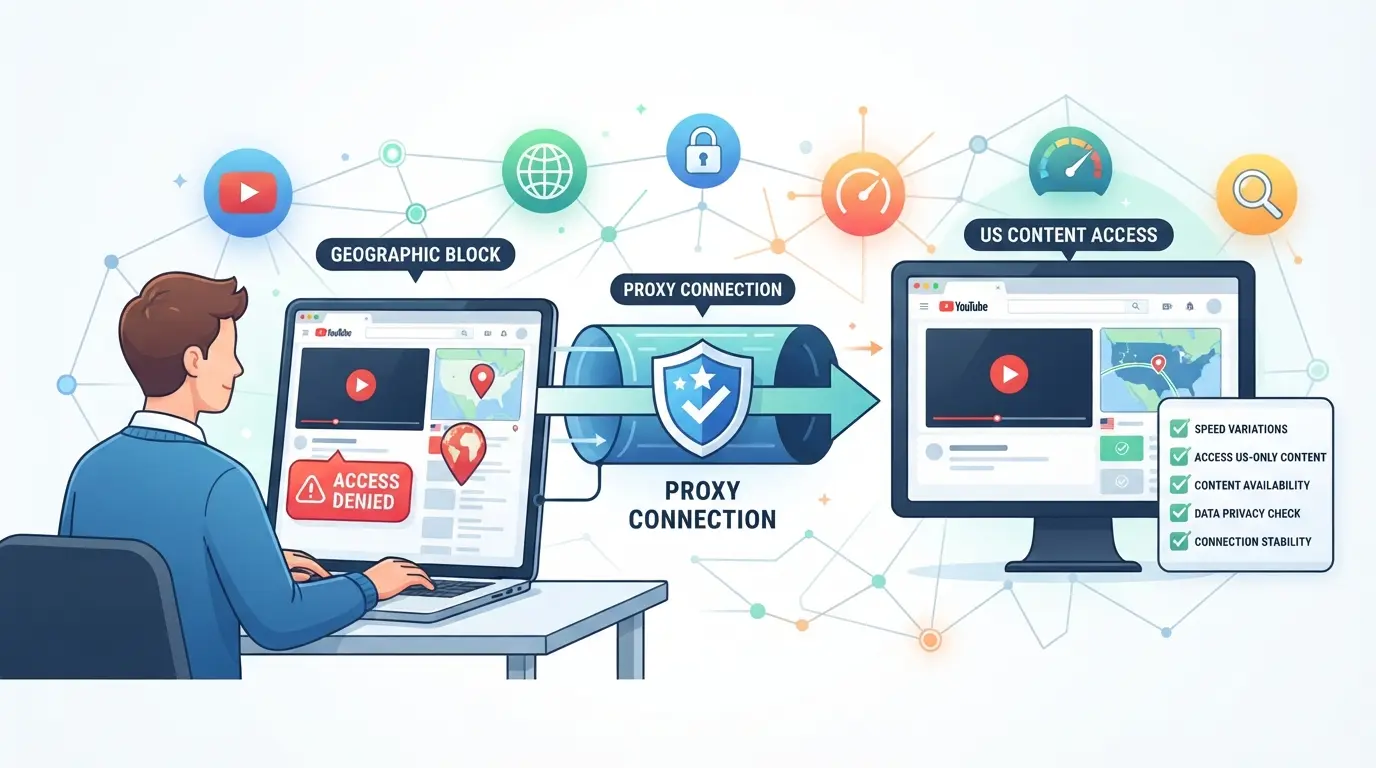
Before trying a US proxy for YouTube, you need more than just a working proxy address. Skipping the account basics or ignoring YouTube’s rules can get your access cut off or even lock your accounts, sometimes on the very first try.
Why People Use US Proxies for YouTube Access
Most people turn to a US proxy to watch content that’s only available in the United States or to get around regional restrictions. In some cases, creators or agencies need US views and ad targeting, which only work if YouTube sees their traffic as coming from inside the US.
Legal and Platform Risks to Consider
Using a proxy to access YouTube from another country can violate YouTube’s terms of service. The rules don’t just target proxy users in general, they specifically forbid attempts to bypass regional blocks or access content not licensed for your area. If YouTube detects you’re hiding your real location, you risk more than just losing access to a video. IP bans, forced phone verification, or full account suspensions are common. For example, if you use the same proxy IP as hundreds of others, or your login history suddenly jumps from one country to the US with no warning, YouTube’s risk systems will flag your session. They may freeze your account or even block your IP range for repeated bypass attempts. It’s not just about the proxy, any sign that you’re trying to trick the system can trigger action, and appeals are rarely successful if you broke the terms.
When a Proxy Is Not Enough
A proxy doesn’t cover every risk. YouTube checks more than your IP address:
- Browser fingerprint: If you reuse browser profiles, YouTube can link your sessions, even with a new proxy.
- Cookies and local data: Mixing real and proxy sessions in one browser lets YouTube spot the switch.
- Reused or public proxies: Shared proxies are easy for platforms to detect and block, leading to faster restrictions.
If you miss these points, even a paid US proxy won’t keep your sessions safe. The next step is figuring out how to tell if a proxy will actually work for your YouTube needs.
How Can You Tell If a US Proxy Will Work for YouTube?
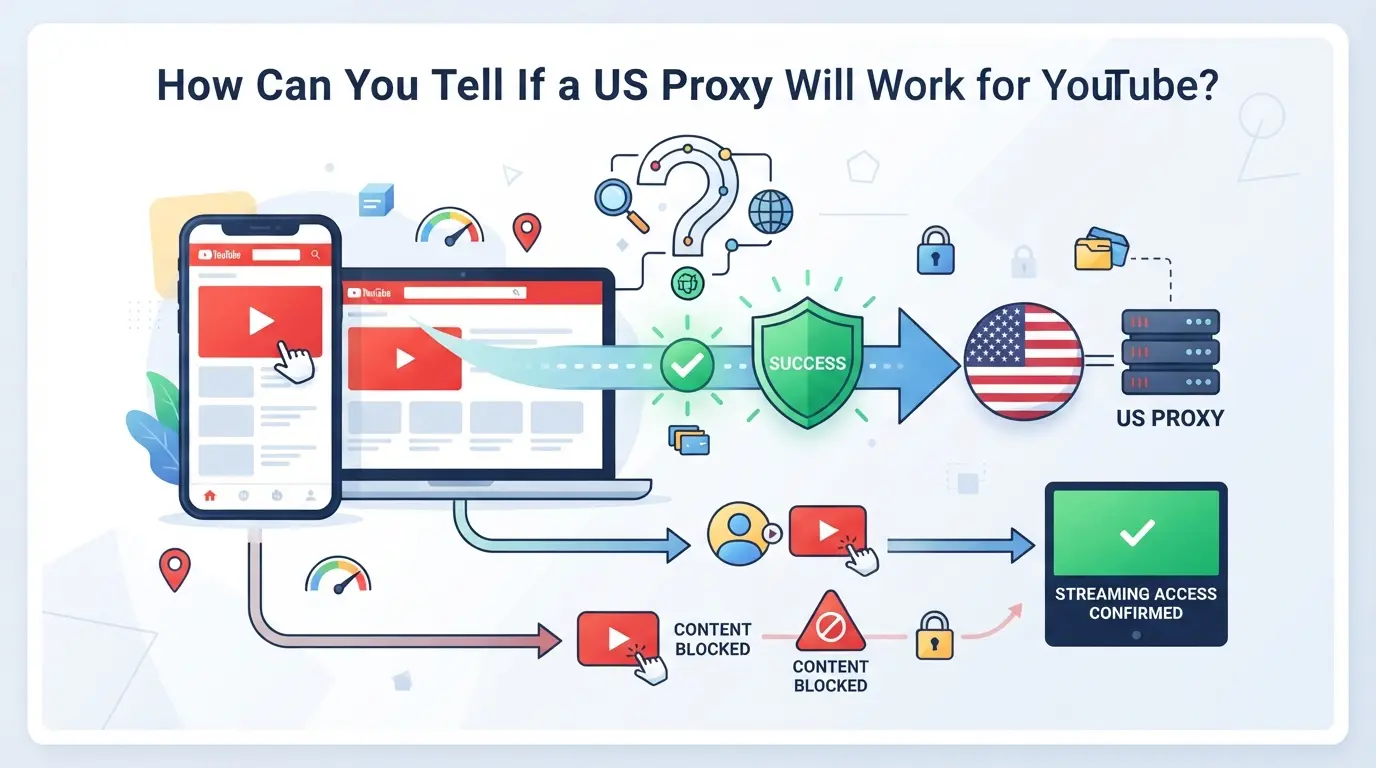
Most people find out a US proxy fails only after hitting errors or blocks mid-session. The real shortcut is to check for red flags before you even load YouTube, otherwise, you waste time troubleshooting a proxy that was never going to work.
Key Proxy Features That Matter for YouTube
The main factors that decide if a proxy actually works for YouTube are IP quality, speed, and accurate US location. If your proxy’s IP shows up in blacklist databases or is recycled from public sources, you’re likely to see extra logins or “unusual activity” warnings. Slow or unstable proxies break video playback, and incorrect location data can leave you locked out of US-only content. So, the best way to avoid hours of trial and error is to check these basics before you start.
How to Test a Proxy Before Using It on YouTube
- Go to an IP geolocation tool and confirm the IP maps to a US city, don’t just trust the provider’s label.
- Use a blacklist checker (like Spamhaus or Talos Intelligence) to see if your IP is flagged. If it is, you’ll hit CAPTCHAs or login blocks.
- Open YouTube in a fresh browser profile or incognito window, if you get redirected, slowed down, or asked to verify, this proxy is already risky.
Common Signs a Proxy Won’t Work
If you keep getting stuck on logins or videos won’t load, the proxy is probably already burned for YouTube use. Here’s what to watch for:
- YouTube shows repeated CAPTCHAs, or the “unusual traffic” page on first load.
- Videos buffer forever, or you get the “This video is not available in your country” error.
- Login sessions expire quickly, or you’re asked for phone verification right after connecting.
If you spot these, don’t waste more time, swap proxies or try a different provider before building out your account setup. The next step is picking the right proxy type for your budget and risk tolerance.
What Types of US Proxies Are Used for YouTube, and Which Is Best for Your Needs?
If you just want to watch videos or run a single account, most US proxy types work. Running lots of YouTube accounts, scraping, or needing to stream without bans, this is where the right proxy choice starts to matter.
Datacenter vs Residential vs Mobile Proxies: What’s the Difference?
| Proxy Type |
Speed |
Detection Risk |
Price |
Fit for YouTube Use |
| Datacenter |
Fast |
High |
Low |
OK for basic streaming |
| Residential |
Moderate |
Medium |
Medium |
Safer for scraping, multi-accounts |
| Mobile |
Slowest |
Lowest |
High |
Best for sensitive actions, high-risk management |
Table: Proxy types compared for YouTube. Source: industry usage patterns
Datacenter proxies are cheap but get flagged easily. Residential proxies cost more, but YouTube treats them more like real users. Mobile proxies are slow and pricey, but they’re hardest for YouTube to detect as fake.
When Each Proxy Type Makes Sense for YouTube
If you only need to access US-only content, datacenter proxies are enough. For managing multiple YouTube accounts or avoiding bans long-term, stick with residential or mobile proxies, especially when account safety matters more than speed or cost.
Next, you’ll see exactly how to set up your proxy for YouTube in 2026 without missing any critical step.
What Are the Steps to Set Up a US Proxy for YouTube in 2026?
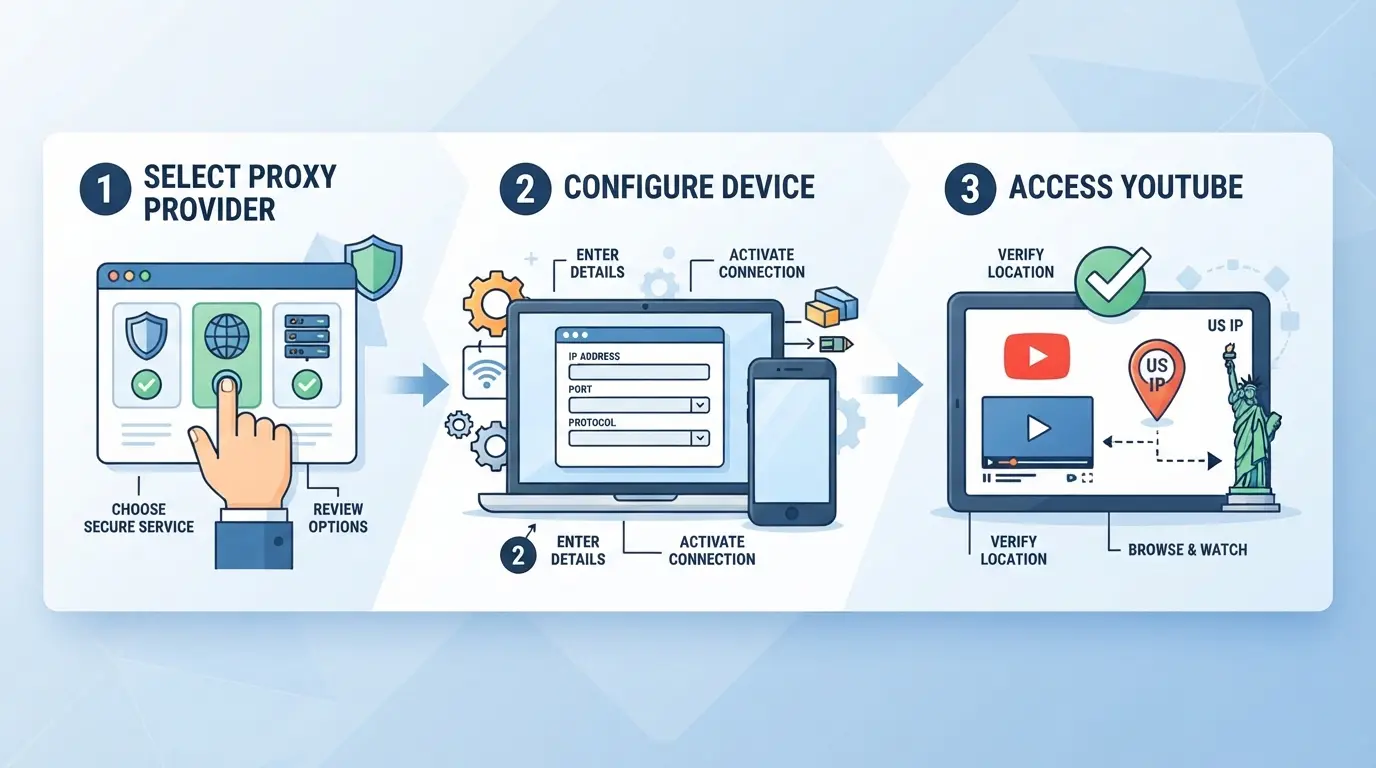
Setting up a US proxy for YouTube in 2026 comes down to four actions: buy a US-based proxy, configure it in your browser or device, test the connection, and handle problems if they pop up. Skipping any of these often means YouTube detects your setup, so each step matters.
Step 1: Choose and Purchase a US Proxy
- Research and pick a provider that sells US proxies supporting HTTPS. Avoid free proxies, they’re slow and often blacklisted.
- Buy your proxy by selecting the US location and the right protocol (usually SOCKS5 or HTTP).
- Copy the IP, port, and login details. Check if your plan is static (fixed IP) or rotating.
- Save your purchase confirmation, if your proxy fails or gets blocked, you’ll need this for support.
Step 2: Configure the Proxy in Your Browser or Device
- Open your browser’s proxy settings. In Chrome, go to Settings > System > Open your computer’s proxy settings.
- Enter the proxy IP, port, and any username/password from your provider. Double-check for typos, a wrong digit means no connection.
- For system-wide setup, change your device’s network settings instead of just the browser. This routes all internet traffic through the proxy.
Step 3: Test the Proxy Connection
- Visit an IP checker site, confirm your public IP now shows as a US address.
- Open YouTube. If you see “This video is not available in your country,” your proxy isn’t set up right or isn’t US-based.
- Try loading several videos. Sudden buffering, repeated captchas, or broken thumbnails mean your proxy is unstable or blocked.
Step 4: Troubleshoot Common Issues
- If your browser can’t connect, check for typos in proxy settings and make sure your subscription is active.
- If YouTube loads slowly or only partly, your proxy IP may be overloaded or already flagged by Google.
- Switch to another US proxy if you get persistent captchas, once flagged, that IP rarely recovers.
- Contact your proxy provider with error details for faster help.
What Mistakes Get You Blocked When Using a US Proxy for YouTube?
The fastest way to get blocked is rushing into YouTube with a recycled or mismatched setup. If your US proxy provider is on every spam list, or you mix accounts and leave browser fingerprints unchanged, detection is just a matter of time.
Using Overused or Blacklisted IPs
Proxy IPs that hundreds of users share, or that appear on known blocklists, set off YouTube’s risk alarms. Even if you pass the location check, YouTube sees the same IP linked to unrelated accounts and flags abuse. If your access drops or you see more captchas, your IP is probably burned. Check for IP reputation before each session, avoid free or public sources and stick with providers that cycle fresh US ranges.
Mixing Too Many Accounts or Sessions on One Proxy
- Never log more than one YouTube account per proxy at a time.
- Don’t use the same proxy across multiple device/browser setups.
- If one account gets flagged, swap to a fresh IP before reusing that proxy.
Ignoring Browser Fingerprint and Session Signals
Changing your IP is not enough, YouTube cross-checks browser details and cookies.
- Use a clean browser profile for each session.
- Clear or isolate cookies between accounts.
- Match timezone and language to the proxy’s region.
How to Assign a US Proxy and Isolate Browser Profiles for Safer YouTube Multi-Account Use
To keep YouTube accounts from getting linked or blocked, you need two things: each account must have its own US proxy and run in a fully separate browser profile. This stops shared fingerprints and cookie bleed, two common triggers for bans.
Why Each Account Needs Its Own Proxy and Profile
- Assign a unique US proxy to each account, YouTube flags shared IPs, so overlapping proxies link accounts fast.
- Create a fresh browser profile for every account, shared cookies or autofill data can get all your accounts flagged together.
- Keep device fingerprints unique, YouTube tracks hardware, fonts, and plugins. Reusing a setup makes accounts look like clones.
If you skip isolation, even high-quality proxies won’t keep accounts separate. A single mistake, like launching two accounts in the same browser window, can link everything.
Manual Workflow: Setting Up Separate Profiles and Proxies
- Use browser profiles or containers, Chrome, Edge, and Firefox all let you make new profiles with their own storage.
- For each profile, set up a different US proxy, use extension-based proxy switchers or OS-level proxy settings.
- Double-check: open YouTube in each profile and visit a site like iplocation.net to confirm each one shows a unique US IP.
If you ever mix up profiles or forget to switch proxies, YouTube can connect your accounts by IP or fingerprint, often within hours.
When to Consider an Antidetect Browser for Scale or Team Use
- If you manage more than 3-5 accounts, manual profiles get hard to track, mistakes multiply fast.
- Antidetect browsers automate fingerprint changes and proxy assignment, reducing slip-ups.
- Teams can assign roles, track logins, and keep each account’s cookies, storage, and proxy separate without manual setup.
The biggest risk is human error, most blocks happen when someone launches two accounts with the same proxy or profile, not because the proxy itself failed. For anyone running more than a handful of accounts, advanced tools save hours and cut the risk of accidental linkage.
This manual approach works for solo use or low volume, but it’s not built for team workflows or larger operations.
How Teams Can Use DICloak to Assign US Proxies and Isolate YouTube Account Profiles More Safely
Once you’ve learned why mixing browser storage or skipping proxy setup puts YouTube accounts at risk, the next challenge is keeping every account session clean, especially if you’re working as a team or handling multiple logins. Many teams try to run each YouTube account through a separate browser or device, but that quickly gets messy, slow, and hard to track. DICloak gives operators a way to create isolated browser profiles for each account, assign a US proxy directly to each profile, and control key browser signals so that account sessions don’t bleed into each other. This section covers exactly how teams or advanced users can make these controls work for a safer workflow. The focus is on browser-profile and proxy-layer actions, not on managing YouTube accounts or content.
Creating Isolated Browser Profiles and Configuring Fingerprints in DICloak
Operators can create a new DICloak browser profile for every YouTube account, setting each one up as a separate environment. This means that cookies, cache, and local storage from one account never touch another, cutting the risk of accidental linkage. For each profile, you can adjust browser signals like time zone, language, screen size, or WebRTC behavior, matching these to the location of your assigned proxy helps keep signals consistent across the session. For example, if you’re using a US proxy, you’d set the time zone and language to US values. The scope here covers profile isolation and fingerprint configuration only; it does not control what happens inside YouTube or promise a specific result. 
Assigning a US Proxy to Each Profile in DICloak
With profile isolation set, the next step is tying each browser profile to a user-provided US proxy. Operators can enter the proxy details, host, port, credentials, and use DICloak’s built-in proxy checker to confirm the exit IP, location, and time zone before opening the account session. This check helps you spot mismatches before they reach YouTube, which is where most location-related blocks start. Each proxy connection is stored per profile, so you don’t have to re-enter details or worry about overlap when switching accounts. The system only configures and tests your own proxy input; it does not provide proxies or promise a clean run on the target platform. 
If a proxy fails or starts acting up mid-session, the next section covers what to do, so you don’t end up locked out or flagged before you catch the problem.
What to Do If Your US Proxy for YouTube Stops Working or Gets Blocked
When your access fails, act fast, YouTube blocks can stick if you use a burned proxy or keep retrying without changes.
Diagnosing the Problem: Is It the Proxy, Browser, or Account?
- Open YouTube in a clean browser window, if it loads, the proxy isn’t the issue.
- Switch to a different US proxy in the same profile, if blocked again, cookies or session data may be flagged.
- Try logging in with a fresh browser profile, if you’re still blocked, your account may be restricted.
Steps to Fix or Replace a Blocked Proxy
- Test with a paid US proxy, free ones get blacklisted quickly.
- Clear browser cookies before retrying.
- If issues persist, change both proxy and browser profile.
When to Change Your Workflow or Tools
- If blocks happen weekly, rotate proxies more often.
- If every account fails, rebuild your profile isolation strategy.
- If you see persistent blocks, stop and rebuild your setup from scratch.
Frequently Asked Questions About us proxy for youtube
Is it legal to use a US proxy for YouTube in 2026?
Using a US proxy for YouTube is legal in some countries but not in others. Some nations ban proxy use, while others allow it. YouTube’s terms of service do not allow users to bypass regional restrictions. It’s your responsibility to check local laws and understand the risks before using a proxy to access YouTube content.
Will using a US proxy guarantee access to all YouTube content?
No, a US proxy can help access region-locked videos, but it doesn’t guarantee full access. YouTube uses advanced tracking and may block known proxies. Some videos are restricted for reasons other than location, like copyright or age. Even with a YouTube US proxy setup, you might still face some content blocks.
Can I use a free US proxy for YouTube?
You can try a free proxy, but they are often unreliable and slow. Free proxies have many users, so YouTube can easily detect and block them. There are also security risks, like data leaks and malware. Paid or private proxies are safer and work better for streaming.
How many YouTube accounts can I safely run with one US proxy?
Running several YouTube accounts through one proxy is risky. If multiple accounts share a single IP, YouTube may flag or ban them for suspicious activity. For best results, use a different USA proxy for each account to keep them separate and lower the risk of account suspension.
What should I do if YouTube keeps showing CAPTCHAs when I use a US proxy?
Frequent CAPTCHAs mean YouTube suspects automated traffic from your IP. Switch to a less-used proxy or a private one. Clear your browser’s cookies and cache. Avoid logging in and out quickly or making too many requests. If problems continue, try a different access method or a new proxy.
If you want to access region-restricted videos or maintain your privacy while browsing, finding a reliable proxy solution is the logical next step. Take control of your YouTube experience by trying a tool that balances both ease of use and protection. Try DICloak For Free
 Web Proxy Tools
 Free Tools
 Cookie Plugin
 UA Generator
 MAC Address Generator
 IP Generator
 IP Address List
 2FA Code Generator
 World Clock
 Anonymous Check
 WebRTC Leak Test
 UUID Generator
 Free Web Proxy Site
 Proxy Checker
 FB Ad Checker
 AI Web Scraping
 Free SMM Tools
 Twitter Shadowban Checker
 Instagram Name Checker
 UTM Generator
 Username Generator
 AI Hashtag Generator
 LinkedIn Headline Generator
 Social Media Image Resizer