A small team may use Gemini very differently from one person working alone. A researcher may build the first draft, a writer may continue the work later, and a manager may only need access for review. As Gemini becomes more common at work, these handoffs are becoming more normal. Google said the Gemini app had passed 1 billion monthly users in 2026, while Alphabet had already reported more than 8 million paid Gemini Enterprise seats by the end of 2025.
That creates a practical question for small teams, agencies, and freelancers: how do you share Gemini without giving everyone your Google password? Some teams only need to share a Gem or conversation. Others need separate paid access, while a smaller group may need to keep working from the same signed-in Gemini session. This guide compares those options, explains the cost of separate access, and shows when an antidetect browser like DICloak can make shared access easier to manage.
Why Do Teams Want to Share a Gemini Account?
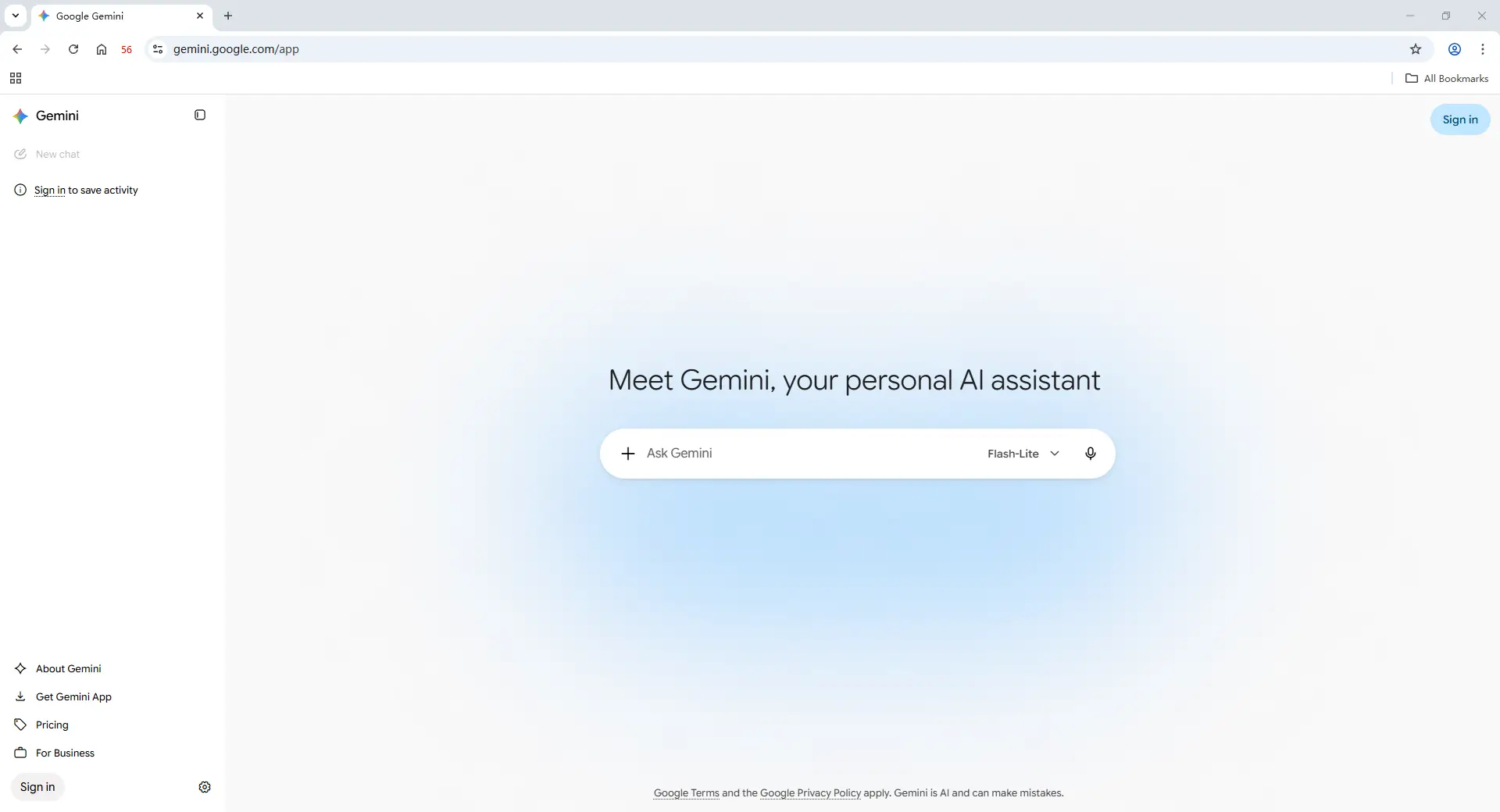
Gemini is Google's AI assistant for tasks such as writing, brainstorming, summarizing information, working with files and images, and researching ideas. It can also connect with Google services such as Gmail, Docs, Drive, Calendar, and other Workspace tools when the account and settings support those connections. This makes Gemini useful for workflows that already happen inside Google's ecosystem.
In practice, teams usually start thinking about sharing one Gemini account for a few specific reasons:
- They only need paid Gemini features occasionally. A five-person team may have only two or three people who need advanced AI tools during certain projects. Paying for separate access can feel unnecessary when usage is limited.
- They want to keep existing work in one place. A researcher may spend hours building a long Gemini conversation around competitors, customer questions, or campaign ideas. The writer who takes over may prefer to continue from that existing work instead of rebuilding the context in a new chat.
- They want teammates to use the same AI setup. A content team may already have useful Gems, uploaded files, prompts, or repeatable workflows tied to one account. Recreating that setup for every temporary teammate adds extra work.
- They work with freelancers or short-term collaborators. An agency may need to give a contractor access for one campaign without creating a permanent account or changing its whole software setup.
Teams do not all share Gemini for the same reason. That difference matters because the best sharing method depends on what the team actually needs. A team that only wants to reuse the same Gem does not have the same problem as a team that needs several trusted people to continue working inside the same existing Gemini session.
How Much Does Gemini Cost for a Team?
Gemini has a free version, but teams that need higher usage limits, stronger models, or features such as Deep Research may need a paid Google AI plan. For a team, the real question is how quickly that cost grows when several people need their own subscription.
| Plan |
Regular monthly price shown |
Best suited for |
| Google AI Plus |
$4.99/month |
Lighter everyday AI use |
| Google AI Pro |
$19.99/month |
Regular professional use, with higher limits and access to more advanced Gemini features |
| Google AI Ultra |
Starting at $99.99/month |
Heavy AI use and higher access to advanced models and tools |
Google AI Plus and Google AI Pro may include introductory discounts, but the regular monthly price is more useful when estimating long-term team costs. For example, five separate Google AI Pro subscriptions at $19.99 per month would cost $99.95 per month before taxes.
That may be reasonable when all five people use Gemini every day and need their own account, chat history, and Google workspace. But if only one or two people use the paid features often while others only need occasional access for research, writing, or project handoffs, paying for a separate subscription for everyone can feel wasteful. That is usually when teams start looking at different ways to share Gemini access without simply giving everyone the same Google password.
What Are the Ways to Share Gemini With Your Team?
There are several ways to share Gemini, but they do not solve the same problem. If your team only needs the same Gem or chat, Google's built-in sharing may be enough. If trusted teammates need to work from the same Gemini account and session, an antidetect browser can be a better fit.
| Method |
Best for |
Same Gemini session? |
Share Google password? |
| Share a Gem or conversation |
Reusing prompts, instructions, or research |
No |
No |
| Give each person their own Gemini access |
Regular independent work |
No |
No |
| Share the Google login directly |
Small informal setups |
Yes |
Yes |
| Use an antidetect browser |
Trusted teammates who need the same logged-in Gemini session |
Yes |
No direct password sharing |
Share a Gem or Gemini Conversation
This is usually the simplest option when teammates only need access to the work, not the whole account. A shared Gem can give several people the same instructions and setup, while a shared conversation works well for review, research handoff, or passing useful context to another teammate.
The limitation is that a shared conversation is not the same as several people working inside one live Gemini session. If the team needs to keep using the exact same account environment and existing session, native sharing may not cover that workflow.
Give Each Teammate Their Own Gemini Access
Separate accounts usually make more sense when several employees use Gemini every day. Each person keeps their own Google account, chat history, files, and working space. This costs more, but it is easier to manage when team members work independently. For a larger company, giving each employee their own access is often cleaner than putting everyone into one shared Google account.
Share the Google Login Directly
The most direct option is giving teammates the Google email, password, and any login verification they need. It is simple, but the password belongs to the whole Google Account behind Gemini, not just Gemini itself. This can become inconvenient when someone leaves the project or when Google asks for verification again. The account owner may also need to keep helping teammates with login checks, while changing the password can affect everyone who still uses the account.
Use an Antidetect Browser Without Giving Out the Password
Using an antidetect browser like DICloak, the account owner can sign in to Gemini inside a dedicated browser Profile and then share that Profile with selected team members. Profile sharing keeps the existing logged-in session available, while team permissions control who is allowed to open it.
For example, a researcher may build a long Gemini workflow, then a writer or manager may need to continue from the same account environment instead of starting again from a separate chat. In that case, sharing the browser Profile can be more practical than sharing the Google password itself.
The right method depends on what the team actually needs. Share a Gem or chat when the work itself is enough, use separate accounts when people need independent access, and consider an antidetect browser when trusted teammates genuinely need the same logged-in Gemini session.
Why Use DICloak to Share a Gemini Account With Your Team?
If trusted teammates need to work from the same Gemini account, sharing the Google password usually gives them more access than they actually need. With DICloak Antidetect Browser, the account owner can keep the Gemini login inside one browser Profile and share access to that Profile with selected team members.
- Keep the Gemini login inside one browser Profile. The account owner signs in to Gemini inside a dedicated Profile and completes any required Google verification. The Profile keeps the existing session, cookies, and browser data together, so teammates can open the same working environment without receiving the Google password directly.
- Share access only with the people who need it. With profile sharing and team permissions, access can be limited to specific teammates. For example, a researcher, writer, and manager can use the shared Gemini Profile for one project, while other team members do not need access.
- Remove access when the project or role changes. If a freelancer finishes a project or a teammate changes roles, their access to the shared Profile can be removed without redistributing the Google password to everyone else. This makes shared access easier to manage than passing the same credentials around the team.
This approach is most useful when the team genuinely needs the same logged-in Gemini session, such as when one person starts a long research or writing workflow and another needs to continue from the same account environment. It does not create separate Google identities for each user. Instead, it gives trusted teammates controlled access to the same browser Profile.
How to Share a Gemini Account With DICloak Without Sharing the Password
If your team needs to reuse the same Gemini session, you can keep the signed-in account inside one browser Profile with DICloak and share that Profile with selected teammates. This makes handoffs easier because the team can return to the same Gemini session without setting up the Google account again on every device.
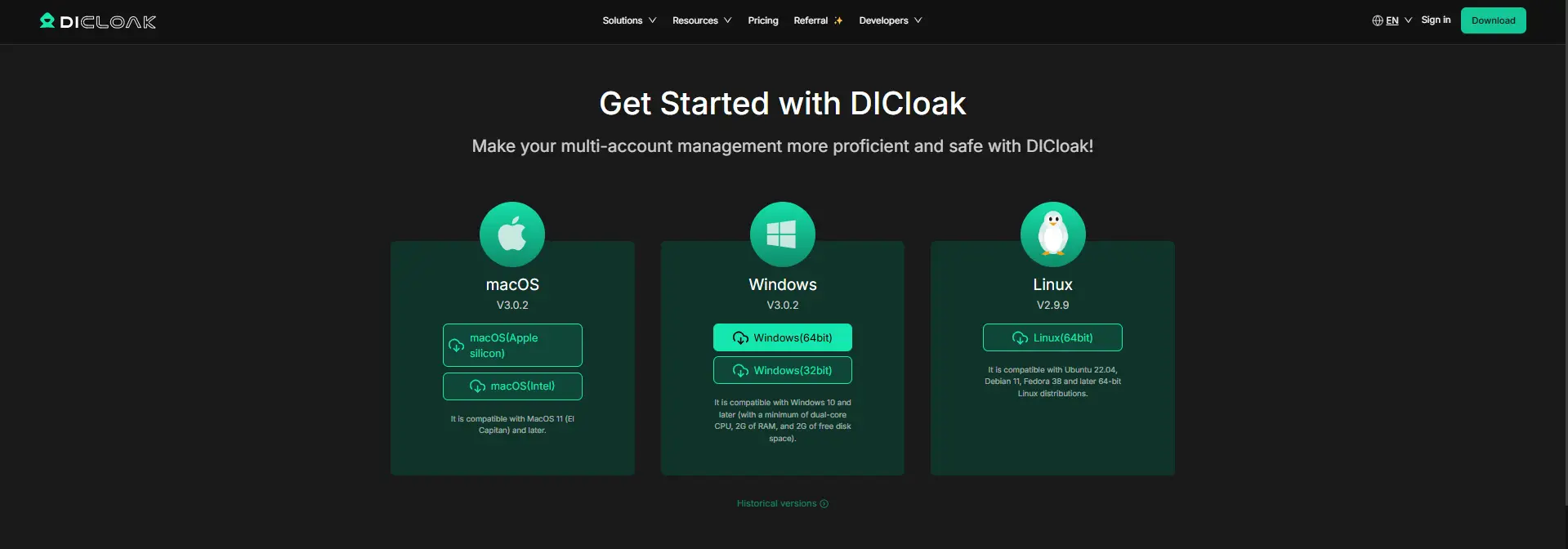
Step 1: Install DICloak and Choose a Team Plan
Download DICloak, create an account, and choose a plan based on your team size and the number of browser Profiles you need.
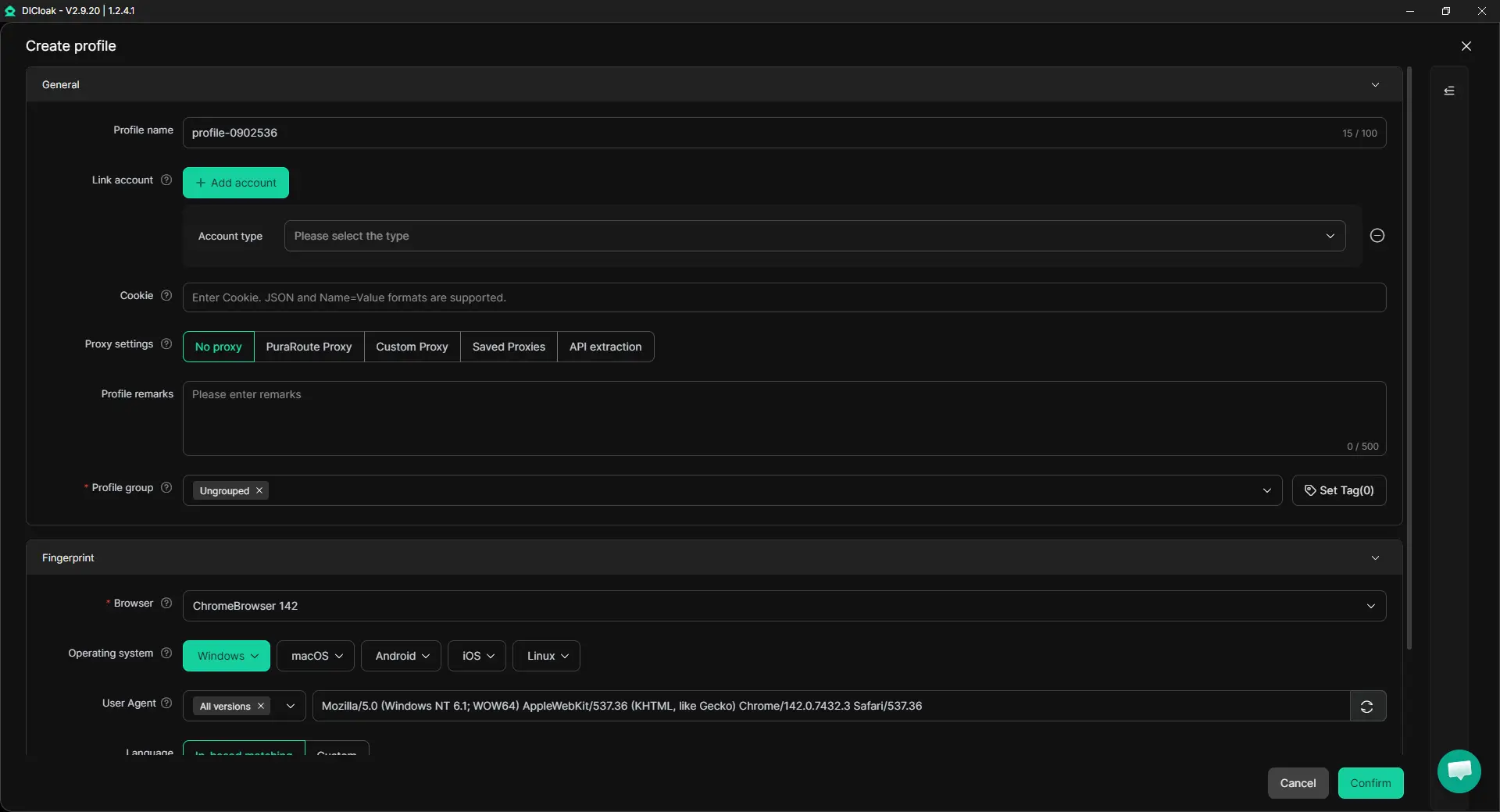
Step 2: Create a Dedicated Browser Profile for Gemini
Create one browser Profile for the Gemini account you want to share so its cookies, login session, and browser settings stay together. If several teammates need to use the Profile, you can enable Multiple Sessions and turn on Hide Password so saved credentials are not visible to other members. If the Gemini account already uses a specific proxy as part of its normal setup, you can also configure that proxy for the Profile.
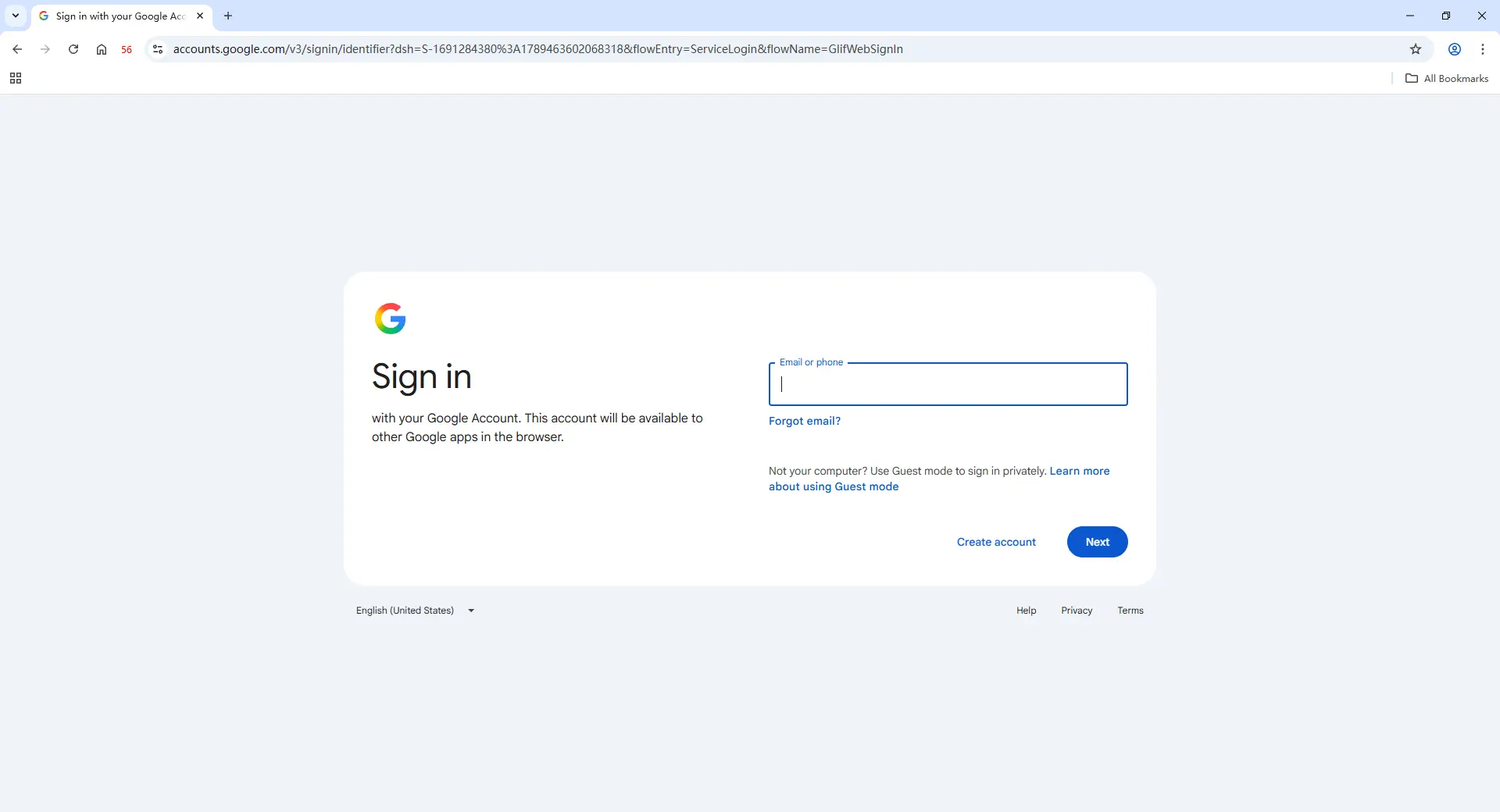
Step 3: Sign In to Gemini as the Account Owner
Open the new Profile and sign in to Gemini with the Google account as usual. Complete the password, 2FA, or any other verification yourself, then confirm that Gemini works correctly before closing the Profile. Once the session is saved, the same Profile can be reopened later with the existing login state. For example, a researcher can finish competitor research in Gemini, then a writer can open the same Profile and continue the work without setting up the account again.
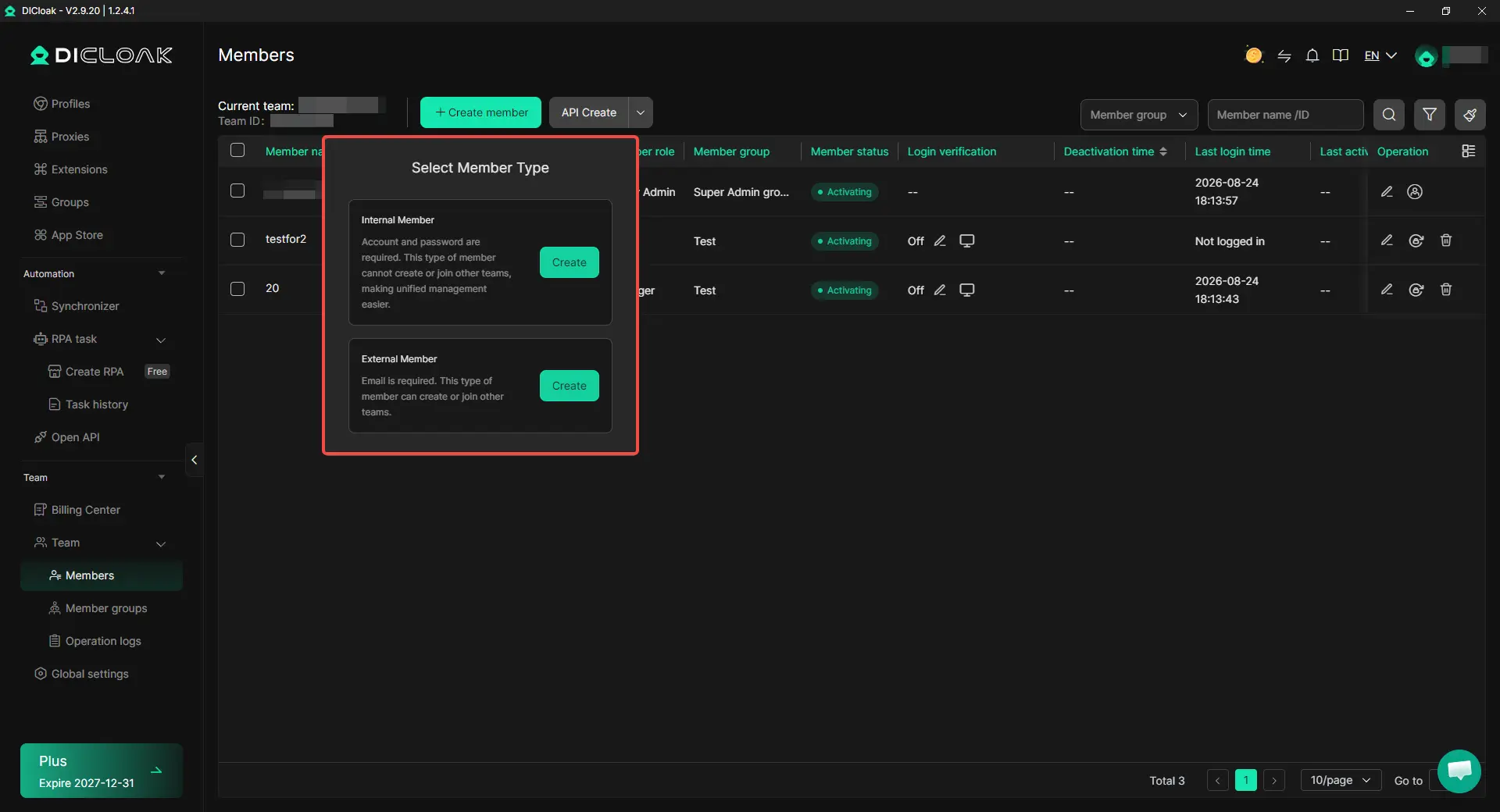
Step 4: Add Team Members and Share the Gemini Profile
Invite the teammates who need access, then assign the Gemini Profile using profile sharing and team permissions. Access can be limited to the people who actually work with that Gemini account. A marketing lead, SEO specialist, and writer may all need the Profile, while other team members do not. Their access can also be changed or removed when project roles change.
Step 5: Open the Shared Profile and Continue Working
Teammates with permission can open the shared Gemini Profile from their own DICloak account and continue from the existing session. They do not need the Google password simply to reopen the already signed-in Profile. For example, a marketing lead can complete the first part of a research task in Gemini, then an SEO specialist can open the same Profile and continue from the existing account session. The Gemini session stays with the Profile, while access to that Profile can be managed separately as people join or leave the project.

Frequently Asked Questions About Sharing a Gemini Account With Your Team
Can I share a Gemini account with my team without sharing the Google password?
Yes. If your team only needs the same Gem, conversation, or AI setup, Google's built-in sharing options may be enough. If trusted teammates need the same signed-in Gemini session, an antidetect browser like DICloak can let the account owner keep the Google login inside a shared browser Profile and give selected members access to that Profile instead of sending them the password.
Can multiple team members use the same Gemini account?
They can work from the same Gemini account, but the right setup depends on how they use it. If each person needs their own chat history, files, and Google identity, separate accounts are usually cleaner. If the team needs to continue the same shared workflow, using one shared browser Profile may be more practical than having everyone log in separately with the same credentials.
Is sharing a Gemini conversation the same as sharing the Gemini account?
No. Sharing a Gemini conversation lets another person view or continue from shared content, but it does not give them access to the full Google account or the exact same ongoing session. If the team only needs a research handoff or a finished chat, conversation sharing is usually enough; sharing the account is more relevant when teammates need the same signed-in Gemini session.
Is sharing a Gemini account better than buying separate accounts for each teammate?
It depends on how your team uses Gemini. If everyone works in Gemini every day and needs their own chat history, files, and Google identity, separate accounts are usually easier to manage. If only a few trusted teammates need the same existing Gemini session for research, writing, or project handoffs, sharing one browser Profile with an antidetect browser like DICloak may be more practical than paying for several separate subscriptions.
What should I do when a teammate no longer needs access to the shared Gemini account?
Remove that person's access as soon as their role or project ends. If the team is using a shared Profile with DICloak, the member's Profile access can be revoked without sending a new Google password to everyone else. If the Google credentials were shared directly, the account owner may also need to review the password, active sessions, and other account access.
Conclusion
Sharing Gemini with a team does not always mean giving everyone the same Google password. The best option depends on what your team actually needs: a shared Gem, a conversation handoff, separate Gemini access, or the same logged-in session. For teams that only need shared prompts or research, Google's built-in sharing options may be enough. If trusted teammates need to continue working from the same Gemini session, sharing a browser Profile can be more practical than passing around the account credentials. Using an antidetect browser like DICloak can keep the signed-in Gemini session inside one browser Profile while selected teammates access that Profile through profile sharing and team permissions.
 Web Proxy Tools
 Free Tools
 Cookie Plugin
 UA Generator
 MAC Address Generator
 IP Generator
 IP Address List
 2FA Code Generator
 World Clock
 Anonymous Check
 WebRTC Leak Test
 UUID Generator
 Free Web Proxy Site
 Proxy Checker
 FB Ad Checker
 AI Web Scraping
 Free SMM Tools
 Twitter Shadowban Checker
 Instagram Name Checker
 UTM Generator
 Username Generator
 AI Hashtag Generator
 LinkedIn Headline Generator
 Social Media Image Resizer