ChatGPT is a powerful tool that many people rely on for writing, learning, and daily work. But nothing breaks your focus faster than a reply stopping halfway with a confusing message like chatgpt error in message stream. One moment the answer is loading, and the next moment everything freezes. You refresh the page, try again, and hope it does not happen twice.
This guide is written for users who want clear answers, not vague guesses. It explains what the chatgpt error in message stream really means, why it happens, and how to fix it step by step. More importantly, it shows you how to prevent errors in the future and avoid repeated interruptions. Whether you use ChatGPT casually, at work, or in a shared team setup, this article will help you get back to smooth and reliable conversations.
Understanding the ChatGPT Error in Message Stream
Before fixing this problem, it helps to know what it really means and how it usually shows up. Many users see this error suddenly and feel confused, but the signs are often easy to recognize.
What is the ChatGPT Error in Message Stream?
The chatgpt error in message stream usually means the reply “stream” got cut off before it finished. ChatGPT sends answers in small chunks (streaming). If your browser, network, or the service drops that connection, you may see an error instead of the full reply.
This problem can be on your side, like weak Wi-Fi, a broken browser session, or a browser extension that blocks scripts. It can also be on OpenAI’s side during a temporary incident. For example, OpenAI’s status page has reported spikes of “Error in message stream” errors and then rolled back changes to fix them.
You might also see the same idea written as error in message stream chatgpt. It refers to the same situation: the message stream breaks, so the chat cannot complete normally.
Common Symptoms of the Error
1) You can’t send messages or they won’t go through. You type a prompt, hit send, and nothing happens—or the message fails and the chat feels “stuck.” This often shows up when your session is unstable. For example, after a long idle time, or when cookies/cache get messy. OpenAI’s general troubleshooting steps for ChatGPT errors include refreshing, starting a new chat, clearing cache/cookies, and trying an incognito window—these steps target that “session” problem.
For example, you are on office Wi-Fi that switches access points while you walk around. The connection is “on,” but it drops for a second. That’s enough to break streaming, so your message may fail or the reply may stop mid-way. This is the same type of network instability OpenAI points to when explaining common ChatGPT web/app errors.
2) You get a visible error notice while ChatGPT is replying. A common pattern is that ChatGPT starts answering, then you see a red error line like “Error in message stream,” and the response stops. This matches how users describe the issue when the stream is interrupted.
For instance, you ask for a long, detailed response like a full guide with many steps. The reply begins, but your browser extension, like ad blocker and privacy script blocker, blocks part of the page request. The stream breaks and the error appears. Disabling extensions is a standard recommended check for ChatGPT error messages.
3) Disruptions during chat sessions such as partial replies, timeouts, or failures with attachments. Sometimes the chat works fine until you do something heavier—like uploading an image/PDF, or sending a very long prompt. Some reports tie “error in message stream” to attachment processing timing out or failing, which then breaks the streamed response.
To illustrate, you attach an image and ask a complex question. ChatGPT tries to process the image, but the step fails or takes too long. The system can’t continue streaming the reply, so you see the chatgpt error in message stream and the answer ends early.

Common Causes of the ChatGPT Error in Message Stream
After understanding what the error looks like, the next step is to understand why it happens. The chatgpt error in message stream rarely has a single cause. In real use, it usually comes from a combination of system pressure, unstable connections, or user-side conditions. Knowing the exact cause helps you fix the problem faster instead of trying random solutions.
Technical Issues
Some causes are outside your control and happen on the system or network level.
Server-related issues are a common reason. When ChatGPT experiences high traffic or runs system updates, responses may fail to complete. During these periods, many users report that replies start normally but stop midway. OpenAI has confirmed that temporary server load or maintenance can interrupt message streaming. In these cases, your prompt is valid, but the system cannot finish delivering the response.
Network connectivity problems are another frequent trigger. ChatGPT relies on a stable connection to send replies in real time. If your internet drops for even a moment, the stream can break. This often happens on public or office Wi-Fi. For example, when a laptop switches between access points, the page stays open, but the reply cannot continue. This commonly results in the chatgpt error in message stream appearing during an active response.
User-Related Issues
Many causes come from the browser profile or how the input is sent.
Browser cache and cookies can disrupt chat sessions. Over time, stored session data may expire or become corrupted. When this happens, ChatGPT may lose track of the active stream. A typical example is leaving ChatGPT open in a browser tab for hours. When you return and send a message, it fails with an error. Refreshing the page, clearing cookies, or logging out and back in often resolves this type of error in message stream chatgpt.
Input formatting problems can also increase the risk of failure. Very long prompts, repeated symbols, or content pasted from PDFs and websites may contain hidden formatting. For instance, pasting a large block of copied text with special characters can cause the response to time out. The answer begins, then suddenly stops with a stream error.
File Upload Issues
File uploads add more processing steps, which makes errors more likely.
Complications when uploading files, such as PDFs or DOCX documents, are a well-known trigger. ChatGPT must upload the file, read its contents, and then generate a reply. If any step fails, the message stream can break. Users often see the chatgpt error in message stream when uploading large files, scanned documents, or unsupported formats.
For example, a user uploads a 100-page PDF and asks for a summary. The file takes too long to process, and the reply stops halfway. In this case, the problem is not the question itself, but the file size and processing limits.
By understanding these causes, you can quickly tell whether the issue comes from ChatGPT’s servers, your network, your browser, or your input. This makes the next troubleshooting steps clearer and more effective.
Solutions to Fix the ChatGPT Error in Message Stream
Now that you understand the common causes, it is time to focus on solutions. The goal is simple: restore a stable session so ChatGPT can finish sending its reply. In most situations, the chatgpt error in message stream can be fixed with a few practical steps, starting from the easiest ones.
Step-by-Step Troubleshooting
1. Refresh the page or regenerate the response.
If a reply stops halfway, first refresh the ChatGPT page or click Regenerate. This forces the system to reconnect and restart the response stream. When the interruption is brief, this single step is often enough to resolve the issue.
For example, a long reply may stop mid-sentence. After refreshing the page or regenerating the response, the same prompt can complete normally.
2. Clear browser cache and cookies, then log in again.
If the error appears repeatedly, your browser session may be broken. Clearing cache and cookies removes outdated session data and refreshes authentication. After clearing, log back into ChatGPT and test again. This step is especially effective if ChatGPT has been open for a long time without refreshing.
3. Check your internet connection and disable interference.
A stable connection is more important than speed. Even a short network drop can trigger the chatgpt error in message stream. Switch to a more stable network if possible. Proxies, strict firewalls, and security filters can also interrupt streaming, so turning them off temporarily helps confirm the cause.
A common situation is office or public Wi-Fi switching access points. The page stays open, but the reply cannot continue. Switching to mobile data often fixes the problem instantly.
4. Start a new chat session.
If one conversation keeps failing, start a new chat and resend a shorter version of your prompt. Sometimes a single thread becomes unstable after an interruption, especially during long replies or file uploads.
If the new chat works while the old one does not, the issue is session-specific rather than account-wide.
5. Disable browser extensions or use Incognito mode.
Browser extensions can block scripts that ChatGPT needs to stream responses. Ad blockers, privacy tools, and AI writing extensions are common causes. Testing in Incognito or Private mode is a fast way to check, since most extensions are disabled there.
If ChatGPT works in Incognito but not in your normal browser, an extension is likely causing the error in message stream chatgpt.
6. Reduce prompt length and simplify formatting.
Very long or complex prompts increase processing time and raise the risk of stream interruptions. Break large requests into smaller parts, especially when summarizing documents or generating long code. Remove copied tables, heavy formatting, and repeated symbols when possible.
Shorter, focused prompts help ChatGPT respond faster and more reliably.
7. Check OpenAI system status before deeper troubleshooting.
If none of the local fixes work, check OpenAI’s system status page. When performance is degraded or an outage is active, waiting is often the only solution. In these cases, the issue is server-side and not something you can fix locally.
8. Review file upload limits if you are using attachments.
File uploads add extra processing steps. Large PDFs, scanned documents, or complex files can easily trigger the chatgpt error in message stream. Files must stay within size and token limits, and uploads should fully complete before sending the next prompt. For better stability, smaller files or split documents work best.
Advanced Solutions for API Users
If you use the OpenAI API, the chatgpt error in message stream may appear as interrupted streams, timeouts, or failed responses. In these cases, better error handling and monitoring make a big difference.
1. Implement proper error handling.
API users should use retry logic with exponential backoff. This means retrying failed requests after a short delay and increasing the wait time if failures continue. OpenAI recommends this approach to handle temporary rate limits and high-load periods safely.
In real projects, this helps apps recover smoothly when traffic spikes instead of failing all requests at once.
2. Monitor API usage closely.
Another common issue is sending too many requests in a short burst or using very large prompts. Even if your average usage looks fine, sudden spikes can trigger errors. Tracking request volume, response times, and error rates helps you spot problems early.
A common improvement is spacing requests slightly and keeping prompts efficient. Many developers report fewer stream-related errors after smoothing traffic and reducing prompt size.
By following these steps in order, most users can resolve the chatgpt error in message stream quickly and confidently. Just as important, you will know when the issue is likely on OpenAI’s side and when waiting is the best option.
Preventive Measures to Avoid the ChatGPT Error in Message Stream
Once you know how to fix the problem, the next goal is to reduce how often it happens. Many cases of the chatgpt error in message stream are avoidable with a few good habits. These steps focus on keeping your environment stable and lowering the chance that the message stream breaks again.
Maintaining a Clean Browser Environment
A clean browser setup helps ChatGPT keep a stable connection. Over time, browsers collect cache files, cookies, and extensions that can interfere with how websites work.
It is a good habit to clear cache and cookies regularly, especially if you use ChatGPT every day. You do not need to do this daily, but once in a while helps prevent session conflicts. Also, avoid installing too many extensions that modify pages or block scripts. These tools can quietly interrupt streaming and lead to the error in message stream chatgpt.
For example, some users notice that ChatGPT works fine in a fresh browser profile but fails in their main one. This usually means old data or extensions are causing the issue. Keeping your browser clean reduces this risk.
Keeping Browsers Updated
Outdated browsers can cause compatibility issues with modern web apps. ChatGPT relies on up-to-date browser features to stream responses smoothly. When a browser is old, the stream may break more easily.
Make sure your browser updates automatically, or check for updates from time to time. This is especially important if you use ChatGPT for long sessions or complex tasks. Users often report fewer streaming errors after updating their browser, because bugs and performance issues are fixed in newer versions.
A simple example is a user running an older browser version at work. ChatGPT replies often stop halfway. After updating the browser, the chatgpt error in message stream appears much less often.
Using ChatGPT During Off-Peak Hours
Server load also plays a role. When many users are online at the same time, ChatGPT may slow down or struggle to complete responses. This increases the chance of streaming errors.
If possible, try using ChatGPT during quieter hours, such as early morning or late evening in your time zone. This does not mean the service is unusable at peak times, but lighter traffic often leads to more stable responses.
For instance, users working late at night often notice that long answers load more smoothly and with fewer interruptions compared to busy daytime hours.
Breaking Down Complex Requests into Smaller Parts
Large and complex prompts are more likely to trigger the chatgpt error in message stream. Long instructions, multi-step tasks, or full-document summaries increase processing time and raise the risk of interruption.
Instead of asking for everything at once, break your request into smaller steps. Ask one clear question, wait for the answer, then continue. This approach is more reliable and often gives better results.
For example, rather than asking ChatGPT to summarize an entire report and create an action plan in one message, first ask for a summary. Then ask for recommendations based on that summary. Smaller requests keep the stream stable and reduce errors.
By following these preventive measures, you can greatly lower the chance of seeing the chatgpt error in message stream again. These habits work well alongside the fixes you learned earlier and help create a smoother, more reliable ChatGPT experience over time.
When to Seek Help for the ChatGPT Error in Message Stream
Fixing most issues on your own is possible, but sometimes the chatgpt error in message stream keeps happening no matter what you try. In those cases, it helps to know when to ask for support and where to find reliable help. This section shows you how to recognize persistent problems and where you can go for additional assistance.
Recognizing Persistent Issues
Most users will fix a broken message stream with refreshing, clearing cache, or reconnecting their network. However, there are times when the problem keeps happening and feels different from a one-off glitch.
One sign you need extra help is when the error appears again and again in many different chats or sessions. For example, you may try restarting your browser, using another device, and helping prompts shorter — but the error in message stream chatgpt still occurs every time. That suggests the issue may not be local, or it could be specific to your account or environment.
Another sign is if the error started suddenly and stays constant over many hours or days. Sometimes OpenAI systems go through outages or degraded performance periods. The official status page shows historical incidents where many users saw “Error in message stream” errors during short outages or service load spikes. Checking this page can confirm if it is a wider problem.
If your case involves unusual behavior — such as errors only on your account, errors during file uploads, or issues that match a pattern reported in online forums — that also means it may be time to reach out for support outside simple local fixes.
Resources for Additional Assistance
When the problem persists, there are official channels and community resources that can help you get more information or support.
Official OpenAI Support Pages OpenAI has a help center with articles about common ChatGPT errors and troubleshooting steps. You can start at the main Help Center page, where many error types and fixes are explained in plain language.
If you still need help after trying the documented steps, you can contact OpenAI Support directly. On the help site, look for a small chat bubble or support icon in the lower right corner of the page. Clicking it lets you open a support request where you can describe your issue.
When you reach out, it helps to include details such as:
- A clear description of the issue
- Steps to reproduce the error
- Times and dates when it happened
- Screenshots or short recordings of the error
These details help the support team understand your situation and provide better guidance.
Community Forums and Discussions Sometimes other users face the same issue and find workarounds. OpenAI’s community forum and related tech discussion boards are places where users share their experiences with errors like the chatgpt error in message stream and their fixes. Reading threads or posting your own question there can give you additional insights.
Be aware that community advice is not official support, but it can be useful when combined with the official guidance.
When continued attempts to fix the chatgpt error in message stream don’t work, it’s not a failure — it just means you’ve gone beyond simple steps and may need specialized help. Using the resources above gives you a structured way to get that help, whether through OpenAI’s official support system or from others who have solved similar problems.
How to Reduce the ChatGPT Error in Message Stream When Sharing Accounts with DICloak
After resolving the chatgpt error in message stream, some users still notice interruptions when the same ChatGPT account is used by multiple people. This often happens during team testing or short ChatGPT Plus free trials. When different users log in from different devices or locations, active sessions may reset, leading to broken replies or stream interruptions that look like the error in message stream chatgpt.
To avoid this, teams can use a shared browser profile with DICloak. Instead of logging in from many separate browsers, everyone accesses ChatGPT through one stable environment. This keeps the session consistent and reduces forced logouts during active chats.
DICloak is an antidetect browser designed for secure account use and team collaboration. It allows multiple people to use the same ChatGPT account safely and at the same time, without triggering security issues.
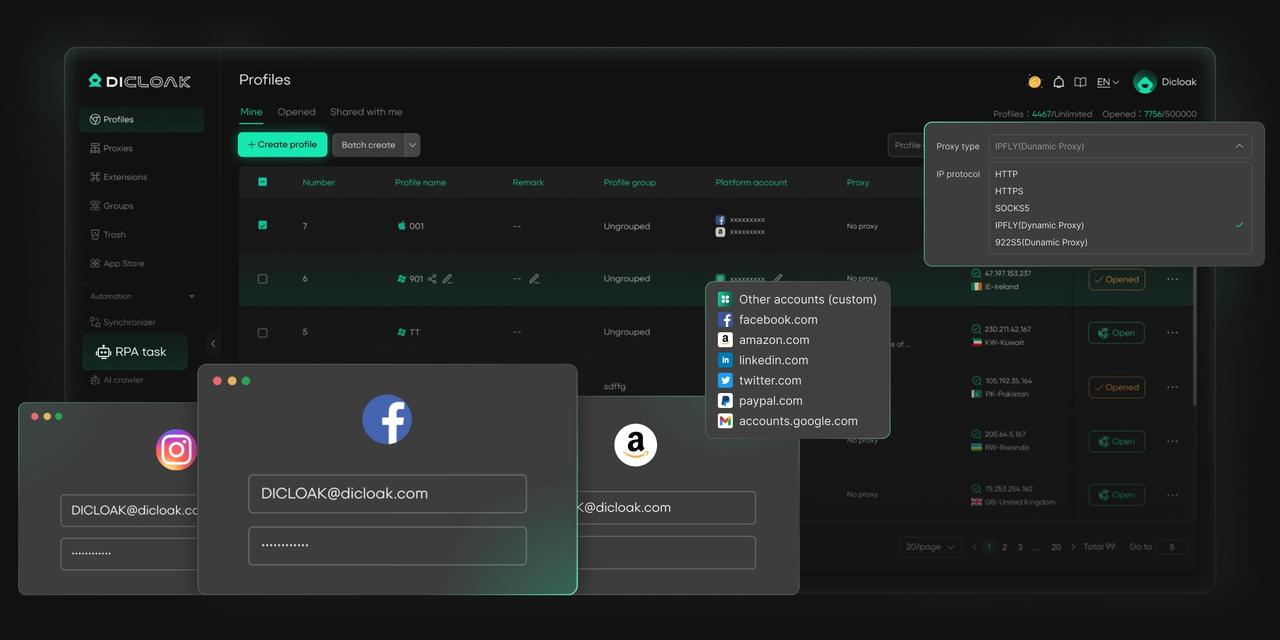
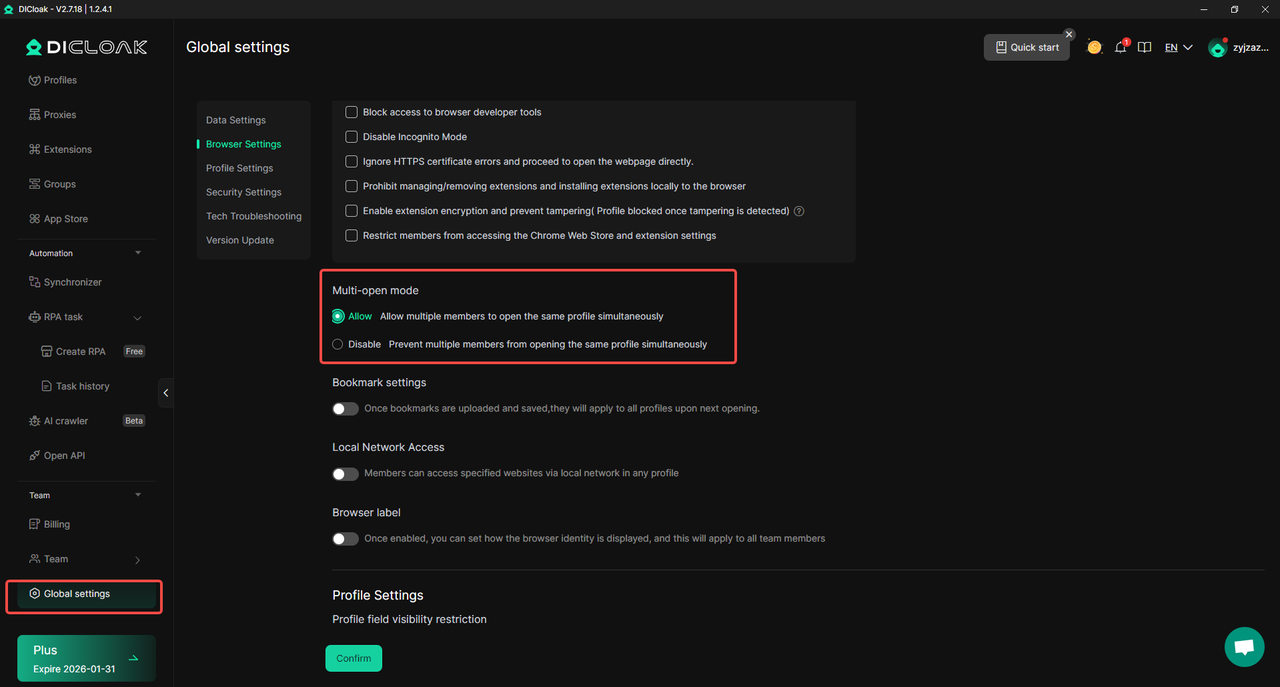
- Simultaneous Access: DICloak’s Multi-open mode lets multiple team members use the same ChatGPT account at once. No one gets logged out, even when several people are active.
- Consistent IP Address: By using a static residential proxy in one browser profile, all access appears to come from a single, stable location. Think of an IP like a house key. If the key keeps changing, security systems get suspicious. A static proxy keeps the “same key” in use, reducing risk.
- Synced Login Status: With Data Sync, the login session is saved. Once the main user logs in, other team members can open the profile without entering the password again.
- Secure Team Management: DICloak lets you create separate team members and give them access only to the ChatGPT profile. Your other accounts stay private and protected.
Step-by-Step: Sharing a ChatGPT Account with DICloak
Setting up a shared ChatGPT account in DICloak is simple and does not require technical skills.
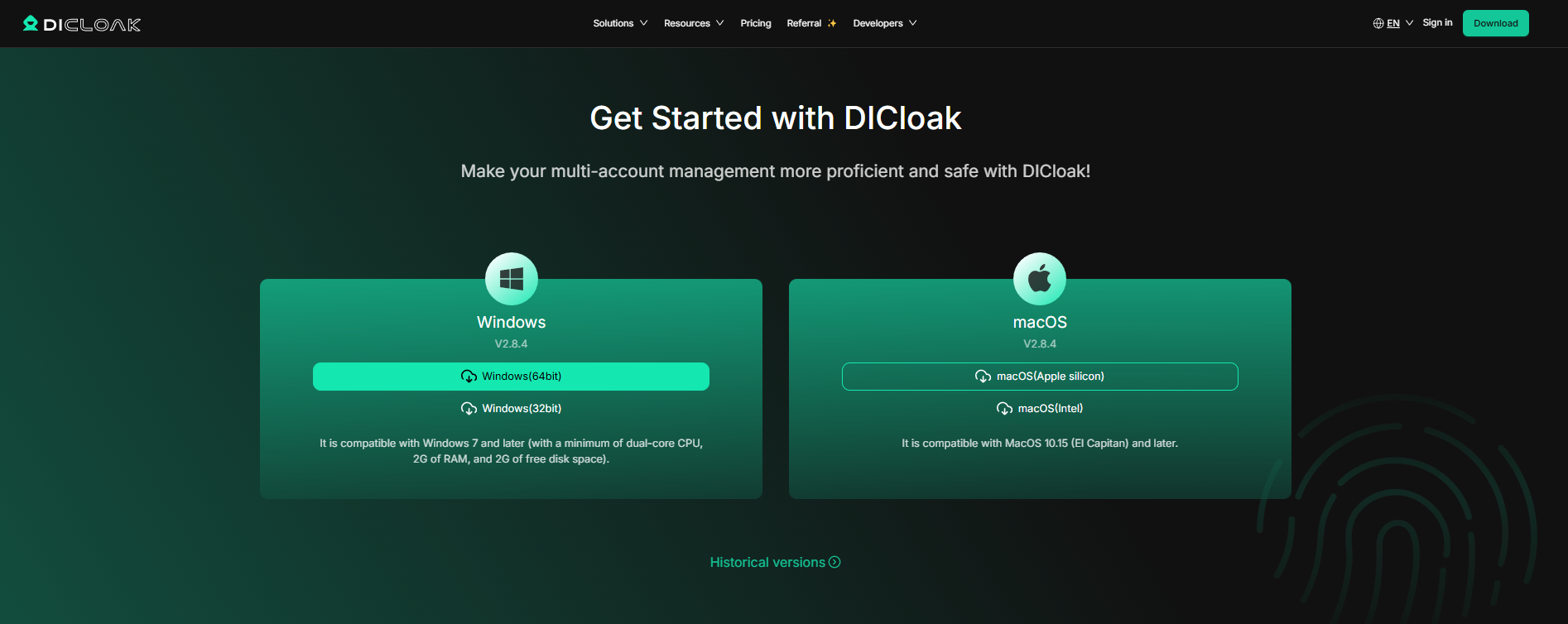
- Download and Install DICloak: Register on the official DICloak website and install the app.
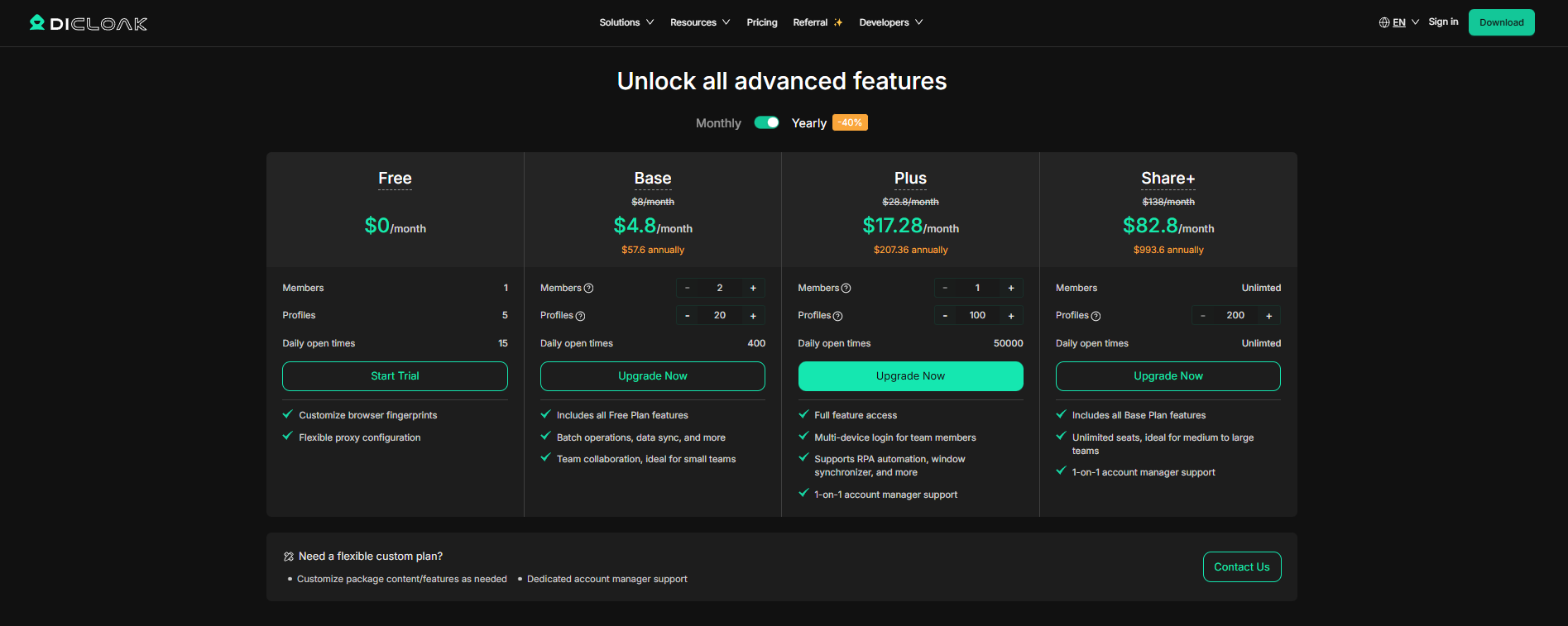
- Choose a Share+ Plan: The Base Plan works well for small teams. Larger teams may prefer the Share+ Plan for unlimited members.
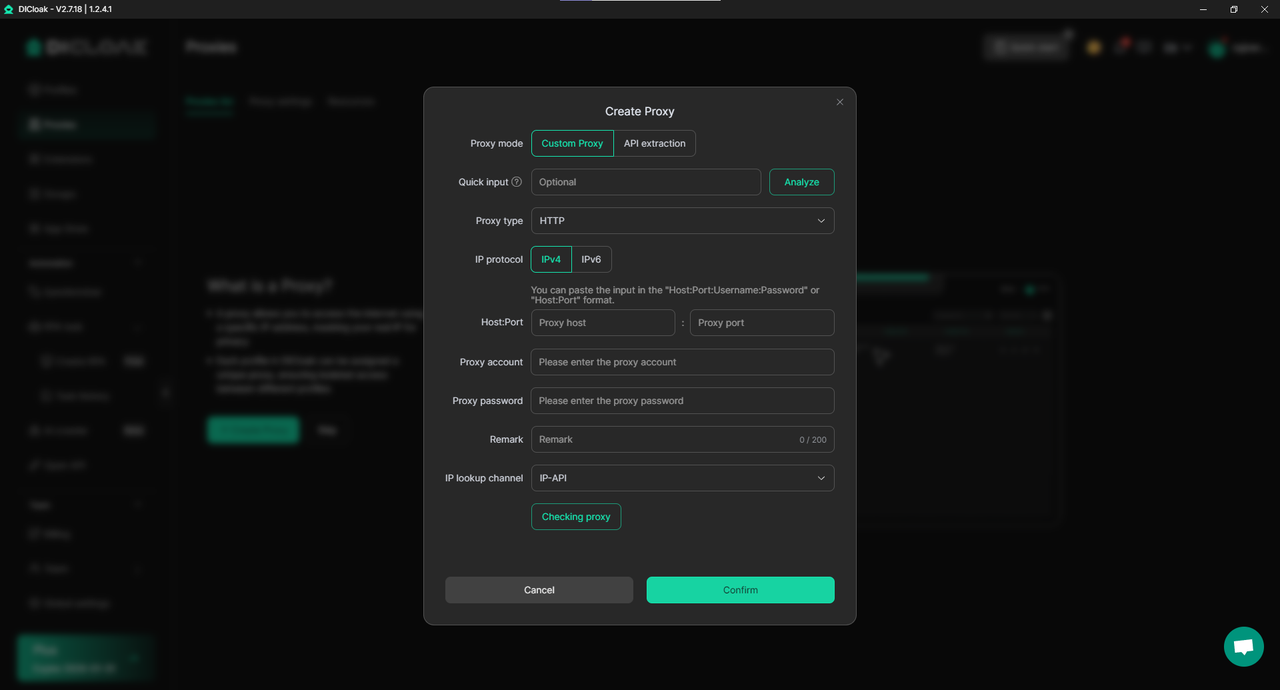
- Set Up a Static Residential Proxy (Recommended): Use one static residential proxy for the profile. This keeps the IP stable and lowers the risk of security checks. DICloak does not sell proxies but supports trusted partners.
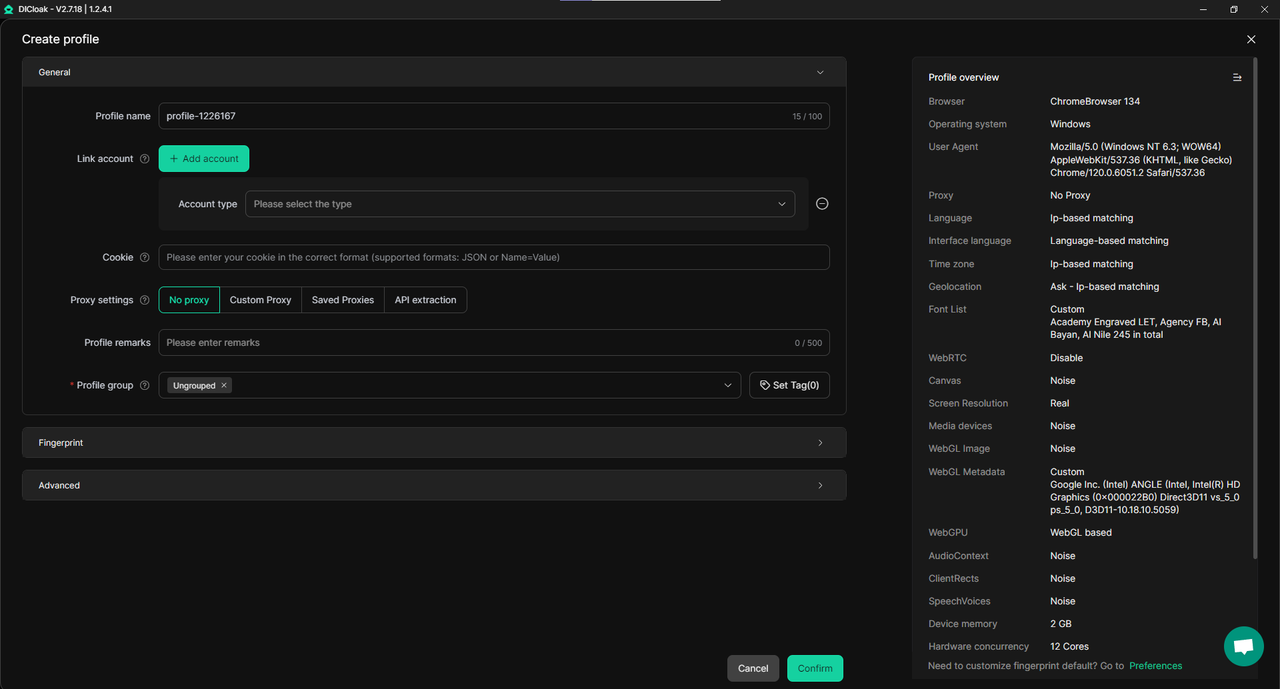
- Create a New Browser Profile: This profile will be used only for the shared ChatGPT account.
- Enable Multi-open Mode: Go to Global Settings → enable Multi-open mode → select Allow.
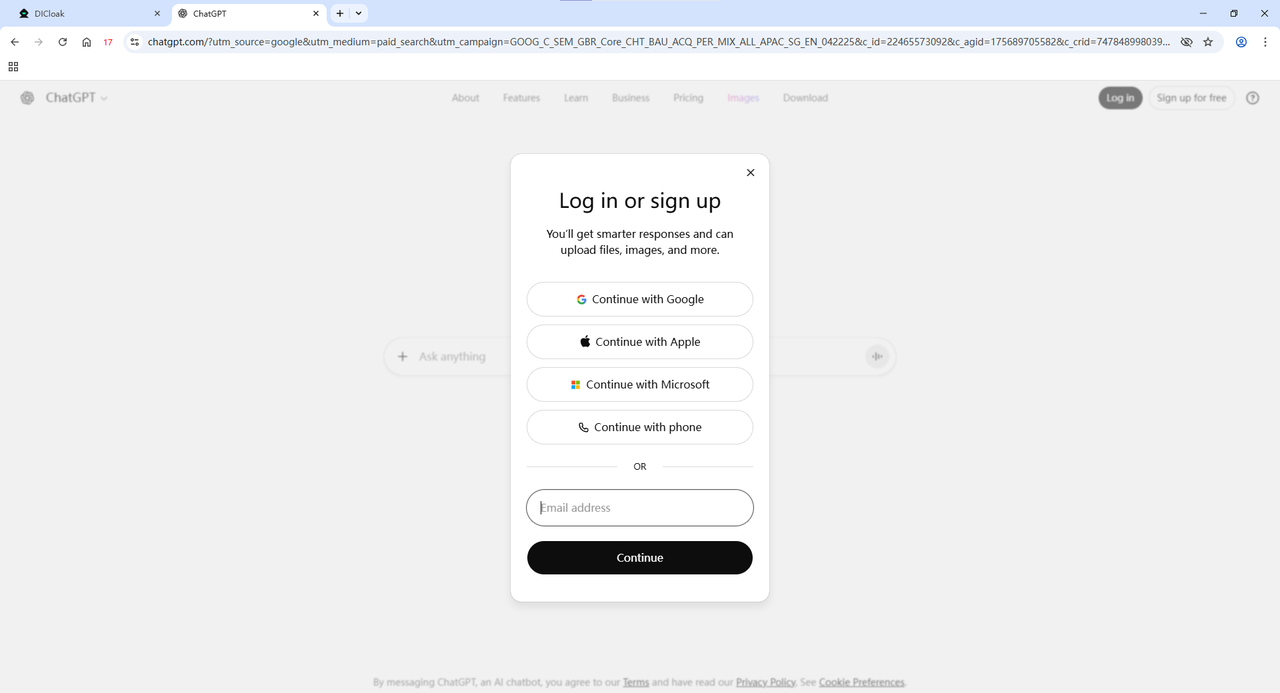
- Log In to ChatGPT: Open the profile and log in on the official ChatGPT website.
- Invite Team Members: Create team members inside DICloak and share the profile.
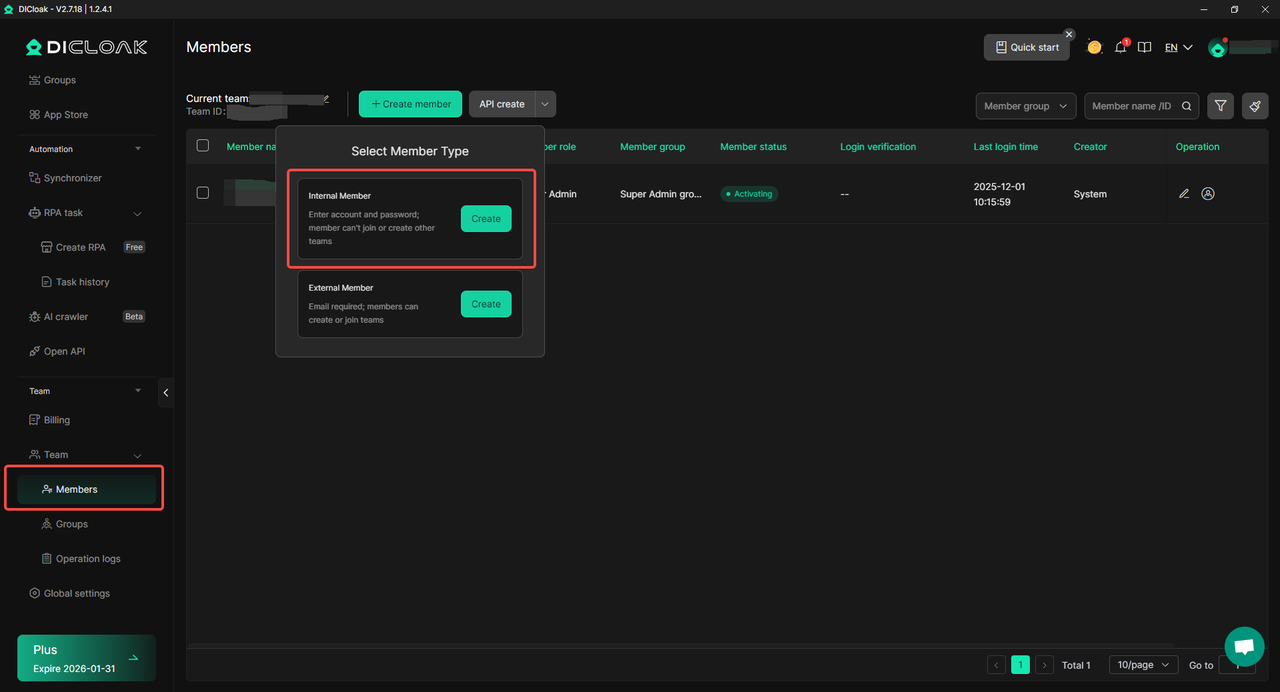
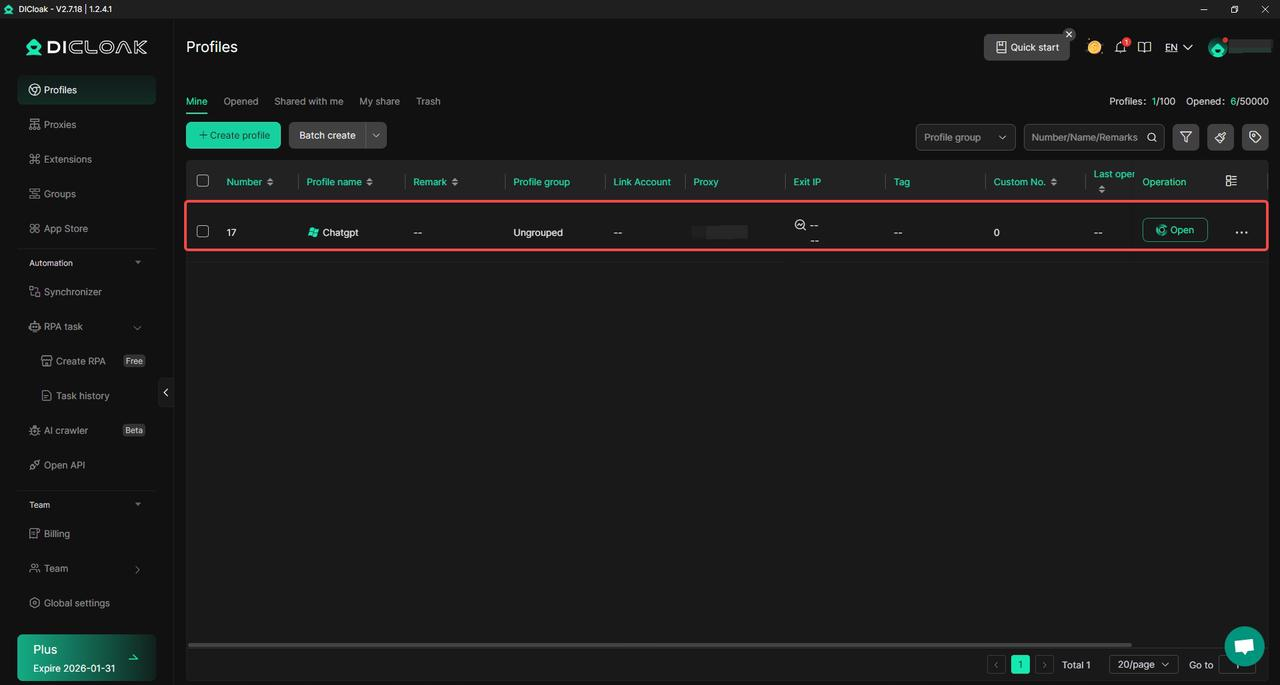
- Access the Shared Account: Team members open the profile on their own devices and are automatically logged in.
Conclusion
The chatgpt error in message stream usually happens when ChatGPT cannot finish sending a reply due to session, network, or system interruptions. In most cases, the problem is temporary and can be fixed by refreshing the page, clearing browser data, checking your internet connection, or starting a new chat. Long prompts, file uploads, and high server traffic can also increase the chance of this error.
By understanding the causes and using simple fixes, users can resolve the chatgpt error in message stream quickly and prevent it from happening again. Keeping your browser clean, breaking complex requests into smaller parts, and maintaining stable account access—especially in shared environments—helps create a smoother and more reliable ChatGPT experience.
FAQs
What does the ChatGPT error in message stream actually mean?
The chatgpt error in message stream means ChatGPT started sending a reply but could not finish it. ChatGPT delivers responses in small parts, called a stream. If the connection breaks, the session resets, or the system is under load, the stream stops and the error appears. This does not usually mean your prompt is wrong.
Is the ChatGPT error in message stream caused by my internet or by OpenAI?
It can be caused by both. In many cases, the chatgpt error in message stream happens due to unstable internet, browser issues, or session conflicts on the user side. However, during high traffic or system incidents, the error may come from OpenAI’s servers. Checking the OpenAI status page helps you tell the difference.
Why does the chatgpt error in message stream happen more often with long prompts or file uploads?
Long prompts and file uploads require more processing time. This increases the chance that the message stream is interrupted. Large PDFs, scanned documents, or complex requests are common triggers for the chatgpt error in message stream, especially if the connection drops or the session times out during processing.
Can sharing a ChatGPT account cause the chatgpt error in message stream?
Yes, it can. When the same ChatGPT account is logged in from multiple devices or locations, sessions may reset or conflict. This can interrupt active replies and lead to errors that look like the chatgpt error in message stream. Using a shared browser profile with controlled access can help reduce these session-related interruptions.
How can I reduce the chance of seeing the chatgpt error in message stream again?
You can reduce the risk by keeping your browser clean, using an updated browser, avoiding very long prompts, breaking tasks into smaller steps, and using ChatGPT during off-peak hours. If you work in a team, keeping account access stable also helps prevent session resets that lead to the chatgpt error in message stream.
 Web Proxy Tools
 Free Tools
 Cookie Plugin
 UA Generator
 MAC Address Generator
 IP Generator
 IP Address List
 2FA Code Generator
 World Clock
 Anonymous Check
 WebRTC Leak Test
 UUID Generator
 Free Web Proxy Site
 Proxy Checker
 FB Ad Checker
 AI Web Scraping
 Free SMM Tools
 Twitter Shadowban Checker
 Instagram Name Checker
 UTM Generator
 Username Generator
 AI Hashtag Generator
 LinkedIn Headline Generator
 Social Media Image Resizer