A Facebook Messenger account can get restricted for what feels like minor mistakes, one example is a sudden block after changing devices or logging in from a new location, even if the account owner did nothing suspicious. For marketers and regular users, losing access means stalled campaigns, missed messages, and the risk of permanent bans. The search term how to remove restriction on facebook messenger spikes every time Facebook rolls out new security checks or flags accounts for unusual activity. Most people expect that waiting out the restriction or sending endless appeals will fix the problem, but real cases show these methods rarely work. Facebook's automated systems often ignore appeals and can shut out users for weeks, especially if the ban was triggered by browser fingerprint mismatches, proxy errors, or rapid account switching.
What’s harder to spot is the hidden risk: restrictions are often triggered by patterns that feel normal to users, like logging in from a work computer after using a home device, or managing multiple Messenger accounts for a social media campaign. If you skip the right steps, you can make the situation worse and risk losing the account permanently. This guide lays out clear, step-by-step instructions to actually remove Messenger restrictions, explains which mistakes to avoid, and points out safer workflows for teams. Here’s how users are keeping their Facebook Messenger accounts active and out of trouble.
Why Facebook Messenger Accounts Get Restricted and What You Should Check First
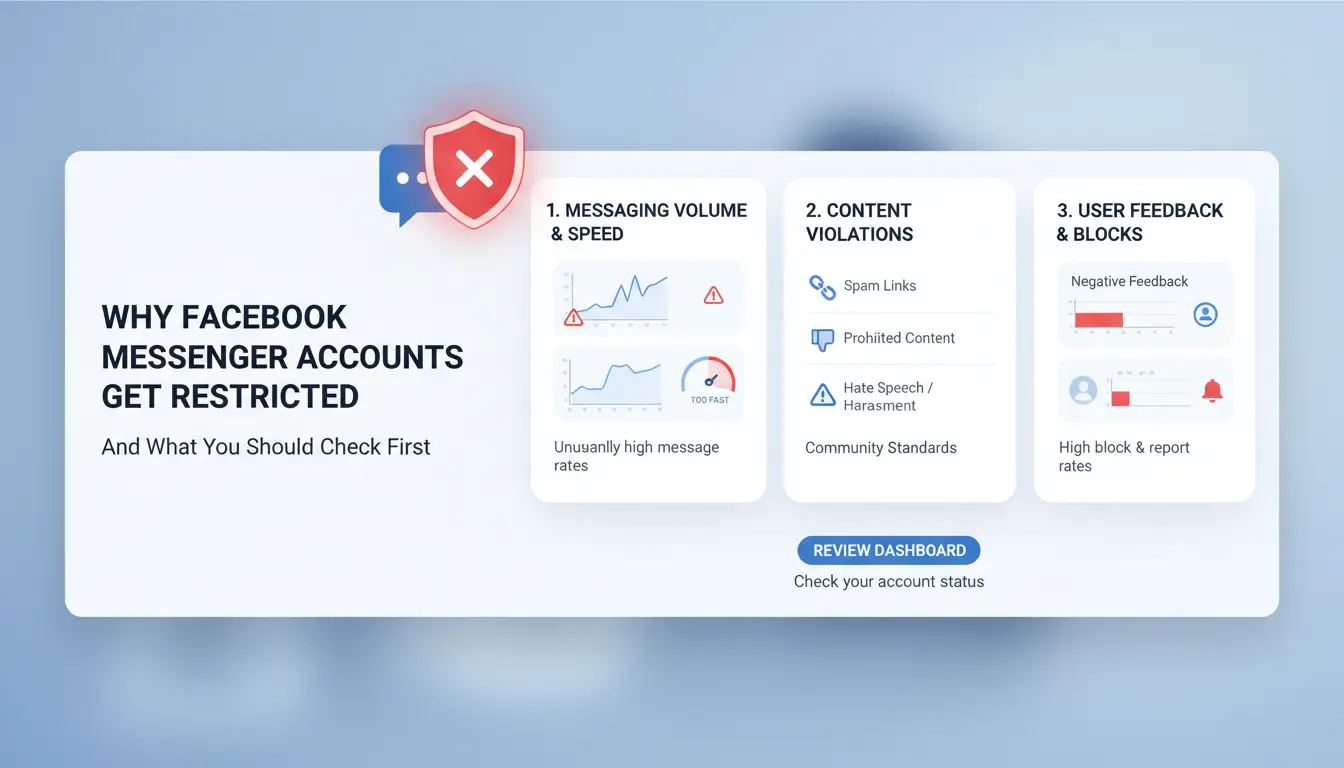
Facebook Messenger accounts often get restricted because of actions that look risky to the system, not just to people. The most common triggers are sudden changes, like logging in from a new city or device, or sharing links that break Facebook’s rules. Sometimes, even sending too many friend requests or messages in a short time can flag your account. If you often switch between work and home computers or run several Messenger accounts for marketing, Facebook's security checks get even stricter. Missing these warning signs or using the wrong fix can make things worse, so understanding the specific reason for your restriction is the first step before searching for how to remove restriction on facebook messenger.
Most Common Triggers for Messenger Restrictions
Traveling and signing in from a different location, changing devices quickly, or using a new browser fingerprint can freeze your Messenger. Even normal users hit problems when Facebook spots IP address changes or account sharing. Breaking Facebook’s community standards, like sharing spam, using fake names, or posting banned content, almost guarantees a restriction. For teams or agencies, managing multiple Messenger accounts without a safe setup often triggers blocks.
How to Confirm If Your Messenger Is Restricted or Just Buggy
A real restriction will show a warning or a message saying you can’t send, receive, or access parts of Messenger. Bugs usually just cause loading errors or missing chats. To check, log in on the Facebook support page and look for official account alerts. If you see clear warnings or requests for ID, you’re restricted, not just facing a glitch. That’s when you start searching for how to remove restriction on facebook messenger.
What to Do Immediately After Your Messenger Account Gets Restricted
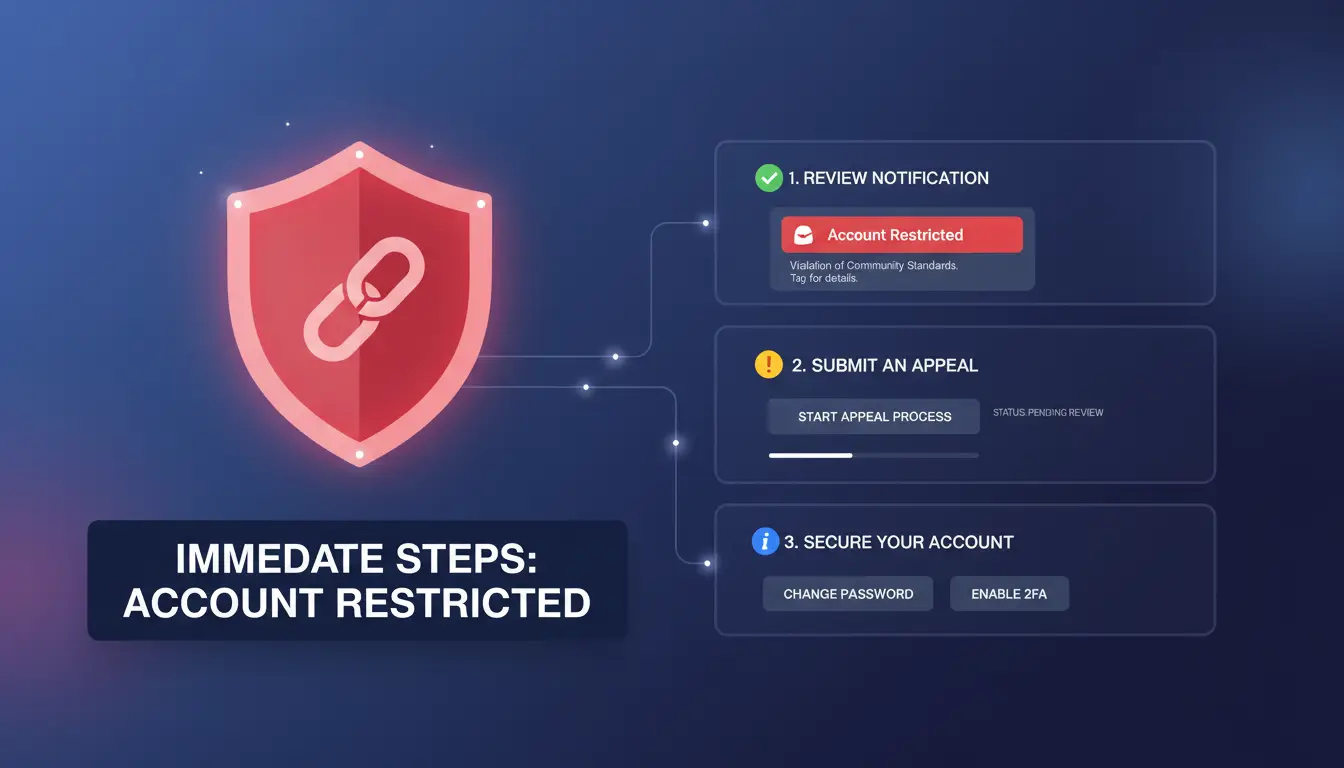
When your Messenger account gets restricted, your actions in the next hour matter more than most users realize. Rushing or guessing can make recovery much harder. Here’s how to avoid common mistakes and start real steps for how to remove restriction on facebook messenger.
Actions to Avoid That Make Restrictions Harder to Remove
Flooding Facebook support with repeated appeals is a quick way to get flagged as a spammer. One clear, well-documented request has a better chance of being read. Changing devices or IP addresses too often, especially right after restriction, raises more red flags. If you switch from your phone to your laptop, then try a new proxy, Facebook’s systems may see this as suspicious and tighten the ban. The most urgent thing: do not log in from unfamiliar devices or locations during this period, or you risk permanent loss.
Essential Information to Gather Before Appealing
Before sending any appeal, take screenshots of restriction messages, error pop-ups, and unusual account notifications. These will help you explain your case. Check your recent activity log for login attempts, device changes, or team access. If you manage Messenger accounts for a social media campaign, note who last accessed the account and from which device. For teams, consider using a tool like DICloak’s browser fingerprint isolation to prevent future mix-ups. Bring all this info together in your appeal, Facebook gives more weight to clear, organized reports. This careful prep is how to remove restriction on facebook messenger with less risk.
How to Appeal a Facebook Messenger Restriction and What Actually Works
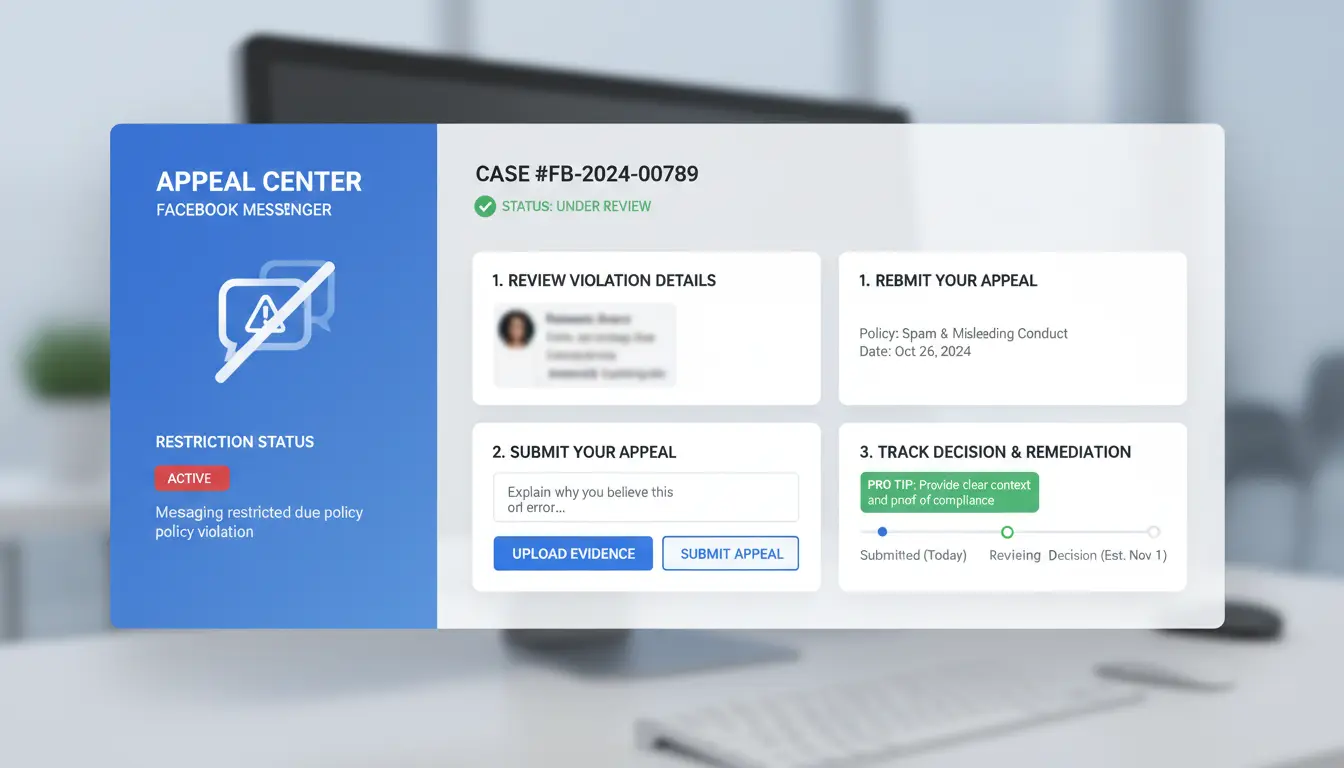
Restrictions on Messenger often hit when Facebook’s automated systems spot unusual patterns, like logging in from different locations or running multiple accounts for marketing. If you need to know how to remove restriction on facebook messenger, you must follow a precise process. Skipping steps or sending a vague appeal almost always leads to rejection. Here’s how users get their access back.
Step-by-Step Guide to Submitting an Appeal
Start in your Facebook account settings. Go to “Help & Support,” then choose “Report a Problem” and look for “Messenger.” There, you’ll find the restriction appeal form. Fill in every field, but focus on your explanation. Write a short, clear message, describe exactly what happened, mention any changes like using a new device or proxy, and ask for review. Avoid blaming Facebook or repeating generic phrases; explain why your activity is legitimate.
The most critical step is attaching screenshots that prove your identity and the normal use of your Messenger account. Include login history, device info, or any team workflow details if you use Messenger for business.
What to Expect After Submitting Your Appeal
Facebook usually replies within 24–72 hours, but it can take longer if the restriction was triggered by browser fingerprint mismatches or proxy errors. Check your email and the “Support Inbox” in Facebook settings for updates. Status will show as “Under Review” or “Resolved.” If denied, you can resubmit with more details, but avoid spamming appeals. For complex cases, using a tool like DICloak’s browser fingerprint isolation can help prevent repeat restrictions.
What to Do If Your Facebook Messenger Appeal Is Denied or Ignored
If your appeal gets ignored or rejected, you’re not out of options. Many users searching for how to remove restriction on facebook messenger end up stuck waiting, but you can take clear steps to try again or protect your account data.
When and How to Contact Facebook Support Directly
Don’t rely only on the automated appeal system. Go to the Facebook Help Center and look for “Support Inbox” or “Report a Problem.” For urgent cases, try Meta’s Business Support, which gives faster responses if your account is tied to a business page.
When reaching out, provide your account email, the exact error message, and screenshots showing the restriction. Be brief and clear. Avoid resubmitting appeals too quickly, Facebook’s system may block repeated requests and count them as spam. If you don’t hear back after a week, escalate by posting in official Facebook Community forums or tagging @Meta in relevant posts.
Backup Options: Recovering Data or Creating a New Messenger Account
Before starting a new account, download your Messenger data. Go to “Settings & Privacy” > “Your Facebook Information” > “Download Your Information.” This lets you save conversations and contacts in case the restriction becomes permanent.
Starting a new Messenger account is risky. You’ll need a fresh phone number and email, and must avoid linking the new account to devices or IPs used for the restricted account. If you run multiple accounts for social campaigns, use a browser profile separation tool like DICloak for Social Media Marketing to prevent fingerprint mismatches and reduce bans.
If your appeal fails, these steps help you stay in control, the fastest way to recover is by combining direct support requests with careful data backup and safer account setups.
How to Prevent Future Restrictions on Facebook Messenger (Especially for Multi-Account Users)
Best Practices for Safe Messenger Use
Messenger restrictions often come down to small habits that trigger Facebook’s automated checks. Using the same device and location for each login is safer, switching between your phone, office laptop, and public Wi-Fi can set off red flags. Avoid clicking suspicious links or forwarding the same message to many people at once; these patterns look like spam. If you’re managing several Messenger accounts, do not copy-paste the same content across all of them within minutes. Slow down your actions, space out logins, and watch for warning notifications.
How to Use Proxies and Browser Profiles to Reduce Risk
Running multiple Messenger accounts on one device can easily get them linked and restricted. The safest way to separate accounts is to use a different browser profile and a unique proxy for each. This keeps Messenger from linking your accounts by fingerprint or IP address. For example, set up one Chrome browser profile per account, each with its own proxy from a trusted provider. You can use tools like DICloak to create isolated browser profiles, assign separate proxies, and avoid accidental cross-contamination.
The single biggest mistake is logging into more than one account from the same browser profile without changing the proxy, this almost always leads to restrictions.
If you’re searching for how to remove restriction on Facebook Messenger, fixing the trigger pattern is key. For ongoing use, stick to one account per browser profile, keep proxies unique, and copy your workflow from Facebook’s official guidelines. This way, you can avoid new restrictions and keep Messenger working.
How DICloak Helps Social Media Marketers Remove and Prevent Messenger Restrictions
Messenger restrictions often hit social media teams when Facebook’s systems spot unusual patterns, like switching accounts too fast or sharing login details. If you’re searching for how to remove restriction on facebook messenger, skipping the right steps just leads to more locked accounts. The real fix starts with changing how you manage and recover Messenger accounts.
Managing Multiple Messenger Accounts Without Triggering Restrictions
You can use DICloak to handle several Messenger accounts without tripping Facebook’s detection. Each account runs in an isolated browser profile with its own fingerprint and proxy, making it harder for Messenger to link your activity. For teams, DICloak’s collaboration tools let you share access safely, so members don’t reuse devices or trigger bans. This approach cuts restriction risk and keeps campaigns running.
Automating Safe Account Operations with DICloak
Routine Messenger tasks get safer when you use DICloak’s RPA and bulk operations. Instead of manual logins or risky shortcuts, you can automate likes, messages, and account recovery steps. Operation logs and permission controls show exactly who did what, so you spot problems fast. The most reliable way to avoid repeat Messenger restrictions is to keep each account’s operations separate and traceable.
Common Mistakes That Make Facebook Messenger Restrictions Worse
Many users trying to figure out how to remove restriction on facebook messenger end up making moves that actually prolong the ban. Some mistakes look harmless but trigger Facebook’s system to flag the account even harder. Knowing what not to do is just as important as knowing the right steps.
Repeated Appeals Without New Information
Facebook’s support team deals with thousands of appeals a day. Sending multiple requests that say the same thing, like “please restore my account”, usually gets ignored or marked as spam. The real problem is that appeals without new facts waste time and frustrate support agents, lowering your chances of a quick fix.
Instead, add something concrete to each appeal. For example, mention any changes you’ve made since the restriction, such as resetting your password, checking recent login locations, or clearing browser cache. Attaching a screenshot of your login history or explaining unusual account activity can make your case stronger. The most critical move is to show you’re taking steps to fix the root cause, not just begging for access.
Switching Devices or Networks Too Often
Changing devices or network connections repeatedly can trigger extra security checks. Facebook sees this as an attempt to hide activity, especially after your account gets restricted. This can lock you out for longer or even cause permanent bans.
Stick to one device and one network until the restriction is lifted. If you must access Messenger for work, use a dedicated profile and stable proxy setup. You can use tools like DICloak for social media marketing to keep each account isolated and avoid fingerprint mismatches. This lowers the risk of new restrictions.
When Messenger Restrictions Are Permanent: What You Can and Can't Recover
What Data Is Lost and What Can Be Downloaded
Once Facebook Messenger restrictions are permanent, the account is locked out of chat, contacts, and group access. You can't send, receive, or view messages. However, you can still request a copy of your Messenger data using Facebook's Download Your Information tool. This lets you save message history, contacts, and some media files before everything becomes inaccessible. If the restriction blocks login entirely, data requests may not work. The most important step is to download your information before appeal chances run out. After permanent restriction, you lose access to conversations, groups, and linked apps for good.
Options for Starting Fresh Without Repeating Past Mistakes
Starting a new Messenger account means changing patterns that triggered the old ban. Use a clean device, reliable proxy, and fresh browser fingerprint. Avoid logging in from multiple locations or copying old contacts too quickly. Building trust signals, such as steady activity, verified email, and linking a real phone number, keeps the new account safer long-term. For teams, tools like DICloak help isolate profiles and prevent browser fingerprint mismatches.
Frequently Asked Questions
How long does it take to remove a restriction on Facebook Messenger?
The time to remove a restriction on Facebook Messenger usually takes a few hours to several days. If you submit an appeal, Facebook reviews your case. Factors like the type of violation, account history, and response time affect the process. For quicker results, make sure your appeal is clear and provides all the needed information.
Can I use Messenger if my Facebook account is restricted?
If your Facebook account is restricted, Messenger access may also be limited. Sometimes, you can still use Messenger for basic chats, but features like sending messages or making calls may not work. When learning how to remove restriction on Facebook Messenger, check your account status and follow the appeal steps if full access is blocked.
Is it safe to use proxies for Messenger account recovery?
Using proxies for Messenger account recovery is risky. Facebook can detect unusual logins and might add more restrictions. If you want to know how to remove restriction on Facebook Messenger safely, avoid using proxies. Instead, use your usual device and location to prevent triggering new security checks or account locks.
Why did my Messenger get restricted after logging in from another country?
Logging in from another country can trigger Messenger restrictions. Facebook’s security systems spot sudden changes in location or device fingerprints. They might block access to protect your account. To avoid this, use trusted devices and locations, and verify your identity if asked during the restriction process.
What should I do if I can't submit an appeal for my restricted Messenger?
If you can’t submit an appeal for your restricted Messenger, try checking Facebook’s Help Center for updated instructions. You can also contact Facebook support through their online forms. Make sure your account details are accurate before reaching out. Sometimes, restrictions lift automatically after a few days, so monitor your account for status changes.
Removing restrictions on Facebook Messenger is possible by understanding the reasons behind the limitation and using effective solutions, such as adjusting your privacy settings or utilizing secure tools. Staying informed about these methods helps you maintain smooth communication while protecting your privacy. Try DICloak For Free
 Web Proxy Tools
 Free Tools
 Cookie Plugin
 UA Generator
 MAC Address Generator
 IP Generator
 IP Address List
 2FA Code Generator
 World Clock
 Anonymous Check
 WebRTC Leak Test
 UUID Generator
 Free Web Proxy Site
 Proxy Checker
 FB Ad Checker
 AI Web Scraping
 Free SMM Tools
 Twitter Shadowban Checker
 Instagram Name Checker
 UTM Generator
 Username Generator
 AI Hashtag Generator
 LinkedIn Headline Generator
 Social Media Image Resizer