With the popularity of Telegram, more and more users want to set the interface language to Chinese for a more efficient use of this powerful communication tool. Whether for social chatting, group management, or cross-border e-commerce and brand operations, Telegram offers a rich set of features and flexible operations. To improve the user experience for Chinese-speaking users, setting Telegram to Chinese has become key to enhancing work efficiency.
This article provides you with the latest 2026 guide on how to set Telegram to Chinese, covering detailed steps for Windows, Mac, iOS, Android, and Web versions. It also addresses common issues, explains how to use language packs, and discusses their limitations. By reading this article, you will fully understand how to switch Telegram to Chinese, optimize your experience, and make Telegram a powerful tool for work and communication.
Why Set Telegram to Chinese?
Telegram is a popular instant messaging app that allows you to send messages, voice recordings, photos, videos, and files. It can be used on phones, computers, or the web. Telegram’s official app is available for download on Telegram’s official website, supporting Android, iOS, Windows, macOS, and more. It offers global synchronization, meaning you can access full chat history on any device you log into.
The app offers many advantages. First, it is very fast. Many users say that even on a slow network, Telegram can send messages smoothly. Secondly, it is highly secure, using strong encryption to protect privacy. You can join large groups, create channels, and even use bots to automatically reply to messages. Whether for personal chat or work collaboration, Telegram meets the needs of users.
However, many users find that the default interface is in English when they first use it. If you're more comfortable with Chinese, you might accidentally click on the wrong buttons. For example, after downloading the app, Chinese-speaking users often get lost when trying to find certain settings. This is when setting Telegram to Chinese becomes important. Many users can quickly switch to the Chinese interface by changing the language, making it easier to understand each menu option and improving the user experience.
For Chinese-speaking users, setting Telegram to Chinese not only makes the interface more user-friendly but also helps you quickly complete settings and daily tasks. Especially when managing groups, searching messages, or running channels, the Chinese interface can reduce mistakes and enhance your experience.

How to Set Telegram to Chinese: Latest Steps in 2026
Now, we will walk you through the steps to set Telegram to Chinese. These steps are applicable to users who have just downloaded Telegram from the official website and opened the app. This guide combines the official language pack setting process with real user cases to help you get started quickly.
General Steps to Set Telegram to Chinese
No matter which device you use, the core process to set Telegram to Chinese is generally the same. You can break it down into the following three parts:
1. Access Telegram Settings
After opening the Telegram client, you need to go to the settings page or use a language pack link to prepare to change the language.
2. Select Chinese Language Option
Telegram provides Simplified Chinese and Traditional Chinese language packs. Choose the one that suits your habits and region.
3. Confirm the Change
After selecting the language, a confirmation prompt will appear, and after confirming, the interface will immediately switch to Chinese.
Platform-Specific Telegram Chinese Settings Guide
Telegram supports multiple platforms, including computers and phones. Now, let's look at the operation method for each platform:
Windows/Mac Desktop Version
1. Open Telegram Desktop Launch Telegram on your computer and ensure you are logged into your account.
2. Click the Chinese Language Pack Link Paste the Simplified Chinese language pack link into the browser and press enter.
3. Confirm the Language Change A window will pop up showing the language pack progress. Click the "Apply Language" button to confirm.
iOS Mobile Version
1. Open Telegram on iOS iPhone users need to download the official app from the App Store and log in.
2. Use the Language Pack Link Copy the Simplified Chinese language pack link to "Saved Messages" in Telegram, and open it.
3. Confirm the Chinese Interface The system will pop up a prompt. Click "Change" to switch to Chinese.
Android Mobile Version
1. Install and Log in to Telegram on Android Download Telegram from Google Play and log into your account.
2. Paste the Language Pack Link Use the language pack link in "Saved Messages" in Telegram or through a browser.
3. Click Confirm Click the "Change" button in the pop-up window to switch the interface to Chinese.
Web Version
Currently, Telegram’s web version doesn’t support directly applying the Telegram Chinese language pack. Therefore, web users usually use the browser’s automatic translation feature (e.g., Chrome's translation plugin) for temporary Chinese display. For long-term use, it is recommended to install the desktop or mobile version and then follow the above steps for language setting.
Telegram Language Pack and Its Limitations
In the previous section, we explained the specific steps for setting Telegram to Chinese and how to apply the Chinese language pack on different platforms. Many users can quickly switch Telegram to their familiar Chinese interface, making it easier to find chat, settings, and other features. However, there are some things to note about the language pack in actual use. Below, we will explain what a language pack is and its limitations.
Introduction to Language Packs
A language pack is a file that changes the interface text of Telegram from English to Chinese. Since Telegram doesn’t directly provide a built-in Chinese option, users typically need to import the Chinese language pack through a specific link. You can obtain these links from trusted sources outside Telegram's official website, then click the link to install the language pack. Once installed, the Telegram interface will switch to Chinese, which is called "Telegram localization."
The main purpose of a language pack is to show Chinese menus, prompts, and options, making the experience more user-friendly for Chinese users. For example, a friend who works in cross-border e-commerce had trouble finding group management options when using Telegram in English. After clicking the Simplified Chinese language pack link, his Telegram instantly switched to Chinese, allowing him to work faster and more accurately in group chat management and message settings.
The installation process for the language pack is simple. For Simplified Chinese, for example, you can open the Telegram Chinese language pack link in the browser, then select "SET LANGUAGE" to confirm the change. On the mobile version, you can send the link to "Saved Messages," open it inside Telegram, and confirm the installation.
Limitations of Language Packs
Although the language pack can effectively set Telegram to Chinese, it is not a perfect solution. Below are the two main limitations:
- Incomplete Translation Possibility
Many Chinese language packs are not released by Telegram itself but are translated by community volunteers. As the translation is done by different people, some terms might not be accurate, and some interface elements might still be in English. This can lead to a mixed-language interface when using certain new features, which may affect the reading experience. For example, some users have reported that in newer feature interfaces, buttons still display in English rather than Chinese, which causes confusion.
Telegram regularly updates its software features. When the software interface or features change, the previous Chinese language pack might no longer fully match the new version. In this case, you’ll need to wait for the new language pack update or manually apply the latest language pack. Otherwise, even if you have successfully switched to the Chinese interface before, after an update, some translations may fail, display incompletely, or show garbled text. For users who need to use Telegram for the long term, this process can be a bit troublesome.
Practical Tips for Using Telegram in Chinese
Now let’s share some useful tips to help you better use Telegram in Chinese. These tips are for users who have already downloaded Telegram from the official website or trusted sources and set up the Chinese interface.
Switching Between Simplified and Traditional Chinese
Telegram supports various Chinese language packs, including Simplified and Traditional Chinese. You can switch between them based on your habits anytime in the settings.
1. Open Telegram and go to the "Settings" page.
2. Scroll to find the "Language" option.
3. Choose Simplified Chinese or Traditional Chinese.
Because Telegram’s official language pack is community-translated, sometimes different versions may express certain terms differently. For example, users in Hong Kong or Taiwan might prefer Traditional Chinese, while Mainland users mostly use Simplified Chinese. Choosing the version that suits you best can help you find the needed buttons more quickly in daily use. According to the official translation platform, the Simplified Chinese language pack link "classic-zh-cn" is one of the more commonly used community localization versions.
Using Community Resources
The experience of using Telegram in Chinese not only depends on the language pack itself but also on community support. Telegram has many Chinese groups and channels that share setup tips, troubleshooting, and more. You can search for keywords like "Chinese technical support" or "Telegram tutorial" to join these groups.
For example, some Chinese tech discussion groups regularly share the latest language pack links, security tips, and solutions to incomplete translations in the language pack. This type of exchange can help you resolve issues and become familiar with Telegram’s features faster. Real user feedback shows that after asking a question in these communities, most people receive useful answers within a few hours, which is faster than figuring it out on your own.
However, be cautious when joining groups, and avoid clicking on links from unverified sources, especially non-official installation packs or bots, as they may pose a security risk to your account.
Keeping the Language Pack Updated
Since Telegram localization is mainly done through language packs, it is important to know how to check and update them. Telegram’s official and community translation teams occasionally optimize the language packs, correcting inaccurate translations or adapting to new features.
How to check and update your language pack:
1. Open Telegram and go to the "Settings" page.
2. Click the "Language" option. Sometimes Telegram will automatically notify you if a language pack update is available.
3. If there is no automatic prompt, you can manually apply the latest language pack link.
Regularly checking and updating your language pack ensures you get more accurate translations and consistency when using new features.
Common Problems and Troubleshooting
Even after reading the tips in this section, some users may still face questions or minor problems. Let’s now answer some common problems and offer simple solutions to help you successfully complete the Telegram Chinese setup on your computer, phone, or web version.
Common Problems
The Interface Didn’t Switch to Chinese After Installing the Language Pack
Some users find that after clicking the language pack link, Telegram doesn’t switch to Chinese immediately. This is usually because the Telegram app version is outdated, or the language pack link was clicked incorrectly. Telegram’s default interface doesn’t have a built-in Chinese option, so you must import the language pack for the interface to switch to Chinese. Ensure you use the latest language pack link and confirm the change inside the app.
Can’t Find Chinese in the Language Options
Sometimes, the language menu may not show Chinese, as Telegram doesn’t have it built-in. Some unofficial versions may also lack the Chinese option. In this case, you need to import the Chinese language pack using the link.
Some Text is Still in English After Installing the Language Pack
Since the Chinese language pack is created by community volunteers, sometimes new features or updated content may not be fully translated. This can lead to some buttons or menus still being displayed in English.
Troubleshooting Tips
- Ensure Telegram is the Latest Version
If you encounter problems applying the language pack, first ensure your Telegram client is up-to-date. Older versions may not support the language pack protocol or link redirection. You can download the latest version from the official Telegram website.
- Reapply the Language Pack Link
If the language switch doesn’t work, try removing the current language setting and then reapply the language pack link. Reopen the link and confirm the change.
- Clear App Cache and Restart
Sometimes Telegram’s cached data may delay or cause errors with the language switch. Close the app, clear the cache, and then reopen it. Reapply the Chinese language pack to solve this problem. Desktop users can also try logging out and logging back in.
- Use Community Language Pack Update Information
Join Chinese technical support groups on Telegram or follow Chinese language pack channels for the latest language pack links and fixes. Many users in these communities share solutions, which can help you resolve problems quickly.
Managing Multiple Telegram Accounts with DICloak Antidetect Browser
After setting Telegram to Chinese, some advanced users may need to manage multiple Telegram accounts on a computer at the same time. This is especially common in cross-border e-commerce, brand operations, or community management, where an individual or a team may need to log into several accounts. In such cases, using a specialized tool like the DICloak Antidetect Browser can make managing multiple accounts safer and more efficient.
Why Choose DICloak Antidetect Browser for Your Business?
⚡The DICloak Antidetect Browser has become a global favorite for its unparalleled ability to efficiently and securely manage multiple accounts. Designed for professionals in social media management and more, DICloak offers powerful features like RPA automation, bulk operations, and synchronizer. Additionally, it allows you to customize fingerprints and integrate proxies for each profile, ensuring top-level security and operational efficiency. It’s the ultimate tool for seamless, secure, and scalable operations.
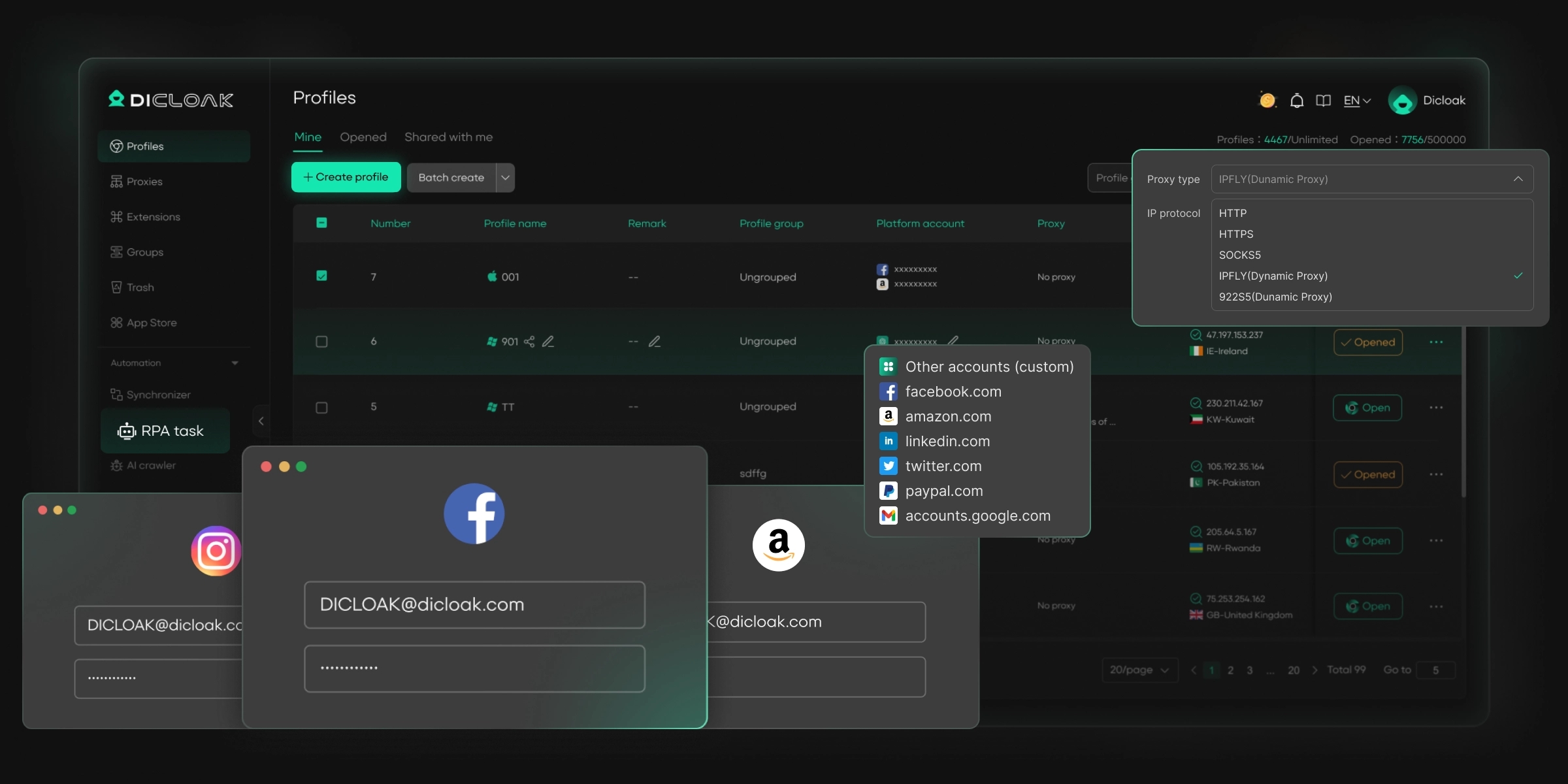
What Makes DICloak Stand Out?
✅ Manage 1,000+ Accounts on One Device: Stop wasting money on extra hardware! DICloak allows you to manage multiple accounts on a single device, cutting costs and boosting efficiency.
✅ Guaranteed Account Safety, No Ban Risks: Every account gets its own isolated browser profile with custom fingerprints and IPs, drastically reducing the risk of bans. Your accounts, your control!
✅ Flexible Proxy Configuration for Maximum Performance: Seamlessly integrate with all major proxy protocols (HTTP/HTTPS, SOCKS5) and manage your proxy pool with bulk operations. No more struggling with IP management—DICloak has you covered.
✅ Streamlined Team Collaboration for Better Results: Easily manage your team with advanced tools like profile sharing, permission settings, data isolation, and operation logs. Your team works smarter, not harder.
✅ Automate the Grind with RPA: DICloak's built-in RPA saves you hours of manual work. Automate repetitive tasks, streamline workflows, and focus on what really matters—growing your business.
✅ Powerful Bulk Tools to Scale Your Operations: Create, import, and launch multiple browser profiles in one click. DICloak makes scaling your business as easy as it gets.
✅ Compatible with All Major Operating Systems: Based on the Chrome core, DICloak supports simulating Windows, Mac, iOS, Android, and Linux operating systems. No matter what platform you need, DICloak has you covered.
🔗 Ready to Get Started?
Visit the DICloak website to explore more details and choose the plan that’s right for you. Start for free today and experience the power of secure, efficient, and scalable multi-account management!
FAQs About Setting Telegram to Chinese
How do I set Telegram to Chinese?
Setting Telegram to Chinese is simple. First, open Telegram and go to the "Settings" page. Then find the "Language" option, choose "Chinese (Simplified)" or "Chinese (Traditional)", and confirm the change. Depending on the platform, you may need to use a language pack link to complete the process. Make sure you've downloaded the latest language pack. The steps are similar across Windows, Mac, and mobile devices, so refer to the corresponding platform's guide.
Why does Telegram still display in English after setting it to Chinese?
This usually happens because the language pack was not applied correctly. Try visiting the Telegram language settings page again to ensure you selected the correct language pack link. You can also try clearing the Telegram cache and restarting the app, then reapply the language pack link. If the issue persists, check if your Telegram is up to date and make sure you're using the correct language pack link.
How can I switch between Simplified and Traditional Chinese in Telegram?
In Telegram’s language settings, you can choose the Chinese language you're most comfortable with. Simply go to Settings, find the "Language" option, choose "Chinese (Simplified)" or "Chinese (Traditional)", and confirm. Each account can switch between the two based on personal preference and regional language habits.
How do I update the Telegram language pack?
Telegram’s language packs are maintained by community volunteers, so sometimes translations may be delayed after software updates. You can check the Telegram language pack update page to see if a new version is available. If there are no automatic update notifications, it’s recommended to manually reapply the latest language pack link. Regularly checking and updating your language pack ensures more accurate translations and prevents missing updates.
Can I use DICloak to manage multiple Telegram accounts and set them to Chinese?
Yes, DICloak can help you manage multiple Telegram accounts and set up isolated browsing profiles for each account. In each browser configuration, you can set Telegram to Chinese, ensuring that each account operates with the desired Chinese interface. With DICloak’s fingerprint isolation technology, you can safely manage multiple accounts on the same device, avoiding account association risks and improving operational efficiency.
Conclusion
By reading this How to Set Telegram to Chinese: Latest 2026 Guide and Tips, you should now know how to quickly and efficiently set Telegram to Chinese, whether on Windows, Mac, iOS, Android, or Web platforms. We’ve outlined the steps from installing language packs to switching between Simplified and Traditional Chinese and provided practical troubleshooting tips to help resolve common problems.
When using Telegram in Chinese, keeping the language pack updated and leveraging community resources will significantly improve your experience. If you need to manage multiple Telegram accounts at once, DICloak antidetect browser is an ideal tool that can effectively avoid account association risks and ensure both security and efficiency in your operations.
In conclusion, whether you’re an individual user or part of a team, setting Telegram to Chinese will help you easily manage and use Telegram, enjoying a smoother communication experience.
 Web Proxy Tools
 Free Tools
 Cookie Plugin
 UA Generator
 MAC Address Generator
 IP Generator
 IP Address List
 2FA Code Generator
 World Clock
 Anonymous Check
 WebRTC Leak Test
 UUID Generator
 Free Web Proxy Site
 Proxy Checker
 FB Ad Checker
 AI Web Scraping
 Free SMM Tools
 Twitter Shadowban Checker
 Instagram Name Checker
 UTM Generator
 Username Generator
 AI Hashtag Generator
 LinkedIn Headline Generator
 Social Media Image Resizer