Are you frustrated by not being able to access Steam unblocked? Whether you're at school, work, or using public Wi‑Fi, network restrictions can often block access to Steam, preventing you from playing your favorite games or downloading new content. Fortunately, there are simple ways to bypass these restrictions and regain full access to Steam. In this guide, we’ll walk you through everything you need to know about getting Steam unblocked and ensuring a seamless gaming experience. From understanding what Steam unblocked means to using tools like proxies and antidetect browsers for added security, you'll find practical solutions to access Steam without issues. Ready to get back to your games? Let’s dive in!
What Does “Steam Unblocked” Mean?
"Steam unblocked" means being able to access Steam even if a network is trying to block it. Steam is a popular platform where people can buy, download, and play games, as well as chat with friends. Sometimes, networks like school Wi‑Fi or public internet connections block Steam to save bandwidth or reduce distractions. When Steam is blocked, you might see error messages or be unable to download games. To get around this, users look for ways to unblock Steam so they can play and access content freely. This often involves using tools like proxies, which help you bypass these network restrictions.
Another way unblock on Steam is used is to refer to unblocking users. If you’ve accidentally blocked someone on Steam, you can easily unblock people on Steam. This process involves going to your friends list, finding the Blocked Users section, and clicking Unblock next to the person’s name. Once you unblock them, you can resume messaging and interacting with them.
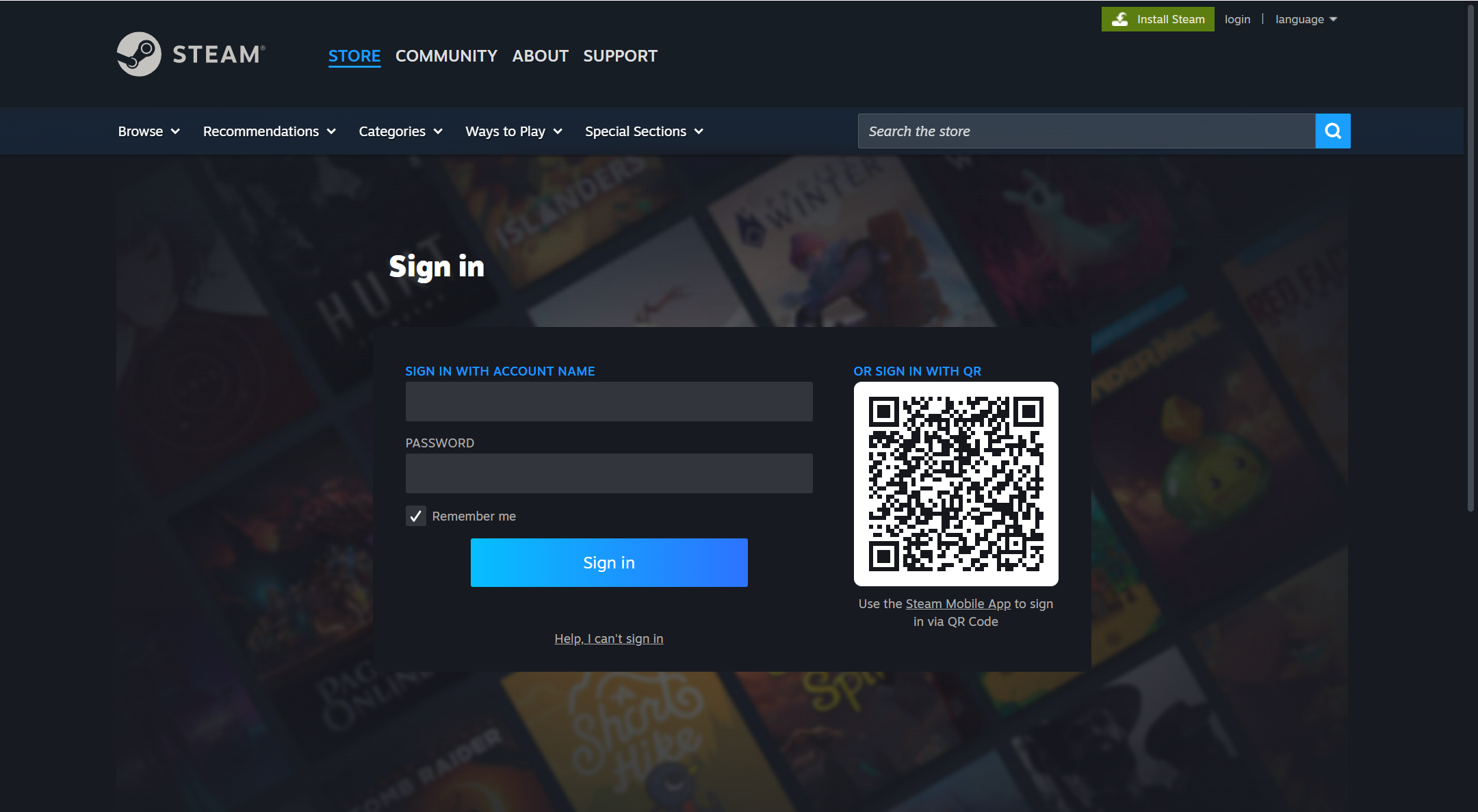
Why You Need to Access Steam Unblocked?
There are several reasons why you may need to access Steam unblocked. First and foremost, it’s about gaming access. If Steam is blocked on your network, you can't download games or access your library. This can be frustrating, especially when you're trying to play during free time. Many schools and offices block Steam to manage bandwidth or reduce distractions, but being able to unblock Steam gives you access to your favorite games without limitations.
Another reason to unblock Steam is for social interaction. Steam allows users to communicate with friends, trade items, and join multiplayer games. When Steam is blocked, you may miss important messages or invitations from friends. Additionally, if you’ve blocked someone by mistake, knowing how to unblock someone on Steam is important for fixing those issues quickly and getting back to playing.
Finally, you might want to download Steam unblocked so that you can quickly download updates and new games. Sometimes, networks block large downloads, causing delays in getting new content. Being able to access Steam unblocked helps you keep your gaming experience smooth and uninterrupted.
Common Reasons for Being Blocked from Steam
In the last section, we explained what Steam unblocked means and why users want to access Steam without limits. Now, let’s look at common reasons why Steam may block your access. These blocks can stop you from using Steam fully and may require you to take action to unblock on Steam or unblock Steam in specific ways.
Violation of Steam’s Terms of Service
Steam has rules you must follow. These are called the Terms of Service. If you break these rules, Steam can block parts of your account. For example, Steam may stop you from buying, chatting, or joining community features if you post content that looks like a scam or spam. One user reported that their account was blocked because Steam thought a profile comment looked like a scam. After contacting Steam Support and explaining the situation, the block was removed. This kind of block shows why it’s important to follow the community rules.
Multiple Failed Login Attempts
Sometimes Steam blocks access if there are many failed login attempts. This happens when the wrong password is entered many times. Steam may lock the account to protect it from hacking. When this happens, you may see a message asking you to verify your identity or secure your account before you can unblock on Steam and log in again. You might need to follow the prompts on the Steam help page to recover your login.
Network Restrictions Imposed by Institutions or ISPs
Certain networks, like school Wi‑Fi, office internet, or public Wi‑Fi, can block Steam services. These blocks happen because the network administrator wants to limit gaming traffic or large downloads. When Steam is blocked by a network, users often look for ways to steam unblock so that they can download Steam unblocked and play games. For example, many students share stories of school networks blocking Steam download servers, so they are unable to update or install games. Knowing how to unblock on Steam in these cases helps users get access while still following network rules.
Engaging in Fraudulent Activities or Cheating
Steam may also block accounts for fraud or cheating. Steam’s anti‑cheat systems monitor suspicious activity like payment fraud, unauthorized trading, or game cheating. When this happens, features like purchases, gifting, or market use can be disabled until the issue is resolved. Some users have reported accounts flagged for “fraudulent activity” after unusual purchases or trades. To resolve these blocks, you often need to contact Steam Support and provide proof of legitimate activity.
Step-by-Step Guide to Access Steam Unblocked
In the last section, we looked at common reasons why your access to Steam might be blocked. Now you will learn how to get Steam unblocked. These steps show you what to check and how to try accessing unblocked Steam safely and clearly.
Step 1 : Identify Your Network Restrictions
First, you need to find out why Steam is blocked. If you see errors when you try to open Steam or download Steam unblocked, the network you use might be stopping certain connections. Many school or work networks block the ports Steam uses to run games and update content. For example, Steam needs certain ports to connect to game servers and download files. If these ports are blocked, you can’t load the Steam store or update games. Knowing this helps you choose the right step to unblock on Steam.
Ask yourself these questions:
- Does Steam open on other networks like home Wi‑Fi?
- Does the Steam website load but downloads stop?
- Does your network show any “restricted” message?
If Steam works on a home network but not on school Wi‑Fi, then the network may be the reason Steam is blocked.
Step 2 : Choosing the Right Method to Unblock Steam (Using a Proxy Server)
Once you know the cause, choose a method that fits your situation. One common way is using a proxy server. A proxy server acts like a middleman. It sends requests to the Steam servers for you. When configured correctly, it can help you connect to Steam even when your network blocks it.
A proxy server can help you access unblocked Steam when direct access is restricted. A proxy sends your Steam traffic through a different connection path that your network may allow. This can help you load the Steam site, log in, and download games.
Step 3 : Setting Up a Proxy Server
Below are simple instructions to configure a proxy server for your system. This helps you access Steam unblocked in many cases.
Free vs. Paid Proxy Servers
There are two main types of proxy servers:
- Free proxy servers: These don’t cost money, but they can be slow or unreliable.
- Paid proxy servers: These usually offer faster and more stable connections.
Choose a service you trust. A paid service often has better uptime and support. Many users share that free services sometimes fail to load Steam pages or stop during Steam download unblocked actions.
How to Configure Your Proxy Settings
Step 1: Open Settings.
Step 2: Go to Network & Internet.
Step 3: Click Proxy.
Step 4: Under Manual proxy setup, turn Use a proxy server ON.
Step 5: Enter the proxy IP address and port number you received from your proxy provider.
Step 6: Save settings and try loading the Steam website.
- For Firefox, Mac, and iOS
Firefox: In Firefox settings, find Network Settings and enter the proxy details there.
Mac: Go to System Preferences > Network > Advanced > Proxies, enter proxy details.
iOS devices: In Wi‑Fi settings, tap your network and scroll to configure proxy details manually.
Setting a system or browser proxy can help make Steam unblocked steam connections clearer and easier.
Step 4 : Testing Your Connection to Access Steam Unblocked
After you apply proxy settings, test your connection:
Step 1: Open your browser.
Step 2: Go to the Steam store page.
Step 3: Try logging in and checking if downloads start.
If the Steam site loads and your games begin to download, then you have successfully unblocked Steam. If not, check your proxy settings again or try a different server. You can also test your connection by visiting an IP lookup site to make sure your device shows the proxy’s IP address.
Benefits of Using Proxies for Steam Unblocked
Using a proxy server has several benefits, especially for gamers trying to reach steam unblocked content:
If a public or restricted network blocks Steam, a proxy can help you access unblocked steam. This is useful at school, work, or public Wi‑Fi.
- Stability and Connection Support
Some proxy services offer stable connection routes. This can help reduce some network issues during game downloads or gameplay.
A proxy hides your real network address from Steam and others online. This adds an extra layer of protection when you use Steam features like chat or community events.
- Access in Restricted Regions
In countries where Steam is limited or partially blocked, proxies can help users connect to unblocked steam servers. This makes it possible to reach the Steam store or library from restricted locations.
These benefits make proxies a useful tool for gamers who need steam unblock solutions while following network policies.
Recommended Proxy Services for Steam Unblocked
Not all proxy services are equal. Some offer better speed, reliability, and support than others. Below are some examples of proxy providers that many gamers use to access unblocked steam traffic.
Webshare
Webshare has free and paid proxy services that can help you connect to Steam when other networks block it. Many users start with Webshare’s free list to test access to steam unblocked before moving to paid plans for speed and reliability.
NodeMaven
According to reviews of gaming proxy services, NodeMaven is often listed as one of the top options with high uptime and many server locations, which helps users get steam unblocked smoothly across different regions.
IPRoyal Proxies
IPRoyal offers both datacenter proxies and residential proxies that can help maintain a stable connection while accessing Steam from restricted networks. Some users report smoother gameplay and fewer interruptions when using reliable proxy services like this.
When choosing a proxy to unblock steam, consider factors like server location, speed, and how trustworthy the provider is. Free proxies may be a good start, but paid plans often offer better performance and less risk of connection drops.
Additional Resources and Support for Accessing Steam Unblocked
After learning how to unblock Steam, you may still meet problems. Sometimes the issue is not about network settings or proxies. You might need help with errors, Steam login problems, or account issues. Below are reliable places where you can find guidance and support for steam unblocked issues or other Steam problems.
Where to Find Help if You Encounter Issues
If you face trouble accessing unblocked Steam or steam download unblocked, the official Steam Support site is the first place to go. This is the official help center from Valve, the company that runs Steam. You can visit https://help.steampowered.com and log into your Steam account. There you can choose the problem type, such as login issues, purchase errors, or game errors. The site guides you step by step to fix the issue or submit a support ticket.
For example, if Steam won’t open or won’t unblock on steam after following all steps, you can select “Help with Steam Issue” and follow the on‑screen options. In many cases, questions about connection errors or account problems are handled through this system.
Community Forums and Discussion Boards
Another useful resource is the Steam Community Forums. These are official discussion boards where users talk about gameplay, updates, bugs, and solutions. You can search topics related to steam unblock, unblocked steam, or steam download unblocked. Many players share their real situations and solutions.
For example, one user might post about an error message they see when trying to launch Steam on a school network. Other players often reply with steps they used to fix the same problem. This can help you learn different ways to unblock steam or fix issues you did not expect.
The forums also have threads about how to unblock someone on Steam when users accidentally block friends in chat. This real‑world knowledge from active players gives you practical tips for everyday Steam use.
Contacting Steam Support for Assistance
If you need direct help from Steam, you can submit a ticket to Steam Support through the official help site. This is the main way to contact the Steam team for account‑specific problems, password recovery, or errors you cannot resolve on your own.
To do this:
Step 1: Go to https://help.steampowered.com.
Step 2: Log in with your Steam account.
Step 3: Choose the problem category (like account, purchases, or game errors).
Step 4: Follow the prompts until you see “Contact Steam Support” or similar.
Keep in mind there is no phone number or general email for Steam support — all contact is done through the ticket system. Many users report that support replies can take time, but it is the official way to get help with serious issues.
For Enhanced Security and Privacy: Using Antidetect Browser Like DICloak
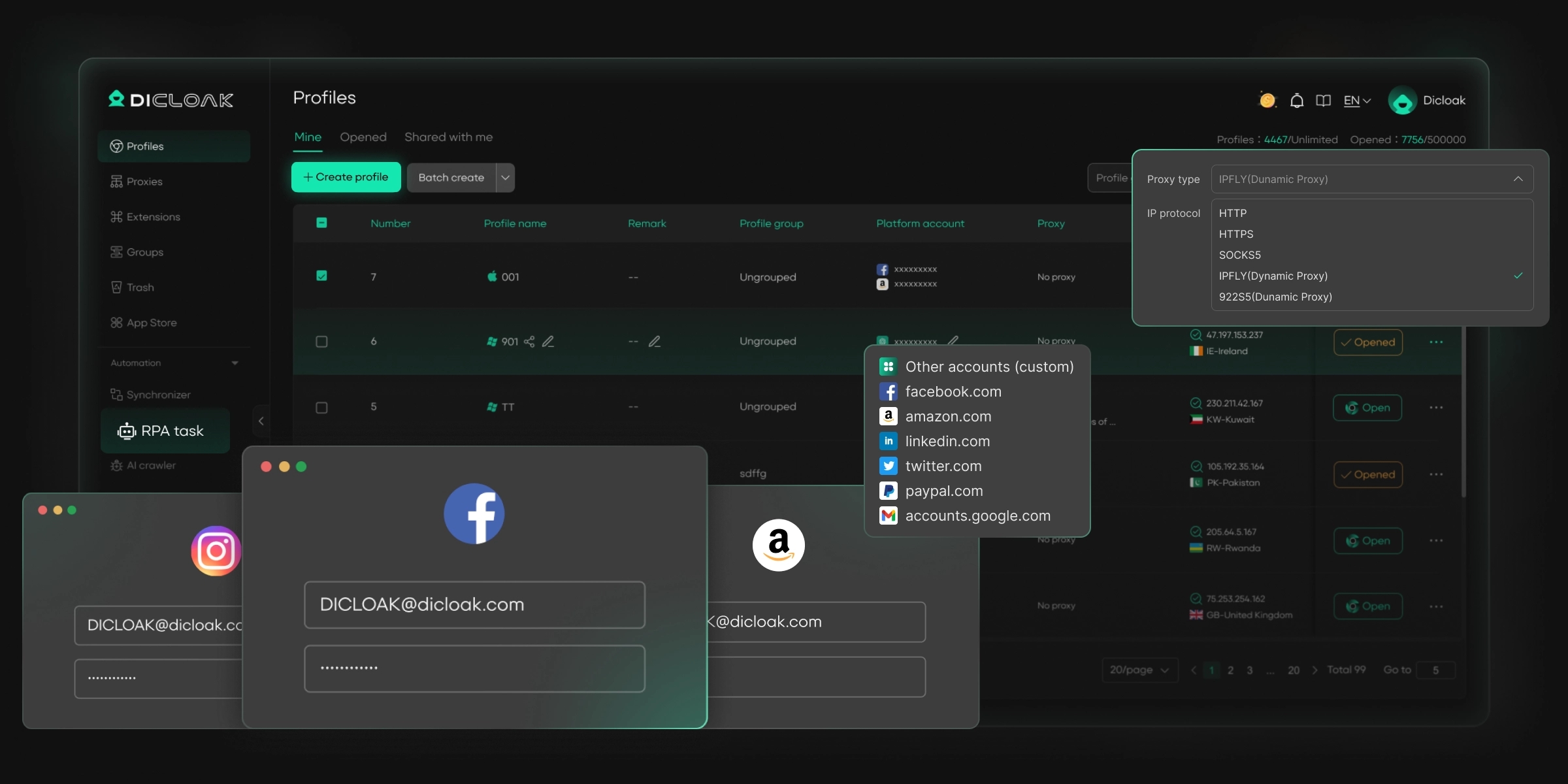
⚡The DICloak Antidetect Browser has become a global favorite for its unparalleled ability to efficiently and securely manage multiple accounts. Designed for professionals in social media management, affiliate marketing, traffic arbitrage, e-commerce, account farming, airdrops, and more, DICloak offers powerful features like RPA automation, bulk operations, and synchronizer. Additionally, it allows you to customize fingerprints and integrate proxies for each profile, ensuring top-level security and operational efficiency. It’s the ultimate tool for seamless, secure, and scalable operations.
What Makes DICloak Stand Out?
✅ Manage 1,000+ Accounts on One Device: Stop wasting money on extra hardware! DICloak allows you to manage multiple accounts on a single device, cutting costs and boosting efficiency.
✅ Guaranteed Account Safety, No Ban Risks: Every account gets its own isolated browser profile with custom fingerprints and IPs, drastically reducing the risk of bans. Your accounts, your control!
✅ Flexible Proxy Configuration for Maximum Performance: Seamlessly integrate with all major proxy protocols (HTTP/HTTPS, SOCKS5) and manage your proxy pool with bulk operations. No more struggling with IP management—DICloak has you covered.
✅ Streamlined Team Collaboration for Better Results: Easily manage your team with advanced tools like profile sharing, permission settings, data isolation, and operation logs. Your team works smarter, not harder.
✅ Automate the Grind with RPA: DICloak's built-in RPA saves you hours of manual work. Automate repetitive tasks, streamline workflows, and focus on what really matters—growing your business.
✅ Powerful Bulk Tools to Scale Your Operations: Create, import, and launch multiple browser profiles in one click. DICloak makes scaling your business as easy as it gets.
✅ Compatible with All Major Operating Systems: Based on the Chrome core, DICloak supports simulating Windows, Mac, iOS, Android, and Linux operating systems. No matter what platform you need, DICloak has you covered.
🔗 Ready to Get Started?
Visit the DICloak website to explore more details and choose the plan that’s right for you. Start for free today and experience the power of secure, efficient, and scalable multi-account management!
Conclusion
In conclusion, Steam Unblocked allows you to access Steam and enjoy your games, even when networks restrict access. By using a proxy server, you can easily bypass these blocks and unblock Steam. For added security and privacy, combining a proxy server with DICloak Antidetect Browser ensures a safer, more private gaming experience. This combination helps you access Steam unblocked while protecting your identity and data. With the right tools, you can enjoy seamless access to Steam, no matter where you are.
Frequently Asked Questions (FAQs) About Steam Unblocked
What does "Steam Unblocked" mean?
Steam Unblocked refers to the ability to access the Steam platform even when it is restricted or blocked by networks like school Wi-Fi, office internet, or public hotspots. By bypassing these blocks, users can play games, download content, and access Steam services freely.
Why is Steam sometimes blocked, and how can I unblock it?
Steam can be blocked due to network restrictions, often imposed by schools, workplaces, or public Wi-Fi providers to limit gaming or large downloads. To unblock Steam, users can use methods like configuring a proxy server or using specific network settings to bypass restrictions and regain access to Steam unblocked.
How do I unblock someone on Steam?
If you've accidentally blocked a friend or player on Steam, you can easily unblock someone on Steam by going to your friends list, finding the Blocked Users section, and clicking Unblock next to their name. This will restore communication and gameplay features with that person.
Can I use proxies to play Steam unblocked on restricted networks?
Yes! Using a proxy server is a common solution to access Steam unblocked on networks that block gaming traffic. A proxy server routes your connection through a different IP, helping you bypass the network restrictions and play games or download content on Steam without issues.
Are there reliable proxy services for unblocking Steam?
Yes, several proxy services can help you access Steam unblocked efficiently. Paid proxy services like Webshare and IPRoyal are popular choices for gamers as they offer faster, more reliable connections for unblocked Steam access, ensuring a smooth gaming experience.
 Web Proxy Tools
 Free Tools
 Cookie Plugin
 UA Generator
 MAC Address Generator
 IP Generator
 IP Address List
 2FA Code Generator
 World Clock
 Anonymous Check
 WebRTC Leak Test
 UUID Generator
 Free Web Proxy Site
 Proxy Checker
 FB Ad Checker
 AI Web Scraping
 Free SMM Tools
 Twitter Shadowban Checker
 Instagram Name Checker
 UTM Generator
 Username Generator
 AI Hashtag Generator
 LinkedIn Headline Generator
 Social Media Image Resizer